
Your website represents months or years of work, content, customer data, sales records, and design customization. Then, in moments, a hardware failure, malware infection, or accidental deletion can erase it all. Website backups transform that nightmare into a recoverable incident. This guide explains why backups matter, how they work within web hosting environments, and the practices that actually protect your site.
Why Backups Matter
Website data loss isn’t a theoretical risk; it’s a widespread reality affecting businesses of every size. Understanding why backups are essential and what they protect against clarifies whether your current backup strategy is adequate or if you need to strengthen it.
The Real Impact of Website Data Loss
Data loss is now the norm, not the exception, for organizations across industries. According to recent data loss statistics, 85% of organizations experienced at least one data loss incident in 2024. That staggering number includes small websites, WordPress blogs, e-commerce stores running on shared hosting, and enterprises managing thousands of accounts. The scope is no longer a question of if data loss will happen to you, but when, and whether you’re prepared.
The financial and operational consequences are severe enough to threaten business viability. The average cost of a data breach in 2024 was $4.88 million, representing a 10% increase over the previous year. Beyond immediate incident costs, downtime itself carries a steep price: the average cost of downtime ranges from $427 per minute for small businesses to $9,000 per minute for larger enterprises. For a small online store, a 24-hour outage without backups can mean tens of thousands of dollars in lost sales, plus the cost of rebuilding the site from scratch. The long-term survival rate is even grimmer: 93% of companies that suffer data loss lasting more than 10 days file for bankruptcy within a year.
Scenarios Where Backups Are Essential
Website backups become critical in four recurring scenarios. First, hardware failure: servers fail without warning, and if your data lives only on that one server, it’s gone. Second, malware and ransomware can encrypt, steal, or delete data entirely, and recovery is only possible from a pre-infection backup. Third, accidental deletion or user error, a plugin misconfiguration, a mistaken database wipe, or a theme update that breaks everything requires quick restoration to an earlier state. Fourth, updates gone wrong- a WordPress core update or plugin conflict that crashes your site can be rolled back instantly with a recent backup.
Having a backup means these events become recoverable problems, not business-ending disasters. Without one, you rebuild from scratch or lose the data entirely. Data loss can strike at any time due to human error, software bugs, cyberattacks, or hardware failure, and a solid backup plan isn’t a technical luxury; it’s a necessity.
Business Web Hosting Plans & Pricing
Choose the hosting plan that fits your website, WordPress site, or growing business. Compare features, storage, performance, security, and website capacity to find the right hosting environment for your needs.
cPanel Starter
cPanel Hosting that's easy, reliable and lightning-fast.
- 1 website
- 30 GB storage
- Unmetered bandwidth*

cPanel Economy
cPanel Hosting that's easy, reliable and lightning-fast.
- 1 website
- 100 GB space
- Unlimited bandwidth*
- 100 email accounts**
- 10 MySQL databases (1 GB ea.)
cPanel Deluxe
cPanel Hosting that's easy, reliable and lightning-fast.
- Unlimited websites
- Unlimited space
- Unlimited bandwidth*
- 500 email accounts
- 25 MySQL databases (1 GB ea.)
cPanel Ultimate
cPanel Hosting that's easy, reliable and lightning-fast.
- Unlimited websites
- Unlimited space
- Unlimited bandwidth*
- 1000 email accounts
- Unlimited MySQL databases (1 GB ea.)
- 2X Processing power & memory (available for Linux/cPanel only)
- Premium DNS
- 1-year SSL certificate to secure customer data and increase search rankings
*We don't limit the amount of storage and bandwidth your site can use as long as it complies with our Hosting Agreement. Should your website bandwidth or storage usage present a risk to the stability, performance or uptime of our servers, we will notify you via email and may be required to upgrade, or we may restrict the resources your website is using.
**Email account storage is limited to 100 email accounts with 100 MB of total storage.
WordPress Basic
A great way to get started.
- 1 website
- 10 GB NVMe storage
- Unmetered bandwidth
- Free SSL Certificate *
- WordPress pre-installed
- Weekly backups
- Web Application Firewall
- Daily malware scans
- One-time malware removal

WordPress Deluxe
Improve your site performance with Cloudflare CDN.
- 1 website
- 20 GB NVMe storage
- Unmetered bandwidth
- Free SSL Certificate *
- WordPress pre-installed
- Daily backups
- Web Application Firewall
- Daily malware scans
- One-time malware removal
- Up to 2x faster performance with global Cloudflare CDN **
- Enhanced security with DDoS protection
- Staging site
WordPress Ultimate
Add online marketing with more sites, storage and security.
- 1 website
- 30 GB NVMe storage
- Unmetered bandwidth
- Free SSL Certificate *
- WordPress pre-installed
- Daily + on-demand backups
- Web Application Firewall
- Daily malware scans
- Unlimited malware removal
- Up to 2x faster performance with global Cloudflare CDN **
- Enhanced security with DDoS protection
- Staging site
- WordPress code optimizer
- Smart WordPress plugin manager
- Sell online with WooCommerce
*An SSL certificate is included with every site and free for the life of the hosting plan. Certificates are automatically installed, validated and renewed.
Web Hosting Plus Launch
For multiple basic sites.
- 100 GB storage*
- 4 GB RAM
- 2 CPUs
- Unmetered traffic
- 50 websites & databases
- Free, unlimited SSL for all your websites**

Web Hosting Plus Enhance
For high-traffic WordPress, Joomla, and other sites.
- 200 GB storage*
- 8 GB RAM
- 4 CPUs
- Unmetered traffic
- 100 websites & databases
- Free, unlimited SSL for all your websites**
Web Hosting Plus Grow
For advanced eCommerce sites like Magento.
- 300 GB storage*
- 16 GB RAM
- 8 CPUs
- Unmetered traffic
- 150 websites & databases
- Free, unlimited SSL for all your websites**
Web Hosting Plus Expand
For multiple basic sites.
- 400 GB storage*
- 32 GB RAM
- 16 CPUs
- Unmetered traffic
- 200 websites & databases
- Free, unlimited SSL for all your websites**
*The total amount of usable storage capacity for your particular Hosting Service(s) may differ from the represented capacity as there is required space for the operating system(s), system file(s) and other supporting file(s).
**If you cancel the Web Hosting Plus product, you will lose the associated SSL certificate as well.
The Cost of Data Loss
Understanding the financial, operational, and reputational cost of going without backups clarifies why backup strategy is a business necessity, not just an IT task. The costs extend far beyond the moment of data loss itself.
Financial and Operational Consequences
The costs of data loss extend beyond the event itself. Immediate expenses include hiring a forensic investigation team to determine what happened and assemble a response team to manage the incident. Beyond that, downtime costs compound: a small online store offline for even a few hours loses sales; a SaaS platform down for a day loses customer trust and ongoing revenue. Every hour a website remains unavailable represents lost revenue, missed customer interactions, and diminished trust.
Recovery itself is time-intensive and expensive. If you lack a backup, recovering data manually, scanning files, rebuilding databases, and reconstructing lost content takes days or weeks, during which your site remains offline. Businesses that try to rebuild without backups often discover that restoring partial or corrupted data introduces new problems, extending downtime further. Staff time, emergency contractor fees, and the opportunity cost of not focusing on normal business operations add up quickly. For many small businesses operating on tight margins, these costs alone exceed the value of the lost data, making recovery financially infeasible.
Why Backup Strategy Prevents Cascading Failures
A single data loss event triggers a cascade: immediate revenue loss, customer complaints, reputational damage, and potential legal liability if customer data is exposed. For small businesses and solo entrepreneurs, one catastrophic data loss can mean closure. A backup strategy short-circuits this cascade by enabling fast recovery, so your site is back online before reputational damage spreads or customers move to competitors. A 30-minute restoration from a recent backup prevents the cascading failures that turn a technical incident into a business crisis.
Niya Digital’s team has observed that customers running automated backups through their hosting infrastructure recover from incidents within hours, while those relying on manual backups or no backups at all face recovery times measured in weeks or permanent data loss. The difference isn’t just speed; it’s whether the business stays viable through the incident. Organizations with mature backup strategies treat data loss as an operational inconvenience; those without backups treat it as an existential threat.
Common Causes of Website Data Loss
Not all data loss is dramatic or caused by external attacks. Most incidents stem from mundane failures that backups prevent entirely. Understanding the common causes helps you evaluate which risks are most likely to affect your site.
Technical Failures and Environmental Causes
Hardware failure accounts for most data loss incidents across organizations. Hardware failure remains the leading technical cause of data loss (40-44%), followed by human error (29-32%). Storage devices wear out, power supplies fail, and server components degrade. Even robust hosting infrastructure experiences hardware failures; that’s why backups must be stored separately on independent infrastructure. Software corruption and database errors cause another significant portion of incidents, often triggered by incomplete updates, configuration mistakes, or uncontrolled server resource spikes that interrupt write operations mid-process.
Hosting environments also face threats outside your control: data-center power outages, network attacks, misconfigured security rules that lock files, or third-party service failures. Your hosting provider manages these infrastructure-level risks, but your data survives only if a backup exists independently on separate infrastructure. GoDaddy Web Hosting infrastructure includes automatic daily backups that store files and databases to a secure cloud, protecting your site even if a crash occurs. This separation of backup storage from the primary infrastructure makes recovery possible when the primary server fails.
Human Error and Accidental Deletion
Human error drives between 29% and 32% of data loss incidents. A developer accidentally deletes the wrong directory via file manager. A site owner uses a plugin’s Find & Replace feature carelessly and overwrites content at scale. Someone drops a database table thinking it’s a test environment, only to realize it was production. A client accidentally deletes the entire website folder. These mistakes are reversible with a backup, but permanent without one.
Less obvious human errors include misconfigured backups, setting up a backup process that silently fails, or backing up only to local storage within the same account, so when the account is deleted, the backup goes too. Someone with insufficient access credentials attempts a database operation and causes corruption. A routine maintenance script runs with incorrect parameters and wipes data instead of archiving it. A proper backup strategy anticipates and prevents these missteps by maintaining independent, tested copies that preserve data before human error occurs.
How Backups Work in Web Hosting
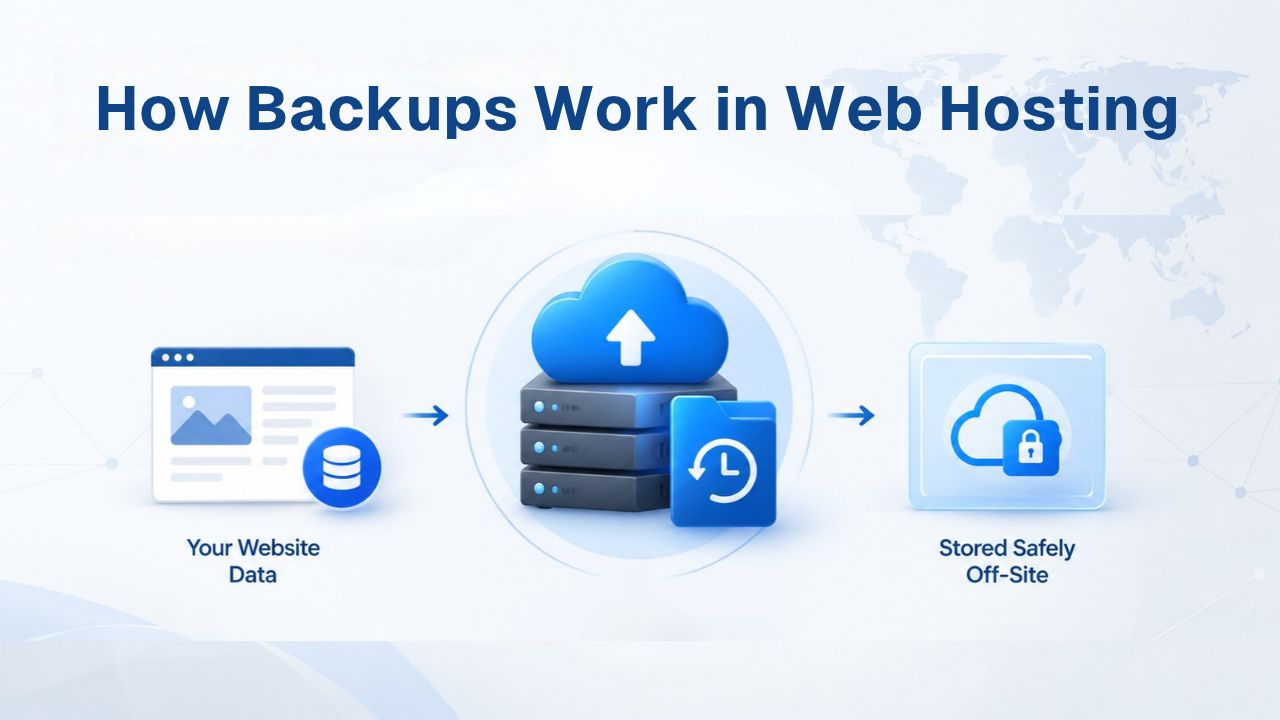
Automated backups in shared and managed hosting environments run behind the scenes, but understanding what they do and where they’re stored helps you choose additional backup layers and shape your overall backup strategy.
Automatic Backups in Hosting Control Panels
When you host a website on a cPanel- or Plesk-based shared hosting plan, your hosting provider typically creates daily automated backups of your site’s files, databases, and email accounts. These backups run on a set schedule, often overnight, without your intervention. The backup process captures a complete snapshot: every file in your public_html directory, every MySQL database, every email account, and configuration settings. You access these backups through your hosting control panel and can restore individual files, entire databases, or your whole site to an earlier point.
GoDaddy’s Web Hosting infrastructure, which Niya Digital resells, includes automatic daily backups stored on secure servers separate from your primary hosting account. These backups use separate storage infrastructure, so if your primary server experiences failure, your backups remain accessible and restorable through your account. GoDaddy offers free automated backups on shared hosting that retain one recovery point from the last 24 hours on basic plans, while managed hosting customers retain 30 days of backup history. This separation of backup storage from primary infrastructure is critical; your backups protect you against the exact infrastructure failures you’re backing up against.
Understanding Recovery Time Objective and Recovery Point Objective
Two concepts govern effective backup strategy: Recovery Time Objective (RTO) and Recovery Point Objective (RPO). Recovery Time Objective (RTO) is how long your business can tolerate downtime before facing consequences (such as lost sales, angry customers, etc.), influencing how quickly a backup must be restorable. For an e-commerce site, this might be one hour; for a blog, a few hours; for a mission-critical application, minutes. RTO drives your backup restoration speed requirements.
Recovery Point Objective (RPO) is how much data you can tolerate losing, measured by how recent the most recent backup is. If your RPO is one day and your site fails at 10 PM, you restore to the previous day’s backup and lose everything created that day. If your RPO is one hour, you need hourly backups to ensure you’re never more than 60 minutes of data loss away from a restore point. Automated daily backups typically meet RPO requirements for active sites (losing at most one day of content) and RTO requirements for most small and medium businesses (restore takes minutes to an hour). Premium backup options offer more frequent snapshots- weekly or even hourly for mission-critical sites- to meet tighter RPO windows.
The 3-2-1 Backup Rule
The 3-2-1 backup rule is the gold-standard backup methodology recommended across the IT industry and by all major data-protection organizations. Understanding it clarifies why hosting-provided backups alone are necessary but not always sufficient for comprehensive protection.
The Core Strategy: Three Copies, Two Media, One Offsite
The rule is simple: maintain three copies of your data, stored on two different types of storage media, with at least one copy in an offsite location. The 3-2-1 rule recommends keeping three copies of data by storing them on two different storage media, with at least one copy stored offsite. In practice, this means your original site (copy one) lives on your hosting server. Your first backup (copy two) is automatically created by your hosting provider and stored on separate hosting infrastructure (different media). Your third copy is stored offsite, in cloud storage like Google Drive, Dropbox, or Amazon S3, with separate login credentials from your hosting account.
Why three copies and two types of storage? Because a single point of failure isn’t enough. By incorporating multiple copies, diverse storage media, and off-site protection, you significantly reduce the risk of permanent data loss. If your hosting provider’s primary server fails, your provider’s backup protects you. If your hosting provider itself becomes unavailable (or is compromised), your off-site copy is untouched. If a ransomware attack encrypts files on your host, your off-site cloud backup (with separate credentials, so the attacker can’t access it) remains clean and restorable.
Protecting Against Common Failure Scenarios
The 3-2-1 rule protects against cascading failures that would otherwise destroy your business. Suppose a ransomware attack encrypts every file on your hosting server. A backup stored only on the same hosting server is also encrypted, useless. Your offsite backup, stored separately with different credentials, is still clean. Suppose your hosting provider has a catastrophic data-center failure. Your backup on their infrastructure may be lost, but your offsite copy survives. Suppose you accidentally delete your entire site and realize the mistake a week later. A backup from five days ago (before deletion) lets you restore to that point; a single backup from today doesn’t help.
The 3-2-1 backup rule helps define your disaster recovery by enabling the rapid restoration of critical data and systems, minimizing downtime, and ensuring business continuity. Following 3-2-1 gives you redundancy against multiple failure modes at once: hardware failure, ransomware, provider outages, and human error. It’s not overkill; it’s the industry standard for good reason. Organizations that have experienced data loss almost universally adopt this strategy afterward; the smarter approach is to implement it proactively before disaster strikes.
Ready to Protect Your Site? Start with Niya Digital
Backup strategy doesn’t require expensive tools or complex infrastructure. Niya Digital’s Web Hosting service includes automated daily backups on secure, separate infrastructure as part of standard plans. Add a simple plugin-based backup to cloud storage, and you’ve implemented the 3-2-1 rule, genuine protection against data loss, ransomware, and provider-level failures. Get started today and stop worrying about whether your site is protected.
Backup Types and Frequency
Different site types and use cases call for different backup strategies. Understanding the options lets you choose the right frequency and method for your needs. Choosing the wrong backup approach can leave you under-protected or unnecessarily over-resourced.
Backup Methods & Protection Levels
| Backup Method | How It Works | Storage Location | Automation | Typical Frequency | Recovery Speed | Offsite Protection | Cost | Best For |
|---|---|---|---|---|---|---|---|---|
| Hosting Provider (cPanel Daily Backup) | Automatic snapshot of all files and databases via control panel | Separate hosting infrastructure | Fully automatic | Daily (24h–30d retention) | Fast (minutes) | Yes (separate servers) | Included with hosting | Primary backup for all websites |
| Manual cPanel Download to Cloud | Download backup file via cPanel, upload to Google Drive/Dropbox/S3 | Cloud storage (user-managed) | Manual (you initiate each time) | Weekly or monthly | Depends on your timing | Yes (if uploaded to cloud) | Free–minimal | Secondary protection, adding to 3-2-1 strategy |
| WordPress Plugin (Automatic) | Plugin backs up database and files automatically to cloud storage | Cloud storage (Google Drive, Dropbox, S3) | Fully automatic after setup | Daily or custom schedule | Fast (minutes via plugin) | Yes (cloud-based, independent) | Free–minimal | WordPress sites needing independent backup copy |
| Hybrid Approach (Hosting + Plugin) | Hosting backup + WordPress plugin backup run independently | Both (hosting infrastructure + cloud) | Both automatic | Daily (each method) | Fast (either source available) | Yes (two independent, offsite copies) | Included + minimal | Business-critical WordPress sites implementing 3-2-1 rule |
| Manual Database Export (phpMyAdmin) | Export database manually via cPanel phpMyAdmin interface | Local computer or downloaded file | Manual (you perform each time) | As needed only | Manual restoration, slow | No (local only unless uploaded) | Free | Emergency-only, does not replace automated backups |
| External Hard Drive | Periodic manual backup download and storage on physical external device | Physical external drive (office location) | Manual/occasional | Monthly or less frequent | Slow restoration | No (same location as primary office) | One-time equipment cost | NOT recommended as primary strategy; vulnerable to theft, fire, damage |
Full, Incremental, and Differential Backups
Backups fall into three types, each with trade-offs in storage, speed, and restoration complexity. A full backup saves the entire website, including databases and files, while incremental backups store only changes since the last backup and are more efficient and faster. A full backup captures your entire site, every file, every database, in a single operation. It’s complete and straightforward to restore, but it consumes significant storage and takes longer to create, especially for large sites.
An incremental backup stores only the data that has changed since the previous backup (full or incremental). It’s fast, storage-efficient, and less burdensome on server resources, ideal for daily backups of active sites. A differential backup stores changes since the last full backup. It’s faster to create than a full backup but requires more storage than an incremental, and restoration involves restoring the last full backup plus the latest differential. For most shared hosting scenarios, incremental backups provide the best balance: daily incremental backups capture changes without consuming excessive storage or server resources.
Backup Frequency Based on Site Type
How often should you back up? It depends on how frequently your site changes and how much data loss you can tolerate. An active WordPress blog updated daily should back up daily, so you lose at most one day of posts if disaster strikes. A small e-commerce store with regular customer activity should back up daily to minimize transaction loss. A static portfolio site that rarely changes can back up weekly without significant risk. GoDaddy recommends daily backups for standard WordPress sites that get comments or regular content updates, weekly backups for static and low-traffic websites, and monthly backups for small websites that rarely change.
Your RPO (recovery point objective) drives this decision. If losing eight hours of data is unacceptable, you need twice-daily or more-frequent backups. If losing a week of data is acceptable, weekly backups suffice. Automation removes the burden: set a schedule once and forget it; the backup runs without your intervention every day or week as configured. Automation costs little compared to manual backup management or data loss.
| Site Type | Update Frequency | Recommended Backup Schedule | Data Loss Tolerance | Typical Storage Impact |
|---|---|---|---|---|
| Active WordPress Blog | Daily | Daily | 1 day | 50–200 MB per backup |
| E-commerce Store | Continuous | Daily | 1 day | 500 MB–2 GB per backup |
| Corporate Website | Weekly | Weekly | 1 week | 100–500 MB per backup |
| Portfolio/Brochure Site | Monthly | Monthly | 1 month | 10–100 MB per backup |
| Agency Client Site (managed) | Varies | Daily | 1 day | Varies |
| SaaS Application | Continuous | Hourly/Daily | Minutes–1 hour | 1–5 GB per backup |
| Nonprofit Website | Bi-weekly | Weekly | 2 weeks | 50–200 MB per backup |
Backups in cPanel and Control Panels
Most shared hosting uses cPanel or Plesk, control-panel software with built-in backup functionality. Knowing where these tools are and how to use them prevents mistakes and ensures you use the backups available to you. Both control panels provide intuitive interfaces for backup management.
Accessing and Managing Hosting Backups
In cPanel, you access backups through the Backups or Backup Wizard interface, typically found under the Files or System section. You can view existing backups, schedule automatic backups, or create on-demand manual backups. When you initiate a backup, cPanel packages your site’s files, databases, email accounts, and DNS settings into a compressed archive. You can then download this archive to your computer or external drive for additional offsite storage, or restore it directly within cPanel.
Plesk offers similar functionality through its Backup Manager or Backup & Recovery section. The process is comparable: select what to back up (files, databases, mailboxes), choose backup frequency and storage location, and restore when needed. Both control panels let you schedule automated backups to run at specific times, typically during off-peak hours so backups don’t strain server resources during peak traffic. Most hosting providers running cPanel or Plesk recommend scheduling backups overnight, when site traffic is lowest, to minimize performance impact on your live website during the backup process.
Manual Backup Considerations
Manual backups through cPanel are possible but labor-intensive and error-prone. Creating a backup requires logging into cPanel, navigating to the backup tool, waiting for the backup process to complete, and then downloading or storing the file. It’s easy to forget to do this weekly or monthly, leaving you without recent backups. Automated scheduling eliminates this risk: the backup runs on schedule, whether you remember it or not. Set it once and forget it; the control panel handles the rest.
When you do use manual backups, store them offsite immediately. Downloading a backup to your computer and then uploading it to cloud storage is part of a robust 3-2-1 strategy. Never rely on manual backups as your only protection; automation is essential to consistent, reliable backup protection. Even well-intentioned site owners often skip manual backups during busy periods, leaving their sites unprotected for weeks or months. Automation ensures protection continues regardless of your workload or attention.
Backup Best Practices for WordPress and Blogging
WordPress is the most popular web publishing platform, powering over 43% of all websites, and it has specific backup considerations distinct from static HTML sites or custom applications. WordPress stores site configuration, content, and user data in a MySQL database, making complete backups essential.
WordPress Backup Essentials
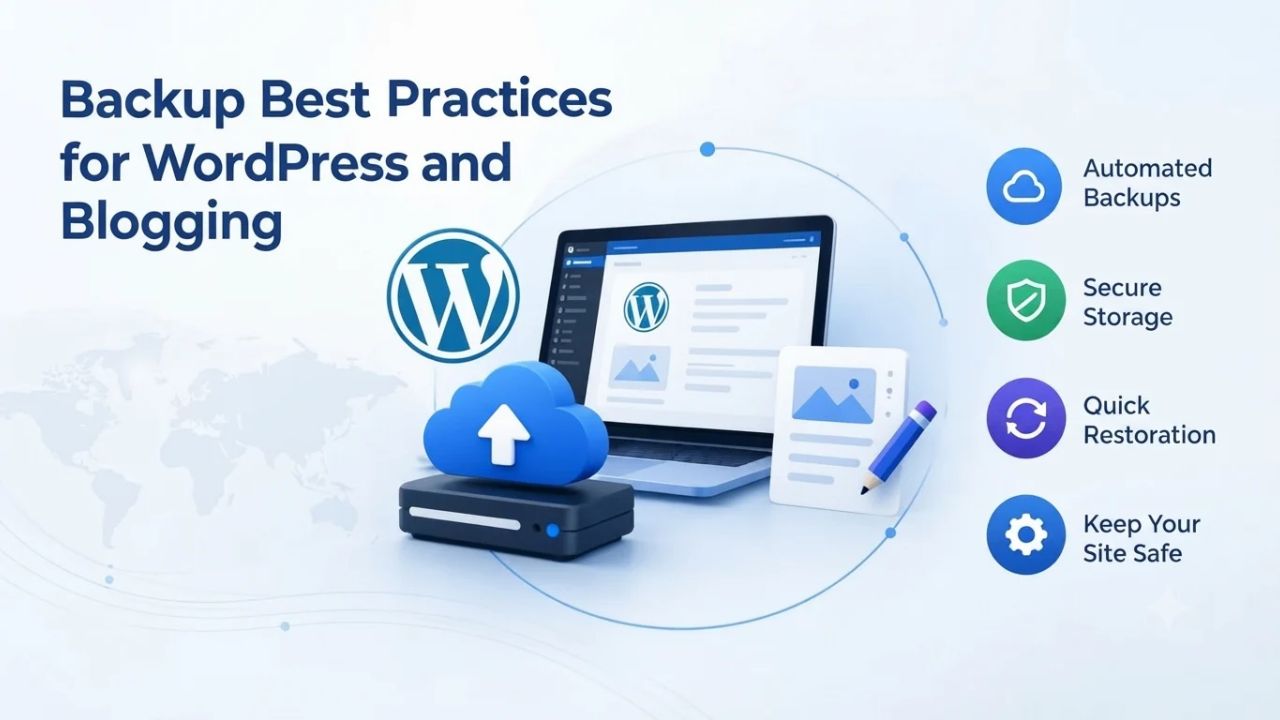
WordPress sites combine files (themes, plugins, uploads) with a MySQL database (posts, comments, settings, user data). A complete backup must capture both. Your hosting provider’s cPanel backup handles this automatically; you get files and database in one restore. WordPress backups should include automatic daily backups for active sites, weekly for static sites, and you should keep multiple backup versions, typically 3–4 recent backups. However, relying solely on hosting-provided backups leaves you vulnerable if something goes wrong with your hosting account itself.
WordPress-specific backup plugins automate backups and add cloud-storage integration; they can back up to Google Drive, Dropbox, or Amazon S3 directly, bypassing your hosting server entirely. This adds redundancy and makes backups accessible even if your hosting account is unavailable. A robust WordPress backup strategy combines hosting-provided daily backups with plugin-based backups to cloud storage, a practical implementation of the 3-2-1 rule. The plugin handles scheduling and cloud transfer automatically, requiring zero manual intervention after initial setup.
Testing and Restoration Workflows
Backups are useless if they don’t restore correctly. Test your backups regularly, ideally in a staging environment (a copy of your site where you can safely experiment without affecting the live site). Test your backups regularly by performing a trial restoration on a staging site, as a backup that doesn’t restore properly offers no help when you need it most. Create a staging site, restore a backup there, and verify everything works: database queries run, images load, plugins function, the site displays correctly. Staging environments are often available in cPanel under “Addon Domains” or through your hosting provider’s staging tools.
Testing serves two purposes. First, it confirms your backup method actually works; some backup processes fail silently, creating archives that won’t restore. Second, it familiarizes you with the restoration process before you need it in an emergency, when you’re stressed and under time pressure. A restoration you’ve practiced runs smoothly; one attempted for the first time during a crisis is error-prone and slow. Document the restoration steps (which menus to click, what to expect at each stage), so you or your support team can follow them even under pressure.
Common Backup Mistakes to Avoid
Even sites with backup systems in place often implement them poorly, creating a false sense of security. Avoiding these widespread pitfalls is as important as having backups in the first place. These patterns recur across sites that suffered preventable data loss.
Local-Only Backups and Single Points of Failure
The most common and dangerous mistake is backing up only to local storage, on the same server as your live site, or on an external drive in the same office. Never store backups on the same server as your website, as if the server crashes, so does your backup. If your hosting provider’s server fails, your local backup on that same server fails too. If your office floods, you lose your external drive along with the backup. If ransomware encrypts your hosting server and the backup is on the same server, it encrypts both.
Backups stored only locally do not protect against the very disasters they’re meant to prevent. The 3-2-1 rule exists specifically to prevent this: that third, offsite copy in cloud storage with separate credentials is not optional. If your current backup strategy lacks an offsite copy, add one immediately; it turns backups from security theater into real protection. Set up a WordPress backup plugin to Google Drive (free) or configure a monthly manual download to cloud storage. This single step closes the gap between false confidence and real protection.
Neglecting to Test Backups and Restoration
A second frequent mistake is creating backups but never testing whether they restore. Site owners set up automatic backups and assume they work, only to discover months or years later (when they actually need the backup) that the backup process silently failed or the backup archive is corrupted. Testing takes an hour: create a staging site, restore the backup there, and verify functionality. Neglecting this hour of testing can cost days of manual recovery or permanent data loss.
Similarly, never assume that restoration will be quick or simple. If you’ve never restored a backup before, your first attempt during a crisis will be slow and error-prone. Practice restoration once or twice annually, and document the steps. When an actual emergency strikes, you’ll know exactly what to do and can restore your site in minutes instead of hours. Many hosting providers offer staging environments specifically for this purpose; use them. The time investment in testing today pays dividends when you need to recover your site tomorrow.
Getting Backups Right: A Practical Path Forward
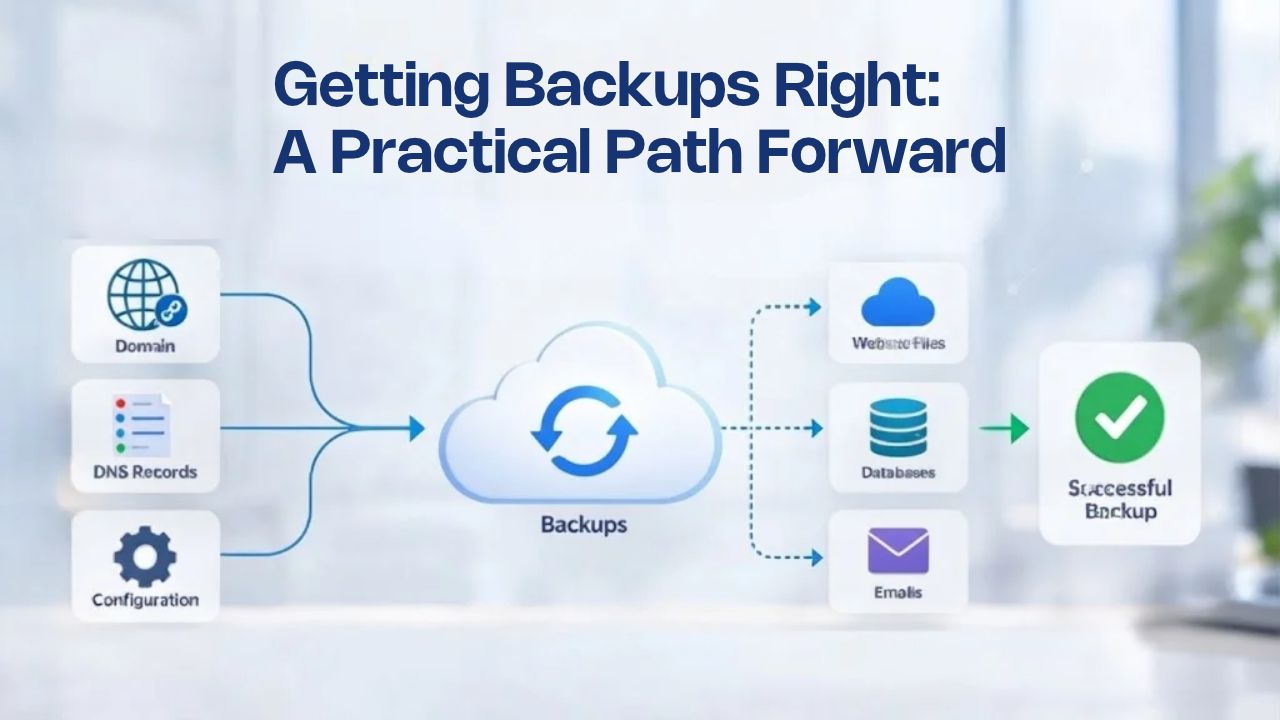
Backup strategy doesn’t require expensive tools or complex infrastructure. Small changes to how you manage backups, automating what’s available to you, adding an offsite copy, and testing occasionally, transform a risky situation into genuine protection. The investment is minimal compared to the cost of data loss.
Implementing the 3-2-1 Approach on Shared Hosting
On shared hosting, you already have access to copies one and two: your live site and your hosting provider’s automated daily backup. To complete 3-2-1, add a third copy to cloud storage. If you use WordPress, a backup plugin can automate this; configure it once to back up daily to Google Drive or Dropbox, and it runs without further input. The cost is often free or nominal; the protection is substantial. For non-WordPress sites, download a monthly hosting backup from cPanel and upload it to cloud storage, or explore third-party backup services that integrate with your hosting account.
The goal is to reach three copies with sufficient frequency: daily for active sites, weekly or monthly for static content. Test your restoration process annually to confirm everything works. Document which backups you’re relying on and where they’re stored. Share this documentation with anyone else who might need to restore your site (a technical co-founder, your hosting support team, a colleague who takes over site management). The best backup system is one you (and anyone who needs to support your site) actually understand and can execute when needed.
When to Upgrade Backup Strategy
As your site grows or becomes business-critical, your backup strategy should mature. If your site generates revenue or hosts customer data, daily backups are essential. If you’re running an online store or SaaS platform, consider premium backup options offering more frequent snapshots (weekly, hourly) or longer retention (30+ days instead of 7). If you manage multiple client sites, centralized backup management through your hosting provider becomes valuable: one dashboard to verify that all client sites are backed up consistently.
Backup strategy isn’t a one-time setup; it evolves as your site’s importance to your business grows. Review your backup plan annually and adjust frequency or retention as your site’s criticality increases. An investment in a more robust backup strategy now prevents expensive disasters later. Many hosting providers offer premium backup features that automate more of this process; evaluate these as your site grows.
Secure Your Website Against Data Loss Today
Your website is an asset worth protecting. Backups cost less than a day of downtime, and they give you the confidence to update, experiment, and grow your site without fear. Niya Digital’s Web Hosting plans include automated daily backups on secure, separate infrastructure, protection included with your hosting plan, with the option to add additional offsite backups through plugins or manual downloads for even greater redundancy.
Frequently Asked Questions
What exactly does a backup include?
A complete website backup includes all files in your public folder (HTML, CSS, images, uploads), your databases (MySQL), email accounts, and configuration settings. When you restore a backup, everything is restored to that point in time. This completeness is what makes backups powerful; you’re not reconstructing manually; you’re reverting to a known good state. For WordPress sites, this includes your posts, pages, comments, user data, plugin settings, and theme customization. For e-commerce sites, customer records and product databases are included.
How long does a backup take?
Backup time depends on your site’s size. Small sites (under 500 MB) back up in minutes. Larger sites (5–10 GB) may take 30 minutes to an hour. Automated backups run during off-peak hours to minimize server load. Manual backups through cPanel run immediately and display progress in real time. Backup time depends on your server’s resources and current load; off-peak scheduling helps avoid impacting your site’s performance during backup creation. Most hosting providers schedule automated backups for 2–4 AM to minimize user impact.
Can I restore just one file or do I have to restore the entire site?
Most hosting control panels allow file-level restoration; you can restore a single deleted image, one corrupted database table, or specific files without touching the rest of your site. This granularity is one advantage of cPanel and Plesk backups over simpler all-or-nothing backup methods. If you accidentally delete a specific image or overwrite one database table, you can restore just that item to its previous state while leaving everything else unchanged. This precision prevents unnecessary disruption.
How long are backups kept?
GoDaddy’s shared hosting plans retain automatic backups for 24 hours on basic plans and 30 days on managed hosting. Premium backup services offer longer retention (60 days, 90 days, or longer). The retention period determines how far back you can restore. A 30-day retention means you can restore to any point in the last month, but if an error occurred 45 days ago, you can’t restore to before that error. For active sites, 30-day retention is typically sufficient; for compliance-heavy industries, you may need longer retention.
Is there a difference between my hosting provider’s backup and a backup plugin?
Yes. Hosting provider backups are automatic, included, and stored on separate infrastructure managed by your host. Backup plugins automate backups and often store them in cloud services like Google Drive or S3, giving you an independent copy outside your hosting account. Both are valuable: hosting backups protect against accidents and host-level failures, while plugin backups protect against host-level breaches or account deletion. Together, they implement 3-2-1 redundancy. Using both provides the layered protection data-recovery professionals recommend.
What if my site is hacked, can the backup be restored safely?
Yes, as long as your backup was created before the hack occurred. Restore from a backup dated before the compromise, and you restore a clean version of your site. Backups created after a hack may contain malware, so date matters. That is why frequent backups are essential; a breach discovered weeks later requires restoring an older backup that predates the compromise. Hosting backups with daily snapshots ensures you have a pre-infection backup even if the breach goes unnoticed for several days.
Do I need a backup plugin if my host includes backups?
Included hosting backups are essential. A backup plugin adds redundancy, a second copy in a location your hosting provider can’t touch. For business-critical sites or if you’ve experienced hosting problems before, a plugin-based offsite backup is worthwhile protection. For small personal blogs, hosting-provided backups alone may be sufficient. However, a plugin-based backup to Google Drive takes 10 minutes to set up and protects against catastrophic hosting-level failures.
How do I test a backup?
Create a staging site (a copy of your live site in a separate folder or subdomain), restore your backup there, and verify that everything works. Check that databases are accessible, images load, plugins function, and the site displays correctly. Most hosting providers offer staging environments in cPanel or through a staging tool. Once confirmed, you know your backup method works. This testing process takes an hour and can save days or weeks of recovery time during an actual emergency.
Can I automate backups and forget about them?
Yes. Automated backups require no ongoing input; set the schedule once, and the system handles the rest. However, confirm periodically that backups are running (check your hosting panel’s backup logs) and test restoration at least annually to ensure the backups are usable when needed. Set a calendar reminder to test restoration once a year. Many site owners find that reviewing their backup strategy and testing restoration in January (as part of annual planning) works well.
What should I do if I suspect my site is compromised?
Stop, take the site offline if possible, and restore from a backup created before the compromise. Then audit how the compromise occurred (weak password, unpatched plugin, outdated software) and fix it. Restoring from backup is the fastest path to a clean site; manual malware removal is time-consuming and often incomplete. When malware is discovered, the fastest path to a clean site is restoring from a pre-infection backup; without one, the only option is manual remediation: scanning every file, checking every database record, and hoping you found everything.
Are backups encrypted?
Hosting-provided backups are typically stored on secure servers with encryption in transit and at rest, but they’re usually not encrypted with a separate encryption key you control. Plugin-based backups to cloud storage may offer encryption options. If you store sensitive customer data, confirm your hosting provider’s encryption practices. Backups that download as ZIP files arrive with all your site data, customer information, and passwords unencrypted, so if you lose that file, you’ve got a major data breach on your hands. Consider the security posture of wherever your backups are stored.
What’s the difference between incremental and full backups?
A full backup captures your entire site; an incremental captures only changes since the last backup. Full backups are simpler to restore but consume more storage. Incremental backups are smaller and faster but require the last full backup plus the incremental for a complete restoration. Most hosting providers use incremental backups for daily jobs to save space and reduce backup time. Weekly full backups combined with daily incremental backups provide a good balance: weekly full backups ensure you have complete snapshots; daily incrementals capture all changes without overloading server resources.
Can I restore a backup to a different hosting provider?
Yes. You can restore a backup from your current host on a different host through that new host’s cPanel or migration tools. This is how site migrations work: back up from the old host, download the backup, upload it to the new host, and restore it. Backup portability is one advantage of standard backup formats. If you ever switch hosting providers, your backups move with you. This freedom is one reason automated backup testing is valuable; you’ll know exactly how to restore your site before you’re forced to migrate.
How much storage do backups consume?
Backups consume roughly the same disk space as your live site; if your site is 2 GB, expect each full backup to take up 2 GB. Incremental backups are smaller (often 10–20% of a full backup’s size) since they store only changes. On shared hosting, backups are usually stored on separate infrastructure, so they don’t consume your account’s disk quota. Over time, retaining many backups (30+ daily backups) can consume significant storage; most hosting providers manage this automatically by deleting the oldest backups when retention limits are reached.
What’s included in Niya Digital’s backup protection?
Niya Digital’s Web Hosting plans include automated daily backups stored on secure, separate infrastructure as part of the standard service. You can access backups through cPanel and restore them yourself or have Niya Digital’s support team restore them. For additional protection, you can add plugin-based backups to cloud storage or implement manual monthly downloads. This gives you the hosting-provided backups (copy one) and the option to add your own offsite copy (completing the 3-2-1 rule) at minimal cost or effort.
Glossary
- Web Hosting Backup: A complete copy of a website’s files, databases, email accounts, and configuration settings, stored separately from the live site and restorable if data is lost or corrupted. Backups serve as insurance against data loss, ransomware, hardware failure, and human error.
- Recovery Time Objective (RTO): The maximum amount of downtime a business can tolerate before suffering significant consequences, such as lost sales or customer churn. RTO influences how quickly a backup must be restorable. A strict RTO (one hour) requires fast backup restoration; a lenient RTO (24 hours) allows slower restoration methods.
- Recovery Point Objective (RPO): The maximum amount of data loss a business can accept, measured by how recent the most recent backup is. A daily backup supports an RPO of one day; hourly backups support an RPO of one hour. Stricter RPO requirements drive more-frequent backup schedules.
- 3-2-1 Backup Rule: The industry-standard backup methodology: maintain three copies of data, stored on two different types of storage media, with at least one copy in an offsite location. This approach protects against hardware failure, ransomware, and provider-level disasters.
- Incremental Backup: A backup that stores only the data that has changed since the previous backup (full or incremental). Incremental backups are faster and more storage-efficient than full backups, making them ideal for daily backup schedules. A series of incremental backups requires less storage than daily full backups.
- Offsite Storage: Backup copies stored in a separate physical location (such as cloud storage, a different data center, or external servers) rather than on the primary hosting server. Offsite backups protect against provider-level failures and ransomware attacks targeting the primary infrastructure.
- cPanel: A web hosting control panel (graphical interface) that allows site owners to manage files, databases, email accounts, domains, and backups through a user-friendly web interface rather than command-line tools.
- Malware Scanning: Automated daily scanning of backup files to detect and isolate compromised files or malicious code, ensuring that backups restore clean data even if the primary site was infected. Some backup services include built-in malware scanning as a standard feature.