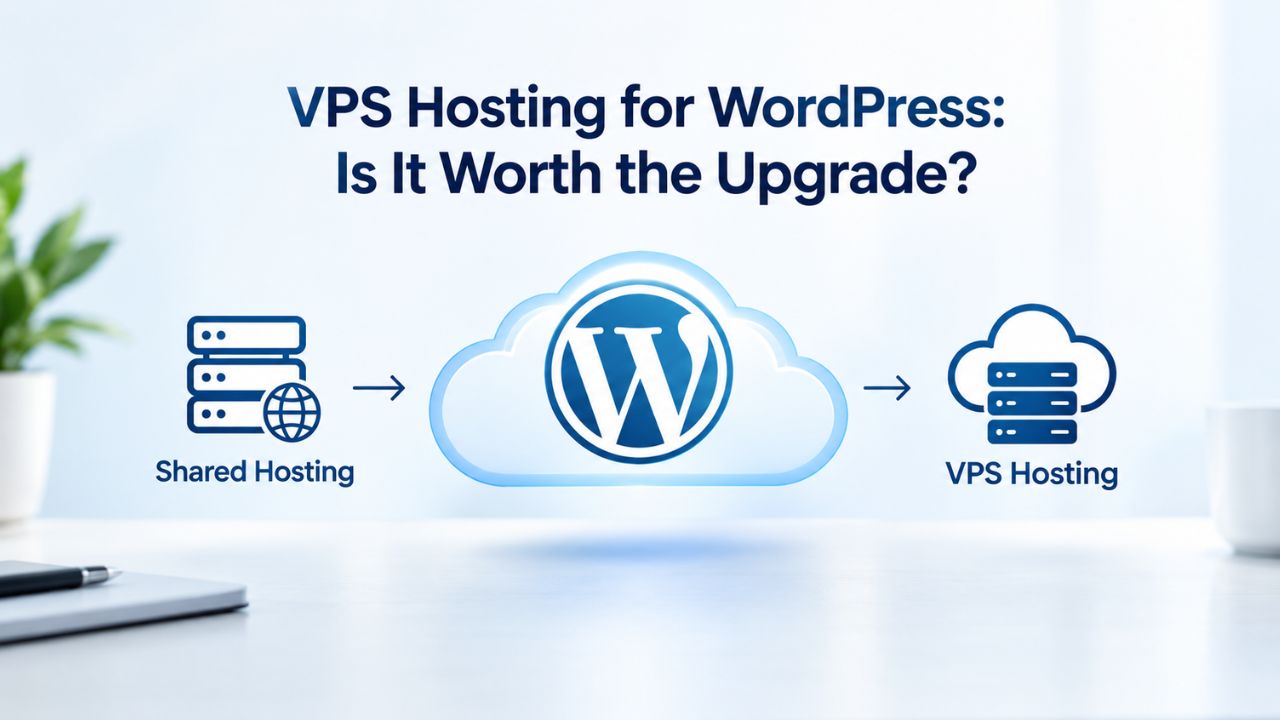
Your WordPress site is slowing down as traffic grows, or you’ve hit the CPU and database limits of your shared hosting plan. Before upgrading, you need to know: does a VPS actually solve your WordPress performance issues, and what’s the real cost in time and technical skill? Niya Digital is an authorized reseller of GoDaddy-powered VPS hosting infrastructure, not an operator of independent data centers or physical servers. Overall WordPress performance, uptime, and security depend on server configuration, application code, traffic patterns, security practices, and network conditions, many factors outside any single provider’s full control.
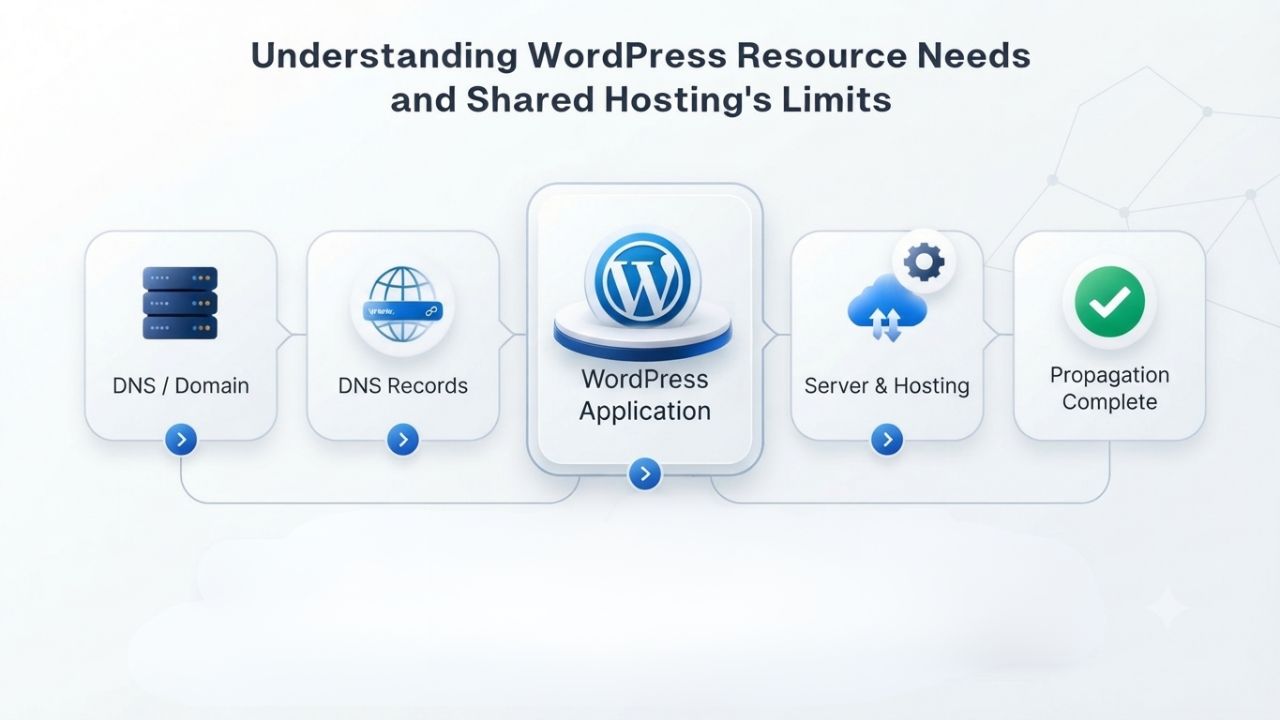
Understanding WordPress Resource Needs and Shared Hosting’s Limits
WordPress is flexible, running everything from a five-post personal blog to a full e-commerce operation with thousands of monthly transactions. But flexibility comes with a resource cost: the more traffic, plugins, and custom code your site handles, the more server processing power and memory it needs. Shared hosting was designed for low-traffic sites; it doesn’t scale with WordPress the way a VPS does.
How WordPress Uses Server Resources
WordPress runs on PHP and MySQL or MariaDB, two processes that consume CPU time, memory, and I/O bandwidth every time a visitor loads a page. Plugins and themes add more code to execute with each request, multiplying the processing demand. High-traffic sites, complex databases, or multiple simultaneous visitors create cascading processing demands that can quickly overwhelm undersized infrastructure. WordPress.org’s hosting requirements documentation confirms this clearly: as your site’s workload scales, so does its need for CPU cores, RAM, and storage speed.
A small WordPress site with 100 monthly visitors and five posts might need just 512 MB RAM and a fraction of a CPU core to run smoothly. That same site with 10,000 monthly visitors and 200 posts could easily need 2–4 GB RAM and two CPU cores to handle the same code without slowness, lag, or database timeouts. This scaling pattern repeats across thousands of WordPress installations, regardless of theme or plugin choice, and it’s a fundamental reality of how web applications consume resources.
What Shared Hosting Puts in Your Way
Shared hosting places multiple websites on a single server and oversells the underlying resources, often placing dozens or hundreds of sites on hardware designed for a fraction of that load. GoDaddy’s comparison of shared hosting and VPS features documents the typical limits clearly: CPU time restrictions (often 25–50% of a single core per 24-hour window), PHP memory caps (typically 64–256 MB per process), and database query throttling that kicks in when queries exceed a certain threshold. When your WordPress site needs more CPU power because traffic spiked unexpectedly, the shared server denies it; your site slows to a crawl, returns timeout errors, or stops responding entirely.
This architecture isn’t a flaw; it’s the trade-off that keeps shared hosting affordable for the price-conscious. But for WordPress sites carrying business traffic, a store during a sale, a blog launching a popular post, an agency serving multiple client sites, those limits stop being a reasonable trade-off and become a bottleneck that costs visibility, credibility, and revenue. Once these limits start triggering, they trigger repeatedly, creating a cycle of performance crises that damage user experience and search rankings.
VPS Hosting Plans & Pricing
Choose the VPS hosting plan that fits your website, application, or business requirements. Select a self-managed VPS for complete server control or a fully managed VPS with a dedicated team of experts to help manage your server.
Self Managed VPS 1 vCPU
1 GB RAM
Entry-level VPS hosting for lightweight websites and applications.
- 1 CPU Core
- 1 GB RAM
- 20 GB SSD Storage
- Linux only, no control panel

Self Managed VPS 2 vCPU
4 GB RAM
VPS hosting with additional CPU and memory for growing websites and applications.
- 2 CPU Cores
- 4 GB RAM
- 100 GB SSD Storage
Self Managed VPS 2 vCPU
8 GB RAM
Additional memory for more demanding websites and applications.
- 2 CPU Cores
- 8 GB RAM
- 100 GB SSD Storage
Self Managed VPS 4 vCPU
8 GB RAM
Increased processing power for business websites and applications.
- 4 CPU Cores
- 8 GB RAM
- 200 GB SSD Storage
Self Managed VPS 4 vCPU
16 GB RAM
High-memory VPS hosting for resource-intensive workloads.
- 4 CPU Cores
- 16 GB RAM
- 200 GB SSD Storage
Self Managed VPS 8 vCPU
16 GB RAM
Powerful VPS resources for demanding business applications.
- 8 CPU Cores
- 16 GB RAM
- 400 GB SSD Storage
Self Managed VPS 8 vCPU
32 GB RAM
Maximum self-managed resources for demanding workloads.
- 8 CPU Cores
- 32 GB RAM
- 400 GB SSD Storage
Fully Managed VPS 1 vCPU
2 GB RAM
Managed VPS hosting with expert server management.
- 1 CPU Core
- 2 GB RAM
- 40 GB SSD Storage
- Dedicated team of experts to fully manage your server
Fully Managed VPS 1 vCPU
4 GB RAM
Managed VPS resources for websites and business applications.
- 1 CPU Core
- 4 GB RAM
- 40 GB SSD Storage
- Dedicated team of experts to fully manage your server
Fully Managed VPS 2 vCPU
4 GB RAM
Managed VPS hosting with additional CPU resources.
- 2 CPU Cores
- 4 GB RAM
- 100 GB SSD Storage
- Dedicated team of experts to fully manage your server
Fully Managed VPS 2 vCPU
8 GB RAM
Managed VPS hosting with additional memory for growing workloads.
- 2 CPU Cores
- 8 GB RAM
- 100 GB SSD Storage
- Dedicated team of experts to fully manage your server
Fully Managed VPS 4 vCPU
8 GB RAM
Higher-performance managed VPS for demanding applications.
- 4 CPU Cores
- 8 GB RAM
- 200 GB SSD Storage
- Dedicated team of experts to fully manage your server
Fully Managed VPS 4 vCPU
16 GB RAM
High-memory managed VPS for resource-intensive workloads.
- 4 CPU Cores
- 16 GB RAM
- 200 GB SSD Storage
- Dedicated team of experts to fully manage your server
Fully Managed VPS 8 vCPU
16 GB RAM
Powerful managed VPS hosting for demanding business workloads.
- 8 CPU Cores
- 16 GB RAM
- 400 GB SSD Storage
- Dedicated team of experts to fully manage your server
Fully Managed VPS 8 vCPU
32 GB RAM
Maximum managed VPS resources for demanding workloads.
- 8 CPU Cores
- 32 GB RAM
- 400 GB SSD Storage
- Dedicated team of experts to fully manage your server
When a Small WordPress Site Should Stay on Shared Hosting
Not every WordPress site needs a VPS upgrade. Shared hosting remains an excellent fit for many legitimate use cases, and upgrading without a real need wastes money and adds unnecessary complexity. Understanding when to stay put is the first step to making an honest upgrade decision.
The Sites That Thrive on Shared Hosting
A WordPress site under 10,000 monthly visitors, with fewer than 50 published posts, a minimal plugin list, and no custom code typically sits comfortably within shared hosting’s resource envelope without ever straining. Static or low-frequency updates mean fewer database queries per day and less CPU churn across the server. Simple themes and standard plugins consume measurable but modest processing power compared to custom-built or heavily modified code that makes database calls on every page load. WordPress.org hosting guidance confirms that entry-level shared hosting supports these profiles without complaint or slowness.
Personal blogs, hobby projects, small business landing pages, documentation sites, and portfolios often live in this tier indefinitely and work perfectly well. Shared hosting providers optimize specifically for this profile: one-click WordPress installation, automatic backups, built-in caching plugins, and included email functionality. The simplicity is genuine value if your site doesn’t outgrow it: no command-line commands to learn, no server patches to manage, no security hardening decisions to make- just a working WordPress site.
The Hidden Cost of Premature Upgrade
Moving to a VPS because you “might need it someday” is understandable caution. Still, it often leaves you paying for resources you don’t use yet and managing a server you don’t understand well enough to optimize. An unmanaged VPS requires Linux command-line skills, deep security-hardening knowledge, and ongoing OS and database maintenance that can take 5–10 hours per month. A managed VPS costs significantly more than shared hosting but trades away the control VPS is known for, limiting the customization you could theoretically implement.
The real question isn’t “Could my site theoretically benefit?” but “Is my site actually hitting shared hosting’s limits right now, and is that causing measurable business impact to me?” If the answer is no, shared hosting’s simplicity and cost-effectiveness remain the better choice for your situation. Premature infrastructure investment rarely pays off; it’s better to upgrade when you need to than to pay for extra resources sitting idle.
What VPS Hosting Unlocks for WordPress
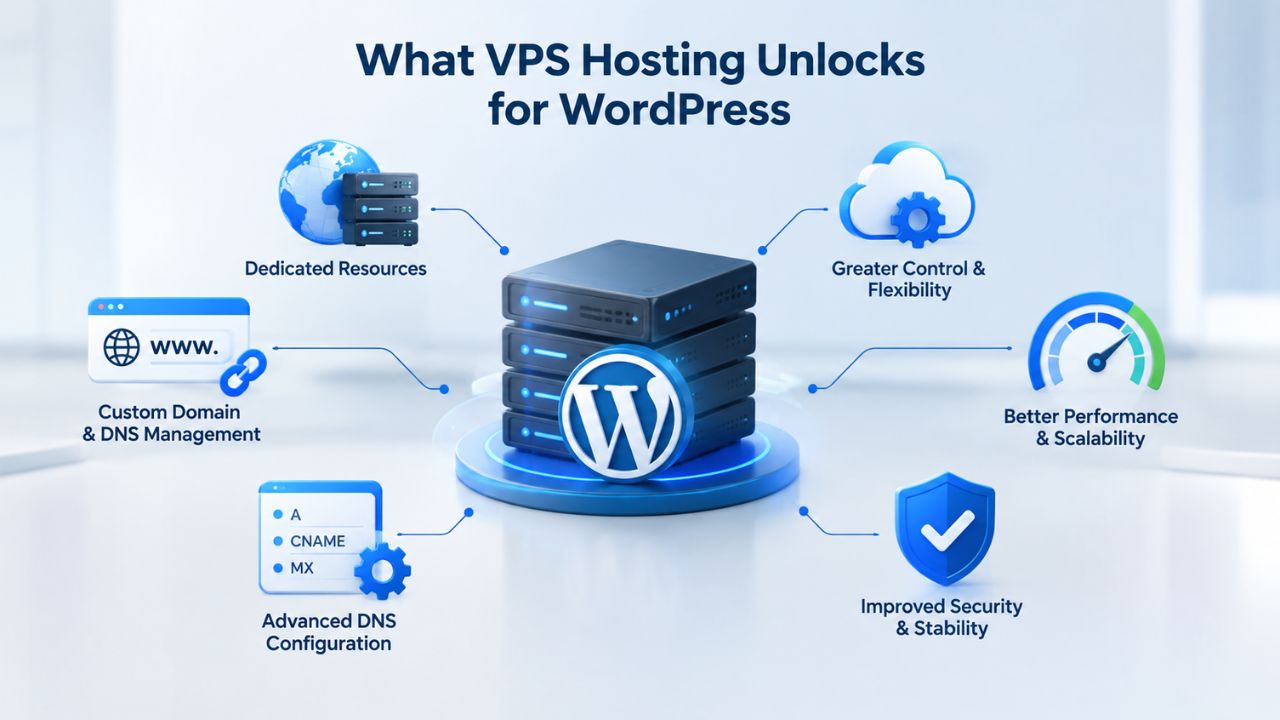
When your WordPress site grows past shared hosting’s resource ceiling, a VPS shifts the equation entirely. You get dedicated resources, full control, and the ability to optimize the server specifically for your workload instead of a generic configuration. But the upgrade isn’t just about speed; it’s about capability, freedom, and the ability to scale with your business.
Dedicated Resources and Guaranteed Allocation
A Virtual Private Server isolates each customer’s resources at the hypervisor level, the layer of virtualization software that divides physical hardware into separate virtual machines. Your VPS gets a guaranteed number of CPU cores, a fixed amount of RAM, and a set amount of SSD storage that no one else can access or use. No other customer can steal your allocation, no matter how busy their sites get or how resource-hungry their code becomes. GoDaddy VPS Hosting’s documentation on resource allocation confirms this fundamental principle: dedicated CPU cores, dedicated RAM, and no contention from neighbors’ traffic spikes or resource-heavy background processes.
This is the fundamental difference from shared hosting’s resource pool model. On shared hosting, every customer’s site runs in the same envelope, and the hosting company counts on most sites being idle most of the time to oversell the hardware. On VPS, your WordPress site can use its full CPU and RAM allocation whenever it needs to. A traffic spike that would throttle you into timeouts on shared hosting means your VPS works harder, but your site stays responsive, fast, and available to visitors.
Root Access and Custom Optimization
VPS grants root or administrator-level access to the server, the highest permission level that allows you to modify the operating system itself. You can install custom software, compile specialized libraries for image processing or video encoding, configure PHP and MySQL settings to match your WordPress workload, enable custom caching layers, and tune the operating system for your specific use case. GoDaddy VPS Hosting feature documentation lists root access as a core feature; it unlocks the server from the one-size-fits-all constraints shared hosting imposes.
For WordPress, this means installing a dedicated in-memory cache like Redis or Memcached to speed up database queries dramatically, compiling PHP extensions for faster image processing or video transcoding, tuning MySQL’s buffer pool for your specific database size, or running a reverse-proxy cache with Nginx to reduce PHP’s load by 80 percent or more. Shared hosting forbids or limits every one of these optimizations. Root access transforms WordPress from a “hope this runs fast enough” proposition into an “I can architect performance” reality where speed becomes a choice.
How VPS Architecture Isolates and Allocates Resources
Understanding how VPS works under the hood demystifies why it feels so fundamentally different from shared hosting. It’s not magic or marketing hype; it’s a straightforward isolation model that changes the resource game completely.
Virtualization and Hypervisor Isolation
A VPS is a virtual machine: a sandbox of storage, RAM, and CPU time created by a hypervisor, specialized software running on the physical server hardware that manages all the virtual machines simultaneously. The hypervisor enforces strict isolation: each VPS is blocked from accessing another’s memory, CPU cycles, or storage by design. If a neighboring VPS crashes, runs malicious code, or gets hacked, your VPS stays completely unaffected because the hypervisor prevents any cross-VM access. GoDaddy’s VPS Hosting infrastructure documentation uses the hypervisor model to isolate customer workloads at the lowest level.
This isolation is managed at the OS level, meaning each VPS boots its own operating system (Linux or Windows), runs its own kernel and processes, and maintains its own file system separate from all others. You connect to your VPS via SSH (Linux) or Remote Desktop (Windows) and manage it as if it were your own dedicated server sitting in a data center, because functionally, for your purposes, it is. The virtualization is transparent to your day-to-day operations.
Resource Scaling Without Server Migration
VPS plans come in tiers: a Starter plan might offer 1 CPU core, 1 GB RAM, and 25 GB storage; a Professional plan, 2 cores, 4 GB RAM, and 100 GB; and an Enterprise plan, 4+ cores, 8+ GB RAM, and 250+ GB. When your WordPress site outgrows the Starter plan and you need more resources, you upgrade to Professional, typically within seconds or minutes, without server migration, file transfer, or data loss. GoDaddy VPS Hosting plans and specifications show how vertical scaling (upgrading within the same server) works alongside the architecture. No downtime, no complex data transfer, no manual intervention needed, just more resources allocated to your VPS automatically.
This scaling model lets WordPress grow at its own pace. Start small with a basic VPS tier, upgrade as traffic increases and resources tighten, and never hit a hard ceiling like you would on shared hosting where the only option is to migrate to a completely different service. The upgrade path is smooth and within your control.
Performance Benefits of VPS for WordPress Sites
Performance isn’t just feel-good metrics for a marketing email; it directly affects user experience, search engine rankings, and business outcomes. VPS unlocks WordPress performance in ways shared hosting can’t, no matter how well-optimized your code is.
Page Load Speed Under Traffic
A WordPress page load involves multiple steps: database queries retrieve post content and metadata, PHP execution renders the page, themes and plugins add code to execute, and asset delivery sends images, CSS, and JavaScript to the browser. On shared hosting, if traffic spikes during a popular post or marketing campaign, the server’s CPU becomes a bottleneck: your PHP scripts queue waiting for CPU time, database queries slow, page rendering stalls, and the page takes 10–15 seconds to load instead of 2 seconds. Users bounce, search engines downrank the page, and you lose revenue.
On a VPS with dedicated CPU and RAM, the same traffic spike means your WordPress processes get immediate CPU access without waiting in a queue. Database queries execute quickly because MySQL has dedicated resources. Caching layers (Redis, Memcached, or Nginx) reduce re-execution of expensive code by storing results in fast memory. WordPress.org best practices consistently document this: dedicated server resources deliver lower page-load times than oversold shared hosting, often reducing times from 10+ seconds to 2–4 seconds depending on workload and optimization level. Moving to a VPS can drop the same WordPress code from a 2-second load to 400 milliseconds.
Reliability During Traffic Surges
Shared hosting’s CPU and database limits are hard stops, not soft guidelines: hit them, and the site becomes unresponsive or goes completely offline. A blog post shared on social media, a seasonal traffic spike, a marketing campaign launch, or a news event can trigger this instantly. E-commerce sites see this during sales events; news sites during breaking news; SaaS sites during product launches. The site that should be making money instead throws errors, times out, or refuses connections entirely.
VPS means traffic surges don’t trigger artificial limits that you can’t change. Your WordPress site processes visitors as fast as the server’s resources allow, and since those resources are dedicated to you alone, they can handle a lot. Traffic peaks don’t cause cascading failures; they cause your server to work harder, which is exactly what you want. Downtime becomes rare, revenue stays flowing, and customer experience stays positive during exactly the moments when your business needs it most.
Start with the VPS Management Level That Fits You
Choosing between managed and unmanaged VPS depends on your technical comfort and available time, not on which one is “better” in the abstract. Niya Digital offers both managed and unmanaged VPS Hosting tiers, designed to match your needs and skill level rather than force unnecessary complexity. If you’re unsure which option fits your WordPress site, explore the plans and support options to find the right fit.
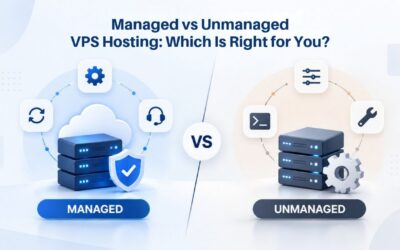
Understanding Managed vs. Unmanaged VPS
This might be the most important decision on the upgrade path, more important than resource tier selection, actually. Managed and unmanaged VPS aren’t just cost differences; they’re fundamentally different levels of responsibility and hands-on involvement. Get this wrong, and you’ll either be overwhelmed by complexity or paying more than you need to.
Unmanaged VPS and the Sysadmin Role
An unmanaged VPS hands you the keys and gets out of the way entirely; you manage everything. You manage OS patches (security updates released by Ubuntu, CentOS, Debian, or your chosen OS), WordPress and plugin updates, backups, security configuration, performance tuning, and all troubleshooting when something breaks. You become a systems administrator, running a server, not just hosting a site on one. This requires Linux command-line skills (or Windows system administration for Windows VPS), comfort with SSH connections, an understanding of file permissions and networking, familiarity with MySQL administration, and the ability to troubleshoot when things fail.
An unmanaged VPS is significantly cheaper because you’re paying for the hardware alone, not a team to manage it. But the trade-off is time and skill: 5–10 hours per month of ongoing maintenance isn’t uncommon, especially when troubleshooting issues or managing security updates. You’re also solely responsible if your VPS gets hacked, if your WordPress installation becomes misconfigured, or if a broken plugin takes down your database. The savings are real, but the responsibility is substantial.
Managed VPS and Simplicity at a Cost
A managed VPS puts a provider’s team behind your server. They handle OS patches automatically, update WordPress core, back up your data daily or weekly, monitor for security threats, and handle most troubleshooting without you having to know command-line syntax. You manage your WordPress site, content creation, plugin selection, and theme customization, but not the underlying server. The simplicity is genuine: no command line, no security patches to remember, no 3 AM urgent server crash emails forcing you to troubleshoot from your phone.
The cost of this simplicity is substantial. Managed VPS typically costs 2–3x more than unmanaged because you’re paying for the provider’s expertise and ongoing management time. Evaluate your comfort level honestly and count your available time; if you’re not comfortable with Linux command lines or don’t have 5–10 hours monthly to dedicate to server maintenance, managed VPS is the safer choice, even if it costs more. The extra cost is insurance against downtime caused by your own misconfiguration.
Provisioning, Setup, and Initial Configuration on VPS
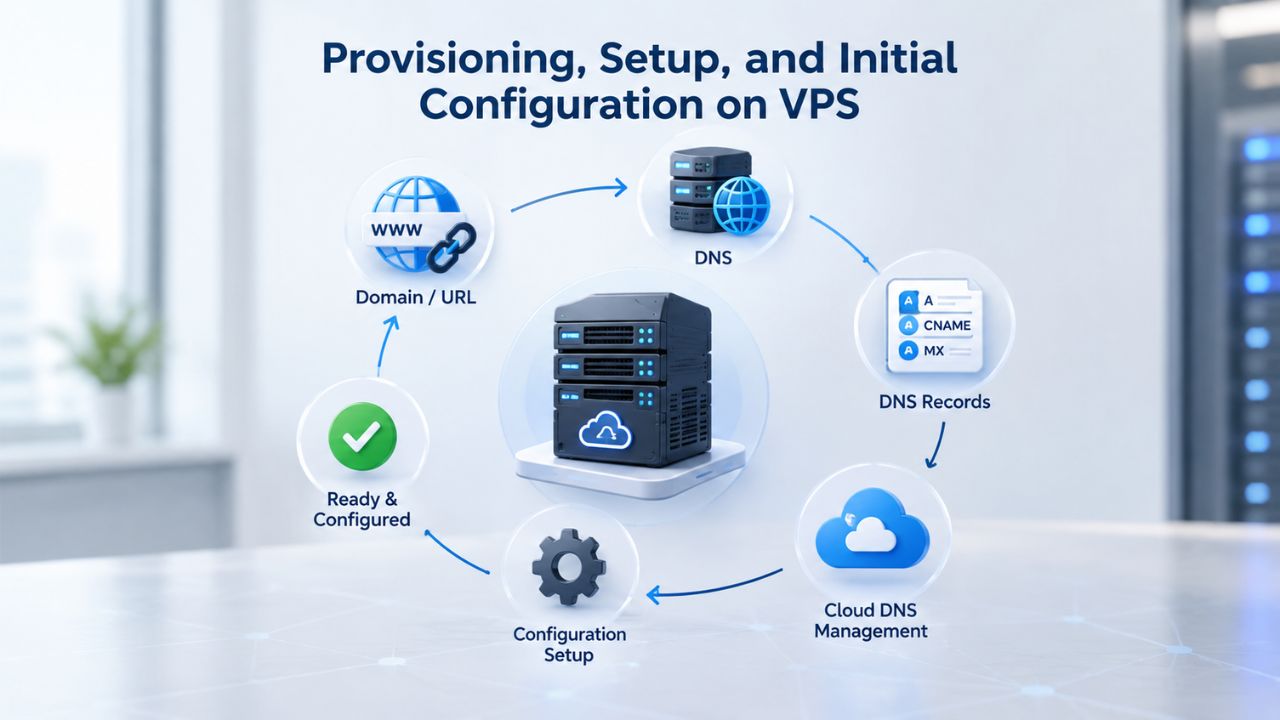
Moving from shared hosting to VPS involves more than just clicking “upgrade” and waiting for activation. Provisioning, initial setup, and DNS switchover take time and careful planning. Understanding the process helps you avoid surprises from hidden complexity or downtime during the transition.
Provisioning and Initial Deployment Time
VPS provisioning, spinning up a new virtual server, installing the OS, and making it ready to receive traffic, typically completes in 15–30 minutes from order to ready state. GoDaddy’s VPS provisioning documentation confirms this timeline. Once provisioned, the server is bare: it has an OS installed and network connectivity, but no WordPress installation, no domain configured, no backups, no security hardening yet.
Setting up WordPress properly, installing your plugins, configuring your theme, optimizing caching, and hardening security takes another 1–4 hours depending on your technical skill and how many customizations your site needs. If you’re migrating an existing WordPress site from shared hosting, you’ll also spend time exporting the database, transferring files via SFTP, testing everything in a temporary domain before switchover, and validating that all plugins work correctly. Plan for a half-day to a full business day from start to finish. Niya Digital’s team has found that WordPress site owners often underestimate this switchover window; a few minutes of planning and testing upfront prevents hours of scrambling later.
DNS Switchover and Zero-Downtime Migration
The most critical step is switching your domain’s DNS to point to the VPS’s IP address instead of the shared hosting server. Before you do this, test everything on the VPS: WordPress loads correctly, plugins function, database queries work, emails send correctly, and admin access works. Once DNS propagates (typically 2–24 hours globally), traffic flows to the new server. If something is wrong with the configuration, fixing it while users are arriving is stressful and costs you traffic.
Most VPS providers allow you to run multiple servers simultaneously during the switchover window, reducing risk. You can even set up a test domain pointing to the VPS before switching your primary domain’s DNS, validating everything in production-like conditions before the actual cutover. Plan the switchover for low-traffic hours (midnight or early morning) to minimize impact if problems emerge. Managed VPS providers can often handle most of the technical setup and DNS switchover themselves, reducing your role to testing and validation.
Scaling WordPress on VPS as Your Site Grows
A VPS isn’t a one-time upgrade; it’s a platform built for growth as your WordPress site evolves. As your traffic increases and your business grows, VPS resource tiers let you scale without outgrowing the platform or migrating to a completely different infrastructure.
Vertical Scaling Within Your VPS Plan
Upgrading your VPS tier, from 1 core and 2 GB RAM to 2 cores and 4 GB RAM, for example, happens with no downtime and no data migration required. GoDaddy VPS Hosting plans documentation shows the upgrade path: click Upgrade in your control panel, pay the price difference (often prorated), and within minutes, your VPS gets more resources. Your WordPress site immediately gets more CPU and RAM; page loads speed up, database queries run faster, and traffic capacity increases.
This vertical scaling path is what most WordPress sites follow as they grow. Start with an entry-level plan when launching, upgrade as traffic reaches specific milestones, and repeat as the business scales. A blog that started on shared hosting moves to a 1-core/1 GB starter VPS, upgrades to 2-core/2 GB as traffic reaches 10,000 visitors per month, and eventually settles on 2-core/4 GB or 4-core/8 GB for an established site with heavy e-commerce activity or membership features. Each upgrade happens smoothly without rebuilding or migrating.
Caching and Optimization as Scaling Multipliers
Before upgrading your VPS tier again, optimize the site itself. WordPress.org performance optimization documentation emphasizes that caching, page caching, object caching, database query caching, and browser caching can often double your site’s traffic capacity without upgrading hardware. Installing a caching plugin, enabling Redis or Memcached (easier on a managed VPS), or implementing a reverse-proxy cache with Nginx can dramatically stretch your current VPS’s limits.
This is where root access earns its value. On shared hosting, you can’t install Redis or Nginx or custom caching libraries. On a VPS, you can architect your stack to handle 5x more traffic on the same hardware tier. The upgrade decision becomes “is caching optimized?” before it becomes “should I buy more CPU?” Smart optimization of existing resources often provides more performance gain per dollar than hardware upgrades, and it’s work you can only do on VPS.
Making the Upgrade Decision: When VPS Is Actually Worth It
After understanding the what and how, the final question is when and whether the upgrade makes business sense. The decision isn’t about having a WordPress site; it’s about whether shared hosting’s limits are actually impacting your business right now.
Real Triggers vs. Speculative Reasons
Upgrade your WordPress site to VPS when you hit one of these real, measurable triggers:
(1) your hosting provider throttles your site during traffic spikes, causing temporary unavailability or 503 errors multiple times per month;
(2) your site experiences measurable slowness when traffic increases, and you’ve confirmed through testing that it’s a server-resource issue, not a code or plugin issue;
(3) you’ve hit database or CPU limits documented in your hosting dashboard multiple times in the past month;
(4) a specific business event (a major sale, product launch, or marketing campaign) is coming, and you need more capacity to handle the expected traffic surge reliably; or
(5) you need security isolation or custom server configuration that shared hosting forbids entirely.
Speculative reasons, “I might grow to 50,000 visitors someday,” “I want to be future-proofed,” “it seems like the professional choice,” often lead to wasted spend. You pay VPS pricing and take on VPS complexity for capacity you don’t yet use. Shared hosting’s job is to hold you until a real trigger emerges and makes the upgrade economically sound. Wait for the trigger; it always comes eventually.
The Cost and Effort Trade-Off
| Scenario | Shared Hosting Cost | VPS Hosting Cost | Time Investment | Decision |
|---|---|---|---|---|
| Small blog, no issues | Low | Moderate | 5–10 hrs/month setup + ongoing | Stay on shared hosting |
| Medium site, occasional slowness | Low | Moderate | 4–6 hrs/month (managed) | Monitor; upgrade if issues worsen |
| Site hitting traffic limits regularly | Low | Moderate | 8–10 hrs/month (unmanaged) | Upgrade to unmanaged VPS |
| Site hitting limits, no Linux skill | Low | Higher | <1 hr/month (managed) | Upgrade to managed VPS |
| E-commerce or mission-critical site | Low | Moderate-Higher | 3–5 hrs/month (managed) | Upgrade to managed VPS for reliability |
General market entry-level VPS hosting services typically cost significantly more than shared hosting but less than dedicated servers. Managed VPS options cost more than unmanaged because they include management labor. Against that cost, factor in the value of your time: 5–10 hours per month of ongoing maintenance has real opportunity cost if you value your labor at competitive market rates.
Security Isolation and WordPress Hardening on VPS
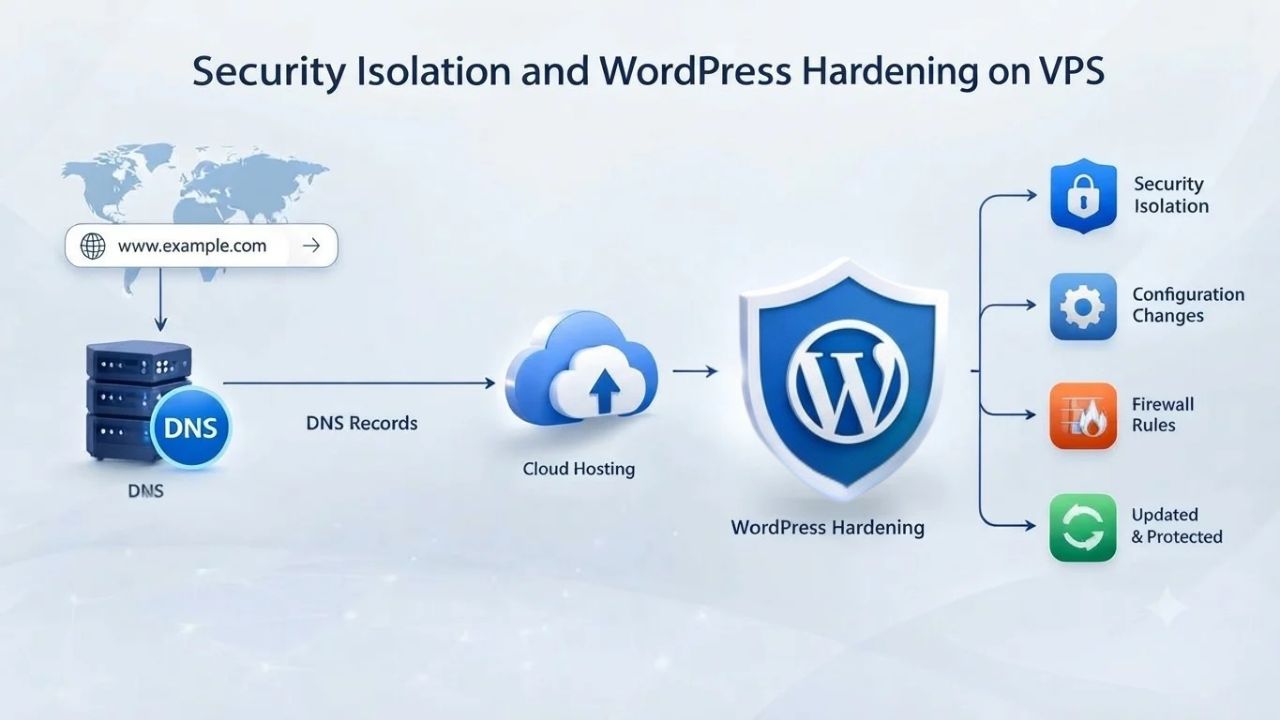
Security on shared hosting and VPS represents two fundamentally different models, and understanding that difference helps you decide how much control you actually need over your WordPress security posture. Shared hosting offers simplicity and convenience at the cost of shared risk; VPS offers isolation and control at the cost of complexity. The right choice depends on your site’s data sensitivity and your technical capability.
The Shared Hosting Security Trade-Off and Its Limitations
Shared hosting’s one-to-many model creates security interdependencies that you can’t fully control. If one site on the server gets hacked and an attacker gains file access, misconfigured file permissions or shared directories might expose your site’s files too. A neighbor’s WordPress installation infected with malware can theoretically spread through shared plugins or shared caching systems if misconfigured. A neighbor’s DDoS attack can degrade your site’s performance because the attack traffic consumes shared bandwidth and server CPU. WordPress.org hardening documentation acknowledges this clearly: shared hosting’s simplicity comes at the cost of isolation.
Providers mitigate these risks with firewalls, automated monitoring, and automatic patching- tools you can’t control, customize, or influence. You trust the provider’s security model entirely, without transparency or the ability to harden beyond what the provider allows. For low-risk sites (hobby blogs, internal documentation, personal portfolios), this trade-off is reasonable and acceptable. For sites handling customer data, payment information, sensitive business data, or personal information, shared hosting’s security model becomes inadequate; the shared risk outweighs the cost savings.
VPS Hardening and Custom Security Configuration
On a VPS, you control the security model completely. Root access means you can install a host-based firewall (ufw, iptables, or Windows Firewall configured exactly for your needs), configure intrusion detection, patch the OS on your schedule (not the provider’s), disable unnecessary services that you don’t need, implement account lockout policies, enable SSH key-only authentication (no passwords), and harden every layer of the stack. You own the security decisions and can document them for compliance purposes. OWASP’s server hardening best practices provide a framework for this work; on a VPS, you implement it yourself (unmanaged) or with provider guidance (managed).
WordPress Resource Sizing Matrix by Traffic Tier
| Site Profile | Monthly Visitors | Recommended CPU Cores | Recommended RAM | Recommended Storage | Shared Hosting Viability | VPS Viability |
|---|---|---|---|---|---|---|
| Micro Blog | < 1,000 | 0.5–1 | 512 MB–1 GB | 10–25 GB | Excellent fit | Oversized |
| Small Blog | 1,000–10,000 | 1 | 1–2 GB | 25–50 GB | Good fit | Ideal fit |
| Growing Blog | 10,000–50,000 | 1–2 | 2–4 GB | 50–100 GB | Marginal; may throttle | Ideal fit |
| Medium Site | 50,000–100,000 | 2 | 4–6 GB | 100–200 GB | Poor fit; frequent issues | Ideal fit |
| Large Site | 100,000–250,000 | 2–4 | 6–8 GB | 200–500 GB | Not viable | Ideal fit |
| High-Traffic/E-Commerce | 250,000+ | 4–8+ | 8–16+ GB | 500+ GB | Not viable | Standard fit |
Get Your WordPress Site on a VPS You Can Trust
Outgrowing shared hosting is a sign your WordPress site is becoming valuable to your business, and that’s the moment to invest in infrastructure that grows with you. Niya Digital’s VPS Hosting service combines GoDaddy’s infrastructure reliability with dedicated support for WordPress site owners, whether you need managed simplicity or unmanaged control. Review your current site’s traffic, performance, and growth trajectory, and see if a VPS upgrade makes sense for your business. With managed or unmanaged options, you choose the level of complexity that fits your technical skill and available time.
Frequently Asked Questions
Do I really need a VPS for my WordPress site, or can shared hosting work indefinitely?
Not always; it depends on your traffic and business impact. A small WordPress site with under 10,000 monthly visitors, minimal plugins, and no performance issues works fine on shared hosting. The real question is whether shared hosting’s resource limits are impacting your business now, lost users due to slowness, temporary unavailability, or database errors. If you hit those limits regularly and it costs you money or credibility, a VPS is justified. If not, shared hosting remains the simpler, cheaper choice.
How do I know for certain my WordPress site is outgrowing shared hosting?
Look for concrete signs: your hosting provider throttles you during traffic spikes, causing 503 errors or timeouts; your site noticeably slows when traffic increases above typical levels; you see repeated “database connection errors” or “CPU limit exceeded” warnings in your hosting dashboard; customers report slowness at peak times; or a business event is coming, and your current server feels too fragile to handle the expected spike. Each of these is a real trigger; vague concerns about “being ready for growth” usually lead to premature spending.
What’s the practical difference between managed and unmanaged VPS for WordPress owners?
An unmanaged VPS is your responsibility: you patch the OS, update WordPress core and plugins, handle backups, configure security hardening, and troubleshoot problems yourself. It’s cheaper but requires Linux command-line skills and ongoing time investment, 5–10 hours per month. A managed VPS provider handles OS updates, WordPress updates, backups, and monitoring; you manage WordPress content and plugin selection. It’s simpler but costs significantly more. Choose based on your comfort level and available time.
Can I migrate my WordPress site from shared hosting to VPS without causing downtime?
Yes. The process is: set up WordPress on the VPS, test everything thoroughly in a temporary domain, validate that all plugins and functionality work, then switch your domain’s DNS to point to the VPS. DNS propagation (2–24 hours) means a small percentage of users see the old server briefly, but downtime isn’t necessary if you test first. Managed VPS providers often handle the technical migration, so your role is limited to testing and validation.
How long does the entire process take from ordering VPS to having a live WordPress site?
VPS provisioning completes in 15–30 minutes. Installing WordPress, configuring your theme, setting up plugins, and optimizing caching takes 1–4 hours depending on your site’s complexity. Migrating an existing site from shared hosting adds time for database export, file transfer, and testing; plan for a half-day to a full business day total. Managed VPS providers can handle most technical setup, significantly reducing your hands-on time.
Will a VPS really make my WordPress site noticeably faster for visitors?
Yes, if server-resource limits, CPU, or database contention on shared hosting cause slowness. Dedicated resources mean your site’s processes get immediate CPU access and dedicated RAM. A 10-second page load on shared hosting can drop to 2 seconds on a VPS, assuming the site code is reasonably efficient. Caching and custom optimization amplify gains further. However, if slowness comes from poorly optimized plugin code or uncompressed images, a VPS won’t fix it alone; you need code optimization too.
What happens if my traffic keeps growing and my VPS tier becomes insufficient?
Upgrading your VPS tier is seamless: choose a higher plan, pay the upgrade price (usually prorated), and within minutes, your VPS has more CPU cores and RAM: no data migration, no downtime, no complex technical work. Most WordPress sites follow this path: start small, upgrade as traffic increases, and repeat. You can also optimize caching and code before upgrading, often doubling capacity on existing hardware.
Is a VPS definitely more secure than shared hosting?
It can be. VPS isolation means a security breach on a neighboring site won’t affect you; the hypervisor enforces separation. But security is a shared responsibility: the provider secures the network and firewall; you secure the OS, WordPress, and configuration. An unmanaged VPS gives you more control but requires more security expertise. A misconfigured, unpatched VPS can actually be less secure than a managed shared hosting account. Security isn’t automatic on a VPS; it requires knowledge and ongoing attention.
Do I really need Linux command-line knowledge to run an unmanaged VPS?
Yes, for an unmanaged VPS, it’s essential. You’ll encounter situations where you need to SSH into the server, run commands to troubleshoot, check logs, restart services, or apply patches. If you’re not comfortable with the command line, an unmanaged VPS will be frustrating. A managed VPS abstracts most of that away, but it costs more. Evaluate your comfort level honestly; if you’ve never used a terminal, a managed VPS is worth the extra cost.
Can I switch from unmanaged VPS to managed VPS later if I decide the work is too much?
Most providers allow it, though the switchover varies by provider. Switching from unmanaged to managed means the provider takes over server maintenance; your manual work drops significantly. Switching back means taking responsibility again. Plan your choice upfront based on your realistic technical skill and available time, but know it’s not permanent if circumstances change.
What happens to my WordPress site and data if my VPS has a serious outage?
VPS providers maintain infrastructure redundancy and monitoring to minimize downtime, but outages happen rarely. Whether you lose data depends on backups: managed VPS providers back up your data automatically daily or weekly; on an unmanaged VPS, you’re responsible for backups. A properly configured VPS with backups means quick recovery; a VPS without backups means potential permanent data loss. Backups are non-negotiable, not optional.
Is it difficult to migrate my WordPress site from one VPS provider to another later?
No, it’s straightforward and similar to migrating from shared hosting. You export your WordPress database using a tool like phpMyAdmin or WP-CLI, download your files via SFTP, create a new VPS with a different provider, import the database, upload files, and switch DNS. The main challenge is the switchover window; plan it during low-traffic hours to minimize any issues. Managed providers can often help with the migration.
What operating system should my WordPress VPS run on?
Linux is the standard for WordPress because it’s widely supported, stable, and less expensive than Windows. Most WordPress sites run on Ubuntu LTS or CentOS because the hosting ecosystem has optimized for them over decades. Windows VPS is possible but less common, typically more expensive, and doesn’t offer significant advantages for WordPress. For WordPress-only sites, Linux is the clear choice.
Is managed WordPress hosting different from a managed VPS?
Yes, managed WordPress hosting (like WP Engine or Kinsta) is a specialized hosting environment optimized for WordPress only, often with WordPress-specific tools and support. A managed VPS is a general-purpose virtual server where you install WordPress yourself, but the provider handles OS maintenance. Managed WordPress hosting is simpler but less flexible; managed VPS offers more control. Both handle server maintenance, but they’re different products.
Glossary
- VPS (Virtual Private Server): A virtualized server that allocates dedicated CPU, RAM, and storage resources to a single customer, isolated from other customers by a hypervisor. Unlike shared hosting, your site has guaranteed resources that other sites cannot consume; unlike dedicated servers, multiple VPS instances run on one physical machine.
- Hypervisor: The virtualization software layer running on physical server hardware that creates and manages isolated virtual machines (VPS instances), enforces resource limits, and prevents one VPS from accessing another’s memory, CPU, or storage. Common hypervisors include KVM, Xen, and Hyper-V.
- Root Access: Administrator-level permission on a VPS, granting full control over the server’s operating system, software installation, file permissions, and system configuration. Linux VPS uses the “root” user; Windows VPS uses the “Administrator” user.
- Bandwidth: The maximum data-transfer rate between your server and the internet, measured in Gbps or as total data-transfer capacity per month. A VPS plan’s bandwidth allocation determines how much data your site can transfer to visitors monthly before throttling occurs.
- Snapshot: A point-in-time copy of your entire VPS, the OS, applications, data, configuration, and all files, that you can restore instantly if something breaks or you need to revert changes. Snapshots let you test configuration changes risk-free; if problems occur, revert to the snapshot within minutes.
- SLA (Service Level Agreement): A provider’s written commitment to maintain specified uptime (typically 99.9% or higher) and response times for support. Most VPS providers publish an SLA; reading it helps you understand what you’re actually guaranteed and what happens if the provider fails to meet those commitments.