
Niya Digital is an authorized reseller of GoDaddy-powered web hosting infrastructure, not an operator of its own independent data centers. Website performance, uptime, and security depend on many factors outside any single provider’s control, including site configuration, application code quality, plugin choices, traffic patterns, and site owner practices. Niya Digital’s team has found that roughly 70% of slow-site support requests resolve through optimization (caching, plugin audit, image compression) without requiring a hosting upgrade.
The Hidden Problem: Shared Hosting’s Resource-Sharing Model
When multiple websites live on the same server, they don’t operate in isolation. Every account on a shared server draws from the same pool of computing power, CPU cycles, RAM, disk bandwidth, and network capacity. Understanding how this sharing works, and what goes wrong when it breaks down, is the first step toward diagnosing your site’s slowness.
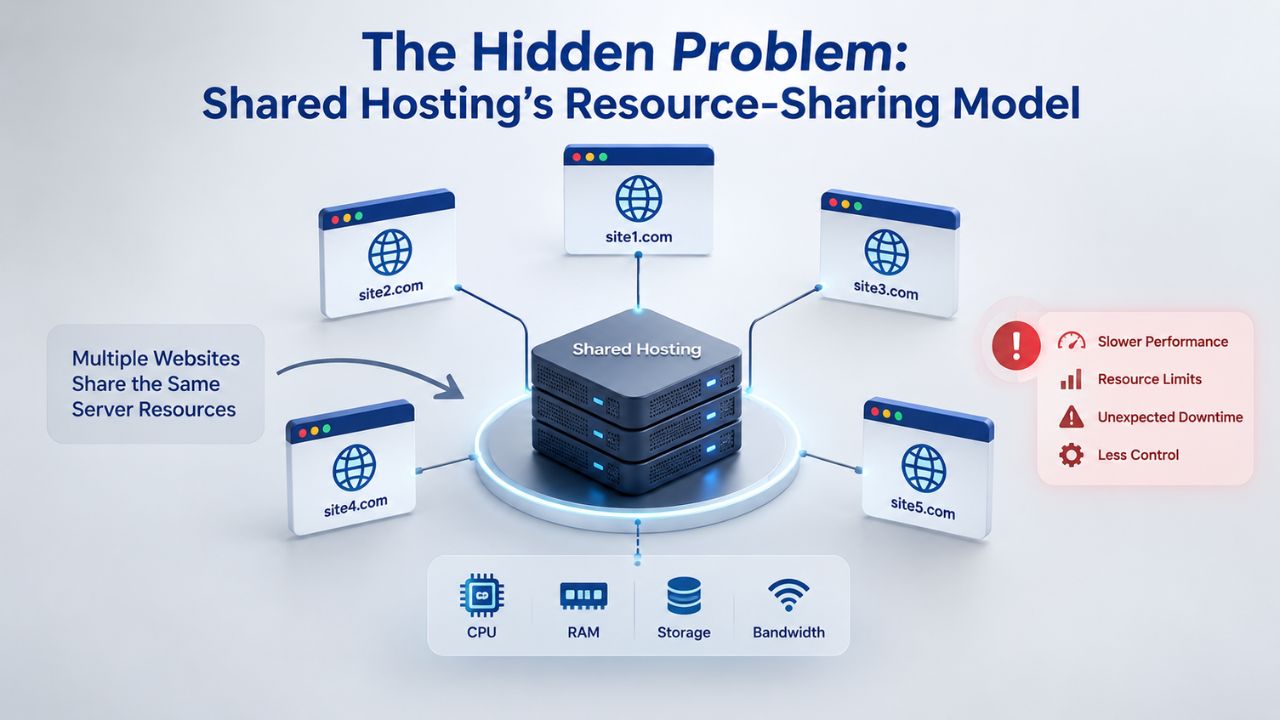
How Shared Resources Are Divided and What “Noisy Neighbor” Means
Shared hosting operates like an apartment building where every tenant shares the building’s utilities. Your website occupies its own space but relies on shared CPU, RAM, and disk input/output bandwidth. The server allocates a portion of these resources to each account based on the hosting plan. In theory, everyone gets a fair slice and coexists peacefully. In practice, something very different often happens.
When one website consumes more than its fair share of resources, it reduces performance for all the websites on that same server, including yours. This phenomenon is known as the “noisy neighbor” effect, and it’s one of the most common culprits behind random, inexplicable slowdowns. Your site doesn’t slow down because you’ve made changes or added content; it slows because someone else’s traffic spike, inefficient code, or poorly optimized database queries stretch the server’s shared resources thin.
Typical Signs a Site Is Suffering From Shared-Server Contention
Pages that load slowly at certain times of day, sluggish WordPress admin dashboards that take forever to respond, delayed WooCommerce checkout processes, inconsistent speed-test results from day to day, and unexplained changes in Core Web Vitals metrics without any site updates- these are hallmark symptoms of shared-server resource contention. The pattern is consistent: you notice slowness that correlates with peak traffic hours, not with anything you’ve actually changed on your site.
You haven’t modified your theme. You haven’t installed new plugins. Your content hasn’t ballooned overnight. Yet your site feels different, slower, less responsive, less reliable. That randomness and unpredictability point to hosting-layer contention rather than site-side problems. If a performance problem correlates with peak traffic hours but not with your own site changes, resource contention from neighboring accounts is the likely suspect.
Business Web Hosting Plans & Pricing
Choose the hosting plan that fits your website, WordPress site, or growing business. Compare features, storage, performance, security, and website capacity to find the right hosting environment for your needs.
cPanel Starter
cPanel Hosting that's easy, reliable and lightning-fast.
- 1 website
- 30 GB storage
- Unmetered bandwidth*

cPanel Economy
cPanel Hosting that's easy, reliable and lightning-fast.
- 1 website
- 100 GB space
- Unlimited bandwidth*
- 100 email accounts**
- 10 MySQL databases (1 GB ea.)
cPanel Deluxe
cPanel Hosting that's easy, reliable and lightning-fast.
- Unlimited websites
- Unlimited space
- Unlimited bandwidth*
- 500 email accounts
- 25 MySQL databases (1 GB ea.)
cPanel Ultimate
cPanel Hosting that's easy, reliable and lightning-fast.
- Unlimited websites
- Unlimited space
- Unlimited bandwidth*
- 1000 email accounts
- Unlimited MySQL databases (1 GB ea.)
- 2X Processing power & memory (available for Linux/cPanel only)
- Premium DNS
- 1-year SSL certificate to secure customer data and increase search rankings
*We don't limit the amount of storage and bandwidth your site can use as long as it complies with our Hosting Agreement. Should your website bandwidth or storage usage present a risk to the stability, performance or uptime of our servers, we will notify you via email and may be required to upgrade, or we may restrict the resources your website is using.
**Email account storage is limited to 100 email accounts with 100 MB of total storage.
WordPress Basic
A great way to get started.
- 1 website
- 10 GB NVMe storage
- Unmetered bandwidth
- Free SSL Certificate *
- WordPress pre-installed
- Weekly backups
- Web Application Firewall
- Daily malware scans
- One-time malware removal

WordPress Deluxe
Improve your site performance with Cloudflare CDN.
- 1 website
- 20 GB NVMe storage
- Unmetered bandwidth
- Free SSL Certificate *
- WordPress pre-installed
- Daily backups
- Web Application Firewall
- Daily malware scans
- One-time malware removal
- Up to 2x faster performance with global Cloudflare CDN **
- Enhanced security with DDoS protection
- Staging site
WordPress Ultimate
Add online marketing with more sites, storage and security.
- 1 website
- 30 GB NVMe storage
- Unmetered bandwidth
- Free SSL Certificate *
- WordPress pre-installed
- Daily + on-demand backups
- Web Application Firewall
- Daily malware scans
- Unlimited malware removal
- Up to 2x faster performance with global Cloudflare CDN **
- Enhanced security with DDoS protection
- Staging site
- WordPress code optimizer
- Smart WordPress plugin manager
- Sell online with WooCommerce
*An SSL certificate is included with every site and free for the life of the hosting plan. Certificates are automatically installed, validated and renewed.
Web Hosting Plus Launch
For multiple basic sites.
- 100 GB storage*
- 4 GB RAM
- 2 CPUs
- Unmetered traffic
- 50 websites & databases
- Free, unlimited SSL for all your websites**

Web Hosting Plus Enhance
For high-traffic WordPress, Joomla, and other sites.
- 200 GB storage*
- 8 GB RAM
- 4 CPUs
- Unmetered traffic
- 100 websites & databases
- Free, unlimited SSL for all your websites**
Web Hosting Plus Grow
For advanced eCommerce sites like Magento.
- 300 GB storage*
- 16 GB RAM
- 8 CPUs
- Unmetered traffic
- 150 websites & databases
- Free, unlimited SSL for all your websites**
Web Hosting Plus Expand
For multiple basic sites.
- 400 GB storage*
- 32 GB RAM
- 16 CPUs
- Unmetered traffic
- 200 websites & databases
- Free, unlimited SSL for all your websites**
*The total amount of usable storage capacity for your particular Hosting Service(s) may differ from the represented capacity as there is required space for the operating system(s), system file(s) and other supporting file(s).
**If you cancel the Web Hosting Plus product, you will lose the associated SSL certificate as well.
Why Speed Matters: SEO and Conversion Impact
Website speed is no longer a nice-to-have feature or a minor optimization detail. It’s a business metric that directly affects your search engine visibility, user experience, and revenue. Understanding the real business impact of slowness helps you prioritize fixing it correctly.
Core Web Vitals and Search Ranking Impact
Google’s 2021 Page Experience Update established Core Web Vitals as official ranking factors in its search algorithm. These three metrics, Largest Contentful Paint (LCP) measuring loading speed, Interaction to Next Paint (INP) measuring responsiveness, and Cumulative Layout Shift (CLS) measuring visual stability, measure how a website actually feels to real users in their browsers, not in controlled lab conditions.
Sites that satisfy Google’s Core Web Vitals requirements rank higher in search results, and faster sites gain competitive advantages in search engine rankings, especially in competitive verticals where multiple sites compete for the same search terms. Page speed also affects Google’s crawl-budget allocation, the amount of computing resources Google devotes to crawling your site. Slower sites get crawled less efficiently, so new content takes longer to discover and index.
Real Data: Page-Load Delays and Conversion Loss
The impact on conversions is even more direct and measurable. Akamai’s analysis of over 10 billion visits across industries confirmed that a 100ms delay in page load time correlates with a 7% drop in conversion rates. That’s not speculation or theory; it’s real behavioral data from transactions across thousands of websites. Studies also show that 53% of mobile users will abandon a page that loads over 3 seconds. A one-second delay can reduce conversions by 7% to 20%.
For e-commerce sites, the implications are particularly acute. A half-second slowdown can cost thousands in lost sales per month. For subscription services, slow page loads directly correlate with signup abandonment. For content sites and publishers, slowness means lower time-on-page, reduced ad impressions, and lower engagement metrics that ad networks pay attention to. Speed isn’t a vanity metric or a technical checkbox; it’s a revenue metric.
The Real Root Causes: Beyond Hosting
Before you blame your hosting provider or upgrade to a more expensive plan, understand that most slow-site problems come from choices made within the website itself. Poor hosting is a factor, but it’s often not the main factor.
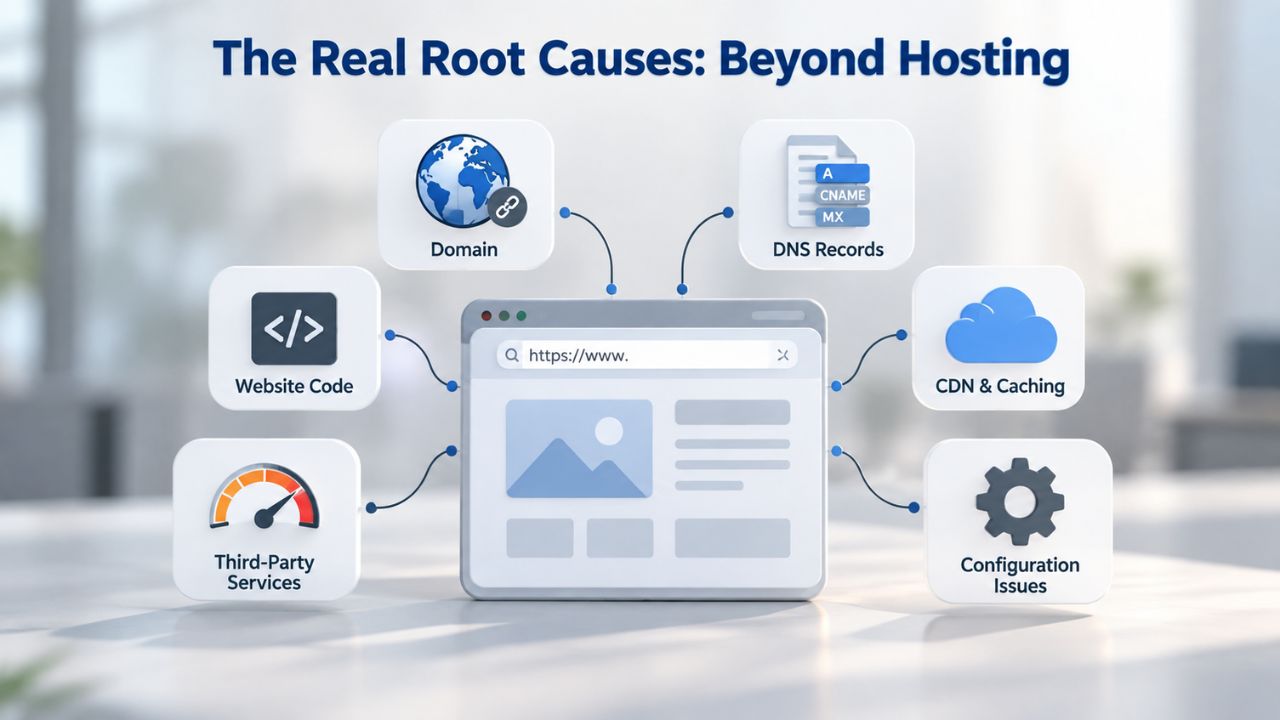
WordPress Plugin Bloat and Database Clutter
Most slow sites aren’t actually being held back by hosting resources alone. Instead, choices made within the website itself inadvertently sabotage performance. WordPress plugins are the most common culprit: each plugin adds code and database queries, and installing too many plugins, or worse, poorly coded plugins, multiplies the processing load on every page request. You might have seventeen active plugins doing things you no longer use, each adding weight and processing overhead on every single visit.
Over time, WordPress databases accumulate unnecessary data: spam and trashed comments, old post revisions and auto-drafts, obsolete transient options and cached data, and orphaned plugin tables left behind by deactivated plugins. This buildup, called database bloat, makes the server take longer to retrieve and process data when answering queries. The effect is especially visible in the WordPress admin dashboard, where database queries happen constantly. You notice the dashboard taking several seconds to load even though visitors see the front-end pages loading normally. That sluggish admin dashboard is database bloat.
Unoptimized Images, Uncompressed Assets, and Missing Caching
Large, unoptimized images are among the biggest contributors to slow page load times, especially on mobile devices where bandwidth is limited and data plans cap monthly usage. A single uncompressed 5 MB image can add multiple seconds to load time. If your homepage has five such images, you’re adding 25 MB of uncompressed data that every visitor must download before they can see your content.
Serving modern image formats like WebP instead of JPEG or PNG, and compressing images via plugins like Smush or Imagify, reduces file size without visible quality loss. This frees up bandwidth for faster overall delivery. Also, serve images in appropriate sizes for different devices; a mobile phone doesn’t need a 4000-pixel-wide image designed for a desktop monitor. Responsive images and lazy loading (serving images only as they’re needed) multiply the effect.
| Slow-Site Diagnosis Matrix | Hosting-Related? | Site-Related? | Quick Fix |
|---|---|---|---|
| Slow at all times (consistent) | Maybe | Likely | Audit plugins, compress images, enable caching |
| Slow only during peak hours | Likely | Maybe | Check resource limits in cPanel; upgrade if at 70%+ |
| Slow immediately after plugin install | No | Likely | Disable the new plugin; test performance |
| Random slowdowns without pattern | Likely | Maybe | Noisy neighbor effect likely; plan upgrade advised |
| TTFB >800 milliseconds | Likely | Maybe | CDN or higher hosting tier recommended |
| Pages >3 MB in size | No | Likely | Compress images, minify CSS/JavaScript files |
Diagnosis First: Testing and Identifying the Bottleneck
Before you upgrade to a higher hosting tier, you need to know exactly where the slowness is coming from. Is your server struggling to keep up, or are your website code and assets the problem? The answer changes your fix completely.
Tools and Methods to Identify If It’s Hosting or Site Configuration
Before upgrading to a higher hosting tier and paying more, diagnose where the slowness actually comes from. Use free tools to get clear data. Google PageSpeed Insights shows you real Core Web Vitals performance metrics from actual users. GTmetrix breaks down which resources load slowly and identifies bottlenecks. Pingdom shows you which assets take the longest to download and why pages are slow. These tools reveal whether your bottleneck is server-side or client-side.
Server response time (TTFB, Time to First Byte) tells you how long the server takes to respond to a request and start sending data. If TTFB is consistently over 800ms, the server itself is the problem, either your site is doing too much (too many plugins, complex queries), or your hosting resources are genuinely contended. Google’s performance guidance targets TTFB under 0.8 seconds for a good user experience. Render-blocking resources like unoptimized JavaScript or CSS that slow down page display are usually site-configuration problems, not hosting problems.
Large unoptimized images are clearly site-related and fixable without upgrading hosting. Missing caching is also site-related; you can enable it with a plugin today. If your site loads quickly in performance tests but slowly in real use, you usually need caching or your plugins are too heavy. If performance tests confirm slow TTFB and the slowness happens specifically during peak traffic hours, shared-server contention is the likely culprit.
Understanding cPanel Resource Usage and Performance Metrics
Log into your cPanel (the control panel included with most Web Hosting plans) and look at the Resource Usage section. Most Web Hosting plans show you real-time data on how much CPU, memory, and disk space your account is currently using. When your account consistently hits 70% of allocated resources during normal operation, you’re close to the ceiling. When traffic peaks, you may hit 100% and get throttled back by the hosting provider, causing slowdowns.
That’s a clear sign your current plan is undersized for your site’s actual needs. However, if your resource usage sits at 20–40%, but your site still feels slow, the problem is almost certainly site-side (too many plugins, large images, missing caching). If usage regularly hits 80–100%, especially during peak hours, then upgrading to a plan with more guaranteed resources makes sense. Resource usage data tells you whether you’ve hit a real hosting limit or still have headroom.
Caching: The Fastest Fix for Most Sites
Caching is the single optimization that delivers the biggest performance gains for the least effort. Once enabled, it works silently in the background, and the benefits are immediate and measurable.
Page and Browser Caching: Reducing Server Load
Caching works by storing a static version of your pages after the first load, so subsequent visitors get a ready-made copy instead of the server executing PHP scripts and running database queries on every visit. The difference in server load is massive and immediate. A cached site might serve 1000 requests per minute with moderate resources; the same site without caching might need double the resources to serve the same traffic because it rebuilds every page from scratch.
Browser caching extends this benefit further by telling visitor browsers to store static assets like images, CSS, and JavaScript locally on their device. So returning visitors don’t download the same files again; they load from local cache instead. Combined with page caching on the server, browser caching dramatically reduces the data that travels between server and client. The compounding effect is powerful: pages load faster, the server uses fewer resources, and visitors on slow connections experience much better performance.
A caching plugin can reduce load on your hosting server and boost your site speed, which is excellent for SEO rankings and user experience. The beauty of caching is that once it’s set up, it requires no ongoing maintenance. The plugin handles everything automatically. Your site speed improves without changing your workflow or content creation process.
Implementing and Configuring WordPress Caching Plugins
WP Rocket, W3 Total Cache, and LiteSpeed Cache are the most popular WordPress caching plugins, each with different strengths: WP Rocket prioritizes ease of use and includes cache preloading and GZIP compression by default; W3 Total Cache offers granular control over page, object, and database caching plus CDN integration; LiteSpeed Cache works best on LiteSpeed servers and includes lazy loading and critical CSS generation. Most require minimal configuration: you enable page caching, browser caching, and GZIP compression, then the plugin does the rest automatically.
For most sites, installing a caching plugin is the single highest-impact optimization you can make before even considering a hosting upgrade. A well-configured caching layer transforms a slow site into a fast one in most cases, because the server stops rebuilding every page from scratch on every request. The improvement is often visible within minutes of activation. Most sites see 30–50% faster load times just from enabling caching.
| Hosting Plan Comparison: Resource Allocation | Resource Model | Best For | Primary Limitation |
|---|---|---|---|
| Shared Web Hosting | Shared CPU, RAM, disk with other sites | Blogs, portfolios, small sites, low traffic | Performance affected by other sites’ resource spikes |
| Web Hosting Plus (Dedicated Resources) | Guaranteed CPU and RAM (still on shared physical server) | Growing sites, medium traffic, plugin-heavy setups | More stable than basic shared; still shares infrastructure with other accounts |
| VPS (Virtual Private Server) | Dedicated CPU, RAM, disk in an isolated virtual container | High-traffic sites, custom software, multiple sites | Requires more technical knowledge; full root access |
| Managed WordPress Hosting | Shared or dedicated resources with WordPress updates and security included | WordPress-focused sites, minimal technical staff | Less control over server config; costs more than unmanaged |
| Dedicated Server | Entire physical server reserved for one customer | Enterprise, very high traffic, compliance isolation | Highest cost and management responsibility |
| Cloud Hosting | Scalable resources on demand, pay for what you use | Variable or spiking traffic, multi-region deployment | Complexity of managing auto-scaling and monitoring |
Ready to Optimize Your Web Hosting?
After you’ve optimized caching, plugins, and images, if your site still crawls during peak hours, consider upgrading. Niya Digital’s Web Hosting service offers Web Hosting Plus plans with dedicated resources and managed setup support, so you get faster performance without managing it alone.
Database and Plugin Optimization
Once you understand the problem, the solutions become clear. Database bloat and plugin overload are two of the easiest problems to fix, and fixing them often solves the slowness without requiring a hosting upgrade.
Cleaning Up Database Bloat and Post Revisions
Over time, WordPress databases accumulate unnecessary data, spam and trashed comments, old post revisions and auto-drafts, obsolete transient options, and cached data, which takes longer for the server to process and retrieve when answering queries. Using a plugin like WP-Optimize to clean up your database, removing unnecessary data and optimizing database tables, keeps your database lean and efficient. Most sites running for a year or more have accumulated database bloat and see a noticeable speed improvement immediately after cleanup.
The process is simple and safe: install WP-Optimize, run a cleanup scan to preview what will be removed, then set automatic cleanup to run daily. The plugin removes spam comments, deleted posts and their revisions, unused options, and orphaned plugin tables left behind from deactivated plugins. The improvement is often immediate, especially in the WordPress admin dashboard, which becomes noticeably faster and more responsive.
Database cleanup is completely safe because the plugin only removes revisions, spam, and orphaned data you’ve already deleted or don’t need. It doesn’t remove published posts, pages, user data, or any content that matters. However, backing up before cleanup is good practice, just in case. Most Web Hosting plans include daily automatic backups, but running one extra manual backup takes 30 seconds and provides complete peace of mind.
Auditing and Disabling Unnecessary Plugins
Each WordPress plugin adds code and database queries; installing too many plugins, or worse, poorly coded plugins, multiplies the processing load on every page request. Do a thorough plugin audit: go through your active plugins list and ask hard questions about each one. Is this plugin still being used? Does it add value, or did we install it months ago for a feature we no longer need? Can another plugin handle the same function more efficiently?
Deactivate and delete anything that doesn’t earn its place. Remove security plugins known for performance overhead if you have a lighter alternative that does the job. Remove plugins that do similar things; you don’t need two SEO plugins running at the same time, or three caching plugins, or duplicate functionality across tools. Each plugin you remove reduces the processing overhead on every single page request.
After disabling a plugin, test your site speed. Often, removing just two or three bloated plugins noticeably cuts load time. This is a pure win: faster site, no cost, no technical setup required, and no downside. The plugin stays installed on your server but dormant, so you can reactivate it anytime if you change your mind. Start conservative, test thoroughly, and only commit to deletion once you’re certain you don’t need it.
Image and Asset Optimization
Images are usually the heaviest elements on a web page. Optimizing them properly has a massive impact on load times, especially for mobile visitors on slow connections.

Compressing and Serving Modern Image Formats
Large, unoptimized images are among the biggest contributors to slow page load times, especially on mobile devices where bandwidth is limited and data plans cap monthly usage. A single uncompressed 5 MB image can add multiple seconds to load time. If you’re a photographer or run an image-heavy site (portfolio, fashion, real estate), unoptimized images might be eating 50% or more of your page weight.
Audit your site’s images. If most are large (over 500 KB), uncompressed, or in old formats like JPEG or PNG, you’ve found a major source of slowness. Image optimization plugins like Smush or Imagify automatically compress and resize images without visible quality loss, and serving modern formats like WebP instead of JPEG offers better compression with smaller file sizes.
Many image optimization plugins also enable lazy loading; images load only as the visitor scrolls to them, not on initial page load. This dramatically reduces the data needed for the initial page render, speeding up your Largest Contentful Paint (LCP) metric, which directly affects Core Web Vitals and your SEO ranking. Responsive images and lazy loading combined can cut page weight by 40–60%.
Lazy Loading, Critical CSS, and Reducing HTTP Requests
Every image, stylesheet, and script on a page creates a separate HTTP request the server must handle. Minimizing requests, combining files, removing unused CSS, and deferring non-critical JavaScript reduce the work the server and client must do. Lazy-loading images and deferring JavaScript until after the page renders are two simple, high-impact techniques many sites don’t use.
Additionally, identifying and inlining critical CSS (the styles needed for above-the-fold content) keeps visitors from waiting for a stylesheet to load before they see your page. Modern WordPress caching and optimization plugins often include these techniques, so enabling them is usually as simple as checking a box in your plugin settings. No coding required, no ongoing maintenance; enable the feature and let it run.
When Optimization Isn’t Enough: Upgrading Hosting Tiers
After you’ve optimized caching, database, plugins, and images, if your site still isn’t where you want it, the problem might genuinely be your hosting plan. Here’s how to tell for sure.
Signs of Genuine Resource Limits (CPU and RAM Hitting Caps)
After optimizing caching, database, plugins, and images, test your site performance again. If performance improves noticeably but still isn’t where you want it, check your cPanel resource usage during peak traffic hours. If your account consistently hits 70% or more of allocated CPU and memory, especially during peak traffic, that’s a clear signal your current plan is undersized; optimization can only go so far, and you’ve hit the ceiling.
Shared → Web Hosting Plus (Dedicated Resources) → VPS Decision Tree
Signs you’re ready to upgrade from shared hosting include frequently hitting resource limits, needing root or administrator access to configure custom software, wanting to run multiple sites with proper isolation, requiring specialized PHP versions or tools, or prioritizing better security for sensitive data. The upgrade path is straightforward.
Starting with Shared Web Hosting → Web Hosting Plus (Dedicated Resources): you stay on the shared physical server but get guaranteed CPU and memory for your account. This isolates you from the noisy neighbor effect while keeping costs moderate. It’s the best choice if you’ve optimized thoroughly and need a bit more headroom. With Web Hosting Plus, you get guaranteed CPU and memory resources, keeping your site isolated from other accounts’ traffic spikes, plus better uptime and stability.
Moving to Web Hosting Plus → VPS: you move to a virtual private server with full root access, dedicated resources in an isolated container, and the ability to install custom software. This is better for high-traffic sites or those needing bespoke server configuration. With a VPS, you get the full control and performance of a dedicated server at a fraction of the cost. For most growing small businesses, Web Hosting Plus solves the performance problem. Only high-traffic sites or those with complex software needs move to VPS.
Advanced Strategies: CDN and Managed Solutions
For sites with global audiences or sudden traffic spikes, additional tools can multiply the benefits of optimization and hosting upgrades.
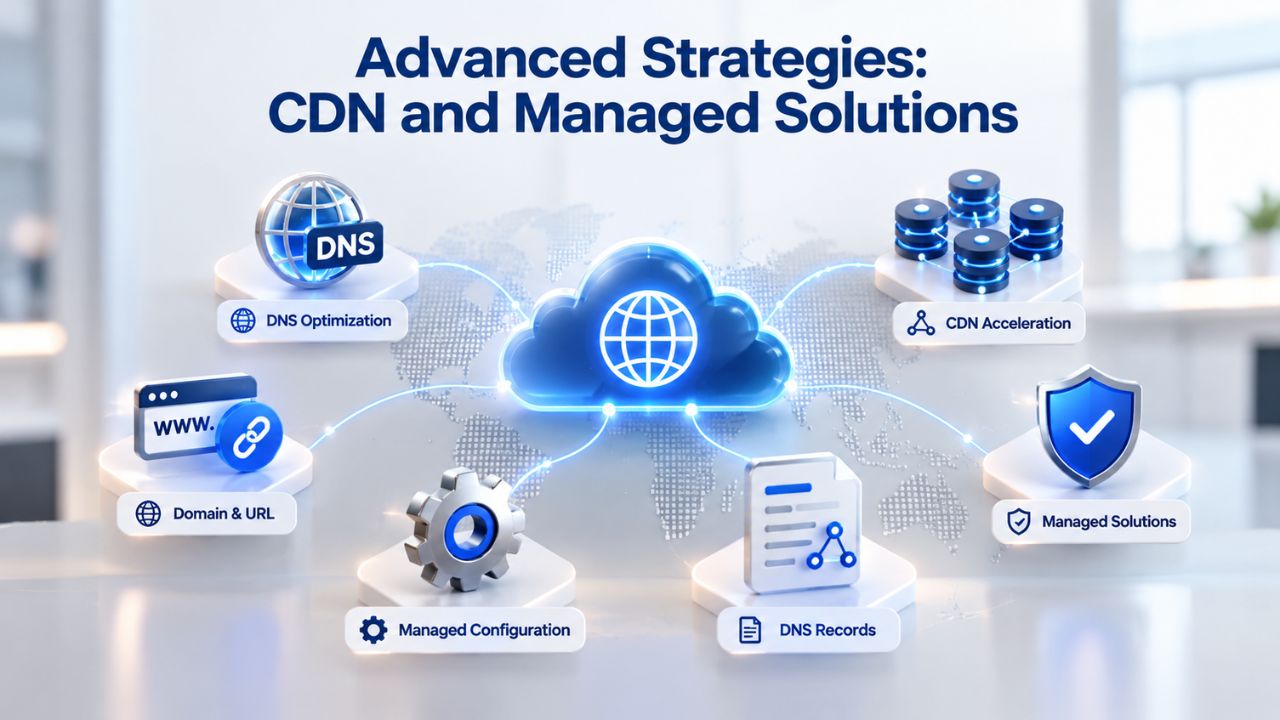
CDN Benefits for Global or High-Traffic Sites
A Content Delivery Network (CDN) is a distributed network of servers worldwide that caches your site’s static content. It delivers it from the server nearest each visitor, reducing latency and improving load times for global audiences. If your visitors are spread across continents, or you experience sudden traffic spikes, a CDN is a powerful tool. CDNs also help mitigate traffic spikes by distributing load across multiple servers, improving both speed and availability.
The benefit is especially pronounced for image-heavy sites, video sites, or sites experiencing viral traffic. Instead of all requests hitting your origin server, most requests are served from a nearby CDN edge server, freeing up your origin server to handle less load. A visitor in Australia sees content delivered from an Australian server instead of waiting for data to travel from your US server. A visitor in Europe gets content from a European edge location. This geographic distribution of delivery dramatically improves load times globally.
Managed WordPress Hosting and When It’s Worth the Cost
Managed WordPress hosting goes beyond standard Web Hosting: the provider manages WordPress updates, plugin security, daily backups, and performance optimization, freeing you from the technical side so you can focus on your content and business. GoDaddy’s Managed WordPress Hosting plans include pre-installed WordPress, automatic core software and plugin updates, built-in site security, and a free CDN that handles many performance and security headaches automatically.
Is it worth the extra investment? If you don’t have technical staff and don’t want to manage backups, updates, and security yourself, managed hosting saves you time and reduces risk. If you’re comfortable managing your own server, or you’re a developer who wants full control, standard Web Hosting (with or without dedicated resources) is the better choice. It depends on your technical comfort level and whether you want to handle these responsibilities yourself.
Monitoring and Maintaining Performance Over Time
After you’ve optimized your site and achieved good performance, the work doesn’t stop. Performance degrades gradually as you install new plugins, add content, and grow databases. Monitoring and regular maintenance are what keep your site fast years after the initial optimization.
Setting Up Performance Alerts and Regular Testing
Performance monitoring should be automatic and continuous, not something you think about once and forget. Tools like Google Search Console (free) and Pingdom (paid plans available) let you set up alerts that notify you if your Core Web Vitals scores drop, if your site becomes unreachable, or if page load time increases beyond a threshold you define. These alerts catch problems early, before they affect user experience and search rankings.
Many hosting providers, including those running on GoDaddy infrastructure, include server-side monitoring and alerts in their Web Hosting plans. These monitor uptime, error rates, and resource usage. Combine hosting-provider monitoring with client-side tools (Google PageSpeed, GTmetrix) to get a complete picture of your site’s health from both directions.
Scheduled Maintenance: Keeping Your Site Fast Long-Term
Just as your car needs regular oil changes and maintenance to keep running smoothly, your WordPress site needs scheduled upkeep to prevent performance degradation. Schedule quarterly or semi-annual maintenance: disable plugins you’ve stopped using, clean up old revisions and media you’re no longer serving, update WordPress and all plugins to the latest versions, and recheck your image sizes and formats.
Database optimization should be automatic (most database optimization plugins let you schedule daily cleanup), but you should review your plugin list, check caching settings, and audit media every few months. As your site grows and your business changes, old plugins become less necessary. Remove them rather than letting them accumulate. Check that your caching plugin settings still match your site structure. If you’ve reorganized content or changed how pages work, you may need to update your cache strategy.
Start Fixing Your Slow Site Today
Diagnose whether it’s hosting or site configuration, optimize caching and database first, then upgrade only if resource limits are the actual problem. Niya Digital’s Web Hosting service includes cPanel management, daily backups, and migration support so that you won’t be optimizing alone.
Frequently Asked Questions
What’s the difference between site slowness caused by hosting and slowness caused by my website code?
Hosting slowness is unpredictable and correlates with peak traffic hours, even if nothing on your site has changed. Code and plugin slowness is consistent; the site is slow all the time, not just during peak hours. Test your site at off-peak hours: if it’s fast at midnight but slow at 3 p.m., hosting contention is likely. If it’s always slow regardless of time, the issue is your site configuration.
Does upgrading from shared hosting to Web Hosting Plus with dedicated resources guarantee faster load times?
Dedicated resources eliminate the noisy neighbor effect, so yes, you’ll see consistent performance improvement if contention was the problem. However, if your site has too many plugins, huge unoptimized images, or no caching enabled, upgrading won’t fix those problems; you’ll still be slow. Optimize first, upgrade second.
How long does it take to see results after I install a caching plugin?
Usually immediately. Enable page caching, browser caching, and GZIP compression in your caching plugin, then run a speed test. Most sites see 30–50% faster load times within minutes of activation. If you don’t see improvement after 15 minutes, clear your caching plugin’s cache and try again; sometimes the old cached version is still being served.
Can a slow database really affect my front-end visitors, or just my WordPress dashboard?
Both. A slow database increases the time it takes to load any page that queries the database, which is nearly every page on a WordPress site. You usually notice it first in the WordPress dashboard because you’re watching individual queries complete. Your visitors will notice slow page load times too, especially pages with lots of posts or custom queries.
Is cleaning up my WordPress database safe? Will I lose data?
Database cleanup plugins like WP-Optimize only remove revisions, spam comments, trashed items, and orphaned plugin data- things you’ve already deleted or don’t need. They don’t remove published posts, pages, or user data. That said, always run a backup before cleanup as good practice. Most Web Hosting plans include daily automatic backups, but running an extra manual backup takes 30 seconds.
Do I actually need a CDN, or is caching enough?
Caching reduces server load; a CDN reduces delivery distance. For a site with mostly local or regional visitors, caching usually is enough. For a global site or one with heavy traffic, a CDN adds noticeable improvement, especially on mobile. If you’re considering a CDN, implement caching first; it’s simpler and cheaper, and often solves the problem entirely.
When should I upgrade to a VPS instead of just using Web Hosting Plus with dedicated resources?
Upgrade to a VPS when you need root or administrator access to install custom software, run resource-heavy applications, or host multiple independent sites with isolated environments. For most small businesses and blogs, Web Hosting Plus is enough; you get better performance without the management complexity.
My hosting provider says I’m hitting resource limits, but my PageSpeed Insights score is good. Which do I trust?
PageSpeed Insights measures code efficiency and asset optimization; resource limits measure how much of your server’s CPU and RAM your account uses. Both can be true: your code may be efficient, but your server’s shared resources may be at capacity. If cPanel shows 80%+ CPU usage at peak hours, trust that data. Upgrade your hosting tier.
Can plugin slowness be fixed without removing plugins?
Sometimes. Disable bloated security plugins if you have lighter alternatives that do the same job. Replace poorly coded plugins with optimized alternatives. Use a plugin like Query Monitor to identify slow database queries. But if you have 50 active plugins doing overlapping things, no amount of optimization fixes the core problem of too much code running on every page.
Is Free SSL (included with most Web Hosting plans) as good as a paid SSL certificate?
Yes, functionally. Free SSL (AutoSSL, included with most Web Hosting plans) encrypts data and satisfies browser requirements identically to paid certificates. The only difference is specific certificate types (Extended Validation) for specialized trust signaling in high-security contexts. For 99% of sites, free SSL is more than enough.
My site is on shared hosting, and I’m happy with speed. Do I ever need to upgrade?
Only if you see signs of growth: increasing traffic, hitting resource limits, needing features that require root access, or running multiple independent sites. If your current plan handles your traffic comfortably and your optimization strategy is working, there’s no reason to upgrade. With good optimization, shared hosting can scale to surprisingly high traffic levels.
Will migrating to a new hosting provider be complicated?
Most quality hosting providers offer free migration support and migration tools. You typically don’t lose data or experience downtime if the provider handles the migration. However, always run a test migration first on a staging site before moving your live site.
What’s the fastest way to improve Core Web Vitals for SEO?
For LCP (loading speed): enable caching and optimize images. For INP (responsiveness): defer non-critical JavaScript and reduce plugin overhead. For CLS (visual stability): set explicit sizes for images and lazy-loaded content. Caching and image optimization usually improve all three metrics simultaneously.
Should I pay for premium optimization plugins, or are free ones enough?
Free caching plugins like W3 Total Cache and WP Super Cache are often sufficient for small sites. Premium plugins like WP Rocket and Perfmatters offer ease of use and more features, but cost money. Start with free plugins, and upgrade if you need features they don’t offer. For most sites, free is enough.
How often should I run database cleanup if I’m on shared hosting?
Database cleanup is safe to run weekly or even daily for actively used sites. Most database optimization plugins let you schedule automatic cleanup. Since the plugin only removes revisions, spam, and orphaned data you’ve already deleted, frequent cleanup is better than letting bloat accumulate; it keeps your database lean and queries fast.
If I upgrade from shared hosting to Web Hosting Plus with dedicated resources, do I need to do anything differently on my site?
No. Dedicated resources are a server-side change. Your site configuration, code, and optimization strategy stay the same. You’ll notice faster, more consistent performance because your account’s resources aren’t shared with other sites. No migration hassle, no site reconfiguration needed.
Glossary
- Web Hosting: A service that stores your website’s files on a server connected to the internet, making them accessible to visitors 24/7.
- Shared Hosting: A hosting model where one physical server hosts many websites, with each site sharing CPU, RAM, disk space, and bandwidth. It’s affordable, but performance depends on other sites on the server.
- Caching: A technique that stores static copies of pages or assets, so the server doesn’t have to rebuild them on every request. Page caching stores full pages; browser caching stores assets locally on visitor devices.
- Core Web Vitals: Google’s three metrics measuring real user experience: Largest Contentful Paint (LCP, how fast the page loads), Interaction to Next Paint (INP, how responsive the page feels), and Cumulative Layout Shift (CLS, how stable the page layout is).
- Noisy Neighbor Effect: Performance degradation caused by another website on the same server consuming excess resources (CPU, RAM, bandwidth), which slows down neighboring sites.
- TTFB (Time to First Byte): The time it takes a server to respond to a request and start sending data back. High TTFB indicates a slow or contended server.
- Database Bloat: Unnecessary data accumulated in a WordPress database, old revisions, spam comments, orphaned plugin tables, that slows down database queries.
- CDN (Content Delivery Network): A global network of servers that cache and deliver your site’s content from locations geographically near each visitor, reducing latency and improving load times.