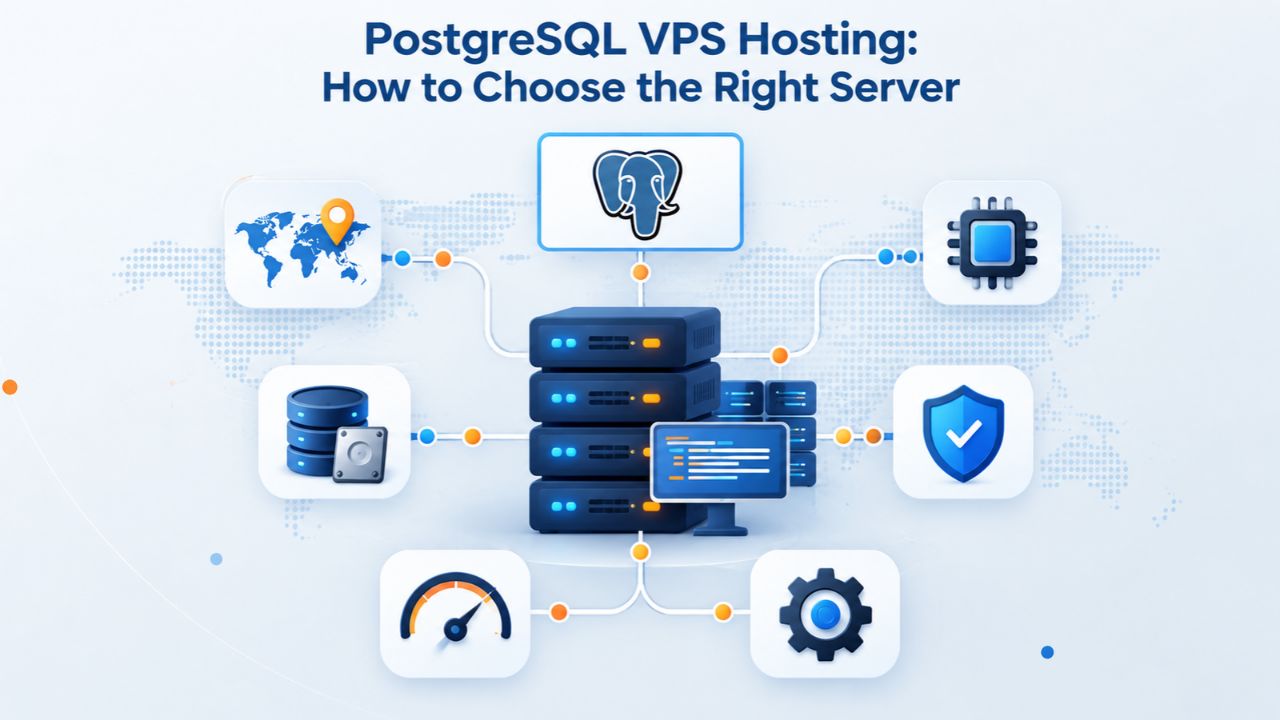
PostgreSQL powers some of the world’s most demanding applications, from high-frequency trading systems to AI-driven analytics platforms. But PostgreSQL’s performance depends entirely on the server resources you allocate. Choosing the right VPS hosting means sizing CPU, RAM, storage, and I/O to match your actual workload, not generic industry assumptions. Niya Digital operates a reseller VPS Hosting service on top of infrastructure operated by GoDaddy. Everything described here about server resource allocation, PostgreSQL configuration, and scaling decisions applies to self-managed PostgreSQL on any VPS.
Why PostgreSQL Performance Isn’t One-Size-Fits-All
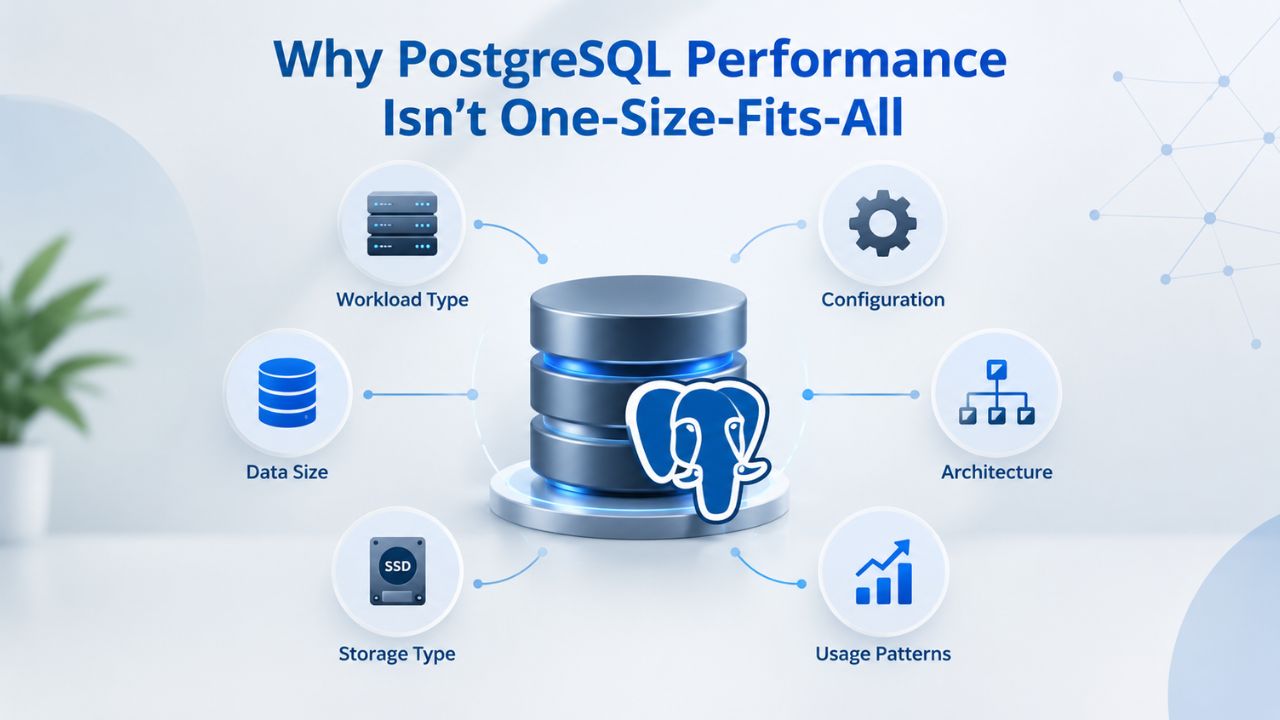
PostgreSQL doesn’t publish a universal “minimum” CPU, RAM, or disk requirement because a single-user personal database and a 500-transaction-per-second trading system can’t share the same spec sheet. Modern PostgreSQL’s official documentation focuses on configuration rather than hardware floors because your sizing depends on what you are actually running. The database treats memory as configurable pools and per-query allocations rather than one whole-server floor, scaling dynamically with your workload characteristics.
Real Workload Determines Real Resource Needs
A blog with 100 posts and occasional visitors has a different CPU and memory profile than an application with 200 concurrent users running complex analytical queries in parallel. The first might thrive on 1 vCPU and 2 GB of RAM; the second will choke under that configuration and require significant upgrades. PostgreSQL’s sizing process starts with three critical questions: How much data stays in memory cache at once (your active working set)? How many queries run simultaneously (concurrent connection count)? What kind of queries are they (quick lookups or heavy aggregations involving millions of rows)? Once you answer these questions, you can map them to an appropriate VPS tier that supports your actual demand.
Niya Digital’s team has found that teams often underestimate concurrency, the number of simultaneous queries their application will actually generate under normal load, leading to undersized plans and frustrating performance degradation after launch. This mistake worsens when traffic spikes beyond initial estimates, causing the database to queue queries instead of executing them in parallel, which makes response times predictably worse as load increases.
CPU Cores, Memory, and Storage Are Not Interchangeable
You cannot substitute extra storage for missing RAM, nor can you compensate for low CPU count with larger disk capacity. Each resource serves a distinct and necessary function in PostgreSQL’s execution pipeline. RAM caches frequently accessed data to avoid disk reads; CPU cores handle query planning and parallel execution; storage I/O speed (latency and throughput) determines how quickly PostgreSQL can persist writes to the transaction log and retrieve data from disk.
Undersizing any one of these will become a bottleneck that more of another resource cannot fix. For example, adding another CPU core will not help if your queries are waiting for data from a slow disk, and adding more RAM will not help if your CPU is saturated planning and executing complex joins.
A common mistake is focusing only on database size (data at rest) rather than the concurrent operations happening against it. A 10 GB database with 100 simultaneous users has very different requirements from the same 10 GB database with 10 simultaneous users, because the latter workload generates fewer parallel query execution paths and less memory contention.
VPS Hosting Plans & Pricing
Choose the VPS hosting plan that fits your website, application, or business requirements. Select a self-managed VPS for complete server control or a fully managed VPS with a dedicated team of experts to help manage your server.
Self Managed VPS 1 vCPU
1 GB RAM
Entry-level VPS hosting for lightweight websites and applications.
- 1 CPU Core
- 1 GB RAM
- 20 GB SSD Storage
- Linux only, no control panel

Self Managed VPS 2 vCPU
4 GB RAM
VPS hosting with additional CPU and memory for growing websites and applications.
- 2 CPU Cores
- 4 GB RAM
- 100 GB SSD Storage
Self Managed VPS 2 vCPU
8 GB RAM
Additional memory for more demanding websites and applications.
- 2 CPU Cores
- 8 GB RAM
- 100 GB SSD Storage
Self Managed VPS 4 vCPU
8 GB RAM
Increased processing power for business websites and applications.
- 4 CPU Cores
- 8 GB RAM
- 200 GB SSD Storage
Self Managed VPS 4 vCPU
16 GB RAM
High-memory VPS hosting for resource-intensive workloads.
- 4 CPU Cores
- 16 GB RAM
- 200 GB SSD Storage
Self Managed VPS 8 vCPU
16 GB RAM
Powerful VPS resources for demanding business applications.
- 8 CPU Cores
- 16 GB RAM
- 400 GB SSD Storage
Self Managed VPS 8 vCPU
32 GB RAM
Maximum self-managed resources for demanding workloads.
- 8 CPU Cores
- 32 GB RAM
- 400 GB SSD Storage
Fully Managed VPS 1 vCPU
2 GB RAM
Managed VPS hosting with expert server management.
- 1 CPU Core
- 2 GB RAM
- 40 GB SSD Storage
- Dedicated team of experts to fully manage your server
Fully Managed VPS 1 vCPU
4 GB RAM
Managed VPS resources for websites and business applications.
- 1 CPU Core
- 4 GB RAM
- 40 GB SSD Storage
- Dedicated team of experts to fully manage your server
Fully Managed VPS 2 vCPU
4 GB RAM
Managed VPS hosting with additional CPU resources.
- 2 CPU Cores
- 4 GB RAM
- 100 GB SSD Storage
- Dedicated team of experts to fully manage your server
Fully Managed VPS 2 vCPU
8 GB RAM
Managed VPS hosting with additional memory for growing workloads.
- 2 CPU Cores
- 8 GB RAM
- 100 GB SSD Storage
- Dedicated team of experts to fully manage your server
Fully Managed VPS 4 vCPU
8 GB RAM
Higher-performance managed VPS for demanding applications.
- 4 CPU Cores
- 8 GB RAM
- 200 GB SSD Storage
- Dedicated team of experts to fully manage your server
Fully Managed VPS 4 vCPU
16 GB RAM
High-memory managed VPS for resource-intensive workloads.
- 4 CPU Cores
- 16 GB RAM
- 200 GB SSD Storage
- Dedicated team of experts to fully manage your server
Fully Managed VPS 8 vCPU
16 GB RAM
Powerful managed VPS hosting for demanding business workloads.
- 8 CPU Cores
- 16 GB RAM
- 400 GB SSD Storage
- Dedicated team of experts to fully manage your server
Fully Managed VPS 8 vCPU
32 GB RAM
Maximum managed VPS resources for demanding workloads.
- 8 CPU Cores
- 32 GB RAM
- 400 GB SSD Storage
- Dedicated team of experts to fully manage your server
CPU Cores: Matching Concurrency and Complexity
PostgreSQL scales with CPU cores to parallelize queries and handle multiple concurrent connections efficiently. The number of cores you need depends on how many queries run simultaneously and how computationally complex they are. EDB Production Best Practices recommend at least 4 CPU cores for production PostgreSQL deployments. In comparison, development or low-traffic environments can operate on 2 cores. Below that threshold, any CPU-bound operation, complex joins on large tables, aggregations scanning millions of rows, or parallel query workers will queue and delay because the CPU has no spare capacity to accept new work.
Development vs. Production CPU Expectations
A development or staging PostgreSQL server with infrequent queries might spend most of its time idle, making 2 vCPU acceptable and cost-effective for experimentation. A production server handling 50–100 concurrent users or frequent batch jobs will need 4 vCPU as a realistic baseline to handle the sustained load without queries timing out or users experiencing perceived slowness.
High-concurrency workloads (200+ simultaneous connections) or heavy analytics queries that perform large table scans benefit from 8+ vCPU because PostgreSQL can distribute work across worker processes, and each worker thread consumes CPU resources proportional to the complexity of its task. If you start with 2 vCPU and find yourself CPU-bound (system CPU usage consistently above 70%), upgrading to 4 or 8 vCPU is straightforward on a VPS Hosting platform: stop the server, resize to a larger tier, and restart.
Monitoring CPU utilization in production is essential. Watch not just total CPU usage but also CPU time spent in different states: user time (query execution), system time (OS operations), and I/O wait time (threads waiting for disk reads). High I/O wait with low CPU usage suggests your bottleneck is storage, not CPU, so adding cores will not help. High user CPU usage suggests queries are compute-intensive and might benefit from CPU upgrades or query optimization.
When Query Parallelism Demands More Cores
PostgreSQL’s parallel query execution (available in modern versions) can split a single large query across multiple worker processes, multiplying CPU and memory demand for that single query. If your workload includes reporting queries that scan millions of rows, machine-learning queries that crunch vector embeddings, or analytical aggregations across large tables, parallel execution will drive CPU demand higher than you would predict from sequential query assumptions alone. Benchmark your actual queries under realistic load before committing to a vCPU count; extrapolate from there rather than guessing. A query that runs on one core in 30 seconds might run on four cores in 10 seconds, but only if the query plan allows parallelism and your vCPU tier has four cores available.
RAM and Cache Strategy: The Core of Performance
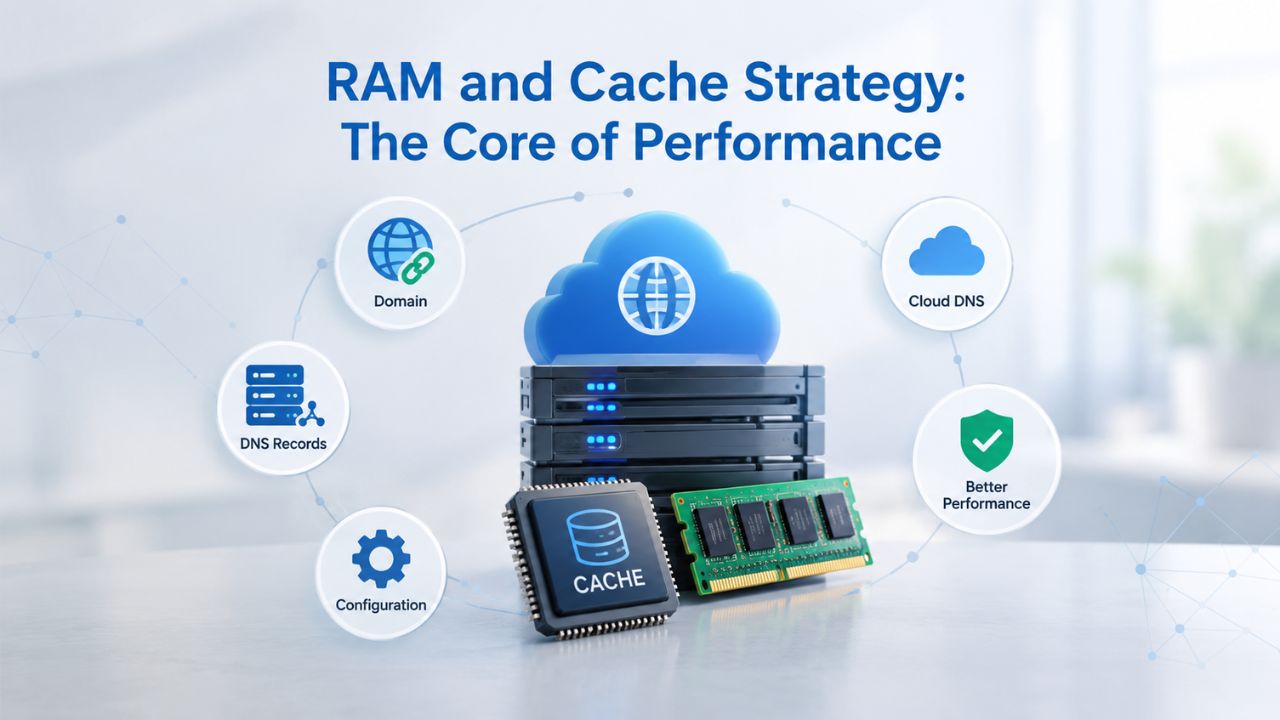
PostgreSQL’s performance is shaped first by RAM, specifically, how much of your frequently accessed data you can keep in the in-memory cache (shared_buffers and the OS page cache) rather than fetching from disk on every access. PostgreSQL’s memory tuning guidance recommends setting shared_buffers (PostgreSQL’s own in-memory cache pool) to approximately 25% of total system memory on a dedicated database server, with effective_cache_size (the kernel’s file cache) accounting for another 50% or more of available RAM. This means on a 4 GB VPS tier, you would allocate roughly 1 GB to shared_buffers, leaving another 1.5–2 GB for the OS page cache, connection overhead, and query workspace.
Working Set Sizing and Cache Hit Rates
Your active working set is the total size of tables and indexes your queries actually touch during normal operation. If your working set fits entirely in RAM, nearly every query becomes a memory-to-CPU operation and completes in milliseconds without disk I/O. If it does not fit, PostgreSQL must read from disk (even fast SSDs), adding 1–10 milliseconds per disk read, which compounds when a single query must perform many reads. For a write-heavy application, this matters more profoundly. Every committed transaction must flush its Write-Ahead Log (WAL) record to disk before returning control to the application, so I/O latency directly becomes transaction latency.
NVMe SSD benchmarks show WAL writes completing in under 0.1 milliseconds on NVMe storage versus 0.5–1 millisecond on SATA SSD, a 5–10 times difference in commit throughput for high-transaction-rate workloads. A database handling 100 transactions per second on a SATA SSD will struggle with commit bottlenecks; the same workload on NVMe will commit with room to spare so that peak traffic won’t degrade performance.
Memory Allocation for Concurrent Queries
The work_mem parameter controls how much memory PostgreSQL allocates per query operation (per sort, per hash table) rather than globally. On a server with 10 concurrent queries and work_mem set to 256 MB, total work_mem consumption can reach 2.5 GB if each query performs multiple sort or hash operations, because each operation in each connection claims its own allocation.
This is independent of shared_buffers and can easily exhaust available RAM if misconfigured without accounting for this multiplication effect. A common mistake is assuming work_mem is a pool shared across all queries; it is not. Each operation in each connection claims its own work_mem allocation independently, so you must multiply your expected concurrent connections and typical operations per query to avoid out-of-memory conditions that force PostgreSQL to kill queries or the operating system to kill PostgreSQL itself.
Resource Sizing Table: PostgreSQL Workload to VPS Tier Mapping
| Workload Type | Typical Concurrent Users | Recommended vCPU | Recommended RAM | Recommended Storage | Use Case Examples |
|---|---|---|---|---|---|
| Personal/Small Blog | 1–10 | 1–2 vCPU | 1–2 GB | 20–40 GB NVMe | Personal blogs, small project databases, dev/test environments |
| Small Business Application | 10–50 | 2 vCPU | 2–4 GB | 40–100 GB NVMe | Small business ERP, e-commerce sites with moderate traffic, team collaboration apps |
| Mid-Market Application | 50–150 | 2–4 vCPU | 4–8 GB | 100–200 GB NVMe | SaaS platforms, mid-size e-commerce, analytics dashboards, content management |
| High-Concurrency OLTP | 150–400 | 4–8 vCPU | 8–16 GB | 200–500 GB NVMe | Financial transaction platforms, high-frequency business applications, multi-tenant SaaS |
| Data Warehouse / Analytics | 10–50 complex queries | 8–16 vCPU | 32–64 GB | 500+ GB NVMe | Business intelligence platforms, data lakes, heavy reporting and aggregation workloads |
Storage Type and I/O: The Hidden Bottleneck
PostgreSQL’s throughput ultimately depends on how fast it can write the transaction log (WAL) to persistent storage and retrieve data from disk for queries. On a VPS Hosting platform running on shared physical servers, disk I/O speed can become the limiting factor before CPU or RAM is exhausted. NVMe SSD storage (included in GoDaddy VPS Hosting plans) delivers 10–100 times lower write latency than SATA SSD, translating directly to higher transaction commit rates and faster query result retrieval. A production PostgreSQL server handling financial transactions, real-time analytics ingestion, or high-frequency event logging will notice the performance difference immediately when upgrading from SATA SSD to NVMe.
Capacity Planning Beyond Database Size
Storage capacity needs are rarely just “database size plus a 20% buffer.” You must account for indexes (often 50–100% of table size, depending on indexing strategy), the WAL directory (keeping several GB of transaction logs for recovery and point-in-time restore), temporary space for sorts and aggregations during analytics queries (can spike to several GB during large reports), and backup copies if you are storing snapshots locally. A prudent formula is: (database size × 1.5 for indexes) + (daily change rate × retention days for point-in-time recovery) + (largest query’s temporary space estimate). On GoDaddy VPS Hosting, plans range from 40 GB NVMe SSD (starter tier) to 200 GB (higher tiers); you can often add storage without downtime, making gradual capacity growth manageable.
SSD vs. NVMe Trade-offs in Real Workloads
SATA SSD (older, less common now) works adequately for moderate workloads with 10–50 transactions per second, though performance degrades under sustained high load. NVMe (the modern standard on VPS tiers, including GoDaddy’s offerings) is nearly mandatory for 100+ TPS, especially if your workload involves small, frequent writes that must flush to disk. The latency difference compounds under load: at 1,000 TPS on SATA SSD, you can sustain perhaps 1–2 parallel commits before subsequent commits queue; on NVMe, the same server can sustain 50+ parallel commits because each individual write finishes so quickly that the disk subsystem is never bottlenecked.
Linux vs. Windows: OS Choice for PostgreSQL
PostgreSQL’s standard deployment target is Linux (CentOS, AlmaLinux, Ubuntu, Debian), and this is the recommended path for new deployments. Linux VPS instances are lighter-weight, boot faster, consume fewer resources than Windows Server for equivalent PostgreSQL performance, and benefit from decades of Linux optimization for server workloads. If your application stack and team expertise are Linux-native, a Linux VPS tier is the natural and most cost-effective choice. GoDaddy’s VPS Hosting plans offer AlmaLinux as the standard; Windows Server is available on higher-tier plans for teams already committed to the Windows ecosystem or running Windows-specific application components.
When Windows VPS Makes Sense
Windows Server VPS is justified if your application server (.NET, integrated Windows authentication, COM objects) runs on the same instance as PostgreSQL, or if your team’s operational expertise and automation infrastructure are Windows-focused. The trade-off is higher resource consumption (Windows Server needs more RAM and CPU for equivalent database performance) and slightly higher licensing costs. From a database perspective, PostgreSQL runs on Windows as reliably as on Linux. Still, operational tooling (monitoring scripts, cron jobs, package management, automated backups) must account for Windows automation paradigms (PowerShell, Task Scheduler, WMI) rather than Linux shell scripting.
Linux Distributions on VPS Hosting
AlmaLinux (the standard on GoDaddy VPS) is a stable, long-term-support Linux distribution maintained by the community and backed by extensive security and bug-fix updates. Package management via yum/dnf for installing PostgreSQL and extensions is straightforward, and security updates are delivered regularly and reliably. If you prefer Debian or Ubuntu, many VPS providers offer those alternatives; confirm your provider’s OS options before committing to avoid surprises during onboarding. PostgreSQL behaves identically across Linux distributions; your choice depends on team familiarity, application-stack requirements (some frameworks prefer specific OS families), and operational preference.
Ready to Deploy PostgreSQL on VPS Hosting?
Your PostgreSQL deployment depends on matching server resources to workload reality, then monitoring and upgrading proactively as your application grows. Niya Digital’s VPS Hosting service runs on GoDaddy’s infrastructure, giving you access to global data centers, NVMe SSD storage by default, 24/7 DDoS protection, and snapshot backups, all without locking you into a managed database vendor’s restrictions on extensions or configuration. Start with the sizing guidance above, provision a tier one level higher than your estimate to account for growth and traffic spikes, and monitor resource utilization from day one. Your production database will thank you.
Security Hardening: VPS Firewall to PostgreSQL Configuration
PostgreSQL security is a shared responsibility: the VPS provider (GoDaddy) secures the network perimeter, DDoS filtering, and physical infrastructure; you secure the operating system, PostgreSQL configuration, application design, and access policies. VPS Hosting plans include a configurable network firewall; use it to restrict inbound traffic to PostgreSQL’s default port 5432 to only your application server’s IP address and your own administrative IP. Never expose port 5432 to the public internet, as it invites brute-force password attacks and exploitation of unpatched PostgreSQL vulnerabilities. OWASP PostgreSQL Hardening Guidelines recommend disabling PostgreSQL’s default “trust” authentication method and instead requiring password-based or certificate-based authentication using SCRAM-SHA-256, the modern, cryptographically secure standard.
Essential PostgreSQL Configuration Steps
After installing PostgreSQL on your VPS, immediately change the default postgres superuser password to a strong, unique value, set listen_addresses in postgresql.conf to specific IPs rather than “*” (which would listen on all network interfaces), and disable the trust method in pg_hba.conf for all remote connections. Apply the principle of least privilege: create application-specific database roles with only the permissions they need (typically SELECT on tables, INSERT/UPDATE/DELETE on specific tables), never connect applications as the superuser postgres role. Monitor PostgreSQL logs for failed authentication attempts and unusual query patterns. Enable SSL/TLS for all remote connections to encrypt credentials and query data in transit, preventing network eavesdropping.
Firewall, Network Isolation, and Monitoring
The VPS firewall (included on GoDaddy VPS tiers and managed through the control panel) is your first line of defense against network-level attacks. Restrict inbound traffic to port 5432 to specific application server IPs; deny everything else. If you need remote access for administrative work, use SSH tunneling through a bastion host rather than opening PostgreSQL directly to the public internet. Combine network-level security with application-level monitoring: enable PostgreSQL’s query logging, set log_statement to log all queries (or just those that failed), and log all authentication attempts via log_connections. Review logs regularly for anomalies, unexpected login attempts from unusual IPs, queries accessing sensitive tables unexpectedly, or unusual resource consumption.
Backup and Recovery Strategy: Layered Protection
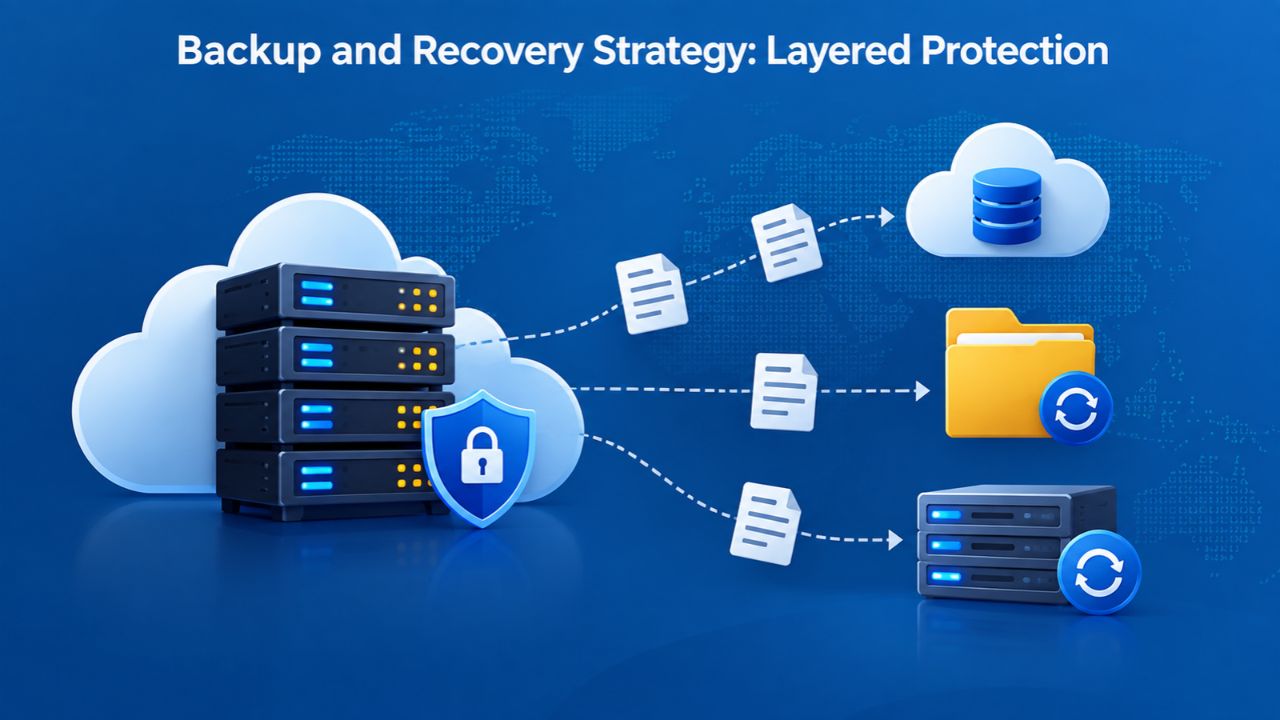
PostgreSQL offers two complementary backup approaches: logical backups (pg_dump for individual databases or pg_dumpall for all databases as SQL text files) and physical backups (pg_basebackup for cluster-level block-level snapshots). For production systems, a multi-layer approach is essential because each method has strengths and weaknesses.
Automate logical backups on a daily schedule using pg_dump, enable WAL (Write-Ahead Log) archiving to capture every transaction for point-in-time recovery (PITR), and use VPS-level snapshots (available on GoDaddy VPS Hosting) as an additional recovery layer at the infrastructure level. A snapshot captures your entire VPS state at a moment in time, letting you revert the entire server if needed; logical backups let you restore to any specific transaction within your archive window, offering finer-grained recovery.
Point-in-Time Recovery (PITR) with WAL Archiving
Without WAL archiving, you can only restore a database to the moment of your last full backup, losing all transactions since then. With continuous WAL archiving (using tools like WAL-G or custom scripts), you can restore to any second within your archive retention period, typically several days or weeks depending on your storage budget. This is critical for production: if data corruption or an accidental delete occurs at 3 PM, PITR lets you recover to 2:59 PM and replay only safe transactions forward from that point.
Set up WAL archiving early in your deployment; retrofitting it onto a running production database is disruptive because it requires configuration changes and a PostgreSQL restart. Most VPS providers, including GoDaddy, support WAL archiving to external object storage (Amazon S3, DigitalOcean Spaces, or on-premises) for long-term retention without filling up your VPS storage.
Testing Restore Procedures
Backups are worthless if you have never tested recovery and do not know whether restores actually work. Schedule monthly restore tests: take a backup from production, restore it to a separate database on a development VPS tier, and verify that application queries work correctly against the restored data. This catches configuration errors, missing dependencies, schema drift between backups, and corrupted backups before you actually need to recover in an emergency. Document your restore procedure in a runbook so that, under the stress of an outage, your team follows a checklist instead of inventing steps in real time.
Scaling Decisions: When to Upgrade Your VPS Tier
Monitor PostgreSQL’s resource consumption continuously and systematically: watch CPU utilization (target is 60–70% under normal load, not constantly at 95%), RAM usage (especially shared_buffers hit ratio, aim for 99%+), disk I/O throughput and latency, and query response times (average and p95). If CPU consistently runs above 70%, or if average query response times degrade month over month, upgrade your vCPU tier before performance collapses. If memory pressure indicators show your working set doesn’t fit in RAM, upgrade RAM. On a VPS Hosting platform, upgrades are typically a matter of stopping the instance, resizing to a larger tier (a few minutes of downtime), and restarting, much faster than a migration to a different provider.
Monitoring and Alerting
Set up PostgreSQL’s built-in monitoring tools (pg_stat_statements, pg_stat_database) or a third-party tool (pgAdmin for web-based management, pgBadger for log analysis, or hosted services like Datadog, New Relic) to track CPU, memory, query latency, cache hit ratios, and disk I/O metrics. Alert on thresholds: if CPU approaches 80%, if average query latency exceeds your SLA by 20%, or if disk space is below 20% free, trigger an alert to your ops team. Proactive monitoring lets you upgrade before users notice slowness or the database runs out of space. Reactive upgrades (after customer complaints) damage trust and may coincide with peak traffic, making the upgrade risky and stressful.
Vertical vs. Horizontal Scaling
VPS Hosting supports vertical scaling (adding CPU, RAM, or storage to a single instance), which is straightforward for PostgreSQL and maintains data consistency without complex logic. Horizontal scaling (distributing load across multiple PostgreSQL replicas or shards) is significantly more complex and generally undertaken only if a single instance’s resources are truly exhausted and vertical scaling is no longer viable. For most applications, a well-sized single VPS Hosting instance with proper indexing, query optimization, and application-level caching (Redis, Memcached) outperforms a hastily sharded cluster that adds operational burden and debugging complexity.
PostgreSQL Configuration Best Practices on VPS
Configuring PostgreSQL for production on a VPS requires discipline and understanding of your workload. The default settings are conservative, designed for broad compatibility across diverse systems; your VPS is dedicated to PostgreSQL, so you have room to tune parameters for your specific scenario. Recalculate key parameters like shared_buffers, effective_cache_size, work_mem, max_connections, and maintenance_work_mem based on your actual hardware tier and workload characteristics. PostgreSQL includes tools like pg_stat_statements (to identify slow queries consuming the most total time) and pgAdmin (a web-based management interface) that help you understand what is happening inside the database and spot optimization opportunities. After any configuration change, restart PostgreSQL and verify that queries still return correct results and performance improves as expected.
Identifying and Fixing Common Misconfigurations
Oversized work_mem without corresponding memory headroom is the fastest way to exhaust RAM and trigger out-of-memory kills that crash the database. Undersized shared_buffers leaves performance on the table, forcing PostgreSQL to re-read data from disk unnecessarily on every query. Overly permissive pg_hba.rules (e.g., trusting all connections from the VPS subnet) weaken security and expose the database to internal attackers.
Set max_connections appropriately: if you set it to 1,000 but your application only opens 50 simultaneous connections, you are wasting RAM on connection overhead. Each connection consumes roughly 5–10 MB of RAM; 1,000 connections can exhaust even a 16 GB VPS tier. Estimate your peak concurrent connection count conservatively and scale up only if your application actually opens that many connections under realistic peak load.
Query Optimization Before Hardware Upgrades
Before upgrading your VPS Hosting tier because of slow queries, profile your slowest queries with EXPLAIN ANALYZE and look for missing indexes or inefficient join plans. Adding a single index on the right column can be 100 times faster than adding another CPU core if the bottleneck is sequential table scans of millions of rows.
View query logs using pgAdmin or command-line tools like pgBadger, identify the queries consuming the most total time (not just the slowest single execution), and optimize application code or schema design before throwing more hardware at the problem. Often, a missing index or a refactored query eliminates the need for a hardware upgrade entirely.
Common PostgreSQL Mistakes on VPS Hosting
Teams repeatedly make the same mistakes when deploying PostgreSQL on VPS for the first time, leading to performance problems and operational headaches. Undersizing RAM leads to cache misses and disk thrashing, where the database spends more time reading from disk than executing queries. Undersizing CPU leads to query queueing, where multiple queries wait for a single core to become available.
Undersizing storage leads to failed writes when you run out of space, causing the application to fail unexpectedly. Forgetting to enable automated backups means data loss is always a possibility if hardware fails or human error occurs. Neglecting security hardening (trusting all local connections, not changing the default Postgres password, exposing port 5432 to the public internet) invites exploitation by attackers who scan for vulnerable databases. Failing to monitor resource utilization means you won’t discover problems until users complain and your reputation is already damaged.

The Real Cost of Undersizing
Undersizing is the most expensive mistake because it is invisible at first. Your application works fine with 2 vCPU and 4 GB RAM during initial testing or low-traffic launch phases. As traffic grows, or as you add features that generate more queries, performance degrades gradually, making it hard to pinpoint when things started getting worse.
Users notice slower pages, you add caching layers (which mask, not fix, the problem), and eventually you panic-upgrade to 16 GB RAM and discover the underlying query is still slow because it does a full table scan. A better approach: estimate generously and provision one tier higher than your calculation, then monitor in production. If you are over capacity after three months, downgrades are generally free or low-cost; if you are under capacity, emergency upgrades happen under stress and at the worst possible time (during peak traffic).
Backup Neglect as Existential Risk
The most painful mistake is deploying PostgreSQL without automated backups, or only with manual backups that aren’t tested. You do not notice the absence of backups until you accidentally drop a table, get hit by ransomware, experience hardware failure, or a buggy application corrupts data. By then, the damage is irreversible, and your business may face customer lawsuits or regulatory fines. Enable automated backups immediately after deployment, test restores monthly to verify they actually work, and store backups outside your VPS Hosting instance (in object storage or on a different physical server). A 30-minute restore procedure is acceptable; an impossible restore is catastrophic.
Feature Comparison: GoDaddy VPS Hosting Plan Overview
| Feature | Plan 1 (Starter) | Plan 2 (Standard) | Plan 3 (Professional) | Plan 4 (Enterprise) |
|---|---|---|---|---|
| vCPU Cores | 1 | 2 | 4 | 4 |
| RAM | 2 GB | 4 GB | 8 GB | 16 GB |
| NVMe SSD Storage | 40 GB | 100 GB | 200 GB | 200 GB |
| Operating Systems | Linux (AlmaLinux) | Linux or Windows | Linux or Windows | Linux or Windows |
| Snapshot Backups | Included | Included | Included | Included |
| DDoS Protection | 24/7 Network Monitoring | 24/7 Network Monitoring | 24/7 Network Monitoring | 24/7 Network Monitoring |
| SSL Certificate | Free (1st year) | Free (1st year) | Free (1st year) | Free (1st year) |
| Control Panel | cPanel/Plesk available | cPanel/Plesk available | cPanel/Plesk available | cPanel/Plesk available |
| Root Access | Full | Full | Full | Full |
| Unlimited Traffic | Yes | Yes | Yes | Yes |
| Global Data Centers | Yes | Yes | Yes | Yes |
| Uptime Commitment | 99.9% SLA | 99.9% SLA | 99.9% SLA | 99.9% SLA |
Ready to Scale Your PostgreSQL Workload?
PostgreSQL on VPS Hosting gives you database power without the overhead of managed services or the risk of undersized shared hosting. Niya Digital’s support team can help you right-size your tier, configure your server, and plan for growth. Explore our VPS Hosting plans and start building your PostgreSQL infrastructure today, with the confidence that you have the resources and flexibility to scale as your application demands grow.
Frequently Asked Questions
How much RAM do I actually need for PostgreSQL?
There is no universal minimum; it depends on your working set size (the data you access regularly), concurrent connection count, and query types. Estimate the size of tables and indexes your queries access together; if that is 20 GB, you need a VPS tier with at least 20 GB RAM plus headroom for OS and query overhead. Smaller working sets might thrive on 2–4 GB. Size conservatively; RAM upgrades are often cheaper and easier than storage or CPU upgrades, so err on the side of more memory.
Should I run PostgreSQL and my application server on the same VPS?
It is possible but not recommended for production workloads. Sharing a VPS means resource contention (CPU and memory), which makes performance issues harder to troubleshoot: was it the database or the application? For development or small projects, a shared VPS is cost-effective. For production, separate instances (or, at minimum, separate resource quotas via cgroups) for the database and application clarify blame when performance suffers and make capacity planning easier.
How often should I upgrade my PostgreSQL VPS?
Monitor continuously; upgrade when you hit resource constraints (CPU above 80%, RAM utilization high, disk I/O saturation). For many applications, upgrading a VPS tier every 1–2 years is typical as data volume and concurrent users grow. Proactive upgrades (before performance problems) prevent customer-facing outages and let you plan capacity during off-peak maintenance windows.
What’s the difference between snapshots and logical backups?
Snapshots capture your entire VPS state at a point in time; restoring a snapshot reverts your entire server (operating system, files, database state). Logical backups via pg_dump are database-specific SQL exports; restoring a dump reloads just that database and is portable across servers. Snapshots are fast for full-server recovery but can be large; logical backups are smaller and portable but slower to restore for massive datasets.
Can I migrate PostgreSQL from shared hosting to VPS without downtime?
With care, yes. Set up a streaming replication replica on your new VPS Hosting instance, let it catch up to your live database, then switch application traffic to the replica. Alternatively, perform a logical backup via pg_dump from shared hosting, restore it on the VPS during a maintenance window, verify consistency, then point your application to the new instance. Planned downtime is typically 5–30 minutes, depending on database size.
How do I know if my VPS configuration is secure?
Use a hardening checklist: Change the Postgres superuser password, restrict pg_hba.conf to non-trust authentication methods, disable public remote access to port 5432, enable SSL for all remote connections, revoke unnecessary public schema privileges, monitor logs for failed authentication attempts. Patch PostgreSQL and the operating system regularly. A configuration audit from a PostgreSQL expert can catch subtle issues.
What’s the difference between managed and unmanaged VPS?
Unmanaged VPS means you control and maintain everything (operating system updates, security patches, PostgreSQL upgrades, monitoring, backups). Managed VPS means the provider handles routine maintenance automatically. Unmanaged VPS costs less but requires your team to have operational knowledge; managed VPS costs more but lets your team focus on application development rather than database administration.
How do I prevent accidental data deletion in PostgreSQL?
At the application level, implement role-based access control (RBAC) so most application users have SELECT-only permissions; only administrators can execute DELETE or DROP statements. Enable row-level security (RLS) policies to enforce per-user data access. At the database level, use pg_dump to create logical backups that you can restore to a recovery database for inspection before applying fixes to production. Test your recovery procedure monthly, so you are confident it works under pressure.
Can I use PostgreSQL for analytics queries on a VPS?
Yes, but be aware that large scans and aggregations consume CPU and I/O heavily. If your analytics workload and OLTP (transactional) workload share a single PostgreSQL instance, they will compete for resources and slow each other down. For separate workloads, consider a read replica (a separate PostgreSQL instance that streams replication from your primary) dedicated to analytics, keeping your primary free for fast user-facing transactional queries.
What’s the relationship between VPS and managed PostgreSQL services?
Managed services (AWS RDS, Heroku Postgres, Cloud SQL) typically cost 2–4 times more per GB of RAM than self-managed VPS because they handle backups, replicas, monitoring, and patching automatically. If your workload needs PostgreSQL extensions (pgvector for AI embeddings, PostGIS for geographic queries, TimescaleDB for time-series), many managed services restrict or forbid them; VPS Hosting gives you full freedom to install any extension. Trade-off: managed is less operational work; VPS is more flexible and cost-effective.
How do I handle high-traffic spikes on PostgreSQL VPS?
Monitor for spikes and upgrade your VPS Hosting tier proactively if you forecast traffic growth. During an actual spike, reduce query load by enabling query result caching via pgBouncer or pgpool, optimizing identified slow queries, or temporarily disabling non-critical analytics jobs. Vertical scaling (upgrading to a larger tier) is fast on a VPS; horizontal scaling (adding read replicas) is complex for workloads that include writes.
What should I do if my VPS runs out of disk space?
First, stop writes to prevent database corruption. Identify and clean up old WAL files or temporary data; remove unnecessary backups stored locally. Increase storage on your VPS Hosting plan; most providers allow online storage expansion without downtime. After expanding storage, verify PostgreSQL can write successfully again and review your backup retention policy to prevent future space issues.
How do I test a PostgreSQL upgrade before deploying to production?
Restore a backup of your production database on a separate development VPS tier, upgrade PostgreSQL on that test tier, run your application’s test suite against it, and verify query performance and correctness. This catches incompatibilities and performance regressions before they impact production. Plan upgrades during maintenance windows and always test on a separate instance first.
Can I have multiple PostgreSQL databases on one VPS?
Yes. A single PostgreSQL server can host many databases, each with its own schemas, users, and permissions. For isolation or different backup policies, you might run separate PostgreSQL instances (on different port numbers) on the same VPS, though this adds management complexity. For most applications, one PostgreSQL server per VPS Hosting tier is the standard and recommended setup.
How do I optimize PostgreSQL performance without upgrading hardware?
Profile slow queries using EXPLAIN ANALYZE; add missing indexes on frequently filtered columns. Analyze query plans and refactor queries that use inefficient joins. Adjust configuration parameters (shared_buffers, work_mem, effective_cache_size) based on your workload. Implement connection pooling via pgBouncer to reduce connection overhead. Often, query optimization eliminates the need for hardware upgrades.
Glossary
- Root Access: Full administrative control over the operating system on your VPS, allowing you to install software, modify system configuration, and run any application without restrictions. All Niya Digital VPS Hosting tiers include root access via SSH.
- VPS (Virtual Private Server): A virtualized server running its own isolated operating system with dedicated CPU, RAM, and storage resources, not shared with other users on the same physical hardware.
- Snapshot: A point-in-time copy of your entire VPS server state (operating system, files, database state); snapshots allow rapid recovery if the server fails or if you need to revert to an earlier state. Included on GoDaddy VPS Hosting plans.
- Shared_buffers: PostgreSQL’s in-memory cache for frequently accessed data blocks; recommended sizing is 25% of total system RAM on a dedicated database server to maximize cache hit rates.
- WAL (Write-Ahead Log): PostgreSQL’s transaction log; it writes all data changes to WAL and persists them to disk before acknowledging a commit, ensuring durability and enabling point-in-time recovery.
- NVMe SSD: A fast solid-state storage type using the NVMe protocol; delivers sub-0.1 millisecond write latency, ideal for database workloads requiring rapid persistent writes and high I/O throughput.
- PITR (Point-in-Time Recovery): The ability to restore a PostgreSQL database to any specific moment in the past by replaying transaction logs; requires continuous WAL archiving to an external storage system.