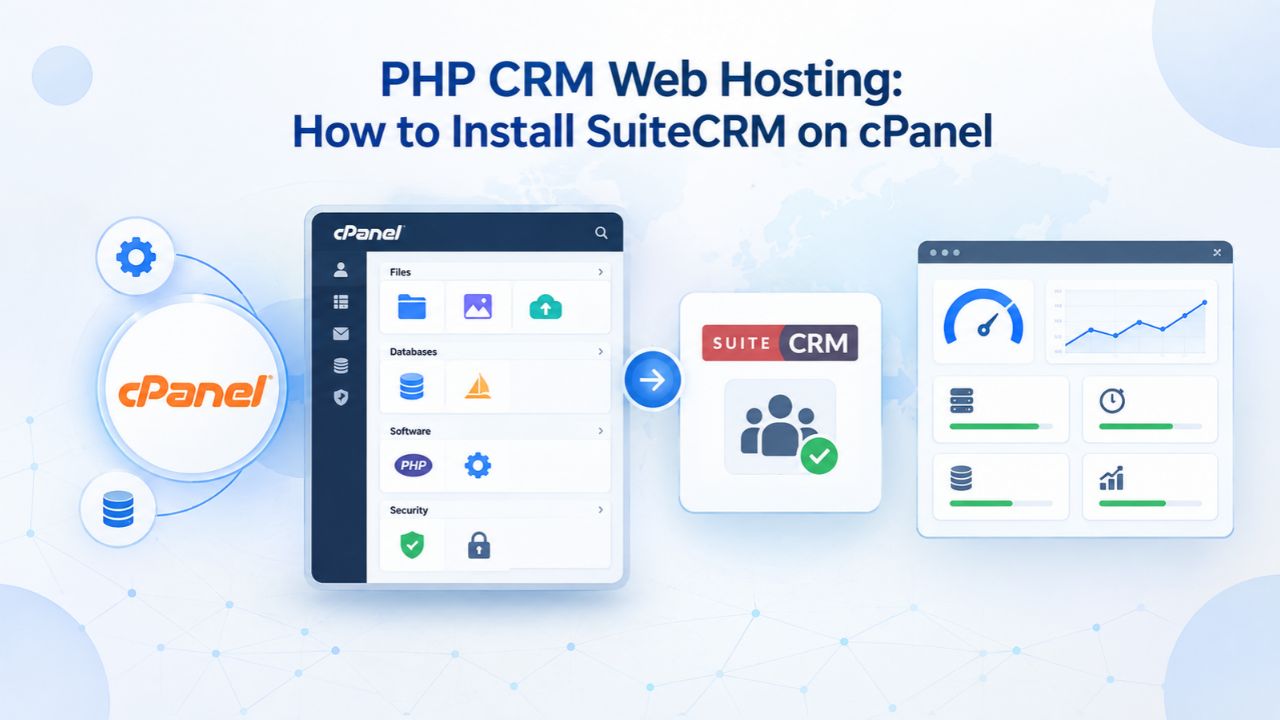
Why Small Businesses Are Adopting CRMs, and Why SuiteCRM Fits
Customer relationship management software has become essential infrastructure for sales teams. 73% of businesses now use CRM software, and 71% of small businesses with 500 or fewer employees rely on a CRM system to manage their sales funnel and track customer interactions. This trend reflects a real business need: a CRM lightens the administrative burden by streamlining customer tracking, automating follow-ups, and generating actionable sales reports that teams actually use.

Why Choose SuiteCRM Over Other Options
SuiteCRM is a fork of the widely used SugarCRM platform. It includes email marketing, workflow automation, customer support ticket tracking, reporting, and multi-user account management all within a single system. The trade-off is straightforward: you trade vendor-managed hosting (and recurring licensing costs) for the responsibility of maintaining your own installation, database, and backups. This arrangement is a real advantage if you’re comfortable with setup and ongoing maintenance, or if you have Web Hosting support available to help with installation and troubleshooting.
The CRM market is expected to grow 12% annually through 2028, driving competition and innovation among both open-source and commercial options. SuiteCRM captures this opportunity by delivering enterprise-grade features (sales pipeline management, contact tracking, activity logging, email integration, workflow automation) at zero cost. You get a self-hosted CRM with the same core capabilities as commercial platforms, but at a much lower cost; your only expense is your Web Hosting account.
How SuiteCRM Saves Money and Effort
Open-source CRM software eliminates per-user licensing costs, which can total hundreds or thousands per month for growing sales teams scaling from 5 to 20 users and beyond. SuiteCRM pricing is zero, but you’re responsible for hosting, backup, and ongoing maintenance. On a standard Web Hosting plan, this tradeoff typically results in significant savings compared to commercial CRM platforms, especially as your team grows and licensing costs multiply.
Additionally, because you control the installation, you can customize workflows, integrations, and reports without vendor lock-in. You’re not limited by a vendor’s feature roadmap or API restrictions; you can extend SuiteCRM yourself or hire a developer to build custom functionality. This flexibility, combined with no licensing fees, makes SuiteCRM ideal for businesses that want to avoid recurring SaaS costs and maintain complete ownership of their customer data.
What Your Web Hosting Must Include for SuiteCRM
SuiteCRM is a PHP application, so your hosting account must run a web server, PHP interpreter, and database system. SuiteCRM requires PHP 8.1 or newer and MySQL/MariaDB as the database backend. For best performance, a LAMP Stack (Linux OS, Apache web server, MySQL/MariaDB, PHP) is the standard configuration used across the industry and recommended by SuiteCRM’s official documentation.
Core Requirements: PHP, MySQL, and cPanel
When evaluating a Web Hosting plan for SuiteCRM, confirm that it includes PHP 8.1 or newer, MySQL 5.7 or later, and cPanel access. These three components are essential and non-negotiable for a successful installation. cPanel provides the File Manager (for uploading and extracting SuiteCRM files), MySQL Databases tool (for creating databases and users), and phpMyAdmin (for database management, verification, and troubleshooting). Together, these tools let you install and manage SuiteCRM without ever touching a command line.
Many Web Hosting providers offer these features as standard on shared plans. However, some budget providers may offer older PHP versions or limited cPanel access. Before purchasing or migrating, check the provider’s documentation or ask support directly: “Does your Web Hosting include cPanel, PHP 8.3 or newer, and MySQL 5.7 or MariaDB 10.4 or later?” If the answer is no, look for another provider. Niya Digital’s Web Hosting Plans include all three by default on every shared hosting tier.
Matching Resources to Your Team Size
Not all shared hosting plans allocate equal resources to each account. SuiteCRM performance depends on the storage space, monthly bandwidth, PHP memory limits, and CPU allocated to your account. Choose a hosting tier that matches your immediate needs while leaving room to upgrade as your business grows and your customer database expands.
SuiteCRM recommends at least 1 GB RAM and 2 vCPU for stable operation, including database queries, concurrent user sessions, and report generation. On shared hosting, you share a physical server with other websites, so available resources are typically lower than the recommended limits. If your sales team is small (under 5 users) and your database has fewer than 50,000 customer records, a standard shared hosting plan is sufficient. If you’re scaling rapidly or have multiple teams, consider upgrading to a managed hosting tier to ensure SuiteCRM doesn’t compete for resources with dozens of other websites on the same physical server.
| Resource | Minimum | Recommended | Best For |
|---|---|---|---|
| CPU Cores | 1 vCPU shared | 2 vCPU dedicated | Teams with 5–10 active users |
| RAM | 1 GB | 2–4 GB | Database queries and concurrent sessions |
| Storage (Application) | 500 MB | 1–2 GB | SuiteCRM files, customizations, cache |
| Storage (Database) | 5 GB | 10–20 GB | Customer records, emails, attachments |
| PHP Version | 8.1 | 8.3–8.4 | Security patches and performance |
| Database | MySQL 5.7 | MySQL 8.0 or MariaDB 10.4+ | Reliability and transaction handling |
| Bandwidth (Monthly) | 100 GB | 500+ GB | Email sending, file uploads, reporting |
Business Web Hosting Plans & Pricing
Choose the hosting plan that fits your website, WordPress site, or growing business. Compare features, storage, performance, security, and website capacity to find the right hosting environment for your needs.
cPanel Starter
cPanel Hosting that's easy, reliable and lightning-fast.
- 1 website
- 30 GB storage
- Unmetered bandwidth*

cPanel Economy
cPanel Hosting that's easy, reliable and lightning-fast.
- 1 website
- 100 GB space
- Unlimited bandwidth*
- 100 email accounts**
- 10 MySQL databases (1 GB ea.)
cPanel Deluxe
cPanel Hosting that's easy, reliable and lightning-fast.
- Unlimited websites
- Unlimited space
- Unlimited bandwidth*
- 500 email accounts
- 25 MySQL databases (1 GB ea.)
cPanel Ultimate
cPanel Hosting that's easy, reliable and lightning-fast.
- Unlimited websites
- Unlimited space
- Unlimited bandwidth*
- 1000 email accounts
- Unlimited MySQL databases (1 GB ea.)
- 2X Processing power & memory (available for Linux/cPanel only)
- Premium DNS
- 1-year SSL certificate to secure customer data and increase search rankings
*We don't limit the amount of storage and bandwidth your site can use as long as it complies with our Hosting Agreement. Should your website bandwidth or storage usage present a risk to the stability, performance or uptime of our servers, we will notify you via email and may be required to upgrade, or we may restrict the resources your website is using.
**Email account storage is limited to 100 email accounts with 100 MB of total storage.
WordPress Basic
A great way to get started.
- 1 website
- 10 GB NVMe storage
- Unmetered bandwidth
- Free SSL Certificate *
- WordPress pre-installed
- Weekly backups
- Web Application Firewall
- Daily malware scans
- One-time malware removal

WordPress Deluxe
Improve your site performance with Cloudflare CDN.
- 1 website
- 20 GB NVMe storage
- Unmetered bandwidth
- Free SSL Certificate *
- WordPress pre-installed
- Daily backups
- Web Application Firewall
- Daily malware scans
- One-time malware removal
- Up to 2x faster performance with global Cloudflare CDN **
- Enhanced security with DDoS protection
- Staging site
WordPress Ultimate
Add online marketing with more sites, storage and security.
- 1 website
- 30 GB NVMe storage
- Unmetered bandwidth
- Free SSL Certificate *
- WordPress pre-installed
- Daily + on-demand backups
- Web Application Firewall
- Daily malware scans
- Unlimited malware removal
- Up to 2x faster performance with global Cloudflare CDN **
- Enhanced security with DDoS protection
- Staging site
- WordPress code optimizer
- Smart WordPress plugin manager
- Sell online with WooCommerce
*An SSL certificate is included with every site and free for the life of the hosting plan. Certificates are automatically installed, validated and renewed.
Web Hosting Plus Launch
For multiple basic sites.
- 100 GB storage*
- 4 GB RAM
- 2 CPUs
- Unmetered traffic
- 50 websites & databases
- Free, unlimited SSL for all your websites**

Web Hosting Plus Enhance
For high-traffic WordPress, Joomla, and other sites.
- 200 GB storage*
- 8 GB RAM
- 4 CPUs
- Unmetered traffic
- 100 websites & databases
- Free, unlimited SSL for all your websites**
Web Hosting Plus Grow
For advanced eCommerce sites like Magento.
- 300 GB storage*
- 16 GB RAM
- 8 CPUs
- Unmetered traffic
- 150 websites & databases
- Free, unlimited SSL for all your websites**
Web Hosting Plus Expand
For multiple basic sites.
- 400 GB storage*
- 32 GB RAM
- 16 CPUs
- Unmetered traffic
- 200 websites & databases
- Free, unlimited SSL for all your websites**
*The total amount of usable storage capacity for your particular Hosting Service(s) may differ from the represented capacity as there is required space for the operating system(s), system file(s) and other supporting file(s).
**If you cancel the Web Hosting Plus product, you will lose the associated SSL certificate as well.
The One-Click Path: Softaculous Installation on cPanel
If your hosting control panel includes Softaculous, a one-click application installer, you can deploy SuiteCRM in minutes without manual setup, file uploads, or database creation. This is the fastest and simplest path to a running CRM for teams that want to get started immediately. Softaculous is a cPanel plugin that automates the entire deployment process: downloading application files, extracting them, creating a database, generating credentials, and configuring basic settings, all with just a few clicks.
Finding and Launching Softaculous in cPanel
Log in to your cPanel account using the credentials provided by your hosting provider. On the main dashboard, look for the “Software and Services” or “Tools” section; the exact label depends on your hosting provider’s customization. You’ll see the Softaculous icon among the available tools; click it to open the application library. In the search bar at the top, type “SuiteCRM” and press Enter to find the application in the catalog.
The application description page appears, showing user ratings, screenshots, feature descriptions, and a live demo link you can click to explore SuiteCRM before committing to installation. Review this information to confirm SuiteCRM is what you need. Click the “Install” button to proceed. The installation configuration page opens immediately, presenting you with a series of choices for protocol selection, domain assignment, installation directory, site name, and admin account credentials.
Configuring and Completing Installation
In the “Choose Protocol” dropdown, select either http or https for your CRM. If you have an SSL certificate installed (https is always recommended for a CRM containing sensitive customer data), select the https protocol; otherwise, choose http for now and upgrade to SSL within the first week of operation once your hosting is stable. In the “Choose Domain” dropdown, select the domain where you want SuiteCRM to live. Leave the “In Directory” field blank if you want SuiteCRM to run at your domain root (e.g., crm.yourdomain.com); otherwise, enter a subdirectory like “/sales” to run it at a specific path.
Choose a strong, unique admin username and password; this is your primary CRM admin account and your main entry point. Softaculous automatically creates the database, generating a secure MySQL user and database with a randomly generated password. After installation completes (typically 3–5 minutes), you’ll receive a confirmation email with your CRM access URL and login credentials. Click the link provided, log in with your admin username and password, and you’re inside SuiteCRM: no manual database setup, no file uploads, no command-line work required.
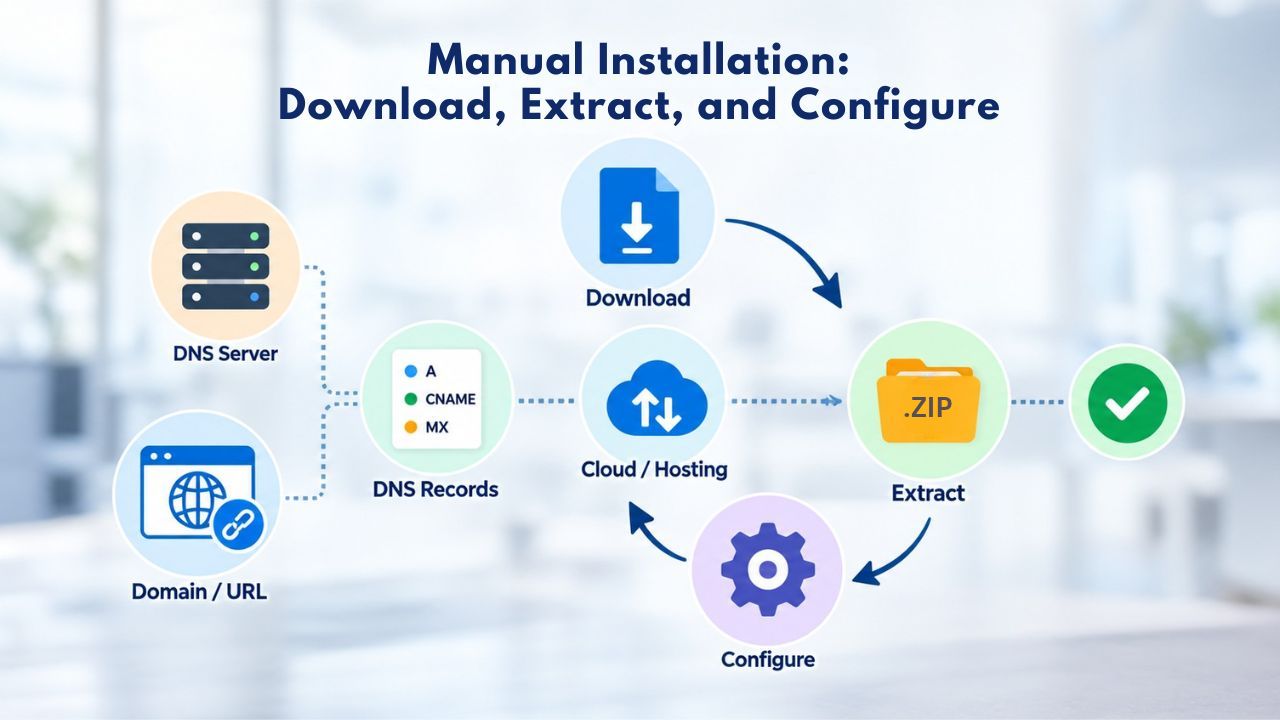
Manual Installation: Download, Extract, and Configure
Not all hosting providers include Softaculous with their plans. If it’s not available on your hosting account (or if you prefer more control over the installation process), a manual setup via cPanel takes 15–30 minutes and follows a straightforward pattern: download the source code, extract files, create a database and user, and run the web-based installer. Manual installation gives you full control over the installation directory and lets you understand exactly how SuiteCRM is configured on your server.
Downloading and Uploading SuiteCRM Files
Visit the official SuiteCRM downloads page and download the latest stable release as a ZIP file to your computer. Return to your cPanel account, open the File Manager (under the “Files” section in the dashboard), and navigate to your public_html folder (or the domain-specific folder where you want SuiteCRM to run). Click the “Upload” button and select the SuiteCRM ZIP file you just downloaded from your computer.
Once the upload completes, right-click the ZIP file in File Manager and select “Extract” from the context menu. cPanel decompresses it into a folder, usually named “SuiteCRM-8.x.x” based on the version. If extraction creates a nested folder and the installer file isn’t at the root, use File Manager’s move/rename tools to move the contents up one level so the install.php file sits directly in your public_html or domain folder where the web server can find it.
Creating a Database and Assigning a User
Return to the main cPanel dashboard and scroll down to the “Databases” section. Click “MySQL Databases” to open the database management interface. Under “Create New Database,” enter a database name (cPanel typically prefixes it with your account username, for example, “account_suitecrm”). Click “Create Database.” A confirmation message shows your new database name and confirms successful creation.
Next, scroll down to “MySQL Users” and create a new database user with a strong, unique password. After creating the user, go back to “MySQL Databases,” find your newly created database, and click “Change Privileges” (or “Manage User Privileges”) to assign your new user full database permissions (SELECT, INSERT, UPDATE, DELETE, CREATE, DROP, and others). Save the changes. Write down the database name, username, and password; you’ll need these exact credentials during the SuiteCRM installation wizard.
Database Setup and Configuration in cPanel
A successful database connection test confirms that your database exists, the user is properly assigned to the database, and the connection protocol is working correctly. This gives you confidence before you invest time in extracting files and running the full installation wizard.
Testing Connection with phpMyAdmin
In cPanel, find “phpMyAdmin” under the Databases section and click it to open the database management interface. This visual tool lets you browse and manage databases without using the command line. In the left sidebar, you should see your newly created database listed with its name. Click on it to open it. If the database appears and is empty (showing no tables), the Connection is working correctly, and you’re ready to run the SuiteCRM installer.
If the database doesn’t appear or you see a connection error, double-check your database name and username in cPanel’s “MySQL Databases” tool. Make sure the user has full privileges on the database; this is often the source of connection failures. Most connection errors stem from typos in database names, incorrect usernames, or missing permission assignments. Correcting these in cPanel resolves them immediately.
Securing Database Access Restrictions
By default, MySQL users created in cPanel are restricted to localhost (the server itself) and cannot be accessed from external servers or IP addresses. This is secure and correct for SuiteCRM on shared hosting and should not be modified. Do not change these access restrictions. If you later migrate SuiteCRM to a different server, cloud platform, or architecture, you’ll adjust these restrictions then; for now, leave them exactly as cPanel creates them.
This default restriction means your database can only be accessed by applications running on the same server as your cPanel account. Since SuiteCRM will run on that same server, it can access the database without any issues. External tools or applications cannot access it, which is exactly what you want for security. This is a security best practice followed by hosting providers worldwide.
Get Started Installing SuiteCRM on Web Hosting
Your database is created and tested, and your files are extracted and ready. You’re now prepared to run the SuiteCRM installation wizard and get your CRM online. Niya Digital’s cPanel Web Hosting makes this process straightforward with one-click installers via Softaculous or step-by-step manual setup. Follow the next sections to complete your installation, configure your admin account, and set up the scheduler that powers automated emails and workflows. You’ll be managing your first customer records within hours of starting.
Running the Installation Wizard and Initial Setup
After uploading and extracting SuiteCRM files and creating your database, you’re ready to run the web-based installation wizard. This wizard walks you through final configuration steps and creates the database tables SuiteCRM needs to function. The installation wizard typically takes 5–10 minutes to complete and automatically handles all database initialization.
Launching the SuiteCRM Web Installer
Open your web browser and navigate to your SuiteCRM installation URL. If you extracted SuiteCRM to the root of your domain, go to http://yourdomain.com/install.php (replace yourdomain.com with your actual domain name). If you installed it in a subdirectory like “/crm”, go to http://yourdomain.com/crm/install.php. The SuiteCRM installer welcome page should appear with a welcome message and a “Next” button.
If the page doesn’t load, check that you extracted the SuiteCRM files to the correct location in cPanel’s File Manager. The install.php file must be in the web-accessible directory (public_html or your domain folder). If the files are in a subdirectory or nested incorrectly, the installer won’t find them. Once you see the installer page, click “Next” to continue through the wizard.
Configuring Admin Account and Site URL
The installer presents a form asking for your administrator username, password, and email address. This creates the primary admin account you’ll use to log into SuiteCRM initially. Choose a strong, unique password; protect it. This account carefully, as it has full system access. You can create additional admin or standard user accounts after installation.
Next, you’ll enter your database credentials (database name, username, password, and host, typically “localhost” for shared hosting). These are the exact credentials you created earlier in cPanel. You’ll also specify your Site URL (the full web address users will use to access SuiteCRM, e.g., http://crm.yourdomain.com or http://yourdomain.com/crm). After entering all fields carefully, click “Install.” The wizard creates the database tables and configuration files SuiteCRM needs to run.
Post-Installation Configuration: Scheduler and Email Setup
Setting up both the scheduler and email integration takes about 10–15 minutes total and is well worth the investment. These features transform SuiteCRM from a contact database into a complete sales management platform.
Setting Up the Cron Job Scheduler
SuiteCRM relies on a cron job, a scheduled task that runs automatically on the server at regular intervals, to send emails, execute workflows, and generate reports on schedule. Without it, time-based actions won’t run. Return to cPanel and look for “Cron Jobs” under the “Advanced” section. Click it to open the cron job management interface.
cPanel displays a form to add a new cron job. The command you need is usually provided in the SuiteCRM installer confirmation email or in the official SuiteCRM documentation. It typically looks like: * * * * * cd /path/to/suitecrm && php -f cron.php > /dev/null 2>&1. Replace /path/to/suitecrm with the actual file path (usually /public_html/suitecrm or /public_html if you installed at the root). Set the frequency to “Every minute” and save. This ensures SuiteCRM’s background processes run smoothly and scheduled tasks execute on time.
Integrating Email and User Accounts
Most Web Hosting plans include email hosting alongside website hosting, allowing you to create professional email accounts using your domain. In cPanel, create email accounts for your sales team (e.g., sales@yourdomain.com, support@yourdomain.com). In SuiteCRM’s Administration panel (typically under System Settings → Email Settings), configure your email server details (usually the server address, port, and credentials for your email accounts).
SuiteCRM can then send and receive emails directly, and sync your team’s inboxes into the CRM for easy tracking of customer communications. Email integration is optional; SuiteCRM works fine without it, but it’s essential for teams that want to track all customer interactions directly in the CRM and maintain a complete communication history.
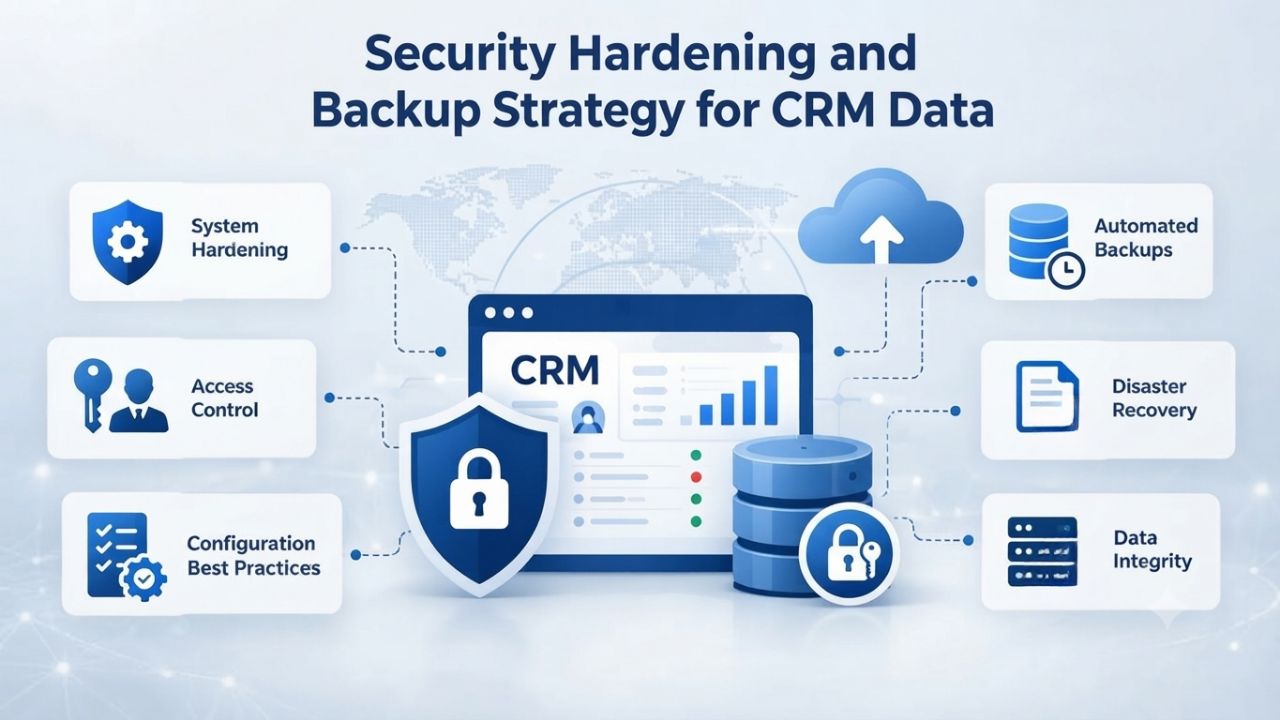
Security Hardening and Backup Strategy for CRM Data
Your CRM now contains sensitive customer data: contact information, deal details, email histories, and customer communications. Protecting this data is a shared responsibility between you and your hosting provider. Your hosting provider handles server-level firewalls and operating system updates; you handle SSL encryption, strong passwords, and automated backups.
SSL Certificates and HTTPS Encryption
Always run your CRM over HTTPS, not HTTP. An SSL certificate encrypts data in transit between users’ browsers and your server, preventing credentials and customer data from being intercepted on unencrypted networks. Most Web Hosting providers offer a free, auto-renewing SSL certificate (via Let’s Encrypt) for each domain on your account. In cPanel, go to “SSL/TLS Status” and ensure your domain shows an active SSL certificate. If not, click “Autofill by Domain” to auto-generate a free certificate; the process takes just a few minutes.
After SSL is active, return to SuiteCRM and update your Site URL setting (typically under Administration → System Settings) to use https:// instead of http://. This ensures all CRM traffic is encrypted and all authentication cookies are marked secure, preventing credentials from being intercepted over unencrypted networks. This single step significantly improves your CRM’s security posture.
File Permissions and Automated Backups
SuiteCRM must write to its cache, uploads, and data directories to function properly. During installation, the system automatically checks and sets appropriate file permissions. If you later edit configuration files manually, ensure the web server user (typically “nobody” or “www-data” on Linux systems) has write access to these directories.
Regular backups are non-negotiable for data protection and disaster recovery. Most Web Hosting plans include automated backup tools in cPanel (Backup Wizard or Backup Manager). Configure a daily or weekly backup schedule that includes both your files (cPanel Home Directory) and your database (MySQL Databases). Download at least one backup to your computer and store it offline. This protects you if the hosting provider’s data center experiences a catastrophic failure or if you accidentally delete files.
Monitoring Performance and Planning Upgrades
Most hosting providers show usage warnings in cPanel before you hit resource limits, giving you time to upgrade. Monitoring helps prevent the frustrating situation where your CRM suddenly slows down because you’ve outgrown your hosting resources.
Watching Resource Usage and Bottlenecks
Log in to cPanel regularly and check your account’s resource usage (look for “Resource Usage” in the dashboard). Watch for warnings about disk space, bandwidth, or CPU time consumption. If you consistently hit limits and see warnings, your shared hosting plan is too small; this clearly signals that you should upgrade to a higher tier or migrate to a managed VPS with dedicated resources.
SuiteCRM’s own Admin Panel (under System Settings → System) shows database size and the number of concurrent users. A database larger than 5 GB or more than 20 active users suggests your team is outgrowing shared hosting. At this point, a managed hosting tier with guaranteed CPU, RAM, and dedicated storage delivers better performance and stability than sharing a server with dozens of other websites.
| Installation Method | Time Required | Technical Level | Best For | Key Advantage |
|---|---|---|---|---|
| Softaculous One-Click | 3–5 minutes | Beginner | Teams wanting minimal setup complexity | Automatic database and admin creation |
| Manual via cPanel File Manager | 15–30 minutes | Intermediate | Users preferring full control over directories | Complete control, no pre-filled settings |
| Manual with Support Help | 20–45 minutes | Beginner+ | First-time installers needing guidance | Learning while getting expert help |
| Migration from Another Host | 30–60 minutes | Intermediate | Existing SuiteCRM users moving providers | Preserves all existing data and configs |
| Managed Setup Service | 1–2 hours | N/A | Businesses without technical staff | Done-for-you installation by your provider |
| Docker/Container Setup | 10–20 minutes | Advanced | Developers using containerization | Isolated environment and reproducibility |
When to Scale to a Larger Plan
Most hosting providers allow you to upgrade your hosting plan without downtime. In cPanel, look for “Upgrade Your Account” or a similar option in the main dashboard. Upgrading typically means moving your account to a server with more resources, a process the hosting provider handles with minimal or no downtime. If you’re upgrading to a VPS or dedicated server, your hosting provider’s migration team can automatically move your files and database.
Before upgrading, create a full backup of your entire CRM account. Make a complete backup in cPanel’s Backup tool and download it to your computer for safekeeping. This protects you if anything goes wrong during migration; you can restore from the backup if needed. After the upgrade, test your CRM thoroughly to confirm everything still works: log in, check a few customer records, and verify that scheduled emails are sending.
Managing Your Sales Team Within SuiteCRM
Setting up your team correctly from the start prevents permission problems later and keeps sensitive customer information protected while still accessible to authorized users. SuiteCRM’s permission system is flexible and can be configured to match your organizational structure exactly.

Creating User Accounts and Assigning Roles
Log in to SuiteCRM with your admin account and navigate to the Administration panel (usually a settings icon or admin link in the main menu). Look for “User Management” or “Users” to open the user administration interface. Click “Create User” to add a new team member account. Enter the person’s name, username, and email address. Assign them a password initially (they can change it on first login), and select their role from the dropdown menu. SuiteCRM includes several standard roles: Administrator, Manager, Employee, and others. Choose the role that matches their responsibilities in your sales organization.
After creating the user account, you can assign them to specific teams or functional groups (Sales Team, Support Team, etc.). This determines which records and modules they can access. For example, an inside sales rep might have access to leads and opportunities but not to administrative settings. A sales manager might have access to all records plus reporting features. An administrator has full access to everything. Configure each user’s permissions carefully to balance security with functionality.
Organizing Teams and Setting Permissions
SuiteCRM allows you to organize users into teams that can collaborate on shared customers and opportunities. In the Administration panel, look for “Teams” to create teams that match your organizational structure. For example, you might create a “West Region Sales Team” and an “East Region Sales Team” to organize your sales staff geographically. Add team members to teams based on their role and responsibilities.
You can assign permissions in SuiteCRM at both the user and team levels. User-level permissions control what individual users can do (create records, edit records, delete records, access reports). Team-level permissions control which records teams can access collectively. Configure permissions to prevent unauthorized access while allowing team members to collaborate effectively. Start with restrictive permissions and open them up as needed, rather than starting broad and trying to lock things down later.
Explore Niya Digital’s Web Hosting Plans
Ready to deploy SuiteCRM on reliable Web Hosting infrastructure? Niya Digital’s Web Hosting Plans include cPanel, PHP 8.3 or newer, free SSL certificates, and one-click Softaculous installers. Start with a standard shared plan for small teams, then scale to managed hosting as your CRM database grows. Your hosting support team is available 24/7 to help during setup or migration.
Frequently Asked Questions
What is the difference between SuiteCRM 7 and SuiteCRM 8?
SuiteCRM 7 is the mature, stable version with a large community and regular updates for bug fixes and security patches. SuiteCRM 8 is a complete rewrite using the modern Symfony framework and an Angular front-end, offering newer architecture and better performance on modern servers.
For new installations on shared hosting, either version works fine. SuiteCRM 8 is recommended for future-proofing and to avoid eventual deprecation of version 7. Check the official documentation for specific feature differences before deciding which version fits your team’s needs.
Can I use Plesk instead of cPanel?
Yes, absolutely. Plesk is an alternative control panel that performs the same functions as cPanel: file management, database creation, email configuration, SSL setup, and backup management. The menus and terminology differ slightly between the two, but the underlying process for installing SuiteCRM remains the same on both platforms. Ask your hosting provider which control panel is included with your plan; both work equally well for SuiteCRM deployments.
What if my hosting provider doesn’t offer Softaculous?
You can still install SuiteCRM manually using cPanel’s File Manager and MySQL Databases tools. Download the ZIP file, extract it via File Manager, create a database and user in cPanel, and run the web installer at your SuiteCRM URL’s /install.php page. The manual process takes longer (15–30 minutes) but gives you more control and requires no additional software beyond cPanel itself.
How much disk space does SuiteCRM need?
SuiteCRM application files are typically 200–300 MB. Budget an additional 5–10 GB for your database, depending on the number of customer records and file attachments your team stores. A small sales team (under 10 people) with under 10,000 customers should be comfortable with 10 GB total. Monitor your usage in cPanel regularly and upgrade if you approach your plan’s limit.
Can I move my SuiteCRM from one hosting provider to another?
Yes, moving SuiteCRM between hosts is straightforward. Back up your entire CRM account (files and database) from your current provider’s cPanel. Download the backup to your computer for safekeeping.
Log in to your new provider’s cPanel, create a new database with the same name, and restore your database backup using phpMyAdmin’s import tool. Upload your files via File Manager or FTP. Update your domain’s DNS records to point to the new provider’s servers, and update SuiteCRM’s Site URL in the admin panel.
Is my customer data secure on shared hosting?
Security is a shared responsibility between you and your hosting provider. Your hosting provider maintains server-level firewalls, regularly patches the operating system, and backs up customer data. You’re responsible for strong admin passwords, regular backups, SSL encryption, and not sharing access credentials with unauthorized people.
Enable two-factor authentication if SuiteCRM supports it. Use strong, unique passwords for your admin account and all database users. Follow these practices, and shared hosting is secure for most small businesses.
How often should I back up my CRM?
Back up at minimum weekly; daily backups are better if your hosting plan supports them. Most Web Hosting plans include automated backup tools in cPanel. Set up a daily or weekly backup schedule and test restoration once a quarter to ensure backups work correctly. Store at least one backup off-site (download it to your computer or a cloud drive) so you can recover if the hosting provider’s data center experiences a major failure.
Do I need a dedicated IP address for SuiteCRM?
No, a shared IP address (included in all standard hosting plans) is fine for SuiteCRM. A dedicated IP address is useful for legacy SSL certificate setups, but modern hosting includes free, auto-renewed SSL for shared IP addresses. Don’t pay extra for a dedicated IP unless your email deliverability requirements or SEO strategy specifically requires it.
What’s the difference between shared hosting and a VPS?
Shared hosting splits one physical server among dozens of websites; you share resources (CPU, RAM, bandwidth) with other customers’ sites. A VPS (Virtual Private Server) is a partitioned section of a physical server allocated just to you; you get guaranteed CPU, RAM, and storage that other websites can’t use. Shared hosting is cheaper and fine for small CRMs. A VPS is better for large teams, high traffic, or strict performance requirements.
Can I run multiple CRM instances on one hosting plan?
Yes, if your plan includes multiple domains and sufficient disk and database limits. You can install SuiteCRM on multiple domains (e.g., crm1.domain.com, crm2.domain.com) within the same cPanel account, each with its own database. However, multiple instances compete for shared resources. If you need many separate CRMs, a VPS or dedicated server is more practical.
What if I hit my hosting plan’s resource limits?
You’ll see warnings in cPanel as you approach disk, bandwidth, or database limits. Most hosting providers automatically suspend accounts exceeding limits to protect the shared server from performance degradation. Upgrade to a larger plan tier immediately. The upgrade typically takes 24–48 hours and includes seamless migration of your files and databases. After the upgrade, your resource limits reset, and your CRM resumes normal operation.
Does SuiteCRM work on Windows hosting?
SuiteCRM is designed for Linux/Apache environments. While Windows hosting with PHP and SQL Server can technically run SuiteCRM, it’s not officially supported and often encounters compatibility issues. Choose Linux-based hosting (the default on most hosting plans) to avoid headaches and ensure compatibility. Ask your hosting provider whether your plan is Linux or Windows; if Windows, consider switching to a Linux-based plan.
How do I integrate SuiteCRM with my company email?
Most Web Hosting plans include email hosting alongside website hosting. In cPanel, create email accounts for your team members. In SuiteCRM’s Administration panel (under System Settings), configure email settings with your email server details (usually provided by your hosting provider). SuiteCRM can then send and receive emails, and sync your team’s inboxes into the CRM for easy tracking.
What if the installation wizard fails partway through?
Check cPanel’s error logs first. Go to “Error Log” under the “Logs” section and look for PHP errors that might explain the failure. Common causes include incorrect database credentials, missing PHP extensions (curl, imap, soap), or insufficient file permissions. Fix the underlying issue, then re-run the installer by visiting your SuiteCRM URL’s /install.php page again. If problems persist, contact your hosting provider’s support team with the error log excerpt.
Can I customize SuiteCRM’s interface and workflows?
Yes, SuiteCRM includes built-in customization tools (the Studio module in the admin panel) to create custom fields, modules, and workflows without writing code. The application also supports PHP customization for developers who want to extend functionality. More complex features (API integrations, custom modules) require programming knowledge or hiring a developer. Start with no-code customization features; upgrade to developer support if you outgrow them.
Glossary
- Web Hosting: A service that stores your website or application files on a server connected to the internet 24/7, making them accessible to visitors worldwide at any time.
- CRM (Customer Relationship Management): Software that centralizes customer data, tracks customer interactions, automates sales workflows, and helps teams collaborate on customer relationships and sales opportunities.
- cPanel: A graphical, web-based control panel that gives website owners browser-based access to file management, database setup, email configuration, and other hosting functions without command-line knowledge.
- PHP: A server-side programming language used to build dynamic web applications like SuiteCRM, WordPress, and e-commerce platforms that interact with databases.
- MySQL/MariaDB: Relational database software that stores structured data (customer records, transactions, metadata) for applications like SuiteCRM in organized tables.
- Softaculous: An auto-installer application available in cPanel that deploys popular software (WordPress, SuiteCRM, Joomla, etc.) with a single click, automating setup.
- SSL Certificate: Encryption technology that secures data transmitted between a user’s browser and a web server, indicated by “https://” and a padlock icon in the address bar.
- Cron Job: An automated task scheduled to run on a server at specific intervals (every minute, daily, weekly, etc.), used by SuiteCRM for email sending, workflow automation, and reporting.