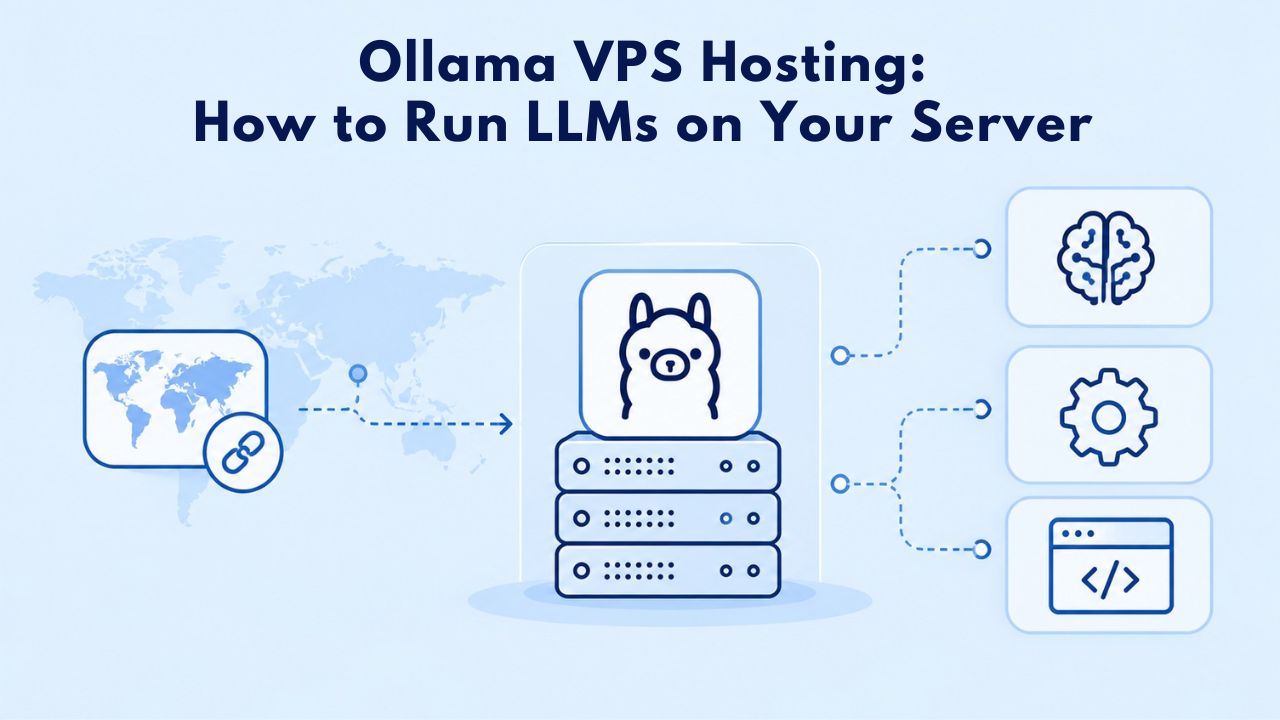
Running large language models on your own infrastructure gives you independence from cloud APIs, privacy for sensitive workloads, and control over high-volume inference costs. Ollama, an open-source framework for deploying LLMs locally, makes this practical. A VPS Hosting service gives you the dedicated CPU, RAM, and storage Ollama demands, plus the root access and operating-system control that shared hosting environments simply cannot provide. Niya Digital is an authorized reseller of GoDaddy-powered VPS hosting infrastructure, not an operator of its own independent data centers. Server performance, uptime, and security depend on many factors outside any single provider’s full control, including your own configuration choices, application code, traffic patterns, and security practices.
What is Ollama and Why Run It on a VPS?
Ollama lets you download and run open-source large language models directly on your own server without relying on cloud API providers. A single installer makes models like Llama 2, Mistral, Neural Chat, and dozens of others available. A Virtual Private Server provides isolated, dedicated computing resources that shared hosting environments cannot offer. Shared hosting restricts root access, reserves CPU and memory for other tenants, and typically forbids running persistent compute-heavy applications. A VPS, whether managed or unmanaged, gives you full control over the operating system, installed packages, network configuration, and resource allocation that self-hosted Ollama requires. This combination transforms a VPS into a private inference engine under your control.

Why Self-Hosted Ollama Beats Cloud APIs
Running models locally eliminates per-token API costs that scale with usage volume. With a cloud provider, a million inference requests means a million billable tokens. On a self-hosted VPS, your inference stays on your infrastructure and never leaves for a third party. This is a substantial privacy advantage for regulated industries, healthcare applications, or any workload involving sensitive data.
You choose which model fits your use case: smaller, faster models for real-time chatbot responses, or larger, slower models for deeper reasoning tasks. A VPS running Ollama costs a fixed monthly subscription regardless of inference volume, making it economical for organizations that generate high volumes of API calls or need always-on inference capacity. GoDaddy’s VPS infrastructure, which powers Niya Digital’s hosting service, is specifically built for persistent compute workloads of this type, not for burst traffic, but for 24/7 applications.
The VPS Advantage Over Local Hardware
Your laptop or on-premises server might technically run Ollama, but tying compute to a physical location creates operational headaches. Local hardware must be powered and cooled constantly, is vulnerable to power outages, and cannot be accessed reliably from multiple locations.
A cloud VPS abstracts these concerns: you can provision resources in minutes, upgrade without buying new equipment, and let your provider handle power, cooling, physical security, and network infrastructure. VPS backup and snapshot features let you capture a working model configuration and restore it instantly if configuration errors or hardware issues occur. You can also migrate your Ollama setup to different infrastructure in minutes if your hosting provider becomes unsuitable.
VPS Hosting Plans & Pricing
Choose the VPS hosting plan that fits your website, application, or business requirements. Select a self-managed VPS for complete server control or a fully managed VPS with a dedicated team of experts to help manage your server.
Self Managed VPS 1 vCPU
1 GB RAM
Entry-level VPS hosting for lightweight websites and applications.
- 1 CPU Core
- 1 GB RAM
- 20 GB SSD Storage
- Linux only, no control panel

Self Managed VPS 2 vCPU
4 GB RAM
VPS hosting with additional CPU and memory for growing websites and applications.
- 2 CPU Cores
- 4 GB RAM
- 100 GB SSD Storage
Self Managed VPS 2 vCPU
8 GB RAM
Additional memory for more demanding websites and applications.
- 2 CPU Cores
- 8 GB RAM
- 100 GB SSD Storage
Self Managed VPS 4 vCPU
8 GB RAM
Increased processing power for business websites and applications.
- 4 CPU Cores
- 8 GB RAM
- 200 GB SSD Storage
Self Managed VPS 4 vCPU
16 GB RAM
High-memory VPS hosting for resource-intensive workloads.
- 4 CPU Cores
- 16 GB RAM
- 200 GB SSD Storage
Self Managed VPS 8 vCPU
16 GB RAM
Powerful VPS resources for demanding business applications.
- 8 CPU Cores
- 16 GB RAM
- 400 GB SSD Storage
Self Managed VPS 8 vCPU
32 GB RAM
Maximum self-managed resources for demanding workloads.
- 8 CPU Cores
- 32 GB RAM
- 400 GB SSD Storage
Fully Managed VPS 1 vCPU
2 GB RAM
Managed VPS hosting with expert server management.
- 1 CPU Core
- 2 GB RAM
- 40 GB SSD Storage
- Dedicated team of experts to fully manage your server
Fully Managed VPS 1 vCPU
4 GB RAM
Managed VPS resources for websites and business applications.
- 1 CPU Core
- 4 GB RAM
- 40 GB SSD Storage
- Dedicated team of experts to fully manage your server
Fully Managed VPS 2 vCPU
4 GB RAM
Managed VPS hosting with additional CPU resources.
- 2 CPU Cores
- 4 GB RAM
- 100 GB SSD Storage
- Dedicated team of experts to fully manage your server
Fully Managed VPS 2 vCPU
8 GB RAM
Managed VPS hosting with additional memory for growing workloads.
- 2 CPU Cores
- 8 GB RAM
- 100 GB SSD Storage
- Dedicated team of experts to fully manage your server
Fully Managed VPS 4 vCPU
8 GB RAM
Higher-performance managed VPS for demanding applications.
- 4 CPU Cores
- 8 GB RAM
- 200 GB SSD Storage
- Dedicated team of experts to fully manage your server
Fully Managed VPS 4 vCPU
16 GB RAM
High-memory managed VPS for resource-intensive workloads.
- 4 CPU Cores
- 16 GB RAM
- 200 GB SSD Storage
- Dedicated team of experts to fully manage your server
Fully Managed VPS 8 vCPU
16 GB RAM
Powerful managed VPS hosting for demanding business workloads.
- 8 CPU Cores
- 16 GB RAM
- 400 GB SSD Storage
- Dedicated team of experts to fully manage your server
Fully Managed VPS 8 vCPU
32 GB RAM
Maximum managed VPS resources for demanding workloads.
- 8 CPU Cores
- 32 GB RAM
- 400 GB SSD Storage
- Dedicated team of experts to fully manage your server
Core Resource Requirements for Ollama
Ollama’s resource consumption depends directly on three factors: model size (measured in billions of parameters), quantization depth (how much precision is retained), and the number of concurrent inference requests. A 7-billion-parameter model quantized to 4-bit requires roughly 5GB of RAM and runs acceptably on 2–4 CPU cores. A 70-billion-parameter model in 8-bit (higher accuracy, larger file size) demands 64GB or more of RAM and becomes impractical on undersized infrastructure. Understanding these trade-offs is the foundation for choosing the right VPS hosting plan tier and avoiding undersized deployments that will disappoint users with slow responses.
Memory, CPU, and Storage Breakdown
RAM is the primary constraint in Ollama deployments. The framework loads the entire model into memory before inference begins; you cannot run inference on models stored solely on disk. A 7-billion-parameter model quantized to 4-bit consumes approximately 4 to 5 GB of RAM. A 13-billion-parameter model in 8-bit precision (more accurate than 4-bit, fewer artifacts) occupies roughly 14 to 16 GB. A 70-billion-parameter model in 4-bit quantization requires 40 GB or more.
Ollama’s own documentation lists these memory requirements for each supported model. CPU cores determine inference throughput: each additional core roughly doubles your token-generation speed, though memory bus bandwidth limits real-world gains to around 1.5–2x per core. Storage must accommodate your operating system (5–10 GB for a minimal Linux installation), the model files themselves (which range from 4 GB for small models to 70 GB for large unquantized versions), and inference logs or temporary data. A VPS with 100–250 GB of SSD storage can comfortably host 3–5 distinct models, letting users switch between models by task.
Quantization: The Speed-Accuracy Trade-off
Quantization reduces model precision by converting 32-bit floating-point weights to 4-bit, 5-bit, or 8-bit representations. This substantially shrinks file size and memory footprint. A quantized 7-billion-parameter model infers 3 to 5 times faster than the full-precision version but with a modest drop in output quality.
Most users find that 4-bit or 5-bit quantization delivers imperceptible quality loss while providing dramatic speed improvements. This trade-off is why a modest VPS can run impressively large models: you accept a small quality reduction and gain both speed and affordability. Ollama handles quantization automatically when you download a model; no manual conversion is required. Each model offers different quantization levels, so you can experiment with the balance that suits your use case.
Sizing Your VPS for Different Model Tiers
Three representative workloads map real-world models to concrete VPS hosting plan choices. Understanding these tiers helps you select infrastructure that performs well for your intended use, rather than undersizing and suffering slow inference or oversizing and wasting resources.
Entry-Level: Running 7B Models
A 7-billion-parameter model quantized to 4-bit occupies 4–5 GB of RAM and generates approximately 100 to 200 tokens per second on a 4-core CPU. Inference latency, the time between sending a prompt and receiving the first response token, ranges from 200 to 500 milliseconds. This is fast enough for chatbot interfaces, customer-service applications, or batch processing workloads.
This workload fits a VPS hosting plan with 2–4 CPU cores and 8–12 GB of RAM, leaving 3–7 GB free for the operating system and other overhead. An entry-level plan from a reliable VPS hosting provider provides adequate performance at a modest cost. This tier suits individual developers testing Ollama, small teams building proof-of-concept applications, and anyone validating whether self-hosted inference makes sense for their use case before committing to larger infrastructure investments.
Resource Sizing Matrix for Ollama Workloads
| Workload / Model Type | Recommended CPU Cores | Recommended RAM | Recommended Storage | Est. Inference Latency |
|---|---|---|---|---|
| 3B Quantized (Mobile Models) | 1–2 cores | 4–6GB | 10–20GB | 100–300ms/token |
| 7B Quantized (Mistral, Llama 2) | 2–4 cores | 8–12GB | 20–50GB | 200–500ms/token |
| 13B 8-bit (Higher Accuracy) | 4–8 cores | 16–20GB | 50–100GB | 500ms–1s/token |
| 20B 8-bit (Neural Chat) | 6–8 cores | 20–24GB | 100–150GB | 800ms–1.5s/token |
| 70B 4-bit (Llama 2 Large) | 8–16 cores | 40–50GB | 150–200GB | 1.5–2.5s/token |
| Multi-model (2–3 Concurrent) | 8–16 cores | 32–48GB | 150–250GB | Per-model latency ÷ concurrency |
| High-Concurrency API (10+ Users) | 16+ cores | 48–80GB | 250GB+ | Scales with simultaneous user load |
Mid-Range: Running 13B–20B Models
A 13-billion-parameter model in 8-bit quantization (higher quality than 4-bit, at the cost of more memory) requires 14 GB of RAM plus 2 additional GB for OS and system overhead, for a total of 16 GB. Adding concurrency, multiple users requesting inference simultaneously, demands additional headroom. A VPS hosting plan at this tier typically includes 6–8 CPU cores, 16–32 GB of RAM, and 200 GB or more of SSD storage. This is the practical sweet spot for most production Ollama deployments and small-to-medium-sized applications. Inference latency stays below 1 second per token, which feels responsive to users. This tier suits startups building Ollama-powered products, enterprises piloting self-hosted LLM infrastructure, and teams running internal tools that need reliable model inference.
High-End: Running 70B Models and Scale
A 70-billion-parameter model in 4-bit quantization occupies approximately 40 GB of RAM, while 8-bit versions require 70 GB. Adding headroom for concurrent requests and system overhead, you need 48–80 GB total. Supporting dozens of concurrent users on a single VPS is impractical at this scale; instead, deploy multiple identical VPS instances behind a load balancer.
A single high-end VPS at this tier is expensive and approaches the cost of dedicated bare-metal servers. This level of infrastructure is justified only when building commercial Ollama APIs, supporting teams of dozens or hundreds of concurrent users, or running research applications that demand maximum model capacity. GoDaddy’s higher-end VPS tiers available through Niya Digital’s VPS hosting provider can support these workloads, though you will likely want to architect a multi-instance solution instead.
Linux vs. Windows for Ollama Hosting
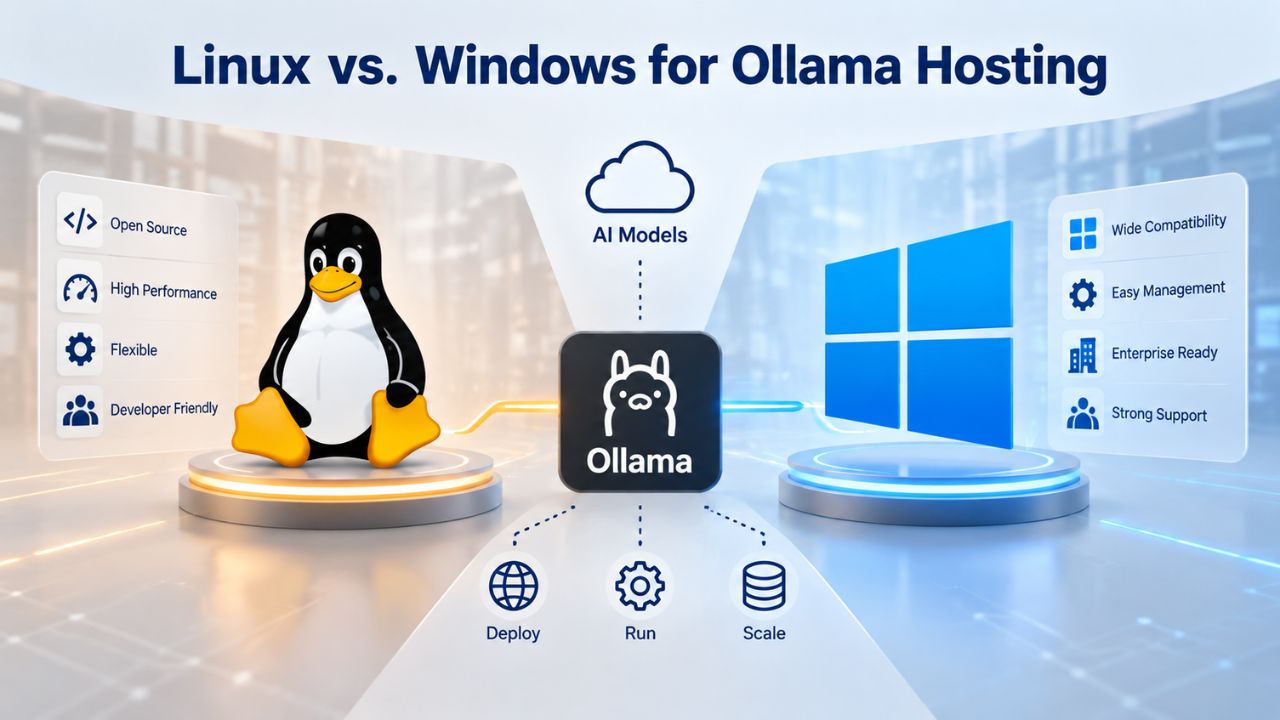
Ollama runs natively on Linux and can run on Windows Server via Windows Subsystem for Linux (WSL2). Linux is the practical choice in nearly all cases; it has a smaller footprint, faster container runtime, and cleaner package management. Windows Server adds operational overhead and licensing costs without meaningful benefits for Ollama deployments. Choosing Linux versus Windows is one of the first infrastructure decisions you will make, and it affects everything from installation speed to ongoing maintenance.
Linux: The Native Ollama Environment
Ollama’s primary support is Linux. Ubuntu 20.04 LTS and CentOS Stream are standard choices that receive long-term support and security updates. Linux package managers (apt for Ubuntu, dnf for CentOS) install Ollama, Docker, and other dependencies in seconds. SSH access and key-based authentication are straightforward to configure. Firewall rules (managed through ufw or firewalld) lock down the Ollama API port with minimal configuration overhead. Niya Digital’s Linux VPS hosting plans come pre-configured with SSH key-based authentication, automatic security updates, and a choice of popular distributions. Most developer VPS hosting defaults to Linux because it requires less maintenance, offers better container support, and provides the performance characteristics inference workloads demand.
Operating System and Runtime Comparison
| Feature / Requirement | Linux (Ubuntu/CentOS) | Windows Server |
|---|---|---|
| Native Ollama Support | ✓ Full native support | ✓ Via WSL2 emulation |
| Installation Speed | Seconds via package manager | Minutes with WSL2 setup |
| Package Manager | apt / dnf (fast, seamless) | No native package manager |
| Container Runtime (Docker) | Native, optimized | Through WSL2 layer |
| Firewall Configuration | Simple (ufw, firewalld) | More complex GUI/PowerShell |
| SSH Access | Built-in, standard | Requires additional setup |
| Memory Overhead | Minimal (~500MB for OS) | 2–4GB additional for WSL2 |
| Performance | Optimized for inference workloads | Acceptable, with overhead |
| Community & Support | Extensive, LLM-focused | Limited for Ollama specifically |
| Licensing Cost | Free | Additional monthly fee |
Windows Server: Possible but Heavier
Windows Server 2022 and later support Ollama running within WSL2, which emulates a Linux kernel on top of Windows. This approach works but adds a virtualization layer that consumes 2–4 GB of extra RAM and increases operational complexity. Windows Server licensing typically costs extra (many VPS hosting providers charge an add-on fee approaching $15 per month). Use Windows only if you have existing Windows-only dependencies or specific organizational requirements. Otherwise, you will save both cost and complexity by choosing Linux for your Ollama infrastructure.
GPU Acceleration Considerations
Ollama supports NVIDIA GPU acceleration via CUDA, which dramatically accelerates inference. A single high-end GPU can match the performance of 8–16 CPU cores. However, GPU-equipped VPS instances are rare and expensive; they are more common on specialized cloud platforms like AWS, Azure, or GCP. If GPU acceleration is critical to your workload, evaluate specialized GPU hosting separately, or begin with CPU-only Ollama on a standard VPS and upgrade later once you have proven the business case. Most Ollama deployments start on CPU and stay CPU-only, since quantized models perform well enough.
Setting Up Ollama on Your VPS
Provisioning an Ollama-ready VPS takes 10–30 minutes from order to first model running successfully. Niya Digital’s team has observed that developers comfortable with Linux command-line administration complete setup independently in 30–60 minutes. Those preferring guidance benefit from managed support to handle OS security hardening and initial model validation. The typical setup flow is straightforward and requires no specialized expertise.
Provision and Access Your VPS
Order a VPS through Niya Digital’s VPS hosting storefront, selecting Linux (Ubuntu 20.04 LTS is recommended) and your chosen resource tier based on the sizing guidance above. Within minutes, you receive an IP address and SSH credentials. Connect via SSH: ssh root@your_ip_address. Update all system packages to ensure you have the latest security patches: apt update && apt upgrade -y, which typically takes 2–5 minutes depending on system load. If you plan to run Ollama in Docker containers (recommended for production), install Docker: apt install docker.io -y && systemctl start docker. At this point, you have a functioning VPS server with root access and internet connectivity, ready for Ollama installation.
Install and Run Ollama
Visit ollama.com and follow the Linux installation instructions; the process is a single installer script. Start the Ollama service and verify it is listening on the default port: systemctl start ollama and then curl http://localhost:11434/api/tags. Next, pull your first model, for example, ollama pull mistral, which downloads the model weights to your VPS. This download typically takes 1–10 minutes depending on your broadband connection speed and model size. Test inference by sending a sample prompt: curl http://localhost:11434/api/generate -d ‘{“model”:”mistral”,”prompt”:”Explain quantum computing in simple terms.”}’. You now have a working VPS hosting deployment running an open-source LLM, ready for experimentation or production use.
Ready to Deploy Your LLM?
Niya Digital’s VPS hosting plans provide the root access, dedicated resources, and managed or unmanaged support you need to run Ollama at any scale. Whether you are experimenting with your first model or building a production inference system, you can provision infrastructure in minutes and scale it as your needs grow.
Security Hardening for Ollama Workloads
An unprotected Ollama instance exposed to the internet invites abuse. External attackers can trigger expensive inference operations, exfiltrate your model weights, or commandeer your compute for cryptocurrency mining or other malicious purposes. Baseline hardening, firewall rules, authentication, and encryption are non-negotiable before exposing Ollama to any untrusted network. Security is a shared responsibility: your VPS provider handles network-level protection, but you handle application-level access control.
Firewall and Network Isolation
By default, Ollama’s API listens only on localhost:11434, so it isn’t exposed to the network. If you want external access, you must expose it deliberately through careful firewall configuration. Use firewall rules to allow only trusted IP addresses: ufw allow from 203.0.113.0/24 to any port 11434 (replacing the IP range with your office or CI/CD pipeline addresses). This prevents random internet users from accessing your inference engine.
Better yet, deploy a reverse proxy like NGINX or Caddy in front of Ollama to add a layer of authentication and encryption. A reverse proxy also lets you rate-limit requests, preventing abuse or accidental resource exhaustion. Niya Digital’s VPS server control panel lets you configure firewall rules directly; managed-support users can request pre-configured reverse-proxy templates to accelerate deployment.
Authentication and Encryption
Never expose Ollama without authentication. A simple approach is to use NGINX with HTTP Basic Authentication or an API key header check. More robust solutions include an OAuth2 proxy or a dedicated API gateway with JWT token validation. Encrypt all traffic between clients and your VPS: generate a free TLS certificate via Let’s Encrypt and configure your reverse proxy to handle HTTPS, forwarding requests internally to localhost:11434. Disable SSH password authentication entirely; use SSH keys only, which are far more resistant to brute-force attacks. On a VPS hosting plan with root access, you can implement these security changes in minutes. GoDaddy’s infrastructure provides network-level DDoS mitigation, protecting against volumetric attacks that target your IP address directly.
Model Integrity and Backup
Ollama model files reside on your VPS disk. Ensure file permissions are restrictive: chmod 600 /path/to/model/weights prevents unauthorized users from reading or modifying model data. Back up your VPS snapshot regularly; most VPS hosting providers, including GoDaddy’s infrastructure accessed through Niya Digital, offer one-click snapshots that capture your entire system state (OS, models, configuration) at a point in time. You can restore to a prior state in minutes if something breaks or if you detect tampering. For long-term archival and disaster recovery, download model files separately to local storage or cloud object storage (like AWS S3) and version-control your configuration in git. Niya Digital’s managed VPS hosting can schedule automated daily snapshots, ensuring you never lose a working configuration.
Managing Multiple Models and Inference Concurrency
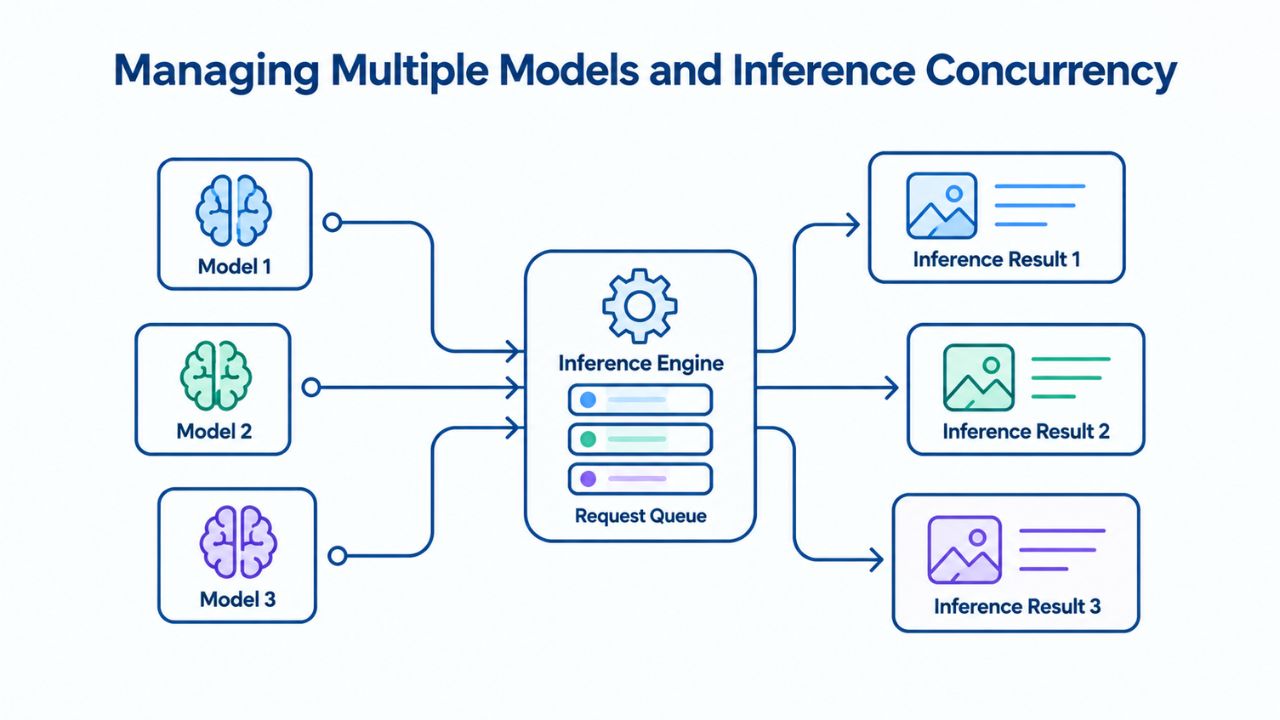
As your Ollama deployment grows, you will load multiple models simultaneously and handle concurrent inference requests from multiple users. Both scenarios stress memory and CPU; understanding the bottlenecks helps you scale intelligently rather than oversizing prematurely or undersizing and disappointing users.
Loading Multiple Models
Ollama keeps loaded models in RAM for fast access. If you load Mistral 7B (4 GB) and Llama 2 13B (14 GB) simultaneously, both occupy memory, approximately 18 GB total. A 32 GB VPS handles this comfortably, leaving 14 GB for the operating system and kernel caches. Beyond three or four models, you risk exhausting RAM and causing the system to swap to disk, which degrades inference latency catastrophically.
When you hit RAM limits, you have three options: stop unused models with ollama stop model_name to free memory, migrate to a larger VPS (GoDaddy’s infrastructure allows RAM upgrades in minutes), or run multiple VPS instances and load-balance requests across them. Most teams start with the simplest approach: stop unused models and load them only when needed.
Inference Under Concurrent Load
When 10 users request inference simultaneously, Ollama queues the requests and processes them serially (or in limited parallel on multi-core systems). CPU cores become the limiting factor: each core can process one token stream at a time. A 4-core VPS processes 4 requests in true parallelism; the fifth user waits for a core to become available. Response time degrades gracefully under load; it does not crash, but latency increases. If you need sub-second latency for all users during peak load, you need more cores or GPU acceleration. Niya Digital’s VPS hosting plans support upgrading CPU cores without migrating to a new instance; confirm current upgrade capabilities in your control panel.
Memory and Disk Pressure
Inference generates temporary cache data: the KV cache (key-value attention mechanism weights) grows with prompt length and sequence length. A 4 KB prompt plus 2 KB response generates roughly 6–10 KB of KV cache per request; multiply by concurrent batch size to estimate peak memory usage. Monitor memory in real time: free -h shows available RAM. Monitor disk usage: df -h displays storage utilization. If you approach capacity, upgrade your VPS or clean up old model files. Niya Digital’s team recommends sizing at 30% spare capacity: if your models and OS consume 20 GB of 32 GB available RAM, you are at the safety threshold.
Monitoring, Troubleshooting, and Performance Tuning
Ollama performs well out of the box, but production deployments benefit from monitoring and occasional tuning. Common issues are slow inference (undersized VPS or CPU bottleneck), out-of-memory crashes (too many models or too little RAM), and high latency under load (concurrent requests exceeding CPU capacity).
Logging and Observability
Ollama logs output to standard streams. On a VPS hosting service, capture logs to a persistent file: ollama serve > /var/log/ollama.log 2>&1 &. Monitor system metrics continuously: CPU load, memory, disk I/O. Use top or htop to watch CPU and RAM in real-time. Use iotop to identify disk I/O bottlenecks. If inference latency spikes when disk I/O is high, your model might be swapping to disk, a sign you need more RAM or fewer models. Niya Digital’s managed VPS hosting can install Prometheus and Grafana for persistent metrics collection, giving you historical visibility into resource usage patterns.
Inference Latency Optimization
Total inference latency breaks down into two components: time-to-first-token (how long until you get the first response token) and time-per-token (how fast subsequent tokens arrive). Small optimizations compound: disable unnecessary system services (anything not needed for Ollama), tune CPU affinity (pin Ollama to specific cores to reduce context-switching overhead), use quantized models (4-bit is 3x faster than 8-bit), and enable GPU if available. Ollama environment variables like OLLAMA_NUM_PARALLEL tune concurrency. Experiment cautiously; measure latency before and after each change to isolate the impact. On a VPS server with shared L3 cache, CPU affinity reduces context-switch penalties and improves cache hit rates.
Resolving Out-of-Memory Errors
If Ollama crashes with “out of memory,” you are exceeding your VPS’s RAM capacity. Solution 1: unload some models with ollama stop model_name. Solution 2: reduce model count or switch to smaller models. Solution 3: upgrade VPS RAM. Solution 4: enable Linux swap as a temporary band-aid: fallocate -l 16G /swapfile && mkswap /swapfile && swapon /swapfile. Swap prevents crashes but degrades performance severely (disk I/O is thousands of times slower than RAM). Monitor swap usage; it is a stopgap, not a fix. Niya Digital’s VPS hosting plans allow instant RAM upgrades through the control panel, typically requiring only a brief restart.
Migration Path: From Experimentation to Production
Your journey with Ollama likely begins with exploration, model testing, and proof-of-concept applications. As value emerges and traffic grows from one user to ten to a hundred, each milestone requires a scaling decision: upgrade the same VPS, add a second VPS and distribute load, or migrate to dedicated hardware. Understanding these stages helps you plan infrastructure investment incrementally rather than oversizing upfront.
Stage 1: Experimentation (Single VPS, Single Model)
Start with a mid-range VPS hosting plan (4–8 cores, 16 GB RAM, 8–16 tokens per second throughput). Run one model, test inference quality and latency, and experiment with different prompts. This stage suits individual developers, small research teams, and anyone validating whether Ollama fits their use case. Commitment is minimal: if Ollama proves unsuitable, you have invested modestly. A standard VPS from any reputable provider is enough. Focus on learning the system, understanding resource usage, and validating the business case before scaling.
Stage 2: Proof of Concept (Single VPS, Multiple Models or Higher Concurrency)
Scale to 2–3 models or 5–10 concurrent users. Upgrade your VPS to 8–16 cores and 32–48 GB RAM. Performance remains solid; you can now measure real user behavior and refine model selection. This stage suits startups building Ollama-powered products and enterprises piloting self-hosted LLM infrastructure internally. Niya Digital’s managed VPS hosting support becomes valuable here; experts help you right-size capacity, troubleshoot performance issues, and plan the next scaling step. You’re past experimentation and moving toward a system you might rely on.
Stage 3: Production Scale (Multiple VPS Instances and Load Balancing)
If concurrent users exceed 20–50 or latency becomes critical, distribute load across 2–4 identical VPS instances. Each instance runs the same models; a load balancer (NGINX, HAProxy) routes requests round-robin. Resilience improves: one VPS fails, others absorb traffic. Scaling becomes horizontal: add another VPS rather than upgrading a single instance indefinitely. This architecture is standard in production Ollama deployments. Niya Digital’s VPS hosting provider experience helps you architect multi-instance setups, select appropriate load-balancing strategies, and manage operational complexity.
Scaling Beyond a Single VPS Instance
Multi-instance Ollama deployments require coordination: load balancing, session affinity, shared model storage, and synchronization. This section covers practical patterns for production infrastructure that handles significant traffic.
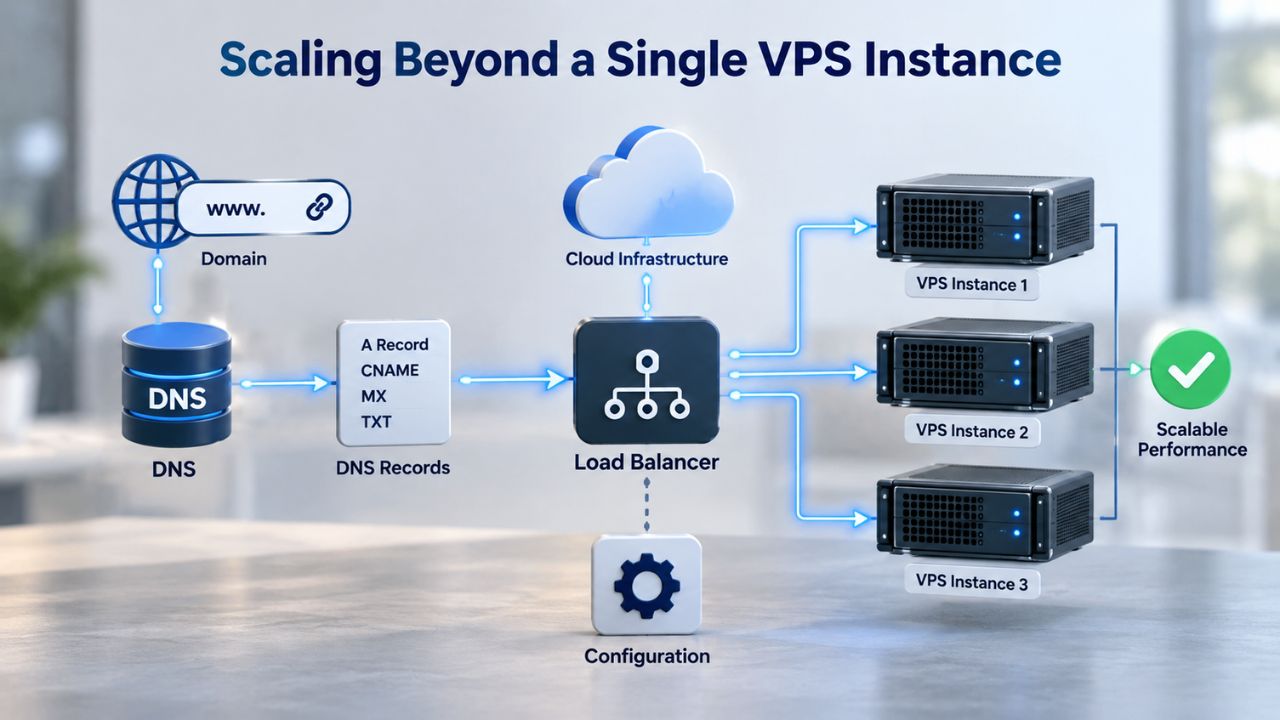
Load Balancing Across VPS Instances
Deploy 2–4 identical VPS instances, each running Ollama with the same models. Place a load balancer in front (NGINX, HAProxy, or cloud load-balancing services). Route inference requests round-robin (alternating between instances) or least-connections (favoring the least-busy instance). Session affinity (sticky sessions) is not required for stateless inference.
Still, it helps cache efficiency: if the same user’s requests consistently go to the same backend, that VPS’s CPU L3 cache stays warm. A basic NGINX configuration takes about 20 lines; more sophisticated load balancing with connection pooling, health checks, and automatic restarts adds complexity but improves reliability. GoDaddy’s VPS hosting infrastructure supports this multi-instance pattern; Niya Digital’s VPS hosting plans can provision identical instances in minutes.
Shared Model Storage or Replication
Each VPS instance needs a copy of model files, 4 GB to 70 GB per model. Option 1: replicate models to each VPS (simple, fast local I/O, uses storage on each instance). Option 2: mount shared network storage (NFS, S3) and load models from there (saves storage, adds network latency).
Option 1 is faster and simpler for most teams: a 3-instance setup with 50 GB models uses 150 GB total storage, manageable on modern VPS servers. Option 2 is economical if you have many instances or very large models. The trade-off is latency: loading a model from network storage is slower than from local SSD.
Orchestration and Automation
Manual provisioning of 3+ instances becomes tedious and error-prone. Infrastructure-as-code tools (Terraform, Ansible) define instances, load balancers, and startup scripts once and reproduce them consistently. A Terraform script spins up N identical VPS instances, configures NGINX load balancing, and deploys Ollama in minutes.
This is advanced but pays dividends once you exceed 2 instances. For smaller deployments, shell scripts and manual configuration suffice. Niya Digital’s VPS hosting API (if available) can be integrated into Terraform for programmatic instance provisioning.
Ready to Scale Your Ollama Deployment?
From a single entry-level VPS running your first model to a multi-instance production system handling hundreds of concurrent users, Niya Digital’s VPS hosting service scales with you. Managed support helps you right-size each stage. Unmanaged plans give infrastructure-experienced teams full control. Get started today with a reliable VPS hosting provider and grow as your needs evolve.
Frequently Asked Questions
What is the minimum RAM needed to run Ollama?
A 7-billion-parameter model quantized to 4-bit occupies approximately 4–5 GB of RAM. Add 2–3 GB for the operating system and overhead, bringing the minimum total to 8 GB. Smaller quantized models (3 billion parameters) fit in 2–4 GB. Larger models scale accordingly: 13 billion in 8-bit needs roughly 16 GB, while 70 billion requires 40–80 GB. Always budget for 30% spare capacity to avoid performance cliffs when the system approaches RAM limits.
Can I run Ollama on Windows Server?
Yes, via Windows Subsystem for Linux (WSL2). Ollama runs inside a Linux environment emulated on Windows. This approach adds overhead compared to native Linux and consumes 2–4 GB of additional RAM for the WSL2 virtualization layer. Windows Server also incurs licensing costs. Linux is the practical default: faster, cheaper, simpler to configure, and better integrated with Docker. Use Windows only if existing Windows dependencies require it.
How fast is inference on a typical mid-range VPS?
A 7-billion-parameter quantized model on a 4-core VPS generates 100–200 tokens per second, translating to 5–10 milliseconds per token. A 13-billion-parameter model on 8 cores generates 50–100 tokens per second. Token-per-second throughput scales roughly linearly with CPU cores, subject to memory-bus and cache constraints. For human conversation, latency below 200 milliseconds feels responsive; batch processing tolerates longer delays.
Should I choose managed or unmanaged VPS hosting?
Managed support handles OS patching, security baseline hardening, and hands-on provisioning assistance, valuable for teams new to VPS administration or without in-house sysadmin expertise. Unmanaged plans cost less but require you to handle all configuration. For Ollama, managed support helps validate sizing, troubleshoot performance issues, and scale confidently. Unmanaged is fine if you are comfortable with Linux command-line administration.
How many models can I run concurrently on one VPS?
Ollama loads models into RAM. If your VPS has 32 GB and your models consume 28 GB total, both fit in memory simultaneously and are instantly available. Two 13-billion-parameter models (14 GB each) occupy 28 GB; a third would require swapping to disk, which severely degrades latency. Concurrency depends on your tolerance for latency trade-offs: more models means shared CPU time and slower inference per model.
What happens if my VPS runs out of disk space?
Ollama stops downloading new models and may fail to generate inference output if there is no space for temporary files. Solution: delete unused models with ollama rm model_name or upgrade VPS storage (typically a one-minute operation through the control panel). Plan storage at 30% spare capacity: if models occupy 70 GB of 100 GB, you are at the safety threshold.
Can I upgrade my VPS if inference gets slower?
Yes. CPU, RAM, and storage can be upgraded on most VPS hosting plans within minutes, with brief downtime (typically 5–15 minutes). Niya Digital’s VPS hosting plans support instant upgrades. Some providers require you to migrate to a new instance. Ask your VPS hosting provider upfront about upgrade capabilities and any associated costs.
Is my Ollama inference private on a VPS?
Your inference runs on your VPS and is never transmitted to Ollama’s servers or third-party APIs. However, your VPS provider (GoDaddy, which powers Niya Digital’s infrastructure) has physical access to servers and can theoretically access your data if subpoenaed or breached. For highly sensitive workloads, encrypt data at rest and in transit. Use a dedicated VPS for sensitive models. For classified data, on-premises hardware remains the only fully isolated option.
How do I back up my Ollama setup?
Most VPS hosting providers, including GoDaddy’s service via Niya Digital, offer one-click snapshots: a point-in-time image of your entire VPS (OS, models, configuration). Create snapshots before major changes. Restore in minutes if something breaks. For long-term archival, download model files separately and version-control your configuration via git. Niya Digital’s managed support can schedule automated daily snapshots.
What if inference latency is too high?
Latency depends on model size, quantization, CPU cores, and concurrent requests. Optimize by switching to a quantized model (4-bit vs. 8-bit), reducing concurrent users, upgrading CPU cores, or enabling GPU (if available). Monitor top and iotop to identify bottlenecks. If CPU usage is low but latency is high, network or disk I/O is the issue. Niya Digital’s support team can help profile and troubleshoot.
Can I run Ollama in Docker on a VPS?
Yes, and it is recommended for production. Docker isolates Ollama, simplifies updates, and enables container orchestration at scale. A basic Docker setup: pull the Ollama image, mount model storage, and expose port 11434. Docker adds 1–2 GB overhead but is worth it for reliability and scaling. Ollama’s GitHub repository includes Dockerfile examples.
How much does it cost to run Ollama on a VPS?
A mid-range VPS suitable for 7-billion to 13-billion-parameter models is available at typical industry rates. A high-end plan for 70-billion-parameter models or multi-instance setups costs more. Niya Digital’s VPS hosting pricing is shown on the plans page. No per-token inference fees exist; your only cost is the monthly VPS subscription, making self-hosted inference economical for high-volume use.
How do I expose my Ollama API securely to the internet?
Never expose Ollama directly (localhost:11434) without authentication and encryption. Use a reverse proxy (NGINX, Caddy) bound to 127.0.0.1 (localhost-only), then configure the proxy to listen on the internet with authentication (API key, OAuth2, HTTP Basic Auth) and TLS (HTTPS). This adds a security layer and enables rate-limiting and logging. Detailed setup is available in Ollama’s deployment guide.
Should I use 4-bit or 8-bit quantization?
4-bit quantization reduces model size and latency by roughly 3x compared to 8-bit, with minimal quality loss for most use cases. Use 4-bit unless you need maximum accuracy; 8-bit is for latency-insensitive batch processing or quality-critical tasks. Full 32-bit precision is rarely needed on consumer VPS hardware. Ollama defaults to 4-bit and 5-bit quantization for popular models.
What VPS specs do I need for a chatbot assistant?
A chatbot with 10–50 concurrent users needs 4–8 CPU cores and 16–32 GB RAM, running a 7-billion to 13-billion-parameter quantized model. Keep response time below 1 second per token for a good user experience. Start with a mid-range plan; monitor latency and user count; upgrade if response time degrades. Niya Digital’s VPS hosting provider support helps right-size for your chatbot’s traffic.
Can I move my Ollama instance to a different VPS provider later?
Yes. Take a snapshot of your current VPS or download model files and configuration, then provision a new VPS with a different provider. The setup is identical across providers: Linux OS, Ollama installation, model download. Minimal downtime; your API endpoint IP address changes unless you use a DNS name (recommended). Niya Digital’s service makes switching away easy, with no lock-in or artificial barriers.
Glossary
- VPS (Virtual Private Server): A dedicated computing environment on shared physical hardware, isolated via virtualization. Each VPS has its own CPU cores, RAM, storage, and IP address, with full root/administrator access and an independent operating system.
- Root Access: Full administrator privileges on a Linux VPS, enabling kernel-level configuration, unrestricted software installation, custom firewall rules, and complete control, essential for running Ollama with custom settings.
- Ollama: An open-source framework for running large language models locally on servers or personal machines without relying on cloud API providers. Users download and run models like Llama 2, Mistral, and others from the Ollama library.
- Quantization: A technique that reduces model file size and inference latency by representing neural network weights in lower-precision formats (4-bit, 5-bit, 8-bit) instead of 32-bit floats, trading a small accuracy loss for substantial speed and memory savings.
- Inference: The computational process of running a trained language model on new input (a prompt or question) to generate output (text completions, responses, or predictions).
- Model Weights: The learned parameters of a neural network; Ollama model files contain these weights plus metadata and configuration. File sizes range from 4 GB for small models to 70+ GB for large unquantized versions.
- Bandwidth: The maximum data rate a network connection can transfer. Ollama inference is compute-bound (-CPU- and memory-intensive) rather than bandwidth-bound; external bandwidth demand is typically low unless you serve API requests to remote clients worldwide.