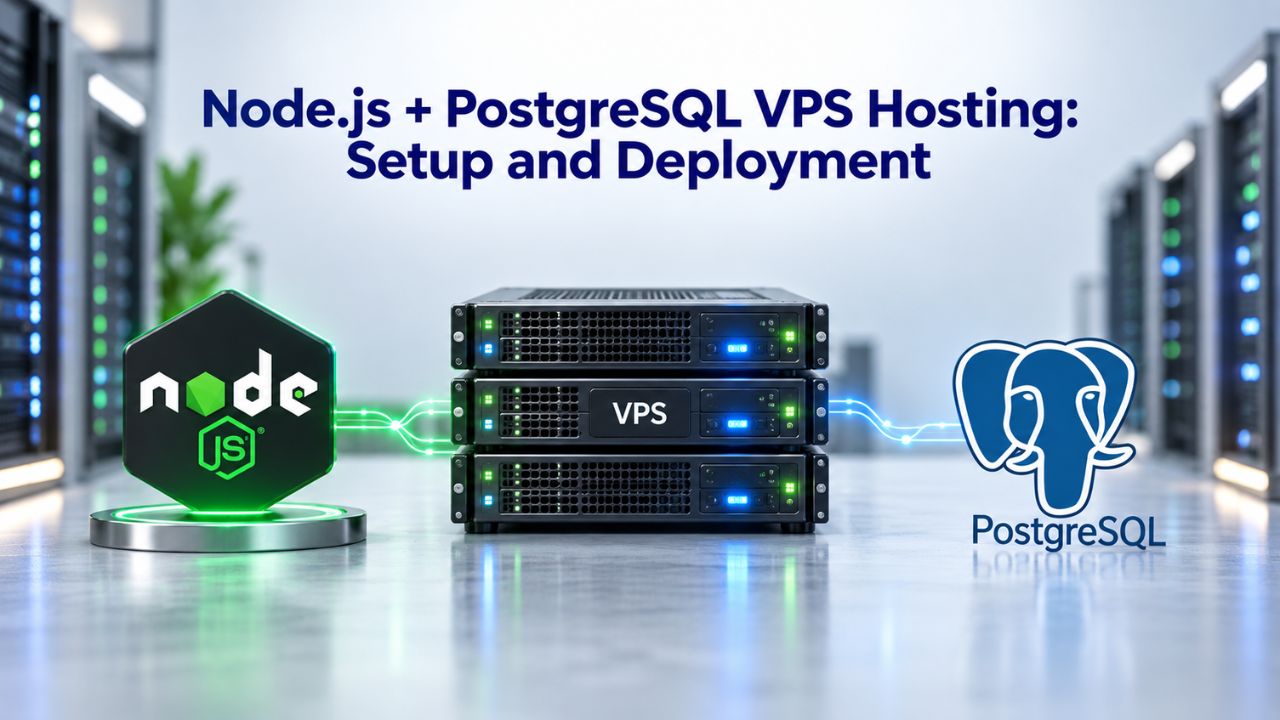
Many developers outgrow shared hosting once their Node.js application hits traffic peaks or their PostgreSQL database needs dedicated resources. A VPS Hosting solution provides isolated infrastructure, root access, and control over CPU/RAM/storage that shared hosting blocks, but sizing and configuration require planning. Niya Digital is an authorized reseller of GoDaddy-powered VPS hosting infrastructure, not an operator of its own independent data centers or hardware. Overall server performance, uptime, and security depend on many factors outside any single provider’s control, including configuration choices, application code, traffic patterns, the security practices you follow, and network conditions, so that no provider can guarantee perfect uptime, security, or performance.
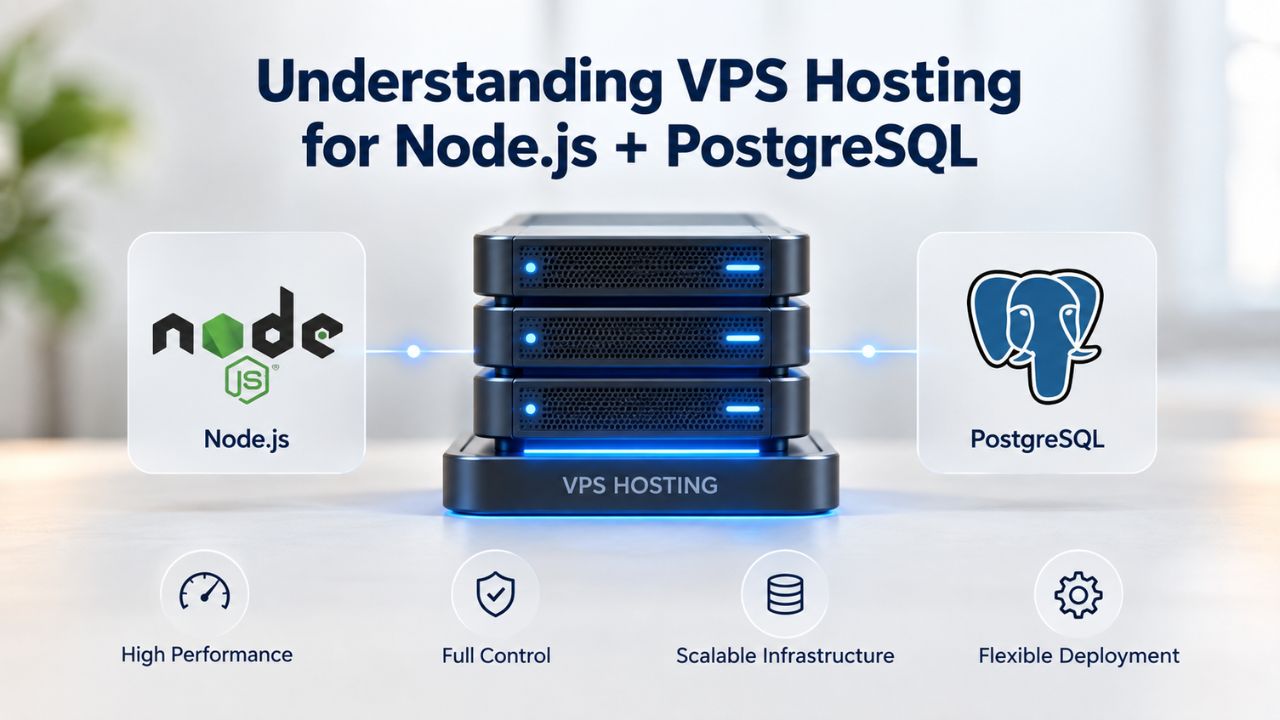
Understanding VPS Hosting for Node.js + PostgreSQL
A Virtual Private Server divides a physical machine into isolated, virtualized environments. Each VPS gets dedicated CPU cores, RAM, storage, and its own operating system, unlike shared hosting, which pools resources across accounts. This isolation means your application code and database can’t be affected by traffic spikes on a neighbor’s site, and you have root access to install any software and configure the server exactly as needed.
How VPS Differs from Shared Hosting and Dedicated Servers
On shared hosting, your account sits alongside hundreds of others on the same physical server, all competing for the same CPU and memory. The hosting provider strictly limits what you can install, which ports you can access, and how many resources any single account can consume. One neighbor’s runaway process can slow your site to a crawl. A VPS removes these restrictions; you control your own isolated slice of the physical hardware, with guaranteed resource allocation that other tenants cannot consume.
A dedicated server gives you an entire physical machine, with no virtualization layer between you and the hardware. It offers maximum performance and control but costs significantly more and requires you to manage physical failures yourself, though most providers handle hardware replacement. A VPS sits in the middle: you get isolation and control at a fraction of the cost of dedicated hardware, because virtualization lets the provider run multiple VPS instances on each physical machine efficiently, spreading costs across customers.
Why Node.js + PostgreSQL on a VPS Makes Sense
Node.js is a lightweight JavaScript runtime; a single process typically uses 200–400 MB of RAM at idle and scales with concurrent connections and V8 heap size. PostgreSQL is a robust relational database that uses shared_buffers (PostgreSQL wiki) to cache frequently accessed data in memory, improving query speed. Running both on a single VPS with root access means you can tune each one independently: adjust Node.js clustering for multi-core processors, configure PostgreSQL’s memory parameters for your workload, and use a reverse proxy like Nginx to handle SSL termination and traffic distribution.
A VPS also gives you the freedom to choose your operating system, Linux (AlmaLinux, Ubuntu, Debian) or Windows Server, and deploy application stacks that shared hosting won’t support. For many small-to-medium Node.js projects with moderate traffic, this flexibility and isolation justify the slight increase in complexity over shared hosting. You’re not dependent on shared-hosting limitations; you fully own the server configuration
VPS Hosting Plans & Pricing
Choose the VPS hosting plan that fits your website, application, or business requirements. Select a self-managed VPS for complete server control or a fully managed VPS with a dedicated team of experts to help manage your server.
Self Managed VPS 1 vCPU
1 GB RAM
Entry-level VPS hosting for lightweight websites and applications.
- 1 CPU Core
- 1 GB RAM
- 20 GB SSD Storage
- Linux only, no control panel

Self Managed VPS 2 vCPU
4 GB RAM
VPS hosting with additional CPU and memory for growing websites and applications.
- 2 CPU Cores
- 4 GB RAM
- 100 GB SSD Storage
Self Managed VPS 2 vCPU
8 GB RAM
Additional memory for more demanding websites and applications.
- 2 CPU Cores
- 8 GB RAM
- 100 GB SSD Storage
Self Managed VPS 4 vCPU
8 GB RAM
Increased processing power for business websites and applications.
- 4 CPU Cores
- 8 GB RAM
- 200 GB SSD Storage
Self Managed VPS 4 vCPU
16 GB RAM
High-memory VPS hosting for resource-intensive workloads.
- 4 CPU Cores
- 16 GB RAM
- 200 GB SSD Storage
Self Managed VPS 8 vCPU
16 GB RAM
Powerful VPS resources for demanding business applications.
- 8 CPU Cores
- 16 GB RAM
- 400 GB SSD Storage
Self Managed VPS 8 vCPU
32 GB RAM
Maximum self-managed resources for demanding workloads.
- 8 CPU Cores
- 32 GB RAM
- 400 GB SSD Storage
Fully Managed VPS 1 vCPU
2 GB RAM
Managed VPS hosting with expert server management.
- 1 CPU Core
- 2 GB RAM
- 40 GB SSD Storage
- Dedicated team of experts to fully manage your server
Fully Managed VPS 1 vCPU
4 GB RAM
Managed VPS resources for websites and business applications.
- 1 CPU Core
- 4 GB RAM
- 40 GB SSD Storage
- Dedicated team of experts to fully manage your server
Fully Managed VPS 2 vCPU
4 GB RAM
Managed VPS hosting with additional CPU resources.
- 2 CPU Cores
- 4 GB RAM
- 100 GB SSD Storage
- Dedicated team of experts to fully manage your server
Fully Managed VPS 2 vCPU
8 GB RAM
Managed VPS hosting with additional memory for growing workloads.
- 2 CPU Cores
- 8 GB RAM
- 100 GB SSD Storage
- Dedicated team of experts to fully manage your server
Fully Managed VPS 4 vCPU
8 GB RAM
Higher-performance managed VPS for demanding applications.
- 4 CPU Cores
- 8 GB RAM
- 200 GB SSD Storage
- Dedicated team of experts to fully manage your server
Fully Managed VPS 4 vCPU
16 GB RAM
High-memory managed VPS for resource-intensive workloads.
- 4 CPU Cores
- 16 GB RAM
- 200 GB SSD Storage
- Dedicated team of experts to fully manage your server
Fully Managed VPS 8 vCPU
16 GB RAM
Powerful managed VPS hosting for demanding business workloads.
- 8 CPU Cores
- 16 GB RAM
- 400 GB SSD Storage
- Dedicated team of experts to fully manage your server
Fully Managed VPS 8 vCPU
32 GB RAM
Maximum managed VPS resources for demanding workloads.
- 8 CPU Cores
- 32 GB RAM
- 400 GB SSD Storage
- Dedicated team of experts to fully manage your server
Resource Planning: Sizing Your VPS for Production
The right VPS size depends on your application’s expected load, database size, and traffic patterns. There’s no one-size-fits-all answer, but industry guidance offers a baseline: a typical production Node.js application with PostgreSQL needs 2 vCPU / 4 GB RAM / NVMe SSD storage as a starting point. This baseline fits low-to-moderate production traffic, roughly 100–500 concurrent users on a standard web application. The 4 GB baseline splits into three competing components: OS overhead (~500–800 MB), PostgreSQL’s shared_buffers and data cache (~1 GB on a 4 GB system), and Node.js’s V8 heap plus application runtime (~200–400 MB).
Choosing Between Development, Small Production, and High-Traffic Tiers
Development tiers suit testing, staging, and proof-of-concept work where traffic is minimal, and performance doesn’t matter. A 1 vCPU / 1–2 GB plan with 20 GB of storage is adequate for a developer’s laptop-scale environment. Once you’re running production traffic with real users, the Small Production baseline (2 vCPU / 4 GB) covers most startup use cases and handles typical small web applications, blogs, and SaaS MVPs. As your site grows, watch key metrics, CPU utilization, PostgreSQL cache hit ratio, and available free memory to decide whether to upgrade the single VPS (vertical scaling) or split into separate tiers for the application and database (horizontal scaling).
Medium Production tiers (4 vCPU / 8 GB RAM) accommodate growing SaaS platforms and API-heavy workloads with 500–2,000 concurrent users. High-Traffic Production (8+ vCPU / 16+ GB RAM) powers e-commerce sites, high-traffic platforms, and mission-critical applications serving thousands of concurrent users. Multi-Service configurations (4–6 vCPU / 8–16 GB RAM) allow running Node.js + PostgreSQL + Redis on one VPS when you need in-memory caching, job queues, or session storage alongside your application and database.
| Workload Type | vCPU | RAM | Storage | Typical Concurrent Users | Best For |
|---|---|---|---|---|---|
| Development/Testing | 1 | 1–2 GB | 20 GB | 1–10 | Local testing, staging environments, proof-of-concept |
| Small Production | 2 | 4 GB | 50+ GB | 100–500 | Typical web app, blog, SaaS MVP, startup |
| Medium Production | 4 | 8 GB | 100+ GB | 500–2,000 | Growing SaaS, API-heavy workloads, e-commerce |
| High-Traffic Production | 8+ | 16+ GB | 200+ GB | 2,000+ | E-commerce, high-traffic platform, media site |
| Multi-Service (App + DB + Cache) | 4–6 | 8–16 GB | 100+ GB | Varies by config | Node + PostgreSQL + Redis on one VPS |
Understanding the CPU-to-RAM Ratio and Oversubscription
A well-balanced VPS pairs CPU cores and RAM proportionally. A 2 vCPU / 4 GB plan gives you 2 GB per core, a common ratio that prevents either CPU or memory from bottlenecking the other. GoDaddy VPS plans use KVM virtualization with dedicated CPU and RAM (not oversubscribed), meaning your cores and memory are not shared with other accounts on the same physical server. Each vCPU is a full thread reserved for your instance.
Some hosting providers oversell CPU resources; multiple VPS instances share the same core, relying on the fact that not all customers use peak capacity at the same time. This gamble can backfire during traffic spikes: when a neighbor’s site surges, your VPS performance degrades sharply because you’re competing for the same CPU core. When evaluating a VPS Hosting Provider, confirm whether resources are dedicated (guaranteed to your VPS alone) or shared (you get a “fair share” of a core if other accounts are idle).
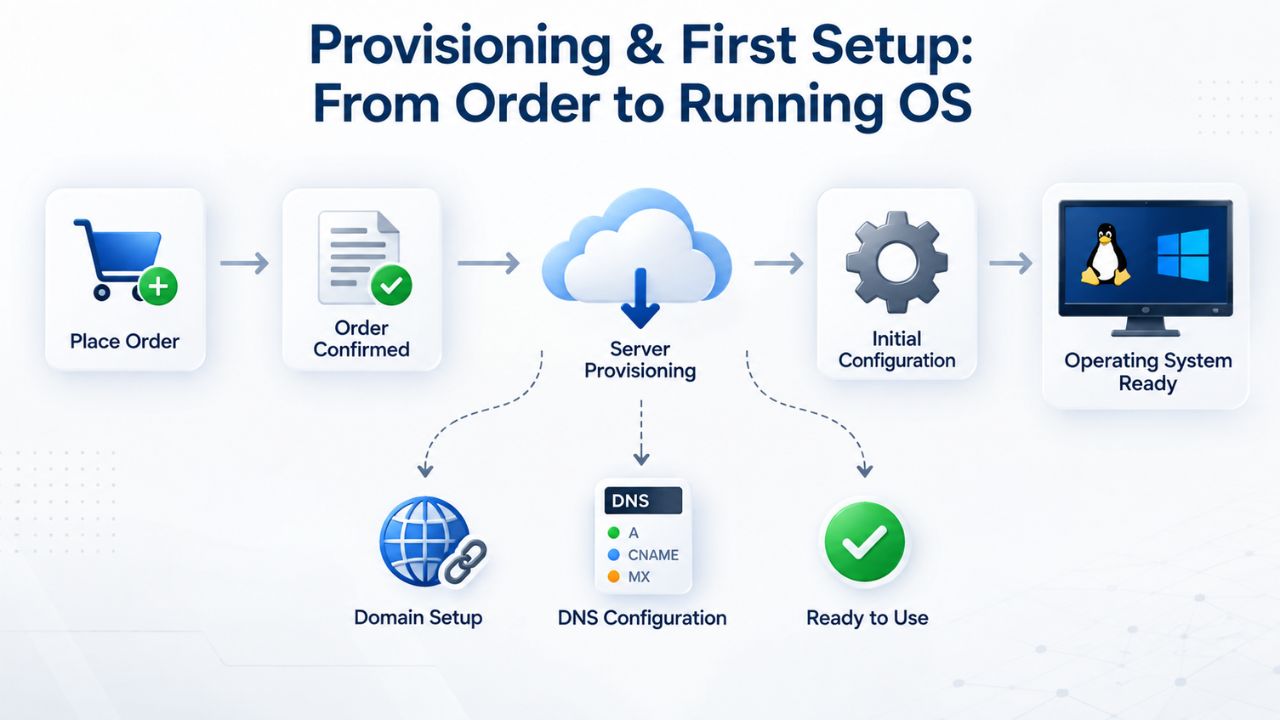
Provisioning & First Setup: From Order to Running OS
When you provision a VPS through Niya Digital’s reseller storefront, you typically select an operating system (Linux distribution or Windows), confirm resource tiers, and initiate creation. GoDaddy’s underlying infrastructure provisions the virtual machine in minutes, typically 5–30 minutes depending on the provider’s automation and load. Once the VPS is live, you receive root/administrator credentials and SSH access (on Linux) or remote desktop access (on Windows).
Choosing Linux or Windows and Which Distribution
Most Node.js deployments run on Linux; licensing cost is zero, performance is typically better, and the tooling (package managers, process managers, reverse proxies) is more mature and battle-tested. Ubuntu LTS (Long-Term Support) releases, AlmaLinux, and Debian are popular choices with strong community support and extensive documentation. Windows Server is an option if you have Windows-only dependencies (legacy .NET libraries, Exchange integration) or your team is Windows-focused. Still, PostgreSQL and Node.js on Windows add slightly more overhead and have less community documentation for advanced configurations like performance tuning.
If you choose Linux, pick an LTS release at least 18 months old; stability matters more than bleeding-edge features in production. AlmaLinux 9 or Ubuntu 22.04 LTS are solid defaults with 5+ years of security updates. Avoid rolling-release distributions (like Arch) for production VPS unless you’re comfortable with frequent package updates and dependency changes. LTS distributions receive regular security patches but don’t churn through major software version changes, keeping your system stable across years.
SSH Keys, Firewall Rules, and Initial Hardening
From the moment your VPS is live, apply basic hardening. Generate an SSH key pair locally (on your development machine), add your public key to ~/.ssh/authorized_keys on the VPS, and disable password-based SSH login in /etc/ssh/sshd_config. Use a Linux firewall tool; UFW (Uncomplicated Firewall) is beginner-friendly, to deny all inbound traffic by default, then explicitly allow SSH (port 22), HTTP (80), and HTTPS (443). If PostgreSQL is accessed remotely (not recommended, but possible), whitelist the specific IP address attempting to connect.
Niya Digital’s team has found that the most common first-week VPS issue is forgetting to add your SSH public key before disabling password login, then losing access entirely. Store your private key in a secure location (ideally a password manager or hardware key), never in a shared cloud storage folder or unencrypted on your laptop. A compromised private key gives an attacker root access to your production VPS. Most best-practice guides recommend rotating SSH keys quarterly and using keys with passphrases for added security.
PostgreSQL Performance Tuning on Shared VPS Resources
PostgreSQL’s out-of-the-box defaults assume minimal hardware; shared_buffers defaults to just 128 MB, which is far too small for production. On a 4 GB VPS where Node.js and PostgreSQL share resources, you need to tune PostgreSQL’s memory parameters to strike a balance: enough cache to avoid constant disk hits, but not so much that the operating system starves and Node.js can’t breathe.
Tuning shared_buffers, effective_cache_size, and work_mem
shared_buffers controls how much memory PostgreSQL reserves for caching recently accessed data. Too small and queries repeatedly fetch from disk (slow); too large and cache flushes cause I/O spikes. On a 4 GB VPS shared with Node.js, 768 MB to 1 GB is a reasonable starting point; measure your cache hit ratio and adjust if it drops below 95%. The cache hit ratio query (SELECT sum(blks_hit) / (sum(blks_hit) + sum(blks_read)) as cache_hit_ratio FROM pg_stat_database;) shows what percentage of data accesses are served from memory vs. disk. Higher is better; aim for >95%.
effective_cache_size tells the query planner how much total memory (shared_buffers + OS page cache combined) is available. Set this to roughly 50% of system RAM. On a 4 GB system, 2 GB is typical; PostgreSQL’s query optimizer uses this hint to decide whether to use an index (fast on cached data) or a sequential scan (slower but acceptable if the data isn’t cached). Setting this accurately improves query plans dramatically; too low and PostgreSQL uses indexes inefficiently, and too high and PostgreSQL overestimates cache availability.
work_mem allocates memory per sort or hash operation, not per query, but per operation within a query. A single complex query might use work_mem multiple times if it performs multiple sorts. Set work_mem conservatively (16 MB for OLTP workloads with many connections) and monitor temp file creation; if PostgreSQL spills too often to disk (visible in pg_stat_database.temp_files), increase work_mem gradually. On a VPS with limited RAM, be careful not to set work_mem too high; if you have 100 concurrent connections each running a query with 4 sort operations, you could allocate 100 × 4 × work_mem in memory, exhausting the system.
Monitoring Cache Hit Ratio and Adjusting for NVMe Storage
After deploying your application, run the PostgreSQL cache hit ratio query regularly: this tells you what percentage of data accesses are served from shared_buffers vs. disk. A ratio below 95% means PostgreSQL is fetching data from disk too often; either your shared_buffers is too small, your working set is larger than available memory, or you’re missing an index. A ratio above 99% is healthy and indicates efficient caching. Most production databases aim for a 98%+ cache hit ratio.
On NVMe SSD storage (which GoDaddy provides across VPS plans), reduce random_page_cost in postgresql.conf from the default 4.0 to ~1.1, reflecting NVMe’s superior random-read performance vs. mechanical drives. Increase effective_io_concurrency to match your drive’s capability (e.g., 256 on high-end NVMe). These changes tell PostgreSQL’s query planner to favor index scans over sequential scans, boosting performance on fast storage. For SSD storage, sequential and random reads cost much less, so the traditional penalties for index usage don’t apply the same way.
Security Hardening: Firewall, SSH, and Database Access Control
VPS security is a shared responsibility: the provider (GoDaddy, via Niya Digital) secures the hypervisor, network, and data-center infrastructure; you secure the operating system, firewall, SSH access, and application layer. A breach at either level can compromise your system, so both matter equally. Many VPS compromises happen because the provider’s infrastructure was solid, but the user’s firewall rules were misconfigured, allowing unauthorized access.
Start with a firewall. On Linux, use UFW to deny all inbound traffic by default, then explicitly allow only required ports: SSH (22), HTTP (80), HTTPS (443), and PostgreSQL (5432) only if accessed remotely from a trusted IP. Most Node.js deployments bind the app to a high port (e.g., 3000) on localhost and use Nginx as a reverse proxy listening on ports 80/443; this isolates the app from direct internet exposure and centralizes SSL/TLS termination.
SSH Hardening and Key-Based Authentication
Disable password-based SSH login entirely. Generate an SSH key pair on your development machine (ssh-keygen -t ed25519), copy the public key to the VPS’s ~/.ssh/authorized_keys, and set /etc/ssh/sshd_config to disable passwords and root login. Use SSH key rotation quarterly; store private keys in a password manager or hardware security key, never in plaintext or shared cloud storage. A stolen private key is equivalent to someone having root access to your server, so treat it like a root password.
Changing the SSH port from 22 to a non-standard port (e.g., 52231) reduces exposure to automated scans and low-effort brute-force attempts; it’s not a security guarantee, but a worthwhile obscurity layer. Run sudo systemctl restart ssh or sudo systemctl restart sshd after modifying sshd_config to apply changes. Most automated attacks scan port 22 by default; even moving SSH to port 2222 cuts scan traffic significantly. This is defense in depth, not a complete solution, but combined with key-based authentication and firewall rules, it makes unauthorized access extremely difficult.
PostgreSQL Security: Restricting Access and Connection Pooling
By default, PostgreSQL listens on port 5432 on all network interfaces (0.0.0.0). If your Node.js application runs on the same VPS, configure PostgreSQL to bind only to localhost (127.0.0.1) rather than all network interfaces. This prevents any network-level exposure; only processes on the local machine can connect. This is the simplest, most effective PostgreSQL security hardening step you can take; it eliminates network attacks.
If PostgreSQL must be accessed remotely (e.g., from a separate application server), restrict access by IP in the firewall and use PostgreSQL’s pg_hba.conf file to enforce strong authentication. Enable SSL/TLS for remote connections and use strong, randomly generated passwords (or certificate-based authentication). Use a connection pooler like PgBouncer between your Node.js application and PostgreSQL. This reduces per-connection overhead, prevents “too many connections” errors, and improves concurrency. A basic PgBouncer setup pools 20–50 connections to PostgreSQL behind a larger pool (500+) for Node.js clients, dramatically improving throughput without overwhelming the database.
Deploy Node.js + PostgreSQL on Production Infrastructure
Your application architecture is solid, but it needs reliable infrastructure to run. Niya Digital’s VPS Hosting platform handles the server provisioning, security hardening, and scaling infrastructure so you can focus on application code. Get your Node.js + PostgreSQL stack live in minutes with root access, managed support, and professional onboarding.
Deploying and Running Your Node.js Application
Once the VPS is provisioned and PostgreSQL is running, deploy your Node.js application. Use a Node version manager like nvm (Node Version Manager) to install a Node.js LTS (Long-Term Support) version on the VPS, currently Node.js 20.x or higher for production. Set NODE_ENV=production in your deployment to disable verbose logging and enable performance optimizations in the V8 engine. Production mode also affects how third-party packages behave, often disabling development dependencies and enabling caching.
Store sensitive configuration (database credentials, API keys) in environment variables, never hardcoded in source. Use a .env file locally for development (git-ignored) and set environment variables directly on the VPS (via systemd service files, Docker, or your deployment tool). Never commit secrets to version control; a developer accidentally pushing credentials to GitHub has happened thousands of times, and automated scanners quickly find and exploit exposed database passwords.
Process Managers and Reverse Proxies
A process manager keeps your Node.js application running, restarts it on crashes, handles logging, and manages multiple worker processes across CPU cores. Popular choices: PM2 (widely used for Node.js deployments, easy to set up), systemd (available on all modern Linux systems, deeper OS integration), or supervisor (legacy but still effective). PM2 is the quickest to set up; systemd integrates more deeply with the OS and requires no extra software.
Run your Node.js app on a high-numbered port (e.g., 3000) bound to localhost only. Place Nginx or Apache as a reverse proxy in front, listening on ports 80 and 443. The reverse proxy handles SSL/TLS termination, HTTP/2, compression, caching, and request routing, separating concerns and protecting the application from direct internet exposure. This architecture also makes scaling easier: you can run multiple Node.js instances behind a load balancer, with the reverse proxy distributing requests.
SSL/TLS Certificates and HTTPS
Obtain an SSL/TLS certificate from Let’s Encrypt (free) or a commercial CA. Use Certbot to automate certificate provisioning and renewal on the VPS. A typical Nginx configuration forwards unencrypted HTTP requests to HTTPS, then passes requests to your Node.js application. This ensures all traffic is encrypted and users see the security indicators (green lock) in their browsers.
Renew certificates automatically with Certbot; modern deployments refresh every 90 days, so automate this with a systemd timer or cron job. Many production outages happen because an SSL/TLS certificate expires and renewal fails silently; automated renewal with monitoring prevents this common failure. Test your certificate renewal monthly by forcing a dry run (certbot renew –dry-run) to catch configuration issues before the certificate actually expires.
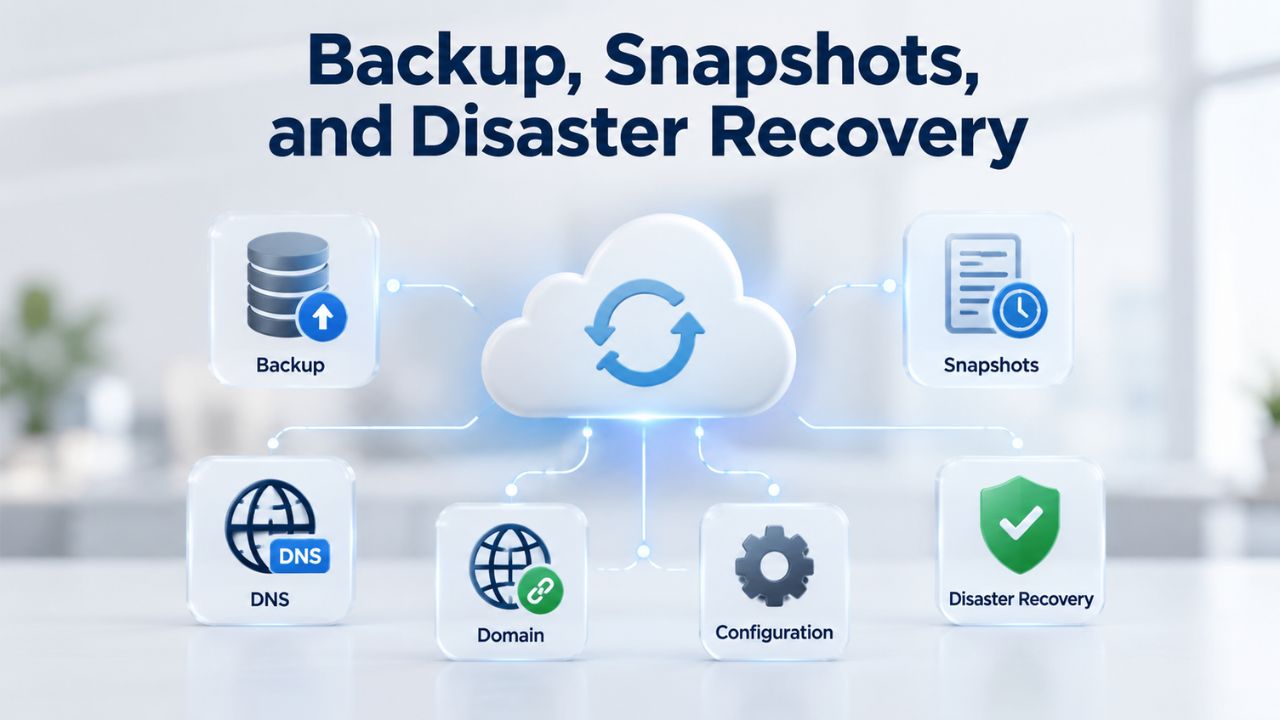
Backup, Snapshots, and Disaster Recovery
A VPS snapshot is a point-in-time copy of your entire server disk, useful for rollback if updates break something, or for cloning a server. Most providers, including GoDaddy VPS Hosting, offer snapshot functionality. Create snapshots before major updates or deployments; retain a rolling set (e.g., hourly for 24 hours, daily for 7 days, weekly for 8 weeks). Snapshots let you revert to a known-good state in minutes if something goes wrong, far faster than manual recovery.
Snapshots capture the entire filesystem but are not a substitute for database backups. PostgreSQL also has its own backup mechanisms and recovery procedures. Use pg_dump to export your database as SQL text (small databases, human-readable, portable) or pg_basebackup with WAL archiving for continuous backup (production databases, fine-grained recovery). Store database backups off the VPS, on a separate server, cloud storage (S3, etc.), or a backup appliance. This protects against VPS disk failure or ransomware that might encrypt or delete backups stored locally.
Implementing Snapshot and Database Backup Strategies
VPS snapshots are automated point-in-time copies managed by your hosting provider, typically created on a schedule (hourly, daily, weekly) and retained for a rolling period. They’re convenient for quick rollbacks but don’t replace application-aware database backups. Use snapshots as a secondary recovery layer; make database-specific backups your primary strategy. Snapshots include application code, configuration files, and database files together, maintaining consistency across all components.
For PostgreSQL, pg_dump exports the entire database as SQL commands (human-readable, good for small databases, easy to inspect and version-control) or binary format (faster for large databases, smaller on disk). For production, use pg_basebackup with continuous WAL archiving to maintain a continuous recovery window, minutes to hours of recovery granularity rather than a single point-in-time snapshot. This lets you recover to any moment in time within the archival window, not just the backup time.
Testing Restores and Off-VPS Storage
Untested backups are worse than no backups; they give false confidence until a real failure reveals they don’t work. Quarterly, restore a backup to a staging VPS and verify data integrity: run application queries, confirm all tables are present, and spot-check data accuracy. Document the restore procedure so anyone on your team can execute it during an emergency. A backup that takes 3 hours to restore when you need it in 30 minutes isn’t useful.
Store backups off the VPS: cloud object storage (AWS S3, Google Cloud Storage), a dedicated backup server in a different data center, or a third-party backup service (Backblaze, AWS Backup). This protects against VPS disk failure or compromised credentials; an attacker can’t delete backups they can’t access. Use immutable storage (S3 Object Lock) to prevent anyone from deleting recent backups, ensuring you always have a recovery point.
Scaling Decisions: When to Upgrade or Split Tiers
As your traffic grows, you’ll eventually hit the ceiling of your current VPS size. Three scaling strategies exist: vertical scaling (upgrade to a larger VPS), horizontal scaling (split application and database into separate VPS instances), or architectural changes (switch to managed cloud platforms like AWS RDS + EC2). Each approach has trade-offs in complexity, cost, and performance.
Vertical scaling, adding more CPU cores and RAM to a single VPS, is the simplest short-term fix. Most providers let you resize a VPS online or with minimal downtime (a 5–15 minute reboot). This works well until you max out a single machine or until the cost-to-performance ratio becomes unfavorable. Vertical scaling is straightforward; your existing application needs no changes, and you reboot into a larger instance.
Vertical Scaling vs. Horizontal Scaling and When to Choose Each
Vertical scaling (upgrading the same VPS from 2 to 4 to 8 vCPU) is straightforward: provision the larger plan, migrate data, and point DNS to the new server. It’s simpler to operate than multiple servers but eventually hits limits; the largest VPS plans top out at 32+ vCPU, and scaling beyond that requires multiple machines anyway. Vertical scaling also increases the blast radius: a single VPS failure affects the entire application and database.
Horizontal scaling, running Node.js on one or more VPS instances and PostgreSQL on a dedicated database VPS, separates concerns and lets each tier scale independently. Your application VPS can add more Node.js worker processes, use clustering, or even run a load balancer across multiple app servers. The database VPS gets all available resources for caching and I/O. This setup scales better than a single VPS but adds operational complexity (replication, failover, cross-network latency). A separate database VPS also improves isolation: a runaway query on PostgreSQL won’t starve your web servers of CPU.
Managed vs. Unmanaged VPS: The Support Trade-Off
Managed VPS hosting means the provider handles OS updates, security patching, monitoring, and basic troubleshooting, freeing you to focus on application code. An unmanaged VPS gives you full control but requires you to handle sysadmin tasks: OS patching, firewall rules, security hardening, and performance tuning. The support level you choose depends on your team’s skills and available time.
Managed tiers cost more but suit teams without dedicated infrastructure staff or time to manage servers. Unmanaged tiers cost less but demand sysadmin expertise and ongoing attention. Niya Digital’s offering balances both: you get the flexibility of VPS Hosting combined with support during provisioning and scaling decisions, letting you focus on your application. Many teams choose managed for production and unmanaged for staging/development, controlling costs while ensuring production reliability.
Monitoring, Logging, and Ongoing Maintenance
Production VPS deployments require ongoing monitoring and maintenance. Track key metrics: CPU utilization, free memory, disk usage, network I/O, and PostgreSQL query performance. Tools like Prometheus + Grafana (open-source), New Relic, or Datadog (commercial) integrate with Linux to expose metrics via APIs and set up alerting so you’re notified if CPU exceeds 80% or free disk space drops below 10%. Most issues surface in these metrics before users complain about slow performance.
Enable application logging from day one. Node.js apps should log errors, request latencies, and key events to a centralized location, files on the VPS (rotated with logrotate), or a service like Loki, Splunk, or Datadog. Centralized logging makes debugging production issues far faster than SSH-ing into the server each time. Logs also provide a historical record for auditing, capacity planning, and understanding what happened during an outage.
Key Metrics and Alerting for Production VPS
Monitor CPU utilization (alert if >80% sustained), available free memory (alert if <20%), disk space (alert if <10%), PostgreSQL cache hit ratio (alert if <95%), and application response times (alert if p99 > 1 second). Most production issues surface in these metrics before customers report outages. Use a monitoring dashboard (Prometheus, Grafana, New Relic) to visualize trends and anomalies. Watching trends (gradual increase in CPU over weeks) is as important as watching absolute thresholds.
Set up alerting via email, Slack, or PagerDuty, so you’re notified immediately when metrics exceed thresholds. Automated alerts let you respond during business hours rather than discovering problems after users complain or in the middle of the night. Test your alerting monthly to confirm notifications are working; a broken alert system is worse than no alerts. Include severity levels (critical, warning, info) so you can prioritize which alerts warrant immediate response vs. which can wait until morning.
Routine Maintenance: OS Patching, Dependency Updates, and Certificate Renewal
Set up automatic OS security updates (apt install unattended-upgrades on Ubuntu). Schedule a monthly window to review and test application dependency updates (npm packages, PostgreSQL extensions); staying current on security patches reduces breach risk. Major version updates should be tested on staging before deploying to production; minor and patch updates are usually safe to apply automatically.
Certificate renewal should be automatic via Certbot, but verify it’s running (sudo systemctl status certbot.timer). Many production outages occur when SSL/TLS certificates expire because renewal failed silently. Keep your VPS system clock accurate (NTP service running) so PostgreSQL timestamps, logging, and SSL certificate validation don’t break due to time skew. An incorrect system time on a VPS can cause certificate validation failures, PostgreSQL replication issues, and time-based security controls to malfunction.
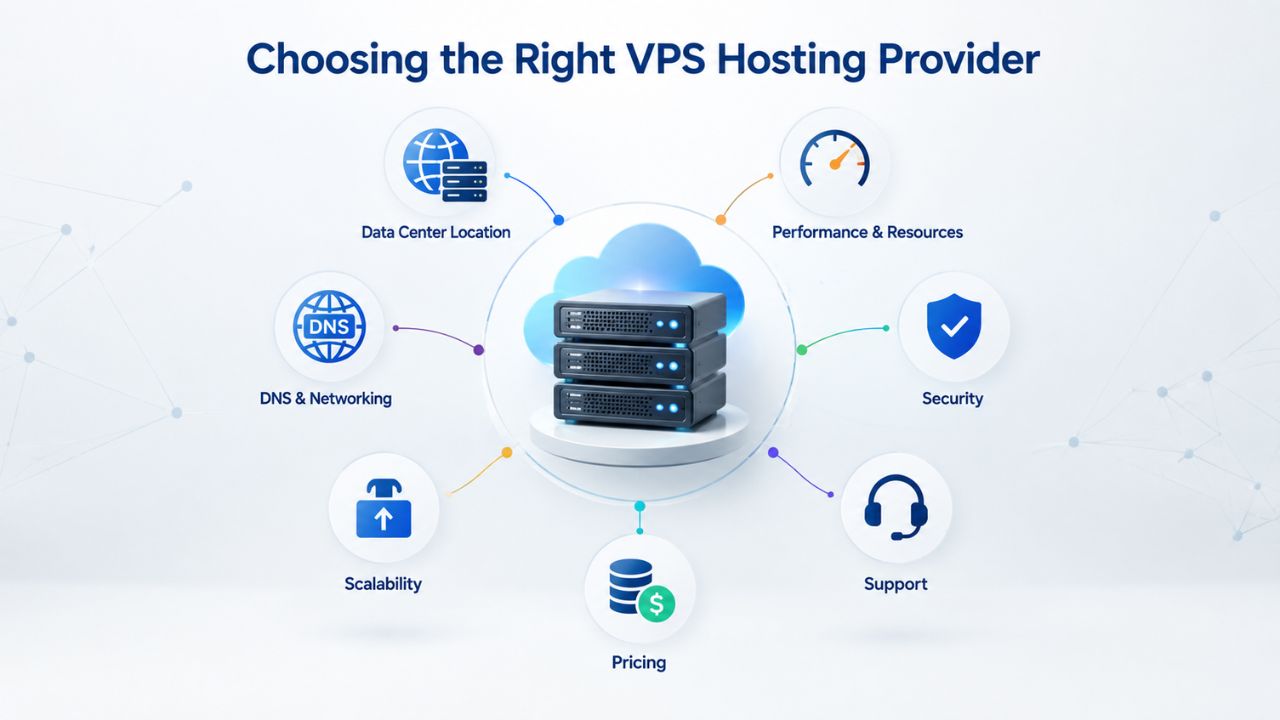
Choosing the Right VPS Hosting Provider
Not all VPS providers are equal. Evaluate infrastructure quality, support responsiveness, and transparency. Some oversell CPU resources; others offer rock-solid dedicated resources. Some charge extra for snapshots or backups; others include them. The cheapest VPS isn’t always the best value; reliability and support matter when production goes down at 2 AM, and you need immediate help.
Niya Digital offers VPS Hosting built on GoDaddy’s KVM-virtualized infrastructure, combining a reliable foundation with professional provisioning and scaling support. You get root access, NVMe SSD storage across all tiers, optional managed support, and flexibility to run the exact stack your application needs. This gives you both the stability of an established infrastructure provider and the personalized support of a reseller who understands your needs.
Evaluating Niya Digital’s VPS Hosting Service
Niya Digital’s VPS Hosting service lets you provision a VPS in minutes, deploy Node.js and PostgreSQL, and scale vertically or horizontally as traffic grows. Root access means you control every aspect of the server, OS configuration, firewall rules, PostgreSQL tuning, and Node.js versions. Managed support options (available depending on plan tier) handle updates and monitoring if you prefer hands-off operations. This flexibility lets you start small, maintain full control, and grow without changing providers.
The service includes automated backups, snapshots, and optional managed support, features that simplify scaling from a single VPS to multi-tier architecture without rebuilding applications or changing providers. Transparent support and professional onboarding make deployment straightforward, even for teams without deep infrastructure expertise. You get the advantages of a large provider’s infrastructure (reliability, data centers, DDoS protection) combined with personalized support for your specific configuration.
Dedicated Resources, Support, and Scaling Flexibility
Choosing a provider with dedicated (non-oversubscribed) resources ensures your VPS performance doesn’t degrade when other customers on the same physical server experience traffic spikes. Support responsiveness matters: during a production incident at 2 AM, talking to a human who understands VPS infrastructure beats waiting hours for a generic ticket response. Scaling flexibility means the provider lets you upgrade your VPS, add additional IP addresses, resize storage, and migrate databases without vendor lock-in.
Niya Digital’s infrastructure runs on GoDaddy’s platform, so you benefit from a mature, widely-deployed virtualization stack with extensive documentation and community support. The combination of large-scale provider infrastructure with personalized reseller support gives you the best of both worlds: stability at scale and personal attention to your configuration and scaling needs.
Start Deploying Node.js + PostgreSQL Today
Niya Digital’s VPS Hosting service gives you the dedicated resources, root access, and professional support to run production Node.js + PostgreSQL stacks without operating your own data center. Start with a 2 vCPU / 4 GB baseline, provision in minutes, and scale vertically or horizontally as traffic grows. Your application deserves infrastructure that scales with it, not hosting that constrains it.
Frequently Asked Questions
What’s the difference between a VPS and a dedicated server?
A VPS is a virtualized slice of a physical machine, shared with other VPS instances but isolated at the hypervisor level. A dedicated server is an entire physical machine for your sole use. VPS costs less and scales more flexibly, while a dedicated server offers maximum performance with no shared-resource contention. For most Node.js applications, a VPS Hosting plan is sufficient; dedicated servers are overkill unless you’re running extremely high-traffic workloads or have specialized hardware requirements.
Should I run PostgreSQL on the same VPS as my Node.js application?
Yes, for small-to-medium applications with moderate traffic (under 500 concurrent users). Both application and database benefit from being on the same VPS: no network latency between them, simplified deployment, and lower overall cost. As traffic grows or the database exceeds VPS RAM, consider splitting them onto separate VPS instances: one for the application tier and one for the database. This lets you scale independently and improves resource isolation.
How much RAM should PostgreSQL get on a 4 GB VPS?
Start with 768 MB to 1 GB for shared_buffers, leaving headroom for the Node.js application (~200–400 MB) and the operating system (~500–800 MB). Monitor your cache hit ratio; if it drops below 95%, increase shared_buffers gradually. On a 4 GB VPS, you’re operating near the margin, so incremental tuning based on real metrics beats a one-size-fits-all setting. Use the cache hit ratio query regularly to guide adjustments.
How do I keep my VPS secure?
Apply layered hardening: update the OS regularly, use a firewall to block unnecessary ports, disable SSH password login and root login, use SSH keys for authentication, enable SSL/TLS for all HTTP traffic, restrict PostgreSQL to localhost, use a process manager to run your application with minimal privileges, and monitor logs for suspicious activity. Security is a shared responsibility: the provider secures infrastructure; you secure the OS and application layer.
What’s the best Linux distribution for a production Node.js VPS?
Ubuntu LTS (22.04 or later), AlmaLinux 9, or Debian 12 are excellent choices. LTS releases receive security updates for 5+ years, prioritize stability over bleeding-edge features, and have abundant community documentation. Avoid rolling-release distributions (Arch) unless you’re comfortable with frequent updates. LTS distributions give you predictability and long-term support without constant maintenance.
How do I back up my Node.js application and PostgreSQL database?
For application code, use version control (Git) on a remote repository (GitHub, GitLab) as your primary backup. For PostgreSQL, use pg_dump for small databases (export as SQL) or pg_basebackup + WAL archiving for production databases. Store backups off the VPS, in cloud storage, on a separate server, or on a backup appliance. Test restores quarterly to verify backups work when you actually need them.
How long does it take to provision a VPS?
OS provisioning typically takes 5–30 minutes from order to first login. Post-provisioning setup (firewall, SSH hardening, Node.js installation, PostgreSQL installation, application deployment) adds 30 minutes to 2 hours depending on automation and customization. Using deployment scripts and automation tools can reduce this significantly. Most organizations have provisioning routines they can reuse across deployments.
Can I upgrade my VPS without downtime?
It depends on the provider. Many modern platforms offer resize operations that reboot the VPS and expand disk and memory in place, with 5–15 minutes of downtime. Alternatively, provision a new larger VPS, migrate data, and switch DNS; zero downtime for end users but requires planning. Check with Niya Digital on your specific plan’s upgrade options to understand the process.
What’s the difference between managed and unmanaged VPS Hosting?
Managed VPS means the provider handles OS updates, security patches, and basic monitoring; you focus on application code. Unmanaged VPS means you handle all sysadmin tasks, but you get full control and a lower cost. Choose managed if you lack sysadmin skills or staff; choose unmanaged if you want maximum control and can dedicate time to maintenance and security monitoring.
How do I scale from a single VPS to multiple servers?
Start by monitoring your metrics: CPU, memory, disk I/O, and PostgreSQL query latency. When single-VPS metrics consistently exceed 70%, consider vertical scaling (upgrade the VPS). When vertical scaling hits diminishing returns, split into horizontal tiers: one or more VPS instances for Node.js, a dedicated VPS for PostgreSQL, and possibly Redis for caching. Horizontal scaling requires coordinating across multiple machines; use load balancers, connection pooling, and session storage to manage state.
Is it cheaper to run my own VPS or use a managed platform like AWS?
A VPS is cheaper upfront and straightforward for predictable workloads with constant traffic and modest scaling. AWS and similar platforms charge per resource consumed (compute-hours, storage, data transfer), which can be cheaper at massive scale or for highly variable traffic, but require architectural changes and expertise. For most Node.js startups, a VPS Hosting plan is the sweet spot: simple, affordable, and scalable to medium traffic.
How do I choose between one large VPS and two smaller VPS instances?
One large VPS is simpler: single deployment, unified monitoring, no cross-server communication latency. Two smaller VPS instances (app tier + database tier) scale better and isolate concerns, but add operational complexity (replication, failover, networking). Start with one VPS; split when single-VPS metrics consistently exceed 70% utilization or when scaling one tier is blocked because the other is undersized.
What should I monitor on my Node.js + PostgreSQL VPS?
Track CPU utilization, free memory, free disk space, network I/O, PostgreSQL cache hit ratio, Node.js application response times, and error rates. Set up alerts for CPU >80%, free memory <20%, free disk <10%, and PostgreSQL cache hit ratio <95%. Most issues surface in these metrics before users complain. Use dashboards and trend analysis to predict when you’ll need to scale.
Can I use Docker on a VPS Hosting plan?
Yes. Docker containers run on Linux VPS instances; install Docker, build your images, and run containers for Node.js, PostgreSQL, and other services. Containers add isolation and reproducibility but consume more disk space and require learning Docker. For beginners, running Node.js and PostgreSQL directly on the VPS (without containers) is simpler and requires less configuration overhead.
How do I migrate from shared hosting to a VPS?
Export your database from shared hosting (SQL dump from phpMyAdmin or similar), export your application code (SFTP or Git), then import both onto the new VPS. Update DNS to point to your new VPS’s IP; check TTL before migration to speed the cutover. Plan for a maintenance window; don’t migrate during peak traffic. Test everything on the new VPS before switching DNS.
Glossary
- VPS (Virtual Private Server): A virtualized server environment running on shared physical hardware but with dedicated CPU, RAM, storage, and operating system, isolated from other accounts on the same physical machine.
- KVM Virtualization: Linux kernel-based virtual machine technology used by GoDaddy VPS Hosting to isolate VPS instances; provides strong isolation and performance.
- Root Access: Full administrative privileges on the VPS operating system, allowing you to install any software, modify system configuration, and access all files.
- NVMe SSD: NVMe (Non-Volatile Memory Express) is a fast interface for solid-state drives; GoDaddy VPS plans include NVMe storage, which is faster than older SATA SSDs.
- Shared Buffers: PostgreSQL’s dedicated memory for caching database pages; tuning this parameter is critical for performance on a VPS where application and database share resources.
- Process Manager: Software (PM2, systemd, supervisor) that runs and maintains a Node.js application, restarting it on crashes, managing multiple worker processes, and logging output.
- Reverse Proxy: Middleware software (Nginx, Apache) positioned in front of the Node.js application to handle HTTPS/TLS, compression, caching, and request routing.
- Snapshot: A point-in-time copy of the entire VPS disk, useful for rollback, cloning, or archival; different from database backups.