Why Laravel Applications Outgrow Shared Hosting
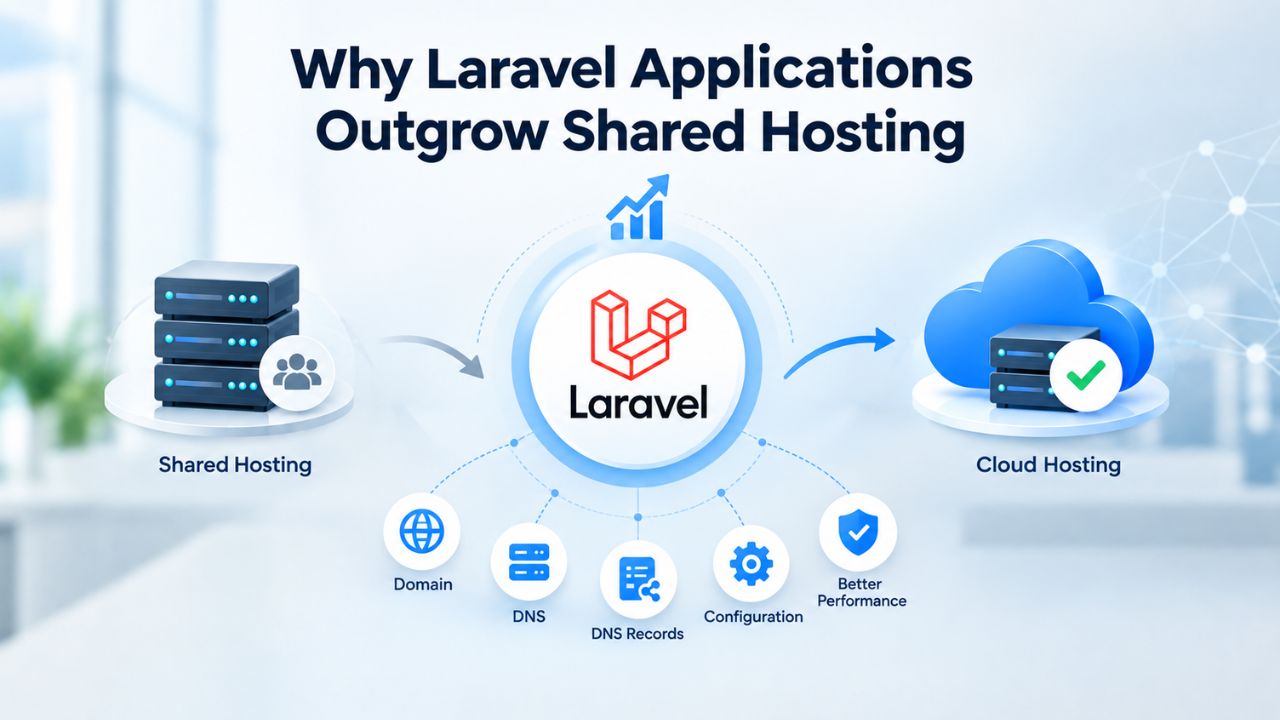
A Laravel application in production typically involves four interdependent components: a web server handling HTTP requests, a queue worker processing background jobs, a system cron scheduler running periodic tasks, and a MySQL database managing application data. On shared hosting, these components compete for the same resource pool, and critical functionality is restricted or unavailable. This architectural constraint becomes a blocker as your application evolves from prototype to production.
Background Job Processing & Supervision
Shared hosting plans rarely allow long-running background processes or unrestricted cron job configuration. Laravel’s task scheduler and queue system, central to production applications, depend on spawning and supervising worker processes indefinitely. A VPS Hosting environment with root access lets you install Supervisor, a lightweight process control system that manages these workers reliably, restarts them automatically if they crash, and configures system-level cron jobs at precise intervals without platform restrictions.
When you need to send bulk emails, process file uploads, generate reports asynchronously, or sync external data, shared hosting throttles or blocks these jobs entirely. A Virtual Private Server with root access and dedicated resources means background work completes predictably, even during traffic spikes. Your main application stays responsive while queue workers handle the heavy lifting in parallel. This separation of concerns is impossible on shared hosting; a queue worker running there is either throttled by the host’s resource limits or terminated without notice.
Custom Stack & Environment Isolation
Laravel applications store sensitive configuration, database credentials, API keys, and encryption secrets in a .env file. On shared hosting, this file sits in a multi-tenant environment where other users’ code may theoretically access file systems or configuration data. A VPS Server provides a truly isolated server environment under your sole control. No other user’s PHP process can read your files, database connection strings, or application secrets. This isolation is not just a convenience; it’s a fundamental security requirement for handling customer data or payment information.
Additionally, Laravel’s performance is tightly coupled to web server and PHP configuration. Nginx or Apache tuning, PHP-FPM process-pool sizing, HTTP/2 enablement, and caching-header rules all measurably affect response time and throughput. Shared hosts typically do not allow this level of customization because they manage thousands of customer sites with one-size-fits-all configurations. A Cloud VPS Hosting platform lets you configure Nginx or Apache exactly as your application requires, achieving response times impossible on shared hosting.
VPS Hosting Plans & Pricing
Choose the VPS hosting plan that fits your website, application, or business requirements. Select a self-managed VPS for complete server control or a fully managed VPS with a dedicated team of experts to help manage your server.
Self Managed VPS 1 vCPU
1 GB RAM
Entry-level VPS hosting for lightweight websites and applications.
- 1 CPU Core
- 1 GB RAM
- 20 GB SSD Storage
- Linux only, no control panel

Self Managed VPS 2 vCPU
4 GB RAM
VPS hosting with additional CPU and memory for growing websites and applications.
- 2 CPU Cores
- 4 GB RAM
- 100 GB SSD Storage
Self Managed VPS 2 vCPU
8 GB RAM
Additional memory for more demanding websites and applications.
- 2 CPU Cores
- 8 GB RAM
- 100 GB SSD Storage
Self Managed VPS 4 vCPU
8 GB RAM
Increased processing power for business websites and applications.
- 4 CPU Cores
- 8 GB RAM
- 200 GB SSD Storage
Self Managed VPS 4 vCPU
16 GB RAM
High-memory VPS hosting for resource-intensive workloads.
- 4 CPU Cores
- 16 GB RAM
- 200 GB SSD Storage
Self Managed VPS 8 vCPU
16 GB RAM
Powerful VPS resources for demanding business applications.
- 8 CPU Cores
- 16 GB RAM
- 400 GB SSD Storage
Self Managed VPS 8 vCPU
32 GB RAM
Maximum self-managed resources for demanding workloads.
- 8 CPU Cores
- 32 GB RAM
- 400 GB SSD Storage
Fully Managed VPS 1 vCPU
2 GB RAM
Managed VPS hosting with expert server management.
- 1 CPU Core
- 2 GB RAM
- 40 GB SSD Storage
- Dedicated team of experts to fully manage your server
Fully Managed VPS 1 vCPU
4 GB RAM
Managed VPS resources for websites and business applications.
- 1 CPU Core
- 4 GB RAM
- 40 GB SSD Storage
- Dedicated team of experts to fully manage your server
Fully Managed VPS 2 vCPU
4 GB RAM
Managed VPS hosting with additional CPU resources.
- 2 CPU Cores
- 4 GB RAM
- 100 GB SSD Storage
- Dedicated team of experts to fully manage your server
Fully Managed VPS 2 vCPU
8 GB RAM
Managed VPS hosting with additional memory for growing workloads.
- 2 CPU Cores
- 8 GB RAM
- 100 GB SSD Storage
- Dedicated team of experts to fully manage your server
Fully Managed VPS 4 vCPU
8 GB RAM
Higher-performance managed VPS for demanding applications.
- 4 CPU Cores
- 8 GB RAM
- 200 GB SSD Storage
- Dedicated team of experts to fully manage your server
Fully Managed VPS 4 vCPU
16 GB RAM
High-memory managed VPS for resource-intensive workloads.
- 4 CPU Cores
- 16 GB RAM
- 200 GB SSD Storage
- Dedicated team of experts to fully manage your server
Fully Managed VPS 8 vCPU
16 GB RAM
Powerful managed VPS hosting for demanding business workloads.
- 8 CPU Cores
- 16 GB RAM
- 400 GB SSD Storage
- Dedicated team of experts to fully manage your server
Fully Managed VPS 8 vCPU
32 GB RAM
Maximum managed VPS resources for demanding workloads.
- 8 CPU Cores
- 32 GB RAM
- 400 GB SSD Storage
- Dedicated team of experts to fully manage your server
VPS vs Shared Hosting: Resource Isolation and Predictability
The fundamental difference between shared hosting and VPS is resource allocation. On shared hosting, your site shares a single server’s CPU, RAM, storage, and bandwidth with dozens or hundreds of other customers. If a neighbor’s WordPress plugin malfunctions or their traffic spikes unexpectedly, your application feels the impact immediately: CPU throttling, slow database queries, connection timeouts, and mysterious crashes. You have no way to debug whether the problem is your code or resource contention from other tenants.
Dedicated Resources & Performance Guarantee
A VPS Hosting plan allocates a fixed slice of CPU cores, RAM, and storage exclusively to your server. GoDaddy’s VPS Server platform, which powers Niya Digital’s offering, uses KVM virtualization to enforce hard boundaries between customer instances. Your application’s performance does not degrade because another tenant’s workload spiked or because they deployed resource-hungry code. This isolation is essential for production applications where slow response times directly harm user experience, reduce conversion rates, and damage search-engine rankings.
Consider a typical scenario: your Laravel store experiences a 10x traffic spike during a flash sale. On shared hosting, the server’s database cache fills quickly, queries slow to a crawl, CPU contention rises, and checkout begins timing out. Customers abandon carts in frustration. On a VPS Hosting platform with dedicated RAM and CPU, the database buffer pool, tuned specifically for your server’s available memory, keeps frequently accessed product and order data in fast memory. Queries complete in milliseconds even under peak load, checkout remains responsive, and you capture the revenue opportunity.
Predictable Scaling Without Noisy Neighbors
Shared hosting forces you to over-provision resources to buffer against neighbor interference. You buy more capacity than your application needs to create a safety margin against noisy neighbors. A Root Access VPS lets you know exactly what resources you control and scale only when your own application demands it, not when you’re hedging against the unknown. Niya Digital’s team has found that customers underestimate the value of isolation until they’ve experienced a production incident caused by noisy-neighbor interference on shared hosting, a single resource-exhausting script run by another tenant cascaded into widespread downtime, only to be resolved by migrating to a Managed VPS Hosting environment with dedicated allocations.
This real-world pattern repeats frequently: a customer stays with shared hosting too long, experiences performance issues they initially attribute to their own code, then discovers through weeks of debugging that a neighbor’s job was consuming 80% of the server’s CPU. The migration to a VPS Hosting environment immediately resolves the issue, proving the problem was environmental, not architectural. You avoid this entirely by starting with a VPS.
Understanding CPU, RAM & Storage Tiers for Laravel
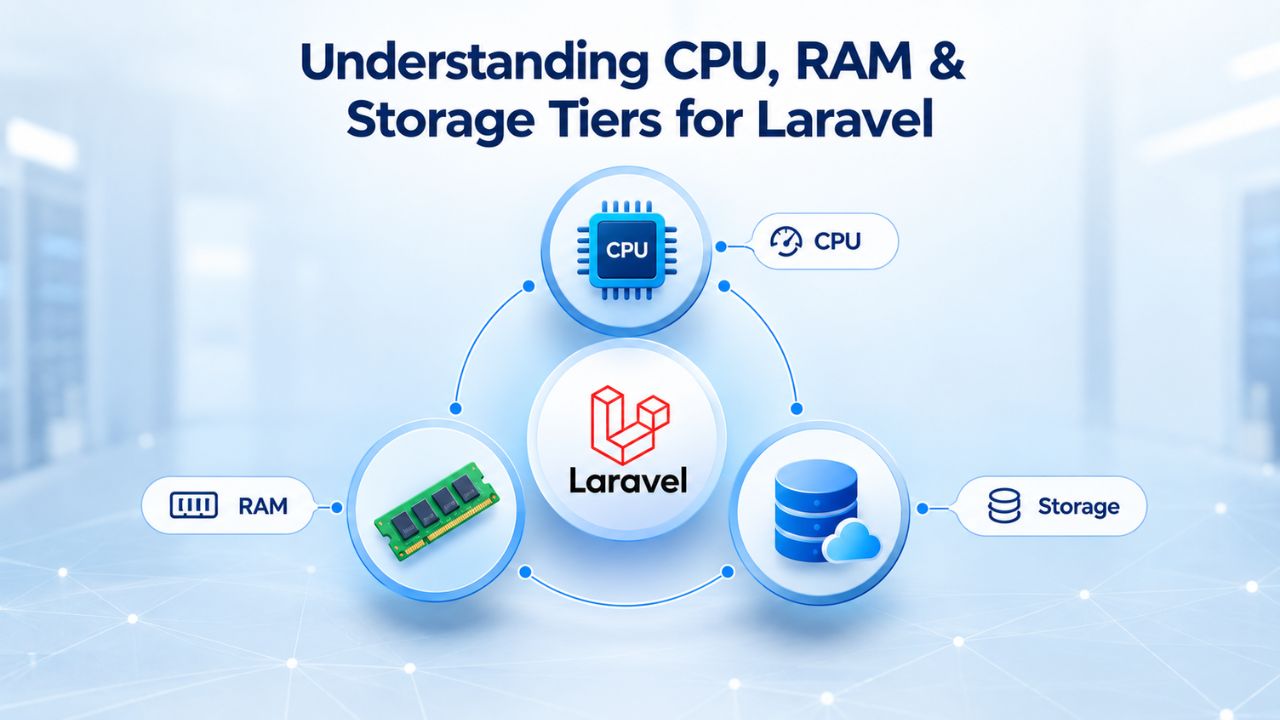
Choosing the right VPS Hosting plan requires understanding what each resource component does and how your application’s architecture affects resource demand. This is not a one-size-fits-all decision; it depends on your database size, traffic patterns, queue load, feature complexity, and how aggressively you cache content. Understanding these levers helps you avoid both over-provisioning and undersizing mistakes.
CPU Cores & Concurrent Request Handling
A vCPU core is a virtual processor allocated to your VPS Server. PHP is not inherently CPU-intensive at baseline traffic; 1–2 cores typically handle 50–100 concurrent requests across a typical Laravel app without CPU becoming a bottleneck. However, queue workers, scheduled tasks, and complex application logic all consume CPU. A Laravel store generating dynamic search results, processing cart calculations, and logging every purchase decision uses significantly more CPU than a static blog with cached pages.
GoDaddy’s VPS Hosting plans range from 1 vCPU for entry-level applications up to 32 cores for enterprise workloads. A recommended starting point for a growing Laravel application is 2–4 vCPU cores. This headroom prevents CPU bottlenecks during traffic surges and allows multiple queue workers to run in parallel without contention. As a rule of thumb, allocate one PHP-FPM worker process per vCPU core and monitor CPU usage under peak load. If sustained usage climbs above 70%, plan an upgrade.
RAM as Your Database’s Working Memory
RAM is the most critical resource for any application backed by MySQL. The database engine attempts to keep frequently accessed data in memory; when RAM runs out, it falls back to disk storage, which is 50–100x slower than memory. This is the difference between a database query returning in 1 millisecond on NVMe versus 100 milliseconds on older storage, a cascading slowdown felt across your entire application. Every request that triggers a slow query takes longer, the request queue grows, PHP processes wait for database responses, and users experience timeouts.
A Scalable VPS Hosting plan with 2 GB RAM is the absolute minimum for production MySQL workloads; 4 GB is practical for growing applications, and 8 GB or more is recommended if you run multiple queue workers or maintain a large database. On GoDaddy’s platform, these translate directly to the 2 vCPU / 4 GB RAM “Recommended” plan and the 4 vCPU / 8 GB tier. Storage speed matters equally: NVMe SSDs (20–50 microsecond latency) complete database read/write operations 5–10x faster than older SATA SSD technology, making them the storage standard for VPS Hosting in 2026.
Sizing MySQL Memory & Database Performance
Laravel applications rely on MySQL for data storage and retrieval. An undersized database allocation does not just slow individual queries; it cascades into CPU spikes, disk thrashing, and timeout errors across your entire stack. Understanding MySQL memory tuning is essential to getting the most from your VPS Hosting investment.
Buffer Pool Allocation & Tuning
MySQL allocates a portion of server RAM as a buffer pool, an in-memory cache for the most-accessed data. Larger buffer pools reduce disk I/O and dramatically improve query performance. On a 2 GB VPS server running Linux, baseline system overhead and web server use consume about 800 MB to 1 GB, leaving about 1 GB for MySQL. A properly tuned buffer pool for this configuration is typically 256–512 MB. On a 4 GB VPS, you can allocate 1–1.5 GB to the buffer pool. On an 8 GB VPS, 2–4 GB is common for database-heavy applications.
Undersizing the buffer pool forces MySQL to repeatedly read the same data from disk, multiplying query times and cascading slowdowns throughout your application. Oversizing causes memory contention between MySQL, PHP-FPM workers, and the operating system, leading to swapping and performance collapse. Each VPS Hosting Provider publishes tuning guidelines; GoDaddy’s documentation includes recommended my.cnf buffer pool settings by plan size. A typical 4 GB plan suggests starting with a 512 MB to 1 GB buffer pool allocation, then monitoring query performance and adjusting upward if cache hit ratios fall below 90%.
Concurrent Connections & Query Load
The number of simultaneous database connections depends on your PHP-FPM worker count, queue worker count, and application concurrency. Each PHP-FPM process maintains a database connection; if you run 10 PHP workers and 2 queue workers, MySQL must handle 12 concurrent connections plus headroom for spikes. Laravel’s connection pooling and persistent connection handling help reduce overhead, but undersized plans become constrained quickly under load. Each connection also consumes memory; too many connections and RAM pressure can force MySQL to reject new connections or crash.
A small Laravel application, one web server, one queue worker, 20 concurrent users, works well on a 2 GB VPS with a 256 MB buffer pool and default MySQL connection limits. A growing application with multiple queue workers, 100+ concurrent users, and a larger dataset needs 4 GB RAM and a 512 MB–1 GB buffer pool to maintain sub-100ms query response times consistently. Monitoring your database query time and buffer pool hit ratio using tools like MySQL Tuner tells you definitively if an upgrade is needed.
Choosing a VPS Hosting Plan by Application Scale
Sizing a VPS Hosting server means matching resource tiers to your application’s current demands plus some headroom for growth. The following table maps typical Laravel use cases to recommended specifications. This is not a rigid formula but a starting point; your actual needs depend on plugin count, caching strategy, and traffic patterns.
| Application Scale | Concurrent Users | Database Size | Recommended vCPU | Recommended RAM | Recommended Storage | Best-For |
|---|---|---|---|---|---|---|
| Simple Static Site | < 10 | < 10 MB | 1 | 1–2 GB | 20 GB NVMe | Portfolio, informational site, minimal traffic |
| Small Blog / MVP | < 50 | < 100 MB | 1 | 2 GB | 40 GB NVMe | Single Laravel app, basic queue, low traffic |
| Growing Startup | 50–200 | 100 MB–1 GB | 2 | 4 GB | 100 GB NVMe | Multiple features, queue workers, growing user base |
| Busy E-Commerce | 200–500 | 1–10 GB | 4 | 8 GB | 200 GB NVMe | High queue throughput, cart/checkout load, large catalog |
| High-Scale Platform | 500–2000+ | 10–50 GB | 8+ | 16–32+ GB | 500+ GB NVMe | Large concurrent user base, complex workloads, scaling-ready |
| Enterprise / Multi-Tenant | 2000+ | 50+ GB | 16+ | 32+ GB | 1+ TB NVMe | Dedicated infrastructure, mission-critical, scale-out ready |
Each tier above aligns with typical VPS hosting plans from major providers: the entry-level 1 vCPU / 2 GB RAM plan, the recommended 2 vCPU / 4 GB plan, and the 4 vCPU / 8 GB tier. Starting at 2 GB RAM is practical for MVP-stage applications; 1 GB works only for the simplest sites and often leads to out-of-memory crashes during updates or traffic spikes. Moving to 4 GB RAM is the first upgrade most growing Laravel teams make; it provides the headroom to run multiple queue workers and handle database caching properly without memory pressure.
Testing Resource Fit Before Committing
The best way to confirm a VPS Server tier fits your application is to provision it, run your actual workload under realistic load, or replay traffic from production logs, and monitor CPU, RAM, and disk I/O in real time. Most VPS Hosting Providers offer hourly or monthly billing; starting on a 1–3 month term lets you validate sizing without a long-term commitment. Watch peak memory usage during traffic spikes, database query times under load, and queue worker backlog during batch operations. Tools like New Relic, Datadog, or open-source Grafana + Prometheus give you this visibility.
Niya Digital’s onboarding support includes configuration guidance to help you tune PHP-FPM pool size, MySQL buffer pool, and web server settings for your chosen plan tier. This removes guesswork; you know your server is configured optimally for the resources available. Many teams make configuration mistakes (too many PHP-FPM workers for available RAM, oversized buffer pool causing contention, undersized web server connection limits) that make a plan appear undersized when tuning was actually the issue.
Common Sizing Mistakes
Two mistakes frequently cause Laravel teams to upgrade sooner than necessary or experience preventable performance issues. First, undersizing RAM and then allowing the operating system to use swap, disk-backed memory as a fallback. Swap makes the server appear to work fine until it doesn’t, and then performance collapses catastrophically under any meaningful load. The system grinds to a halt as it repeatedly pages RAM to disk.
Start with adequate RAM rather than relying on swap as a safety net, and second, don’t run too many queue workers for your available RAM. Each queue worker process consumes 60–100 MB. On a 2 GB VPS, running 5 workers leaves no headroom for web requests, database cache, or system overhead; memory pressure cascades into crashes and timeouts.
Start Your Laravel VPS Today
Your Laravel application deserves a hosting platform built for its needs. Niya Digital’s VPS Hosting service combines the resource isolation, process control, and security isolation Laravel demands with experienced onboarding and support. Whether you’re outgrowing shared hosting or building your next project, Niya Digital’s plans scale with you. Browse plans to explore the resource tier that fits your current workload.
Security Hardening & Environment Control
Production Laravel applications handle sensitive customer data, payment information, and business logic. Security is a shared responsibility: the hosting provider secures the infrastructure, firewall, and network; you secure your application code, configuration, and secrets. A VPS Hosting platform gives you control over the environment layer that shared hosting abstracts away, allowing you to implement defense-in-depth across all layers.
OWASP Foundations & Laravel Built-Ins
The Open Web Application Security Project (OWASP) publishes the Top 10 critical web application security risks. Laravel addresses many of these out of the box: Eloquent ORM uses parameterized queries to prevent SQL injection, Blade templates auto-escape content to prevent cross-site scripting (XSS), and CSRF token protection is built into every form. Your responsibility is to use these features correctly, avoid raw SQL queries without parameter binding, keep dependencies updated via Composer, validate user input thoroughly, and implement Content Security Policy (CSP) headers to restrict code execution further.
On a VPS Server, you control when and how you apply updates to the operating system, PHP, MySQL, and all supporting software. Shared hosts push updates on their own schedule, without notice or a chance to test; you have no staging environment. A Root Access VPS lets you test updates on a staging copy of your application, run your complete test suite, and deploy at a time that suits your business, not the provider’s maintenance window. This controlled update process is essential for maintaining security while preventing unexpected breakage.
.env Secrets & Isolated Filesystem
Laravel stores database credentials, API keys, and encryption keys in the .env file. On shared hosting, this file shares a filesystem with other users’ code; a vulnerability in a neighbor’s site could theoretically expose your secrets. On a VPS Hosting plan, the entire filesystem belongs to you alone. File permissions are yours to set; no other user’s PHP process can read your .env file. Your database password, Stripe API key, and other secrets stay isolated to your server alone, with zero risk of cross-tenant exposure.
Additionally, a VPS lets you restrict database access to the VPS’s IP address only. Your MySQL user does not accept connections from the public internet or other servers; only your application running on that specific server can authenticate. Pair this with a robust firewall; GoDaddy’s VPS Hosting includes 24/7 DDoS protection and optional firewall configuration, and your attack surface shrinks dramatically. Combined with HTTPS everywhere, regular security updates, and input validation, you’ve built defense in depth.
Setting Up Queue Workers & Task Scheduling
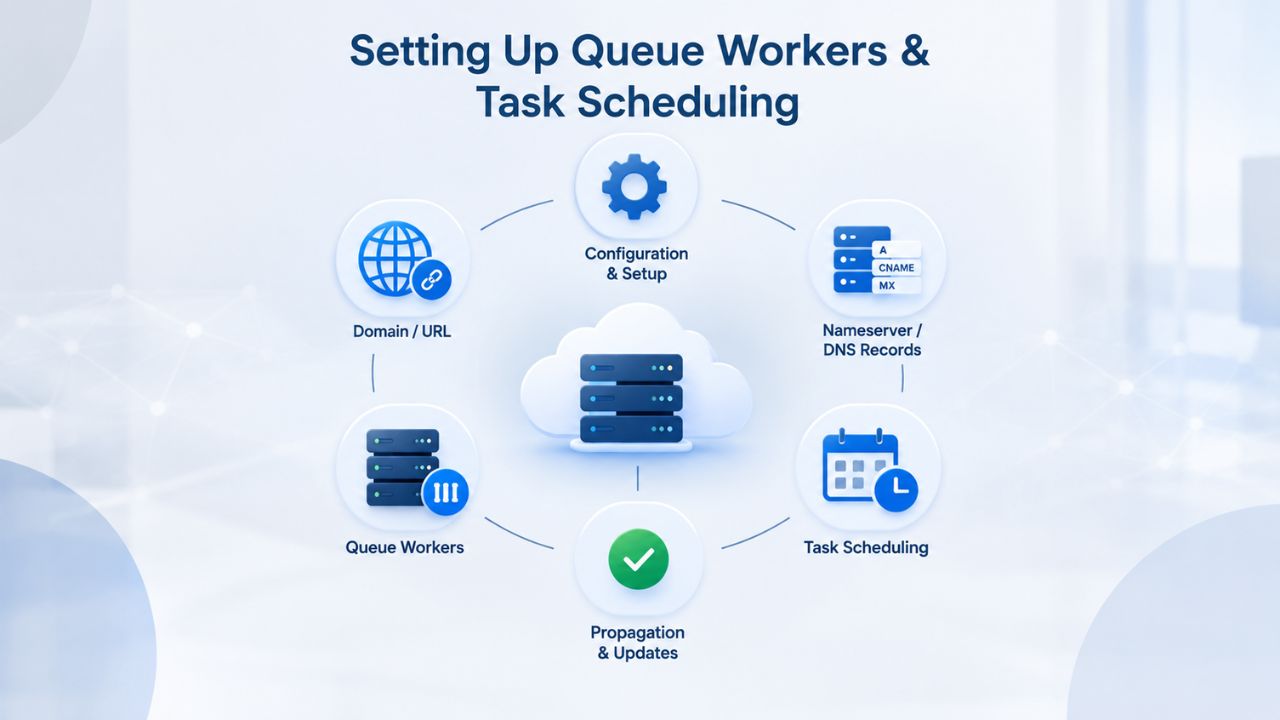
Laravel’s queue system and task scheduler are central to production applications. Shared hosting either does not support them or restricts them severely, making them unusable for real workloads. A VPS Hosting environment with root access is where these features truly shine and unlock the full power of Laravel’s architecture.
Queue Workers with Supervisor
Laravel applications dispatch jobs to a queue (database, Redis, or third-party service). A queue worker is a long-running PHP process that polls the queue, picks up jobs, and processes them one by one. On a Virtual Private Server, you install Supervisor, a lightweight process control system, to spawn and manage your queue workers. Supervisor runs in the background as a system daemon and continuously monitors your worker processes.
Configuration is straightforward: you create a Supervisor configuration file specifying your queue worker command, how many worker instances to spawn (typically 2–4), and what to do if a worker crashes (restart it automatically). Once Supervisor starts, it manages your queue workers continuously, even across server reboots and crashes. If a worker dies unexpectedly, Supervisor restarts it within seconds. This is impossible on shared hosting; a queue worker running in shared hosting is either throttled by resource limits or terminated by the host. On a VPS Server, queue workers run uninterrupted, processing thousands of jobs per day if needed.
Cron Jobs & Artisan Task Scheduling
Laravel’s task scheduler, defined in app/Console/Kernel.php, lets you define periodic tasks in code, send email digests, clean up old records, generate reports, sync inventory, and schedule them using a fluent, readable syntax. The trick is triggering the scheduler itself. On shared hosting, you add a cron job through your host’s control panel; execution is unreliable, logging is opaque, and troubleshooting is limited if something fails.
On a VPS Server with root access, you add a single system cron job: * * * * * php /path/to/artisan schedule: run >> /dev/null 2>&1. This one-liner invokes Laravel’s scheduler every minute. Laravel then evaluates your scheduled tasks and runs those due. You can monitor execution in your application logs; you control when and how tasks run. For a Laravel e-commerce store, this means nightly inventory syncs, daily abandoned-cart emails, and weekly sales reports all run on a predictable schedule with no shared-host interference.
Web Server Tuning & Performance Optimization
Laravel’s performance depends not just on your application code but on how your web server and PHP interpreter are configured. A VPS Hosting plan gives you full control over these critical levers, transforming performance from adequate to exceptional.
Nginx/Apache & PHP-FPM Configuration
Nginx or Apache act as reverse proxies, forwarding requests to PHP-FPM (a PHP process manager). The number of PHP-FPM worker processes, their memory limits, and their request queue length all affect throughput and latency. On a 2 GB VPS, you might run 4–6 PHP-FPM workers. On a 4 GB VPS, you might run 8–12 workers. Too few workers and requests queue, causing request timeouts. Too many, and memory pressure can cause processes to crash or swap to disk.
| Laravel Stack Component | Role | Typical RAM Usage | Concurrency Notes |
|---|---|---|---|
| Web Server (Nginx/Apache) | HTTP request handling, static asset serving | 50–100 MB | Minimal overhead; scales with connection count |
| PHP-FPM Process Pool | PHP code execution per request | 60–100 MB per worker | Allocate 1 worker per vCPU core; add headroom for spikes |
| MySQL Database (Buffer Pool) | In-memory data cache, query execution | 256 MB–4 GB depending on allocation | Largest RAM consumer; critical for performance |
| Queue Worker (Supervisor-managed) | Background job processing | 60–100 MB per worker | Each worker is a separate PHP process |
| System Overhead (OS, kernel) | Operating system, essential services | 200–500 MB | Minimal for Linux; varies by services |
| Headroom / Safety Margin | Reserve for updates, spikes, emergencies | 300–500+ MB | Prevents OOM kills; buffer for unpredictability |
A managed VPS Hosting service like Niya Digital’s includes onboarding support to help you tune these settings from day one. Basic guidance: allocate one PHP-FPM worker per vCPU core, set max_children slightly higher to handle brief spikes, and monitor memory usage under load. For web server settings, enable gzip compression (reduce response size by 70%+), configure caching headers for static assets so browsers cache them, and enable HTTP/2 for faster client connections.
Caching & Application-Level Optimization
Even the best VPS Hosting hardware cannot compensate for an application that generates every response from scratch on every request. Laravel’s caching system (file cache, Redis, Memcached) drastically reduces database load and response times. Page caching can reduce response times from 500ms to 50ms for cacheable routes. Query result caching prevents repeated database round-trips for frequently accessed data. Object caching with Redis sidesteps database queries entirely for session data, cart contents, and user preferences.
A Scalable VPS Hosting plan supports running Redis, an in-memory cache server, on the same server or pointing to an external Redis service. Running Redis locally adds minimal resource overhead (50–100 MB RAM) and eliminates network latency versus external Redis. A Laravel store with page caching and Redis object cache handles 10x more concurrent users on the same VPS tier compared to an uncached baseline. This isn’t hyperbole; caching transforms Laravel performance.
From Development to Production, Scaling Strategy
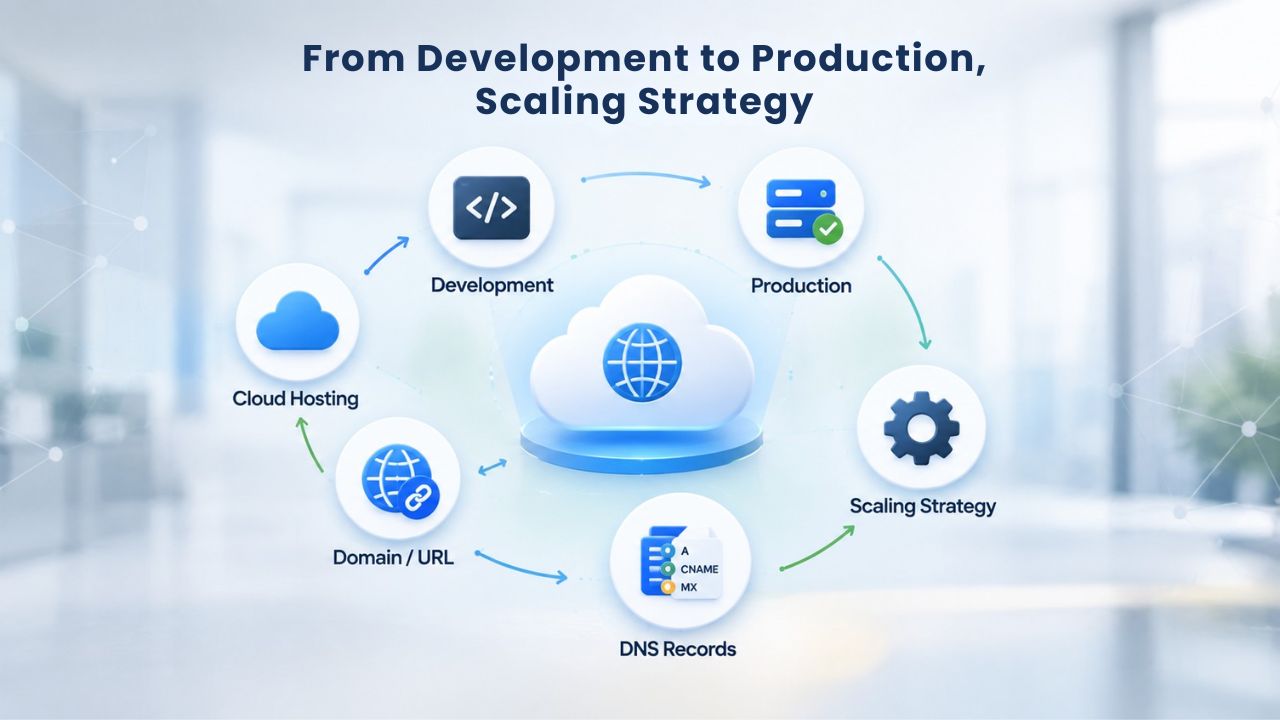
Choosing the right initial VPS Server spec is the start, not the finish. A well-structured Laravel application scales smoothly as demand grows, with predictable pathways to upgrade resources.
Vertical Scaling vs Horizontal Scaling
Vertical scaling means upgrading to more powerful hardware on the same server: moving from 2 vCPU / 4 GB RAM to 4 vCPU / 8 GB RAM to 8 vCPU / 16 GB RAM on the same VPS. GoDaddy’s VPS Hosting platform supports in-place upgrades; you can add CPU cores and RAM without migrating to a new server or experiencing more than a brief restart. This is straightforward for small teams and works well up to moderate traffic levels, hundreds of concurrent users.
Horizontal scaling means adding more servers. A second VPS runs a replicated copy of your application; a load balancer distributes requests between them. This requires more orchestration, database replication, shared file storage, queue coordination, and session handling across servers, but scales to very high traffic. Most Laravel teams start vertically; they upgrade from 2 GB to 4 GB to 8 GB as needed and pursue horizontal scaling only if they’re handling thousands of concurrent users or need geographic redundancy.
Monitoring & Proactive Upgrades
The best scaling strategy is to monitor resource usage continuously. Tools like New Relic, Datadog, or open-source options (Grafana + Prometheus) show CPU, RAM, disk I/O, and database query times in real time. When you see consistent RAM usage above 80% or CPU sustained above 70%, an upgrade is due soon; plan it before an outage forces your hand. Proactive capacity planning beats reactive crisis management.
A VPS Hosting service with managed support can monitor your server and automatically alert you to resource constraints. This removes the guesswork; you upgrade when data tells you to, not based on hunches or historical patterns. GoDaddy’s managed VPS Hosting tiers include monitoring and notifications, helping you stay ahead of growth. Set up email alerts for CPU and memory thresholds; when alerts trigger, schedule an upgrade for the next maintenance window.
Making the Move, Cost & Support Considerations
Migrating from shared hosting to a VPS Hosting platform is a significant step. You gain control and performance but also take on more responsibility. Understanding the trade-offs helps you decide.
Cost-Benefit Reality
Shared hosting is cheaper upfront: entry-level plans cost just a few dollars per month. A VPS Hosting plan requires a modest monthly investment. For a growing business, the math is simple: a VPS hosting plan that supports 10 customers with higher performance and reliability generates more revenue than a crashed shared host that loses those customers during a traffic spike. Performance drives conversions; reliability builds customer trust. The investment pays for itself through improved uptime, faster load times, and fewer support crises.
GoDaddy’s VPS Hosting is competitively priced within the industry; longer-term commitments bring the effective monthly cost down. Niya Digital offers these plans with additional onboarding support and account management. Whether you pay monthly or commit to a longer term depends on your business stage and risk tolerance. For a growing startup, the first 6–12 months are often the most uncertain; monthly billing gives you the flexibility to upgrade quickly if needed.
Managed vs Unmanaged Support
Shared hosting includes full management: the provider installs updates, monitors uptime, and fixes server-level issues. A self-managed VPS Hosting plan puts those responsibilities on you. You install and configure the operating system, apply security patches, manage backups, and troubleshoot infrastructure issues. This is powerful but demands skills and time.
Managed VPS Hosting (available from Niya Digital and GoDaddy) bridges the gap: the provider handles infrastructure monitoring, security patching, backups, and DDoS protection; you focus on application configuration and code. This is ideal for developers who want control without full sysadmin duties. If infrastructure management is not your strength, managed support is worth the investment. You get the benefits of a VPS without the operational burden.
Explore Managed VPS Hosting Options
Your Laravel application deserves a hosting platform built for its needs. Niya Digital’s VPS Hosting service combines resource isolation, process control, and environment security that Laravel demands with experienced onboarding and support throughout your growth. Whether you’re outgrowing shared hosting or building your next mission-critical application, Niya Digital’s plans scale with you to support everything from your MVP to enterprise workloads.
Frequently Asked Questions
Is 2 GB RAM enough for MySQL + Laravel?
Two gigabytes is the practical minimum for production Laravel + MySQL workloads. After accounting for operating system, web server, and PHP overhead (approximately 800 MB–1 GB), you have roughly 1 GB for MySQL buffer pool and application processes. This works for small sites with low concurrency, but any growth, additional queue workers, larger datasets, or traffic spikes will force an upgrade. Start at 2 GB if budget is tight; plan to upgrade to 4 GB within 6 months of launch.
Can I run multiple Laravel applications on one VPS Hosting plan?
Yes. A single VPS can host multiple Laravel applications using separate Nginx/Apache virtual host configurations. Each application gets its own server block, PHP-FPM pool, and database. This is cost-effective for agencies or teams managing multiple smaller projects. However, resources are shared at the VPS level; if one application experiences unexpected load, others feel the impact. For separate customers or high-value applications, separate VPS instances are safer.
How do queue workers affect resource usage?
Each Laravel queue worker process consumes 60–100 MB of RAM. On a 2 GB VPS, running even 2 queue workers leaves little headroom for web requests and database cache; memory pressure cascades into swapping and performance collapse. A 4 GB VPS comfortably runs 2–3 workers. Plan queue worker count based on available RAM: reserve at least 1 GB for web server and database; divide the remainder by 100 MB to estimate max sustainable workers.
What’s the difference between NVMe and SATA SSD storage?
NVMe (Non-Volatile Memory Express) offers 20–50 microsecond latency versus SATA SSDs’ 200–500 microseconds. For database-heavy applications, NVMe completes queries 5–10x faster than a SATA SSD. A single query takes 1 millisecond on NVMe versus 100 milliseconds on older storage, and that multiplies across thousands of queries. The slowdown cascades throughout your application. NVMe is the standard for VPS Hosting in 2026; any plan you consider should use NVMe storage.
Should I run Redis on the same VPS or use an external service?
For small to medium applications, Redis running on the same VPS is fine. It adds minimal resource overhead (50–100 MB RAM) and eliminates network latency versus external Redis. For high-concurrency applications or when you need Redis to survive a VPS reboot independently, external managed Redis makes sense. GoDaddy’s VPS Hosting plans scale to include Redis; Niya Digital’s onboarding can help you decide based on your workload.
How often should I back up my VPS?
Daily backups are standard for VPS Hosting. Snapshots are point-in-time copies of your entire server (OS, application, database, configuration). Test restoring from a snapshot periodically to confirm backups actually work. Automated backups are only half the solution; you need a documented recovery procedure and the confidence to execute it under pressure. For critical applications, consider more frequent backups or external backup services.
Is HTTPS required on a VPS Hosting plan?
Absolutely. HTTPS (SSL/TLS encryption) is mandatory for production web applications, regardless of hosting type. It protects user data in transit, improves search-engine rankings, and is expected by modern browsers. Let’s Encrypt offers free SSL certificates, and most hosting platforms automate renewal. Both GoDaddy and Niya Digital include SSL certificate management with VPS Hosting plans. Enable HTTPS on day one.
Can I upgrade a VPS Hosting plan mid-term without downtime?
Most VPS Hosting providers, including GoDaddy, allow in-place upgrades: adding CPU cores or RAM without migrating to a new server. This typically requires a brief restart (5–15 minutes). True zero-downtime upgrades are possible with load balancing (routing traffic to a second VPS during the upgrade), but this adds complexity. Plan upgrades during off-peak hours to minimize customer impact.
What firewall rules should I configure on a new VPS?
Start restrictive: allow only SSH (port 22 for administration), HTTP (port 80), and HTTPS (port 443 for web traffic). Block all other inbound traffic by default. If you run additional services (dedicated database server, cache server, API on a custom port), open only what’s needed. Periodically audit open ports and close any no longer in use. This follows the principle of least privilege: expose only what your application requires.
Does Niya Digital offer 24/7 support for Laravel-specific issues?
Niya Digital provides VPS Hosting infrastructure, onboarding support, and managed-tier server management; application-level issues (Laravel bugs, custom code troubleshooting) are typically outside the scope. Managed VPS Hosting tiers include infrastructure monitoring, security patching, and backup management. For Laravel-specific consulting (performance tuning, architecture review, security audits), you may need a Laravel-specialized developer or agency. Niya Digital’s team can point you to resources during onboarding.
What’s a typical migration timeline from shared hosting to VPS?
Migrating a small Laravel application typically takes 2–4 hours: setting up the VPS, configuring the OS and services, copying files and databases, testing, and updating DNS. Larger applications or those with custom integrations may take 1–2 days. Niya Digital’s onboarding support includes migration guidance; many teams find a staged approach (run both hosts in parallel, test thoroughly, then cut over) reduces risk and downtime.
Are there performance benchmarks comparing shared hosting to VPS Hosting?
Benchmarks depend heavily on application specifics, but general trends hold: a typical Laravel site on shared hosting seeing 200ms response times often drops to 50–80ms on a VPS, a 50% improvement, mostly from resource isolation and caching headroom. Sites with queue workers or complex database queries see even larger gains. Real-world testing (migrating a staging copy and load-testing it) beats generic benchmarks.
What’s included in VPS Hosting uptime protection?
VPS Hosting platforms like GoDaddy’s include 24/7 network monitoring, DDoS protection, and automated remediation. If a component fails, monitoring systems detect it and trigger failover or restart procedures. However, uptime depends on your application configuration, code quality, and server resource availability. No hosting provider guarantees perfect uptime; overall performance and reliability depend on many factors outside the hosting provider’s control.
How do I know when to upgrade my VPS Hosting plan?
Watch for sustained CPU above 70%, RAM usage consistently above 80%, or slow database query times during peak hours. Tools like New Relic or Grafana provide real-time visibility. When you see these patterns, schedule an upgrade. Additionally, if you’re planning a marketing campaign, product launch, or seasonal spike, upgrade in advance rather than waiting for performance to degrade. Proactive scaling beats reactive crisis management.
Glossary
- VPS (Virtual Private Server): A virtual server instance with dedicated CPU cores, RAM, and storage, running on shared physical hardware but fully isolated from other customers’ instances.
- Root Access: Full administrative permissions to configure the server, install software, modify system files, and manage all processes up to the operating system level.
- MySQL Database: A relational database management system used by Laravel applications to store and query application data, customer records, products, orders, sessions, and more.
- Queue Worker: A long-running PHP process managed by Supervisor that polls a job queue, retrieves pending tasks, and processes them asynchronously, allowing the main application to remain responsive.
- PHP-FPM: FastCGI Process Manager for PHP; it spawns multiple PHP worker processes, each handling requests concurrently, and is essential for tuning concurrency on a VPS.
- NVMe SSD: Non-Volatile Memory Express Solid State Drive offering 20–50 microsecond latency; 5–10x faster than SATA SSD for database I/O, making it the storage standard for modern VPS Hosting plans.
- Snapshot / Backup: A point-in-time copy of your entire VPS (filesystem, database, configuration, running state) used for disaster recovery or creating test environments.