What cPanel Is (and Isn’t)
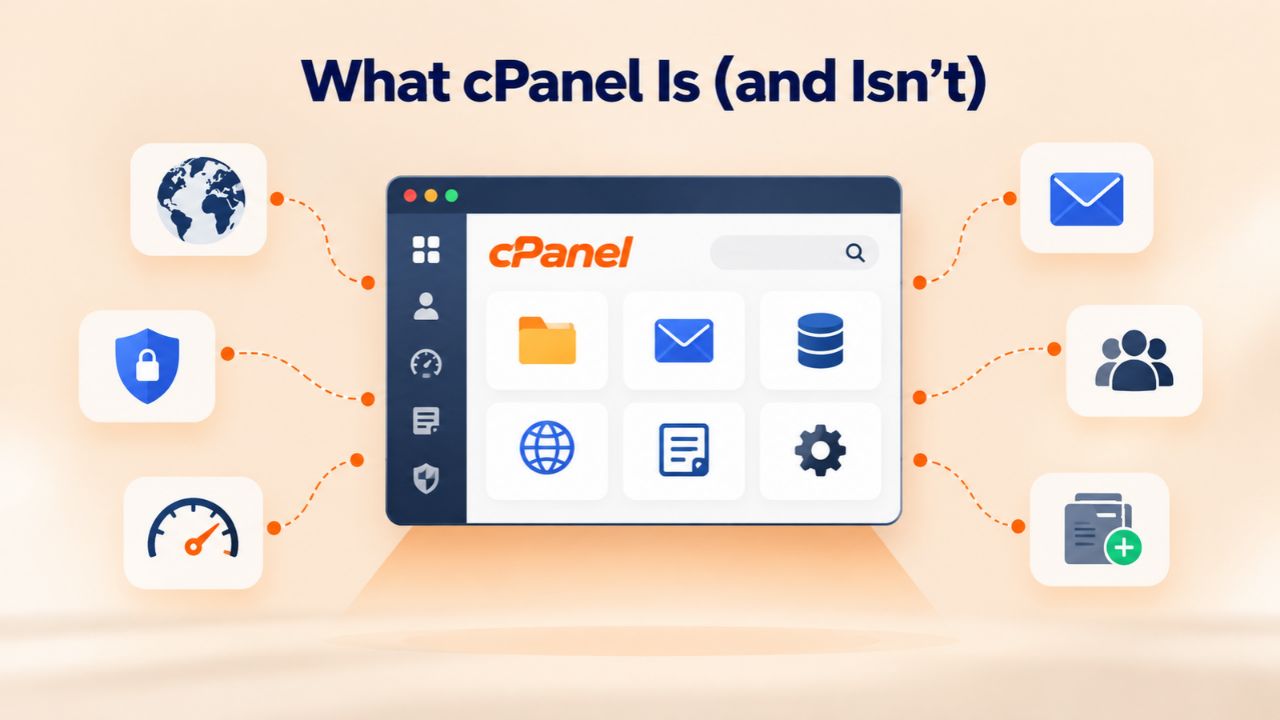
cPanel is not a web-hosting company or a hosting provider. It is control-panel software, a graphical interface that hosting providers install on servers to let customers manage hosting accounts without needing command-line or server-administration access. Understanding what cPanel is helps clarify whether it matters as much as server uptime, support quality, and resource allocations.
Why Control Panels Exist
Shared hosting, reseller hosting, and managed server environments require a way for customers to configure their accounts without gaining direct access to the underlying operating system or server code. A control panel solves this by providing a web-based dashboard where routine account tasks, creating email accounts, pointing domain names, installing SSL certificates, and managing files, become point-and-click operations.
cPanel is the most widely adopted control panel in the shared-hosting industry, used by a large majority of hosts globally. Plesk is the second most common option, with smaller alternatives like DirectAdmin and ISPmanager serving niche segments. The control panel is a tool the hosting company provides for you to use; it is not the hosting service itself, and choosing a control-panel brand should never be the primary factor in selecting a hosting provider.
Niya Digital’s Web Hosting service, running on GoDaddy infrastructure, includes cPanel access on its shared hosting plans. Customers access cPanel through their browser after logging in, giving them a centralized place to manage domains, email, databases, and files without contacting support for routine configuration tasks. This convenience is one reason cPanel-based hosting appeals to non-technical site owners and small businesses that value simplicity and self-service. The interface is intuitive enough that someone with no server experience can handle most account-management tasks independently, which is a genuine practical advantage.
What cPanel Doesn’t Change About Your Hosting
Because cPanel is a control-panel tool and not the hosting service itself, choosing a cPanel host does not automatically guarantee uptime, performance, or security outcomes. A hosting provider with excellent cPanel integration but poor underlying server infrastructure, limited support, or inadequate security hardening will deliver a worse experience than a simpler host with solid fundamentals.
Another critical misunderstanding: choosing cPanel does not mean you get server-level customization or access to the underlying operating system. cPanel runs on shared or reseller hosting servers, where the hosting provider manages the server itself and you get a limited, read-only or admin-scoped view of cPanel. If you need to install custom server software, modify system-level configuration, or run applications that require root or administrative access, you need a VPS, dedicated, or cloud server instead; in that case, cPanel may not even be available or relevant to your use case.
cPanel Control Panel Feature Comparison
| Feature | cPanel | Plesk | Unmanaged / Direct Access |
|---|---|---|---|
| Email account creation | ✓ | ✓ | Command-line only |
| DNS zone management | ✓ | ✓ | SSH/API only |
| Database creation & management | ✓ | ✓ | SSH/database client |
| SSL certificate installation | ✓ | ✓ | Manual server config |
| One-click app installers | ✓ | ✓ | Manual installation |
| FTP/SFTP file upload | ✓ | ✓ | SSH/SCP only |
| Addon domain management | ✓ | ✓ | Manual vhost config |
| Backup & restore via GUI | ✓ | ✓ | Manual backup scripts |
| File permission management | ✓ | ✓ | SSH chmod commands |
| Custom server software install | ✗ | ✗ | ✓ |
| Root/admin server access | ✗ | ✗ | ✓ |
| OS-level configuration | ✗ | ✗ | ✓ |
Business Web Hosting Plans & Pricing
Choose the hosting plan that fits your website, WordPress site, or growing business. Compare features, storage, performance, security, and website capacity to find the right hosting environment for your needs.
cPanel Starter
cPanel Hosting that's easy, reliable and lightning-fast.
- 1 website
- 30 GB storage
- Unmetered bandwidth*

cPanel Economy
cPanel Hosting that's easy, reliable and lightning-fast.
- 1 website
- 100 GB space
- Unlimited bandwidth*
- 100 email accounts**
- 10 MySQL databases (1 GB ea.)
cPanel Deluxe
cPanel Hosting that's easy, reliable and lightning-fast.
- Unlimited websites
- Unlimited space
- Unlimited bandwidth*
- 500 email accounts
- 25 MySQL databases (1 GB ea.)
cPanel Ultimate
cPanel Hosting that's easy, reliable and lightning-fast.
- Unlimited websites
- Unlimited space
- Unlimited bandwidth*
- 1000 email accounts
- Unlimited MySQL databases (1 GB ea.)
- 2X Processing power & memory (available for Linux/cPanel only)
- Premium DNS
- 1-year SSL certificate to secure customer data and increase search rankings
*We don't limit the amount of storage and bandwidth your site can use as long as it complies with our Hosting Agreement. Should your website bandwidth or storage usage present a risk to the stability, performance or uptime of our servers, we will notify you via email and may be required to upgrade, or we may restrict the resources your website is using.
**Email account storage is limited to 100 email accounts with 100 MB of total storage.
WordPress Basic
A great way to get started.
- 1 website
- 10 GB NVMe storage
- Unmetered bandwidth
- Free SSL Certificate *
- WordPress pre-installed
- Weekly backups
- Web Application Firewall
- Daily malware scans
- One-time malware removal

WordPress Deluxe
Improve your site performance with Cloudflare CDN.
- 1 website
- 20 GB NVMe storage
- Unmetered bandwidth
- Free SSL Certificate *
- WordPress pre-installed
- Daily backups
- Web Application Firewall
- Daily malware scans
- One-time malware removal
- Up to 2x faster performance with global Cloudflare CDN **
- Enhanced security with DDoS protection
- Staging site
WordPress Ultimate
Add online marketing with more sites, storage and security.
- 1 website
- 30 GB NVMe storage
- Unmetered bandwidth
- Free SSL Certificate *
- WordPress pre-installed
- Daily + on-demand backups
- Web Application Firewall
- Daily malware scans
- Unlimited malware removal
- Up to 2x faster performance with global Cloudflare CDN **
- Enhanced security with DDoS protection
- Staging site
- WordPress code optimizer
- Smart WordPress plugin manager
- Sell online with WooCommerce
*An SSL certificate is included with every site and free for the life of the hosting plan. Certificates are automatically installed, validated and renewed.
Web Hosting Plus Launch
For multiple basic sites.
- 100 GB storage*
- 4 GB RAM
- 2 CPUs
- Unmetered traffic
- 50 websites & databases
- Free, unlimited SSL for all your websites**

Web Hosting Plus Enhance
For high-traffic WordPress, Joomla, and other sites.
- 200 GB storage*
- 8 GB RAM
- 4 CPUs
- Unmetered traffic
- 100 websites & databases
- Free, unlimited SSL for all your websites**
Web Hosting Plus Grow
For advanced eCommerce sites like Magento.
- 300 GB storage*
- 16 GB RAM
- 8 CPUs
- Unmetered traffic
- 150 websites & databases
- Free, unlimited SSL for all your websites**
Web Hosting Plus Expand
For multiple basic sites.
- 400 GB storage*
- 32 GB RAM
- 16 CPUs
- Unmetered traffic
- 200 websites & databases
- Free, unlimited SSL for all your websites**
*The total amount of usable storage capacity for your particular Hosting Service(s) may differ from the represented capacity as there is required space for the operating system(s), system file(s) and other supporting file(s).
**If you cancel the Web Hosting Plus product, you will lose the associated SSL certificate as well.
Ease of Use and Built-In Features
cPanel’s primary value proposition is accessibility. It moves complex hosting tasks- setting up email, creating databases, managing domains and DNS records- into a graphical interface where non-technical users can accomplish them without writing code or contacting support. For small business owners and bloggers, this accessibility is a real time-saver and reduces the friction of getting a website online.
The Interface and One-Click Installers
cPanel’s dashboard is organized into logical sections: Email Accounts, Domains, Addon Domains, Subdomains, File Manager, FTP Accounts, Databases, Mail Forwarding, DNS Zone Editor, SSL/TLS, and others. Each section is typically a point-and-click menu with forms to create, modify, or delete configurations. One of cPanel’s most popular built-in features is its integration with application installers, most commonly Softaculous or AutoInstall, which lets you deploy WordPress, Joomla, Drupal, PrestaShop, Magento, WooCommerce, and dozens of other popular platforms with a single click, without manually uploading code or running installation scripts. This convenience is especially valuable for bloggers, small e-commerce site owners, and agencies managing multiple client sites that need to spin up new WordPress instances regularly without wrestling with manual setup.
For non-developers, this feature significantly reduces setup friction. A task that might otherwise require downloading files, uploading via FTP, creating a database, writing configuration files, and running an installer script instead becomes: open cPanel, click “Install WordPress,” fill in a few fields (site name, admin user, password), and wait a few minutes. Setup time for a basic WordPress site in cPanel is typically 5–15 minutes from purchase to a working, empty website ready for content creation. This democratizes website creation for people without technical skills and eliminates several common sources of installation errors that plague manual setup.
Email, DNS, and Domain Management Centralization
cPanel consolidates several account-management functions in one place, which is valuable when you’re managing a small number of sites and want to avoid juggling multiple separate tools. You can create email accounts tied to your domain (e.g., support@yourdomain.com), set up mail forwarding, manage DNS records if you’re hosting the domain’s DNS with the hosting provider, add add-on domains (additional sites hosted on the same account), create subdomains, and configure SSL certificates, all from the same interface.
For small businesses and bloggers who previously had to juggle multiple tools (domain registrar portal, email provider dashboard, hosting account, SSL certificate manager), consolidation is a genuine convenience that saves time and reduces the chance of misconfiguration. You still need to understand basic concepts like DNS records and email forwarding. Still, cPanel presents them more accessibly than raw server configuration files or command-line tools.
This centralization works best when you’re managing a small number of sites (one to three) and keeping your infrastructure simple. Once you have five or six client sites to manage, or you need more sophisticated email routing, multi-tenant separation, or infrastructure redundancy, you may outgrow cPanel’s per-account model and move to a more scalable infrastructure. But for the one-to-three-site range that characterizes most small businesses and individual bloggers, cPanel’s all-in-one approach is genuinely practical and sufficient.
Resource Constraints and Shared Hosting Trade-Offs
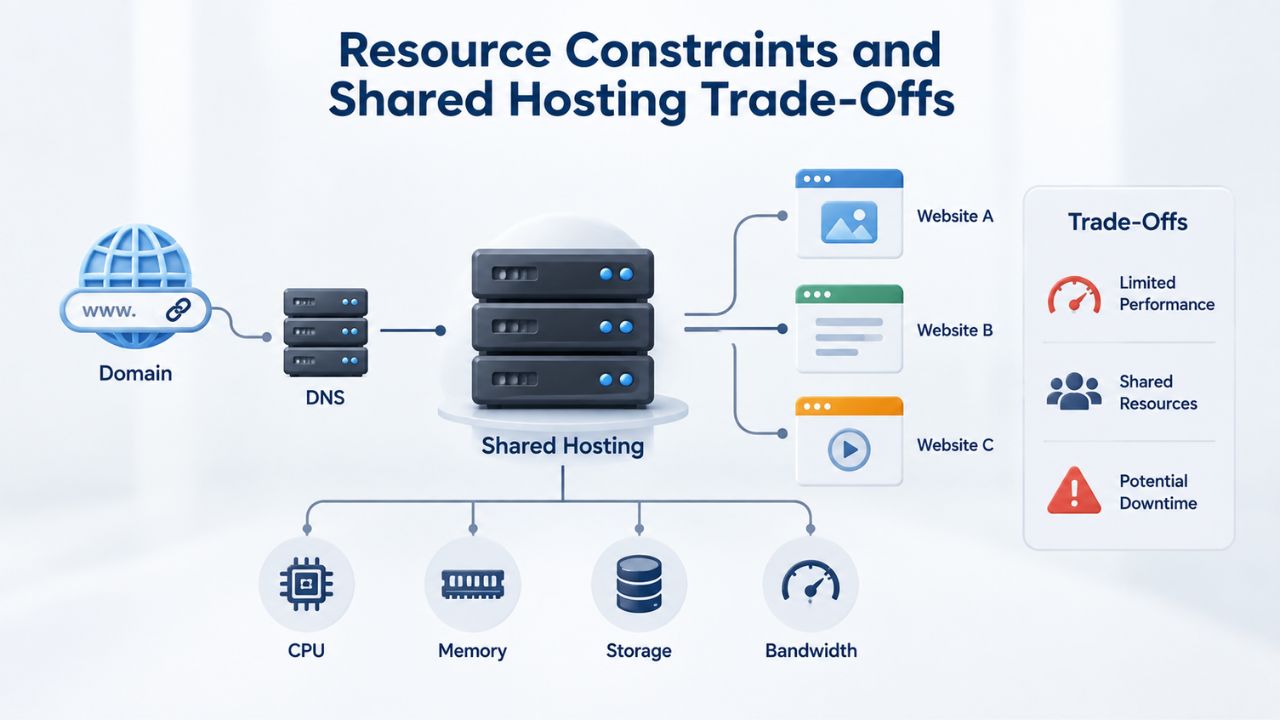
This critical section determines whether cPanel-based hosting suits your needs. cPanel is almost always deployed on shared hosting, where many customer accounts share a single physical server’s CPU, RAM, disk storage, and network bandwidth. This model has inherent trade-offs, and cPanel can’t overcome them; they are fundamental to how shared hosting works.
Shared-Resource Allocation and “Noisy Neighbor” Effect
On a shared server, your hosting account gets an allocation of server resources: a certain amount of disk storage (commonly 50–500 GB depending on plan), a monthly bandwidth quota (often 500 GB to 5 TB per month), and a share of the server’s CPU and RAM. If another customer on the same server runs a resource-intensive operation, a large backup process, a poorly written script running in an infinite loop, or a sudden spike in legitimate traffic to their site, that customer’s process can consume a disproportionate share of shared resources, which can slow down your site, your email delivery, or your database queries, even if your own site is optimized and lightly loaded.
This is the “noisy neighbor” problem: you can do everything right and still experience slowdowns because of what’s happening on other people’s accounts on the same physical server. Hosting providers install resource-limiting software (typically cGroup limits or similar) to prevent any single account from monopolizing the server, but these protections have inherent limits. I
f your site experiences a sudden traffic spike beyond your account’s allocated resources, or if a plugin or application on your site runs away with CPU or memory, your site may temporarily slow down or become unreachable until the resource spike subsides or the provider’s support team intervenes to diagnose and resolve the problem.
This isn’t a cPanel flaw; it is an inherent characteristic of shared hosting, whether the provider uses cPanel, Plesk, or a completely custom control panel. The control panel is just a management tool; it cannot eliminate the underlying reality of shared resources.
When Shared Hosting Hits Its Limits
Shared hosting typically performs well for websites with 1,000–50,000 monthly visitors (or roughly 0.3–15 requests per second, depending on request complexity and server capacity). Sites that consistently exceed 100,000+ monthly visitors, run real-time applications with persistent connections, stream multimedia, or run compute-intensive processes typically need VPS, dedicated, or cloud hosting instead. At that point, cPanel becomes less relevant because you’re no longer using the control-panel model; you’re managing a server that you, or a server administrator, configures directly.
Niya Digital’s shared hosting plans, powered by GoDaddy’s infrastructure, come with realistic resource allocations designed to support growing small businesses without hitting plan limits unexpectedly under normal circumstances. However, renewal and scaling require proactive monitoring. If your site is approaching storage or bandwidth limits, upgrade to a higher tier or migrate to VPS hosting before you run out of resources and experience service interruptions that cost you customers.
Scalability Pathway: When to Move Beyond Shared Hosting
Most sites start small, on shared hosting with cPanel. Knowing when and how to scale is essential to avoid suddenly outgrowing your hosting and losing customers to downtime or performance degradation.
Recognizing Outgrowth Signals
You should consider upgrading to VPS or dedicated hosting when: your site regularly experiences traffic spikes that temporarily slow it down, even though you’re not doing anything unusual on your end; your monthly bandwidth usage is consistently within 10–20% of your plan’s limit; your disk storage is over 80% full, and you’re adding content frequently; or you need to install server software, custom frameworks, or libraries that cPanel’s interface doesn’t support.
Another common signal is the need for better resource isolation. If you’re running multiple critical sites on one account and you want to ensure one site’s traffic spike doesn’t affect others, a VPS with separate containers or dedicated hosting gives you that guarantee in a way shared hosting cannot. Better resource isolation means each site is truly independent, with its own dedicated allocation that other accounts cannot consume.
A less obvious but important signal: if you’re managing hosting for multiple clients (as an agency or reseller), shared hosting works only up to a certain number of sites. Once you’re running 5–10+ client sites, or client traffic becomes unpredictable and variable, shared hosting becomes fragile because a spike on one client’s site can affect all the others. At that scale, VPS or reseller hosting (which sits between shared hosting and full VPS in capability and price) becomes more practical than a mega-sized shared-hosting account.
The Transition Process
Migrating from cPanel-based shared hosting to a VPS typically involves: choosing a new VPS provider, provisioning the new server (often with cPanel or Plesk pre-installed, though not always), migrating your sites’ files, databases, and email data from the old account to the new server, and updating DNS records to point to the new server’s IP address.
Migration can be done with downtime (a few minutes to an hour while DNS propagates) or without downtime if your provider supports live database replication and coordinated cutover. Niya Digital’s support team can help with migration planning and coordination. However, the process still requires coordination between the old and new providers and close attention to DNS propagation and email configuration to avoid lost mail or service interruptions.
Security Fundamentals with cPanel
cPanel provides several built-in security features, but it also relies on your own site configuration and operational practices for comprehensive protection. Understanding what cPanel provides and what it doesn’t will help you avoid false confidence in your site’s security posture.
What cPanel Provides (and Doesn’t)
cPanel includes an integrated SSL/TLS manager where you can install free, auto-renewing SSL certificates (via Let’s Encrypt, now standard on most providers), install purchased or third-party certificates, and view certificate status and expiration dates. Most hosting providers, including those running cPanel, also provide baseline server-level firewall protection, blocking obviously malicious traffic, rate-limiting brute-force attacks, and DDoS mitigation (usually basic, not advanced enterprise-grade). cPanel also includes file-permission management, so you can set which files and folders are readable, writable, or executable by the web server process, which is a fundamental security practice. Some hosts include malware scanning or automated backups within cPanel, though quality varies significantly by provider.
However, cPanel does not, and cannot, secure your application code or enforce security practices within your website. If you’re running WordPress, you’re responsible for keeping WordPress and all plugins updated, using strong passwords, limiting login attempts, and following WordPress hardening best practices from recognized sources like OWASP. cPanel does not automatically update your CMS or enforce password policies on your site users.
Similarly, cPanel does not protect against vulnerabilities in your application code, insecure database queries, or the way your site handles user input. Security is a shared responsibility: the hosting provider provides the baseline infrastructure security (firewall, DDoS protection, server-level access control), and you are responsible for application-level security (code security, dependency updates, user credential management).
Best Practices Within cPanel
Within cPanel itself, security best practices include: keeping your cPanel password strong and unique; using FTP with caution (preferably SFTP instead, if your host supports it); enabling two-factor authentication if your host provides it (an increasingly common feature); restricting cPanel access by IP address if you manage sites from a known location; and reviewing cPanel’s access logs to spot unauthorized login attempts.
At the application level (WordPress, Joomla, PrestaShop), security best practices include: keeping your CMS and plugins up to date, using security plugins (e.g., Wordfence, Sucuri) if needed, backing up your site regularly, monitoring for malware, and educating site users about phishing and social engineering.
Niya Digital includes backup features on its shared hosting plans, and support can help troubleshoot security concerns or recover from a compromise. Still, proactive hardening is ultimately the site owner’s responsibility. Many of cPanel’s security features, SSL installation, file permissions, and FTP/SFTP access control, are visible and accessible once you understand why they matter and how to use them properly.
Explore Web Hosting Plans
Niya Digital’s Web Hosting service includes cPanel access, onboarding support, and account management assistance, designed to help you get online quickly and stay online reliably. Discover how Niya Digital can support your website with managed hosting and dedicated support.
Migration and Portability
cPanel’s dominance in the shared-hosting market creates a practical benefit for site owners: familiarity with cPanel transfers across providers. If you ever need to switch hosts, your experience and muscle memory with cPanel’s interface will be immediately useful on a new host.
Portability Advantage
Because cPanel is used by a large majority of web hosts, if you learn cPanel’s interface, dashboard, and common tasks (creating email accounts, managing DNS, installing WordPress), you can move your site to a different cPanel-based host and immediately understand how to manage your account without a re-learning curve.
This matters if your current host’s support declines, pricing increases, or uptime becomes unreliable. You’re not locked into learning a proprietary interface; you’re using industry-standard software that will serve you at many providers. For agency owners managing client sites, this means staff training on cPanel translates across multiple hosting providers if you ever need to transition client sites during a provider change or migration. Standardization also means knowledge and troubleshooting advice from blogs, forums, and community resources applies across many hosts, unlike a proprietary system where every piece of guidance is specific to one provider.
Conversely, if a host uses a completely custom control panel (rare, but it happens), you lose this portability advantage: your knowledge of that interface applies nowhere else, and you depend on that host’s documentation and support for help.
Migration Mechanics
Migrating a site between two cPanel-based hosts is mechanically straightforward but requires careful planning and coordination. Your hosting provider can usually export an account “backup” that includes all your files, databases, and email data (in cPanel’s standard format). You then upload that backup to the new host’s cPanel, and cPanel’s migration tools restore your site and data automatically.
The process typically takes 30 minutes to several hours, depending on data volume and whether you need to coordinate email migration separately to avoid lost mail. During migration, your domain’s DNS records still point to the old host, so your site remains live at the old host until you’re ready to cut over (change DNS). At this point, you switch DNS to the new host’s servers, wait for DNS to propagate (typically a few minutes to a few hours), and your site begins serving from the new host.
Downtime can be zero if your old and new host both support live migration with near-simultaneous DNS cutover, or it can be an hour or two if migration happens offline with a planned cutover window. Niya Digital’s support team can advise on migration strategy and timing to minimize disruption and ensure a smooth transition.
Support and Provider Selection: Why It Matters More Than cPanel
This is the second critical insight after shared-hosting trade-offs. The quality of a hosting provider’s support significantly outweighs the sophistication of its control panel. A host with an excellent cPanel implementation but unresponsive support is worse than a host with a more basic control panel but support available when you need it.
Evaluating Provider Support
When evaluating a web-hosting provider (regardless of control panel), look for: support availability (24/7 live chat, ticket system, or phone; check response times before buying), knowledge of common tasks (email setup, WordPress migration, SSL troubleshooting), responsiveness to outages or security concerns, and post-sale documentation (knowledge base, setup guides, API documentation if relevant).
Test a provider’s support before committing: ask a pre-sales question via their support channel and time how long you wait for a response. Read recent independent reviews (not the provider’s own testimonials) to see how customers describe support quality and responsiveness in real-world situations. Support quality matters most when something breaks or unexpected issues arise; that’s when an unresponsive provider becomes a liability.
cPanel provides a powerful interface, but if you’re stuck on a problem and support doesn’t respond for 48 hours, your site’s downtime costs far more than any convenience cPanel offers. Conversely, a provider with responsive, knowledgeable support can talk you through most issues, even if the control panel is less intuitive, and often ship updates or fixes before you’ve even submitted a formal ticket.
Niya Digital’s Approach
Niya Digital positions support availability and expertise as core value-adds, beyond the underlying GoDaddy infrastructure. Support can assist with cPanel setup guidance, email configuration, domain connection, WordPress installation and troubleshooting, site migration from another host, SSL certificate issues, backup and restore operations, and performance questions. This support model is built for non-technical site owners and small businesses who value guidance alongside tools. The cPanel interface is there if you want to self-serve, but human support is available if you need it.
One-Click Installers and Setup Time
One of cPanel’s most celebrated features is its integration with one-click installer tools like Softaculous or AutoInstall. Understanding what one-click installers actually do, and what they don’t, sets realistic expectations for setup and prevents disappointment.
How One-Click Installers Work
When you select “Install WordPress” (or Joomla, Drupal, PrestaShop, etc.) in cPanel’s installer, the hosting provider’s automation downloads the application’s latest version, extracts it to your web root, creates a database automatically, generates database credentials, and runs the application’s installer script in the background. In most cases, within 5–15 minutes, your installer displays a URL where you can log in as the admin and begin configuring your site.
For someone who’s never set up WordPress manually (downloading, uploading, running install.php, configuring database settings), this is genuinely a game-changer; it removes several error-prone steps and the need to understand FTP or file uploading. The process is reliable and repeatable, which is why it’s so valuable for people spinning up multiple sites or for non-technical users who would otherwise have to hire someone or follow a complex manual tutorial.
For more advanced users, one-click installers can feel limiting because they make certain assumptions (a standard WordPress configuration, the latest stable version, basic plugin defaults). If you need a custom WordPress setup, specific plugins pre-installed, or a non-standard database configuration, you may prefer to manually download, upload, and configure WordPress yourself, giving you full control over every aspect of the installation. But the convenience of one-click installers for the majority of use cases (a fresh WordPress blog, a small e-commerce store, a Joomla site) is undeniable. It saves hours of frustration for typical users.
Realistic Expectations
One-click installers automate download, extraction, database creation, and installer script execution. They do not automate WordPress plugin configuration, content migration from an old site, theme selection, or ongoing maintenance. After clicking “Install,” you have a working WordPress site with default settings and no content; you must log in, configure plugins, set up your site structure, import content from old sites, and customize the appearance yourself.
This is a few minutes of setup automation, not a complete site launch; you still need to do the content and design work. Additionally, one-click installers work best on a fresh account or a subdomain where no site exists yet. If you’re migrating an existing WordPress site from another host, manual migration (backup export, upload, database import) is usually necessary because one-click installers assume a blank destination and won’t overwrite existing content.
Email Hosting and Domain Management via cPanel
Email and domain management are core functions within cPanel, and for small sites and businesses, cPanel-based email often covers requirements entirely. Knowing when it’s sufficient and when to use external email services helps you design a practical stack for your site.
Setting Up Email Accounts in cPanel
cPanel’s Email Accounts section lets you create email addresses tied to your domain (e.g., contact@yoursite.com, support@yoursite.com) using your hosting account’s storage. Behind the scenes, cPanel creates a mailbox on the server, assigns it to a user account, and routes incoming mail to that mailbox. You can download email using standard email clients (Outlook, Apple Mail, Thunderbird, Gmail via IMAP/POP3) or read mail via cPanel’s built-in webmail interface (usually RoundCube or SquirrelMail).
This approach works well for small teams (one to five email addresses) where you want mail tied to your domain and want to avoid paying for a separate email provider. The advantage is simplicity: one bill, one account, one place to manage domains, hosting, and email. Support becomes easier too; if something is wrong, you contact one provider instead of coordinating between multiple services.
The disadvantage is that if your hosting account goes down, email also stops working (no mail delivery, no webmail access) until the issue is resolved. For businesses where email downtime is unacceptable, redundancy requires using an external email provider (Office 365, Google Workspace, Zoho) separate from your hosting, which adds cost but isolates email availability from web-hosting availability. This trade-off between cost and reliability depends on how critical email is to your business.
Domain and DNS Management
cPanel includes a DNS Zone Editor where you can create and modify DNS records (A, AAAA, CNAME, MX, TXT, SRV records) if your domain’s DNS is hosted with your web-hosting provider. This is convenient if you want one provider managing everything, but it ties your DNS to your hosting account. If you ever change hosts, you must update DNS records and manage the migration carefully to avoid downtime.
An alternative is to use a domain registrar’s DNS service or a third-party DNS provider (Cloudflare, Route53, DNSimple) and point your domain to that provider’s nameservers, keeping DNS independent from web hosting. This adds a small amount of complexity but decouples your DNS availability from your hosting provider, which is valuable for reliability and flexibility. cPanel works equally well with external DNS; you don’t use cPanel’s Zone Editor and instead manage DNS elsewhere.
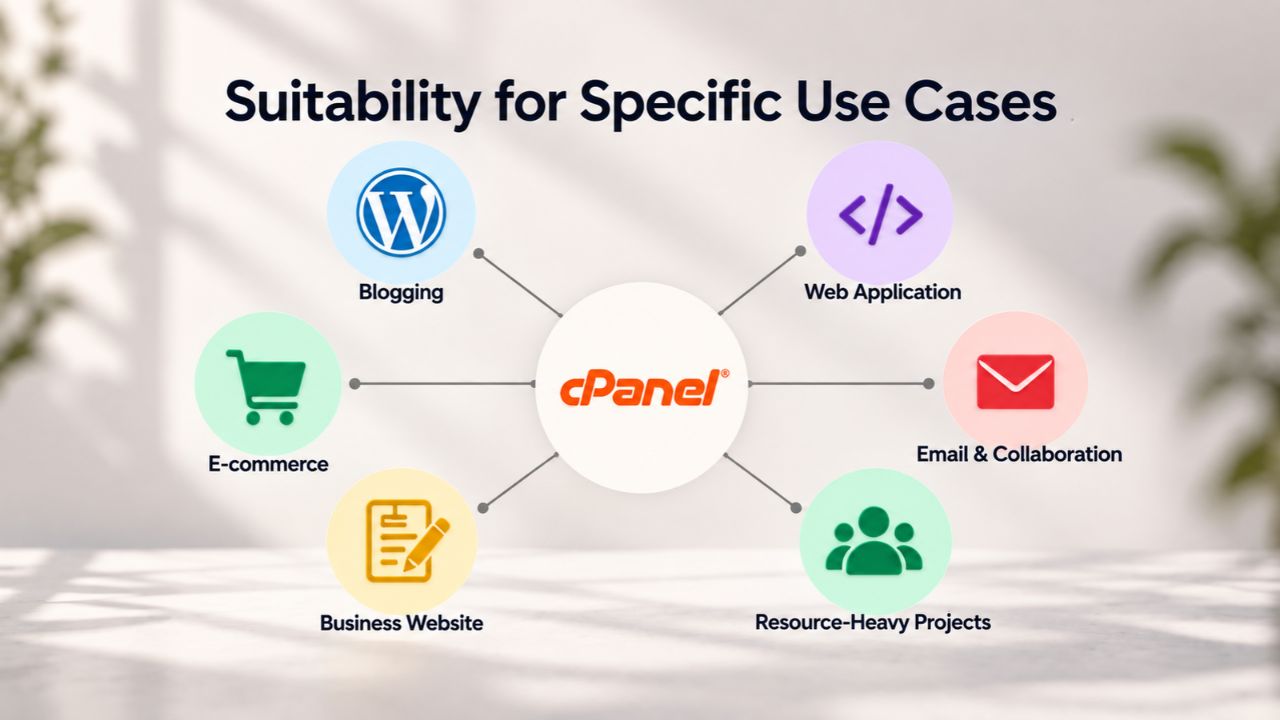
Suitability for Specific Use Cases
cPanel-based shared hosting is excellent for many use cases and inadequate for others. This section helps you match your site’s requirements to a hosting model and clarifies when cPanel is the right choice and when you need to look elsewhere.
Best Fit: Blogs, Small Businesses, Starter Online Stores
cPanel-based shared hosting is well-suited for: a personal blog with 1,000–10,000 monthly readers; a small business website (50–500 monthly visitors, a few pages, a contact form); a starter online store (a few dozen to a few hundred products, moderate traffic); a portfolio site for a freelancer or creative professional; a small nonprofit website; or a staging and development site for testing. These use cases typically have moderate, predictable traffic; standard WordPress, Joomla, or Drupal deployments; and minimal custom server-level configuration needs. cPanel’s ease of use and affordability make it the obvious choice.
A small business owner can purchase a plan, install WordPress in 10 minutes, and begin blogging or selling without ever needing to contact support unless something breaks. For agencies managing multiple client sites (5–10 clients with individual WordPress sites), a single shared-hosting account with cPanel can run multiple sites via add-on domains or subdomains, making management and billing simpler than individual hosting accounts for each client, though at scale, reseller hosting or a small VPS becomes more practical and manageable.
Not Ideal: High-Traffic, Specialized, or Compliance-Heavy Workloads
cPanel-based shared hosting is not recommended for: a high-traffic publication (100,000+ monthly visitors); a real-time application (live chat, collaborative editor, WebSocket-based features); a data processing application (machine learning, heavy analytics, async job workers); a website needing isolated compliance infrastructure (HIPAA, PCI-DSS, SOC 2, where data or traffic must be isolated from other customers); or any use case requiring custom server software, kernel modules, or OS-level configuration.
For these workloads, you need VPS, dedicated, cloud hosting (AWS, Azure, Google Cloud), or containerized solutions (Kubernetes, Docker). cPanel becomes less relevant at this scale because the focus shifts from account management to server administration and infrastructure-as-code practices.
Site Type & Traffic → Hosting Tier Suitability
| Site Type / Use Case | Recommended Hosting Tier | Why | Typical Monthly Visitors |
|---|---|---|---|
| Personal blog | Shared (cPanel) | Low traffic, simple setup, affordable | 1,000–10,000 |
| Small business website | Shared (cPanel) | Moderate traffic, one or two sites, email needed | 500–5,000 |
| Starter online store | Shared (cPanel) or VPS | Small inventory, moderate sales, simple integrations | 2,000–20,000 |
| Freelancer portfolio | Shared (cPanel) | Very low traffic, simple design, occasional updates | 500–3,000 |
| Agency managing 5+ client sites | Reseller or VPS | Better resource isolation, client separation, scalability | Varies by client |
| High-traffic publication | Dedicated or Cloud | 100k+ monthly visitors, real-time traffic spikes, performance critical | 100,000+ |
| SaaS application or real-time app | Cloud or VPS | Custom software, WebSocket connections, auto-scaling needed | Varies |
| Compliance-sensitive (HIPAA, PCI-DSS) | Dedicated or isolated cloud | Data isolation, audit trails, regulatory requirements | Varies |
Start Hosting Your Website Today
The control panel is a useful tool, but it’s never the sole deciding factor; what matters most is whether the underlying provider delivers reliable infrastructure, responsive support, and backup/security features. Niya Digital combines cPanel access with managed support and reliable hosting to give you both ease of use and peace of mind.
Frequently Asked Questions
What exactly is cPanel, and is it the same as web hosting?
cPanel is control-panel software that a web-hosting provider installs on its servers to give customers a graphical interface for managing hosting accounts. It’s not the hosting itself; it’s a tool the hosting company provides. cPanel lets you manage email, domains, databases, files, and SSL certificates without command-line access.
Niya Digital’s Web Hosting service includes cPanel access as part of its shared hosting plans, which run on infrastructure operated by GoDaddy. Confusing the control panel (cPanel) with the hosting service itself is common; understand that the underlying server reliability and support quality matter far more than which control panel is used.
Can I move my cPanel site to a different host without rebuilding it?
Yes, cPanel sites are relatively portable. You can export your account as a backup (including files, databases, and email) and import that backup into a new cPanel-based host. The process typically takes 30 minutes to a few hours, depending on site size.
However, you must update your domain’s DNS records to point to the new host, and some configuration (email forwarding addresses, SSL certificates) may need to be re-created on the new host. The portability advantage of cPanel-based hosting is precisely this: you’re not locked into a proprietary system. Niya Digital’s support team can assist with migration planning if you’re moving a site to Niya’s hosting.
Is cPanel hosting secure?
cPanel includes security features like an SSL/TLS certificate manager, file-permission controls, and integration with hosting-provider firewalls. However, security is shared between the provider and you: the provider secures the server infrastructure (firewall, DDoS protection, server-level access control), and you’re responsible for securing your application (keeping WordPress and plugins updated, using strong passwords, following hardening best practices). cPanel doesn’t automatically protect your site from malware, hacks, or zero-day vulnerabilities; you must actively maintain your site’s code and configuration.
Does cPanel affect my site’s speed or performance?
cPanel is a control panel; it doesn’t run on your website, so it doesn’t directly affect page load time. Your site’s speed depends on the underlying server hardware (CPU, RAM, storage), the quality of your application code, your website’s images and scripts, and the hosting provider’s network quality.
Shared hosting (where cPanel is typically used) may have more performance variability than a dedicated or cloud server because resources are shared with other customers. If speed is critical, test the hosting provider’s performance before committing, or plan to upgrade to a faster hosting tier or VPS as your site grows.
When should I move beyond cPanel-based shared hosting?
You should upgrade to VPS or dedicated hosting when your site regularly experiences slowdowns due to resource limits, your traffic is consistently high (100,000+ monthly visitors), you need to install custom server software, you need resource isolation (especially if running multiple critical sites), or your capacity or storage needs exceed your shared-hosting plan limits.
Shared hosting with cPanel works well for small-to-medium sites; when your site becomes resource-intensive, or your infrastructure needs become specialized, a VPS or dedicated server is the next logical step.
What’s the difference between cPanel and Plesk?
cPanel and Plesk are both control-panel software products that hosting providers use. They offer similar core functionality (email, domains, databases, file management, SSL installation, one-click installers), but with different UI/UX, performance characteristics, and feature depth.
cPanel dominates the market (used by a majority of shared hosting providers), while Plesk is popular among European hosts and some managed hosting providers. Neither is objectively “better”; it depends on your interface preference and whether your prospective host uses one or the other. The underlying hosting provider’s infrastructure, support, and reliability matter far more than the control panel.
Can I use my own domain name with cPanel hosting?
Yes, cPanel hosting supports connecting your own domain name. You can point your domain’s DNS to the hosting provider’s nameservers (using cPanel’s DNS Zone Editor or your domain registrar’s DNS settings), and cPanel will route traffic to your site.
Alternatively, if your domain is registered elsewhere, you can leave DNS there and point just the domain’s A record to the hosting provider’s server IP, which is a more advanced setup. Either way, cPanel makes it straightforward to connect a domain; support or documentation will walk you through the process.
Is shared hosting with cPanel still relevant, or should I use cloud hosting instead?
Shared hosting with cPanel remains relevant for small-to-medium sites and is significantly simpler and cheaper than cloud hosting (AWS, Azure, Google Cloud) for most use cases. Cloud hosting requires more technical expertise (infrastructure-as-code, container management, scaling configuration) and costs more unless you’re running a large, variable-traffic application.
For a blog, small business site, or starter online store, cPanel-based shared hosting is the straightforward choice. Cloud hosting is better for high-traffic, variable-workload, or specialized applications where you need advanced scaling and customization.
What happens to my email if my hosting provider goes down?
If your hosting provider experiences downtime, email delivery typically stops: incoming mail may be queued by the sender’s mail server and retried (usually for 24–48 hours), or it may bounce back to the sender if the hosting provider is unreachable for too long. Your webmail access via cPanel also stops.
If email availability is critical (e.g., a business mailbox handling customer inquiries), consider using an external email provider (Office 365, Google Workspace, Zoho) separate from your hosting. That way, email remains functional even if your website goes down.
Do I need to understand server administration to use cPanel hosting?
No, cPanel is specifically designed to let non-technical users manage hosting accounts without server-administration knowledge. You don’t need to use the command line, write code, or understand Linux. cPanel’s graphical interface handles email setup, domain configuration, database creation, and file management, all point-and-click.
If you get stuck, support can walk you through common tasks. The only exception: if you need to install custom server software or modify OS-level configuration, you need server-administration expertise or a VPS where you can hire a sysadmin.
Is cPanel hosting good for WordPress?
cPanel is excellent for WordPress. It includes one-click WordPress installation, automatic database creation, file management via File Manager or FTP, email hosting tied to your domain, SSL certificate installation, and backup/restore capabilities. Most WordPress hosting recommendations mention cPanel favorably because it simplifies WordPress setup and management.
If you want to self-host WordPress (rather than use WordPress.com), a cPanel-based host is a practical choice. Niya Digital supports WordPress hosting with managed setup assistance, backups, and support for common WordPress tasks and plugin troubleshooting.
What are the main limitations of shared hosting?
Shared hosting’s main limitations are: resource constraints (you share CPU, RAM, and bandwidth with other customers), the “noisy neighbor” effect (other customers’ activity can affect your site), no custom server software installation, limited server customization, and potential performance variability during traffic spikes. These limitations are inherent to the shared-hosting model, not specific to cPanel. For most small sites, these trade-offs are acceptable; for larger or specialized applications, you’ll need VPS or dedicated hosting.
How do I back up my site in cPanel?
cPanel includes a backup feature where you can download a full account backup (files, databases, email) to your computer or an external storage service. Most hosts also provide automatic daily or weekly backups that you can restore from if something goes wrong. Some hosts allow direct backup restoration via cPanel; others require you to contact support for a restore. Understand your host’s backup policies and retention before signing up; this is critical insurance against data loss.
Can I host multiple websites on one cPanel account?
Yes, you can host multiple websites on one cPanel account using addon domains (for separate domains pointing to different folders on the same account) or subdomains (for subdomain variants of your main domain).
This works for a small number of sites (one to five), but at scale, managing multiple sites gets complex and resource contention increases. If you’re managing many client sites, consider a reseller-hosting account or separate VPS instead of cramming everything into one shared-hosting account.
What should I look for when comparing cPanel hosting providers?
When comparing cPanel hosts, evaluate: uptime SLA and whether it’s backed by credits, support availability (24/7 or not) and response time, automatic backup frequency and retention, storage and bandwidth allocations, one-click installer availability (WordPress, Joomla, etc.), SSL certificate inclusion (free Let’s Encrypt or purchased), email hosting limits, add-on domain limits, and independent customer reviews on sites like Trustpilot or G2. Price alone shouldn’t be the deciding factor; cheap hosting with poor support is expensive in the long run.
Is cPanel hosting suitable for a business website?
Yes, cPanel hosting suits small and medium-sized business websites with moderate traffic, standard WordPress or other CMS deployments, and email hosting needs. Niya Digital’s Web Hosting supports small business sites with cPanel, managed support, and reliability features.
However, if your business needs are complex (custom applications, high traffic, compliance requirements), VPS or dedicated hosting may be more appropriate. Evaluate your specific business needs before choosing a hosting tier.
Glossary
- Bandwidth: The amount of data transfer allowed on a hosting account per billing period, typically measured in gigabytes (GB) or terabytes (TB). If your site is visited frequently or serves large files, bandwidth consumption accumulates and counts against your plan’s monthly limit.
- Control Panel: A web-based graphical interface provided by a hosting company that lets customers manage hosting account settings, such as email accounts, domains, databases, files, SSL certificates, and DNS records, without needing command-line or server-administration access.
- cPanel: A specific, widely-used third-party control-panel software product installed by hosting providers on shared and reseller hosting servers. It provides a standardized interface for account management across many hosting companies.
- DNS (Domain Name System): The system that translates domain names (e.g., example.com) into the numerical IP addresses that computers use to locate servers on the internet. Hosting providers typically offer DNS hosting, or you can use a third-party DNS provider separately.
- Shared Hosting: A hosting model where many customer accounts run on a single physical server, sharing the server’s CPU, RAM, disk storage, and network bandwidth. Shared hosting is affordable and easy to manage but has resource constraints and the “noisy neighbor” effect where one customer’s activity can affect others.
- SSL Certificate: A cryptographic credential installed on a web server that enables HTTPS (encrypted) connections between a website and its visitors. Modern browsers display a “lock” icon in the address bar for sites with valid SSL certificates, signaling secure communication. Many hosting providers now offer free, auto-renewing SSL certificates via Let’s Encrypt.
- Uptime: The percentage of time a hosting server is operational and accessible. A common industry standard is “99.9% uptime,” which allows approximately 43 minutes of downtime per month. Hosting providers typically publish uptime guarantees in a Service Level Agreement (SLA).