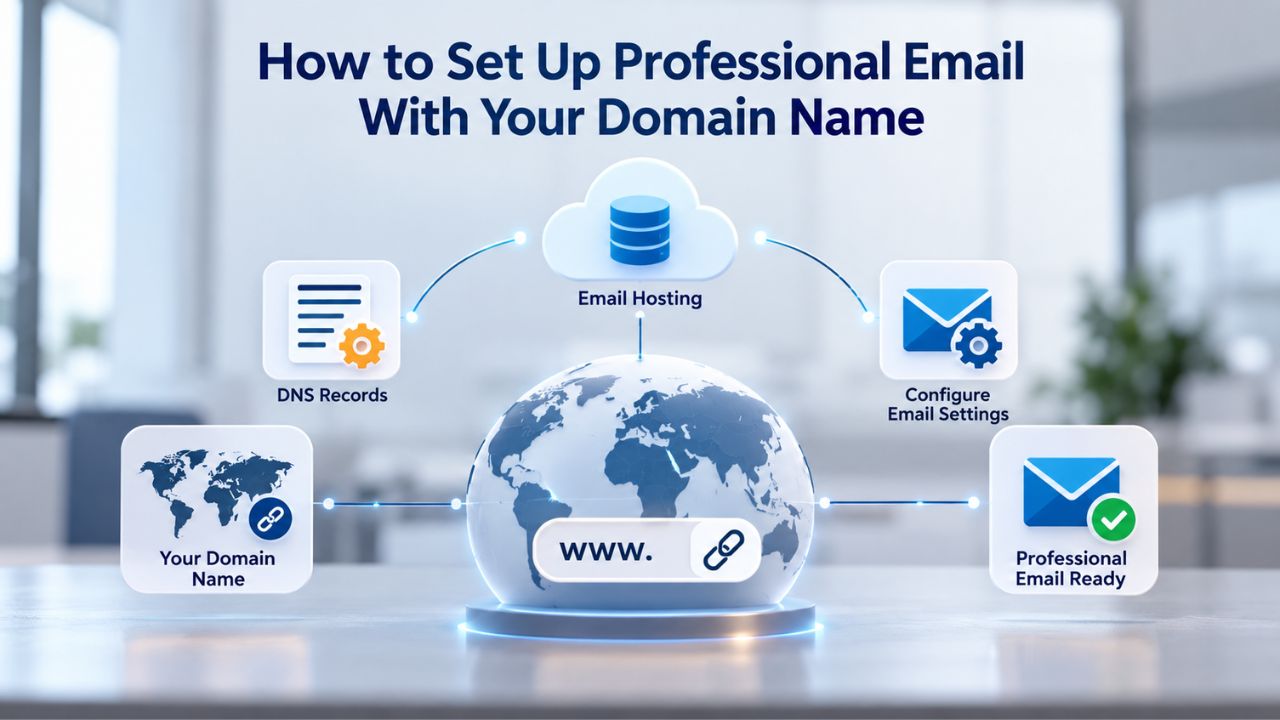
Why Professional Email Transforms Your Business Image
Custom domain email addresses immediately signal legitimacy to customers, partners, and prospects. When your business communications come from an email address that matches your domain, you establish brand identity and build confidence that your business is a professional, stable enterprise worth working with. This shift from generic to branded communication is one of the most powerful credibility signals available to small business owners and enterprises alike.

Why Custom Email Builds Professional Credibility
When a recipient sees an email from yourname@yourbusiness.com, they’re reading your domain, not a generic provider’s domain. This alignment between your business identity and your email address reinforces brand recognition and makes your contact information instantly memorable in ways that free email services cannot match. A free @gmail.com address, by contrast, can raise unspoken questions: Is this a side project? Is this person juggling multiple ventures without dedicated business infrastructure? Professional email hosting answers those questions before they’re even asked, establishing confidence before the first conversation even begins.
Research across business guides and professional communication studies shows that custom domain email increases customer trust and response rates. Investors, partners, and clients take your business more seriously when your email reflects your brand identity rather than a personal webmail account. The investment in professional email is one of the fastest ways to strengthen your business’s first impression and build lasting credibility with everyone you communicate with. This credibility advantage compounds over time as customers recognize your domain across multiple communications, reinforcing their perception of your business as established and trustworthy.
How Consistent Branding Across Email Strengthens Trust
Your email address is part of your overall brand ecosystem. When your website, social media profiles, business cards, and email all use the same domain, you create a cohesive, professional identity that customers recognize and remember. This consistency signals that you’ve invested in your business and thought carefully about your brand presentation. A consistent brand presence builds trust over time, leading to stronger customer relationships, improved loyalty, and higher conversion rates across all your business communications.
Inconsistency, by contrast, creates friction and raises doubts. When customers see multiple email addresses from different services- a Gmail address for inquiries, a Yahoo address for invoices, a different domain for follow-ups- they perceive your business as disorganized or unprofessional. Consolidating under one branded domain email address eliminates that doubt and strengthens how customers perceive your organization. This unified approach also makes it easier for your contacts to find you: they remember your business name and domain, and that same domain appears in your email signature, your website, and your social media profiles.
What You Need Before You Start
Professional email hosting requires two separate components working together: a registered domain name and an email hosting service. Understanding what each does and how they connect prevents costly setup mistakes and helps you choose providers that best fit your business needs.
Owning Your Domain Is Non-Negotiable
You cannot set up custom domain email without owning (or controlling) your domain name. If you already own your domain through a registrar like GoDaddy, Namecheap, or Name.com, you’re ready to proceed to the next step. If not, you’ll need to register one first, a straightforward process that typically takes minutes to hours online and costs just a few dollars per year, depending on the domain extension and registrar you choose.
Domain ownership gives you control over DNS (Domain Name System) records, the behind-the-scenes routing instructions that tell the internet where your website lives and where your email should be delivered. Without this control, you cannot point your email to an email hosting provider, and you lose flexibility if you ever want to switch services. Ownership also protects your brand: a domain registered in your name or your business’s legal name is harder to hijack or lose access to than a domain you simply use without formal registration. This protection becomes increasingly important as your business grows and your domain becomes more valuable to your brand identity.
Selecting an Email Hosting Provider Separates You From Your Domain Registrar
While many domain registrars offer email hosting bundled with domain registration, email hosting is fundamentally a distinct service with its own infrastructure, support team, and feature set. You can use your domain registrar’s built-in email hosting, or you can point your domain to a separate email hosting provider like Titan Email (offered through Niya Digital). Your choice depends on your needs for storage capacity, mobile access, security features, support responsiveness, and the advanced features you want your team to access.
Many successful businesses pair a domain registrar (which handles domain management, renewals, and DNS) with a separate professional email hosting provider (which specializes in email features, reliability, and support). This separation offers significant flexibility: if you become unhappy with your email provider’s features or support, you can switch hosts without losing your domain or disrupting your business identity. Titan Email, as offered through Niya Digital, provides professional-grade email hosting built for businesses that want control, security, and advanced features like read receipts, send-later scheduling, calendar management, and multi-account access from a single interface.
How Email Hosting Works: From Domain to Inbox
Email routing seems invisible to users, but understanding the basics removes mystery and helps you troubleshoot if something goes wrong during setup or after you go live with your professional email.
Domain Name System Records Route Your Email
Every domain has a set of DNS (Domain Name System) records; think of them as a digital address book that tells the internet where your website and email should go. When someone sends an email to yourname@yourbusiness.com, their mail server queries your domain’s DNS records to find out which server should receive that message. The key record for email routing is the MX record, which stands for Mail Exchange record and serves as the primary email routing instruction for your domain.
The MX record lists the email server address where your domain’s mail should be delivered. When you sign up with an email hosting provider like Titan Email through Niya Digital, the provider gives you specific MX record values to add to your domain’s DNS settings. You log into your domain registrar’s control panel, navigate to the DNS management section, and add those values by copying and pasting them exactly. Once you save the changes, the internet gradually learns the new routing through a process called DNS propagation that typically takes 24–48 hours to complete fully across all mail servers worldwide.
Webmail, Mobile Apps, and Desktop Clients Give You Flexible Access
Once your MX records point to your email host, incoming messages arrive at your email provider’s server, where they’re stored securely and made available to you through multiple interfaces. You access those messages through whichever interface suits your needs: a browser-based webmail portal (usable from any device with an internet connection), a mobile app on your phone or tablet, or desktop email software like Outlook or Apple Mail. Professional email hosting providers like Titan Email support all three access methods seamlessly, using IMAP and POP3 protocols, and provide synchronization across all your devices so changes on one device appear everywhere.
Webmail is the quickest way to get started because it requires no software installation; log in from any browser. Mobile and desktop clients offer richer features like offline access (read emails when you’re not online), advanced calendar integration, and faster searching through large mail archives. Most users combine all three approaches: webmail for quick access on unfamiliar computers, mobile apps for quick inbox checks while on the go, and desktop clients for power users managing large volumes of email with complex folder structures and advanced filtering rules.
Choosing a Professional Email Hosting Provider
Selecting the right email hosting provider affects your day-to-day experience and long-term business success. A few key factors distinguish providers that deliver consistent, reliable service from those that lead to frustration, missed emails, and wasted support time.
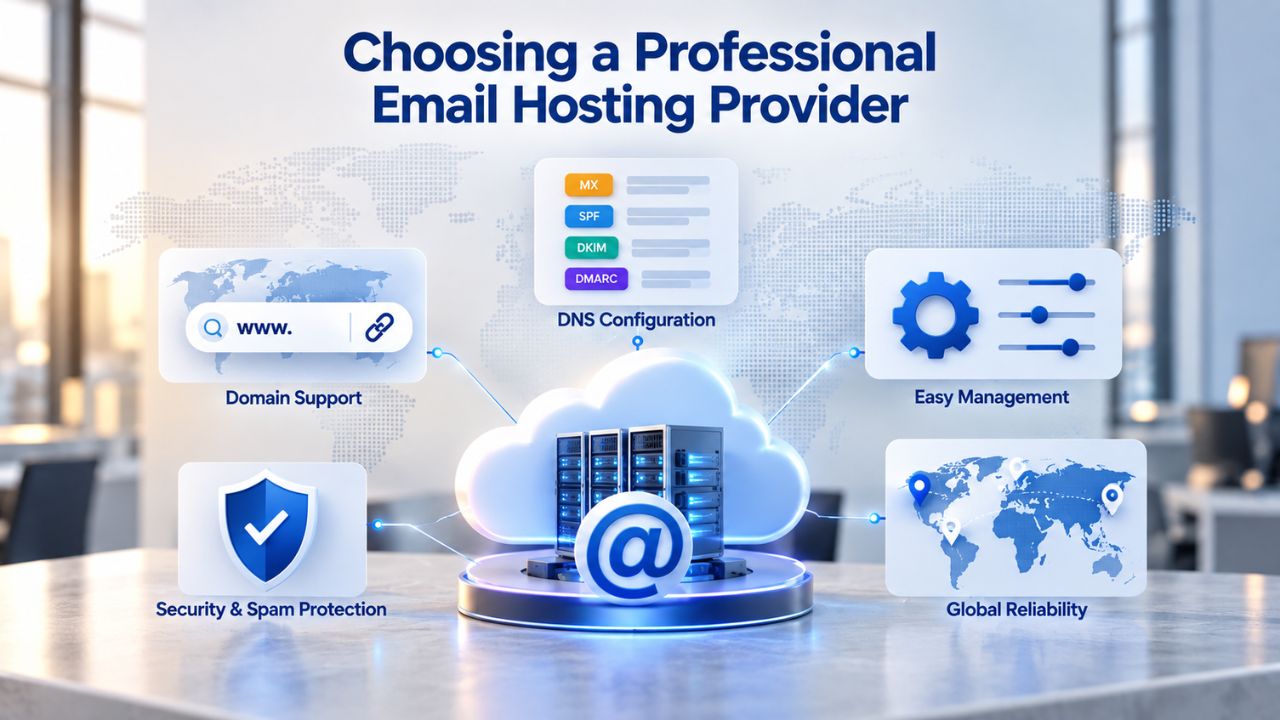
Storage, Security, and Mobile Support Matter More Than You Think
Storage capacity varies widely across email hosting providers, ranging from very limited to extremely generous. Some providers offer just 5GB per mailbox, which is too limited for any serious business that sends and receives substantial emails with attachments. Other providers offer 50GB or more per mailbox, letting businesses keep deep email archives without constantly deleting old messages. Titan Email includes generous storage per mailbox with options to scale as your business grows and your communication volume increases.
Phishing and spam protection should be built in and automatic; no business has time to filter malware-infected messages or spend hours manually deleting spam. Two-factor authentication (requiring both a password and a temporary code to log in) adds a critical security layer without creating excessive friction for your team members. Mobile support lets your team access email on phones and tablets, often with offline capability so they can read messages even without an internet connection. Providers like Titan Email offer native mobile apps for iOS and Android, plus webmail access from any mobile browser, ensuring your team stays connected wherever they are.
Support Quality Determines How Quickly You Recover From Problems
Email is mission-critical infrastructure for any business. If something breaks- a configuration error, an authentication issue, or a server problem- you need help fast, ideally from knowledgeable humans rather than automated FAQ articles. Look for providers offering 24/7 support via email, live chat, or phone, and ask about response times: do they typically answer within hours, or do responses take days? Niya Digital’s team supports Titan Email users and handles account management, migrations from other providers, and technical troubleshooting.
Reviews and testimonials from actual users reveal real support quality better than any marketing claims. Check G2, Capterra, or industry forums to see what real users say about response times, technical competence, and helpfulness when things go wrong. A provider that invests seriously in support reduces your downtime, minimizes frustration, and gives you confidence that problems will be solved quickly. This support quality matters most during migrations, when you’re switching providers and need expert guidance to ensure no emails are lost and everything transitions smoothly.
Standard Email Authentication (SPF, DKIM, DMARC) Protects Your Domain
Any email hosting provider worth using supports SPF (Sender Policy Framework), DKIM (DomainKeys Identified Mail), and DMARC (Domain-based Message Authentication, Reporting and Conformance), three industry-standard authentication protocols that prove your emails are really from you and not forged by someone pretending to be you. These aren’t optional extras or advanced features; they’re essential infrastructure for your sender reputation, email deliverability, and protection against phishing attacks using your domain.
Email spoofing and phishing were the most reported cybercrime category in 2025, with reported losses reaching $216 million, a tripling from $70 million in 2024, according to the FBI IC3 2025 Internet Crime Report. Niya Digital’s team has observed that customers who implement SPF, DKIM, and DMARC authentication from the start significantly reduce their exposure to domain spoofing and avoid landing in spam folders due to authentication failures. Authentication doesn’t guarantee protection against all phishing attempts. Still, it’s your strongest first line of defense and a critical component of maintaining your sender reputation with major email providers like Gmail and Microsoft.
Configuring DNS Records: Connecting Your Domain to Email Hosting
The step that intimidates most business owners, DNS configuration, is actually a straightforward sequence of copy-and-paste operations in your domain registrar’s control panel. Once you understand the process, you’ll realize DNS configuration is far simpler than it initially appears, and you can prevent most errors by paying close attention when copying values from your email provider.
The MX Record Points Incoming Email to Your Host
An MX record is a single DNS entry that answers a simple question: “Where should email sent to this domain be delivered?” When you sign up with Titan Email through Niya Digital, your provider supplies you with specific MX record details: a server address (like mail.titanhosted.com) and a priority number (usually 10 for a single mail server). You log into your domain registrar’s control panel, find the DNS management section, click “Add Record,” select “MX” as the record type, paste in the server address exactly, and save the record.
If your registrar offers a one-click email setup feature, the process is even easier: the registrar may auto-populate all the MX records with a single click. If not, manual entry takes just a few minutes. Some providers give you multiple MX records for redundancy, ensuring that if one mail server goes down, email still gets delivered to a backup server. If you’re setting up multiple MX records, add each one in order and assign different priority values: the first server typically gets priority 10, the second server priority 20, and so on. Save each record after adding it.
SPF, DKIM, and DMARC Records Add Authentication Layers
After your MX records are live and email routes to your new host, add authentication records to prevent others from forging email from your domain. SPF is a simple TXT record that lists the IP addresses allowed to send email as your domain. DKIM is a cryptographic signature automatically added to every email you send, which the recipient’s mail server can verify. DMARC ties SPF and DKIM together and tells receiving servers what action to take if authentication fails, whether to monitor, quarantine, or reject suspicious emails.
Adding these records follows the same process as adding MX records: go to DNS management, add a TXT record, paste the exact value your email provider supplies, and save. The order matters: add SPF first, then DKIM, then DMARC. Your provider will give you exact values for each record; copy them precisely because even a single missing character, extra space, or typo will break authentication completely. Configuration typically takes 15–30 minutes for first-time users, and the investment in accuracy pays off immediately through improved deliverability and security.
Ready to Set Up Professional Email?
Ready to establish professional email with your own domain? Niya Digital’s experienced team can guide you through every step of the setup process, handle DNS configuration, and ensure your authentication records are properly established before you go live. Whether you’re a solopreneur building your first professional email or managing a team across multiple email accounts, professional email hosting powered by Titan Email offers the credibility, features, and reliability your business needs to communicate professionally with every customer and partner.
SPF, DKIM, and DMARC Explained in Plain English
Email authentication standards can sound intimidating to non-technical business owners. Still, their core job is simple and essential: prove an email is really from who it claims to be and protect your domain from forgers and phishing attackers trying to impersonate your business.
SPF Authorizes Sending Servers
Sender Policy Framework (SPF) is an email authentication standard defined in RFC 7208. When you publish an SPF record in your domain’s DNS, you’re creating a public list that says: “These are the only IP addresses and mail servers allowed to send email on behalf of my domain.” When a receiving mail server gets an email claiming to be from yourname@yourbusiness.com, it checks your SPF record and verifies that the sending server’s IP address is on your authorized list. If the IP address is authorized, SPF passes. If not, it fails, a red flag that tells the receiving server to be cautious about that message.
SPF alone doesn’t stop determined, sophisticated forgers who understand email spoofing techniques; someone could theoretically still spoof your domain in the email’s visible “From” line while the SPF record shows a different sending server. But SPF effectively catches careless phishing attempts and lays the foundation for DMARC, which closes the gaps SPF leaves open. Most email hosting providers supply a ready-made SPF record value that you copy into your DNS settings without needing to understand the technical details behind it. The SPF record looks something like “v=spf1 include:titanhosted.com ~all” and tells the world who can send mail on your behalf.
DKIM Adds a Cryptographic Signature to Every Message
DomainKeys Identified Mail (DKIM), defined in RFC 6376, adds a tamper-proof digital signature to the headers and body of every email you send through your email hosting provider. The receiving mail server can verify this signature using a public key published in your DNS records, proving the message came from you and wasn’t altered in transit. Unlike SPF, which checks the envelope sender (the invisible technical sender), DKIM signs the actual message content so any tampering is immediately detectable.
A DKIM signature is invisible to email recipients; it works silently in the background, but its impact is significant. If someone intercepts your email and changes even one word in the message body, the signature breaks and the receiving server immediately knows tampering has occurred. This makes DKIM far stronger than SPF alone because it proves message integrity. Like SPF, most email providers handle DKIM signing automatically; your job is to add the provider’s public key to your DNS so receiving servers can verify the signature. The DKIM public key looks technical but functions as the mathematical proof that your emails are authentic.
DMARC Ties Authentication Together and Sets Policy
Domain-based Message Authentication, Reporting and Conformance (DMARC), defined in RFC 7489, is the policy and reporting layer that makes SPF and DKIM work as a unified team. DMARC checks whether the domain in the email’s visible “From” line (the one your recipients read) aligns with the domains authenticated by SPF and DKIM. If both authentication methods pass and align properly, the email is legitimate. If either fails, DMARC’s policy tells the receiving server what action to take: monitor it for reporting, quarantine it for human review, or reject it outright.
DMARC also generates detailed reports showing you who’s sending email on your behalf, including attackers attempting to spoof your domain. This visibility is invaluable for spotting phishing campaigns targeting your business and understanding your email ecosystem. Niya Digital customers implementing all three standards together see measurably better email deliverability and significantly reduced phishing risk compared to using email authentication piecemeal or not at all. Together, they create multiple layers of proof that legitimate emails come from you, while suspicious emails get flagged and potentially blocked before they reach recipients’ inboxes.
| Authentication Standard | What It Does | Why It Matters |
|---|---|---|
| SPF (Sender Policy Framework) | Lists authorized sending servers by IP address | Prevents basic domain spoofing; first authentication layer |
| DKIM (DomainKeys Identified Mail) | Adds cryptographic signature to email messages | Proves message integrity; detects any tampering in transit |
| DMARC (Domain-based Message Authentication, Reporting and Conformance) | Ties SPF and DKIM together; sets handling policy for failures | Closes gaps between SPF and DKIM; provides visibility into who sends mail on your behalf |
| Combined Implementation | All three working together | Strongest protection against phishing and spoofing; significantly improves deliverability |
| Monitoring Only | Records published but not enforcing policy | Allows you to observe threats without blocking legitimate mail |
| Enforcement (Reject Policy) | Only authenticated mail is delivered | Maximum security; prevents all forged mail from reaching recipients |
Creating and Managing Multiple Email Accounts
Professional email hosting lets you create multiple email addresses under your domain, each with its own inbox and password, or route emails to shared inboxes and team members. This flexibility allows you to organize your business communications in whatever way makes sense for your operations.
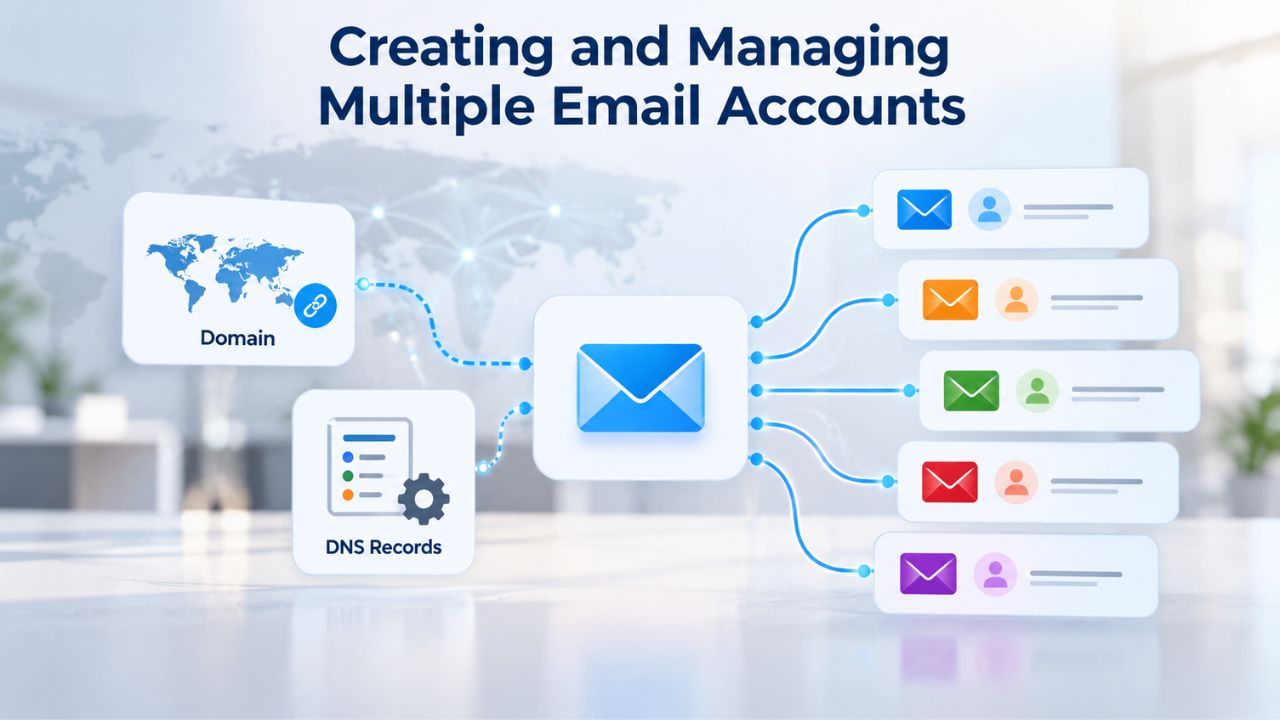
Setting Up Team Email Accounts
When you sign up for professional email hosting with Titan Email through Niya Digital, you can create separate email accounts for yourself, individual team members, and business functions (like info@yourbusiness.com for general inquiries or support@yourbusiness.com for customer service). Each account has its own secure password and separate inbox, but all accounts can share calendars and contact lists to keep your team coordinated. Adding a new team member takes just minutes: provide their name, create a password (or let them set their own), and they’re ready to access email from any device.
Some businesses use a single inbox with multiple email aliases- yourname@, info@, support@ all forwarding to one person, which is faster to set up and cheaper if you don’t need truly separate inboxes. Other businesses create dedicated accounts for each team member, providing better organization and privacy if multiple people handle different email streams and you want each person’s inbox to stay private. Email hosting providers support both approaches, and you can change your configuration as your business grows and your needs evolve.
Email Forwarding and Delegation Simplify Communications
Email forwarding redirects messages from one address to another, useful for handling inquiries before delegating them to team members or consolidating multiple email addresses into one inbox. For example, you could set up forwarding so info@yourbusiness.com automatically goes to your sales team’s shared inbox. Delegation lets you grant other team members temporary or permanent access to your inbox without sharing your password, which is essential for maintaining security while allowing team members to handle your email when you’re unavailable.
Calendar sharing lets team members see your availability and schedule meetings without exchanging dozens of back-and-forth emails about timing. These features are standard in professional email hosting but completely absent from free webmail services. They become increasingly essential as your business grows: they prevent information from getting siloed in individual inboxes, they speed up response times across your organization, and they dramatically reduce the email back-and-forth that eats hours from your week. These productivity features are one of the most valuable differences between professional email hosting and free alternatives.
Setting Up Email on Your Devices
Accessing email on phones, tablets, and computers requires a few straightforward setup steps that differ slightly by device type and the email client you prefer.
Connecting Mobile Apps: iOS and Android
Titan Email provides native mobile apps for both iOS and Android, available from the App Store and Google Play, respectively. Download the app, open it, and follow the setup wizard: enter your email address (yourname@yourbusiness.com) and password. The app automatically detects your email provider’s server settings and configures IMAP access. Within a minute, your inbox syncs to your phone, and you can start reading and responding to messages immediately.
If you prefer using your phone’s native email app instead of a dedicated email client, you can configure that as well. The process is similar: navigate to account settings, select “Add Email Account,” choose IMAP as the protocol, and enter your email provider’s server details (your hosting provider supplies these details in their documentation). Once configured, you can read, compose, send, and organize email from any device, with changes automatically syncing across all your phones and tablets. This synchronization means if you delete an email on your phone, it’s deleted everywhere; if you move a message to a folder on your tablet, it appears in that folder on your computer too.
Desktop Email Clients: Outlook, Apple Mail, Thunderbird
Desktop email clients like Microsoft Outlook or Apple Mail offer powerful features beyond webmail: offline access (read and compose emails without internet), advanced search across thousands of messages, sophisticated spam filtering customized to your preferences, and deep calendar integration that rivals webmail. Setup is nearly identical to mobile: open the app, add a new account, select IMAP, and enter your email address and password. The app automatically detects your provider’s settings and syncs your email.
Outlook on Windows is the industry standard for businesses because it integrates deeply with Microsoft’s productivity ecosystem. Apple Mail works seamlessly for Mac users and integrates with other Mac apps. Thunderbird is a free, cross-platform option for Windows, Mac, and Linux. All three support IMAP, so switching between them doesn’t require re-downloading your email; your messages remain on the server and sync across all clients. Calendar and contacts sync across most of these clients, keeping your scheduling and contact information in sync between your desktop, phone, tablet, and webmail everywhere you access it.
Testing, Troubleshooting, Going Live, and Migration
Before relying on professional email for critical business communications, test your setup thoroughly and understand common issues that delay email delivery. If you’re switching providers from an old email system, plan the cutover carefully to avoid losing important messages and disrupting business communications.
Propagation Timing: Waiting for Global DNS Updates
After you add MX, SPF, DKIM, and DMARC records to your domain’s DNS, the changes don’t take effect instantly worldwide. Propagation is the process of those changes spreading across internet servers gradually as DNS caches expire and refresh. DNS propagation typically takes 24–48 hours to complete globally, though some changes may appear within minutes and others may take up to 72 hours, depending on ISP configurations and cache settings. During this period, some mail servers will deliver to your new email host while others still route to your old provider. You might see email arriving sporadically, or not at all until propagation finishes.
To potentially speed things up, lower your DNS records’ TTL (Time To Live) value to a few minutes before making changes, then raise it back to normal after propagation completes. Check propagation status using free tools like MX Toolbox or What’s My DNS: enter your domain and record type, and you’ll see a global map showing how many DNS servers worldwide have the new values. Once 100% of servers show the update, propagation is complete, and email delivery is consistent everywhere.
Test Email Sending and Receiving Before Full Cutover
Send a test email from your new professional email address to an external account (like your personal Gmail), then reply from that account back to your professional address. Verify that both sending and receiving work successfully and that the email appears from your new professional address. Open your professional email on multiple devices (phone, tablet, computer) and confirm synchronization works properly: messages should appear on all devices, and changes on one device should appear on others. Check that calendar access and contact management work as expected.
Before changing your MX records to route email to a new host, download or export all existing email from your current provider. Most providers offer export tools that save messages to your computer as files (usually .pst or .eml format). Once you’ve backed up your data safely, you can switch providers without fear of losing critical messages. Email forwarding is also an excellent option: set up forwarding from your old email address to your new professional email for 30–90 days after switching. This catches messages sent to the old address while you’re transitioning your contacts to your new professional email, providing a safety net during the transition period.
| Setup Phase | What Happens | Realistic Timeframe |
|---|---|---|
| Account Registration | You sign up for professional email hosting | 5–15 minutes |
| Initial Setup | Create your first email account in the provider dashboard | 5–10 minutes |
| DNS Record Configuration | Add MX records to your domain registrar | 10–15 minutes (manual) or 1 minute (one-click) |
| DNS Propagation | DNS changes spread globally across the internet | 5 minutes to 72 hours (typically 24–48 hours) |
| Authentication Setup | Add SPF, DKIM, DMARC records to DNS | 15–30 minutes |
| Mobile/Desktop Setup | Install and configure email on your devices | 5–10 minutes per device |
| Testing Phase | Send/receive test emails, verify sync | 1–2 hours (thorough testing) |
| Going Live | Switch email to new provider, notify contacts | 1–2 hours |
| Transition Period | Run old and new email in parallel (optional) | 30–90 days for safety |
Creating Email Aliases and Managing Inbox Flow
Email aliases and forwarding create powerful organizational structures without requiring separate mailboxes for every business function. Using these features effectively transforms email from a chaotic collection of inboxes into an organized, efficient communication system.
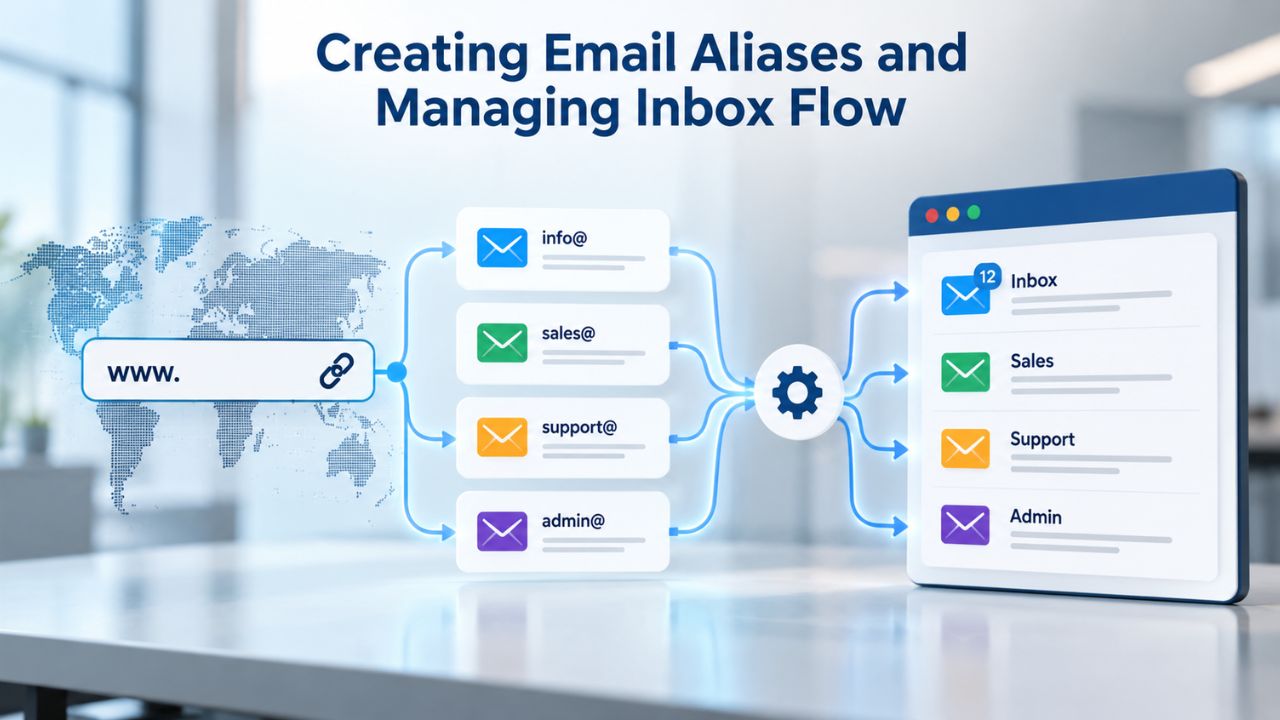
Setting Up Aliases for Brand-Aligned Communications
An email alias is an additional email address that forwards to a primary inbox, giving your business multiple professional email addresses without requiring separate accounts or passwords. You could set up aliases like sales@yourbusiness.com, support@yourbusiness.com, and info@yourbusiness.com, with all three forwarding to a single inbox (perhaps shared among your team). This approach gives customers and partners the psychological comfort of having specialized email addresses for different purposes; the support email goes to a support team, not to your general inbox.
Aliases also solve the “shared inbox” problem without the security risk of multiple people using the same password. When an email arrives at support@yourbusiness.com (an alias), it goes to your primary inbox, but the “To” field shows support@yourbusiness.com so you know immediately it came through the support channel. When you reply, you can send from the original support@yourbusiness.com address, keeping communication brand-aligned. This flexibility costs nothing extra and requires just minutes to set up in your email provider’s control panel.
Filters and Rules Organize Email Automatically
Professional email clients allow you to create filters and rules that automatically organize, label, or forward emails based on sender, subject line, or other criteria. You could set up a rule so emails from your top clients automatically go to a special folder, emails from your team are marked with a specific color, and emails mentioning “invoice” are automatically flagged for priority handling. These automated organizational systems dramatically reduce the time you spend manually sorting email and ensure you don’t miss anything important.
Rules can also automate workflows: emails to sales@yourbusiness.com could automatically get assigned to your sales team members, while emails to support@yourbusiness.com could automatically get added to a ticket tracking system. Some email providers integrate with business software so emails can trigger actions in your CRM, project management tool, or task management system. These automations scale your team’s productivity by ensuring the right emails reach the right people without manual forwarding.
Get Started With Professional Email Today
Your business deserves professional email that reflects your brand identity and gives you the security, features, and reliability your team needs. Niya Digital makes setting up professional email hosting powered by Titan Email straightforward, with expert support available whenever you need guidance. From initial setup through ongoing management, we’re here to ensure your professional email works reliably for your business.
Frequently Asked Questions
Do I need to own my domain before I can set up professional email?
Yes. Professional email with your domain requires you to own (or control) the domain and be able to edit its DNS records. If you haven’t registered a domain yet, you’ll need to do so first through a domain registrar. Once you own it, you can point it to any email hosting provider, including Titan Email through Niya Digital. This ownership gives you the control necessary to manage your email routing and authentication records.
How long does it take to set up professional email after I sign up with an email hosting provider?
Account creation and email setup typically take minutes through the provider’s control panel. DNS propagation, spreading domain changes across the internet, usually takes 24–48 hours. Once propagation completes, email delivery is live. Testing (sending and receiving from multiple devices) adds 1–2 hours, depending on how thoroughly you want to verify everything is working correctly.
Can I use professional email and keep my existing free email address?
Yes. Professional email is a separate service from your free email account. You can keep your Gmail or Yahoo account and add professional email; they coexist independently. Many business owners eventually deprecate their free email address once they establish professional email and notify all contacts, but there’s no requirement to delete it immediately or ever.
What happens to email sent to my old address after I switch providers?
Once you change your MX records, new email sent to your domain is routed to your new email host. Email sent to a free account continues going to that provider. Setting up email forwarding from your old professional email provider to your new one catches transitional messages and prevents important emails from being missed during your switchover period.
Do all professional email hosts support IMAP and POP3?
Most reputable providers support both IMAP and POP3. IMAP is preferred for business because it syncs across devices; POP3 is older and downloads email to one device only. Verify your provider supports IMAP before signing up; Titan Email supports both protocols, and professional email clients like Outlook and Apple Mail expect IMAP access for modern functionality.
What’s the difference between SPF, DKIM, and DMARC, and do I need all three?
SPF lists authorized sending servers; DKIM cryptographically signs your messages; DMARC ties them together and sets policy for handling authentication failures. You should implement all three for the strongest protection. Most email hosting providers (including Titan Email through Niya Digital) support all three and can guide you through setup to ensure proper configuration.
Will adding SPF and DKIM records guarantee my email avoids spam folders?
No. Email authentication improves your sender reputation and helps messages reach the inbox, but it doesn’t guarantee placement or eliminate all spam filtering. Other factors, your sender history, message content, recipient filtering preferences, and ISP policies, also affect deliverability. Authentication is your strongest first step, but not an insurance policy against spam filtering.
Can I create multiple email addresses under my professional domain?
Yes. Professional email hosting lets you create separate accounts (like sales@, support@, info@) or aliases that forward to a single inbox. Each approach has benefits: separate accounts offer organization and privacy; aliases reduce complexity if you don’t need separate inboxes. Niya Digital and Titan Email support both configurations flexibly.
What if I want to move to a different email provider later?
You can switch providers at any time by updating your domain’s MX records to point to your new provider. Before switching, export or back up all existing email. During cutover, there may be a brief period where some email routes to the old provider and some to the new one. Once DNS propagation completes (24–48 hours), all new email routes reliably to your new provider.
Is professional email necessary for a very small business or solopreneur?
Professional email is valuable for any business, regardless of size. Even solopreneurs benefit significantly from the credibility and professionalism a branded email address conveys. The cost is modest relative to the benefit, and the return in customer trust often justifies the investment within the first month of using professional email.
How do I troubleshoot email that’s not arriving after I switch providers?
First, wait for DNS propagation to complete (up to 48 hours). Then check your SPF, DKIM, and DMARC records for typos using free verification tools like MX Toolbox. If records are correct, check that email isn’t being caught in spam or quarantine. Contact your email provider’s support if email still doesn’t arrive; they can debug server-side issues you can’t see from your end.
Can I access professional email on my phone without a dedicated app?
Yes. Webmail (browser-based access) works on phones and tablets without installing anything; log in from your mobile browser. Native mobile apps like Titan Email’s iOS and Android apps offer additional features (offline access, better synchronization), but webmail alone is sufficient for basic email access and reading.
What should I do if I’m worried about losing important emails during a migration?
Back up all existing email before switching providers, export messages to your computer, or set up forwarding from your old address to your new professional email. Test sending and receiving email thoroughly before widely announcing your new address to contacts. Many businesses run both email addresses in parallel for 30–90 days during transition.
Do I need DNS access to set up professional email, or can my registrar do it for me?
You need access to your domain’s DNS settings, usually through your registrar’s control panel or DNS provider. Many registrars offer one-click email setup, which auto-populates MX records for popular providers. If your provider offers one-click setup, it simplifies configuration; otherwise, you’ll add DNS records manually (or contact Niya Digital’s team for help).
Do I need to hire a technician to set up professional email, or can I do it myself?
Most business owners set up professional email themselves; the process involves a few copy-and-paste steps in your domain registrar’s control panel. If DNS configuration feels daunting, many email providers (including Niya Digital’s team supporting Titan Email) offer guided setup assistance, and some registrars provide one-click email setup. You can start alone and reach out for help if you get stuck during configuration.
Glossary
- DKIM (DomainKeys Identified Mail): An email authentication protocol that adds a cryptographic signature to your outgoing email, allowing receiving servers to verify the message came from you and hasn’t been altered during delivery across the internet.
- DMARC (Domain-based Message Authentication, Reporting and Conformance): An email security framework that builds on SPF and DKIM, setting policy for how receiving servers should handle emails that fail authentication, and providing detailed reports on email traffic using your domain.
- DNS (Domain Name System): The system that translates domain names (like yourbusiness.com) into IP addresses and routes internet traffic, including email, to the correct servers globally.
- MX Record (Mail Exchange): A DNS record that specifies which email server should receive messages sent to your domain. Changing your MX record is how you point your domain’s email to a new email hosting provider.
- SPF (Sender Policy Framework): An email authentication standard that lists which IP addresses and mail servers are authorized to send email on behalf of your domain, helping prevent domain spoofing and phishing attacks.
- Webmail: Browser-based email access that works on any device with internet access, no software installation required. Examples include Gmail’s interface and Outlook’s web app, providing full email functionality from any web browser.