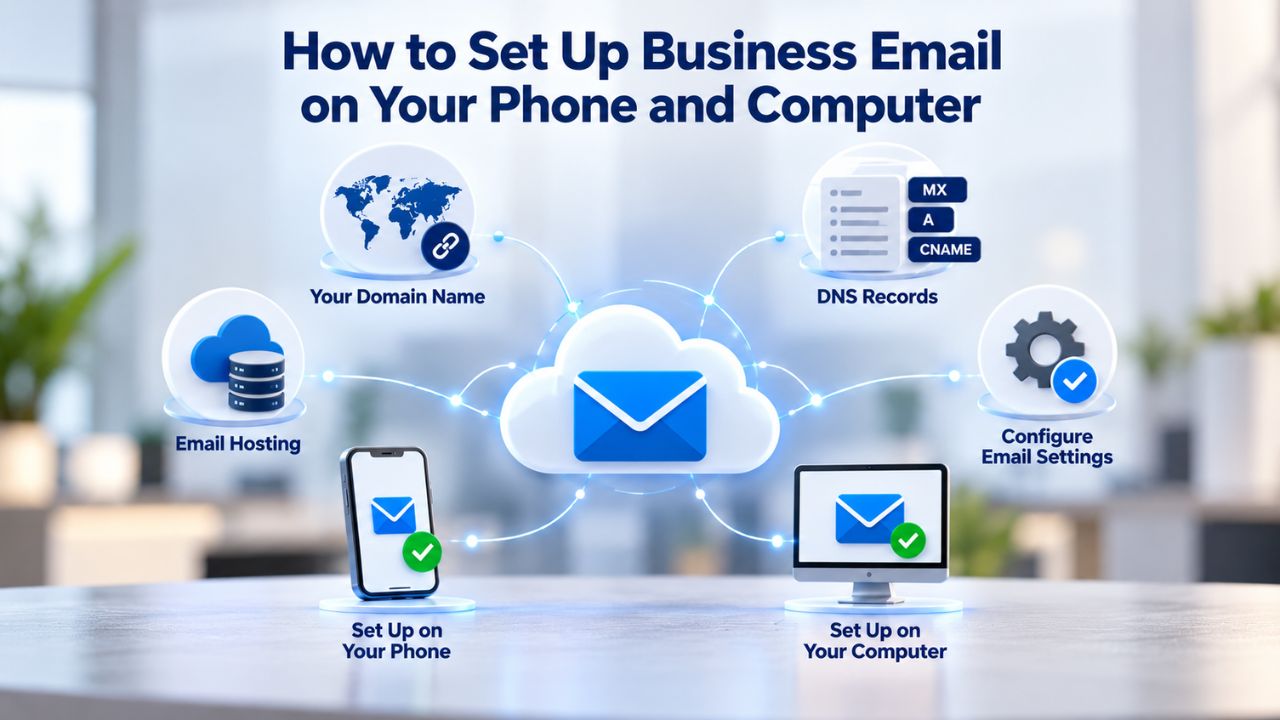
Why Professional Email on Mobile Matters
Your team expects to reach you from anywhere, and that expectation has become standard business practice. When professional email lives only on a desktop computer, you become unavailable while traveling, miss urgent messages in meetings, and create artificial delays that frustrate clients and colleagues. Remote work is the norm, and accessing your inbox on a phone is no longer a luxury; it’s essential infrastructure for modern professional communication.
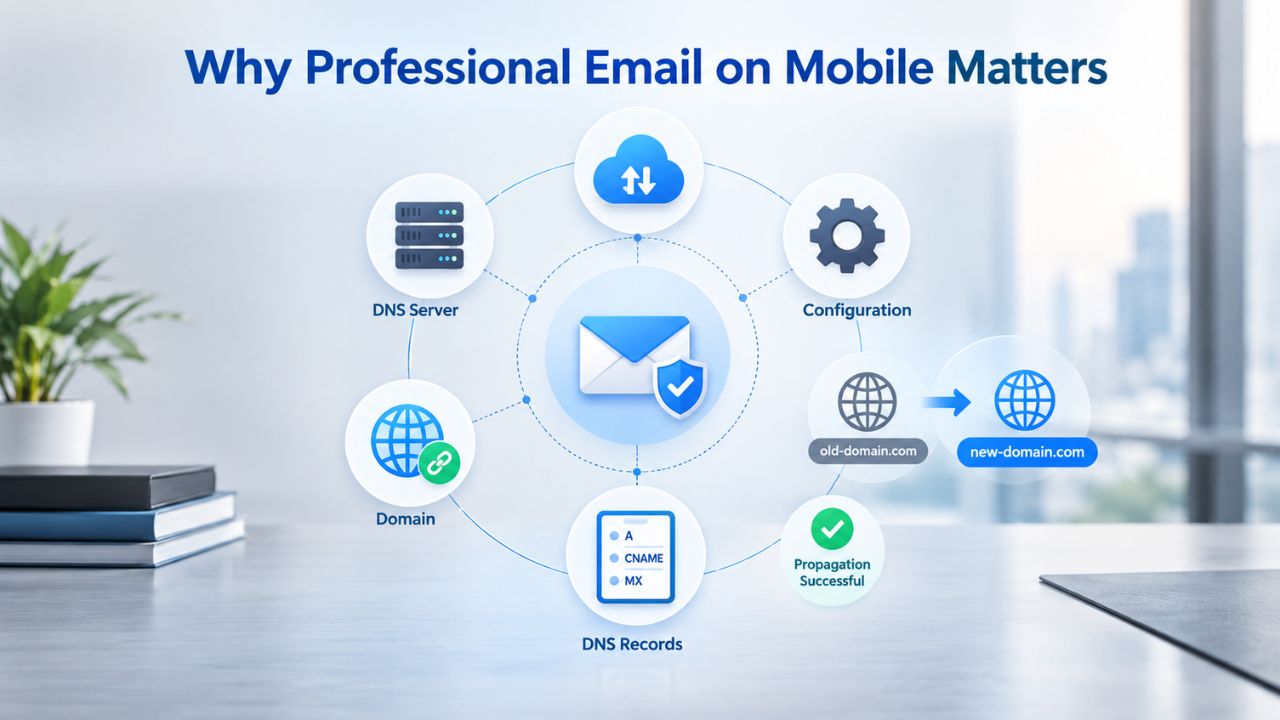
Mobile Access Enables Faster Response Times
When you can read and respond to email from anywhere, response times drop dramatically. Clients and colleagues no longer wait for you to return to your desk to address time-sensitive matters. A quick reply from a coffee shop while commuting can resolve a vendor question before your morning meeting, or a mobile response to a client inquiry can prevent a prospect from choosing a competitor who can answer immediately. This responsiveness builds trust and demonstrates that your business operates at professional velocity.
Your team’s productivity increases when communication barriers disappear. Rather than queuing messages for later review, urgent issues get addressed the moment they land. This is particularly valuable during travel, events, or days when your schedule keeps you away from your desk. The cost of missing a time-sensitive email, a lost sale, an unhappy client, or a delayed project decision far exceeds the minimal effort required to set up mobile email access.
Push Notifications Keep You Informed Without Distraction
IMAP with push notification support delivers new messages the moment they arrive, without draining your battery through constant polling. Instead of manually checking your phone every few minutes, your device notifies you instantly when important mail lands. You stay aware of urgent matters without compulsively refreshing your inbox throughout the day.
This instant notification model transforms how teams stay coordinated. Your sales team knows immediately when a lead email arrives instead of discovering it hours later. Your support staff addresses urgent customer issues within minutes rather than missing them until the end of the business day. For solo entrepreneurs juggling multiple responsibilities, this difference means catching the client who needs an answer today versus losing the opportunity entirely.
What You Need Before Setup
Proper preparation determines whether setup takes five minutes or becomes a frustrating troubleshooting session that consumes hours. Gathering the right information beforehand eliminates guesswork and keeps the process moving smoothly from start to finish.
Essential Information to Collect
Gather your full business email address (such as name@yourbusiness.com), your account password, and your email provider’s server details before starting any setup. Most email hosting services publish their IMAP and SMTP server addresses in their support documentation or control panel. Open that documentation in a separate browser tab or write down the server addresses on paper; having this information visible prevents manual entry errors that cause connection failures. You’ll also need the port numbers your provider specifies, typically 993 for IMAP and 465 or 587 for SMTP.
Additionally, confirm whether your account requires an app-specific password or supports standard password login. Check your provider’s security settings to see whether two-factor authentication is currently enabled. If it is, you’ll need to generate an app-specific password before any mail application can connect. Spending five minutes gathering this information upfront prevents multiple failed connection attempts and eliminates the frustration of troubleshooting cryptic error messages.
Enabling Third-Party Access and Securing Your Setup
Titan Email requires you to explicitly enable third-party app access before any mail application can connect to your mailbox. This permission acts as a safety gate; applications cannot authenticate without your explicit approval. Log into your email provider’s control panel, navigate to Security settings, and look for “Third-party app access” or “External email clients.” Toggling this on typically takes under a minute and immediately unblocks mail app connections.
If your account uses two-factor authentication, you’ll need to generate an app-specific password. This unique token grants access to a single device without exposing your main account password. This approach strengthens security by isolating each device’s access. If one device is compromised, you can revoke only that token instead of changing your entire account password. Most providers generate these tokens automatically through a simple menu click, and the entire process takes just a few seconds.
Accessing Email Across Devices: Webmail, Mobile, and Desktop
Three primary access methods serve different workflows, and understanding each approach’s strengths helps you select the right tool for any situation. Many professionals benefit from using multiple methods depending on their current context and available devices.
Webmail: Instant Access Anywhere
Titan Email’s webmail interface requires zero installation: open any web browser, log in, and you have full access to your inbox from any internet-connected device- no apps to download, no servers to configure, and no waiting for accounts to sync. You can manage your inbox from your home computer, a coffee shop laptop, a tablet, or someone else’s device during an emergency, with no setup required beyond entering your credentials in a browser.
Webmail comes with trade-offs worth understanding. You depend entirely on internet connectivity; if your connection drops, you cannot read or compose mail. Advanced productivity features like automated mail rules that sort incoming messages, offline access to cached mail, or tight calendar integrations typically remain limited compared to dedicated mail applications. For quick reads and rapid replies, webmail excels. For deep work involving complex message organization or extensive offline use, dedicated apps provide substantially more power and control.
Mobile Apps: Convenience Meets Functionality
Mobile email applications balance simplicity with enough capability for real professional work. IMAP setup on iPhone, iPad, or Android takes just a few minutes and immediately delivers push notifications, touch-optimized interfaces, and cached offline access to recently viewed messages. You can read yesterday’s email even without internet; new mail arrives as soon as you reconnect.
Mobile apps store part of your mailbox locally, reducing data usage and improving performance on slower connections. Most modern mail applications support unified inbox features that combine mail from multiple accounts into a single view, which is invaluable for small business owners managing several professional email addresses simultaneously. The practical trade-off involves space constraints: mobile interfaces hide advanced features behind menus and buttons, and composing lengthy messages on a small screen becomes tedious compared to typing on a full keyboard.
Desktop Clients: Power and Control
Desktop applications like Apple Mail, Outlook, and Thunderbird provide the deepest feature set available for email professionals. These clients support full IMAP synchronization, letting you create complex mail rules that automatically file incoming messages, store your entire mailbox locally for full offline access, and integrate tightly with calendar and contact management systems. Advanced search capabilities, message templates, and signature management deliver real power for managing high-volume communication.
The cost is increased setup complexity and a steeper learning curve for users new to dedicated email clients. Desktop setup typically requires manual entry of server details, whereas many mobile apps auto-detect settings. Once configured, though, desktop clients become productivity powerhouses, organizing thousands of messages into nested folders, flagging important conversations for follow-up, and automating responses based on sender or subject line rules that execute instantly.
| Access Method | Setup Time | Push Notifications | Offline Access | Advanced Features | Best For |
|---|---|---|---|---|---|
| Webmail | <1 minute | No | No | Limited | Quick reads anywhere |
| Mobile App | 5–10 minutes | Yes (IMAP) | Cached messages | Basic organization | Always-on communication |
| Desktop Client | 10–15 minutes | No | Full mailbox | Rules, templates, advanced search | Deep work and automation |
| Unified Inbox | N/A (in-app) | Varies | Varies | Multi-account management | Teams with multiple addresses |
Setting Up Business Email on iPhone, iPad, and Android
Mobile setup follows a consistent pattern across iOS and Android platforms, with minor interface differences. Most of the work involves gathering server details; the actual configuration process moves quickly once you have the right information on hand.
iPhone and iPad Configuration Steps
On iPhone or iPad, navigate to Settings, tap Mail, and select Add Account. Enter your full business email address and password; iOS will often auto-detect Titan Email and populate most settings automatically. This auto-detection speeds up setup; often, iOS needs only your credentials to complete the entire configuration in seconds.
If auto-detection fails or you need manual configuration, tap IMAP when prompted for account type. Enter Titan Email’s IMAP host address (imap.titan.email) and SMTP server (smtp.titan.email), using your full email address and password for both incoming and outgoing mail. Once you tap Save, iOS verifies the connection; this typically takes under a minute. Your existing inbox downloads immediately, and new mail starts arriving within seconds.
Android Setup and Multi-Device Synchronization
Android setup closely mirrors iOS, though the interface differs slightly. Open Settings, navigate to Accounts, and tap Add Account. Select IMAP, enter your credentials and server details, and let Android verify the connection. Both platforms cache recent messages locally, allowing you to read mail received earlier even without internet connectivity.
Neither platform limits you to a single account; add personal, work, and client email addresses to the same app and switch between them seamlessly through tabs or a dropdown menu. IMAP’s synchronization strength emerges immediately: flag a message as important on your phone, and that flag appears on your desktop and in webmail instantly. Delete an email from your tablet, and it disappears from your phone and computer at the same time. This consistency eliminates confusion about whether you’ve already handled a message or whether deletion on one device left it mysteriously reappearing on another.
Email Access Methods Comparison
| Feature | Webmail | Mobile App | Desktop Client |
|---|---|---|---|
| Installation Required | No | Yes | Yes |
| Setup Time | <1 minute | 5–10 minutes | 10–15 minutes |
| Push Notifications | No | Yes (IMAP) | No |
| Offline Access | No | Cached messages | Full mailbox |
| Mail Rules & Automation | Limited | Basic | Advanced |
| Multi-Account Support | Yes | Yes | Yes |
| Calendar Integration | Limited | Basic | Full |
| Advanced Search | Basic | Basic | Advanced |
| Mobile Friendly | Yes | Yes | No |
| Keyboard Efficiency | Poor | Poor | Excellent |
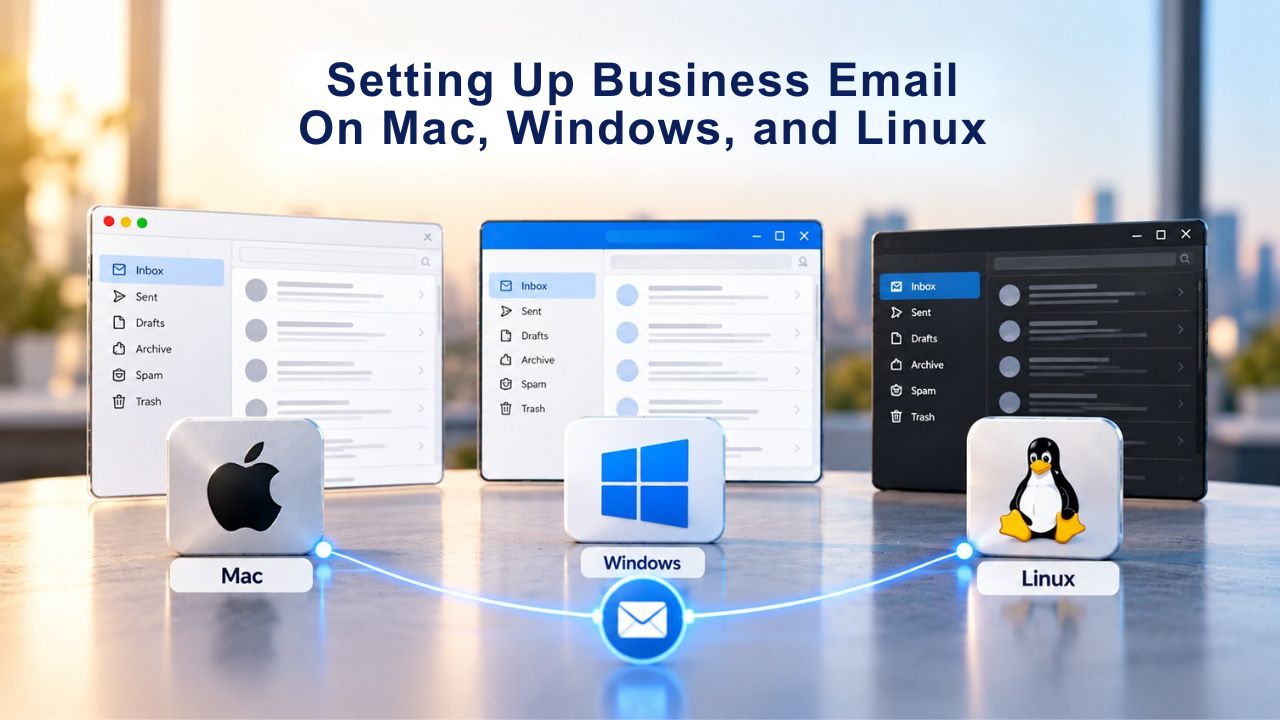
Setting Up Business Email on Mac, Windows, and Linux
Desktop setup provides the most granular control and richest feature set for email professionals, though it requires more attention to server configuration details. Each operating system has native options plus third-party alternatives, giving you flexibility based on your preferences and existing software ecosystem.
Mac and Apple Mail Configuration
On Mac, Apple Mail comes pre-installed and needs no download, making it the fastest way to get to desktop email. Open the Mail application, navigate to Mail > Add Account, and paste your email address and password. When Apple Mail prompts for account type, select IMAP and provide Titan Email’s server addresses, typically imap.titan.email for incoming and smtp.titan.email for outgoing. The application verifies the connection automatically within seconds.
Your existing inbox and folders appear in the sidebar immediately, and new mail starts arriving on schedule. Apple Mail integrates deeply with macOS Calendar and Contacts, making it especially powerful for Mac users who manage their entire professional workflow in one place. Niya Digital’s team has found that most Mac users complete setup and begin productive email work within ten minutes; the integration with native operating system features removes many common friction points that plague cross-platform setups.
Windows and Cross-Platform Desktop Options
Windows users have multiple paths forward depending on their existing software. Outlook, included with many Microsoft 365 subscriptions, integrates mail, calendar, and contacts into one cohesive interface. Outlook often auto-detects Titan Email by querying your domain’s DNS records; enter your email address, and Outlook automatically fetches the correct server settings. Manual setup takes less than five minutes if auto-detection fails for any reason.
Thunderbird, a free and open-source client maintained by Mozilla, works identically on Windows, Mac, and Linux, making it ideal for teams with mixed operating systems. It lacks Microsoft’s polish but matches or exceeds Outlook in features like advanced mail rules, offline capabilities, and customization options. For Linux users seeking a lightweight desktop mail solution, Thunderbird remains the most straightforward option, with broad community support and extensive online documentation.
Ready to Set Up Your Business Email?
Professional email across your devices removes a major workflow friction point that blocks teams from operating efficiently. Whether you prefer the simplicity of webmail, the push-notification convenience of mobile apps, or the power of desktop clients, Niya Digital’s Professional Email Hosting, powered by Titan Email, supports all three approaches seamlessly. Setup typically takes 15–30 minutes for your first device, and subsequent devices sync even faster since you’ve already gathered your server details. Most users report full productivity within the same day they start setup. Explore Niya Digital’s email hosting plans and begin your setup today; your entire team can be up and running before the end of business.
Security Fundamentals for Mobile and Desktop Setup
Email security begins long before you open your inbox, starting with encryption protocols that protect your credentials and messages. Proper encryption, app-specific passwords, and two-factor authentication create multiple layers of protection against compromise.
Encryption Protocols and Secure Connection Configuration
Using IMAP with TLS or STARTTLS encryption protects your credentials and message contents as they travel from your device to the mail server. Without encryption, your password and all message content exist in plain text on your network, a serious vulnerability if you work from coffee shops, airports, or public networks where anyone monitoring traffic could capture your credentials. TLS encryption prevents this exposure by encoding everything before it leaves your device.
Most mail clients default to encrypted settings, so manual configuration rarely becomes necessary. If you need to enter settings manually, check your provider’s documentation to confirm the ports and encryption methods before proceeding. IMAP typically runs on port 993 with TLS encryption, while SMTP uses port 465 (implicit TLS) or port 587 with STARTTLS encryption. A single-digit error in port numbers can block all authentication attempts, so configuration accuracy matters.
App-Specific Passwords and Two-Factor Authentication
Beyond encryption, app-specific passwords provide critical protection against compromised devices. Instead of entering your main account password into every mail app you use, generate a unique token for each device or application. If you lose your phone or have it stolen, you can revoke only that phone’s token; your other devices and main account password remain secure from misuse.
If two-factor authentication is enabled on your account, app-specific passwords become mandatory; most providers block traditional password authentication entirely when 2FA is active to enforce this security standard. This approach actually strengthens security despite adding a step. Each device has its own isolated token, so compromising one device doesn’t expose your main account credentials or affect other devices. Generating these tokens typically takes under a minute through your provider’s security settings.
Managing Multiple Email Accounts from One Device
Small business owners and team leads frequently manage several professional email addresses, personal accounts, client service addresses, and separate addresses for different business entities. Modern mail clients handle this elegantly with native multi-account support, eliminating the friction of repeatedly logging in and out of webmail.
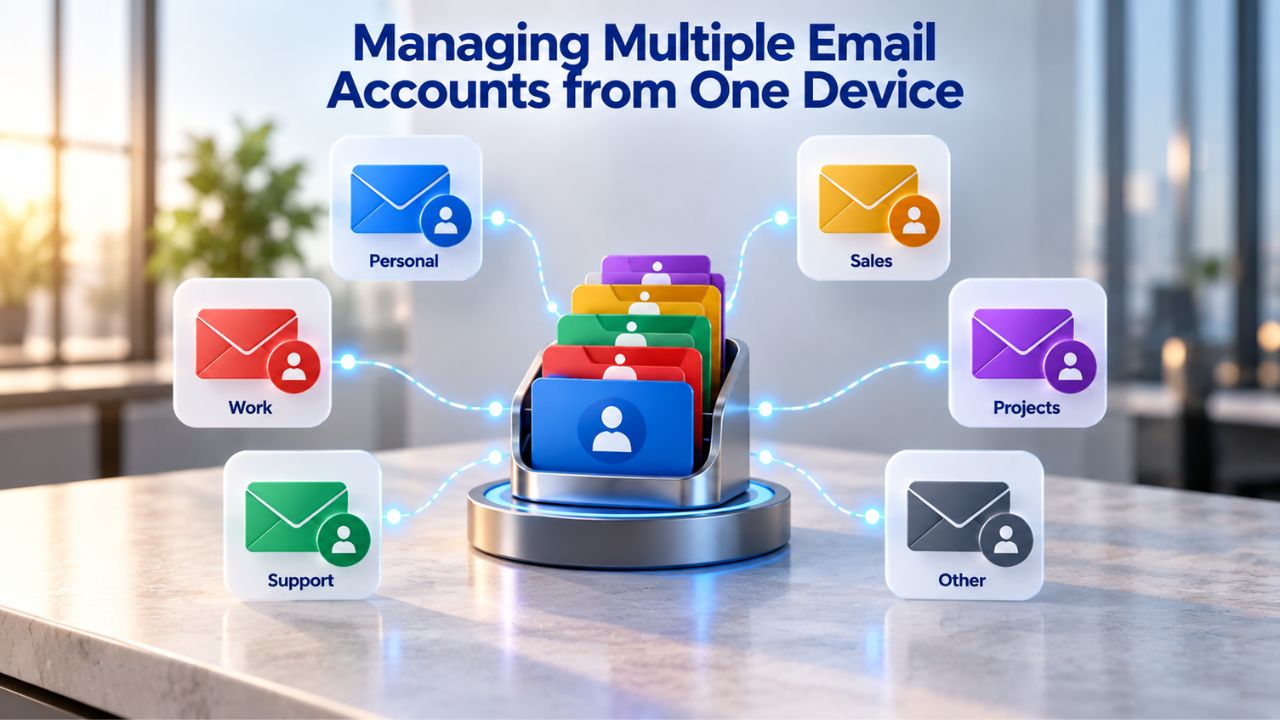
Multi-Account Support and Unified Inbox Features
On iPhone, the Mail app displays all accounts in a unified inbox by default, or you can switch between them using a simple menu dropdown. The same flexibility applies to Android, Outlook, Apple Mail, and Thunderbird: add as many accounts as you need and access them all from a single application interface. Compose a new message, and the application automatically determines which account to send from based on context; if you’re replying to a message received at sales@company.com, the reply sends from that address by default.
Unified inbox views combine incoming mail from all accounts into a single stream, ordered by arrival time. This approach works brilliantly for professionals handling mail from multiple addresses simultaneously: a single notification alerts you to important messages from any account, and you review everything chronologically. Flagged messages, folders, and read status stay synchronized across all devices with IMAP, ensuring consistency no matter which account or device you check.
Organizational Flexibility and Account-Specific Views
Some professionals prefer account-specific views instead of unified inboxes. The same mail app can display separate inboxes for each account, accessed through tabs or a menu dropdown. This approach suits teams with distinct responsibilities per address: one person manages sales@, another handles support@, and a third owns billing@. Both organizational approaches work equally well; choose based on your workflow and communication patterns.
Managing multiple accounts from one application dramatically reduces workflow friction compared to juggling separate browser tabs or multiple mail applications. Your phone’s notification settings can treat all accounts equally or prioritize certain addresses, giving critical customer-facing email higher priority while letting administrative addresses accumulate without disrupting your focus. This flexibility lets one application adapt seamlessly to multiple roles and communication responsibilities.
Mobile vs. Desktop: Which Tool for Which Workflow?
Optimal productivity often requires pairing mobile and desktop tools intentionally, using each platform for what it does best. Rather than treating mobile and desktop email as redundant access methods, view them as complementary tools designed for different types of work.
Mobile for Reactive Tasks and Travel
Mobile apps excel at what they do best: reading mail quickly while on the go, drafting brief replies, and staying aware of urgent messages through push notifications. Most mobile mail applications cache recent messages locally, ensuring you can read without internet if connectivity drops temporarily. When traveling, attending meetings, or managing quick responses between commitments, mobile mail keeps you current without distraction or the need to find a desk.
Push notifications mean you never miss a time-critical message, and reply capabilities ensure you can handle urgent matters immediately rather than deferring them until you reach a computer. The split workflow means your phone handles immediate, reactive communication while your computer powers focused, proactive work. This division of labor improves both types of work by removing distractions during deep-focus periods and ensuring reactive tasks don’t pile up while you’re away from your desktop.
Desktop for Deep Work and Advanced Organization
Desktop clients shine when you need depth: composing lengthy messages with complex formatting, reviewing attached documents on a large screen, and searching through years of archived correspondence. Advanced features like mail rules that automatically organize incoming messages, offline access to your entire mailbox, and complex folder hierarchies belong on desktop where you have the screen real estate and input speed to use them effectively.
Set up a desktop rule that automatically files newsletter subscriptions into a folder, and that organization applies to your phone instantly through IMAP synchronization. Create a rule that flags emails from your top clients, and those flags notify you immediately on mobile. The organizational logic lives on the server and translates across all devices, so desktop automation benefits your entire workflow wherever you access email.
Troubleshooting Setup Failures: Common Issues and Fixes
Setup problems cluster around a handful of recurring issues, and most resolve within minutes once you identify the root cause. Troubleshoot systematically by checking the most common culprits first to reduce frustration and speed resolution.
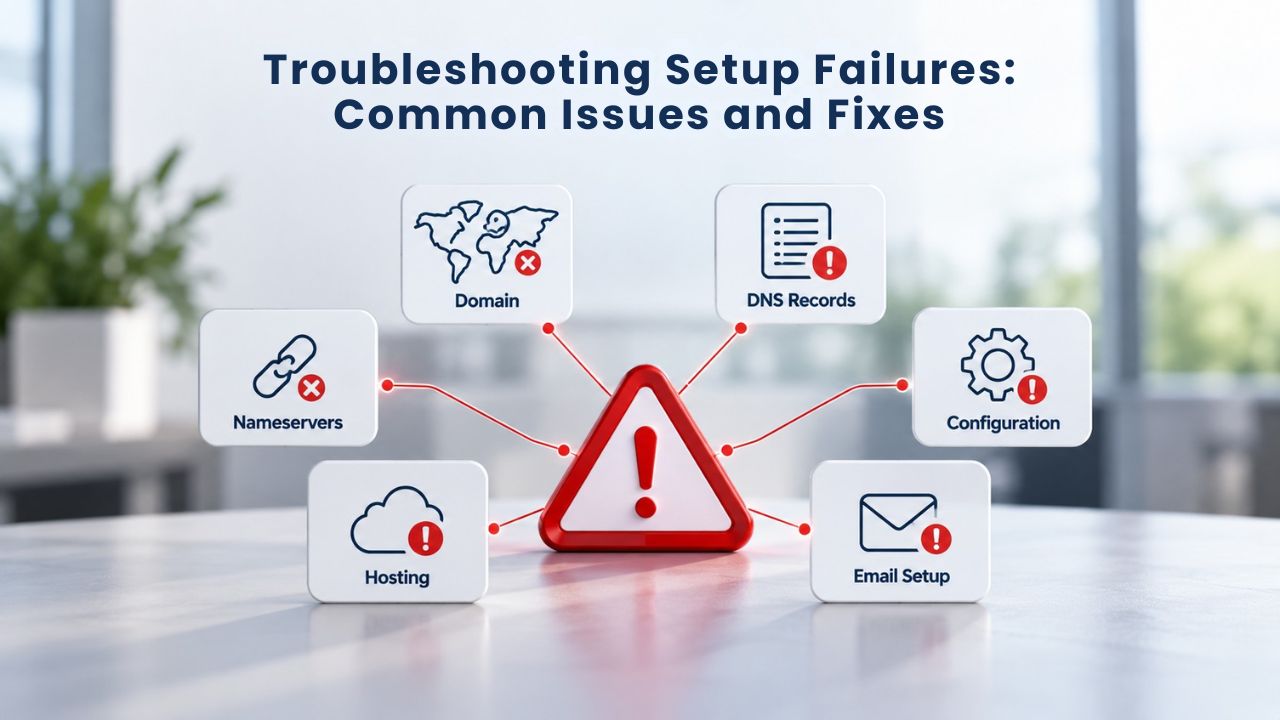
Incorrect Server Details and Authentication Errors
The most common setup failure stems from an incorrect server address or port number. Double-check that you’re using the exact hostname your email provider specifies; for Titan Email, that’s imap.titan.email for IMAP and smtp.titan.email for SMTP. Port numbers matter just as much: IMAP typically runs on port 993 with TLS encryption, while SMTP uses port 465 or 587, depending on your provider’s configuration. A single-digit error in port configuration prevents all connection attempts, so accurate data entry is critical.
Another common issue arises when two-factor authentication is enabled on your account. Most providers, including Titan Email, require an app-specific password rather than your main account password in mail applications. Your primary password won’t work in this scenario, and repeated attempts trigger security lockouts that temporarily suspend login attempts. Check your account’s security settings to confirm whether 2FA is active and generate an app-specific password if needed. This step resolves most authentication failures within seconds.
Enabling Third-Party Access and Network Verification
Ensure third-party app access is explicitly enabled in your account settings before attempting mail app setup. Without this permission, no mail application can authenticate, even if your credentials and server details are correct. Navigate to your email provider’s control panel, locate the security or third-party access section, and toggle it on. This often resolves seemingly mysterious authentication failures immediately.
If setup still fails after verifying server addresses, ports, and app-specific passwords, check your internet connection by attempting to access webmail in a browser. If webmail works, your network and email account are functioning correctly; the issue lies in the mail application’s configuration. Try removing and re-adding your account, carefully entering each setting from your provider’s documentation. If webmail doesn’t work either, your internet connection or email account needs attention before attempting mail app setup.
Maintaining Email Continuity Across Device Upgrades
When upgrading to a new phone or computer, you don’t lose anything or face a complex migration process. Because IMAP stores mail on the server and syncs it to each device, adding your account to a new device automatically downloads your existing inbox with no manual work.
IMAP Device Transitions and Automatic Synchronization
All folders, flags, and read status transfer immediately to the new device; no manual export or import is needed, and you won’t lose organizational history. The first sync of a new device might take several minutes if you’ve accumulated years of messages, but this is normal and transparent; the synchronization happens automatically in the background. After that, new messages arrive on schedule, and your workflow resumes as if you’ve always had the new device.
The only requirement is re-entering your server credentials using the same IMAP protocol you used on your old device. Once you add your account to the new device using your email address and password, IMAP handles everything else automatically. Your message archive, folder structure, flags, and organizational scheme all appear intact on the new device within minutes. This seamless transition is one of IMAP’s greatest strengths compared to older protocols.
Alternative Approaches for POP3 Users and Provider Changes
Users configured with POP3 face a different experience because POP3 downloads mail to a single device and typically removes it from the server afterward. Messages from your old device don’t appear on a new one unless you manually export and import them, making multi-device transitions significantly more complex. This limitation is one reason IMAP is recommended for any setup involving multiple devices. If you’re currently using POP3 and plan to upgrade devices soon, consider switching to IMAP before that upgrade; your email provider can help you migrate while preserving your full message history.
When changing email providers entirely, most hosting services offer migration assistance to ensure continuity. Niya Digital’s team has found that clear planning, documenting your current setup, backing up important messages, and coordinating DNS changes during scheduled downtime make transitions smooth and prevent lost access during critical business periods. Many providers handle the technical migration while you communicate the change to your contacts, minimizing disruption to your business communication.
Explore Niya Digital’s Email Hosting Features
Professional email hosting delivers far more than multi-device access and synchronization. Niya Digital’s offering, powered by Titan Email, includes read receipts. Discover all the features included in Niya Digital’s Professional Email Hosting, set up your first mailboxes in minutes, and scale as your business grows.
Frequently Asked Questions
How long does it take to set up business email on my phone?
Setup typically takes 5–10 minutes if you have your email address, password, and server details readily available. Webmail requires no setup; log in from your browser, and you’re immediately productive. Desktop clients take a similar timeframe. Most delays stem from clarifying server addresses with your provider or enabling third-party app access in your account settings, both of which are typically one-time steps completed in minutes.
What’s the difference between IMAP and POP3?
IMAP stores mail on the server and syncs it across every device you connect, ideal for professionals using multiple devices. POP3 downloads mail to one device only and typically removes it from the server, meaning mail from an old device won’t appear on a new one. IMAP is recommended for modern workflows involving phones, tablets, and computers. If you need access from multiple devices, IMAP is the only practical choice.
Do I need a separate app if I use webmail?
No. Webmail works in any browser on any device without installing anything. The trade-off: you can’t read offline, and you lose advanced features like automated mail rules and offline folder storage that dedicated applications provide. For quick reads and rapid replies, webmail excels. For deep work, apps provide more power.
Can I access the same email address from multiple devices?
Yes, IMAP was designed specifically for this purpose. Add your account to your phone, desktop, tablet, and anywhere else using the same server settings, and all devices stay synchronized. Folders, flags, and read status remain consistent across every device. This multi-device synchronization is one of IMAP’s greatest strengths.
What if I forget my password?
You can reset your password through your email provider’s account dashboard or control panel. If two-factor authentication is enabled, you may need a recovery code or access to a backup email address to confirm your identity. Check your provider’s support documentation for password reset instructions; most services offer self-service reset options.
Do I need two-factor authentication enabled to use mail apps?
Two-factor authentication is optional but strongly recommended for security. If you enable it, you must use an app-specific password in mail applications instead of your main account password. This approach also improves security: each device has its own token, and compromising one device doesn’t expose your main account password.
Which email client is best for beginners?
Webmail is the easiest: no installation, no server settings, log in and go. For mobile, the native Mail app on iPhone or your phone’s default mail app on Android are simple and reliable. For desktop, Outlook or Apple Mail are intuitive; Thunderbird is also excellent and completely free for Windows, Mac, and Linux.
What’s an app-specific password?
It’s a unique, single-use security token your email provider generates that grants one specific app or device access to your mailbox without exposing your main account password. If that device is compromised, you can revoke just that token; your main account password and other devices remain secure. Most providers generate these automatically when you enable two-factor authentication.
Can I set up email on my work computer and personal laptop?
Absolutely. IMAP lets you add your account to as many devices as you want. Each device syncs with the server, keeping your inbox consistent everywhere. Reply to a message on your work computer, and it shows as read on your personal laptop and phone.
How do I know if my mail client is connecting securely?
Look for TLS or STARTTLS encryption mentioned in your mail app’s server settings. These protocols encrypt your password and messages in transit. Ports 993 (IMAP) and 465/587 (SMTP) are industry standards for encrypted connections. Never configure email on unencrypted ports; your credentials would travel in plain text.
What happens to my emails if I delete them from my phone?
With IMAP, deleting a message on your phone removes it from the server immediately; it disappears from all your devices and webmail. If you use POP3, deletion affects only that device. This is a key reason IMAP is safer for important correspondence; you get consistent deletion behavior across all devices.
Can I use multiple email addresses in one app?
Yes. Most mail clients, including Apple Mail on iPhone, Android’s default mail app, Outlook, and Thunderbird, support multiple accounts in a single application. You can even create a unified inbox displaying messages from all accounts together, or view them separately by account.
How do I enable third-party app access?
Log into your email provider’s account control panel (usually located under Security or Settings), look for “Third-party app access,” “External email clients,” or similar language, and toggle it on. This typically takes under a minute and immediately lets mail apps connect to your mailbox.
Why won’t my mail app connect after I enable two-factor authentication?
Two-factor authentication blocks traditional password login to mail applications as a security measure. You must generate an app-specific password and use that instead of your main password. Once you do, applications connect normally and remain protected by the enhanced security.
What devices can I use to access my professional email?
You can access your email on any device: iPhones, Android phones, iPads, tablets, Mac computers, Windows PCs, and Linux machines. You can also use webmail on any browser, from smart TVs to gaming consoles, anywhere with internet access. IMAP keeps everything synchronized across all these devices simultaneously.
Glossary
- IMAP: Internet Message Access Protocol; a method that stores email on the provider’s server and synchronizes messages across all connected devices, keeping your inbox consistent everywhere you work.
- SMTP: Simple Mail Transfer Protocol; the standard protocol responsible for sending outgoing email from your device to the mail server for delivery to recipients.
- POP3: Post Office Protocol 3; an older method that downloads email to a single device only, typically removing it from the server afterward, making multi-device access impractical.
- TLS/STARTTLS: Industry-standard encryption protocols that protect your password and message contents while they travel between your device and the mail server, preventing interception on unsecured networks.
- Webmail: A browser-based email interface accessed by logging in through a website; requires no app installation and works on any internet-connected device from any location.
- Push Notification: An instant alert sent to your mobile device the moment new mail arrives, keeping you informed in real time without draining battery through constant polling.
- Unified Inbox: A single inbox view in a mail app that displays messages from multiple email accounts together, ordered by arrival time, eliminating the need to switch between separate account inboxes.
- App-Specific Password: A secure, unique token generated by your email provider that grants one app or device access to your mailbox without exposing your main account password, enhancing security across multiple devices.