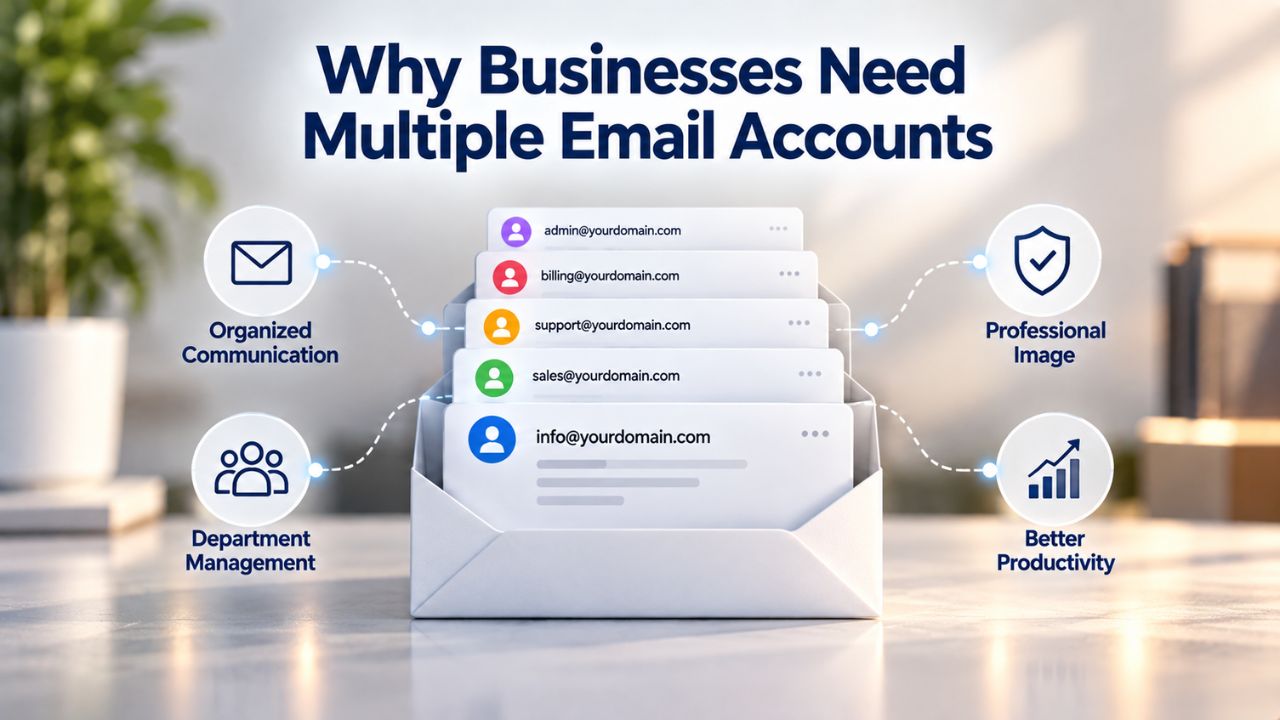
Why Businesses Need Multiple Email Accounts
Many small businesses and growing teams discover that a single email address creates bottlenecks. A founder might use one address for business operations and another for a personal brand; a support team needs a dedicated contact point separate from internal company email. Multiple addresses segment responsibilities, reduce inbox overload, and signal professionalism to customers. The real challenge isn’t setting up extra addresses; it’s managing them without fragmenting your workflow. Without a unified system, you’ll find yourself logging in and out of different inboxes, missing notifications from secondary addresses, or accidentally sending from the wrong account. Titan Email, offered through Niya Digital, addresses this by letting you create and manage multiple custom-domain accounts under one control panel.
The Problem of Inbox Fragmentation
Separate inboxes across different email services create friction. Emails to sales@yourdomain.com land in one app, info@yourdomain.com in another. A team member checking her work email on her phone won’t see a message sent to the support inbox on her desktop. This fragmentation wastes time on context-switching and creates a genuine risk that messages go unread.
Professional email hosting eliminates this problem by letting you set up multiple addresses, often called accounts or mailboxes, within the same platform. Titan Email’s account management capabilities let you create custom addresses, aliases, and delegation rules from one admin panel, so a team manager can oversee all accounts without switching systems. Niya Digital’s Professional Email Hosting plans include setup support to get multiple accounts running on day one.
The Business Case for Segmentation
Separating email by function- founder, support, billing, general inquiries- improves accountability and responsiveness. When customers know to email support@yourdomain.com, they get a response from someone trained in support; when they email info@yourdomain.com, they reach the right department. This organizational clarity also helps filter, forward, and delegate responsibilities across a growing team.
Email address segmentation also strengthens sender reputation. Each address can maintain its own email authentication records (SPF, DKIM, DMARC), improving deliverability for critical business functions separately from general inquiries. If one address attracts spam complaints, your other addresses’ reputation remains intact. Titan Email supports per-account authentication setup, allowing each business email address to build its own trusted sender identity.
Understanding Account Types: Accounts, Aliases, and Forwarding
Before setting up multiple email addresses, you need to understand three related but distinct approaches: separate accounts, email aliases, and forwarding rules. Each has different uses, trade-offs, and implications for how you access and delegate email. The right choice depends on whether you need separate management, unified access, or a temporary redirect. Aliases are lightweight and best for inbox consolidation. Accounts are full mailboxes, ideal for role-based isolation and delegation. Forwarding is simplest for temporary or low-priority redirects. Titan Email supports all three, often combined in a single setup.
Separate Email Accounts (Full Mailboxes)
A separate account (or mailbox) is a complete email address with its own inbox, storage, and credentials. Titan Email’s Email Control Panel lets you create as many custom-domain accounts as your plan supports, each functioning as a standalone mailbox. For example, founder@yourdomain.com and support@yourdomain.com are two separate accounts; each with its own inbox, sent folder, and storage quota.
Separate accounts are best for role-specific isolation and when you need delegated access. If a support team member should manage the support@yourdomain.com inbox without accessing founder@yourdomain.com, separate accounts with delegated permissions are essential. Each account maintains independent sender reputation and authentication records, which is critical if one address receives high complaint rates.
Email Aliases and Forwarding
An email alias is a secondary address that delivers mail to an existing account’s inbox. For example, you might create info@yourdomain.com as an alias pointing to founder@yourdomain.com; both addresses reach the same inbox, but you can send replies from either address. Titan Email supports up to 10 aliases per account, reducing the need for separate mailboxes when you want to consolidate inboxes.
Forwarding is a related but distinct feature: messages sent to one address automatically redirect to another, but the original sender address is lost. For instance, old-contact@yourdomain.com can forward to new-contact@yourdomain.com, but recipients won’t see old-contact in the header; they’ll only see that mail was forwarded. Forwarding is useful for temporary address changes or when you’re consolidating email from a legacy domain, but it’s less suitable for ongoing multi-address management because replies won’t show the original receiving address.
Multi-Account Email Setup Decision Matrix
| Factor | When to Use | Best For | Trade-Off |
|---|---|---|---|
| Separate Account | Role isolation, team delegation, independent reputation tracking | Support teams, large organizations, role-based workflows | Multiple logins, higher management overhead, separate storage quotas |
| Email Alias | Multiple contact addresses, inbox consolidation, one-person management | Small businesses, solopreneurs, contact consolidation | Shared storage quota, shared sender reputation, limited segmentation |
| Forwarding | Legacy address transitions, temporary redirects, migration phases | Domain changes, provider migrations, low-priority address redirects | Original sender address lost, can’t send from forwarded address, temporary solution only |
| Account + Delegation | Separate inbox with team access, maintained accountability, audit trail | Growing teams, compliance needs, clear role assignment | Requires IMAP setup, multiple credentials needed initially (before delegation), slightly more complex |
| Alias + Account Hybrid | Balance between consolidation and segmentation, mixed responsibility | Multi-owner businesses, brands with personal and company addresses | Requires planning to avoid confusion, can get complex with >3–4 accounts |
| Shared Mailbox (if supported) | Team visibility into one inbox, no individual send-as identities | Unattributed inquiries, bulk processing, ticket-style workflows | No individual accountability, all replies show shared address, can feel impersonal |
Setting Up Multiple Accounts in Titan Email
Setting up multiple custom-domain accounts with Titan Email involves three key steps: domain verification, account creation, and (optionally) mobile/desktop configuration. Niya Digital guides customers through each step during onboarding, and the process typically takes a few minutes per account. Understanding the setup workflow removes a common misconception: that managing multiple email addresses requires multiple email hosting providers. One Titan Email plan from Niya Digital can host dozens of custom-domain addresses under a single domain or multiple domains, all managed from one admin panel.
Domain Verification and Initial Account Creation
The first step is verifying your domain with Titan Email. You’ll update your domain’s MX (Mail Exchange) records, a DNS setting that tells the internet where to route email for your domain. Titan Email guides you to add a specific MX record pointing to Titan’s mail servers. Once DNS changes propagate (typically within 24 hours), you can create your first custom-domain account.
Niya Digital’s setup support includes domain verification assistance, so you won’t be alone in navigating DNS records. After domain verification, creating additional accounts is instantaneous; you log into the Titan Email Control Panel and add new mailboxes with a few clicks. Each new account gets its own password, storage, and settings while sharing the same domain.
Authentication Records for Each Account
After you create your accounts, set up email authentication. Specifically, configure SPF, DKIM, and DMARC records to improve deliverability. These DNS records tell receiving email servers that your domain is legitimate and authorized to send email. Titan Email provides automatic DKIM signing for all accounts and guides you through custom DKIM and SPF/DMARC setup.
Setting these up takes 10–30 minutes per domain (one-time task), and Niya Digital’s support team can walk you through it if DNS configuration feels intimidating. Proper authentication per account reduces spam-folder landing and builds trust with email providers, which is especially important if different accounts have different sender reputations or volumes.
Multi-Account Email Setup Timeline & Process
| Step | What Happens | Typical Timeframe |
|---|---|---|
| Domain Verification | DNS changes propagate, domain linked to Titan Email | Up to 24 hours |
| Account Creation | Mailbox created and accessible immediately | Instant |
| IMAP/SMTP Setup on First Device | Email client configured, messages begin syncing | 5–15 minutes per device |
| Additional Device Setup | Account added to phone, tablet, or another computer | 5–10 minutes per device |
| SPF/DKIM/DMARC Configuration | Authentication records added to DNS; inbox placement improves | 10–30 minutes, one-time |
| Team Member Delegation Setup | Delegated user adds mailbox to her client or webmail, gains access | 5–10 minutes per team member |
| Legacy Email Migration | Messages imported from previous provider (if applicable) | A few hours to 1 day |
| Monitoring & Optimization | Custom filters, notification rules, and inbox strategies implemented | Ongoing, 30 minutes initial setup |
Unified Webmail Access: Managing All Accounts in One Place
One of the biggest advantages of professional email hosting is unified webmail access. Instead of logging in and out of different email apps, you can access all your custom-domain accounts from one browser interface. Titan Email’s webmail is responsive and available from any device, phone, tablet, or desktop, without installing software. Unified webmail reduces context-switching and makes it easy to scan multiple inboxes without fragmented logins. Niya Digital’s team has found that businesses managing 3–5 custom-domain accounts typically benefit from consolidated webmail access, reducing time spent toggling between systems.
Single Sign-On to Multiple Accounts
Titan Webmail allows you to log in once and access all your mailboxes from a single interface. You switch between accounts with a dropdown or sidebar selector; no need to log out and log back in. This unified approach is a core productivity feature, especially for founders and small-team managers who need to monitor multiple business functions simultaneously.
Webmail also includes business email hosting features like email templates, scheduled send, read receipts, and follow-up reminders built into Titan’s interface, advantages you might not get if you rely solely on desktop email clients like Outlook or Apple Mail. These native tools streamline communication and help you manage customer relationships more effectively without switching to a separate application.
Mobile and Tablet Access from Webmail
Webmail is fully responsive on mobile and tablet devices. You can check and manage all your business accounts from your phone without downloading the Titan app (though Titan offers native iOS and Android apps if you prefer). This flexibility is critical for busy owners and managers who need email access on the go, and it ensures you won’t miss urgent messages just because you’re away from your desk.
Webmail also syncs your folders, drafts, and read status across devices, so marking an email as read in webmail will show as read in your desktop client and vice versa, one of the major advantages of IMAP-based email hosting over older POP3 systems. This means your team stays on the same page, no matter which device they use to access their professional email.
Delegated Account Access: Letting Your Team Manage Multiple Inboxes
Delegation is a powerful feature for growing teams. Instead of sharing one mailbox password with multiple team members (a security risk), you can grant specific permissions to let a team member manage one or more accounts on your behalf. This keeps credentials secure while giving team members the inbox access they need. Titan Email supports delegated access through IMAP protocols, which most modern email clients understand. You can set up a support team member to manage the support@yourdomain.com inbox without giving her your founder@yourdomain.com password, or allow a contractor to manage billing@yourdomain.com during a project.
How Delegation Works
Delegation works by granting another email user permission to open and send from your mailbox. In Outlook, Apple Mail, or Titan Webmail, the delegated user logs in with her own credentials and adds your account as an additional mailbox; she doesn’t need your password. When she sends an email, she can choose to send as herself or on your behalf (the original mailbox owner). This transparency maintains a clear audit trail for compliance and professionalism.
Setting up delegated access on your Titan Email account is straightforward: enable IMAP access (standard on all Titan Email accounts), provide the delegated user with your mailbox address and grant her permission, and she can configure access in her email client in 5–10 minutes. Most modern email clients (Outlook, Apple Mail, Gmail, Thunderbird) all support delegation via IMAP, so your team members can use their preferred tool.
Delegation vs. Shared Mailbox Access
There’s an important distinction between delegation (one person managing another’s mailbox) and shared mailbox access (multiple people checking the same inbox and sending from the same address). Shared mailboxes are simpler to set up but blur accountability; recipients won’t know which team member sent an email. Delegation maintains individual identity while allowing team access, which is better for customer-facing functions like support or billing.
If multiple team members need to monitor one inbox (e.g., support@yourdomain.com), delegation is the professional approach. All team members can see replies in real time, but each can send as themselves or on behalf of the shared address, keeping communication clear. This approach scales better as your team grows because accountability remains transparent and audit trails show who did what.
Mobile and Desktop Client Setup for Multiple Accounts
While Titan Webmail is powerful, many users prefer desktop and mobile email clients like Outlook, Apple Mail, or native mobile apps because they offer offline access, advanced filtering, and calendar and contact integration. Good news: Titan Email’s IMAP/SMTP support makes it simple to add multiple accounts to any standard email client. The key to multi-account setups is choosing IMAP over POP3. IMAP keeps your mailbox in sync across all devices and Titan Webmail; POP3 downloads messages to one device, causing fragmentation and missing emails elsewhere.
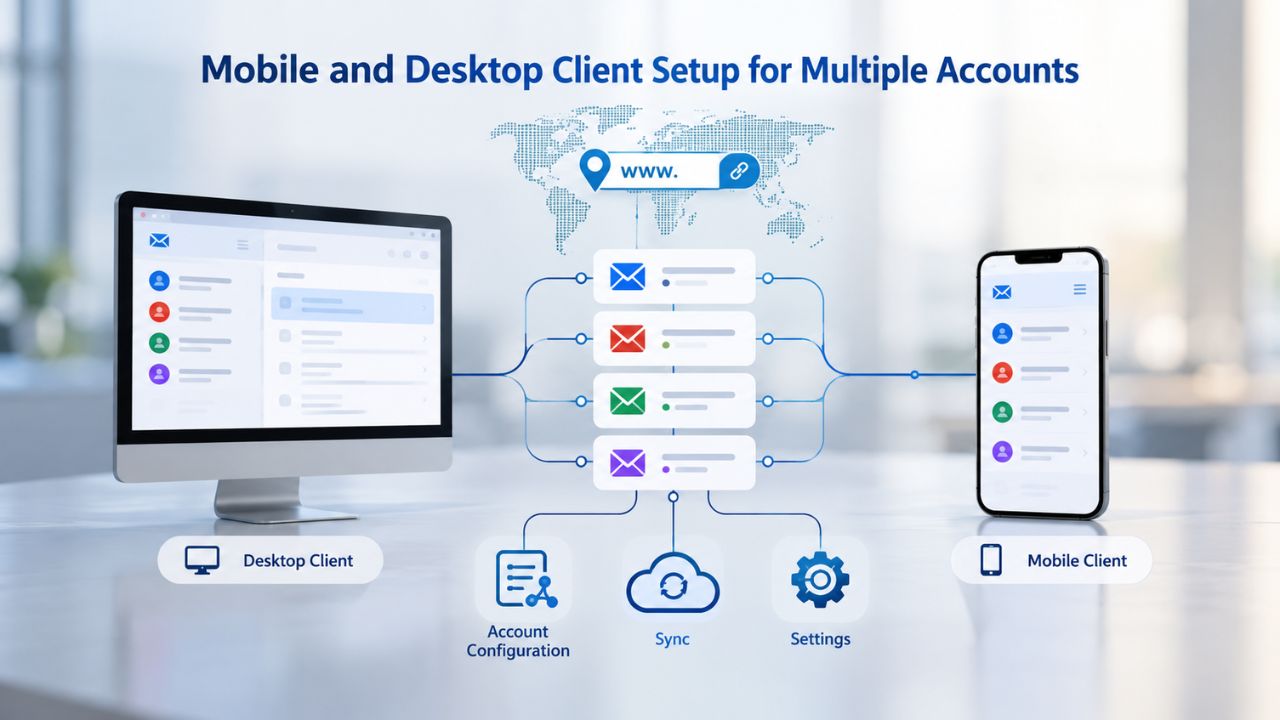
Configuring IMAP on Outlook, Apple Mail, and Mobile Apps
Titan Email provides step-by-step IMAP setup guides for Outlook, Apple Mail, iPhone, and Android. For each account, you enter your Titan email address, password, and IMAP/SMTP server details, a one-time 5–10 minute task. After setup, messages sync automatically across all devices.
Most modern email clients allow you to add multiple accounts within a single app. Outlook, Apple Mail, and Gmail (via IMAP forwarding) can display multiple Titan Email accounts in one unified inbox or separate but organized folders, depending on your preference. Mobile apps like iOS Mail and Android’s Gmail app work similarly: add each Titan account as a separate email account within the app, and customize notifications per account.
Notification Management and Preventing Alert Fatigue
One of the biggest challenges with multiple accounts is alert fatigue. If every account sends a notification every time mail arrives, you’ll be overwhelmed. Modern email clients let you customize per-account notifications: set sales@yourdomain.com to alert you immediately, configure support@yourdomain.com to check manually, and mute founder-personal@yourdomain.com except for starred messages.
Setting up notifications thoughtfully is one of the highest-ROI optimizations you can make; it prevents important emails from getting lost in notification noise while reducing distraction from lower-priority addresses. Most email clients also support filtering rules per account, so you can automatically sort newsletters into folders or flag messages from key customers. This keeps your inboxes clean and ensures critical messages stand out.
Start Managing Multiple Accounts Seamlessly
Stop toggling between inboxes and risking missed messages. Niya Digital’s Professional Email Hosting, powered by Titan Email, lets you create, delegate, and monitor multiple custom-domain accounts from one unified control panel. Unified webmail, mobile/desktop integration, and per-account authentication give your team the tools to stay organized and responsive, without the overhead.
Email Authentication Across Multiple Accounts: SPF, DKIM, and DMARC
Email authentication- SPF, DKIM, and DMARC- protects your brand and improves inbox placement. When you manage multiple accounts, each can benefit from its own authentication setup. While the concepts sound technical, the basic principle is simple: you’re telling the internet that your domain is authorized to send email, and that messages really came from you. Each of your multiple business email addresses should have its own authentication records. If founder@yourdomain.com sends high volumes of marketing emails and support@yourdomain.com handles one-to-one customer support, their different sender patterns can benefit from independent authentication tuning. Titan Email makes per-account authentication straightforward.
What SPF, DKIM, and DMARC Do (Plain English)
SPF (Sender Policy Framework): SPF is a DNS rule that authorizes specific IP addresses or mail servers to send email from your domain. Anything else is flagged as suspicious. When a recipient’s email server receives a message from you, it checks this record. If the sending IP is on the approved list, the email passes; if not, it’s flagged as suspicious. This prevents someone else from impersonating your domain. RFC 7208 defines the SPF standard.
DKIM (DomainKeys Identified Mail): DKIM adds a digital signature to every email you send. Think of it like a wax seal on an envelope; it proves the email wasn’t altered after you sent it and that it really came from your domain. Titan Email applies automatic DKIM signing to all accounts. Hence, this protection is active by default. RFC 6376 defines the DKIM standard.
DMARC (Domain-based Message Authentication, Reporting, and Conformance): DMARC combines SPF and DKIM results and tells receiving email servers what to do if authentication fails: accept the email anyway, mark it as suspicious, or reject it. DMARC also sends reports showing which emails pass authentication and which fail, helping you identify problems quickly. RFC 7489 defines the DMARC standard.
Setting Up Authentication for Multiple Accounts
If you own one domain and host multiple accounts under it (founder@yourdomain.com, support@yourdomain.com, etc.), you typically set up one SPF record and one DMARC policy for the whole domain; they apply to all your accounts. DKIM, however, can be set up per account if you want fine-grained control, or you can use Titan Email’s default DKIM for simplicity. Niya Digital’s support team can help you set up authentication records if DNS configuration feels overwhelming.
The process takes 10–30 minutes and requires one-time access to your domain’s DNS control panel. After that, authentication runs continuously in the background and automatically improves deliverability for all your accounts. Many businesses see measurable improvements in inbox placement within days of setting up proper authentication, especially when sending to Gmail and Yahoo addresses, which now require SPF or DKIM.
Organizing Multiple Accounts: Forwarding, Aliases, and Inbox Strategies
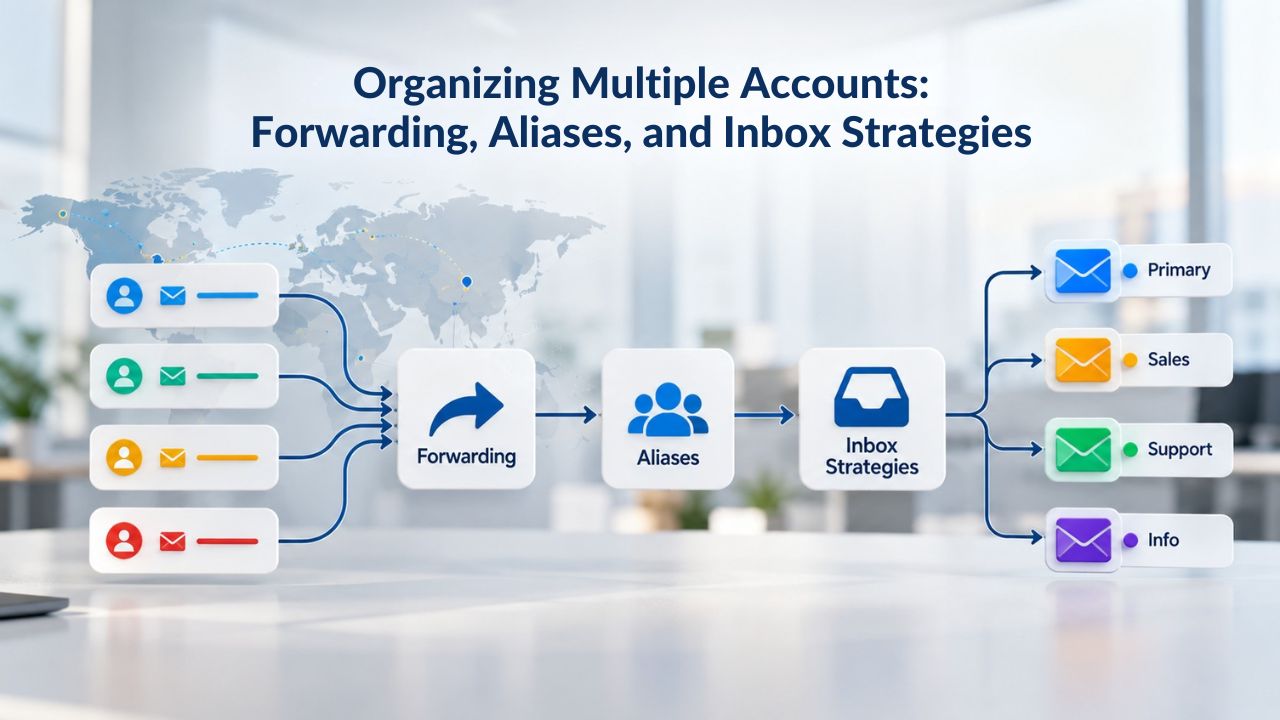
As you add more accounts, a simple organizational strategy prevents chaos. You can combine separate accounts, aliases, and forwarding rules to create a system that routes emails intelligently based on type and priority. The goal is to reduce context-switching while maintaining clear accountability. A common pattern is to have one “hub” inbox (e.g., founder@yourdomain.com) and use aliases or delegation to cover other functions. Aliases are lightweight and merge addresses into the same inbox; delegation keeps inboxes separate but gives a team member access. Forwarding can redirect legacy addresses or low-priority functions to a primary inbox. The choice depends on your team size and workflow.
Using Aliases to Reduce Account Sprawl
Instead of creating a separate account for every possible email address, use aliases to keep your account count manageable. You might create one account (founder@yourdomain.com) and add 5–10 aliases (info@yourdomain.com, contact@yourdomain.com, hello@yourdomain.com) that all deliver to the same inbox, but let you send replies from any address. Titan Email allows up to 10 aliases per account so that you can consolidate without fragmentation.
Aliases are ideal for small businesses or solopreneurs managing a single domain. They’re fast to add, require no additional credentials, and keep your inbox unified. The trade-off is that all aliases share the same mailbox and storage; if you later need to segment one address for a new team member, you can convert an alias to a full account through Titan Email’s control panel.
Forwarding for Legacy Addresses and Transitions
Forwarding is useful during domain changes or when you’re migrating from an old email provider. If you previously used olddomain@example.com and now use founder@yourdomain.com, set up forwarding from the old address so you don’t miss messages. After a transition period (30–60 days), you can delete the forwarding rule and the old address.
Forwarding can also handle low-priority addresses. If you publish a generic contact email that might receive spam or bulk messages, forward it to a secondary mailbox or a filter-heavy inbox rather than cluttering your main account. The key is to be intentional: forwarding should serve a strategic purpose, not become a band-aid for disorganized account creation. Keep a master list of active addresses and their forwarding destinations so you can troubleshoot issues or make changes when your business needs evolve.
Managing Multiple Accounts: Time Savings and Best Practices
Managing multiple accounts efficiently is a discipline. Without clear rules, you’ll waste time checking addresses in random order, miss messages because you forgot to look at a secondary inbox, or accidentally send from the wrong address. A few best practices pay dividends. Niya Digital’s support conversations reveal a consistent pattern: businesses that succeed with multiple accounts use webmail or a single email client with all accounts configured, set up custom notifications per account (not one global alert), and assign ownership (one person manages sales@yourdomain.com, another manages support@yourdomain.com). Fragmentation comes from ambiguous ownership and scattered access methods.
Establishing Account Ownership and Responsibilities
Clearly document who owns and monitors each email address. You own Founder@yourdomain.com. Your support team lead owns Support@yourdomain.com and support@yourdomain.com. Your accountant or billing manager owns Billing@yourdomain.com. This clarity prevents messages from falling through the cracks and ensures the right person responds quickly.
Use delegation (not shared passwords) to grant access. This keeps credentials secure and maintains an audit trail; you can see who sent each message and from which account. Rotating access when someone leaves the team is also simpler: revoke delegation instead of changing a shared password and re-distributing it to everyone. Document your delegation setup in a shared place so team members know who has access to what and can quickly onboard new team members without confusion.
Monitoring Multiple Inboxes Without Overwhelm
Use Titan Webmail’s unified dashboard to scan all your accounts at a glance. Set up custom inbox rules and filters for each account, automatically sort newsletters into a folder, flag messages from key customers, or auto-archive low-priority senders. If you use a desktop client, configure one app with all accounts and use folder organization to stay on top of each.
Regular review also matters: once a week, audit your accounts to ensure you didn’t miss anything important. Set a reminder to check the support inbox if you normally check founder@yourdomain.com. This simple habit prevents the “lost email” surprises that plague multiple-account setups. Many email clients support searching across all accounts, making it easy to find old messages or confirm something arrived in the right place. Building these review habits early pays off as your business scales.
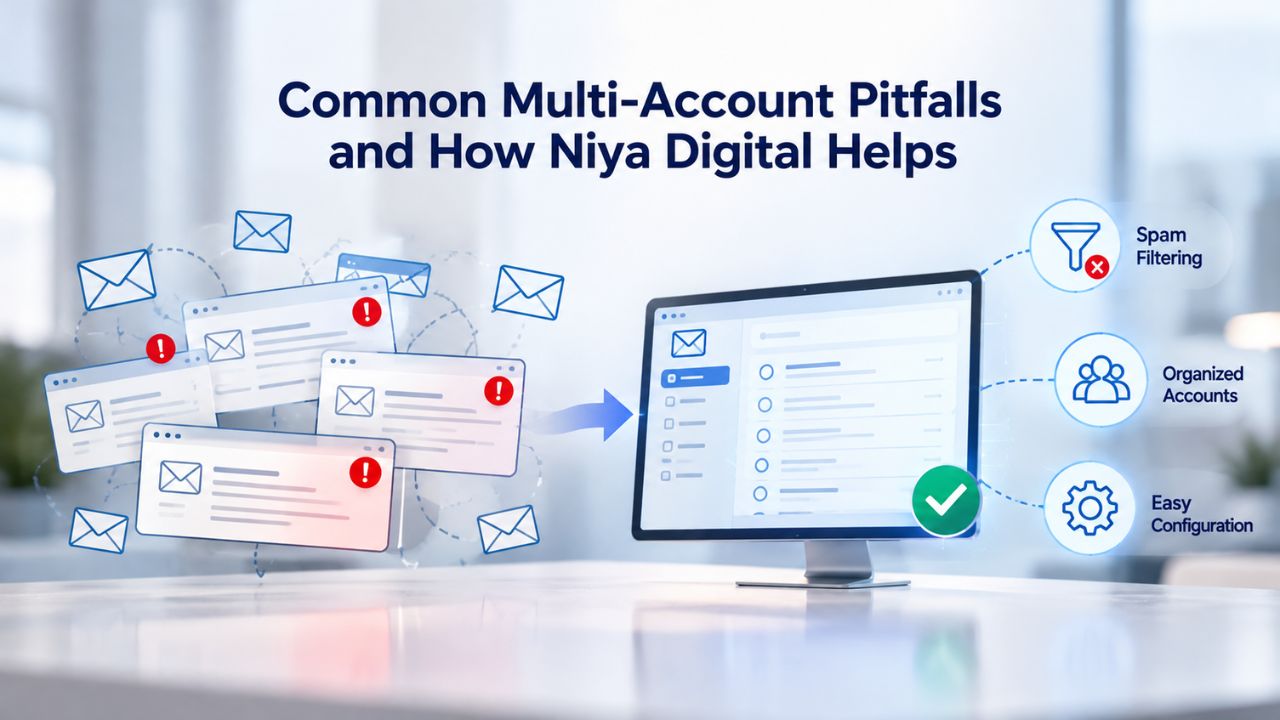
Common Multi-Account Pitfalls and How Niya Digital Helps
The most common problems with managing multiple business email addresses arise from misunderstanding technical options, poor setup, or lack of monitoring. Many can be prevented with careful planning and the right support partner. Niya Digital’s team sees these issues regularly and has built migration and setup assistance into its Professional Email Hosting offering. Understanding the pitfalls ahead of time helps you avoid them and make the most of your email infrastructure.
The “Sent-from-Wrong-Address” Problem
Accidentally sending from the wrong email address is one of the most embarrassing multi-account mistakes. You mean to send from founder@yourdomain.com but your email client defaults to support@yourdomain.com, and your customer gets a support-channel response to a business inquiry. Most email clients let you set a default send address and warn you before sending, but you have to configure it intentionally.
Modern email clients (Outlook, Apple Mail, Titan Webmail, Gmail) all support multiple send addresses. Spend 5 minutes setting your preferred default and enabling send-address warnings in each app. This single configuration prevents most mix-ups. Some email clients also let you color-code accounts or set up reply-to address logic, further reducing the risk of sending from the wrong address. Taking these precautions at setup time saves you from embarrassing mistakes down the road.
Storage, Deliverability, and Support During Transitions
One overlooked challenge: what happens to email during a migration to a new provider or a domain change? If you’re moving from a previous email hosting provider to Titan Email via Niya Digital, you want to migrate existing emails so you don’t lose history. Niya Digital includes free migration assistance for new customers; their team can import your mail from Gmail, Microsoft 365, or another IMAP provider, so you start with a complete archive.
Another common concern is deliverability: when you set up a new email address, it has zero sender reputation. Recipients’ spam filters may be cautious. Configuring SPF, DKIM, and DMARC from day one (see H2 #7) helps, and following sending best practices (no spam complaints, engaged recipient lists) builds reputation over time. Niya Digital’s support team can advise on deliverability expectations and troubleshooting if your messages land in spam folders unexpectedly. This proactive support helps prevent deliverability issues before they affect your business communication.
Ready to Simplify Your Multi-Account Email Workflow
Juggling multiple business email addresses shouldn’t mean juggling multiple services or missing messages. Niya Digital’s Professional Email Hosting, powered by Titan Email, gives you unified webmail access, delegated account management, and seamless mobile/desktop integration, all within one control panel. Set up your first account in minutes, add more as your team grows, and keep all your custom-domain addresses in sync across devices.
Frequently Asked Questions
How many email accounts can I create under one Niya Digital plan?
The number of accounts depends on your plan tier. Most Professional Email Hosting plans from Niya Digital allow multiple custom-domain accounts, and you can add more as your team grows. Your specific plan details will outline account limits and upgrade options. Contact Niya Digital’s support team for exact specifications and recommendations based on your business size.
Can I use Titan Email’s webmail to access all my accounts at once?
Yes. Titan Webmail allows you to log in once and switch between all your custom-domain accounts using a dropdown menu or sidebar. You can reply from any address without logging out, making it ideal for managers overseeing multiple business functions simultaneously from any device or location.
Is it safe to share account access with team members?
Don’t share passwords. Instead, use delegation: grant a team member permission to access your mailbox through her own email client or Titan Webmail. She logs in with her own credentials, adds your account as a delegated mailbox, and can read and send from your inbox without ever knowing your password. This keeps credentials secure and maintains an audit trail showing who sent what.
Do I need separate email addresses for each team member, or can they share one inbox?
Either approach works. Shared accounts (multiple team members accessing the same inbox like support@yourdomain.com) are simpler to manage but blur accountability; recipients won’t know who handled their email. Individual accounts with delegation (each team member has their own address but can access shared functions) keep communication clearer. Choose based on your team size and customer-facing needs.
How do I prevent too many email notifications from overwhelming my phone?
Configure per-account notification settings in your email client or Titan Webmail. Set critical accounts (like sales or support) to alert you immediately. Set routine accounts to check on demand only. You can also use filters to route certain senders or subjects to specific folders, reducing visual clutter in your main inbox and keeping you focused on priority messages.
What happens to my email if I move to a different hosting provider?
Niya Digital includes free migration assistance. Your team imports email from your previous provider (Gmail, Microsoft 365, another Titan Email account, or any IMAP provider) to your new Titan Email account. The import typically takes a few hours to a day, depending on volume. Your new custom-domain addresses stay the same; only the backend mailbox changes, preserving your communication history.
Can I use email aliases to reduce the number of accounts I need to create?
Absolutely. An alias is a secondary email address that delivers to an existing mailbox; you can send and receive from both addresses without separate credentials. Titan Email supports up to 10 aliases per account so that you can consolidate multiple contact addresses into one inbox. Aliases are especially useful for small businesses and solopreneurs managing a single domain.
How do I set up SPF, DKIM, and DMARC for multiple accounts?
If all your accounts use the same domain, you typically set up one SPF record and one DMARC policy that apply across the domain. Titan Email often handles DKIM automatically (all accounts get default DKIM signing). If you want per-account control or manage multiple domains, each domain gets its own authentication records. Niya Digital’s support team can guide you through setup if you’re unfamiliar with DNS configuration.
Can I forward email from one account to another?
Yes. Forwarding rules automatically redirect messages from one address to another. This is useful for legacy addresses or temporary redirects during transitions. However, forwarding loses the original sender address; recipients only see that a redirect occurred. For ongoing multi-address management, aliases or delegation are better options that maintain full sender transparency.
What if I’m using Outlook or Apple Mail, how do I add multiple Titan Email accounts?
Outlook, Apple Mail, and most email clients allow you to add multiple accounts. Use IMAP configuration (recommended over POP3) with your Titan email address, password, and server details. Each account takes 5–10 minutes to set up and syncs automatically across all your devices thereafter.
Does delegated account access work on mobile devices?
Yes. iOS Mail, Android Gmail, and Outlook mobile all support account delegation. After you grant a team member permission to access your account, she can add it to her mobile email app just like any other IMAP account. Syncing works the same as on desktop; changes appear across devices, so everyone stays aligned.
What if I need to remove a team member’s access to an account?
Revoke delegation from the Titan Email Control Panel or your email client’s account settings. Since no password was shared, there’s no need to change credentials or notify other team members. Access is removed immediately and securely.
Can I set up custom email filters differently for each of my multiple accounts?
Yes. Webmail and desktop clients both allow per-account filter rules. You might automatically sort sales inquiries into a priority folder in sales@yourdomain.com while auto-archiving newsletters in founder@yourdomain.com. Rules are managed within each account and don’t interfere with others, giving you precise control over inbox organization.
How quickly can I add a new email account if my team grows?
Adding a new account through Titan Email’s admin panel is instantaneous; you create the mailbox, and it’s available immediately. No waiting, no additional DNS configuration. If the account uses a new domain, domain verification takes up to 24 hours; for additional accounts on an existing verified domain, setup is immediate.
Where can I get help setting up multiple accounts?
Niya Digital’s support team can help with account setup, DNS configuration, mobile/desktop client setup, and troubleshooting. Many common setup questions are also answered in Titan Email’s official documentation and migration guides. Both resources provide step-by-step instructions and video tutorials for most common tasks.
Glossary
- DKIM (DomainKeys Identified Mail): An email authentication protocol that adds a cryptographic digital signature to outgoing mail. Receiving servers verify the signature to confirm the email came from an authorized sender and wasn’t altered in transit, as defined in RFC 6376.
- Delegation: Granting another person permission to access and send from your mailbox without sharing your password. The delegated user logs in with her own credentials, adds your account as a secondary mailbox, and can respond to emails on your behalf with full transparency and audit trails.
- IMAP (Internet Message Access Protocol): A standard email protocol that keeps mail stored on the server and synced across multiple devices. Messages stay in sync whether you check email on your phone, desktop, or webmail; marking an email as read in one place marks it as read everywhere, as defined in RFC 3501.
- MX Record (Mail Exchange Record): A DNS record that tells the internet where to send email for your domain. When someone sends mail to you@yourdomain.com, their email server looks up the MX record to find your mail server and route the message correctly.
- SPF (Sender Policy Framework): An email authentication protocol that uses DNS to specify which mail servers are authorized to send email from your domain. Receiving servers check the SPF record to verify the sending server is legitimate. Defined in RFC 7208.
- Webmail: A browser-based email interface that lets you access your mailbox from any device (phone, tablet, desktop) without downloading or installing an email client. Titan Email’s webmail is fully responsive and includes features like scheduled sending, read receipts, and email templates.