
Why a Custom Domain Email Matters More Than You Think
Your email address is often the first impression customers have of your business. Research from the IE Domain Registry showed a stark divide in consumer trust: 64% of consumers have little to no trust in businesses using free email addresses, while 77% trust businesses with customized domain-specific addresses. That gap is measured in lost deals, unanswered inquiries, and customers who click away before reading past your sender address. This isn’t cynicism; it’s pattern recognition. Legitimate businesses invest in their brand identity, and that identity includes their email address.
A professional email address isn’t a luxury; it’s a fundamental business tool. Every email you send with your domain name reinforces your brand, signals stability to prospects, and tells the market you’re serious about business. The domain you choose becomes part of your identity, appearing in every message, invoice, and signature your team sends.

The Trust Factor: Why Domain Matters
When you send from [email protected], recipients assume you’re an established, legitimate business. When they see [email protected], many assume you’re either a hobbyist or potentially running a scam. That’s not cynicism; it’s pattern recognition that customers have learned through experience. Scammers and spammers rarely bother with custom domains; registering and maintaining one signals seriousness to anyone who sees it.
A professional email address uses a custom domain tied to your business, like name@yourcompany.com, helping you appear credible, consistent, and reliable. Customers are more likely to open an email when they can clearly identify the sender; employee@company.com stands out from generic addresses, and that familiarity builds recognition over time. The domain doesn’t just look better; it performs better. Your emails reach inboxes more reliably, your reply rates climb, and your business looks established from the first contact.
Deliverability: Why Email Hosting Improves Inbox Placement
Free email providers like Gmail carry massive sender reputation built on billions of messages daily. That reputation protects you from spam filters, but only so much. Using a branded domain can improve deliverability because email providers are more likely to trust messages from a verified domain than from free accounts. This increases the chances your messages reach the inbox, especially when you’re sending time-sensitive communications, follow-ups, or email marketing campaigns to engaged recipients.
Professional email hosting amplifies this advantage significantly. Hosting providers help you configure email authentication records, SPF, DKIM, and DMARC, that tell receiving mail servers your emails are legitimate. These records prove to Gmail, Microsoft, Yahoo, and thousands of other mail providers that you control your domain and that your messages haven’t been tampered with. Studies show that 75% of consumers trust a company more when it uses a branded email address, and proper authentication backs that trust with technical proof that your domain is legitimate.
Understanding Email Addresses: Custom Domain vs. Free Provider
Before you register anything, decide which type of email address fits your business model and long-term growth plans. The choice is simpler than it sounds, but it shapes everything that follows, from how customers perceive you to how easily you can scale your team.
Different businesses have different needs, and no one-size-fits-all solution exists. A freelancer just starting might benefit from one approach, while a growing business with five employees needs something entirely different. Understanding your options helps you choose the right fit now while leaving room to grow later.
Custom Domain Email: The Professional Standard
If you’re building a business and want to build brand credibility, register a custom domain. Custom domain email means you own the part after the @ symbol; yourcompany.com is yours, and you control every email address on it: [email protected], [email protected], sales@yourcompany.com, and as many as you need. This approach scales naturally as your business grows, and each address carries your brand identity.
You need three things to make custom domain email work: a domain name (registered through a domain registrar), hosting space (provided by an email hosting service), and a mailbox (created within that hosting service). Most domains are affordable to register, and email hosting runs from a few dollars to more per mailbox per month, depending on the features and storage you choose. Professional email hosting handles all the technical complexity, DNS records, authentication setup, and mobile app configuration, so you don’t have to manage mail servers yourself.
Provider Domain Email: When It Makes Sense
If you’re a freelancer just starting, creating a professional-sounding email address using a provider domain might be sufficient. Services like Proton Mail and Tutanota offer security and privacy without needing your own domain. You get a branded address like jane@proton.me, which looks better than gmail.com but still uses the provider’s domain, not your own. The trade-off is clear: you’re borrowing the provider’s reputation, not building your own.
For B2B work, client-facing roles, or any business collecting payments, a custom domain is non-negotiable. A prospect receiving an email from your company expects to see your company’s domain, not a generic email provider; for a solo freelancer starting, a provider domain works as a stepping stone. But once you’re ready to build credibility and a brand, custom domain email becomes essential.
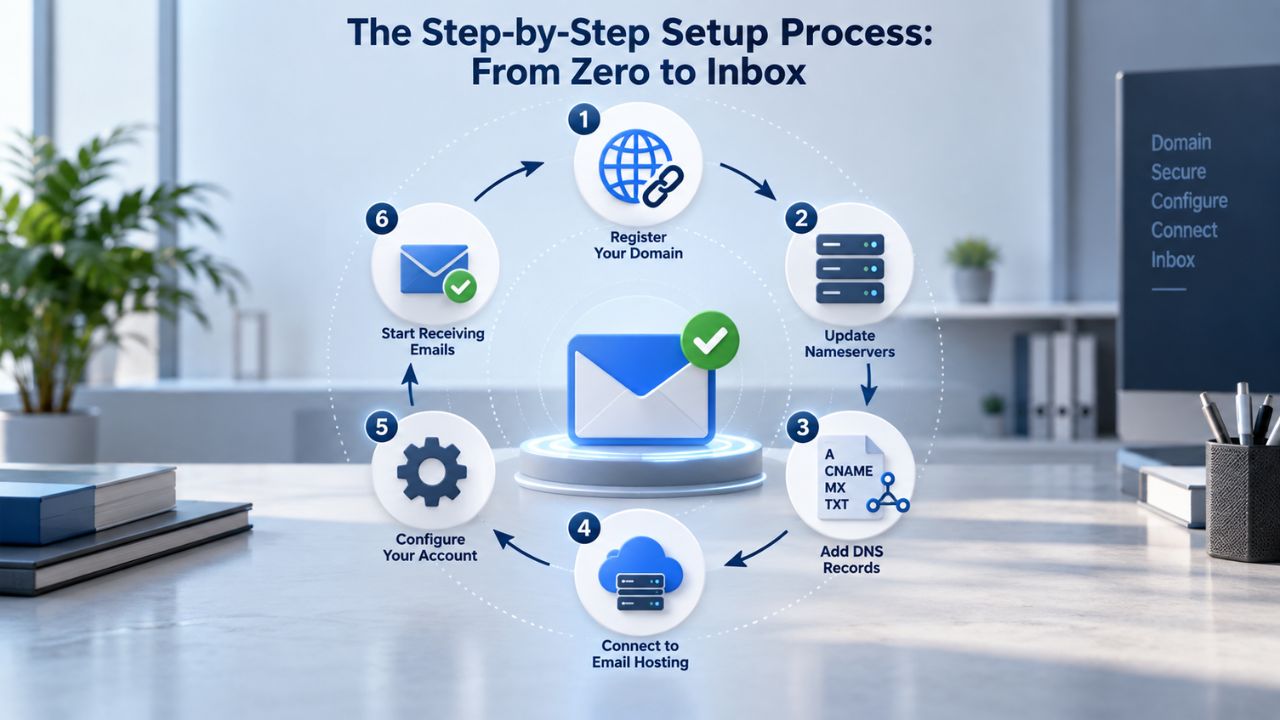
The Step-by-Step Setup Process: From Zero to Inbox
Creating a professional email takes seven concrete steps and usually takes under an hour. Most of the waiting is DNS propagation, the internet distributing your domain settings globally through its worldwide network of servers. This happens automatically overnight; you don’t need to do anything except wait.
The process looks complex at first, but each step is straightforward and automated by professional email hosting providers. You’ll choose your email format, register or connect your domain, select a hosting provider, create your mailbox, configure DNS records, and test everything. Let’s walk through each step so you understand what happens and why.
Step 1: Pick Your Email Address Format
Decide on a format before registering anything. Professional email naming conventions matter: firstname.lastname@company.com is clear and easy to verify, while casual handles like bossman99@company.com can look unprofessional and land in spam. Common business email formats include firstname.lastname@company.com (most professional, scalable), firstname@company.com (clean, works for small teams), or role@company.com (support@company.com, sales@company.com, useful for shared inboxes).
Pick one format and stick with it across your team. Consistency builds recognition and prevents confusion. If your website lists sarah@company.com but your email signature says s.brown@company.com, customers get confused about which to use. Pick one format, enforce it from day one, and update all your contact listings and marketing materials to match that single format.
Step 2–3: Register Your Domain
Register your domain through a domain registrar’s search tool, choose an extension (.com remains most trusted, but .co or .io work well for tech-focused brands), and purchase it. Most domains are affordable to register annually. Keep it short, easy to spell, and easy to say aloud. Test it by saying your domain name out loud to friends; if people consistently misunderstand it, consider a different one.
Suppose your domain is already registered elsewhere; no problem. You can point it to a new email hosting provider via DNS records without moving registrars or re-registering. This flexibility means you can upgrade your email hosting whenever you want, even if you registered your domain years ago. Niya Digital walks you through pointing your existing domain to Titan Email, step by step.
Step 4: Choose an Email Hosting Provider
An email hosting provider stores your messages and routes them through your custom domain. You need one because owning a domain alone doesn’t give you a working inbox; the provider handles the actual sending and receiving. Options range from full productivity suites to specialized email-only services. Niya Digital’s Professional Email Hosting, powered by Titan Email, offers custom-domain email with built-in productivity tools, 24/7 support, and straightforward setup. Compare providers on storage capacity, features, support quality, and uptime commitments. Most include webmail access, mobile apps, and calendar/contacts management.
Step 5: Create Your Mailbox
In your hosting provider’s dashboard, create your email account. Enter your desired address (john@company.com), set a strong password, and confirm. The mailbox is now active in the system, but email won’t route to it yet. That happens next, when you configure DNS records. Think of this step as creating the mailbox; the next step tells the internet where to find it.
Step 6: Configure DNS Records (MX, SPF, DKIM, DMARC)
This technical step confuses many people, but most hosting providers automate it. You’re telling the internet’s domain name system (DNS) where your email lives. Add two MX records pointing to your email provider’s mail servers (for example, mx1.titan.email priority 10, mx2.titan.email priority 20), an SPF record (v=spf1 include:spf.titan.email ~all), a DKIM record with your provider’s unique key, and optionally a DMARC record to protect against spoofing.
Your hosting provider usually gives you exact values to paste into your domain’s DNS settings. If you registered your domain with the same provider (common with all-in-one hosts), this is one click. If not, you log into your domain registrar’s control panel, find the DNS/Advanced DNS section, and paste the records there. Most hosting providers have detailed walkthroughs showing exactly where to paste each record and what to look for when verifying.
Step 7: Test and Verify
Once DNS records are live, send a test email to yourself from your new address. Check that it arrives, verify that authentication (SPF/DKIM) is passing in the email headers, and test on mobile and desktop. Most hosting providers have a verification tool in their dashboard; use it to confirm all records are configured correctly. This final check takes five minutes and ensures everything is working before you start using your professional email for important business communications.
| Step | Action | What Happens | Typical Timeframe |
|---|---|---|---|
| 1. Choose format | Decide on a naming convention (firstname.lastname or role-based) | None (decision only) | 5–10 minutes |
| 2. Pick domain type | Decide between a new custom domain or an existing domain | None (decision only) | 5–10 minutes |
| 3. Register domain | Purchase domain through registrar (if needed) | Domain becomes active at registrar | 5–15 minutes |
| 4. Choose email host | Research and select an email hosting provider | None (decision only) | 15–30 minutes |
| 5. Create mailbox | Set up email account in hosting provider’s dashboard | Account created and ready for configuration | 5–10 minutes |
| 6. Configure DNS | Add MX, SPF, DKIM, DMARC records in DNS settings | Records saved but not yet active globally | 10–20 minutes |
| 7. Wait for propagation | DNS changes spread across the internet | Email service becomes functional; MX records active | 1–48 hours (typically 6–24) |
| 8. Test setup | Send/receive test emails; verify authentication | Full system operation confirmed | 5–10 minutes |
Email Authentication Explained: SPF, DKIM, and DMARC
Three standards work together to prove your emails are legitimate and prevent criminals from spoofing your domain. They sound technical, but they solve a real problem: anyone can claim to send email from your domain. These standards let receiving mail servers verify it’s really you, and major email providers now require them for any serious business domain.
Email authentication isn’t optional anymore; it’s a baseline expectation. Gmail, Microsoft, Yahoo, and enterprise mail systems worldwide check these records before deciding whether to trust your email. Understanding these three standards, what they do, why they matter, and how they work together, helps you appreciate why Niya Digital configures them automatically when you set up Professional Email Hosting.
SPF (Sender Policy Framework), What It Does
SPF is a DNS TXT record that lists the IP addresses and hostnames authorized to send mail on behalf of your domain. When a receiving server gets a message, it checks the domain you’re sending from, looks up that domain’s SPF record, and verifies that the connecting IP is in the allowed list. SPF prevents spammers from forging your domain in the envelope sender, the technical “from” address that mail servers check before deciding whether to trust your email.
SPF, DKIM, and DMARC are governed by IETF standards (RFC 7208 for SPF, RFC 6376 for DKIM, RFC 7489 for DMARC), meaning every major email provider recognizes and enforces them consistently. When you set up email hosting, your provider’s SPF record includes their servers in your domain’s authorization list. This tells the world: “These mail servers are authorized to send email on behalf of @mydomain.com. If you see an email from my domain coming from a different server, it’s fake.”
DKIM (DomainKeys Identified Mail), Digital Signatures for Email
DKIM cryptographically proves that the message content was not modified in transit and that someone who controls the stated domain signed it. DKIM adds a digital signature to email headers, with the validation key published in DNS. Think of it as a wax seal on a letter; the recipient verifies the seal matches your public key, proving you sent it and it wasn’t tampered with during delivery.
Setting up a DKIM record for your domain helps prevent your emails from going to spam at the recipient end. Most hosting providers generate a DKIM key automatically; you copy it into your DNS settings. DKIM is especially important if you send newsletters, follow-ups, or any email volume beyond casual correspondence. Email providers trust DKIM-signed messages more than unsigned ones, and that trust translates to better inbox placement.
DMARC (Domain-based Message Authentication, Reporting & Conformance), Policy & Enforcement
DMARC is the policy layer that builds on SPF and DKIM to specify enforcement policy for receiving servers. It allows domain owners to define how receiving mail services should handle emails that fail SPF or DKIM checks (reject, quarantine, or allow). DMARC also provides reporting on authentication results, so you can monitor whether legitimate emails are passing authentication and whether attackers are trying to spoof your domain.
Authentication is foundational to modern email. Google’s sender guidelines require anyone sending more than 5,000 messages per day to Gmail accounts to publish SPF, DKIM, and a DMARC record. Yahoo adopted an equivalent standard on the same timeline, and Microsoft followed suit. Even below that threshold, all three records are strongly recommended for any business domain. Niya Digital configures all three automatically when you set up Professional Email Hosting, so you don’t have to learn the technical details yourself.
Start Your Professional Email Today with Niya Digital
Once you’ve chosen your format and domain, setting up professional email takes just a few clicks. Niya Digital’s Professional Email Hosting, powered by Titan Email, handles the technical setup so you can focus on business. Our team walks you through domain configuration, DNS records, and getting email working on all your devices. No hidden complexity, no surprise fees, just straightforward business email with 24/7 support.
Choosing a Format and Naming Convention That Works
Your email address is part of your brand. A thoughtless format can land you in spam filters; a well-chosen one builds recognition and trust over time. The format you choose should reflect your business size, industry, and growth plans.
The best email format looks professional, stays consistent across your team, and scales with your business. Your choice affects how customers perceive you, how easily you can delegate email responsibilities, and how professional your communications appear. Take time to choose wisely, because changing your company email format later is costly and confusing.
Firstname.Lastname vs. Role-Based: The Trade-Off
Professional email naming conventions matter: firstname.lastname@company.com is clear and easy to verify, while casual handles like bossman99@company.com can look unprofessional and land in spam. Firstname. lastname scales as your team grows; each person gets their own address that’s easy to remember and verify. Role-based (support@company.com, sales@company.com) works if multiple people share or monitor those inboxes.
For a personal brand or solopreneur, firstname@company.com is clean and memorable. For a growing team, firstname.lastname@company.com prevents confusion and makes it clear who’s responding to emails. Reserve role-based emails for services you want multiple team members to handle (support desk, inquiries, billing). The key is consistency: pick one format, use it everywhere, and train your team to follow it.
Consistency and Branding
Use the same format across your team and in all your contact listings. Inconsistency signals disorganization to customers. If your website lists sarah@company.com but your email signature says s.brown@company.com, customers get confused about which to use and may try both. Pick one format and enforce it from day one. This consistency builds brand recognition and makes it easy for customers to reach the right person.
| Email Format | Example | Best For | Professional Perception |
|---|---|---|---|
| Custom domain formal | jane.smith\@company.com | B2B, client-facing roles | High (professional standard) |
| Custom domain casual | jane\@company.com | Internal, small org | High (professional) |
| Custom domain role-based | support\@company.com | Department, service inbox | High (functional) |
| Custom domain executive | jane.smith.ceo\@company.com | Executive, formal roles | Very high (specific role) |
| Free provider branded | jane\@proton.me | Freelancer; supplementary | Medium (provider-branded) |
| Free provider domain | jane\@gmail.com | Personal use only | Low (personal-only) |
Connecting Your Domain to Email Hosting: The DNS Setup
DNS (Domain Name System) records are instructions telling the internet where different services for your domain live. For email, you add records that say, “When mail comes for @mydomain.com, send it to this email server.” These records are the backbone of professional email; without them, no one can send you email at your custom domain.
The DNS setup is the one step that feels technical, but Niya Digital guides you through it end to end. You don’t need to understand DNS deeply; you need to know where to paste the values your email hosting provider gives you. Most hosting providers automate this so much that it takes five minutes.
The Three Records You Need
MX Records (Mail Exchanger) direct incoming email to your hosting provider’s mail servers. You typically add two MX records with different priorities (one is primary, one is backup). Add two MX records pointing to your email provider’s mail servers (for example, mx1.titan.email priority 10, mx2.titan.email priority 20). This redundancy ensures email reaches you even if one mail server is temporarily down.
SPF Record (TXT) authorizes specific servers to send on your domain’s behalf. Add an SPF record like v=spf1 include:spf.titan.email ~all. This single line tells receiving mail servers that Titan Email’s servers can send on your domain’s behalf. DKIM Record (TXT) adds a digital signature to outgoing mail. Your hosting provider generates a unique DKIM key; you add it as a TXT record at a special subdomain (usually titan._domainkey.yourdomain.com).
DNS Propagation: What to Expect
DNS records update instantly, but changes need to propagate across the internet, which usually takes 1–4 hours and, in some cases, up to 24–48 hours. During propagation, some emails may route via old records and some via new; this is normal and temporary. Most hosting providers offer a verification tool to confirm when MX and SPF records are live.
Don’t delete old email servers immediately after changing MX records. Keep them active for 24–48 hours so you don’t lose email in transit. Once propagation is complete and you’ve verified everything is working, you can safely point your domain entirely to your new email hosting provider. Niya Digital’s support team can walk you through this transition, ensuring you don’t lose any incoming mail during the switchover.
Where to Add DNS Records
If you registered your domain with your email hosting provider (common with all-in-one offerings), DNS editing is usually one click in your dashboard. If your domain is registered elsewhere, you log into your domain registrar’s control panel, find the DNS/Advanced DNS section, and add or edit records there. Every registrar’s interface is slightly different, but the workflow is similar: add a record, select the type (TXT, MX), paste the value, and save.
Once you’ve added and saved all records, the changes need to propagate across the internet. This usually takes 1–4 hours but can take up to 24–48 hours. After you add the records, use your hosting provider’s verification tool to check each record’s status. Titan Email highlights any missing or incorrect values, making it easy to spot problems before they affect your email.
Setting Up Email on Mobile, Desktop, and Webmail
Once your email is live, you need to access it. Professional email hosting gives you three options: webmail (log in to a website), a desktop client (Outlook, Apple Mail, Thunderbird), or a mobile app (iOS or Android). Each email hosting plan is fully compatible with any mobile device or mail client. Titan provides native mobile apps for Apple and Android devices so that you can access your email from anywhere.
The best part is that these options aren’t exclusive; you can use all three simultaneously. Access your email from your phone in the morning, your desktop at the office, and webmail from a friend’s computer. Everything syncs automatically, so messages you read on one device appear as read on another.

Webmail Access (Easiest)
Log into your email provider’s webmail portal with your address and password. You’re in immediately, no setup, no configuration needed. Webmail works on any device with a browser, from any location. You can check email from a hotel, coffee shop, or internet cafe without installing anything. Webmail is the fastest way to get started and works perfectly for occasional access.
Today’s webmail interfaces are sophisticated and fast, rivaling desktop clients in features. You can create folders, set up filters, manage contacts, and access your calendar directly from the browser. Most professional email hosts optimize their webmail for mobile, so it works just as well on a phone as on a desktop computer. There’s no learning curve; if you’ve used Gmail’s webmail, you’ll recognize the interface immediately.
Mobile Apps
Download your email provider’s native app from the App Store or Google Play. Enter your email address and password, and the app auto-configures everything. Native apps are faster and more feature-rich than webmail, and they work offline; you can read emails and compose drafts even without an internet connection. The app syncs when you reconnect. Titan’s mobile apps for iOS and Android are designed for productivity, with built-in read receipts, follow-up reminders, and email templates.
Mobile apps let you manage your email while traveling, at meetings, or working from home. You get notifications for important emails, can quickly respond to customers, and never miss urgent messages. Most professional email hosting providers offer free mobile apps and keep them regularly updated with new features.
Desktop Clients (Outlook, Apple Mail, Thunderbird)
For desktop, you’ll need IMAP credentials (usually your email address and password). Email access works via IMAP/POP3, and your hosting provider handles the technical configuration. Most business email hosting automatically detects IMAP settings, so setup is usually “add account, enter credentials, done.” IMAP keeps emails on the server and syncs across all your devices. POP3 downloads emails to one device and usually deletes them from the server; it works best for single-computer access.
Desktop clients give you powerful search, advanced filtering, and offline access. You can organize emails into custom folders, create rules that automatically sort incoming mail, and compose messages even without an internet connection. If you spend most of your workday at a computer, a desktop client is the most efficient way to manage email.
Multi-Account Access
If you manage multiple email addresses (personal, business, department-specific), most modern clients and webmail let you add all accounts to one inbox. Professional email hosting includes features like email aliases (alternate addresses that route to your main inbox) and forwarding rules so that you can consolidate without confusion. This flexibility lets small business owners manage multiple department inboxes without constantly logging in and out.
Managing Multiple Team Accounts and Scaling
As your business grows, you’ll add team members. Professional email hosting lets you scale without a headache. Adding new accounts is as simple as entering a name and clicking save. You don’t need to rebuild mail servers, manage technical infrastructure, or worry about running out of capacity.
The best email platforms scale with you. When you hire your first employee, adding their email account takes 60 seconds. When you hire your tenth, it’s still 60 seconds. As your business grows, your email system adapts without requiring server upgrades or complex technical infrastructure.
Adding and Removing Accounts
From your hosting provider’s admin dashboard, create a new mailbox for each team member. With your own email hosting, you control account creation and deletion, add or remove accounts as your team changes, and assign storage quota per user based on needs. Niya Digital’s team typically guides you through adding accounts or can handle migration if you’re coming from another provider, ensuring nothing gets lost during the transition.
Shared Calendars and Collaboration
Professional email hosting includes calendars and contacts. You set security policies, enable forwarding rules, create catch-all addresses, aliases, and forwarding rules, all from a single dashboard. Shared calendars let your team see availability without needing complicated add-ons. A client can email support@company.com, and three team members can see the message and respond appropriately based on who’s available.
Storage and Quotas per User
Assign storage per person; some roles need less (support desk), others need more (sales, management). You can set storage limits, archive old emails, and keep your system clean without micromanaging individuals. Most professional email hosting lets you customize storage per plan, so you pay only for what you need while keeping everyone’s email accessible and searchable.
Ensuring Deliverability and Avoiding Spam Filters
Setting up authentication records doesn’t guarantee inbox placement, but it substantially improves your odds. To stay out of spam, follow a few principles that email providers reward with better inbox delivery. The most important thing you can do is send legitimate emails to people who want to receive them.
Deliverability combines technical setup (authentication records) and behavior (sending good email to engaged recipients). Get both right, and you’ll have no trouble reaching inboxes. Ignore either one, and even the best email hosting can’t save you from spam filters.
Send Volume and Reputation
Receiving mail servers track your reputation based on sending volume, complaint rates, and how often recipients mark you as spam. Send legitimate emails to engaged recipients, honor unsubscribe requests, and keep complaint rates below a healthy threshold. Email providers require spam complaint rates below 0.10% and avoid reaching 0.30% or higher for high-volume senders.
Building reputation is like building credit; it happens slowly over time through consistent, honest behavior. When you first set up a new domain, mail servers treat you cautiously. Send clean, legitimate email and respond quickly when recipients complain or unsubscribe, and your reputation improves day by day.
Email Content and Headers
Avoid spam-trigger words and phrases (all caps, excessive punctuation, “click here now”). Use clear subject lines that match your body content. Sign your emails professionally with your name, title, and company. Professional email naming conventions matter: firstname.lastname@company.com is clear and easy to verify, while casual handles can look unprofessional and land in spam. Keep your email HTML clean, avoid heavy images, and use simple, professional templates.
Most spam filters can recognize deceptive formatting, clickbait subject lines, and aggressive sales language. Professional email should sound professional, clear, concise, and respectful of the recipient’s time. If your email would make a good first impression in a business meeting, it will make a good impression in a spam filter.
Monitor Your Sending Reputation
Niya Digital’s team has found that most deliverability problems aren’t DNS records; they’re poor content, high complaint rates, or sending to unengaged lists. Monitor recipient feedback, respect bounce notifications, and remove undeliverable addresses. Professional email hosting makes this easier by integrating bounce handling and complaint notifications into your account. When an email bounces, you know to stop sending to that address. When someone complains, you remove them from your list.
Why Professional Email Hosting Is Worth the Investment for Small Businesses
Free email feels budget-friendly until you lose a client because your email landed in spam or looked unprofessional. Professional email hosting transforms how customers perceive your business and ensures your communications reach the people who matter most. The investment is small, but the returns compound.
Professional email hosting is one of the highest-ROI tools a small business can deploy. It costs less than lunch per week but communicates credibility that millions in marketing can’t buy. When a prospect opens an email from your@company.com instead of your@gmail.com, they’re immediately more likely to trust you, read your message, and respond.

Cost-Benefit for Growing Businesses
Business email hosting is advantageous because it advertises the business and establishes the authority of the person representing the organization. Professional email helps build a brand name and signals stability to customers. For a five-person team, professional email hosting costs less than a single good coffee per person per week, yet it conveys professionalism that free email cannot.
The comparison is obvious when you think about it: losing even one sale because a prospect didn’t trust your @gmail.com address would pay for professional email for an entire year. The first client deal you close because they trusted your professional domain pays for years of email hosting.
Control and Compliance
With your own email hosting, you control account creation and deletion, per-user storage allocation based on needs, security policies, email routing, and you can create catch-all addresses, aliases, and forwarding rules. This control also matters for compliance; GDPR, HIPAA, and other regulations often require audit trails and data governance that free email can’t provide. When you need to prove you didn’t delete important emails or want to verify who saw what message, professional email hosting gives you that documentation.
Long-Term Brand Building
Every email you send is a brand impression. A professional domain in your email address tells the world you’re serious. Over time, that consistency builds recognition and trust that no amount of marketing can replicate. When customers see consistent, professional email from your team, they remember your company as the professional choice in your industry.
Explore More Professional Email Solutions with Niya Digital
Professional email hosting powered by Titan Email brings custom-domain email, anti-spam protection, mobile and desktop access, and 24/7 support to your business. Niya Digital handles setup, migration from your old email system if needed, and ongoing support so your team can focus on business, not technical details. Whether you’re just starting or scaling across multiple teams, professional email hosting grows with you. Ready to make the upgrade?
Frequently Asked Questions
How long does it take to set up a professional email address?
The actual setup takes 15–30 minutes: register domain, choose hosting, create account, add DNS records. Propagation takes 6–24 hours before email is fully functional. Total time from decision to first email: under 2 hours. Most of the waiting is DNS propagation happening automatically overnight.
Do I have to register a new domain, or can I use an existing one?
You can use an existing domain or register a new one. If your domain is registered elsewhere, you point its DNS to your email hosting provider. No need to move registrars or re-register. This flexibility means you can upgrade to professional email anytime, even if you registered your domain years ago.
What’s the difference between IMAP and POP3 email access?
IMAP keeps emails on the server and syncs across all your devices. POP3 downloads emails to one device and removes them from the server. IMAP is better for multi-device access; POP3 works if you access email from one location only. Most modern email setups use IMAP because it’s more flexible and accessible.
Can I send from my custom domain using Gmail?
Yes. Gmail’s “Send mail as” feature lets you compose from any email address you own. However, professional email hosting gives you full control and better deliverability than forwarding to Gmail. Gmail sometimes marks forwarded emails as suspicious, while professional hosting maintains full authentication.
Will my emails look different if I use professional email hosting instead of Gmail?
No. Professional email hosting webmail and mobile apps look and work similarly to Gmail. You’re changing the domain, not the experience. The interface will feel familiar, and your team won’t need training.
What happens to my email if I change hosting providers?
You can migrate emails from your old provider to your new one using IMAP import or by asking your new provider to handle migration. Most hosting providers offer free migration assistance. You won’t lose anything, and the provider handles the transition. Your old emails, contacts, and calendar events all transfer to the new system.
Is professional email hosting secure?
Yes. Professional email hosting includes encryption in transit (TLS), encryption at rest, two-factor authentication, anti-spam, anti-virus, and regular backups. Professional hosting gives you control over your team’s security policies and audit trails for compliance. Free email offers similar protection, but professional hosting lets you manage security at an organizational level.
Can I have multiple email addresses on one domain?
Yes. You can create as many mailboxes as you need: john@company.com, sarah@company.com, support@company.com, etc. You can also create aliases, alternate addresses that forward to one mailbox. This flexibility lets you set up department inboxes, role-based addresses, and multiple contact points without complexity.
Do I need a website to have professional email?
No. Professional email needs a domain name. Your domain doesn’t need a website; it just needs email configured. Many businesses use domain-only hosting for email without a website. Some service businesses rely entirely on email and social media without a website presence.
What if I get locked out of my email account?
Contact your hosting provider’s support team. Professional email hosting includes 24/7 support to help you regain access, reset passwords, and recover accounts. Your email is too important to leave you stranded; professional hosts prioritize account recovery.
Can I check my professional email on my phone?
Yes. Download your hosting provider’s mobile app or use the webmail on any phone browser. Professional email includes native iOS and Android apps for fast, secure access on the go. You can also add your email to Apple Mail, the Gmail app, or any standard email client that supports IMAP.
How much storage do I get per mailbox?
Storage varies by plan. Entry-level plans offer 5–10 GB per mailbox; premium plans offer 50–100+ GB. You can upgrade anytime as your needs grow. Most professional email hosting offers generous storage, enough for years of emails without running out of space.
What’s the difference between professional email hosting and Google Workspace?
Google Workspace includes Gmail plus Google’s full productivity suite. Professional email hosting through Niya Digital, powered by Titan Email, is focused on email with calendars and contacts. Choose the approach that fits your workflow and budget.
Can I keep my old email address while switching to a new one?
Yes. Set up email forwarding from your old address to your new professional address so you don’t miss anything during the transition. Once you’ve moved, you can keep forwarding active as long as you need. This safety net ensures you never miss an important email during the switch.
What’s the difference between business email and personal Gmail?
Business email uses your domain (john@company.com), includes professional features like team collaboration and security controls, and signals you’re an established business. Personal Gmail uses Google’s domain (john@gmail.com), lacks team features, and reads as a hobbyist account. For business, a custom-domain address is essential for credibility.
Glossary
- MX Record: A DNS record that directs incoming email to your email hosting provider’s mail servers. You typically need two MX records (primary and backup) so email reaches you reliably even if one server is temporarily down.
- SPF (Sender Policy Framework): A DNS TXT record that lists the mail servers authorized to send email on behalf of your domain. Receiving servers check SPF to verify emails are legitimate and weren’t forged by spammers using your domain name.
- DKIM (DomainKeys Identified Mail): A digital signature added to your outgoing emails that proves they came from you and weren’t tampered with during delivery. DKIM uses a pair of cryptographic keys (public and private) to sign and verify messages.
- DMARC (Domain-based Message Authentication, Reporting & Conformance): A policy that tells receiving mail servers what to do if an email fails SPF or DKIM checks (reject it, quarantine it, or allow it). DMARC also generates reports so you can monitor your domain’s authentication.
- DNS (Domain Name System): The internet system that translates domain names (like company.com) into IP addresses and stores records (like MX, SPF, DKIM, DMARC) that direct traffic and services for your domain to the right servers.
- Webmail: An email interface you access through a web browser (no software installation needed). You log in with your email address and password, and manage your inbox in the browser from any device.
- IMAP/POP3: Two protocols for accessing email on desktop or mobile clients. IMAP keeps emails on the server and syncs across devices. POP3 downloads emails to one device and usually deletes them from the server.
- Email Deliverability: The ability of your emails to reach the inbox instead of the spam folder. Deliverability depends on authentication (SPF, DKIM, DMARC), sender reputation, email content, and recipient engagement. Professional email hosting helps improve deliverability through proper authentication setup.