
Why Hosting Migrations Risk Data Loss
A website hosting migration isn’t a simple upgrade. It’s a complex handoff with multiple steps, and data can be lost or corrupted if anything goes wrong. Understanding the risks shows why a backup strategy matters before you start.
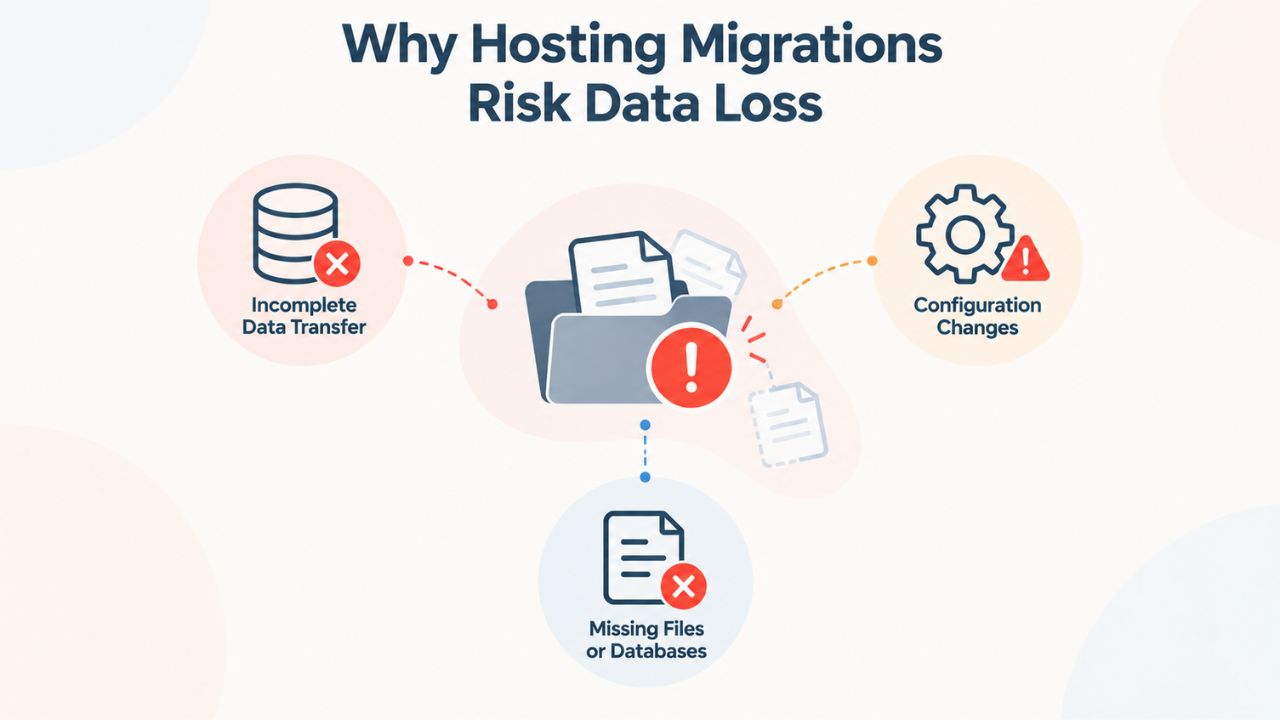
What Can Go Wrong During Migration
Files may not transfer completely if the network connection drops during the transfer process, leaving your site incomplete or broken. Database exports can fail silently, losing rows or corrupting character encoding without displaying an obvious error message. Hosting providers sometimes clean up backups within 7–30 days, and if you rely solely on a host-side backup, they may delete it before you even notice something went wrong.
When something fails during migration, you may not discover it until after the process has started, and by then, your site on the old host may already be offline. A third-party, independent backup gives you a safety net. It sits outside the migration process, ready to restore your site to its pre-migration state if the new host’s copy becomes corrupted, incomplete, or misconfigured. This is why hosting providers universally recommend taking a full backup before initiating any migration.
The Financial and Trust Impact of Migration Failure
Website downtime costs real money. Lost transactions, lost visitors, damaged trust- every hour offline is measurable business impact. A hosting migration gone wrong can mean hours or days of manual recovery work, rebuilding configurations by hand, or (worst case) losing months of content if you never took a backup. A complete, tested backup means you can recover in minutes instead of days, and you have proof your data was intact at a known point in time.
Beyond the financial cost, migration failures damage customer trust. If your e-commerce site loses order history, if your blog loses posts, or if your contact database disappears, customers notice. They remember that downtime. A tested backup taken before migration turns what could be a catastrophic event into a manageable hiccup. You restore from the backup, verify everything works, and move forward. A pre-migration backup is far cheaper than recovering from a failed migration without one.
Website Backup Plans & Pricing
Select the Website Backup package that best fits the size and peace of mind requirements of your website. Your data is safeguarded without going over budget thanks to our adaptable choices.
Website Backup 5 GB
Recommended for documents and files.
- Automatic daily backups
- Built-in daily malware scanning
- Back up a file, folder or an entire database
- Continuous security monitoring
- Downloads to local storage
- Easy one-click restore
- Secure cloud storage
- Expert 24/7 customer support
- One website per account

Website Backup 25 GB
Recommended for photos and music.
- Automatic daily backups
- Built-in daily malware scanning
- Back up a file, folder or an entire database
- Continuous security monitoring
- Downloads to local storage
- Easy one-click restore
- Secure cloud storage
- Expert 24/7 customer support
- One website per account
Website Backup 50 GB
Recommended for videos and multimedia.
- Automatic daily backups
- Built-in daily malware scanning
- Back up a file, folder or an entire database
- Continuous security monitoring
- Downloads to local storage
- Easy one-click restore
- Secure cloud storage
- Expert 24/7 customer support
- One website per account
What a Complete Pre-Migration Backup Must Include
Not all backups are equal. A partial backup, only files, or only the database, leaves you unable to fully recover after a migration. Understanding what a complete backup contains ensures you’re actually protected.
The Three Layers of a Complete Website Backup
A complete website backup includes three distinct layers that must all be captured together. First, website files include all application code, theme files, plugins or extensions, images, CSS, JavaScript, and static assets. Without these, the site cannot display or function, no matter how intact the database is. Second, the database contains all posts, pages, user accounts, settings, comments, and other dynamic content stored in your site’s data system. Without this, your content is lost even if files restore correctly.
Third, custom configurations include any custom code, third-party API integrations, environment variables, or non-standard settings that live outside the standard file and database structure. A partial backup, say, files only, will restore your site’s appearance and code, but all your posts, user data, and configurations will be gone or reset to defaults. A database-only backup restores data but leaves the site unable to display pages or load images. For hosting migrations, include both in a single, unified backup capture. This is non-negotiable if you want to restore your site to a working state on a new host.
Why Third-Party Backup Services Capture Everything
Hosting providers often offer partial backups, if they offer any at all. One provider might back up only the database; another might back up files but not the database. Some don’t offer backups at all and expect you to manage your own. An automated website backup service captures the full scope automatically. It scans your server, captures every file, exports your database, and stores it all together as a single restore point. CodeGuard (GoDaddy Website Backup), which powers the backup technology behind Niya Digital’s reseller service, handles this unified capture.
This unified backup approach is easier to manage than juggling separate manual exports, less error-prone than copying files by FTP, and much faster to restore. When you’re switching hosts, having the complete backup in one place, stored off-site in the service’s own infrastructure, means you can recover the entire site in one operation rather than reassembling pieces. You don’t spend hours troubleshooting which files transferred correctly and which didn’t. You restore the backup, and your site is back to its pre-migration state.
Pre-Migration Backup Components & Impact
| Backup Component | What It Contains | What Happens If Missing |
|---|---|---|
| Website Files | Code, themes, plugins, images, CSS, JavaScript, assets | Site displays incorrectly or not at all; no visual elements |
| Database | Posts, pages, users, comments, settings, dynamic content | All content is lost even if files restore; site is empty |
| Configurations | Custom code, API integrations, environment variables | Features and integrations fail; site loses functionality |
| File Permissions | User/group access controls, executable flags | Files may not load correctly after restore |
| Third-Party Integrations | Payment processors, email systems, analytics configs | Payment, email, tracking functionality breaks after restore |
| DNS Records & Domain Settings | Domain pointing and DNS configuration | New host cannot receive traffic even if restore succeeds |
When to Back Up Before Changing Hosts
Timing matters. Backing up too early means you lose your final changes before migration. Backing up only after the migration has started defeats the purpose. The right strategy depends on your migration timeline and how frequently your site updates.
The Pre-Migration Backup Window
Plan your backup for as close to your cutover time as practical, ideally within 24 hours before you initiate the migration process on the new host. This captures your site in its final state, including any last-minute content updates or configuration tweaks. For sites with frequent updates (e-commerce, news sites, user-generated content), back up even closer to cutover, ideally within the same hour if possible. For static sites with rare changes, backing up a few days ahead is acceptable.
The key timing principle is this: before initiating any file transfer to the new host, your backup should already be complete and stored off-site. This gives you an exact snapshot of your site as it existed at your chosen moment. If the migration begins and something goes wrong, you’re restoring to a known, captured state, not trying to piece together what your site looked like before things went sideways.
Automated Backups vs. Manual On-Demand Captures
If you already run automated website backups through a service like Niya Digital’s Website Backup Service, powered by CodeGuard technology, your regular daily or weekly backups may already provide coverage. However, best practice is to manually trigger an additional full backup immediately before the migration starts. This ensures you have a snapshot of your exact final state, not just the most recent automated backup, which might be hours or days older.
Automated backup services make this effortless. You request a backup on demand, and it completes within minutes. You don’t need to remember to back up, risk incomplete manual exports, or have the technical skill to initiate one. This on-demand backup option is critical for migration scenarios. It lets you capture your site exactly when you want it, immediately before the migration process begins, rather than relying on a scheduled backup that might run at an inconvenient time or capture data hours before your actual cutover.
Backup Strategy Decision Framework
| Scenario | Recommended Backup Approach | Key Considerations | Restore Strategy |
|---|---|---|---|
| Small static site (< 500 MB, rare updates) | Weekly full backup with 30-day retention | Low data loss risk; infrequent updates mean minimal downtime cost | Restore to staging domain first; verify content is complete |
| Medium business site (500 MB–5 GB, daily updates) | Daily full backup with 60-day retention | Moderate update frequency; need recent backup but also historical points | Restore to staging; test for 24 hours before cutover |
| High-traffic e-commerce (5–20 GB, hourly transactions) | Twice-daily or continuous backup with 90-day retention | Frequent updates and high transaction volume; data loss is expensive | Restore to staging; run test transactions before going live |
| User-generated content platform (10+ GB, constant updates) | Continuous backup or 6-hourly with 120-day retention | Rapid data changes; users expect content availability; compliance requirements | Restore to staging; verify all user data; test notifications |
| Mission-critical application (any size) | Continuous backup with 180-day or longer retention | Zero tolerance for downtime; multiple restore points needed | Restore to staging, run full validation, then live restore |
Full Site Backup vs. Incremental Backup for Hosting Changes
Two main backup types exist, each with different trade-offs. Understanding the difference helps you choose the right approach for a hosting migration specifically.
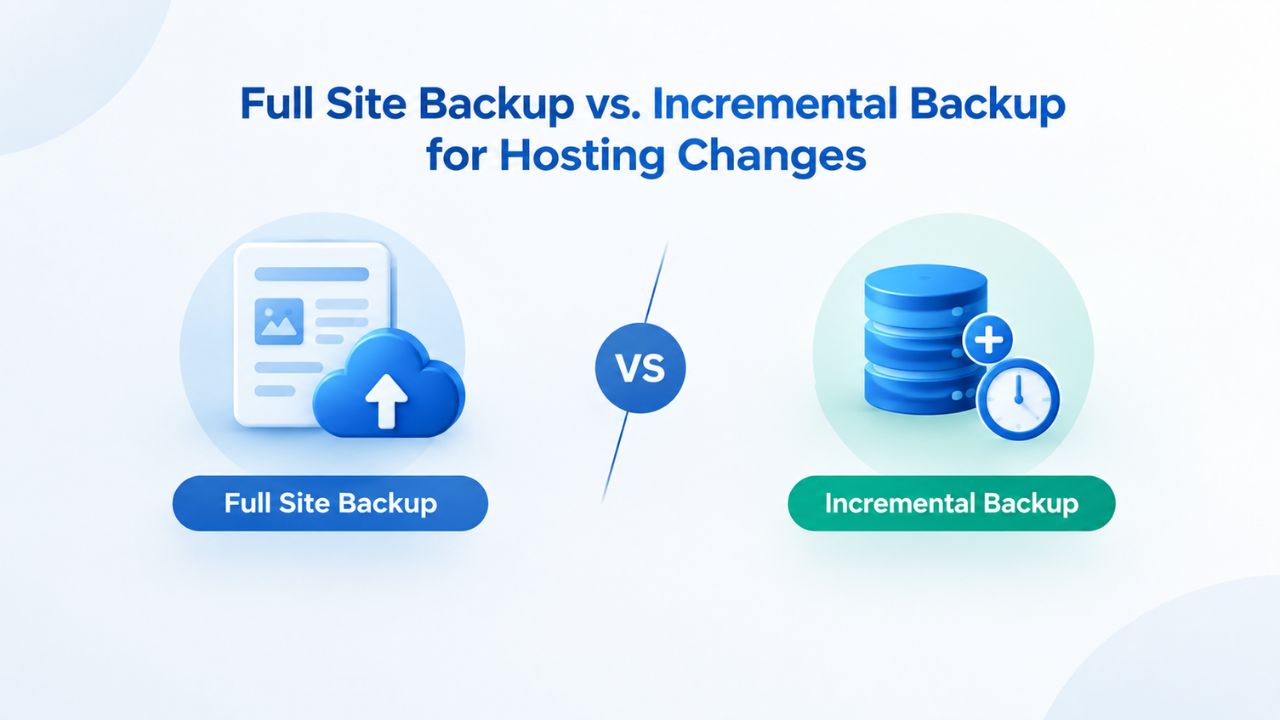
Full Backups Capture Everything
A full backup is a complete copy of every file and database record, taken at a specific moment in time. It’s the most straightforward to restore: select the full backup, restore it, and your site is back to exactly that point. Full backups take longer to create than incremental backups and use more storage space, but they’re simple and reliable. Every piece of your site is captured in one file or archive.
For a hosting migration, a full backup is the standard, recommended choice. When you restore to the new host, you restore a single, complete snapshot, not multiple layers of incremental backups that must be applied in order. This eliminates the risk that an incremental layer failed silently or is missing. Full backups are also forgiving: if an incremental backup strategy had a gap or failure three backups ago, you wouldn’t know until you tried to restore. A full backup has no such hidden dependencies.
Incremental Backups for Ongoing Efficiency
An incremental backup captures only files and database records that changed since the previous backup. If you back up your site daily, the first backup is full, and each subsequent backup captures only that day’s changes. This uses less storage and runs faster than daily full backups, making incremental backups economical for routine maintenance between migrations. Incremental backups are excellent for regular ongoing protection, capturing changes as your site is updated daily.
However, for pre-migration backups specifically, stick with a full backup. Full backups are easier to manage when you need to restore them, restore faster, and don’t require you to piece together multiple incremental layers if something goes wrong during the restore process. For a high-stakes event like a hosting migration, simplicity and reliability matter more than storage efficiency.
Off-Site Storage and Why It Protects Your Migration
Where your backup lives matters as much as what it contains; a backup stored only on your current hosting provider’s servers isn’t truly independent protection.
Hosting Provider Backups vs. Off-Site Storage
Some hosting providers keep backups on their own servers. This sounds convenient, but it creates a single point of failure. If the entire data center experiences a catastrophic failure, you lose the backup. If a security breach compromises the provider, attackers could access your backup. If the provider goes out of business or closes, it may delete or lose your backup entirely. Additionally, hosting providers may clean up old backups after 7–30 days, and if you don’t notice or plan your migration around that window, your backup may be gone when you need it most.
Hosting-provider backups are better than nothing, but they’re not fully independent protection. They exist for the provider’s convenience and business continuity, not necessarily for yours. For hosting migrations, having your backup stored by the hosting provider you’re leaving is a logical contradiction. You’re moving away from that provider because you want a different service. Relying on that same provider for all your protection defeats the purpose.
How Off-Site Cloud Storage Protects You
An off-site backup stored outside your hosting provider’s infrastructure is immune to hosting-provider failure. If your current host gets hacked, has a data-center outage, or closes down, your off-site backup still exists and is still accessible. Services like CodeGuard (GoDaddy Website Backup), which powers Niya Digital’s Website Backup Service, maintain their own geographically distributed cloud storage infrastructure separate from the hosting providers they protect sites against.
When your backup runs, CodeGuard transfers the backup data to its own off-site servers, not to your hosting provider’s systems. This off-site copy is stored with redundancy- multiple copies across different physical locations- so that a single server or data-center outage doesn’t erase your backup. During a hosting migration, you access your backup from the service’s own independent infrastructure, download it, and restore it to your new host. The old hosting provider is completely out of the picture. This independence is the real security a backup service provides.
Hosting Provider Backup vs. Off-Site Storage Comparison
| Scenario | Hosting Provider Backup | Off-Site Service Backup |
|---|---|---|
| Data center outage at current host | Backup is lost with the data center | Backup remains accessible in separate infrastructure |
| Hosting provider security breach | Backup compromised alongside live site | Backup stored independently; remains secure |
| Provider deletes old backups | Automatic deletion after 7–30 days (varies by provider) | Retention controlled by your plan; kept as long as you need |
| Provider goes out of business | Backup disappears; unrecoverable | Backup remains in your account; accessible indefinitely |
| Site hacked or compromised | Backup on same vulnerable infrastructure | Backup isolated and unaffected by site compromise |
| Migration to new host | Limited portability; provider-specific restore process | One-click restore to any host regardless of provider |
| Cost of backup recovery/restore | May charge restore fees; no guarantee of success | Included in service; tested and documented restore process |
Ensure Your Backup Is Safe Before You Migrate
Your current hosting provider can’t protect your backup if you leave them. An off-site backup stored independently means your data is safe no matter what happens to your current host. Niya Digital’s Website Backup Service stores your backups in geographically redundant, off-site infrastructure powered by CodeGuard technology, completely separate from your hosting provider. Start protecting your site today.
Testing Your Backup Before the Migration Begins
An untested backup is an assumption, not insurance. Testing before you migrate takes 30 minutes and can prevent catastrophic surprises on migration day.
Why Backup Testing Matters
A backup can fail without you knowing it. The backup process might run successfully, reporting “backup complete”, but actually omit critical files, corrupt database records, or capture incomplete data. A site that looks fine on the surface may have a corrupted database that crashes when the backup tries to restore it. You won’t discover any of these problems until you actually try to use the backup in a real restore scenario.
Testing a backup before migration is straightforward: restore it to a test environment (a staging server, a local installation on your computer, or a temporary subdomain on any host) and verify the site works. Check that pages load without errors, images display, the database responds, user logins work, and any custom functionality runs correctly. If the test restore fails, you catch the problem now, before the migration, and have time to fix your backup setup, adjust your backup configuration, or choose a different backup service entirely.
Simple Steps to Test a Pre-Migration Backup
CodeGuard (GoDaddy Website Backup)’s one-click restore feature makes testing practical and quick. Select your most recent backup, choose a test destination (a different domain, subdomain, or a local installation), and initiate the restore. Within minutes, you have a working copy of your site as of that backup date. The process is fully automated; no manual file transfers or database imports are required.
Verify that the test site loads without errors, all pages and posts are present, the database works and is responsive, user logins function, and any third-party integrations (payment processors, email forms, API calls) are operating. If everything works, you’re ready to migrate with confidence. If something fails, investigate whether it’s a backup issue or a restore-configuration issue. You can adjust your backup service plan, test again, or troubleshoot the restore destination’s configuration. Either way, you discover and resolve the problem before your actual migration begins.
Common Hosting-Migration Backup Mistakes
Real site owners making hosting migrations often skip critical steps or assume backup coverage. Learning from these mistakes can save you days of recovery work and a lot of stress.
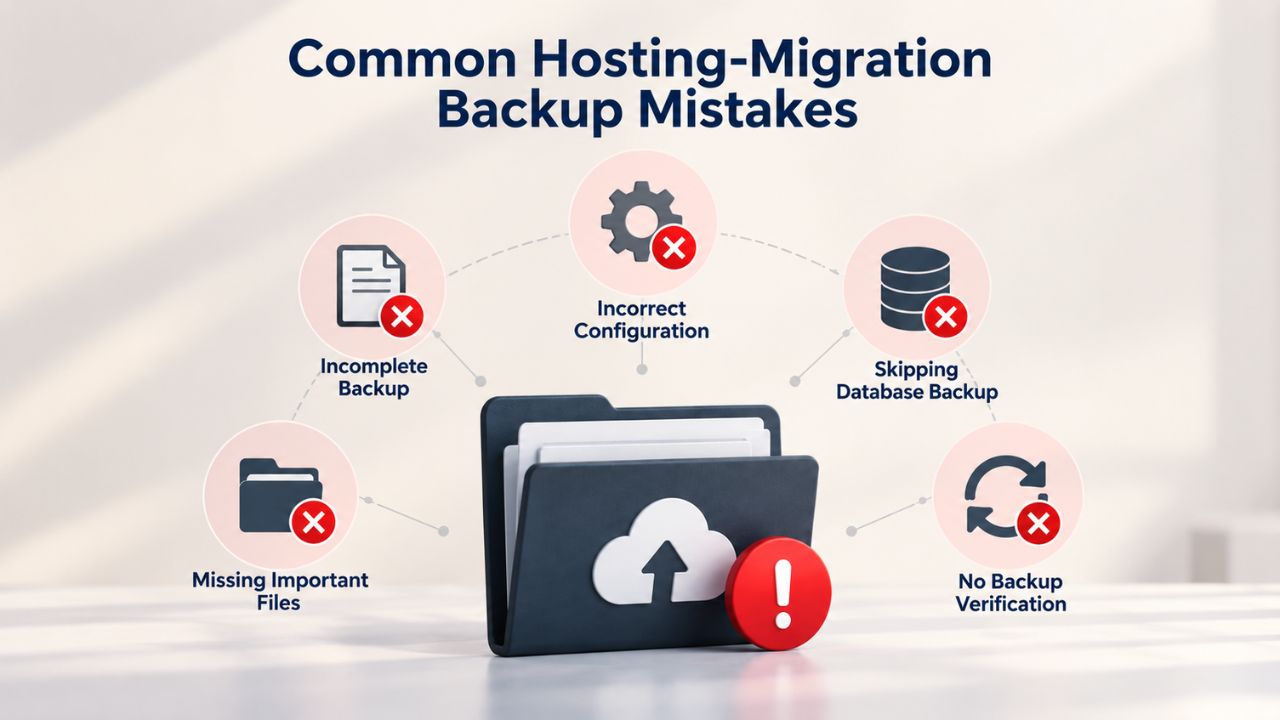
Relying Only on Host-Provided Backups
This is the most common mistake among site owners planning migrations. You assume the current hosting provider backs up your site automatically, so you skip setting up a separate, independent backup service. Then the migration happens, something breaks, and you reach for the hosting provider’s backup, only to discover it’s 30 days old, not retained long enough to cover your migration window, or (most frustratingly) wasn’t working at all and has no usable restore points.
Hosting providers may not guarantee backup retention, may charge fees for restore operations, or may delete backups shortly after you move away. An independent, off-site backup gives you full control and certainty. You decide the retention policy, you control when backups run, and you own the data, not the provider. This independence is non-negotiable for migrations. You’re paying to leave a provider; you shouldn’t bet your recovery on that same provider’s backup system.
Forgetting to Test Before Cutover
The second common mistake is backing up but never testing the backup. The backup appears to complete; the service reports “backup complete,” so you assume it works. You initiate the migration, something goes wrong, and when you try to restore, you discover the backup is corrupted, incomplete, or incompatible with the new host’s configuration. Now you’re troubleshooting a failed restore during an active migration crisis.
The fix is simple and takes 30 minutes: always test at least once before a major migration. Restore to a staging environment, verify everything works, then proceed with confidence. Testing doesn’t have to be elaborate. You’re just confirming that the backup file exists, is accessible, and can be restored to a working state. Testing before migration prevents hours of guesswork, failed restore attempts, and recovery troubleshooting during the event itself.
DIY Backup (Manual Exports) vs. Automated Backup Services
You can manually export your files and database, but automated backup services eliminate the friction and risk of manual processes. Understanding the trade-offs helps you choose the right approach for your hosting migration.
Manual Backups: FTP Exports and Database Dumps
Manual backups involve using FTP or SFTP to download your entire website directory to your computer, then using your hosting control panel to export your database as an SQL file. You store these files locally or on cloud storage like Google Drive or Dropbox. This approach costs nothing and gives you full control over your backup process.
The downsides are significant. Manual backups are easy to forget, especially if you’re busy with site updates or running a business. They’re error-prone: did all files download correctly? Was the database export complete? Did any files fail to copy partway through? You won’t know until you try to restore. A single mistake leaves you with an incomplete backup that won’t fully restore your site. You also rely entirely on your own storage solution and personal discipline to keep backups retained, organized, and accessible. If you lose your computer or your cloud storage fails, you lose your backup.
Automated Backup Services: Reliability, Testing, and Support
Automated services like Niya Digital’s Website Backup Service, powered by CodeGuard technology, eliminate the manual work. The service backs up on a schedule you define, stores it in redundant off-site infrastructure, and provides one-click restore. You don’t need to remember to back up, risk incomplete manual exports, or have technical skills to restore. Niya Digital’s team has observed that customers using automated backups are significantly more likely to test their backups before a migration and recover faster when something goes wrong, because the restore process is simple and documented rather than a technical hurdle requiring FTP skill.
For hosting migrations specifically, this convenience is invaluable. The restore process is effortless, not a multi-step manual effort. The backup service is also economical: a few dollars per month is far cheaper than a single hour of downtime if a manual backup fails or isn’t available when you need it.
Restoring Your Backup to the New Host
When the migration is complete and your site is live on the new hosting provider, you may not need to restore at all if everything worked perfectly. But if something breaks, knowing how to restore it gets you back online quickly.
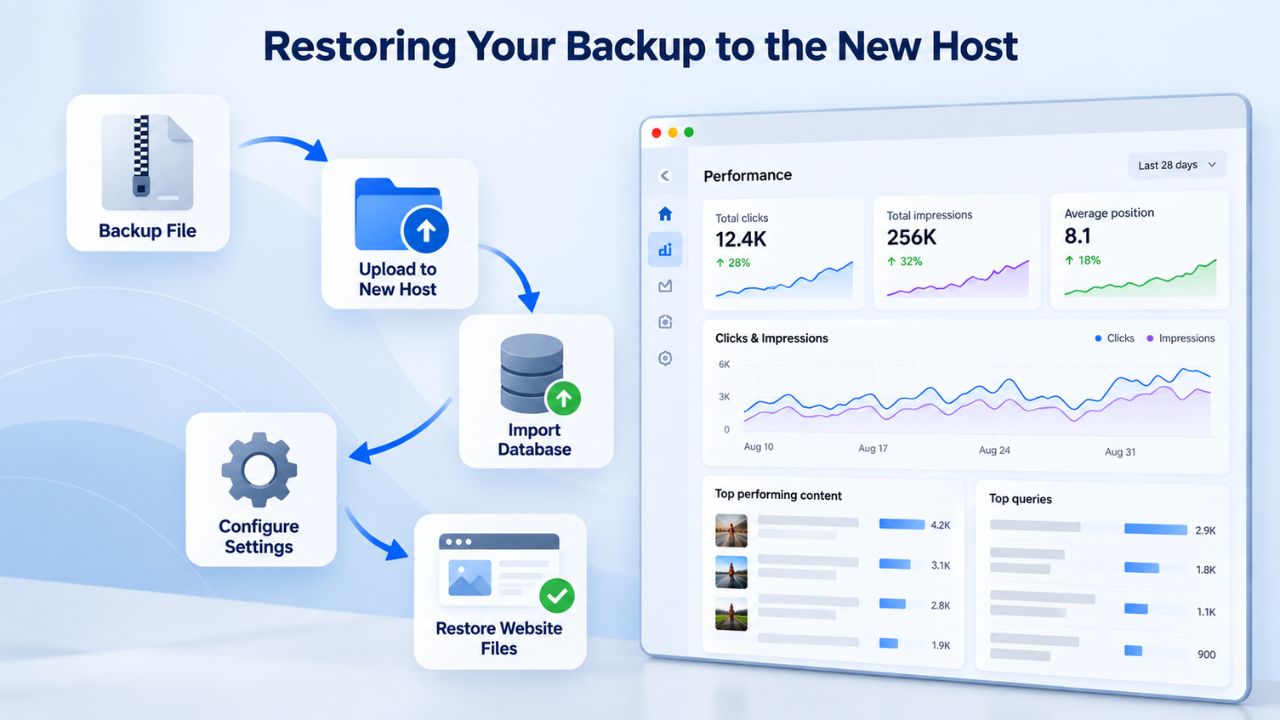
One-Click Restore to Your New Host
CodeGuard (GoDaddy Website Backup)’s one-click restore feature works regardless of which hosting provider you’re moving to. You log into your backup account, select a previous backup from the list of available restore points, and choose “restore to this domain” (or a different domain if you want to test first). CodeGuard handles the restore automatically: it copies your files and database to the new host and updates your site to match the backup state.
This process typically takes 15 minutes to an hour, depending on your site’s size and the new host’s server speed. You don’t need to download, transfer, or import anything manually. The restore is all-or-nothing: if it completes successfully, your site is fully restored; if it fails, you get a clear error message and can try again with a different restore point or troubleshoot the new host’s configuration. The key advantage is simplicity: one click instead of hours of technical work.
Disaster-Recovery Scenario During Active Migration
Here’s a realistic scenario: you’ve initiated the migration. The new host setup starts, files and the database begin transferring, but something goes wrong. The import corrupts data, the new site won’t start, or you see configuration errors. Instead of spending hours troubleshooting or trying to reverse the migration and redo it, you use your backup as an escape route. You restore your backup to a temporary staging domain on the new host.
You verify the temporary site works perfectly. Your data is intact. Your site loads. Everything functions. Now you have proof that your data is safe. You can take time to figure out what went wrong with the original migration setup, or you can try a different migration approach entirely. Either way, you have a complete, working copy of your site saved. This is the real value of a pre-migration backup: it’s your safety net, not just a nice-to-have feature.
Choosing the Right Backup Plan for Your Hosting Situation
Different sites have different backup needs. Choosing a backup service means matching frequency, retention, and storage to your specific situation and risk profile.
Backup Frequency Based on Update Rate
A static blog updated once a week can safely use a weekly backup; if something breaks on the new host, you lose at most a week of changes. An e-commerce site with hourly orders needs daily backups, ideally twice daily, to minimize the window of lost data. A news site or user-generated-content platform might need backups every 4–6 hours to protect against rapid content changes.
For a hosting migration specifically, you want the most recent backup you can get: one within 24 hours of cutover, ideally triggered on-demand minutes before the migration starts. When evaluating a backup service, check its frequency and whether it allows manual, on-demand backups in addition to scheduled ones. Some services offer daily backups only, which may be fine for static sites but insufficient for busy e-commerce or publishing platforms. Niya Digital’s service supports flexible scheduling to match your site’s update frequency.
Retention and Storage Based on Site Size and Risk Profile
CodeGuard (GoDaddy Website Backup) offers multiple tiers, each with different backup frequency and retention windows. A small site (under 1 GB) on a basic plan might retain 30 days of daily backups. A larger site (1–10 GB) might retain 60 days of daily backups. Very large or high-risk sites can opt for more frequent backups and longer retention periods. For a hosting migration, ensure your plan offers at least 30 days of retention (so your backup isn’t automatically deleted partway through a slow or complex migration) and daily or more-frequent backups (so your pre-migration backup is recent enough to be useful).
Niya Digital’s Website Backup Service offers plans covering common site sizes and backup frequencies. When selecting a plan for a hosting migration, choose one that covers your site’s storage needs and retains backups long enough to keep them available throughout the migration process. If your migration takes longer than expected or if you need to restore after the cutover, having a 60-day or 90-day retention window gives you multiple restore points to choose from.
Ready to Protect Your Site Before Migration?
A hosting migration is the perfect moment to ensure your website is backed up, tested, and ready for recovery if anything goes wrong. Niya Digital’s Website Backup Service makes it easy to set up automated, off-site backups, test them before you migrate, and restore with one click if anything breaks. You’ll gain confidence knowing your data is safe and your recovery plan is proven.
Frequently Asked Questions
How long does a website backup take?
Backup time ranges from 5–30 minutes depending on site size and complexity. Smaller sites (under 1 GB) complete in 5–10 minutes; larger sites (5+ GB) may take 30 minutes to an hour.
CodeGuard (GoDaddy Website Backup)’s automated backup runs in the background without affecting your site’s performance. During a hosting migration, plan to wait for the backup to finish before starting the file transfer to the new host. Most services let you monitor backup progress in real time, so you know exactly when it’s ready.
Can I restore a backup to a different hosting provider than the one where it was taken?
Yes. CodeGuard (GoDaddy Website Backup)’s one-click restore works with any hosting provider that supports standard website hosting.
You provide the new host’s login credentials, select the backup, and the restore process automatically transfers your files and database to the new server. This makes it effortless to switch hosting providers without losing data. You can even restore to multiple destinations: a staging domain to test first, then your live domain after verification.
What happens to my backup if my hosting provider goes out of business?
Your backup is stored off-site in CodeGuard (GoDaddy Website Backup)’s own infrastructure, not on your hosting provider’s servers. If your hosting provider fails, closes, or is acquired, your backup remains accessible and intact. You can restore it to any other hosting provider at any time. This is the fundamental security advantage of using an off-site, independent backup service rather than relying on hosting-provider backups.
How long does a website restore take after migration?
A complete restore typically takes 15 minutes to 1 hour, depending on your site’s size and the new host’s server speed. CodeGuard (GoDaddy Website Backup)’s one-click restore handles files and database simultaneously. Hence, the entire process is a single operation rather than multiple manual steps. You can also restore to a staging domain first to test everything before switching your live site over, adding minimal extra time.
Do I need to manually download and transfer backup files to the new hosting provider?
No. CodeGuard (GoDaddy Website Backup)’s one-click restore handles the transfer automatically. You select a backup and a destination (your new host), and the service uploads your files and database directly to the new server. You don’t need to download anything to your computer, transfer files manually, or worry about incomplete file transfers. Everything happens server-to-server.
What if my backup is corrupted or doesn’t restore correctly?
If a restore fails or the restored site doesn’t work as expected, CodeGuard (GoDaddy Website Backup) allows you to select any previous backup date and try restoring from an earlier point. You have multiple restore points available; if the most recent backup has an issue, an older one may work perfectly. If you need help troubleshooting, Niya Digital’s support team can assist with restore issues and help identify whether the problem is with the backup or the new host’s configuration.
Can I store backups in multiple locations?
Yes. CodeGuard (GoDaddy Website Backup) stores backups with geographic redundancy, multiple copies across different data centers, to protect against infrastructure failures. Separately, some backup services allow you to store additional copies on your own cloud storage (Google Drive, Dropbox, AWS) in addition to the service’s primary storage. This layered approach provides maximum protection, though it’s not required for most hosting migrations.
How often should I test my backup before a hosting migration?
At minimum, test once before cutover to verify the backup restores correctly. Best practice is to test 1–2 weeks before the migration (to catch any backup issues early) and again 1–2 days before cutover (to confirm a recent backup works). A test takes 30 minutes and is well worth the peace of mind during a migration. Each test restore to a staging environment gives you direct evidence that recovery will work if you need it.
What should I check when I test a backup restore?
Verify: all pages load without errors, images and assets display correctly, the database is accessible and responsive (user logins work, dynamic content displays), any third-party integrations (payment forms, email subscriptions, APIs) function correctly, and site performance is acceptable. If you find issues, check whether they’re problems with the backup itself or with the test environment’s configuration before the actual migration. A successful test restore is proof the backup is working.
Do I need to notify my new hosting provider that I’m importing a backup?
Some hosting providers prefer advance notice, especially for large sites or complex setups. Notify them if your new host requires you to pre-create a database, set up special permissions, or configure the server before you import. Most hosts handle backup imports automatically without advance notice. Niya Digital’s onboarding support can advise you on any pre-migration steps your new host requires.
Can I schedule backups to run only during low-traffic hours?
Yes. Most backup services, including CodeGuard (GoDaddy Website Backup), allow you to schedule backups for specific times of day. Schedule backups during your site’s lowest-traffic window (typically early morning or late night) to minimize performance impact. For a hosting migration, you’ll likely manually trigger a backup right before cutover, bypassing the normal schedule and giving you maximum flexibility.
Will restoring a backup overwrite any new changes made on the new host?
Yes. A restore replaces your site’s files and database with the backed-up versions. Any changes made after the backup was taken will be lost. For this reason, restore only to a staging domain when you’re testing, or restore to your live domain only when you’ve confirmed the new host’s setup is stable and you’re ready to go live with the backed-up version. Never restore to a live site if recent changes have been made that you want to keep.
What if my site is too large to back up before the migration?
Sites larger than 100 GB are rare but possible. For very large sites, discuss options with your backup provider. CodeGuard (GoDaddy Website Backup) supports large-site backups, though backup time increases with size. You may need to back up in stages (database first, then files), or coordinate with your new host to ensure adequate transfer capacity during restoration. Very large sites often benefit from enterprise-level backup solutions with dedicated support.
Is a backup taken on an old host compatible with a new hosting provider’s environment?
In most cases, yes, as long as both hosts support standard hosting technologies (PHP, MySQL, Apache/Nginx, etc.). Restores are file-and-database transfers, not environment-specific operations. If your new host uses a different PHP version, database system, or configuration, you may need minor adjustments after restore. Still, the backup itself is compatible and will restore your site’s data and files. The restore process handles most compatibility issues automatically.
How do I know if my backup is actually working?
The only definitive way to confirm is to test: restore to a test environment and verify the site works. A successful test restore, where your site loads, the database works, and functionality runs, is proof that your backup is working and will restore correctly when you need it. Don’t rely on “backup complete” messages alone. Test at least once per quarter, and always before a major change like hosting migration.
Glossary
- Website Backup: A complete copy of all files, database, and configurations that make up a website, stored separately from the live site and used to restore the site if data is lost or corrupted.
- Full Backup: A complete copy of all website files and database, captured at a specific moment in time; contrasted with incremental backups that capture only changes since a previous backup.
- Incremental Backup: A backup capturing only files and database records changed since the previous backup; smaller and faster than full backups but requires multiple restore layers for a complete site recovery.
- Off-Site Storage: Backup storage located on servers outside the hosting provider that hosts the live website; protects against hosting-provider outages, security breaches, or data-center failures.
- Restore Point: A specific backup snapshot captured at a particular date and time; you can restore your site to any available restore point to recover data as it existed at that moment.
- Retention Period: The number of days or months a backup is kept before being automatically deleted; longer retention provides more historical restore points but requires more storage space.
- One-Click Restore: An automated restore function that transfers backed-up files and database to a destination server with a single action, without requiring manual downloads or technical configuration.
- Database Backup: A backup of only the site’s database (containing posts, pages, user accounts, settings, and dynamic content), without website files; should always be paired with a file backup for complete recovery.