Why Django Applications Outgrow Shared Hosting
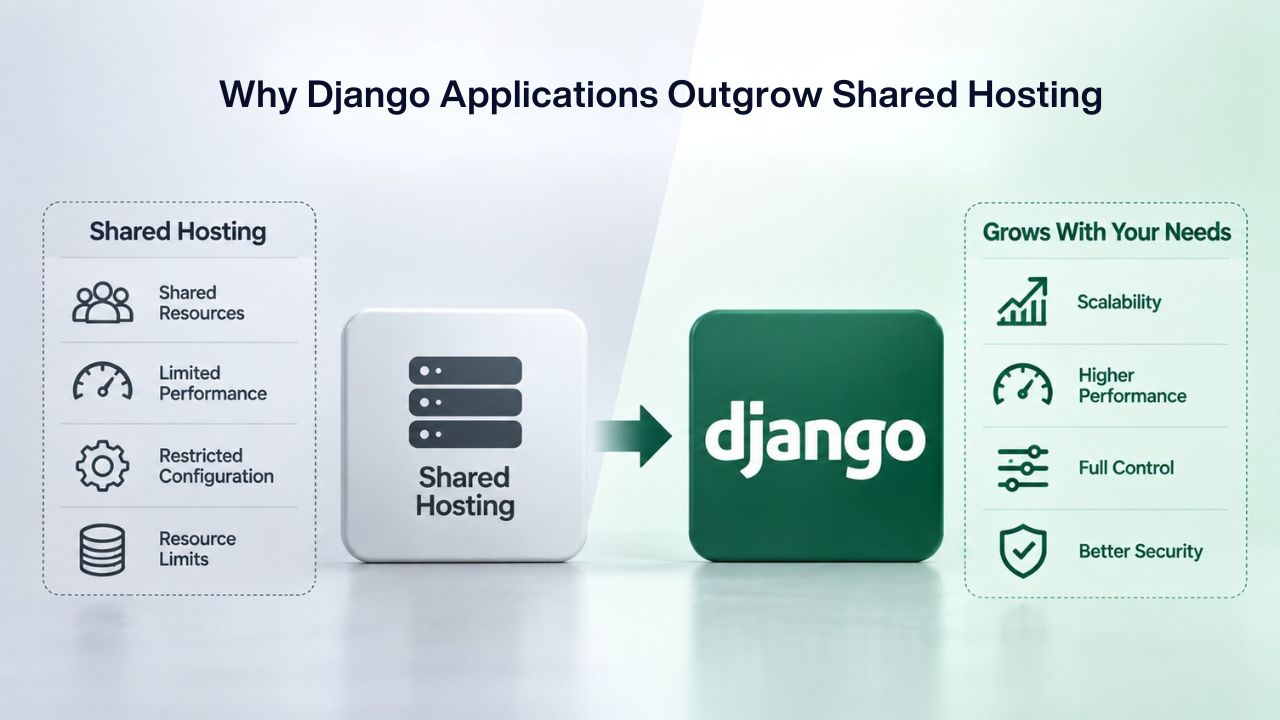
Shared hosting environments impose restrictions that become painful as your application grows. Every developer eventually hits a ceiling where a platform that once felt adequate now blocks what your business needs. Understanding why a VPS Hosting solution fits Django deployments so naturally starts with recognizing these constraints and their impact on your infrastructure strategy.
Root Access and Custom Stack Configuration
Shared hosting locks developers out of package management, system-level dependencies, and custom Python environments. Django deployments often require specific versions of Python, database drivers, system libraries, and specialized packages, things a typical shared host won’t let you install or modify.
A VPS Hosting platform grants full root access via SSH, letting you install Gunicorn or uWSGI application servers, configure Nginx as a reverse proxy, manage PostgreSQL exactly as your application architecture requires, and integrate any additional tools or middleware your workflow demands. You don’t wait for a hosting support ticket to enable a feature; you enable it yourself, on your timeline, with full visibility into what’s running on your server. This autonomy is essential for Django applications that need customization beyond what shared-hosting control panels permit.
Resource Isolation and Predictable Performance
Shared hosting divides a single server’s CPU, RAM, and disk I/O among dozens or hundreds of accounts. When one neighbor’s site spikes in traffic or runs a heavy database query, your Django application slows down with it, even if your own traffic is light. Your database queries might suddenly take twice as long, or your web requests might time out, not because your code is broken but because another user is hogging the shared hardware.
A Virtual Private Server creates a unique, isolated space on a server using KVM virtualization, meaning your CPU and RAM are fully dedicated and not shared with other sites or applications. This isolation underpins predictable performance for Django workloads. When you measure latency or optimize a slow query, you’re measuring your application’s actual performance, not the noise from dozens of invisible neighbors. This predictability matters deeply for production applications where performance directly affects user experience and business outcomes.
VPS Hosting Plans & Pricing
Choose the VPS hosting plan that fits your website, application, or business requirements. Select a self-managed VPS for complete server control or a fully managed VPS with a dedicated team of experts to help manage your server.
Self Managed VPS 1 vCPU
1 GB RAM
Entry-level VPS hosting for lightweight websites and applications.
- 1 CPU Core
- 1 GB RAM
- 20 GB SSD Storage
- Linux only, no control panel

Self Managed VPS 2 vCPU
4 GB RAM
VPS hosting with additional CPU and memory for growing websites and applications.
- 2 CPU Cores
- 4 GB RAM
- 100 GB SSD Storage
Self Managed VPS 2 vCPU
8 GB RAM
Additional memory for more demanding websites and applications.
- 2 CPU Cores
- 8 GB RAM
- 100 GB SSD Storage
Self Managed VPS 4 vCPU
8 GB RAM
Increased processing power for business websites and applications.
- 4 CPU Cores
- 8 GB RAM
- 200 GB SSD Storage
Self Managed VPS 4 vCPU
16 GB RAM
High-memory VPS hosting for resource-intensive workloads.
- 4 CPU Cores
- 16 GB RAM
- 200 GB SSD Storage
Self Managed VPS 8 vCPU
16 GB RAM
Powerful VPS resources for demanding business applications.
- 8 CPU Cores
- 16 GB RAM
- 400 GB SSD Storage
Self Managed VPS 8 vCPU
32 GB RAM
Maximum self-managed resources for demanding workloads.
- 8 CPU Cores
- 32 GB RAM
- 400 GB SSD Storage
Fully Managed VPS 1 vCPU
2 GB RAM
Managed VPS hosting with expert server management.
- 1 CPU Core
- 2 GB RAM
- 40 GB SSD Storage
- Dedicated team of experts to fully manage your server
Fully Managed VPS 1 vCPU
4 GB RAM
Managed VPS resources for websites and business applications.
- 1 CPU Core
- 4 GB RAM
- 40 GB SSD Storage
- Dedicated team of experts to fully manage your server
Fully Managed VPS 2 vCPU
4 GB RAM
Managed VPS hosting with additional CPU resources.
- 2 CPU Cores
- 4 GB RAM
- 100 GB SSD Storage
- Dedicated team of experts to fully manage your server
Fully Managed VPS 2 vCPU
8 GB RAM
Managed VPS hosting with additional memory for growing workloads.
- 2 CPU Cores
- 8 GB RAM
- 100 GB SSD Storage
- Dedicated team of experts to fully manage your server
Fully Managed VPS 4 vCPU
8 GB RAM
Higher-performance managed VPS for demanding applications.
- 4 CPU Cores
- 8 GB RAM
- 200 GB SSD Storage
- Dedicated team of experts to fully manage your server
Fully Managed VPS 4 vCPU
16 GB RAM
High-memory managed VPS for resource-intensive workloads.
- 4 CPU Cores
- 16 GB RAM
- 200 GB SSD Storage
- Dedicated team of experts to fully manage your server
Fully Managed VPS 8 vCPU
16 GB RAM
Powerful managed VPS hosting for demanding business workloads.
- 8 CPU Cores
- 16 GB RAM
- 400 GB SSD Storage
- Dedicated team of experts to fully manage your server
Fully Managed VPS 8 vCPU
32 GB RAM
Maximum managed VPS resources for demanding workloads.
- 8 CPU Cores
- 32 GB RAM
- 400 GB SSD Storage
- Dedicated team of experts to fully manage your server
Sizing Your VPS for Django and PostgreSQL
Choosing the right resource tier is one of the most important infrastructure decisions you’ll make. Over-provision and you waste money; under-provision and you’ll face performance problems and emergency upgrades under pressure. The right approach is honest about your workload, conservative in early estimates, and planned for growth.
Development, Staging, and Small Production
Development and staging servers can run lean. A 1–2 vCPU core, 2–4 GB RAM setup handles testing and continuous integration pipelines for most Django projects, including running test suites and deploying candidate versions. This tier suits learning, internal QA, and low-risk applications where slowdowns or brief downtime don’t impact production.
When your application goes live serving real users, you need breathing room. A production Django site receiving light-to-moderate traffic should start with 2–4 vCPU cores, 4–8 GB RAM, and 50–100 GB storage for the database, application code, and logs. This tier handles most small-to-medium workloads without scaling headaches. It gives you overhead to handle traffic spikes and database growth without immediate upgrades. Database size matters: if your PostgreSQL dataset grows to 30+ GB, plan storage accordingly and monitor query performance early to catch indexing issues before they become crises.
High-Traffic and Scaling Tiers
Traffic spikes and large datasets demand 4+ vCPU cores, 8–16+ GB RAM, and 200–500+ GB storage. At this scale, single-server limitations become real: a database query that runs in 100ms on a smaller tier might take seconds when you’re competing for CPU with other workloads. Consider managed PostgreSQL services (like AWS RDS) to offload database administration, or add read replicas and connection pooling tools like PgBouncer to handle concurrent connections efficiently.
Beyond vertical scaling (bigger servers), horizontal scaling distributes traffic and data across multiple servers. This architecture is more operationally complex: you manage load balancing, database replication lag, and session consistency across servers, but it scales indefinitely. Most teams shift to this model once a single VPS approaches its limits, trading operational complexity for the ability to handle growth without grinding to a halt.
| Workload / Tier | Estimated Traffic | Recommended CPU | Recommended RAM | Recommended Storage | Best For |
|---|---|---|---|---|---|
| Development / Testing | Internal/staging | 1 core | 2 GB | 20 GB | Learning, CI/CD pipelines |
| Small production (blog, low-traffic SaaS) | <100 concurrent users | 1–2 cores | 2–4 GB | 30–50 GB | Early-stage startups, low-risk apps |
| Medium production (growing SaaS, e-commerce) | 100–1000 concurrent | 2–4 cores | 4–8 GB | 100–200 GB | Active production use |
| High-traffic production | 1000+ concurrent | 4+ cores | 8–16+ GB | 200–500+ GB | Peak-hour spikes, large databases |
| Real-time/high-concurrency app | Highly variable load | 4+ cores | 16+ GB | 500+ GB | Financial systems, real-time APIs |
Choosing Your Linux OS for Django and PostgreSQL
The operating system you choose shapes your entire deployment experience. It determines which package managers you use, which tools are available, how you manage services, and how deeply you’ll need to understand system administration. For Django developers, the choice usually narrows quickly to well-supported Linux distributions designed for server use.
Ubuntu LTS as the Standard Choice
Ubuntu LTS (22.04 or 20.04) is the de facto standard for Django deployments. Long-term support versions receive security patches for five years, and the package ecosystem- Python, PostgreSQL, system libraries- is well-maintained and widely documented. Niya Digital VPS Hosting offers Linux or Windows OS options compatible with both Niya’s own onboarding support and GoDaddy’s underlying infrastructure, making Ubuntu LTS a reliable choice on reseller platforms.
Setup time on Ubuntu is minimal: SSH in, run apt update && apt upgrade, then install Python 3, pip, and PostgreSQL from official repositories. Community documentation for Django on Ubuntu is abundant: thousands of tutorials, Stack Overflow answers, and blog posts walk through every step. Most Python packages have pre-built wheels for quick installation, and system libraries are packaged with sensible defaults. If you’re new to server administration, Ubuntu’s simplicity and documentation support is invaluable.
CentOS / RHEL as an Enterprise Alternative
CentOS 8+ and RHEL offer stronger compliance and security auditing capabilities, making them popular in regulated industries. Red Hat’s commitment to backward compatibility means your configuration stays stable for years without surprise changes. Package management uses yum instead of apt, and some system libraries are packaged differently, so you may need to adjust deployment scripts you copy from Ubuntu-focused tutorials.
For most Django developers, Ubuntu’s ease of use and documentation availability outweigh CentOS’s compliance advantages, unless your industry or organization requires it. If you’re working in finance, healthcare, or another highly regulated sector, your security or compliance team may mandate CentOS or RHEL. In that case, the extra learning curve is worth the compliance peace of mind.
PostgreSQL Setup and Database Security
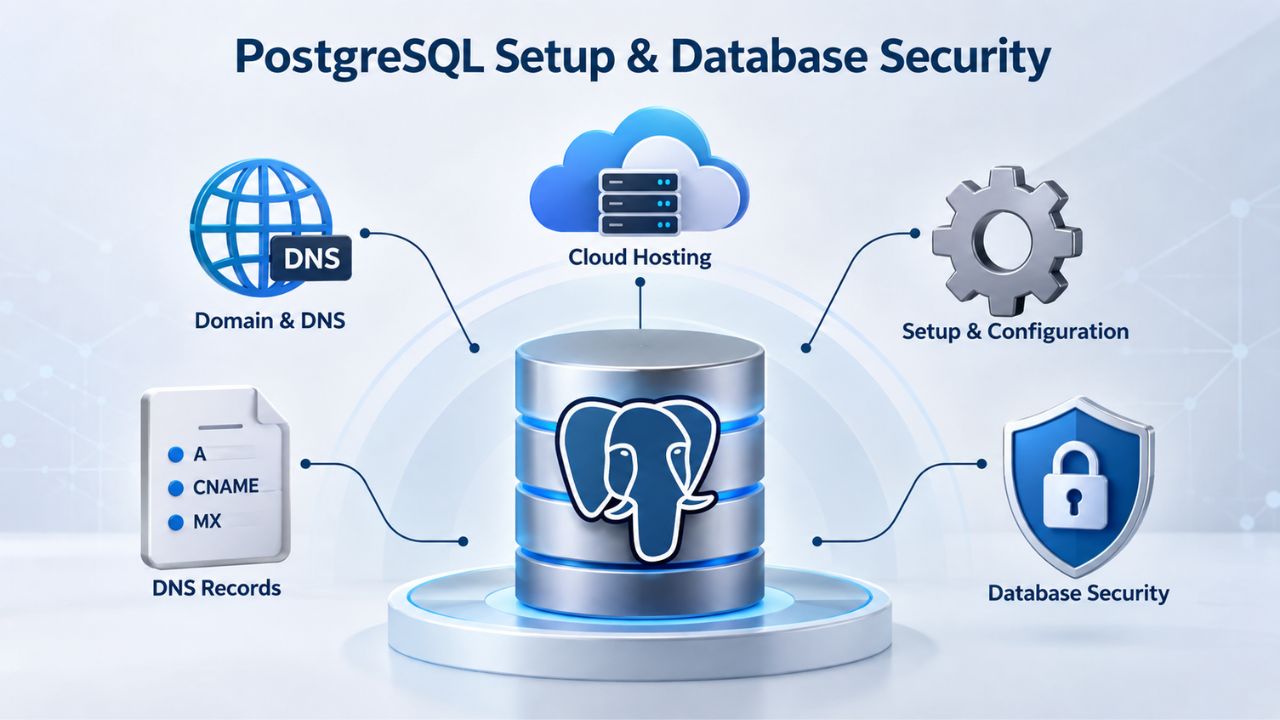
PostgreSQL is the modern standard database for Django applications. It offers ACID compliance, advanced features like full-text search and JSON data types, and excellent Django ORM support. Setting it up correctly on your VPS is straightforward; securing it requires attention to network configuration and access control.
Installation and Initial Configuration
PostgreSQL installs quickly on Ubuntu with apt install postgresql postgresql-contrib. By default, it binds to localhost:5432, refusing outside connections, a secure default for single-server setups where the web server and database run on the same VPS. This isolation means only processes on the same server can connect, which is exactly what you want for most deployments.
For a new Django project, create a dedicated PostgreSQL user and database rather than using the superuser account. Run createuser django_user and createdb -O django_user django_db, then configure Django’s DATABASES setting to connect as that user. This practice isolates your application’s data from system operations. It limits the damage if your application credentials are compromised: an attacker can read and modify your application’s tables, but can’t drop tables, create users, or modify other databases.
Firewall Isolation and Connection Pooling
If your architecture spreads across multiple VPS instances, one for the web server, one for the database, configure your VPS Hosting platform’s firewall to allow PostgreSQL traffic only from your app server’s IP. This prevents random internet traffic from probing your database port and keeps your data isolated on a private network.
At scale (hundreds of concurrent connections), add PgBouncer between your application and PostgreSQL. Connection pooling reduces the overhead of opening and closing connections for every request and is used by over 50% of Django developers to optimize database performance under load. PgBouncer sits between your app and the database, reusing connections across requests; it multiplexes a single persistent connection to PostgreSQL across many application requests, reducing context-switching overhead and memory consumption.
Managed vs. Unmanaged VPS Support: What’s Your Operational Load?
Choosing between managed and unmanaged support is choosing how much infrastructure responsibility you want. It’s not a technical choice; it’s an operational and financial one based on how much time and expertise your team has to invest in server administration.
Unmanaged VPS: Full Control, Full Responsibility
Unmanaged VPS Hosting (also called “self-managed”) gives you root access and charges no extra fee for database management or system administration. You patch the OS, upgrade PostgreSQL, configure backups, and respond to alerts. This model gives you complete control; you can tune PostgreSQL parameters, manage packages exactly as you want, and never worry about your provider making changes you don’t expect.
This model suits developers with Unix administration experience or small teams willing to learn. Cost is lower; time investment is higher. Setup typically takes 2–8 hours from VPS order to live application, including OS provisioning, dependency installation, application deployment, and testing. If something goes wrong at midnight, you diagnose and fix it, and you know your infrastructure intimately enough to optimize it for your specific workload.
Managed VPS: Hands-Off Infrastructure
Managed VPS Hosting, available from many resellers including platforms backed by GoDaddy’s infrastructure, includes automatic OS and security patching, automated backups, database optimization support, and incident response from the provider’s team. You focus on application code; the provider handles infrastructure. Updates roll out on a schedule you trust, backups run nightly without your involvement, and if a service fails, the provider alerts you and handles recovery.
Managed tiers cost more, often 2–3x the unmanaged price, but reclaim time for product development instead of sysadmin chores. For small teams or solo developers wearing many hats, the trade-off often pays for itself in reduced operational overhead and fewer 3 AM emergency calls. You’re trading cost for peace of mind and reclaimed engineering hours.
| Aspect | Unmanaged VPS | Managed VPS |
|---|---|---|
| OS Patching | Your responsibility | Provider handles |
| PostgreSQL Upgrades | You manage | Provider manages |
| Backups | You configure, test, restore | Provider automates |
| 24/7 Monitoring | No (unless you add tools) | Included |
| Incident Response | You fix it | Provider escalates support |
| Setup Time | 2–8 hours | 1–2 hours with support |
| Complexity | Higher | Lower |
| Cost | Lower entry price | 2–3x higher |
| Best For | Experienced admins, learning | Busy teams, production stability |
Hardening Your VPS: Baseline Security
Security isn’t something you bolt on at the end; you build it into every configuration decision from day one. Shared hosting abstracts away security concerns because the provider handles it; on a VPS, you’re responsible for baseline hardening. The good news: baseline hardening is straightforward and doesn’t require deep security expertise.
Access Control and Secrets Management
Every VPS Hosting provider, including GoDaddy’s infrastructure, offers a built-in firewall. Configure it to allow only inbound traffic on ports 80 (HTTP), 443 (HTTPS), and SSH (port 22 or a custom high-numbered port). Block everything else by default. This posture means only intended services are reachable; everything else is invisible to the outside world.
For SSH, disable root login and password-based authentication; require SSH keys only. Most VPS platforms (including reseller storefronts like Niya Digital) let you upload your public key during provisioning, eliminating password friction while improving security. Never hardcode database credentials or API keys in Django settings. Use environment variables or a .env file (excluded from version control) to store secrets. Django’s python-decouple or similar libraries read these at startup, keeping credentials out of your repository and logs. After PostgreSQL setup, create a limited-privilege database user (not a superuser) for your application to use, preventing full schema access if your application credentials are compromised.
SSL/TLS and HTTPS Enforcement
Django applications must enforce HTTPS in production. Let’s Encrypt provides free SSL certificates, with Certbot automating installation and renewal on VPS platforms. Set up Certbot with a cron job to auto-renew before expiry, and configure Django’s SECURE_SSL_REDIRECT to force all traffic to HTTPS. This single configuration change protects user credentials and data in transit from eavesdropping.
Niya Digital’s team has found that most deployment problems stem from skipped security basics, weak SSH access, hardcoded secrets, or missing HTTPS, rather than infrastructure limits. Invest the upfront time in baseline hardening. The 30 minutes spent configuring SSH keys and HTTPS automation prevents countless incidents later.
Ready to Deploy Django + PostgreSQL on a VPS?
Whether you’re building a new startup or migrating an existing application, Niya Digital’s VPS Hosting service gives developers the root access, resource isolation, and infrastructure flexibility that Django applications and PostgreSQL databases need. Start with our VPS plans, pick your OS, and let our support team guide you through setup if you need it.
Deployment and Zero-Downtime Patterns
Moving code from your laptop to production is where theory meets reality. Your Django application isn’t just running; it’s serving real users, and they notice when your site slows down or goes unavailable. Thoughtful deployment patterns minimize risk and downtime, giving you confidence to ship changes during business hours.
Gunicorn, Nginx, and Process Management
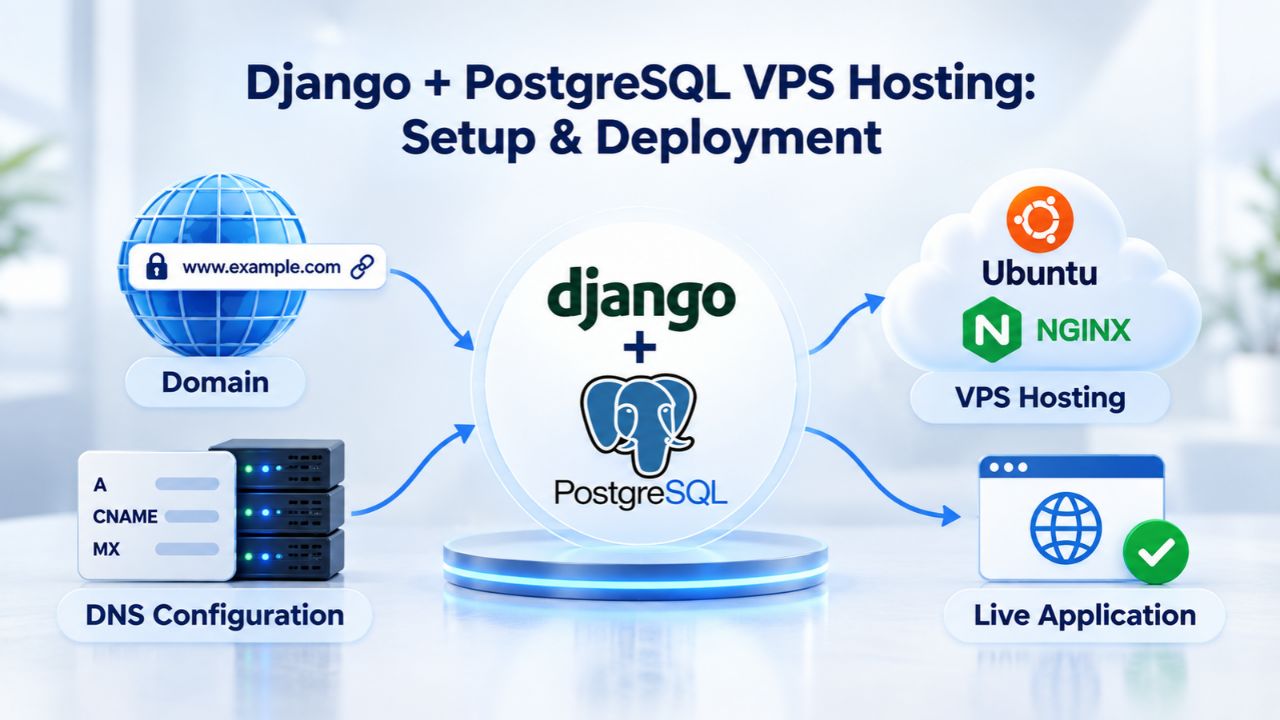
Django itself is not a production web server; it’s an application framework. Gunicorn runs your Django code as a worker process, accepting requests on a Unix socket and running your Python code for each request. Nginx, listening on ports 80 and 443, forwards HTTP/HTTPS traffic to Gunicorn and serves static files directly from disk.
Start with 2–4 Gunicorn worker processes (rule of thumb: 2 * CPU_count + 1). Each worker can handle one request at a time, so four workers can handle four concurrent requests. Monitor CPU and memory under realistic traffic; adjust worker count if your VPS Hosting resources are consistently maxed. Too many workers can starve your database and OS; too few, and requests queue up waiting for a free worker.
Zero-Downtime Deployment Strategies
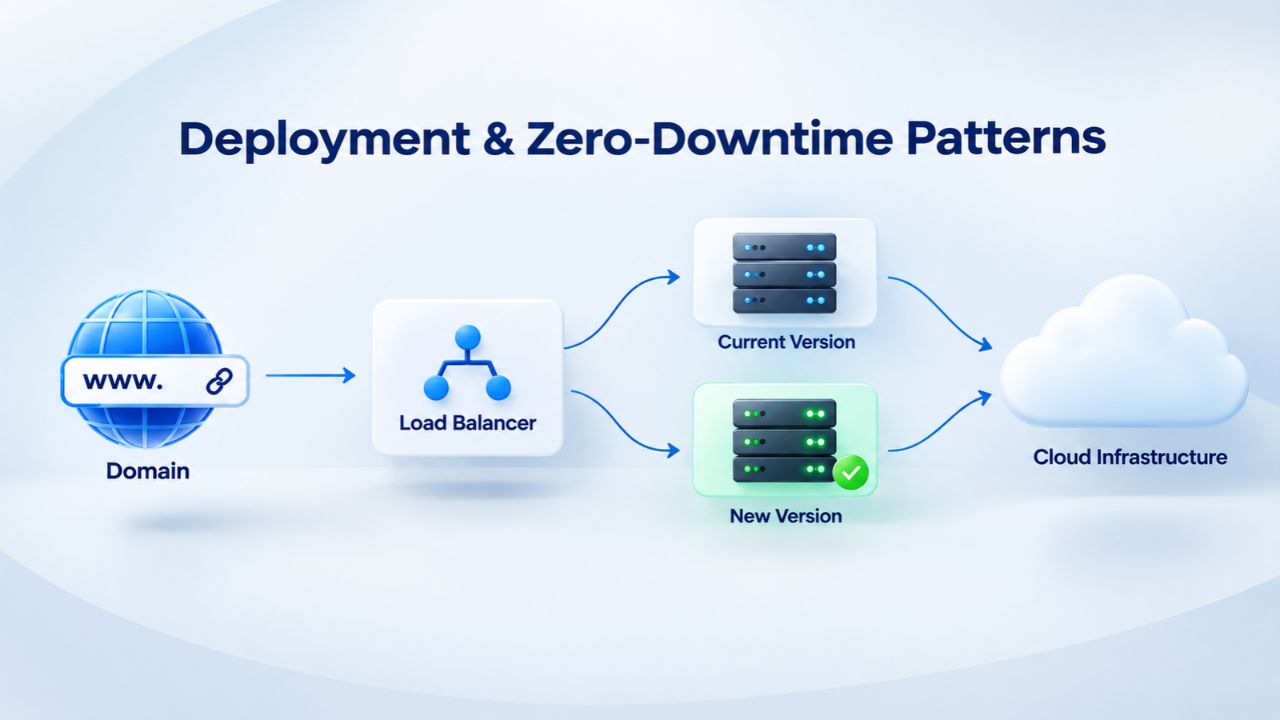
In a blue-green setup, you run two identical Django application servers. When deploying a new version, point your load balancer to the “green” server while the old “blue” server stays live. Once green is healthy, switch traffic and keep blue as a quick rollback. For smaller teams, canary deployments work well: deploy the new version to one or two Gunicorn workers while keeping the rest on the old version. Monitor error rates and performance; if canary looks good, gradually roll out to all workers.
Smoke tests (fast, critical-path tests) run immediately after deployment to catch obvious breaks: a simple check that your login page loads, your API responds, and your database is reachable. Either pattern eliminates downtime during deployments and lets you push changes with confidence.
| Phase | Step | Typical Duration | Notes |
|---|---|---|---|
| Provisioning | Order VPS, select OS, spin up | 5–15 min | Choose Ubuntu LTS 20.04 or 22.04 |
| Environment Setup | SSH access, OS updates, install Python/pip/PostgreSQL | 10–20 min | Run apt update && apt upgrade |
| App Deployment | Clone Django repo, install dependencies, collect static files | 15–60 min | Depends on dependency list size; use virtualenv |
| Database Init | Initialize PostgreSQL, run Django migrations | 5–15 min | python manage.py migrate, check for errors |
| Web Server Config | Set up Gunicorn, configure Nginx, test locally | 10–30 min | Test with curl before DNS cutover |
| SSL/HTTPS | Install Let’s Encrypt cert, automate renewal | 5–10 min | Use Certbot; test HTTPS in browser |
| Testing & Cutover | Smoke tests, point DNS, monitor errors | 1–2 hours | Watch error logs immediately after cutover |
| Total Unmanaged Setup | — | 2–8 hours | Faster with provider-managed support |
Monitoring, Logging, and Troubleshooting
Running a Django application in production means you never stop monitoring. You can’t see into your users’ browsers or experience the latency they feel, so you must instrument your application and infrastructure to gain visibility. The earlier you catch a slowdown, the faster you can fix it.
Visibility and Troubleshooting
Django logs (configured via Python’s logging module) should capture request paths, errors, and database query times. PostgreSQL query logs help identify slow queries before they cascade into downtime. Tools like Sentry (error tracking) and Datadog (infrastructure metrics) integrate with Django and give you visibility across the stack. Monitor your VPS Hosting platform’s built-in metrics: CPU usage, RAM, disk I/O, and network throughput. If CPU regularly spikes to 90%+ or RAM fills beyond 85%, you’re approaching the limits of your current plan.
Slow page loads usually trace to N+1 database queries (fetching data in a loop instead of bulk queries), under-provisioned resources, or misconfigured Gunicorn workers. Use Django Debug Toolbar in development to spot query wastage; use select_related() and prefetch_related() to fix it. Slow Nginx response times usually mean your Gunicorn workers are all busy; add more workers or upgrade your plan. If PostgreSQL is slow, check for missing indexes on frequently-queried columns, or run ANALYZE to update query planner statistics.
Backup Strategy and Disaster Recovery
PostgreSQL backups are non-negotiable. Schedule nightly pg_dump exports to an off-server location (an S3 bucket or a second VPS), and pair that with VPS snapshot backups (7-day retention is standard from most providers). Test your recovery process monthly; backups are useless if you can’t restore them quickly. Restore a backup to a staging environment, verify the data looks right, and delete it.
This drill catches backup problems before disaster strikes. Document your recovery procedure: what commands to run, where backups are stored, how long restore typically takes. When you’re in crisis mode at 2 AM, you won’t want to puzzle through undocumented backups.
Scaling as Traffic Grows
Every successful application eventually hits infrastructure limits. The question isn’t whether you’ll need to scale; it’s how and when. Understanding scaling patterns helps you make infrastructure decisions that keep up with growth without premature over-engineering.
Vertical Scaling: More Power on the Same Server
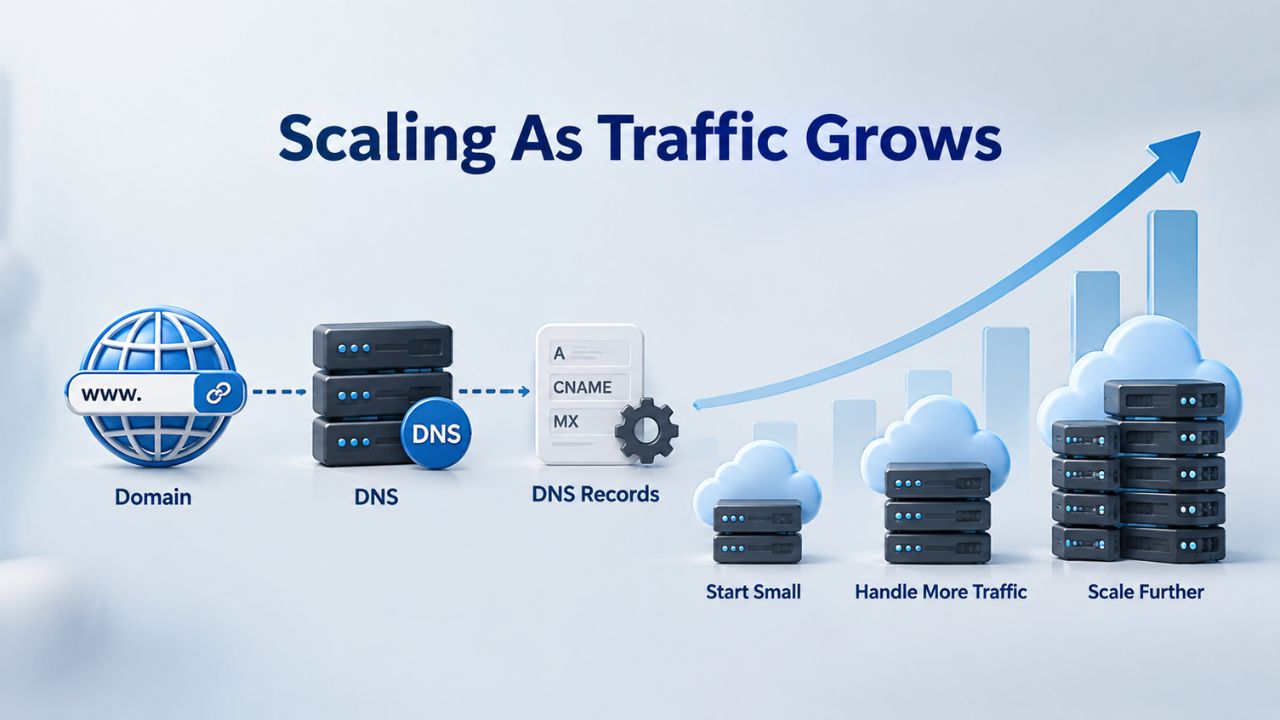
As traffic increases, the first step is usually vertical scaling: upgrade your current VPS from 2 cores/4 GB RAM to 4 cores/8 GB RAM on the same server. GoDaddy VPS Hosting offers seamless upgrades to increase RAM, CPU, and storage without downtime, and most reseller platforms (including Niya Digital’s VPS service) propagate this capability to customers. You stop your application, upgrade, restart, and you’re done- no code changes, no new servers to manage.
This approach works until you hit physical server limits (or your provider’s max per-instance specs). Plan vertical scaling to buy you 6–12 months of growth before rethinking architecture. Track your resource usage over time: if you’re doubling CPU usage every three months, you’ll outgrow your next size up quickly.
Horizontal Scaling: Load Balancing and Read Replicas
Beyond vertical limits, distribute traffic across multiple application servers behind a load balancer, and run PostgreSQL read replicas for analytics and reporting queries. This is more operationally complex; you’re managing replication lag, cache consistency, and session storage across servers, but it scales indefinitely. At this scale, managed PostgreSQL (AWS RDS, Google Cloud SQL) often beats self-hosted on a VPS: the provider handles replication, backups, and failover, leaving you to focus on application code.
Migration from Shared Hosting or Other Platforms
Moving from shared hosting to a VPS is more than copying files; it’s a chance to rethink your infrastructure strategy and build practices that will serve you for years. A thoughtful migration minimizes risk and sets you up for growth.
Planning and Parallel Staging
Before migrating, audit your existing application: database size, file storage footprint, traffic patterns, and peak concurrency. A 500 MB database is trivial to move; a 50 GB database requires planning (staged migration, testing, a maintenance window). Stage the new environment in parallel, run both the old shared host and the new VPS for a week, testing the app against live database snapshots, before cutting over DNS and traffic. This parallel staging catches configuration differences early.
Export your Django database with pg_dump on the old host, then pg_restore it into PostgreSQL on your new VPS. Test Django’s ORM queries against the migrated data carefully; minor schema differences can hide until you’re live and real traffic exposes them. Run your test suite against the migrated database to ensure all queries work as expected.
Testing, Validation, and Cutover
Run a full test suite against your VPS staging environment, including unit tests, integration tests, and manual smoke tests of critical workflows. Verify static files load, third-party integrations (payment gateways, email services) connect correctly, and cron jobs and background tasks still work as expected. For zero downtime, run a read replica of the old database on your new VPS in parallel, then stop the old application, sync final changes, and switch DNS; this minimizes downtime (minutes instead of hours).
Monitor your VPS Hosting platform’s error logs for the first 24 hours post-migration. Database query patterns often change under real traffic; watch for unexpectedly slow queries or resource spikes that didn’t happen on shared hosting. If you spot a performance issue, you can still flip DNS back to the old host, investigate, fix, and try again.
Start Your Django + PostgreSQL VPS Today
Moving your Django application to a production-ready environment puts the control and performance you need within reach. Scale from development to high-traffic production, backed by infrastructure you trust and support when you need it. Niya Digital’s VPS Hosting service provides the flexibility and resources modern applications demand.
Frequently Asked Questions
What’s the difference between VPS Hosting and cloud hosting like AWS EC2?
Cloud platforms like AWS charge for compute, storage, and bandwidth à la carte and scale to zero if you pause your instance. A VPS Hosting plan is a fixed monthly cost with allocated resources. Cloud wins if you have bursty traffic or need to scale to thousands of instances; VPS wins if you want predictable costs and a single stable server for a Django app.
Do I need to use PostgreSQL on a VPS, or can I use MySQL/MariaDB?
Django’s ORM supports both. PostgreSQL is the modern standard for new projects because of ACID compliance, JSON/array support, and full-text search. MySQL/MariaDB still work fine; many legacy Django apps run MySQL. If you’re starting fresh, PostgreSQL is the clear choice and is preferred by 75% of Django developers.
How do I choose between managed and unmanaged VPS support?
Managed support makes sense if you’re a small team or solo developer where infrastructure management takes time away from product development. Unmanaged support makes sense if you have strong Unix administration skills or want to learn. Consider your team’s expertise, available time, and tolerance for late-night incident response when deciding.
Can I upgrade my VPS resources if my application grows?
Yes. VPS Hosting plans typically allow upgrades to increase RAM, CPU, and storage without migrating to a new server. Niya Digital’s VPS service, backed by GoDaddy infrastructure, supports seamless upgrades; contact support to scale up when you need more resources.
How do I handle backups on a VPS?
Most VPS Hosting providers (including GoDaddy-backed resellers like Niya Digital) offer automated snapshot backups. Schedule nightly pg_dump exports to external storage as a second layer. Test restores monthly to make sure you can recover quickly if disaster strikes.
What’s the typical time from VPS order to live Django application?
For an unmanaged VPS, plan 2–8 hours: OS provisioning (15 min), environment setup (20 min), app deployment (1 hour), database init (15 min), web server config (30 min), SSL setup (10 min), testing (1–2 hours). Managed VPS support can cut this to 1–2 hours by handling infrastructure setup for you.
Do I need a load balancer for a single Django application on a VPS?
No, unless you’re running multiple application servers. A single VPS with Gunicorn and Nginx handles thousands of concurrent users if your code is efficient. Add a load balancer when you scale horizontally (multiple app servers).
How do I keep my VPS secure if I’m not a sysadmin?
Managed VPS support includes OS patching, firewall configuration, and security monitoring. If you choose unmanaged, follow baseline practices: SSH keys only (no passwords), strong firewall rules, SSL/TLS everywhere, environment variables for secrets, and regular backups. Niya Digital’s documentation covers each step.
Can I run other applications alongside Django on a VPS?
Yes, absolutely. A VPS is a full Linux server. You can run Celery workers for async tasks, Redis for caching, a backup script, a log aggregator, anything that fits in your resource allocation. Just monitor CPU and RAM to avoid starving your Django application.
What happens if my database or application crashes?
With an unmanaged VPS, you monitor and restart it manually (or write a script to auto-restart). With managed support, the provider monitors uptime and restarts failed services. Either way, process managers like Systemd let you auto-restart Gunicorn if it exits unexpectedly.
Is PostgreSQL on a VPS slower than a managed database service like RDS?
Not inherently. Self-hosted PostgreSQL on a VPS can be as fast as RDS if you tune it correctly (memory buffers, shared_buffers, work_mem, effective_cache_size). You lose automated failover, backups, and read replicas, but gain full control and no vendor lock-in. At scale (terabytes of data), managed databases’ expertise and infrastructure often justify the cost.
What monitoring tools should I set up on my Django VPS?
Start with built-in tools: PostgreSQL slow-query logs, Django access logs, and OS-level metrics (CPU, RAM, disk I/O). For production, add external monitoring like Sentry (error tracking), Datadog or New Relic (infrastructure metrics), and set up email/Slack alerts for critical thresholds. Most VPS providers include basic uptime and resource monitoring in your control panel.
When should I use connection pooling with PostgreSQL on a VPS?
Connection pooling (via PgBouncer) becomes important when you have hundreds of concurrent connections, typically when a single Gunicorn process isn’t enough, or you’re running multiple app servers. For small-to-medium Django projects on one VPS, direct connections often suffice. Start without pooling and add it if connection exhaustion errors appear in your logs.
How do I handle horizontal scaling if my Django app outgrows a single VPS?
Distribute traffic across multiple app servers with a load balancer (hardware, software, or cloud-provided). Run PostgreSQL on a separate server or managed service. Use sessions stored in Redis (not the database) so any app server can handle any request. This architecture scales indefinitely but requires careful deployment orchestration and more operational overhead.
What’s the difference between Gunicorn and other app servers like uWSGI?
Gunicorn is simpler, more widely documented, and sufficient for most Django projects. uWSGI offers more configuration options and performance tuning knobs. Both work well on a VPS. Start with Gunicorn; switch to uWSGI only if you have specific requirements (direct HTTP/HTTPS serving, complex load-balancing logic) that Gunicorn doesn’t meet.
Glossary
- VPS / Virtual Private Server: A virtualized server environment that allocates dedicated CPU, RAM, and storage to a single user, runs a full operating system, and is isolated from other accounts on the same physical hardware.
- Root Access: Full administrator-level permissions on a server, allowing software installation, system configuration, and management of users and services without provider approval.
- PostgreSQL: A powerful, open-source relational database known for ACID compliance, JSON support, and advanced features, the default choice for modern Django applications.
- Gunicorn: A Python application server that runs Django applications as worker processes, accepting HTTP requests and returning responses via a web server like Nginx.
- Reverse Proxy / Nginx: A web server that forwards HTTP/HTTPS traffic to application servers (like Gunicorn) behind it, handles SSL/TLS, and serves static files directly.
- Firewall: A network security tool that controls inbound and outbound traffic to a server based on rules (e.g., allow port 443, block everything else).
- Snapshot / Backup: A point-in-time copy of a VPS’s entire file system or database, used for disaster recovery or quick rollback if something goes wrong.
- Managed VPS: A VPS service where the provider handles OS patching, backups, monitoring, and support; you focus on application code.
- Unmanaged VPS: A VPS service where you have full root access and full responsibility for patching, backups, monitoring, and troubleshooting.