Understanding What Affects Website Performance
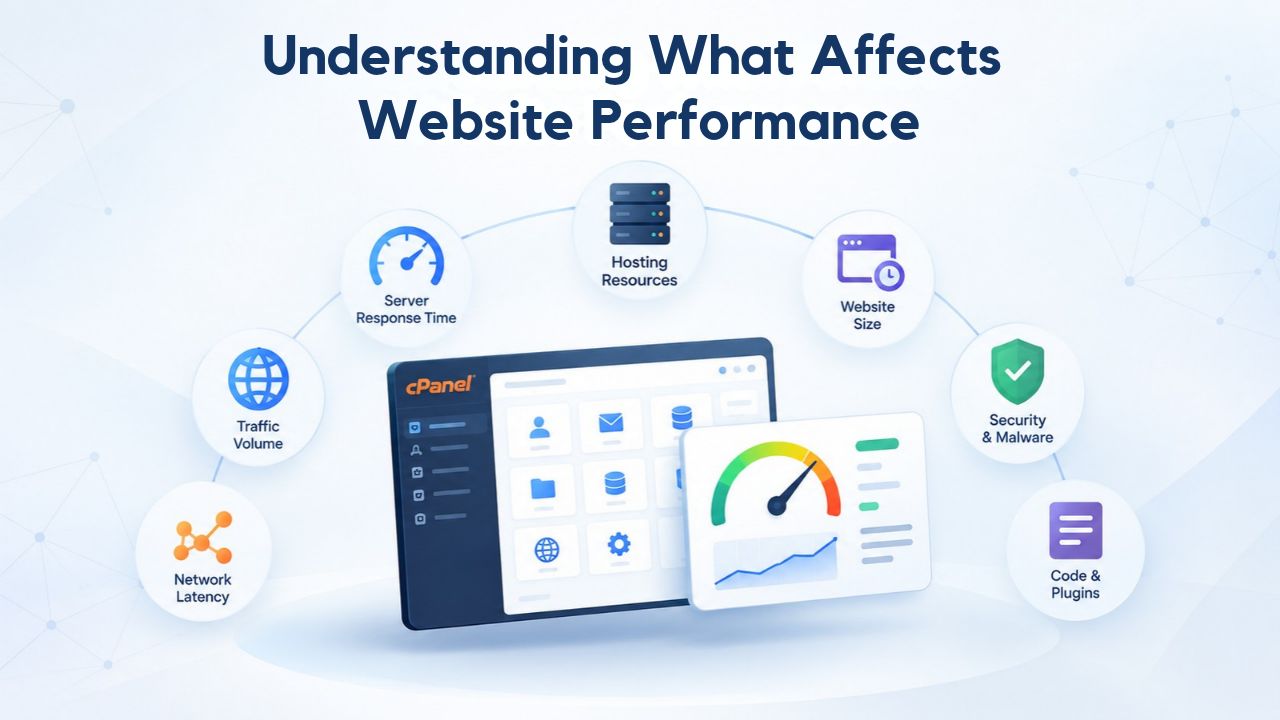
No single factor controls website speed. The performance equation involves infrastructure provided by your hosting provider, site-level configuration and code optimization, and how well those elements work together. Understanding the difference between what you control and what your provider controls helps you focus optimization efforts where they matter most and avoid wasting time on changes that won’t move the needle.
Infrastructure vs. Site-Level Performance Factors
Your hosting provider controls the infrastructure layer, the physical servers, network capacity, data-center uptime guarantees, and the baseline resources allocated to your plan. GoDaddy, whose infrastructure powers Niya Digital’s Web Hosting service, operates cloud-based distributed servers with bandwidth and storage allocations sized by plan tier. A faster, more powerful server provides better baseline capacity, but infrastructure alone doesn’t make a website fast.
Site-level factors determine how efficiently your site uses the infrastructure provided. Unoptimized images that weigh megabytes, missing cache headers that force browsers to re-download static assets on every visit, inefficient database queries that lock tables, and heavy JavaScript that blocks rendering can slow a site to a crawl even on powerful hardware. The upside is that many of these optimizations happen directly through cPanel, without provider changes or plan upgrades. You have real control over how well your site performs within the resources you’re already paying for.
Shared Responsibility in Performance Outcomes
Performance is fundamentally a shared responsibility between provider and site owner. GoDaddy’s infrastructure sets the baseline capacity and reliability available to your site. Your site’s configuration, code quality, asset optimization, and ongoing maintenance determine how close you actually get to that baseline. A perfectly optimized site running on entry-level shared hosting can load faster than a poorly optimized site on VPS hosting, because optimization matters more than raw hardware. Conversely, a site on premium infrastructure can still feel sluggish if you neglect optimization, wasting the investment’s potential.
This shared model is actually empowering: you’re not helpless if your site feels slow. You have direct access to cPanel tools that can yield measurable improvements without requiring support tickets or plan changes. That responsibility also means you can’t blame slow performance entirely on your provider if your site is unoptimized; performance depends on the whole picture.
Business Web Hosting Plans & Pricing
Choose the hosting plan that fits your website, WordPress site, or growing business. Compare features, storage, performance, security, and website capacity to find the right hosting environment for your needs.
cPanel Starter
cPanel Hosting that's easy, reliable and lightning-fast.
- 1 website
- 30 GB storage
- Unmetered bandwidth*

cPanel Economy
cPanel Hosting that's easy, reliable and lightning-fast.
- 1 website
- 100 GB space
- Unlimited bandwidth*
- 100 email accounts**
- 10 MySQL databases (1 GB ea.)
cPanel Deluxe
cPanel Hosting that's easy, reliable and lightning-fast.
- Unlimited websites
- Unlimited space
- Unlimited bandwidth*
- 500 email accounts
- 25 MySQL databases (1 GB ea.)
cPanel Ultimate
cPanel Hosting that's easy, reliable and lightning-fast.
- Unlimited websites
- Unlimited space
- Unlimited bandwidth*
- 1000 email accounts
- Unlimited MySQL databases (1 GB ea.)
- 2X Processing power & memory (available for Linux/cPanel only)
- Premium DNS
- 1-year SSL certificate to secure customer data and increase search rankings
*We don't limit the amount of storage and bandwidth your site can use as long as it complies with our Hosting Agreement. Should your website bandwidth or storage usage present a risk to the stability, performance or uptime of our servers, we will notify you via email and may be required to upgrade, or we may restrict the resources your website is using.
**Email account storage is limited to 100 email accounts with 100 MB of total storage.
WordPress Basic
A great way to get started.
- 1 website
- 10 GB NVMe storage
- Unmetered bandwidth
- Free SSL Certificate *
- WordPress pre-installed
- Weekly backups
- Web Application Firewall
- Daily malware scans
- One-time malware removal

WordPress Deluxe
Improve your site performance with Cloudflare CDN.
- 1 website
- 20 GB NVMe storage
- Unmetered bandwidth
- Free SSL Certificate *
- WordPress pre-installed
- Daily backups
- Web Application Firewall
- Daily malware scans
- One-time malware removal
- Up to 2x faster performance with global Cloudflare CDN **
- Enhanced security with DDoS protection
- Staging site
WordPress Ultimate
Add online marketing with more sites, storage and security.
- 1 website
- 30 GB NVMe storage
- Unmetered bandwidth
- Free SSL Certificate *
- WordPress pre-installed
- Daily + on-demand backups
- Web Application Firewall
- Daily malware scans
- Unlimited malware removal
- Up to 2x faster performance with global Cloudflare CDN **
- Enhanced security with DDoS protection
- Staging site
- WordPress code optimizer
- Smart WordPress plugin manager
- Sell online with WooCommerce
*An SSL certificate is included with every site and free for the life of the hosting plan. Certificates are automatically installed, validated and renewed.
Web Hosting Plus Launch
For multiple basic sites.
- 100 GB storage*
- 4 GB RAM
- 2 CPUs
- Unmetered traffic
- 50 websites & databases
- Free, unlimited SSL for all your websites**

Web Hosting Plus Enhance
For high-traffic WordPress, Joomla, and other sites.
- 200 GB storage*
- 8 GB RAM
- 4 CPUs
- Unmetered traffic
- 100 websites & databases
- Free, unlimited SSL for all your websites**
Web Hosting Plus Grow
For advanced eCommerce sites like Magento.
- 300 GB storage*
- 16 GB RAM
- 8 CPUs
- Unmetered traffic
- 150 websites & databases
- Free, unlimited SSL for all your websites**
Web Hosting Plus Expand
For multiple basic sites.
- 400 GB storage*
- 32 GB RAM
- 16 CPUs
- Unmetered traffic
- 200 websites & databases
- Free, unlimited SSL for all your websites**
*The total amount of usable storage capacity for your particular Hosting Service(s) may differ from the represented capacity as there is required space for the operating system(s), system file(s) and other supporting file(s).
**If you cancel the Web Hosting Plus product, you will lose the associated SSL certificate as well.
Choosing the Right Hosting Tier for Your Site’s Needs
Shared, managed, and VPS hosting each serve different traffic levels and complexity requirements. Matching your site type to the right tier prevents unnecessary bottlenecks and avoids overpaying for resources you don’t need. Understanding how resources are allocated across tiers helps you decide whether to optimize within your current plan or upgrade.
Resource Allocation on Shared vs. Managed Hosting
Shared hosting places multiple websites on a single server, dividing CPU, memory, and I/O resources among them based on your plan tier. GoDaddy Web Hosting plans allocate resources by tier: entry tiers have baseline CPU and memory allocations, while higher tiers like Web Hosting Plus provide increased allocations, more isolated resources, and reduced contention from neighboring sites. This tiered approach lets you upgrade without changing providers as your needs grow.
Managed hosting dedicates more resources to fewer sites, reducing resource contention and providing more consistent performance under load. The trade-off is cost: you pay more for reduced sharing. For small blogs and small-business sites under 100K monthly visitors, properly optimized shared hosting often performs excellently. A small site with 5–10 pages, minimal traffic spikes, optimized images, and efficient code rarely hits resource limits. Entry-level shared hosting provides enough capacity. The downside of shared hosting is that you share server resources with neighboring sites; if a neighbor’s site experiences a sudden traffic spike or runs a resource-heavy operation, it might temporarily impact your performance even though you haven’t changed anything.
When to Upgrade: Recognizing Growth Thresholds
High-traffic sites, online stores handling concurrent transactions, sites with multiple databases, or agencies managing many client sites often experience resource contention on shared hosting. Concrete symptoms include slow database queries specifically during peak traffic times (not consistently slow), timeouts on form submissions and API calls, or inconsistent page load times where the same page sometimes loads in 2 seconds and sometimes in 5 seconds. At that point, VPS or managed hosting becomes a worthwhile investment.
Niya Digital’s team has found that most small-business and blogger sites experience measurable performance gains, load-time reductions of 20–40%, after implementing cPanel-native optimization steps such as database indexing, PHP opcache configuration, and proper cache headers, without requiring a plan upgrade. This observation suggests many sites are optimized before they truly outgrow their tier. Optimization often yields bigger improvements than upgrading, making it worth pursuing before scaling up. The practical implication: focus on optimization first, then upgrade if optimization alone doesn’t solve your performance needs.
Plan Tier Decision Matrix
| Site Type / Use Case | Recommended Hosting Tier | Primary Performance Bottleneck | Typical cPanel Optimization Focus |
|---|---|---|---|
| Small Blog (<10K monthly visitors) | Shared Hosting | Image optimization, caching headers | Browser caching, image compression |
| Small Business (10K–100K) | Shared Hosting (optimized) | Database queries, asset delivery | Database indexing, CSS/JS minification |
| E-commerce Growing Niche (100K–500K) | Managed Hosting or VPS | Resource contention, concurrent requests | Database tuning, caching layers |
| High-Traffic or Multi-Site (500K+) | VPS, Managed, or Cloud | Infrastructure scaling, database capacity | Database replication, query optimization |
| Developer / Agency (Multiple Clients) | Reseller or Managed VPS | Resource isolation, per-client limits | Client resource monitoring, scaling planning |
| High-Security / Compliance Requirements | Managed Hosting | Security overhead, compliance automation | Firewall rules, WAF configuration, audit logging |
Optimizing PHP Settings in cPanel
PHP is the server-side language powering most WordPress, Drupal, custom e-commerce, and dynamic sites. How PHP executes on the server directly affects page load time for every visitor. Optimizing PHP settings through cPanel requires no coding knowledge and can be completed in minutes, yet yields measurable performance improvements.
Enabling PHP Handlers and OpCode Caching
cPanel provides tools for PHP configuration through the PHP Selector and memory-limit settings, giving you control over which PHP version runs your site and how much memory PHP processes can consume. By default, PHP interprets and compiles script code fresh on every request: the server reads the PHP file, compiles it to machine instructions, executes those instructions, and returns the result. This recompilation happens on every single request, which is slow for high-traffic pages serving thousands of requests per day.
Opcode caching stores pre-compiled bytecode in memory, eliminating recompilation. The first time a PHP file runs, the server compiles it and caches the bytecode. Subsequent requests use the cached version, skipping compilation. Enabling OpCode (available through cPanel’s Cache Manager or PHP settings) can reduce PHP execution time by 30–50% on typical WordPress and Drupal sites. This configuration is a one-time cPanel step; after enabling it, the system runs automatically in the background. Equally important is selecting a PHP version your site supports; newer versions (7.4, 8.0, 8.1+) run significantly faster than older ones because of performance improvements in the language itself.
PHP-FPM and FastCGI handlers also improve concurrent request handling compared to older handler methods, allowing the server to process multiple requests simultaneously more efficiently. cPanel’s interface makes switching between handlers straightforward, usually a dropdown selection in the PHP Configuration settings. The combination of a modern PHP version + OpCode caching + efficient handler selection can reduce overall site response time by 40–60%, a substantial improvement that costs nothing to implement.
Managing PHP Memory and Timeout Settings
PHP memory limits and execution timeouts exist to protect shared-hosting servers from runaway scripts that consume excessive resources and disrupt neighbors. However, limits set too low can cause timeouts on legitimate operations, image resizing during upload, bulk CSV imports, PDF report generation, or large database queries. Limits set too high waste resources and can destabilize the server. Finding the right balance requires observing your specific site.
Access cPanel’s “MultiPHP INI Editor” or contact your host’s support to review your current memory_limit and max_execution_time settings. For most small-business sites and blogs, a memory_limit of 128–256MB and max_execution_time of 30–60 seconds work well. Monitor your error logs (cPanel → Error Log) weekly to spot timeout warnings appearing repeatedly. When you see timeouts, check which operation triggered them. If legitimate operations like backups or imports are timing out, incrementally increase max_execution_time in 10-second increments until timeouts stop. For memory exhaustion, increase memory_limit by 64MB at a time. This data-driven approach beats guessing; small, targeted increases based on actual errors yield better outcomes than arbitrarily doubling limits.
Database Optimization and Query Tuning
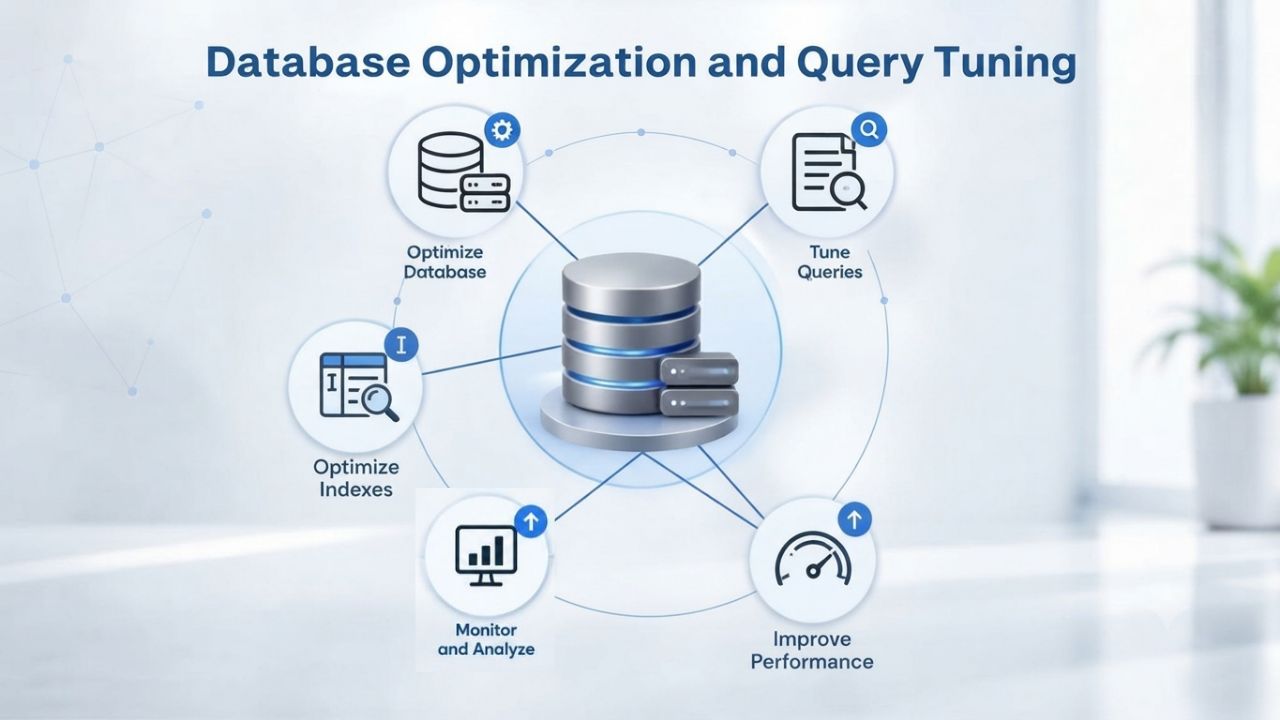
Databases power your site’s core functionality: user logins, product listings, search results, comments, and any personalized or dynamic content. Slow database queries are one of the most common site-performance bottlenecks, yet are often overlooked because they’re not visible in cPanel’s top-level metrics. Optimizing your database often yields dramatic performance improvements.
Creating Indexes and Analyzing Slow Queries
A database index works like an index in a book: instead of the database reading every single row to find matching entries (a full table scan), an index allows the database to jump directly to matching rows. Most databases ship with a few default indexes on primary keys. Still, custom queries, especially those searching by username, email, post category, or other non-primary fields, often benefit from additional indexes. Creating a single well-placed index can reduce a slow query from 5 seconds to 50 milliseconds.
cPanel’s MySQL Database Wizard allows you to create indexes through a graphical interface, and you can analyze slow queries through phpMyAdmin, both accessible directly from the cPanel control panel without needing SSH or command-line access. To identify problematic queries: enable MySQL’s slow query log through cPanel’s phpMyAdmin, then run your site through typical workflows, browse products, submit forms, perform searches, post comments, and review the slow query log for queries taking longer than 1–2 seconds.
Once you identify slow queries, you can often fix them with a single index. If you’re not comfortable modifying the database directly, share the slow queries with your developer or a database administrator; the fix typically involves adding an index on the search column, a one-minute change.
Backup and Recovery for Database Health
Database corruption or accidental data loss severely impacts performance; a corrupted table can cause queries to time out, return incomplete results, or fail. This not only slows your site but can break functionality completely. Regular backups protect you against both accidental deletions and corruption. cPanel shared and managed hosting plans include automatic daily backups, and you can initiate manual backups anytime through cPanel’s Backup section.
For large sites or businesses where data integrity is critical, review your backup frequency in cPanel; daily backups are standard, but you may set weekly backups if customized. Check the backup retention period (how long backups are kept before being deleted); longer retention costs storage space but provides more recovery options. Most importantly, test backup restoration occasionally to confirm backups actually work and can be restored. A backup you can’t restore isn’t insurance. Ask your host’s support team about their recovery process and confirm you understand how to initiate a restoration if needed.
Implementing Caching Strategies
Caching reduces work for both servers and browsers by storing frequently accessed data so it doesn’t need to regenerate or re-download it on every request. Three caching layers, browser caching, server-side application caching, and database caching, work together to deliver substantial speed improvements. Implementing all three is ideal, but even one or two yield meaningful results.
Setting Cache-Control Headers via .htaccess
Browser caching tells visitors’ browsers to store static files locally (images, CSS, JavaScript, fonts) instead of re-downloading them on each visit. The first time a visitor lands on your site, the browser downloads all these files. On subsequent visits, the browser retrieves them from local storage instead of requesting them from the server again, dramatically reducing load time. Cache headers, including Cache-Control, Expires, and ETag, minimize round-trip requests and reduce the payload size transferred over the network.
In cPanel, you configure browser caching by editing the .htaccess file in your site’s root directory. A typical cache-control block looks like this: files matching image formats (jpg, png, gif, svg) and static assets (css, js) get a cache duration of 30 days, while HTML pages get a shorter duration like 1 day (since pages change more frequently than logos and brand assets).
This tells visitors’ browsers: “Keep these files for 30 days; don’t ask the server for them again during that time.” cPanel’s File Manager lets you edit .htaccess directly, or ask your host’s support team to apply cache rules if you’re unsure about editing configuration files. The performance gain is immediately noticeable; returning visitors see 40–60% faster load times because the browser skips downloading static assets.
Leveraging cPanel’s Cache Manager and OpCode Caching
Beyond browser caching, server-side caching stores frequently accessed data in server memory, so repeated requests don’t require database queries or file reads. cPanel’s “Optimize Website” tool enables gzip compression (which reduces file sizes by 60–80%) and browser caching with a single click. The “Cache Manager” configures OpCode caching for PHP (discussed in the PHP settings section) and database query result caching if your application supports it.
For WordPress sites, many caching plugins (WP Super Cache, W3 Total Cache, LiteSpeed Cache) automate server-side and browser cache configuration, working alongside cPanel’s built-in tools without conflict. These plugins often provide more granular control, letting you cache specific page types differently or exclude pages that shouldn’t be cached (like shopping carts or account pages). If you’re using WordPress, enable a caching plugin in addition to cPanel’s native tools for optimal results. The combination of OpCode caching + browser caching + application-level caching creates a multi-layer defense against slowness.
Start Caching Your Site Today
Implementing caching is one of the highest-impact optimizations available, and Niya Digital’s Web Hosting service makes it straightforward through cPanel’s built-in tools. Browser caching, OpCode caching, and proper cache headers work together to reduce load times by 40–60% without requiring code changes or developer involvement. Your site deserves to perform at its best.
Optimizing Images and Static Assets
Images are the largest contributors to page weight on most modern websites. A typical webpage contains 20–30 images, and unoptimized images easily add several megabytes to page size, translating to 5–10 second load times on typical mobile connections. Image optimization is high-impact and relatively straightforward, making it one of the best uses of optimization time.
Compression, Format Selection, and Lazy Loading
Optimizing images through compression, modern formats like WebP, and lazy loading (deferring off-screen image loading until they’re needed) provides the biggest speed win for minimal effort. Most WordPress image optimization plugins handle compression automatically upon upload; for custom sites, tools like TinyPNG or ImageOptim reduce file sizes by 30–50% without visible quality loss, using sophisticated algorithms that preserve visual quality while eliminating unnecessary data.
File format matters significantly. PNG files work best for graphics and icons (lossless compression). JPEG works for photographs and complex images. WebP, a modern format developed by Google, compresses 25–35% better than JPEG while maintaining visual quality and is supported by all modern browsers, though older browsers need fallbacks. Your WordPress theme or plugin often handles format selection automatically; for sites requiring custom image handling, discuss format strategy with your developer.
Lazy loading defers loading off-screen images until a visitor scrolls them into view, substantially reducing initial page load time. On pages with many images below the fold (invisible until scrolling), lazy loading can cut initial page load time by 1–3 seconds. WordPress themes and plugins increasingly enable lazy loading by default, but verify it’s turned on.
Content Delivery Networks (CDNs) for Static Assets
A Content Delivery Network stores copies of your static files on geographically distributed servers worldwide. When a visitor loads your site, the CDN automatically serves files from the closest server, significantly reducing network latency. For a visitor in London accessing a US-hosted server, a CDN can mean the difference between 400ms latency and 80ms latency, a substantial improvement in perceived load time.
GoDaddy’s WordPress hosting includes a CDN with select plans, and standalone CDNs (Cloudflare, BunnyCDN, Bunny, others) integrate with cPanel-based hosting through simple DNS changes. For global audiences or sites with heavy video and media files, CDNs deliver measurable speed gains, often reducing load time by 1–2 seconds depending on your traffic distribution. For small regional sites serving a single geographic market, CDN benefits are modest but still worth evaluating if you’ve already optimized and load times remain slow.
Monitoring Performance and Identifying Bottlenecks
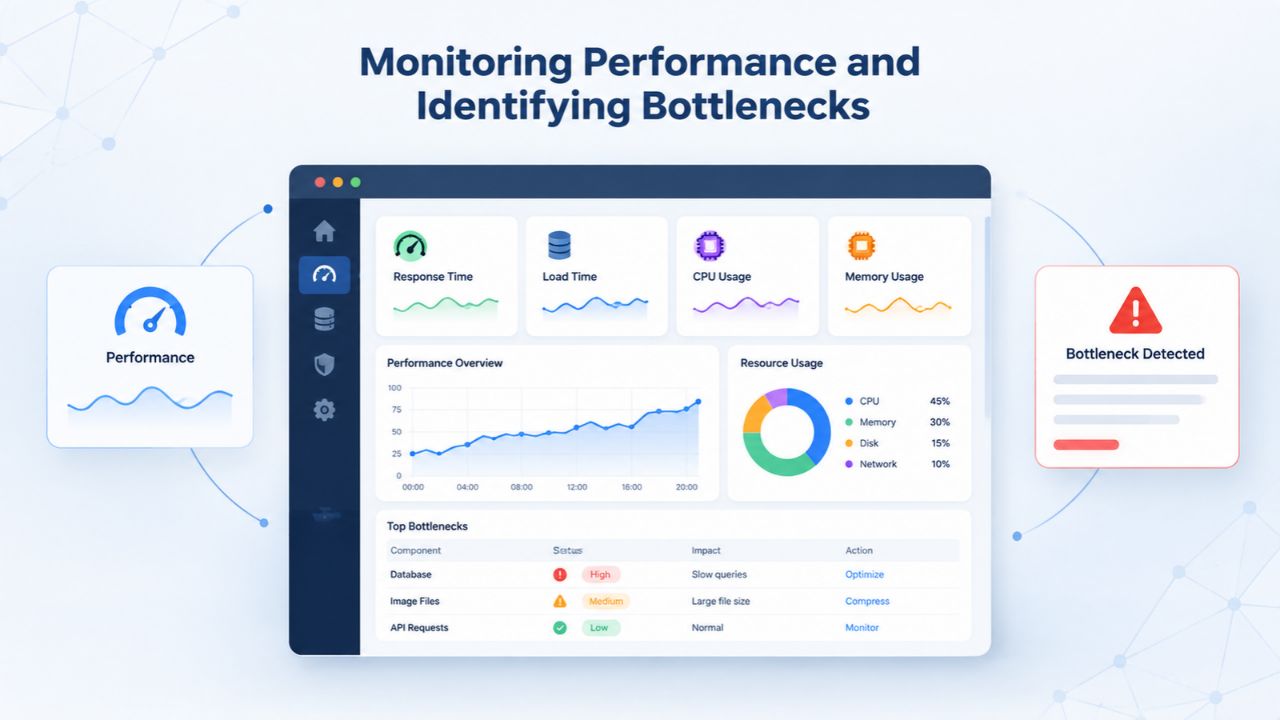
You cannot optimize what you don’t measure. Without visibility into how your site performs under real traffic, optimization becomes guesswork. cPanel’s built-in monitoring tools and third-party services provide the visibility needed to identify specific bottlenecks and measure the impact of your optimization efforts.
Using cPanel Analytics and Error Logs
cPanel’s “Metrics” and “Statistics” sections display real-time resource usage, CPU, memory, disk I/O, and bandwidth, helping you spot patterns. During peak traffic times, review these metrics to identify the limiting resource. If CPU regularly maxes out but memory and disk I/O are healthy, your site’s code (not infrastructure) is the bottleneck; optimizing PHP, database queries, or application logic will help. If memory is consistently high, check for memory leaks in custom code or misbehaving plugins. If disk I/O is maxed out, your database might be thrashing (performing excessive disk operations instead of using memory), suggesting you need database optimization.
Error logs (cPanel → Error Log) show warnings and failures, timeouts, undefined variables, missing files, and permission issues. Review logs weekly; patterns provide direct clues. For example, repeated timeout errors in a specific cron task suggest that task needs optimization or a resource increase. Database connection errors suggest your site is exhausting the available database connections, pointing to either inefficient code or a resource upgrade. PHP warnings about memory exhaustion point directly to code that needs optimization or a higher PHP memory limit. The logs are diagnostic gold if you know how to read them.
Load Testing and Recognizing Scaling Thresholds
Google Web.dev recommends monitoring Core Web Vitals, Largest Contentful Paint (LCP, how long until the largest visible element renders), First Input Delay (how responsive the page is to user interaction), and Cumulative Layout Shift (unexpected layout changes during loading), to measure real-world user experience. Tools like Google PageSpeed Insights and GTmetrix provide free, comprehensive analyses that show your scores and specific improvement recommendations. Run tests from different devices and network speeds; a fast site on desktop broadband may perform poorly on mobile 4G connections.
Load testing simulates concurrent visitors to reveal infrastructure limits. Free tools like Apache Bench or LoadImpact let you generate synthetic traffic and observe response times under load, revealing when performance degrades. If page load time increases noticeably as traffic climbs above your typical peak, or error rates spike under load, you may need to scale up to VPS or dedicated hosting. Without load testing, you’re guessing about your site’s capacity.
Performance Optimization Checklist by Priority
| Optimization Task | cPanel Menu/Tool Location | Expected Impact | Difficulty Level |
|---|---|---|---|
| Enable PHP OpCode Cache | Cache Manager or PHP Configuration | 30–50% PHP execution reduction | Easy |
| Create Database Indexes | phpMyAdmin (via cPanel) | 50–90% query speed improvement | Moderate |
| Configure Cache-Control Headers | File Manager → Edit .htaccess | 40–60% faster returning visits | Easy |
| Enable Gzip Compression | Optimize Website (one-click) | 60–80% file size reduction | Easy |
| Optimize and Compress Images | File Manager or Image Optimizer plugins | 30–50% image size reduction | Easy |
| Set Up Monitoring/Analytics | Metrics and Error Log sections | Visibility into bottlenecks | Easy |
| Enable AutoSSL/HTTPS | SSL/TLS Certificate section | Required for modern browsers and SEO | Easy |
| Test Load Performance | External tools (GTmetrix, Lighthouse) | Baseline for measuring improvements | Easy |
Managing Email Hosting Performance and Resource Impact
Email functionality is foundational to many sites: account confirmations, password resets, order notifications, and newsletters. Yet email is resource-intensive and often misconfigured in ways that impact overall site performance. Misconfigured email can consume resources that should be available to your website, creating unexpected performance problems.
Email Best Practices and Backup Frequency
Email accounts, spam filtering, and backup operations consume server resources. Each email account consumes disk space (messages and attachments occupy storage). Spam filtering, checking against reputation blacklists, scanning for viruses, and analyzing message content use CPU during mail processing. Automatic backups of email data consume additional backup storage. Review your email setup in cPanel regularly: identify and delete unused accounts (abandoned email addresses that no longer receive mail still consume storage), set reasonable spam-filter aggressiveness (too strict loses legitimate mail, too loose lets spam through), and confirm backup retention is appropriate for your email volume.
For high-volume business email (100+ accounts or hundreds of thousands of messages per day), consider a dedicated email service like Google Workspace or Microsoft 365 instead of hosting email on the same server as your website. This isolates email load from web-application performance, preventing email spikes from affecting website visitors. For 5–20 accounts supporting a small business, cPanel-hosted email works fine if you clean it up regularly and keep backup settings reasonable. The key is understanding email’s resource footprint and managing it consciously.
Managing Multiple Email Accounts Efficiently
cPanel lets you create and manage multiple email accounts through a graphical interface, but each account adds overhead, message storage, and processing time for spam filtering and backups. For many accounts (50+), a dedicated email platform scales better and avoids performance drag on your web server. For 5–20 accounts, cPanel-hosted email is efficient and convenient, keeping all your account management in one place.
When cleaning up old email accounts, verify they’re no longer needed before deletion; deleted accounts cannot be recovered. Archive important old messages if needed. For accounts still in use, clean up old messages periodically (delete messages older than 1–2 years) to reduce storage consumption. Set reasonable forwarding rules for accounts you rarely check directly; forwarding is more efficient than checking multiple inboxes on the server.
Security Hardening and Performance Trade-offs
Security and performance are interconnected and sometimes in tension. HTTPS encryption, firewalls, and Web Application Firewalls (WAFs) all protect your site but add some latency to every request. Understanding these trade-offs helps you decide which protections are worth it.
SSL/TLS Configuration and HTTPS Performance
Free SSL certificates (auto-renewed via AutoSSL) are included with GoDaddy Web Hosting and Niya Digital’s plans, so the cost barrier to HTTPS is gone. HTTPS encrypts data in transit, which isand is required by modern browsers and search engines as a ranking factor. The SSL/TLS handshake adds latency, typically 100–150ms on older servers, negligible on modern ones due to improvements in the protocol (TLS 1.3) and server infrastructure.
In cPanel, enable AutoSSL to keep your certificate current without manual intervention. Expired certificates trigger browser security warnings and hurt user trust and SEO rankings; automated renewal prevents this entirely. For maximum performance, enable HTTP/2 (available through cPanel on most hosts) and HTTP/3 if your host offers it. These protocols multiplex multiple requests over a single connection rather than opening separate connections per file, improving speed compared to HTTP/1.1. Verify your host supports these protocols and enable them through cPanel’s Apache/Nginx configuration settings if available. The combination of modern SSL/TLS, HTTP/2 or HTTP/3, and proper certificate management is the current standard and essential, not optional.
Firewall and WAF Configuration Trade-offs
Firewalls and Web Application Firewalls (WAFs) block malicious traffic before it reaches your application, including attempts to exploit vulnerabilities, DDoS attacks, and automated bot traffic. The protection is valuable, but rule evaluation adds a few milliseconds to every request (typically 10–50ms depending on complexity), and overly aggressive rules block legitimate traffic (false positives). cPanel includes basic firewall rules; many hosts offer ModSecurity (a WAF) as an optional add-on or included feature.
Configure firewalls to block obvious threats, brute-force login attempts from multiple IPs, SQL injection patterns, and obviously malicious traffic, without over-blocking. A good starting point is blocking failed login attempts after 10 tries from the same IP (a strong indicator of brute-force attacks). Review WAF logs periodically to spot false positives blocking legitimate users, and adjust rules as needed. Some WAF rules may be too aggressive for your site type; disable rules causing false positives. The performance cost of WAF protection is small (typically < 50ms added latency) and worthwhile given the security benefit.
Recognizing Growth Limits and Scaling Beyond cPanel Hosting
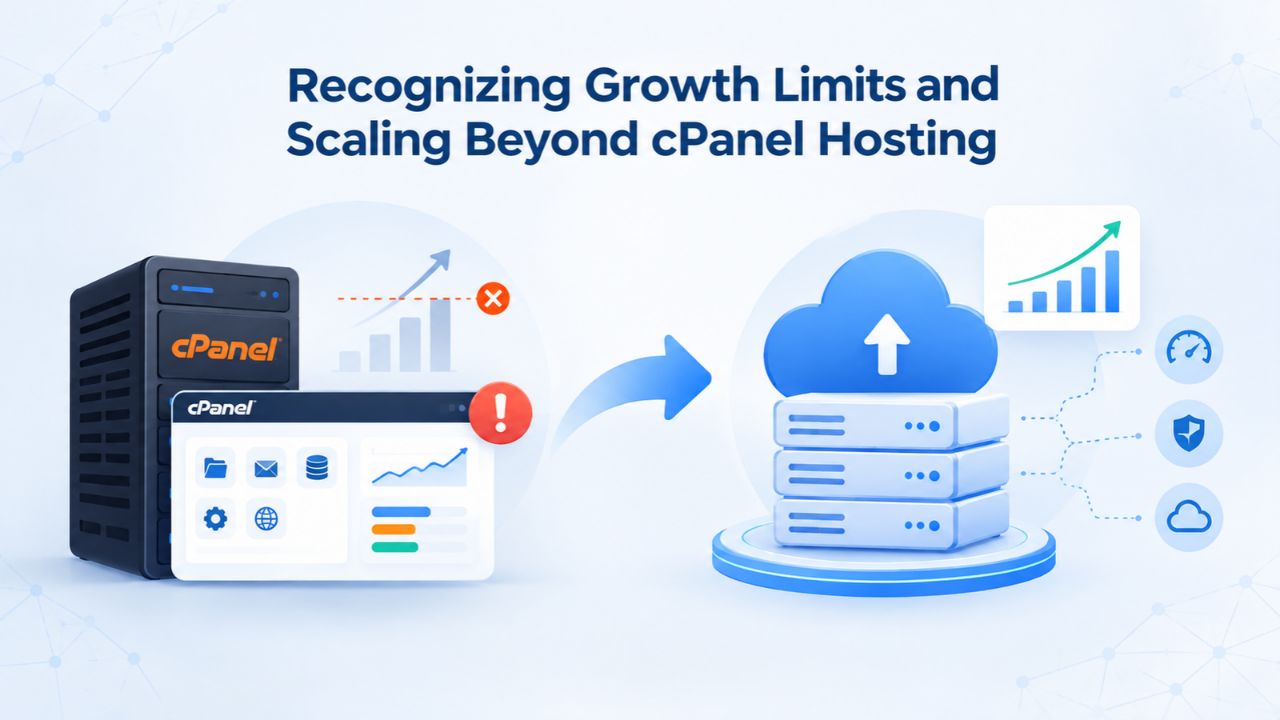
Optimization has limits. A properly optimized site on shared hosting can handle significant traffic, but sustained growth eventually exceeds what shared hosting can support. Knowing when you’ve hit those limits helps you scale at the right time without overpaying.
Identifying When Shared Hosting Resources Are Exhausted
Shared hosting plans cap resource allocation to protect neighbors and ensure fair resource distribution. Even a perfectly optimized site can hit limits if traffic grows enough. Common signs include: page load times increasing during peak traffic hours (but not consistently slow all day; this indicates resource contention, not a code problem); hitting published bandwidth or concurrent-connection limits in your plan documentation; error logs consistently showing timeouts despite cPanel metrics showing low CPU/memory usage (indicating you’ve hit per-account connection limits or I/O throttling); support team indicating resource-use violations or suggesting an upgrade.
At this point, optimization provides diminishing returns. A 20% load-time improvement through optimization is valuable when the baseline is 3 seconds, but less valuable when the baseline is already 0.8 seconds. Upgrading to VPS, managed hosting, or cloud infrastructure becomes the necessary next step to continue supporting growth.
Migration and Upgrade Pathways
Upgrading hosting doesn’t require starting over or rebuilding your site. Most hosts provide site-migration tools, cPanel’s Backup Wizard for manual migration, one-click WordPress migrations, or professional migration services. Managed WordPress hosting and VPS plans retain cPanel, so your configuration knowledge and optimization settings transfer to the new tier; settings you’ve optimized on shared hosting apply directly to the new infrastructure, preserving your migration work.
Upgrade during low-traffic windows to minimize disruption. Test the migration on a staging site first (cPanel’s staging feature for WordPress is ideal for this) to confirm everything transfers correctly before pointing your live domain to the new hosting. Proper planning, testing, and phased migration help you scale smoothly with minimal risk.
Ready to Improve Your Site’s Performance?
Niya Digital’s Web Hosting service provides cPanel access, onboarding support, and guidance through every optimization step. Your success with cPanel optimization directly translates to visitor satisfaction, better search rankings, and higher conversions, outcomes that compound over time. Explore Niya Digital’s Web Hosting service to get started with a properly configured cPanel environment and expert support as you optimize.
Frequently Asked Questions
What is cPanel, and why does it matter for performance?
cPanel is a graphical control panel that lets you manage web hosting through a visual interface instead of requiring command-line access. It includes tools for configuring PHP, databases, caching, email, domains, SSL certificates, and more, all directly tied to site performance. For anyone without server-administration experience, cPanel is the interface where performance optimizations happen. It abstracts away complexity while providing the control you need.
How much can I improve performance without upgrading my hosting plan?
Typical improvements range from a 20–40% reduction in load time through cPanel optimization alone: database indexing, cache headers, PHP OpCode caching, image compression, and proper caching configuration. Larger improvements (50%+) usually require code optimization by a developer or upgrading to higher-tier hosting with more resources and less resource contention.
Should I enable HTTPS, or will it slow my site?
Enable HTTPS immediately. Modern HTTPS adds negligible latency (< 50ms on current servers) due to improvements in TLS 1.3 and server infrastructure. The SEO and security benefits far outweigh the minimal performance cost. All major browsers expect HTTPS; unencrypted sites show security warnings, which can erode trust.
Which caching strategy should I implement first?
Start with browser caching (Cache-Control headers via .htaccess) and OpCode caching (enable via cPanel’s Cache Manager). Both are simple, one-time configurations with immediate impact requiring no code changes. Add a caching plugin (for WordPress) or CDN afterward if your site remains slow after these foundational steps.
How often should I optimize my database?
Review database indexes and slow-query logs quarterly or whenever you notice performance degradation. Most well-maintained databases need index additions only when you add new features, change query patterns significantly, or experience increased traffic that reveals previously hiddenpreviously hidden slow queries.
What’s the difference between shared and managed hosting for performance?
Shared hosting divides server resources (CPU, memory, disk I/O) among many sites; resource contention is possible. Managed hosting dedicates more resources to fewer sites, reducing contention and improving performance consistency under load. Choose managed hosting if traffic is predictable and high, or if you want less competition for resources.
Can I migrate my site to a faster host without downtime?
Yes. Most hosts provide migration tools or can perform the migration for you. Migrate during low-traffic hours; test on a staging site first. DNS changes (pointing your domain to the new host) take effect over a few hours, so brief downtime (typically 5–30 minutes) may occur during the switch; schedule accordingly and notify users if your site is critical.
Do I need a CDN for performance?
Not necessarily. Global audiences or sites with heavy video/media benefit significantly from CDNs. For small regional sites or blogs serving a single geographic market, benefits are modest. Test with free CDN options (Cloudflare has a free tier) to measure impact for your specific site before committing to paid plans.
How do I know if my site is “slow” compared to competitors?
Use Google PageSpeed Insights, GTmetrix, or Lighthouse (built into Chrome DevTools) to get objective measurements. Compare your site to competitors; they often use the same platforms and hosting tiers, which provides meaningful context. Peak conversion rates occur at 1.8–2.7 second load times depending on device; if your site loads in 3+ seconds, optimization is worth prioritizing.
Is performance monitoring automated in cPanel?
cPanel shows real-time metrics (CPU, memory, bandwidth), but proactive alerting isn’t built-in by default. Many hosts offer monitoring add-ons; consider Google Analytics or third-party services (New Relic, Datadog) for deeper, automated performance tracking and anomaly alerts.
How does website performance affect SEO?
Page speed is a Google Search ranking factor. Slow sites rank lower in search results. Additionally, slow load times increase bounce rates, reduce time-on-site, and lower conversions, all signals Google uses to assess content quality and relevance. Performance directly impacts search visibility.
What tools can I use to test my site’s real-world performance?
Google Web.dev provides free performance audits and detailed guidance for improvement. GTmetrix, Lighthouse (built into Chrome), and Pingdom also offer free testing and detailed reports. Test from different devices and network speeds; mobile 4G performance is especially important since over 53% of users abandon pages that take 3+ seconds to load on mobile.
How does cPanel help with performance compared to other control panels?
cPanel dominates shared hosting and includes optimization tools (PHP Selector, Cache Manager, error logs, metrics, SSL management). Alternatives like Plesk offer similar features. The tools matter less than how you use them; both cPanel and Plesk sites can be fast or slow depending on configuration and optimization effort.
Should I hire a specialist to optimize my site, or can I do it myself?
Small optimizations (cache headers, database indexing, image compression, enabling caching) are feasible for non-developers through cPanel’s interface. Complex code optimization, custom performance tuning, or advanced database tuning may require a developer. Start with cPanel’s built-in tools; hire specialist help only if bottlenecks persist after applying basic optimization techniques.
Can performance improvements reduce my hosting costs?
Indirectly, yes. A properly optimized site uses fewer resources, so you may not need to upgrade to higher-tier hosting as quickly as an unoptimized site would. By optimizing within your current tier first, you avoid the cost difference between shared and VPS or dedicated hosting and extend its useful life.
Glossary
- Bandwidth: The total amount of data transferred between your website and visitors’ browsers, measured in gigabytes per month. Image optimization, asset minification, and caching reduce bandwidth consumption by eliminating unnecessary data transfer.
- Cache: Temporary storage of data to reduce recomputation or re-downloading. Browser caching stores assets locally on visitors’ devices; server-side caching stores frequently accessed data in memory; database caching stores query results, all reducing load time and server load.
- Database Index: A data structure that speeds up database queries by allowing the database to locate matching rows without scanning every record in a table. Like a book index: instead of reading every page to find a topic, you jump to the index, find the page number, and go directly there.
- Gzip Compression: A compression technique that reduces file sizes (HTML, CSS, JavaScript, JSON) by 60–80% before transmission over the network. Browsers automatically decompress. Reduces bandwidth consumption and improves load time.
- Latency: The delay between sending a request to a server and receiving a response, measured in milliseconds. Network distance, server processing time, and caching affect it. Lower latency equals faster perceived load times.
- OpCode Cache: Server-side caching that stores pre-compiled PHP bytecode in memory, eliminating the need to recompile PHP on every request. Improves PHP execution speed by 30–50% by skipping the compilation step on subsequent runs.
- Service Level Agreement (SLA): A contract specifying guaranteed uptime percentages, support response times, and compensation if guarantees aren’t met. GoDaddy Web Hosting publishes a 99.9% uptime SLA, meaning the service is committed to being available that percentage of the time.
- Uptime: The percentage of time a web server is operational and accessible to visitors, expressed as a percentage. 99.9% uptime means the site is down for at most 43 minutes per month. Higher uptime percentages (99.95%, 99.99%) allow even less downtime.