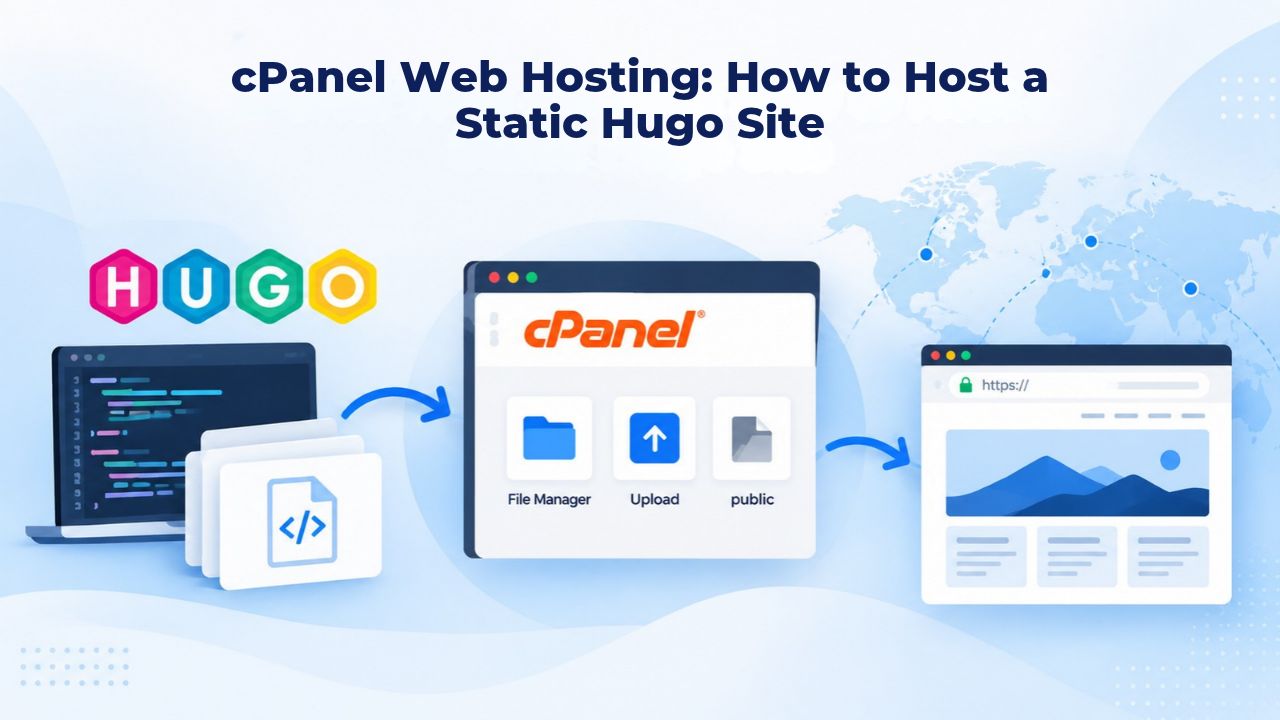
What Hugo Is and Why It Works on cPanel Hosting
Static site generators have become essential tools for developers and content creators who value speed, security, and simplicity over complex database-driven systems. Hugo, one of the most popular static site generators, offers a straightforward way to create fast, secure websites that work perfectly on standard cPanel-based shared hosting. Understanding how Hugo generates static files and why this approach pairs so well with cPanel is the foundation for successfully deploying your site.
Understanding Static Site Generation
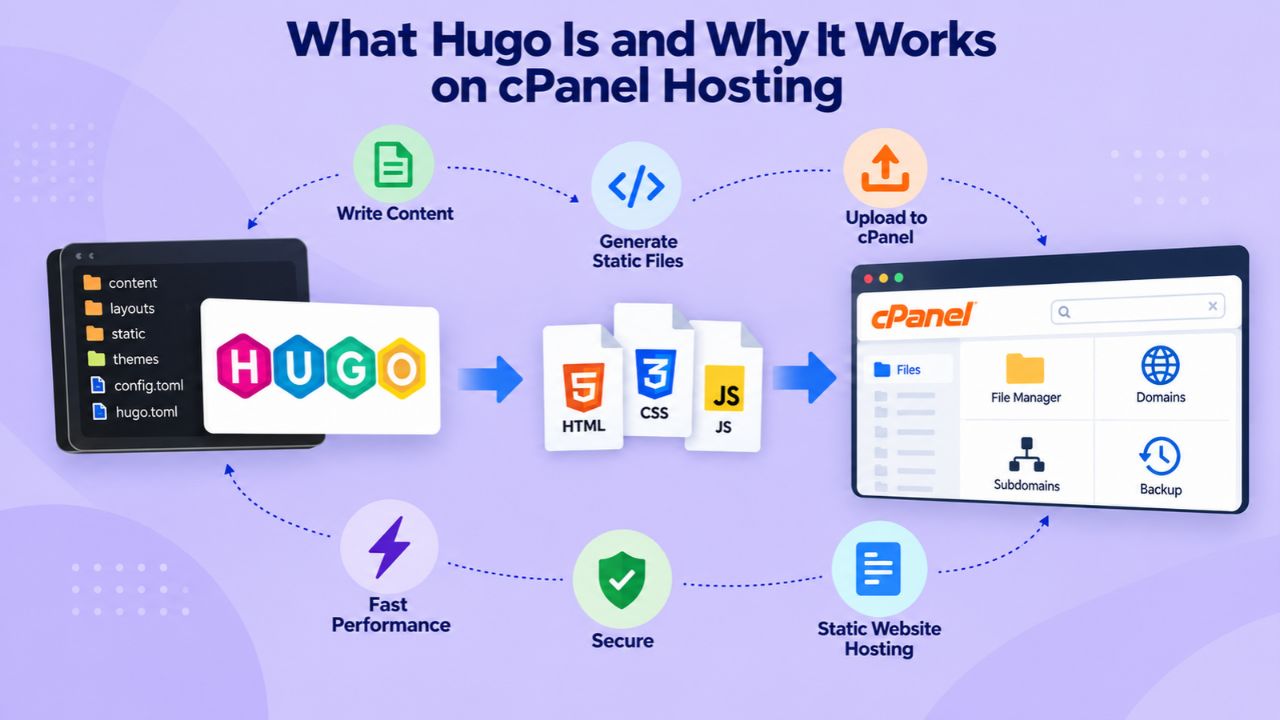
Hugo is a fast, open-source static site generator written in Go that converts Markdown content files and HTML templates into a complete set of static HTML, CSS, and JavaScript files. When you run Hugo locally, it builds your entire site in seconds, typically rendering a moderately sized website in a fraction of a second, with each piece of content taking around 1 millisecond to process. This speed is remarkable compared to dynamic systems that must query databases and execute code on every visitor request.
Unlike WordPress or other dynamic platforms that generate pages on demand by querying a database every time someone visits your site, Hugo generates all pages upfront during a build step on your local machine, and your hosting server serves the finished files. This pre-built approach means a Hugo site requires no databases, no server-side scripting languages, and no special runtime environments on the hosting end.
You upload the generated output folder to your cPanel-based web hosting account, and the files go live immediately. Hugo specifically relies on Markdown files with front-matter metadata. It runs from any directory, making it compatible with shared hosting and systems without privileged account access. Hugo GitHub. This flexibility is one reason Hugo has become popular with individuals, small businesses, and agencies managing multiple client sites.
Why cPanel Hosting Is a Natural Fit for Hugo
Static site generation pairs perfectly with cPanel-based shared hosting because Hugo’s generated output requires minimal server resources to serve. Your site consists entirely of static files: pre-built HTML, stylesheets, images, and JavaScript that are served as-is to visitors. Acquia Front End Hosting Shared hosting plans with cPanel include storage allocations ranging from 5 GB to 100 GB, depending on the plan tier, and static sites typically use only a few hundred MB to a few GB of that space, even for multi-author blogs, portfolios, and documentation sites with hundreds of pages. NameCrane cPanel Resource Limits.
Because your site is static, it places almost no demand on CPU processing, memory consumption, or database interactions. A personal blog or portfolio might consume only 100 MB of storage and use minimal bandwidth, fitting comfortably on an entry-level shared hosting plan. The result is a fast, secure website at a transparent, predictable cost, with no surprise resource overages, no performance degradation from shared-server congestion, and no ongoing maintenance burden once the site is live.
Niya Digital’s Web Hosting service provides cPanel access across its shared hosting tiers, along with setup support, domain connection guidance, and account management to get your site online smoothly. The underlying infrastructure is operated by GoDaddy, ensuring reliable servers and network resources. GoDaddy cPanel Hosting.
Business Web Hosting Plans & Pricing
Choose the hosting plan that fits your website, WordPress site, or growing business. Compare features, storage, performance, security, and website capacity to find the right hosting environment for your needs.
cPanel Starter
cPanel Hosting that's easy, reliable and lightning-fast.
- 1 website
- 30 GB storage
- Unmetered bandwidth*

cPanel Economy
cPanel Hosting that's easy, reliable and lightning-fast.
- 1 website
- 100 GB space
- Unlimited bandwidth*
- 100 email accounts**
- 10 MySQL databases (1 GB ea.)
cPanel Deluxe
cPanel Hosting that's easy, reliable and lightning-fast.
- Unlimited websites
- Unlimited space
- Unlimited bandwidth*
- 500 email accounts
- 25 MySQL databases (1 GB ea.)
cPanel Ultimate
cPanel Hosting that's easy, reliable and lightning-fast.
- Unlimited websites
- Unlimited space
- Unlimited bandwidth*
- 1000 email accounts
- Unlimited MySQL databases (1 GB ea.)
- 2X Processing power & memory (available for Linux/cPanel only)
- Premium DNS
- 1-year SSL certificate to secure customer data and increase search rankings
*We don't limit the amount of storage and bandwidth your site can use as long as it complies with our Hosting Agreement. Should your website bandwidth or storage usage present a risk to the stability, performance or uptime of our servers, we will notify you via email and may be required to upgrade, or we may restrict the resources your website is using.
**Email account storage is limited to 100 email accounts with 100 MB of total storage.
WordPress Basic
A great way to get started.
- 1 website
- 10 GB NVMe storage
- Unmetered bandwidth
- Free SSL Certificate *
- WordPress pre-installed
- Weekly backups
- Web Application Firewall
- Daily malware scans
- One-time malware removal

WordPress Deluxe
Improve your site performance with Cloudflare CDN.
- 1 website
- 20 GB NVMe storage
- Unmetered bandwidth
- Free SSL Certificate *
- WordPress pre-installed
- Daily backups
- Web Application Firewall
- Daily malware scans
- One-time malware removal
- Up to 2x faster performance with global Cloudflare CDN **
- Enhanced security with DDoS protection
- Staging site
WordPress Ultimate
Add online marketing with more sites, storage and security.
- 1 website
- 30 GB NVMe storage
- Unmetered bandwidth
- Free SSL Certificate *
- WordPress pre-installed
- Daily + on-demand backups
- Web Application Firewall
- Daily malware scans
- Unlimited malware removal
- Up to 2x faster performance with global Cloudflare CDN **
- Enhanced security with DDoS protection
- Staging site
- WordPress code optimizer
- Smart WordPress plugin manager
- Sell online with WooCommerce
*An SSL certificate is included with every site and free for the life of the hosting plan. Certificates are automatically installed, validated and renewed.
Web Hosting Plus Launch
For multiple basic sites.
- 100 GB storage*
- 4 GB RAM
- 2 CPUs
- Unmetered traffic
- 50 websites & databases
- Free, unlimited SSL for all your websites**

Web Hosting Plus Enhance
For high-traffic WordPress, Joomla, and other sites.
- 200 GB storage*
- 8 GB RAM
- 4 CPUs
- Unmetered traffic
- 100 websites & databases
- Free, unlimited SSL for all your websites**
Web Hosting Plus Grow
For advanced eCommerce sites like Magento.
- 300 GB storage*
- 16 GB RAM
- 8 CPUs
- Unmetered traffic
- 150 websites & databases
- Free, unlimited SSL for all your websites**
Web Hosting Plus Expand
For multiple basic sites.
- 400 GB storage*
- 32 GB RAM
- 16 CPUs
- Unmetered traffic
- 200 websites & databases
- Free, unlimited SSL for all your websites**
*The total amount of usable storage capacity for your particular Hosting Service(s) may differ from the represented capacity as there is required space for the operating system(s), system file(s) and other supporting file(s).
**If you cancel the Web Hosting Plus product, you will lose the associated SSL certificate as well.
How Static Site Generation Works in Practice
The Hugo workflow separates content creation from deployment in a clean, manageable way. Understanding how this process works, from building locally to uploading finished files, helps you work efficiently and avoid common mistakes that can delay site launches or break functionality.
The Hugo Build Process
Creating a Hugo site starts on your local machine (your laptop, desktop, or development server), not on your web hosting account. You install Hugo, create content in Markdown format, choose or customize a theme, and build your site locally. Hugo Documentation: Hugo reads your Markdown files, applies your theme’s templates, and outputs a complete public/ folder containing all the static HTML, CSS, JavaScript, images, and assets your site needs. This folder is typically 10 MB to a few GB, depending on your site’s content and media library.
Once you have the finished public/ folder on your machine, the remaining work is to upload and deploy; you don’t need to build on the server, set up build pipelines, or use special deployment tools. This separation of concerns (build locally, serve statically) is one of the core advantages of the Hugo workflow: your hosting account becomes a simple file repository, not an execution environment that needs to compile or process code. This approach reduces server load, eliminates compatibility issues, and makes your site faster and more secure from day one.
Templates, Content, and Output
Hugo uses reusable templates to define how your site’s pages look and function. When you update a blog post or change your site structure, you rebuild locally (which takes seconds), and the public/ folder updates with all the new HTML automatically. You then upload only the changed files to your cPanel hosting account, keeping your site’s version control, build artifacts, and live files separate and clean. This modular approach prevents accidental overwrites and keeps uploads fast.
This workflow supports collaboration seamlessly: multiple team members can contribute Markdown content or template changes in version control (Git, GitHub, GitLab), while deployment remains a simple file-upload step that anyone with cPanel access can perform. No database migrations, no plugin conflicts, no deployment scripts, just a folder of HTML files on a web server. This simplicity is why Hugo works so well for agencies managing client sites, publishers coordinating editorial teams, and open-source projects with distributed contributors.
Choosing a cPanel-Based Shared Hosting Plan for a Static Site
Selecting the right hosting plan depends on understanding your site’s storage and bandwidth needs, as well as the features that matter most for a static site. Unlike dynamic sites that require specific resource allocations for processing, static sites mainly need storage space for your files and bandwidth to serve them to visitors.

Sizing Storage and Bandwidth for Your Content
A cPanel-based shared hosting plan suitable for a Hugo site depends on how much content and media your site contains., NameCrane cPanel Resource Limits A personal blog with 50–200 posts and modest image use typically needs 50–200 MB of storage; a small business website or portfolio with a few dozen pages might use 100–500 MB; a documentation site or multi-author blog could grow to 1–5 GB., Duplika Resource Limits Modern shared hosting plans routinely offer unmetered or 50–2000 GB of monthly bandwidth, which is more than sufficient for static sites because no server-side processing means minimal resource demand per visitor request.
The key is matching your plan’s storage to your expected content size, with room to grow. An entry-level shared hosting plan starting at 5–10 GB of storage can comfortably host several small to medium websites or one larger documentation or portfolio project. For most individual bloggers, freelancers, and small businesses, an entry or starter tier is a solid starting point; only upgrade to larger plans if you host multiple sites or manage very large media libraries. Consider your growth trajectory and future needs, but remember that static sites remain lightweight regardless of size.
| Site Type | Typical Storage | Monthly Visitors | Recommended Plan |
|---|---|---|---|
| Personal blog (50–100 posts) | 50–150 MB | <5K | Starter (5–10 GB) |
| Portfolio or Resume | 10–50 MB | <1K | Starter (5–10 GB) |
| Small business info site | 100–500 MB | <10K | Starter–Standard |
| Technical documentation | 500 MB–2 GB | <50K | Standard (25–50 GB) |
| Multi-author blog or news | 1–5 GB | <100K | Standard–Business |
| Large media portfolio | 5–20 GB | <50K | Business (50–100 GB) |
| Multiple small sites | 10–30 GB combined | <20K total | Standard–Business |
cPanel Plan Features and What Matters for Static Sites
Whether you choose a basic or higher-tier cPanel plan, the features that matter for a static Hugo site are consistent across tiers: storage allocation, bandwidth, the File Manager for uploads, domain management, DNS configuration, and email hosting if you need it. GoDaddy cPanel Hosting: All cPanel-based shared hosting plans include the cPanel control panel, the browser-based tool where you’ll upload your site’s files and manage your account settings. One-click installers for WordPress or other dynamic platforms don’t apply to a static Hugo site, but they don’t hurt; you ignore them and focus on file management.
All plans typically include automatic backups, free SSL certificates, and email hosting capabilities. These features matter even for a static site: backups protect your files if something goes wrong, SSL ensures your site loads securely over HTTPS, and email hosting lets you use a professional email address at your domain. Niya Digital’s Web Hosting service includes these features across all shared hosting tiers, along with straightforward setup support to connect your domain and upload your files without confusion.
Uploading Hugo’s Generated Files via cPanel File Manager
The File Manager is your primary tool for getting your Hugo-generated files onto your hosting account. Understanding how to navigate it, upload files efficiently, and verify your uploads will ensure your site goes live correctly the first time.
Accessing File Manager and Navigating to public_html
After you sign up for a cPanel-based web hosting account and log in, you’ll see the cPanel dashboard, a control panel with various sections and tools organized by category. Look for the File Manager option under the “Files” section. See the Verpex cPanel File Upload Guide. Click it to open the browser-based file manager, which lets you manage your website’s files directly in your web browser without separate FTP software. By default, File Manager opens in your home directory; navigate to the public_html folder, which is the document root of your website.
This public_html folder is crucial: it’s the only folder visible to the public when visitors access your domain; any files you upload here become part of your live website. Files placed outside public_html (in other directories like your home folder or backups) are stored on the server but not served publicly. This separation is intentional and useful for organization. Still, for your Hugo site, the entire contents of your local public/ folder must go into public_html/ on the server for your site to be accessible and functional online.
Uploading Files: Drag-and-Drop or Select Methods
Once you’re inside the public_html folder, File Manager offers multiple upload methods to suit your preference and workflow. Most modern browsers support drag-and-drop: you can drag your Hugo-generated files from your computer directly into the File Manager window, and they’ll upload automatically. Client Online Audience cPanel Upload Guide: If drag-and-drop doesn’t work or you prefer a traditional file browser, click the Upload button at the top of File Manager, then click Select Files and browse your computer for the files you want to upload.
For large folders or many files, consider compressing your public/ folder into a single ZIP archive on your machine, uploading the ZIP file, and then extracting it in File Manager. This is faster than uploading hundreds of individual files. Freeparking cPanel Upload Guide. After upload, confirm that your HTML, CSS, JavaScript, and image files appear in the public_html directory in the correct folder structure; if you uploaded a ZIP, verify that extraction created the right layout. This verification step prevents common issues where files end up in the wrong location.
Domain Connection and DNS Management on cPanel
Your domain name is the gateway to your website, and properly connecting it to your hosting is essential to making your site accessible to visitors worldwide. Understanding DNS and domain configuration takes just a few minutes and is a one-time setup task.
Pointing Your Domain to Your cPanel Hosting Account
For your site to be reachable, your domain name must resolve to your hosting provider’s nameservers. If you registered your domain with the same provider as your hosting (common with many providers, including GoDaddy), this is often done automatically when you activate hosting. GoDaddy cPanel Hosting. If your domain was registered elsewhere, you’ll need to update the domain’s nameserver records to point to your hosting provider. In your domain registrar’s control panel, look for an option to change or add nameservers, and enter the ones provided by your hosting provider during account setup.
This step is crucial: until your domain’s nameservers point to your hosting provider, visitors typing your domain will not reach your site. Nameserver changes can take 24–48 hours to fully propagate across the internet, though they’re often live in minutes. In the meantime, you can verify your site is working by accessing it directly via the IP address or a temporary URL your host provides. Once DNS has propagated, navigating to your domain in a browser should display your Hugo site.
Managing DNS Records in cPanel
Once your domain is live on your hosting account, you may need to manage specific DNS records for advanced purposes. However, for a simple static Hugo site, the default setup usually works without further configuration. In cPanel, look for Zone Editor or DNS Zone under the Domains section. See the Verpex cPanel File Upload Guide. Common DNS records include A records (which point your domain to your server’s IP address), MX records (which route incoming email), and CNAME records (which create domain aliases). For a Hugo site, the A record is typically the only one you need; it points your domain to your hosting account’s server IP.
If you set up email hosting through your cPanel account, you’ll need MX records to direct incoming mail to the correct server. Your hosting provider usually handles this automatically, but you can verify it in Zone Editor. For most users, the out-of-the-box cPanel DNS configuration is sufficient, and you won’t need to touch Zone Editor unless you’re doing advanced configurations like pointing subdomains to different services or setting up email forwarding. Once your domain resolves correctly, your site is live and accessible.
Connect Your Domain With Expert Setup Support
Domain connection doesn’t have to be confusing. Niya Digital’s Web Hosting team helps you point your domain correctly and configure DNS without the guesswork, ensuring your site is reachable within hours. Get step-by-step guidance during setup and fast support if questions arise along the way.
Testing and Verifying Your Live Hugo Site
Before declaring your site launch complete, test thoroughly to ensure everything works as intended and avoid surprises for visitors. Taking time to verify functionality, check for broken elements, and monitor performance is time well spent.
Checking Site Functionality and File Integrity
After uploading your Hugo site, test it thoroughly before considering it complete. Visit your domain in a web browser and navigate through several pages, click links, load pages from different sections, and verify that CSS and JavaScript are working correctly. Check that images load, that your theme displays as intended, and that no broken links appear when you click around. Freeparking cPanel Upload Guide: A common issue is CSS or images appearing broken if file paths are incorrect; Hugo generates paths automatically, but verify that all assets are present in public_html.
In File Manager, spot-check that your folder structure matches what Hugo generated locally. If your site uses subdirectories for blog posts, galleries, or documentation, confirm those folders exist and contain the expected HTML files. Use your browser’s developer tools (usually F12 or right-click → Inspect) to check for 404 errors or console messages that might indicate missing files or configuration issues. Most issues are quickly obvious once the site is live and you can interact with it directly in a real browser environment.
Monitoring Performance and Identifying Problems
Static sites on shared hosting typically load quickly because cPanel servers serve pre-built files without server-side processing. DEV Community Static Hosting Pros: Open your site in a browser and use speed-testing tools (Google PageSpeed Insights, GTmetrix) to establish a baseline for load time. If performance is slower than expected, check that other accounts aren’t consuming your hosting plan’s resources, though static sites place minimal load on shared servers, so this is rare.
If you encounter errors, most are one of a few common types: 404 (file not found, usually a missing file or incorrect path), 500 (server error, rare for static files), or domain not resolving (DNS not yet updated). File Manager and the cPanel error logs can help identify the cause. Check that files are in public_html, that the domain’s nameservers are correct, and that DNS has had time to propagate. Niya Digital’s support team can help troubleshoot setup or connectivity issues via email or the support ticket system.
Updating and Redeploying Hugo Content Changes
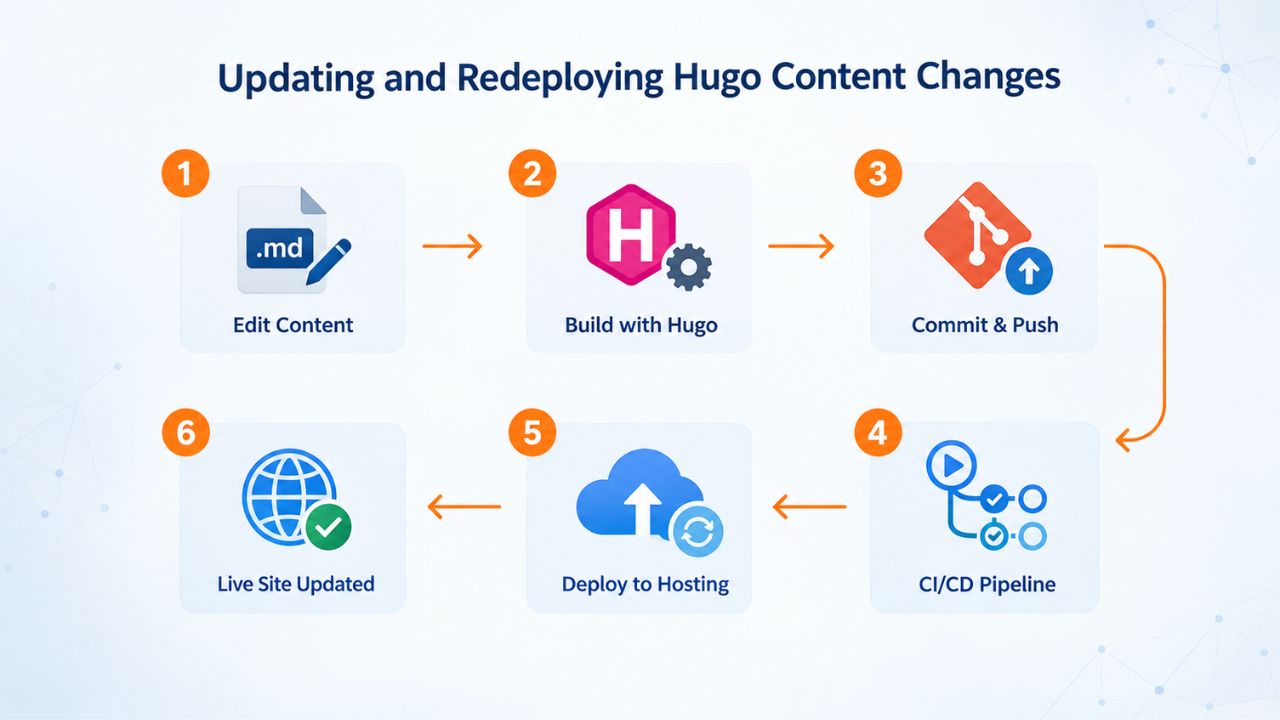
Your Hugo site isn’t static in the sense of being unchangeable; it’s static in how it’s served. You’ll update content regularly, and the deployment workflow is straightforward and efficient.
Rebuilding Your Hugo Site Locally
When you update your Hugo site, adding a new blog post, editing a page, or changing your theme, you always rebuild on your local machine first, not on the server. Make your content or template changes in your local Hugo project folder, then run the Hugo build command (or equivalent in your development tool) to regenerate the public/ folder. This takes a few seconds and produces a new set of HTML files reflecting your changes. Review the generated HTML in your local preview (most Hugo workflows include a local preview server for this) to confirm everything looks correct before uploading.
Only after you’re satisfied with the local build do you upload the changed or new files to your hosting account via cPanel File Manager. This workflow ensures you never publish broken or untested changes directly to your live site. If something goes wrong in your local build, you catch it before deployment; if the upload has an issue, you can fix it immediately by re-uploading the correct files. This safe workflow prevents the embarrassment of publishing incomplete content or accidentally breaking your site for visitors.
Selective Uploads and Managing Site Versions
For small updates (a single new blog post, a typo fix, a color change), you can upload just the changed files to cPanel; there’s no need to re-upload your entire site every time. Identify which files changed (Hugo shows you what it regenerated), and upload them to the same folder structure on the server. Your live site updates instantly. Hugo Forum: For larger changes or structural updates, uploading your entire new public/ folder is cleaner and faster than managing individual changed files.
Keeping a dated backup of your site’s files on your local machine or in version control (Git) means you can always roll back to a previous version if needed. Most developers using Hugo keep their entire project in GitHub or another Git service, which provides history and easy recovery. Your hosting account itself serves only the current live version; version management happens in your development environment, not on the server. This approach keeps your hosting account lean and focused on serving files, while your development machine and version control handle the complexity of managing changes.
| Deployment Task | Method | Upload Time | Best For | Verification |
|---|---|---|---|---|
| Single blog post update | Upload new .html file only | <1 minute | Small changes, one file | Check cPanel File Manager |
| Bulk content changes | Re-upload entire public/ folder | 5–10 minutes | Major updates, multiple files | Test site in browser |
| Theme/template changes | Re-upload theme folders | 2–5 minutes | Design changes, CSS/JS updates | Clear browser cache, test |
| Complete rebuild | Full public/ folder via ZIP | 10–15 minutes | Complete migrations, big changes | Full site audit via browser |
| Rollback to previous version | Upload backup public/ folder | 5–10 minutes | Urgent fixes, revert errors | Verify live site immediately |
| Multi-site management | Separate folders per domain | Varies per site | Multiple Hugo projects | Test each domain separately |
Performance Optimization for Static Sites on cPanel
Static sites load fast by default, but a few optimization techniques can make them even faster and improve the experience for visitors, especially those on slower connections or accessing from distant locations.
Leveraging Browser Caching and Asset Compression
Static sites load fast by default, but a few optimizations can make them even faster. Browser caching tells visitors’ browsers to store images, CSS, and JavaScript locally, so repeat visits load near-instantly. DEV Community Static Hosting Pros: In cPanel, look for Optimize Website or caching tools; many provide one-click browser caching configuration. Alternatively, you can configure caching in a .htaccess file in your public_html folder, a simple text file that instructs the server how long to cache different file types.
Asset compression (reducing file sizes of CSS, JavaScript, and images) further speeds up page loads. Hugo offers built-in asset minification; you can configure it during the build step to generate smaller HTML, CSS, and JS files. Images are often the largest files on a site; tools like ImageOptim or TinyPNG compress them without visible quality loss before you build the site. Smaller files mean faster downloads, especially for visitors on slower connections or in regions with limited bandwidth, improving both user experience and search engine rankings.
CDN Integration and Advanced Performance Options
For sites expecting high traffic, a Content Delivery Network (CDN) caches your static files at edge locations worldwide, serving them from servers closest to each visitor. Niya Digital’s hosting works with various CDN options, though none is required for basic static sites. A CDN is most valuable if you have visitors in multiple countries; for a local or regional audience, cPanel shared hosting performance alone is typically sufficient.
Most static sites on cPanel serve pages in under a second and handle traffic spikes easily because static files require minimal server processing. Only very high-traffic sites (thousands of simultaneous visitors) typically need CDN optimization. For a growing blog or portfolio, cPanel shared hosting provides stable, predictable performance at a reasonable cost, and you can add a CDN later if your traffic grows significantly.
Security and Maintenance for Static Hugo Sites
Static sites have built-in security advantages over dynamic platforms, but maintaining those advantages and following best practices keeps your site safe and trustworthy over time.
Built-In Security Benefits of Static Sites
Static sites have an inherent security advantage: because there are no databases, no server-side code execution, and no user input processing, entire classes of web vulnerabilities simply don’t apply. Acquia Front End Hosting: SQL injection, cross-site scripting (XSS), and server-side code vulnerabilities cannot affect a purely static site because there’s no database to query and no code being executed dynamically. Your site consists of pre-built HTML, CSS, and JavaScript files served as-is. This reduced attack surface is a major advantage for small businesses and content creators who want security without the overhead of managing complicated systems.
This doesn’t mean security is zero-responsibility; you still need to keep your domain’s DNS and email secure, and your local development machine secure, so no one can alter your site files before you upload them. But the hosting environment itself is inherently safe from server-side attacks. Combined with HTTPS/SSL (which cPanel makes free and easy to enable), a static Hugo site on shared hosting is a secure foundation for blogs, portfolios, and informational websites. Your visitors’ connections are encrypted, their data is protected, and the attack surface is minimal.
SSL/HTTPS and Backup Management
Every modern website should use HTTPS to encrypt traffic between visitors’ browsers and your server. cPanel hosting typically includes free SSL certificates via Let’s Encrypt with one-click setup. In cPanel, look for AutoSSL or SSL/TLS options, enable it for your domain, and your site is immediately encrypted. No renewal required: Let’s Encrypt certificates auto-renew, protecting visitor data without ongoing management.
Regular backups are good practice even for static sites. cPanel usually offers automated daily or weekly backups of your entire account; confirm this is enabled in your hosting control panel. Backups mean that if you accidentally delete files or a server issue occurs, you can restore your site to an earlier state. Some hosts offer one-click restoration in cPanel; others require you to contact support. Verify your hosting provider’s backup and restore process during setup so you know what to do if you need it. Keeping a copy of your local Hugo project (and its generated public folder) on your computer or in version control provides another layer of protection and recovery options.
Scaling Beyond Shared Hosting: When and How to Migrate
Most static Hugo sites thrive on shared hosting indefinitely because resource demands are minimal. However, certain growth patterns might signal a move to a more powerful plan or a different hosting environment.

Recognizing Signs Your Site Has Outgrown Shared Hosting
Most static Hugo sites thrive on shared hosting indefinitely because resource demands are minimal. However, certain growth patterns might signal a move to a more powerful plan. If your site grows to store hundreds of gigabytes of media (though rare for most content), or if you’re hosting dozens of separate Hugo sites on one account and hitting storage limits, an upgrade to a larger shared plan or a VPS might be worthwhile. NameCrane cPanel Resource Limits: Another signal is if you’re experiencing unexpected slowdowns despite your site being static. However, this is rare; it can indicate other shared-account activity affecting performance.
Similarly, if you add dynamic features to your site over time, user comments, a contact form with server-side processing, or e-commerce functionality, you may need resources beyond what a basic shared plan offers. Static sites, by definition, don’t require these upgrades; but if your site’s scope changes, your hosting needs might too. Niya Digital offers managed and reseller hosting tiers for growing teams and businesses, providing more resources and flexibility than shared hosting while keeping management simple. The key is to monitor your usage and be ready to upgrade when your site’s requirements change.
Migration Planning and Downtime Minimization
If you do migrate to a larger hosting plan, the process is straightforward: your current files stay on shared hosting until you’re ready to move, at which point you copy your public/ folder to the new account via File Manager or SFTP, update your domain’s nameservers if needed, and test. GitHub Cakeologyke Deployment Notes: Because static files require no database migration and no special configuration, moving a Hugo site is as simple as copying files. This simplicity is one of the major advantages of static sites for scaling.
Most hosting providers handle migrations with minimal downtime (often zero, if you use a brief period to swap nameservers after everything is in place on the new account). Plan migrations during a low-traffic window to minimize any visibility of the transition. Keep your old account active briefly after the migration to catch any stragglers or misconfigured DNS entries and ensure a smooth transition. Niya Digital’s team can help with migration planning and setup, so you can move with confidence when your site is ready to scale beyond shared hosting.
Ready to Launch Your Hugo Site?
Your Hugo site is ready to go live. Niya Digital’s Web Hosting provides everything you need: cPanel file management, domain connection support, one-click SSL setup, and reliable GoDaddy-powered infrastructure to serve your static site fast and securely. Whether you’re launching a blog, portfolio, or documentation project, get your site online today with flexible hosting designed for your needs.
Frequently Asked Questions
What is Hugo, and why should I use it instead of WordPress?
Hugo is a static site generator that builds your entire website into pre-made HTML files before uploading, no database required. Hugo is faster, more secure, and lighter on server resources than WordPress, making it ideal for blogs, portfolios, and documentation sites. However, WordPress is better if you need dynamic features like user accounts or frequent edits through a web interface. Hugo suits teams that are comfortable writing in Markdown and rebuilding locally when content changes.
Do I need terminal access or special server software to run Hugo on cPanel?
No. Hugo runs on your local computer; you build your site there and upload the finished files via cPanel’s File Manager using your browser. Your hosting account runs no Hugo software; it simply stores and serves the static files. This means no special server configuration, no command-line access needed on the hosting side, and compatibility with any cPanel-based shared hosting provider.
How much storage do I need for a Hugo site?
Most blogs and portfolios use 50 MB to 5 GB of storage. A personal blog with 100–200 posts and modest image use typically needs 100–500 MB. A larger documentation site might reach 1–5 GB. Entry-level shared hosting plans start at 5–10 GB, providing room to grow. Static sites use less storage than WordPress because they have no databases or plugin overhead.
Can I update my Hugo site without uploading the entire folder every time?
Yes. After you rebuild locally and identify the changed files, upload only those files to cPanel via File Manager. Hugo’s build output is structured so that updating a single blog post creates just one new HTML file; upload that file to the same folder path on your server, and your live site updates immediately. For structural changes affecting many files, a full re-upload is simpler.
How do I enable HTTPS/SSL for my Hugo site on cPanel?
Most cPanel hosting includes free Let’s Encrypt SSL certificates with automatic setup. In your cPanel dashboard, find AutoSSL or SSL/TLS options, enable it for your domain, and your site will be encrypted within minutes. The certificate auto-renews, so you don’t need to manage expiration. Niya Digital’s cPanel hosting includes free managed SSL certificates as standard.
What if my site files upload incorrectly or I see broken links?
Use cPanel’s File Manager to verify that files are in the public_html directory (not in a subfolder) and that your folder structure matches what Hugo generated locally. Check file permissions (usually managed automatically) and ensure your domain’s nameservers are correctly configured in your domain registrar. Most issues are file-path or DNS-related; verify both before contacting support.
Can I host multiple Hugo sites on a single cPanel account?
Yes. If your hosting plan includes add-on domains, you can connect multiple domains to your account and host a separate Hugo site for each. Upload each site’s public/ folder contents to its own subdirectory in public_html or assign each domain to its own folder. cPanel automatically routes each domain to its respective files.
Is shared hosting on cPanel suitable for a high-traffic site?
Static sites on shared hosting handle traffic spikes well because they require no server processing; each visitor downloads pre-built files. Thousands of simultaneous visitors can load your site without impacting shared server stability. However, if you expect very high sustained traffic (10,000+ daily visitors), a CDN or VPS might optimize costs and performance further. For most blogs and portfolios, cPanel shared hosting is more than sufficient.
How do I back up my Hugo site files?
Maintain a copy of your entire local Hugo project (content, theme, config) in version control like Git or GitHub; this is your primary backup and development history. Additionally, cPanel usually includes automated server-side backups of your account files; confirm this in your hosting settings. For maximum safety, periodically download your live public_html files via cPanel’s File Manager or SFTP as another copy.
What should I do if I need to add dynamic features to my site later?
If you later want to add features that require server-side processing, like user comments, a contact form with email notifications, or e-commerce, you have options: (1) use a third-party service (like Formspree for forms or Disqus for comments) and embed it in your static site, or (2) migrate to a dynamic platform like WordPress and convert your Hugo site. External services can handle most static site features without changing your hosting.
Can I use Niya Digital’s cPanel hosting for a Hugo site?
Yes. Niya Digital’s Web Hosting service provides cPanel-based shared hosting with all the features needed to host a Hugo site: storage, bandwidth, File Manager, domain management, free SSL, and email hosting. Your site’s files are stored on GoDaddy’s reliable infrastructure with Niya Digital’s setup support and account management. Niya Digital’s team has found that setup and first-site deployment typically take less than an hour for customers with a domain ready, thanks to straightforward cPanel access and onboarding support.
How long does it take to get a Hugo site live with cPanel hosting?
Once you have a cPanel hosting account and your domain pointing to your host’s nameservers (which can take 24 hours for full propagation, though often much faster), you can upload your Hugo site’s public folder and go live in minutes. If you’re starting from scratch and buying a domain and hosting, the entire process from signup to live site typically takes an hour to a few hours, depending mainly on how quickly DNS propagates.
What’s the difference between cPanel and Plesk hosting?
cPanel and Plesk are both Linux-based web hosting control panels with similar core features: file management, domain setup, email accounts, and one-click installers. cPanel is more widely available and has a larger ecosystem of third-party tools. Plesk offers a different interface, and some users prefer it. For a static Hugo site, either works equally well; the choice depends on your hosting provider’s offering and personal preference.
Can I use subdomains for different Hugo projects?
Yes. If your hosting plan allows subdomains (most do), you can create subdomains like blog.example.com or docs.example.com and host separate Hugo sites under each subdomain by uploading each site to a different folder path in cPanel. Each subdomain is configured in cPanel’s Addon Domains or Subdomains section and routed to its own public_html subdirectory. This lets you run multiple projects on one hosting account.
What happens if I accidentally delete files from public_html?
Most cPanel hosting includes automated daily or weekly backups. If you delete files, contact your hosting provider’s support team and request a restore from backup. The restore process is usually quick and straightforward. Additionally, keep a copy of your local Hugo project (and its generated public/ folder) on your computer or in version control, so you can always re-upload files manually. Regular backups on both your machine and your hosting provider’s servers ensure you never lose your site.
How do I set up a custom domain with my Hugo site on cPanel?
Register a domain with any domain registrar, then update its nameservers to point to your hosting provider’s nameservers (provided during account signup). Once DNS propagates (usually 24–48 hours), add the domain as a Primary or Addon Domain in cPanel’s Addon Domains section, which automatically creates a folder for that domain. Upload your Hugo site’s public/ folder contents to that domain’s folder in public_html, and your site is live at your custom domain.
Glossary
- Bandwidth: The amount of data transferred between your website and its visitors. Static sites typically use minimal bandwidth because pages are pre-built and require no server processing.
- cPanel: A Linux-based web hosting control panel that provides a browser-based interface for managing domains, files, email accounts, databases, backups, and website settings without requiring command-line access.
- Control Panel: Software that simplifies web hosting management through a graphical user interface, allowing users to handle domains, files, security, and email from one central dashboard.
- Deployment: The process of uploading website files from your local machine to a live web server, making them accessible to the public.
- File Manager: cPanel’s browser-based tool for uploading, deleting, organizing, and editing website files directly on your hosting server.
- Public_html: The document root directory on a cPanel-based hosting account where website files must be placed to be served publicly when visitors access your domain.
- Static site: A website consisting entirely of pre-built HTML, CSS, and JavaScript files served as-is, with no server-side processing or databases. Updates require rebuilding and re-uploading files rather than editing through a web interface.
- Static site generator: A tool (such as Hugo) that converts content files (usually Markdown) and templates into a complete set of static HTML/CSS/JS files that can be deployed to any web server.