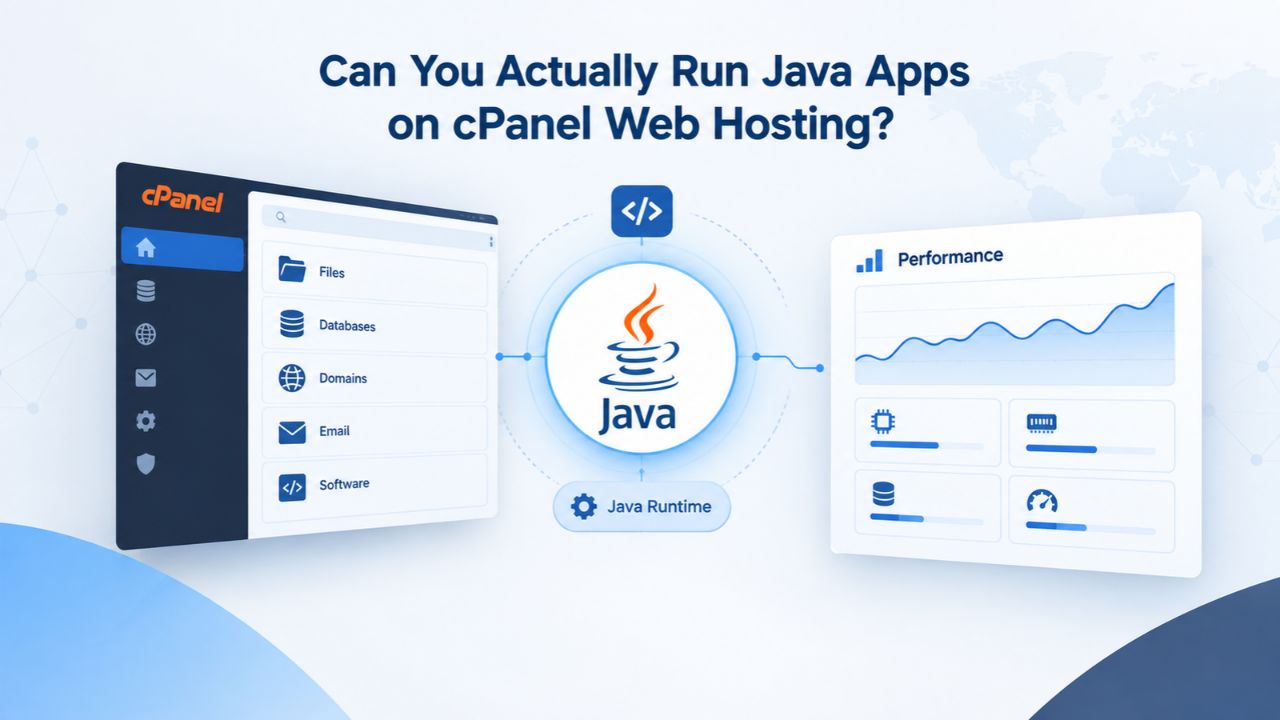
Understanding cPanel’s Real Role in Web Hosting
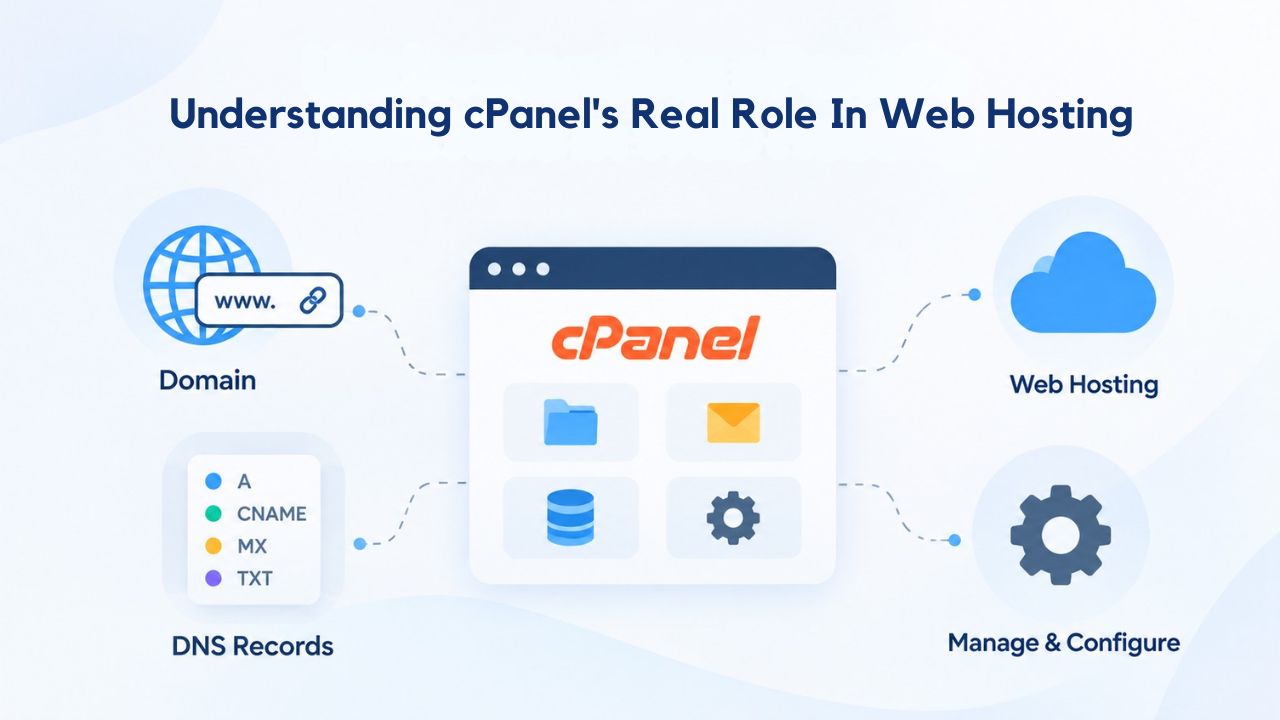
cPanel is a web-based graphical user interface that simplifies hosting account and server management. It is not an application server, and it does not execute application code, a critical distinction many newcomers to web hosting miss. cPanel manages domains, DNS records, email accounts, file storage, databases, and hosting features through a user-friendly dashboard. It is purely a management and control tool, not a runtime environment.
What cPanel Actually Does
cPanel provides point-and-click access to core hosting functions: uploading and organizing website files through a file manager, creating and managing email accounts, configuring DNS and domain settings, accessing databases via phpMyAdmin, and managing backups and account resources. For traditional web hosting (PHP-based WordPress, static HTML sites, or simple dynamic sites), cPanel abstracts away server complexity. A site owner doesn’t need SSH access or command-line knowledge to run a site on cPanel hosting.
cPanel works seamlessly for PHP and WordPress because shared hosting includes Apache (the web server software) and PHP (the server-side scripting engine) by default. When a visitor requests a .php file, Apache calls PHP, executes the code, and returns the result to the browser. This process requires no manual setup for the end user; it happens automatically. Java applications, by contrast, require entirely different infrastructure beneath cPanel’s management layer. They need a separate runtime engine and a dedicated application server that operates independently from the web server.
The Gap Between cPanel and Java Requirements
Java applications do not run inside Apache or through cPanel’s standard web server chain. They require a Java Runtime Environment (JRE), a software layer that interprets and executes Java bytecode, and an application server (such as Apache Tomcat, Jetty, or WildFly) that runs separately from the web server and listens on its own port. cPanel does not provide automatic Java support on entry-level shared hosting.
Installing and configuring Java and Tomcat on a cPanel server requires server-level root access, not just cPanel account access. This setup must happen at the hosting provider’s infrastructure level or via a VPS where you have root permissions. Standard shared cPanel hosting is managed only at the account level; you can’t install system-wide software or modify server configuration. This architectural separation is why Java support, when available, typically appears only on managed Java hosting tiers or VPS plans where the provider has pre-configured Java or given you full root control.
Business Web Hosting Plans & Pricing
Choose the hosting plan that fits your website, WordPress site, or growing business. Compare features, storage, performance, security, and website capacity to find the right hosting environment for your needs.
cPanel Starter
cPanel Hosting that's easy, reliable and lightning-fast.
- 1 website
- 30 GB storage
- Unmetered bandwidth*

cPanel Economy
cPanel Hosting that's easy, reliable and lightning-fast.
- 1 website
- 100 GB space
- Unlimited bandwidth*
- 100 email accounts**
- 10 MySQL databases (1 GB ea.)
cPanel Deluxe
cPanel Hosting that's easy, reliable and lightning-fast.
- Unlimited websites
- Unlimited space
- Unlimited bandwidth*
- 500 email accounts
- 25 MySQL databases (1 GB ea.)
cPanel Ultimate
cPanel Hosting that's easy, reliable and lightning-fast.
- Unlimited websites
- Unlimited space
- Unlimited bandwidth*
- 1000 email accounts
- Unlimited MySQL databases (1 GB ea.)
- 2X Processing power & memory (available for Linux/cPanel only)
- Premium DNS
- 1-year SSL certificate to secure customer data and increase search rankings
*We don't limit the amount of storage and bandwidth your site can use as long as it complies with our Hosting Agreement. Should your website bandwidth or storage usage present a risk to the stability, performance or uptime of our servers, we will notify you via email and may be required to upgrade, or we may restrict the resources your website is using.
**Email account storage is limited to 100 email accounts with 100 MB of total storage.
WordPress Basic
A great way to get started.
- 1 website
- 10 GB NVMe storage
- Unmetered bandwidth
- Free SSL Certificate *
- WordPress pre-installed
- Weekly backups
- Web Application Firewall
- Daily malware scans
- One-time malware removal

WordPress Deluxe
Improve your site performance with Cloudflare CDN.
- 1 website
- 20 GB NVMe storage
- Unmetered bandwidth
- Free SSL Certificate *
- WordPress pre-installed
- Daily backups
- Web Application Firewall
- Daily malware scans
- One-time malware removal
- Up to 2x faster performance with global Cloudflare CDN **
- Enhanced security with DDoS protection
- Staging site
WordPress Ultimate
Add online marketing with more sites, storage and security.
- 1 website
- 30 GB NVMe storage
- Unmetered bandwidth
- Free SSL Certificate *
- WordPress pre-installed
- Daily + on-demand backups
- Web Application Firewall
- Daily malware scans
- Unlimited malware removal
- Up to 2x faster performance with global Cloudflare CDN **
- Enhanced security with DDoS protection
- Staging site
- WordPress code optimizer
- Smart WordPress plugin manager
- Sell online with WooCommerce
*An SSL certificate is included with every site and free for the life of the hosting plan. Certificates are automatically installed, validated and renewed.
Web Hosting Plus Launch
For multiple basic sites.
- 100 GB storage*
- 4 GB RAM
- 2 CPUs
- Unmetered traffic
- 50 websites & databases
- Free, unlimited SSL for all your websites**

Web Hosting Plus Enhance
For high-traffic WordPress, Joomla, and other sites.
- 200 GB storage*
- 8 GB RAM
- 4 CPUs
- Unmetered traffic
- 100 websites & databases
- Free, unlimited SSL for all your websites**
Web Hosting Plus Grow
For advanced eCommerce sites like Magento.
- 300 GB storage*
- 16 GB RAM
- 8 CPUs
- Unmetered traffic
- 150 websites & databases
- Free, unlimited SSL for all your websites**
Web Hosting Plus Expand
For multiple basic sites.
- 400 GB storage*
- 32 GB RAM
- 16 CPUs
- Unmetered traffic
- 200 websites & databases
- Free, unlimited SSL for all your websites**
*The total amount of usable storage capacity for your particular Hosting Service(s) may differ from the represented capacity as there is required space for the operating system(s), system file(s) and other supporting file(s).
**If you cancel the Web Hosting Plus product, you will lose the associated SSL certificate as well.
What Java Applications Actually Need to Run
A basic understanding of Java’s architecture clarifies why shared cPanel hosting often falls short for Java workloads. Java code compiles into bytecode, which the JRE then executes. The JRE is a separate software layer that must be installed on the server operating system itself; it’s not something cPanel can “turn on” for a single account.
Java Runtime Environment (JRE) and Memory Demands
The JRE’s baseline footprint on a Linux system is approximately 50–100 MB of disk space. However, memory usage during execution is far larger. A minimal Spring Boot application with an embedded Tomcat server typically consumes 200–250 MB of memory at startup and may reach 300–500 MB under moderate load. Production Spring Boot applications often allocate 512 MB to 1 GB or more of heap memory to handle concurrent requests and background tasks.
A simple Java servlet or JSP application may run in 128–256 MB, but anything beyond the most trivial use case will quickly exceed those limits. Each additional library, database connection, or caching layer adds memory overhead. This memory demand is fundamentally different from PHP, which is lightweight and starts fresh for each request. Java maintains a long-running process that accumulates state over time, making memory management and garbage collection critical to stability.
Application Server (Tomcat, Jetty) Requirements
A Java application must run inside an application server. Apache Tomcat, the most widely used Java servlet container, adds 100–150 MB of memory overhead. Combined with the JRE, a baseline Tomcat instance requires at least 250 MB and 400+ MB in realistic scenarios. The application server must bind to a network port (typically 8080 or 8888), remain running continuously, and handle multiple concurrent requests.
Unlike PHP, which starts fresh for each request with minimal overhead, a Tomcat process runs continuously and accumulates memory over time. Thread pools, connection caches, and object allocations persist across requests, making long-term stability and memory management critical. If memory leaks develop in the application code, the Java process will gradually consume more memory until the system kills it. This behavior makes shared hosting environments, where resources are deliberately constrained to prevent one user from affecting others, a poor fit for Java applications.
Typical Java Workload Footprint
A small-scale Java microservice or proof-of-concept application might run in 512 MB of total system memory. A typical production Java application (e.g., a small REST API with a database connection pool and caching layer) requires 1–2 GB. Enterprise applications or those using heavyweight frameworks (Spring Cloud, reactive libraries) may need 2–4 GB or more. Shared hosting plans typically allocate 128–256 MB per account from a shared memory pool, with strict per-process limits to prevent one customer’s site from crashing the entire server.
This mismatch is the core problem: even a modest Java application requires more memory than most shared hosting plans allocate to an entire account. The application will either fail to start, crash immediately, or behave erratically as the kernel kills processes when memory limits are exceeded. This isn’t a cPanel failure; it’s a fundamental architectural mismatch between Java’s resource needs and shared hosting’s design.
Which Web Hosting Tiers Actually Support Java?
Not all cPanel hosting is created equal. The tier and resource allocation determine whether Java is viable. Understanding the spectrum of options helps you choose correctly from the start.
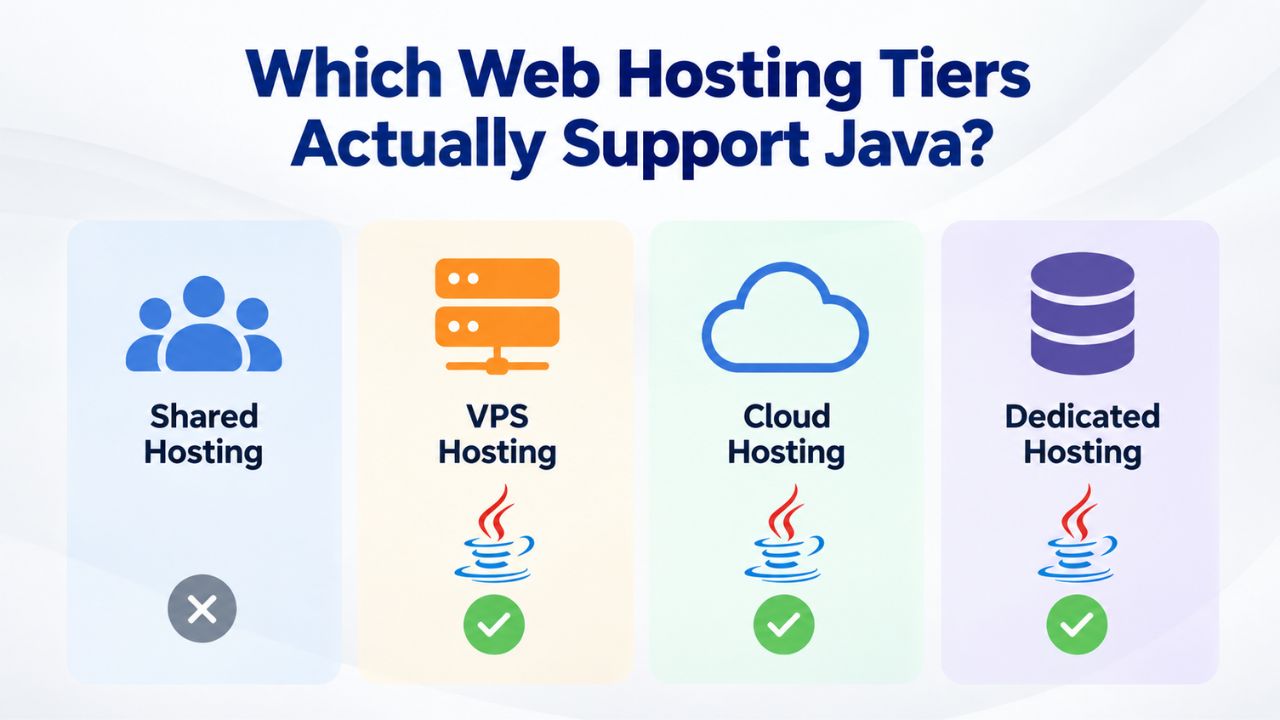
Entry-Level Shared cPanel Hosting, Not Suitable for Java
Entry-level shared hosting (the most common and affordable tier offered by most providers) allocates a small fixed pool of resources shared across dozens or hundreds of accounts on one physical server. Typical allocations are 128–256 MB of RAM per account, with strict CPU throttling and process limits. These plans are designed for lightweight workloads: WordPress, static sites, PHP applications, or blogs. A single Java application running under these constraints would exhaust the per-account memory limit within seconds of startup, typically triggering a “killed” or “out of memory” error.
Even if Java and Tomcat were technically installed on such a server, enabling them for a single entry-level shared account would violate the hosting provider’s resource-sharing model. One account’s Tomcat process consuming 300–500 MB would unfairly starve neighboring accounts of their fair share of system resources. For this reason, providers rarely enable Java on entry-level shared plans. When available, Java support appears only on higher tiers where the provider either pre-allocates dedicated resources or gives you full control.
Hosting Tier Comparison for Java Applications
| Hosting Tier | Java Support | Typical Resource Allocation | Recommended Workload | Configuration Level |
|---|---|---|---|---|
| Entry-Level Shared cPanel | ❌ No (by default) | 128–256 MB shared per account | Not suitable for Java | Managed by provider |
| Managed Java on cPanel | ✅ Yes | 256–512 MB dedicated per application | Dev, staging, proof-of-concept | Pre-configured by provider |
| cPanel VPS | ✅ Possible (manual setup) | 512 MB–2+ GB dedicated per account | Small production apps | Full root control |
| Dedicated Server | ✅ Yes | 2+ GB dedicated | Production-tier applications | Full root control |
| Cloud Platform (AWS/GCP) | ✅ Yes | Auto-scaling, unlimited | High-traffic, elastic workloads | Full root control |
| Lightweight Framework Tier | ✅ Yes (Quarkus/Micronaut) | 128–256 MB dedicated | Low-footprint microservices | Pre-configured or manual |
Managed Java Hosting on cPanel: A Specialized Tier
Some hosting providers offer a specialized tier called “managed Java hosting” built on top of cPanel infrastructure. These plans allocate a private, dedicated JVM (Java Virtual Machine) to each account, separate from the shared memory pool. A managed Java plan might allocate 256 MB, 512 MB, or 1 GB of dedicated heap memory solely for your Java application, with access to Tomcat and JDK (Java Development Kit) pre-installed and managed by the provider.
These managed plans offer a middle ground between entry-level shared hosting and full VPS control. They include automatic Java and Tomcat updates, monitoring, and control-panel integration that allows you to restart Tomcat or adjust JVM settings without SSH access. This tier is ideal for small-to-medium Java applications, staging environments, or proofs of concept where you want managed Java support without the overhead of self-managing a full VPS. The provider handles infrastructure maintenance, security patching, and system administration, while you focus on your application.
VPS (Virtual Private Server) Hosting, Full Control, Full Responsibility
VPS hosting allocates a fixed portion of a physical server’s resources (CPU, memory, disk) exclusively to your account. A VPS with 1–2 GB of RAM gives you enough headroom to run Java applications alongside other services comfortably. Unlike shared hosting or even managed Java, a VPS with root access lets you install any version of Java, Tomcat, or other application servers, configure them exactly as needed, and manage updates and security yourself.
GoDaddy VPS hosting, which powers Niya Digital’s Web Hosting service, comes with cPanel/Plesk control-panel options and full root access. You can install Java via the package manager (yum, apt) or manually, configure Tomcat, deploy WAR files, and operate your application stack with complete control. The trade-off is that you handle all server maintenance, OS patches, application updates, monitoring, and troubleshooting. This tier offers maximum flexibility for Java deployments but requires more technical expertise than managed hosting.
Dedicated Server or Cloud Hosting, Maximum Flexibility
For production-grade Java applications with significant traffic or complex middleware requirements, dedicated servers or cloud platforms (AWS, Google Cloud, Azure) offer unlimited resource allocation and architectural flexibility. These options are beyond the scope of typical small-business cPanel hosting but provide the resources and control needed for enterprise Java workloads. Cloud platforms, in particular, enable automatic scaling, adding capacity as traffic increases and releasing it during quiet periods.
Realistic Performance and Resource Expectations for Java on cPanel Tiers
Performance characteristics vary dramatically across hosting tiers. Setting realistic expectations before purchasing avoids frustration and unexpected scaling costs later.
Provisioning and Startup Time on Managed Java Plans
When you sign up for managed Java hosting or enable Java on a VPS, the hosting provider’s team typically configures the account, installs the required Java and Tomcat versions, and makes the service available within 24–48 hours. Unlike WordPress, which installs instantly via a one-click installer, Java requires manual server-level setup. Niya Digital’s team has found that developers frequently underestimate Java’s resource appetite and choose entry-level shared hosting, only to discover the application won’t run, making careful tier selection crucial before deployment.
Once provisioned, deploying a Java application (uploading a WAR or JAR file to Tomcat’s deployment directory) typically makes it live within 1–5 minutes, depending on the application’s size and complexity. The application server detects the new file, expands it, and starts serving requests. This deployment process is faster than traditional manual server configuration but slower than serverless platforms where code is uploaded and instantly live.
Concurrent Request Handling and Connection Limits
Tomcat’s default configuration allocates 200 concurrent worker threads. Each thread consumes approximately 1 MB of stack memory, so 200 threads alone consume 200 MB. For memory-constrained environments (shared or entry-level managed Java plans), this default is often excessive and must be reduced. Developers typically reduce the thread pool to 25–50 threads, which is sufficient for most small applications and conserves memory.
Shared database connection pools (using HikariCP or similar libraries) default to 10–20 connections; limiting this to 5–8 connections on shared hosting reduces memory pressure and prevents database connection exhaustion. These tuning steps are essential on resource-constrained plans but add deployment complexity. A developer must understand Java threading, connection pooling, and JVM configuration to optimize performance.
Load Time and Responsiveness
On managed Java hosting, Java applications typically respond to requests within 100–500 milliseconds, with startup (“cold start”) times of 3–10 seconds depending on how many libraries the application loads. On a shared-memory plan where the Java process is memory-constrained, garbage collection pauses become more frequent and can introduce response-time jitter (unpredictable latency spikes). Users might experience occasional delays as the garbage collector runs.
On a VPS with ample memory, Java applications behave consistently and predictably, with minimal garbage collection pauses. The application can handle sustained traffic without performance degradation. For production applications where response time and stability matter, this consistency is worth the additional cost and complexity of VPS hosting.
Getting Java Working on cPanel Hosting, A Practical Overview
If your hosting provider offers managed Java support or you have a VPS with root access, here’s a high-level walkthrough of what configuring Java involves. This is control-panel-level guidance, not a hands-on terminal tutorial.
Prerequisites and What to Check First
Before setting up Java, confirm that your hosting plan supports it. Log into your cPanel account and look for a “Java” or “Tomcat” section in the account’s feature list. If it’s not listed, contact your provider’s support team to ask whether you can enable Java on your plan tier. If you have a VPS, confirm that root access is available and that you have a recent version of the server’s operating system (CentOS, Ubuntu, Debian) to ensure package manager compatibility.
Check whether your provider offers managed Java as an optional add-on or requires you to install Java yourself manually. Managed options are simpler; you select a Java version and Tomcat version through the control panel, and the provider handles installation and configuration. Self-managed setup requires SSH access and command-line knowledge.
Enabling Java on a Managed Java Plan
If your provider offers managed Java (or “private JVM”) hosting, the setup flow typically happens in your control panel. Look for a “Tomcat Manager,” “Java Settings,” or “Application Server” section. From there, you can usually specify which JDK version (Java 8, 11, 17, etc.) you want and which version of Tomcat to use. Some providers let you switch versions on the fly; others require a support ticket to change JVM settings.
After you make your selections, the provider configures the service, and you’re typically notified via email when Java is ready. This process takes a few minutes to an hour, depending on the provider’s automation. After activation, you can deploy applications immediately.
Deploying Your Application
Once Java and Tomcat are enabled, you deploy your application by uploading a WAR (Web Application Archive) or JAR (Java Archive) file. WAR files are standard Java web application packages; they’re typically generated by your build tool (Maven, Gradle) and uploaded to a specific directory in cPanel (often public_html or a dedicated Tomcat webapps folder). Tomcat automatically detects the file, expands it, and makes the application live.
JAR files (fat JARs with embedded Tomcat) can often be run directly via SSH or a custom script within cPanel if your provider supports it. The deployment process is straightforward once you have a compiled application archive. Most providers include documentation on uploading files and configuring Tomcat settings through the control panel.
Monitoring and Resource Usage
Most managed Java plans include a control-panel widget showing current memory usage, uptime, and restart options. Monitor these metrics regularly, especially after deployment. If your application consistently uses 80% or more of allocated memory, you’re approaching the limit; garbage collection pauses will increase, and out-of-memory crashes become likely. In those cases, upgrade to a larger managed Java plan or migrate to a VPS with more resources.
Set up alerts or check monitoring dashboards weekly. Early detection of resource exhaustion gives you time to optimize the application or upgrade your plan before users experience outages.
Deploy Java with Confidence on Niya Digital
Your Java application deserves hosting infrastructure that matches its technical requirements. From managed Java plans with pre-configured Tomcat to full VPS control with root access, Niya Digital’s Web Hosting service offers the flexibility and resources to run Java successfully. Whether you’re scaling a growing application or optimizing for cost, the right hosting tier makes all the difference. Choose infrastructure built for Java, not compromises.
Security and Stability Concerns for Java in Shared Hosting Environments
Java applications running on shared hosting present unique challenges for both the provider and the application owner. Multi-tenant safety and resource isolation are paramount.
Process Isolation and Tenant Boundaries
On shared hosting, the hosting provider’s operating system uses OS-level isolation (Linux user accounts, process permissions, CGroups) to prevent one account’s processes from accessing or interfering with another’s. A Java process running under your account still respects these boundaries. However, if your Java application leaks memory (consuming more and more memory over time) or spawns runaway threads, it could eventually exhaust the per-account resource limit and crash the application.
Well-written Java applications with proper garbage collection and thread management rarely trigger this. But it’s a risk on memory-constrained plans that developers must watch for. Thoroughly test applications in a staging environment with the same resource constraints as production to catch memory issues before they affect users.
Runaway Process Prevention
Managed Java hosting providers typically implement automatic restart and health-check mechanisms. If your Tomcat process crashes or stops responding for more than a few minutes, the system automatically restarts it. This safety net prevents dead services but doesn’t prevent the root cause (e.g., a memory leak in your application code). Application developers are responsible for writing code that manages resources cleanly.
Use profiling tools during development to identify memory leaks and test thread behavior under load. These preventive measures reduce the risk of unexpected production crashes.
Logging and Disk Space
Java applications often generate verbose logging output, especially during development or debugging. A misconfigured logger can fill the disk with gigabytes of log files within hours, exhaust your account’s storage allocation, and cause the application to fail. Ensure application logging is configured to rotate logs (discard old files after a certain size or age) and that log levels are appropriate for production (WARN or ERROR, not DEBUG).
Review log configuration before deploying to production. Set up log rotation in your application’s logging framework (Logback, Log4j2) to limit disk usage and ensure old logs are archived or deleted automatically.
When to Stay on cPanel for Java Versus When to Escalate
A clear decision framework helps you choose the right tier for your application’s lifecycle and needs.
Use Cases Where cPanel Hosting (Managed Java or VPS) Is Sufficient.
Proof-of-concept or MVP: You’re testing a Java idea and need it online quickly without significant upfront infrastructure investment. A managed Java plan provides managed support and adequate resources at a reasonable cost.
Staging or development environment: You need a stable, always-on environment to test new code before deploying to production. cPanel VPS hosting provides good value and control for pre-production workloads.
Low-traffic internal application: Your Java app serves a small team (under 50 concurrent users), has minimal external traffic, and doesn’t require complex scaling. A managed Java plan or entry-level VPS works well for internal tools and dashboards.
Learning and experimentation: You’re learning Java and want a live environment without the complexity of cloud platforms. VPS with root access gives you full control to experiment and troubleshoot at the infrastructure level.
Use Cases Requiring Escalation Beyond cPanel
High-traffic or production application: If your application attracts significant public traffic (thousands of concurrent users), you need the scalability and reliability of cloud infrastructure (AWS, Google Cloud, Heroku) or managed Kubernetes platforms. cPanel tiers, even VPS, are not designed for elastic auto-scaling in response to traffic spikes.
Complex middleware or microservices architecture: If your system comprises multiple Java services, message queues (RabbitMQ, Kafka), caching layers (Redis), and external integrations, you need the isolation and orchestration capabilities of containerization (Docker, Kubernetes), not a single-server cPanel environment.
24/7 mission-critical operations: Applications that require immediate failover, geographic redundancy, and SLA-backed uptime guarantees should use cloud or dedicated managed hosting platforms. cPanel hosting, even managed Java plans, offers high availability but not the redundancy of multi-region cloud deployments.
Custom JVM tuning or exotic frameworks: If your application requires fine-grained JVM configuration, exotic Java frameworks, or compiled native libraries, you need a VPS or cloud VM with full root access and control over the entire stack.
Exploring Java Frameworks and Their cPanel Suitability
Different Java frameworks have different resource profiles and ecosystem requirements. Some are inherently lightweight and run well on resource-constrained shared hosting; others assume abundant resources.
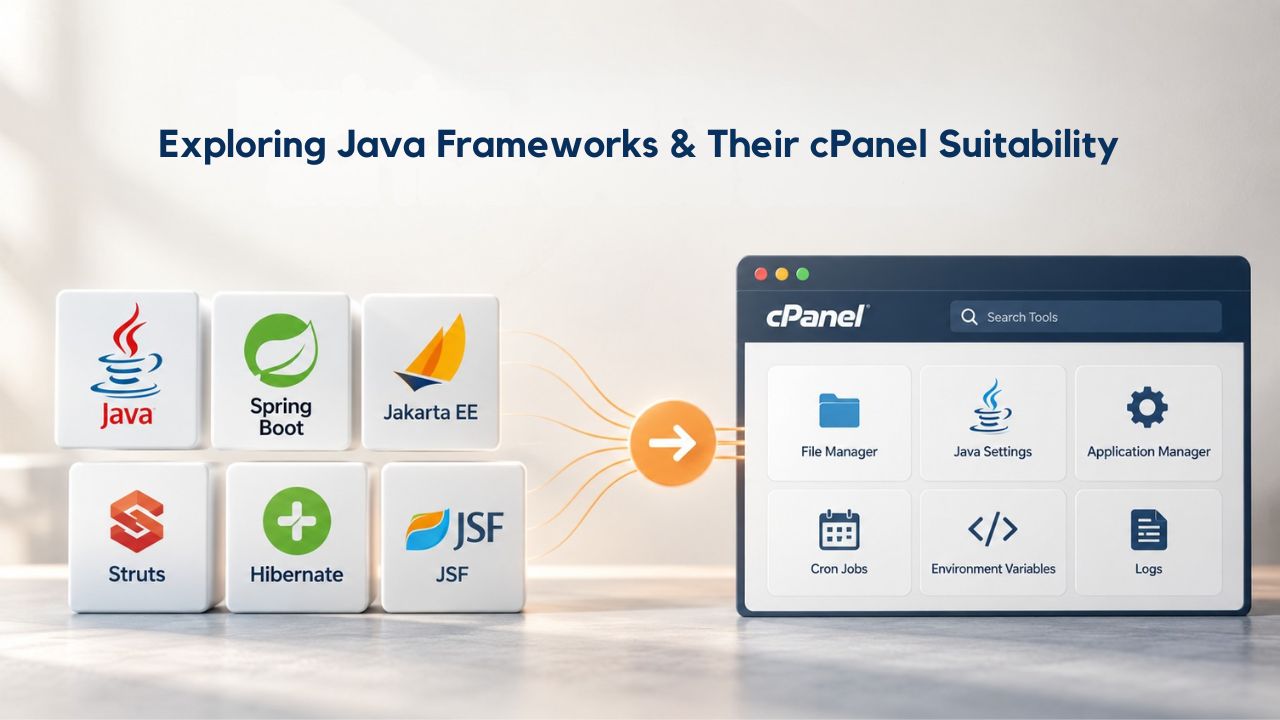
Spring Boot, The Industry Default, But Memory-Hungry
Spring Boot is the dominant framework for Java web applications and microservices. A vanilla Spring Boot application with spring-boot-starter-web (HTTP server and MVC framework) consumes 200–300 MB at startup with a default configuration. Spring Cloud libraries (for service discovery, configuration management, and distributed tracing) can push that to 500+ MB. Spring Boot is powerful and flexible but is not optimized for memory-constrained environments.
On a managed Java plan with only 256 MB allocated, a Spring Boot application will struggle; 512 MB is a practical minimum. For cPanel VPS hosting, 1 GB of available memory is recommended to allow for growth and concurrent requests. If you’re considering Spring Boot for cPanel hosting, allocate ample memory and test thoroughly in a staging environment with the same constraints as production.
Java Framework Memory and Resource Requirements
| Framework | Startup Memory | Runtime Memory | Startup Time | Best Use Case | cPanel Suitability |
|---|---|---|---|---|---|
| Spring Boot (standard) | 200–300 MB | 300–500 MB | 3–10 seconds | General-purpose web apps and APIs | Managed Java or VPS required |
| Spring Boot (optimized) | 150–200 MB | 250–350 MB | 3–8 seconds | Resource-constrained deployments | Managed Java 512+ MB |
| Quarkus (JVM mode) | 100–150 MB | 150–250 MB | 2–5 seconds | Cloud-native applications | Managed Java suitable |
| Quarkus (native build) | 50–80 MB | 80–150 MB | <1 second | Serverless, ultra-lightweight | Managed Java 256 MB+ |
| Micronaut | 80–120 MB | 120–200 MB | 1–3 seconds | Microservices, lightweight apps | Managed Java suitable |
| Raw Servlet/JSP | 40–60 MB | 60–100 MB | <1 second | Legacy applications, simple pages | Managed Java or entry-level VPS |
Lightweight Alternatives: Quarkus and Micronaut
Quarkus and Micronaut are newer frameworks specifically designed for cloud-native, memory-efficient deployments. Quarkus, backed by Red Hat, compiles Java to native code (using GraalVM) and achieves startup times under 1 second and heap sizes under 50 MB. Micronaut, from the OCI team, uses ahead-of-time compilation and minimal reflection to keep memory footprints small.
Both frameworks are ideal for cPanel hosting with tight memory constraints; they can run comfortably on managed Java plans with 128–256 MB allocations. If you’re building a new Java application and want to minimize resource consumption on cPanel hosting, these frameworks are excellent choices. They’re newer than Spring Boot and have smaller ecosystems, but they’re production-ready and actively maintained.
Simple Servlets and JSP, Still Viable on Shared Hosting
If your application is a simple servlet (raw Java web handler) or JSP (Java Server Pages) template, it can run on managed Java hosting with 256 MB of memory. These lightweight patterns don’t require the Spring ecosystem and can start and run efficiently. However, most new Java development uses Spring Boot or Micronaut, not raw servlets.
Legacy applications built on raw servlets or JSP are viable candidates for managed Java hosting on cPanel, especially if they’re small and don’t involve complex business logic or external integrations. Modernizing legacy JSP applications to Spring Boot or Micronaut can reduce resource consumption and improve maintainability.
Common Pitfalls and How to Avoid Them
Deploying Java on cPanel hosting introduces complexities not present in PHP hosting. Knowing these pitfalls helps you avoid wasted time and unexpected failures.
Memory Leaks and Unbounded Growth
A memory leak occurs when Java code allocates memory but never releases it, causing the heap to grow over time until the process crashes. On a shared or managed hosting plan with limited memory, a memory leak will manifest within hours or days. Use a profiler tool (JProfiler, YourKit, or JVM built-in tools) in your development environment to identify leaks before deploying to production.
Monitor heap usage in production (most managed Java plans provide a control-panel widget); if it climbs consistently without plateauing, investigate the application code. Common causes include unclosed database connections, accumulating objects in collections, and listener registrations that are never unregistered. Fixing these issues in development prevents production crashes.
Excessive Thread Creation
Each Java thread consumes approximately 1 MB of stack memory. An application that carelessly spawns hundreds of threads will quickly exhaust available memory. Use thread pools (Java’s ExecutorService or framework-provided pool abstractions) to limit concurrent threads to a reasonable number (10–50, not 200+).
Configure thread pools explicitly in your application code or framework configuration. Most frameworks (Spring, Quarkus) provide configuration options for thread pool size. Keep pools small on cPanel hosting to conserve memory.
Bloated Dependency Trees
Modern Java applications often depend on dozens of libraries, each bringing transitive dependencies. A large dependency tree increases the application’s total memory footprint, disk space, and startup time. Use tools like Maven Dependency Tree or Gradle Dependency Report to audit your dependency graph. Remove unused dependencies and prefer lightweight libraries where possible (e.g., prefer Micronaut over Spring if you don’t need Spring’s full ecosystem).
Review your dependencies regularly and remove any you no longer use. Each dependency you eliminate reduces the application’s startup time and memory footprint.
Inadequate Garbage Collection Tuning
The Java garbage collector’s default behavior suits workloads with ample memory. In memory-constrained cPanel environments, garbage collection can become a bottleneck, causing unpredictable pause times. For managed Java plans, consult your provider’s documentation on available GC tuning options. For VPS hosting, experiment with GC algorithms (G1GC, ZGC, Shenandoah) to find the best fit for your workload.
Monitor garbage collection logs to identify whether pauses are frequent or prolonged. If response times are erratic due to GC pauses, try adjusting GC settings or upgrading to a larger plan with more memory.
Forgetting About Connection Pools
If your application connects to a database, it typically uses a connection pool (HikariCP, Tomcat JDBC Pool, etc.). The default pool size is often 10–20 connections; on shared hosting, this is excessive. Reduce it to 5–8 and monitor whether the application has enough connections to handle concurrent requests. Too few connections will cause request queueing and timeouts; too many waste memory and tie up database resources.
Configure connection pool size explicitly in your application’s database configuration. Test under realistic load to ensure the pool size is adequate but not excessive.
Migrating a Java App from Local Development to cPanel Hosting, A Staged Approach
Moving a Java application from your laptop to production requires careful planning. A phased migration reduces risk and lets you address issues early.
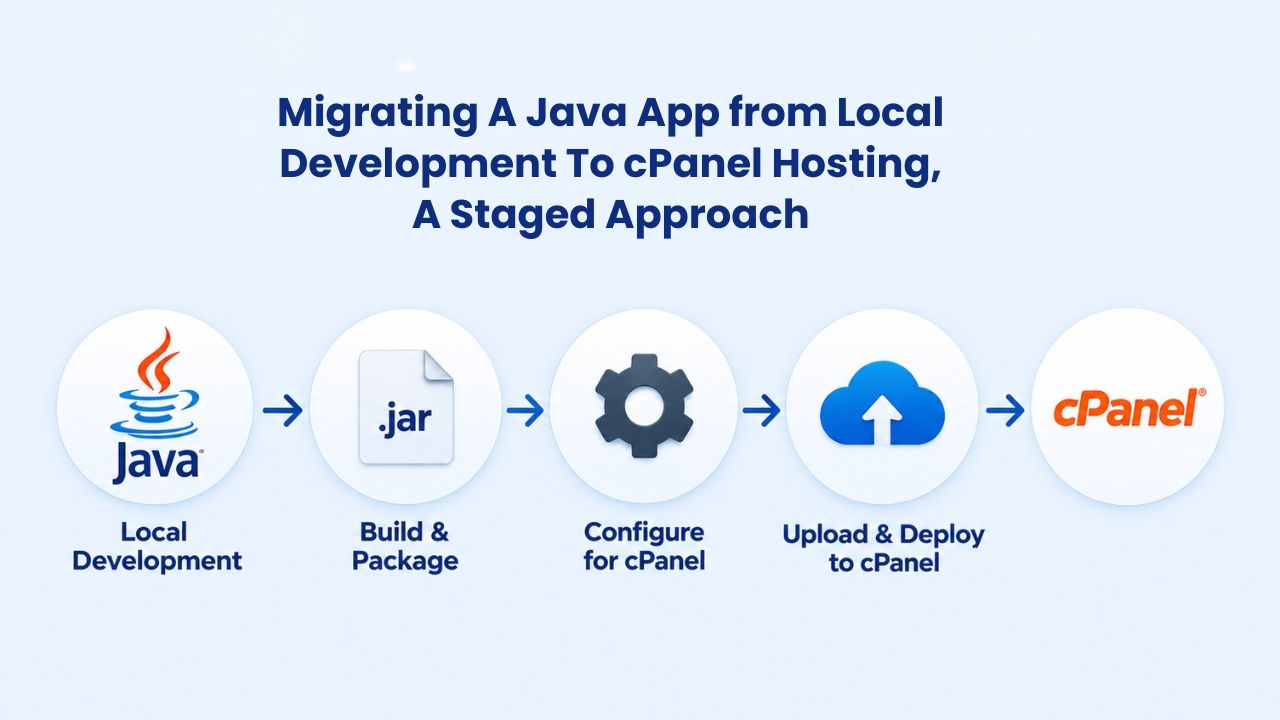
Stage 1: Test Locally with Production-Like Constraints
Before deploying to managed Java hosting, test your application on your local machine as if memory and CPU were severely constrained. Use JVM flags like -Xmx256m to limit heap to 256 MB and run your application through realistic load tests (100+ concurrent requests, database reads and writes, file uploads). If it crashes or hangs on your laptop under these constraints, it will definitely fail on managed hosting.
Use load-testing tools (JMeter, Gatling) to simulate production traffic and identify performance bottlenecks. Fix issues found during local testing before deploying to production.
Stage 2: Deploy to a Staging Environment
If your cPanel plan includes a staging area or subdomain, deploy there first. Use managed Java hosting or a VPS staging tier with the same resource allocation as your production plan. Run integration tests, monitor resource usage, and identify any issues before going live. This staging environment also lets you verify deployment procedures: uploading WAR files, restarting Tomcat, checking logs, etc.
Ensure your staging environment is as close to production as possible. Use production-like database sizes, traffic patterns, and configurations.
Stage 3: Gradual Traffic Migration
Once confident, migrate traffic to the cPanel hosting environment. If possible, use a gradual approach: route 10% of real traffic initially, monitor for errors or performance issues for 24 hours, then increase to 50%, then 100%. This canary deployment strategy limits the blast radius if something goes wrong. Monitor memory usage, garbage collection pauses, request latency, and error rates.
Use a load balancer or DNS routing to gradually shift traffic from old infrastructure to the new cPanel hosting. This approach lets you roll back if issues arise.
Stage 4: Evaluate and Scale or Escalate
After a week or two of production traffic, review metrics. If your application consistently uses 80% or more of allocated memory, or if latency spikes are frequent, you’re approaching the limit of your plan tier. At that point, either optimize the application (reduce memory footprint, tune garbage collection) or escalate to a larger managed Java plan or VPS with more resources. Escalating early is better than discovering capacity issues during a traffic spike.
Set up monitoring alerts to notify you before you run out of resources. Proactive scaling prevents poor user experience.
Ready to Run Java on cPanel Web Hosting?
Niya Digital’s Web Hosting service, powered by GoDaddy’s infrastructure, provides both managed and VPS tiers designed to support Java workloads. Whether you’re launching a proof-of-concept, building a staging environment, or running a production application, understanding your resource needs upfront ensures you select the right tier. The effort invested in planning and testing pays dividends in stable, predictable performance.
Frequently Asked Questions
Can I run Java on entry-level shared cPanel hosting?
No. Entry-level shared hosting allocates 128–256 MB per account from a shared pool and is designed for lightweight workloads like WordPress. Java applications typically require at least 256 MB and often 512 MB or more. Java will either fail to start or consume too many resources, violating the provider’s fair-use policy. To run Java applications reliably, you need managed Java hosting, a VPS, or a higher-tier plan.
What’s the difference between managed Java hosting and VPS hosting for Java?
Managed Java hosting is a pre-configured tier with Java and Tomcat pre-installed and managed by the provider. You pay a fixed amount, and the provider handles updates and monitoring. VPS hosting gives you full root access and complete control, but you must install, configure, and maintain Java yourself. Managed Java is simpler and requires less technical knowledge; VPS is more flexible and lets you customize the entire stack.
How much memory does a Spring Boot application actually need?
A basic Spring Boot application with spring-boot-starter-web typically requires 200–300 MB at startup and 300–500 MB under realistic load. Production applications with database connections, caching, and background tasks often need 512 MB to 1 GB. Always allocate more than the bare minimum to avoid garbage collection pauses and out-of-memory crashes. Test your specific application under realistic load to determine actual requirements.
Can I run multiple Java applications on one managed Java plan?
Technically, yes, if your plan allows multiple domains or applications, but it’s not recommended. Each Java application running on the same plan shares the same JVM heap. A memory leak or excessive load in one application affects the other. Ideally, each application gets its own managed plan or dedicated VPS to ensure isolation and stability.
What if my Java application crashes on cPanel hosting?
Managed Java hosting typically includes automatic restart: if Tomcat stops responding, the system automatically restarts it within minutes. Check the control-panel logs to identify the crash reason (OutOfMemoryError, NullPointerException, etc.). For VPS hosting, you’ll need to restart it manually or set up an automated health-check script. In both cases, investigate and fix the root cause in your application code.
Is Java hosting more expensive than PHP hosting?
Generally yes. Entry-level PHP shared hosting is very affordable. Managed Java hosting requires more dedicated resources and management, so it costs more. If cost is your primary constraint, consider lightweight frameworks (Quarkus, Micronaut) that run efficiently on smaller managed plans. You can also start with a managed Java plan for a proof of concept before committing to larger deployments.
Can I switch from managed Java hosting to VPS later if I outgrow the plan?
Yes. Migrating from managed Java to VPS hosting is straightforward: export your application data and databases from the managed plan, set up Java and Tomcat on the VPS, import the data, and point your domain to the VPS. The process typically takes a few hours. Most providers can assist with migration if needed, minimizing downtime.
What Java version should I choose?
Java 17 (LTS – Long Term Support) is the current industry standard and safe for production. Java 21 (LTS) is the latest LTS version with support through 2031. Avoid non-LTS versions (like 18, 19, 20) in production; they receive only 6 months of support. If your application is legacy or uses older libraries, Java 11 or 8 may be necessary, but newer LTS versions are preferred for security and performance.
Do I need SSH access to deploy Java on cPanel?
On managed Java hosting, no. You can typically deploy via the control panel’s file manager or a dedicated Tomcat manager interface. On VPS hosting, SSH access is useful but not always required; you can upload files via FTP and manage Tomcat through the control panel if cPanel is installed. However, SSH gives you more flexibility for scripting and debugging advanced configurations.
How do I monitor Java application performance on cPanel hosting?
Managed Java plans typically provide a control-panel widget showing memory usage, uptime, and CPU. Enable application logging (with appropriate log levels) and review logs regularly for errors or warnings. For VPS hosting, install monitoring tools (htop for system resources, jconsole or JVisualVM for JVM metrics). Set up alerts for high memory usage, crashes, or response-time degradation so you can respond quickly.
Can I use Docker or containers on cPanel hosting?
Not on shared or managed plans. Docker requires a VPS or cloud VM with root access. If you need containerized Java, escalate to VPS hosting or use a cloud platform like AWS ECS, Google Cloud Run, or Heroku. These platforms provide container orchestration and make managing containerized applications straightforward.
What if my Java application needs a background job or cron task?
On managed Java hosting, cron jobs can be configured through the control panel to trigger your application via HTTP (a scheduled URL call) or a custom script. On VPS hosting, you have full cron access via the command line. Be aware that frequent cron jobs increase CPU usage and memory pressure; optimize them to run infrequently and efficiently.
Is a 99.9% uptime guarantee enough for Java applications?
For non-critical applications (staging, internal tools, low-revenue projects), yes. 99.9% uptime means about 43 minutes of downtime per month, which is acceptable for many use cases. For revenue-generating or mission-critical applications, you need higher SLAs and failover capabilities, typically available only on cloud platforms or premium managed hosting.
What are the most common mistakes when deploying Java on cPanel?
Common mistakes include choosing entry-level shared hosting without verifying Java support, deploying without testing memory constraints locally, forgetting to configure connection pools and thread limits, allowing verbose logging to fill the disk, and not monitoring resource usage in production. Avoid these by planning carefully, testing in staging with production-like constraints, and monitoring actively after deployment.
How can I reduce my Java application’s memory footprint on cPanel hosting?
Use lightweight frameworks (Quarkus, Micronaut instead of Spring Boot), remove unused dependencies, reduce thread pool and connection pool sizes, minimize logging output in production, and use GC tuning flags like -XX:+UseG1GC for better garbage collection performance. Test each optimization in staging to ensure it doesn’t degrade functionality.
Glossary
- cPanel: A web-based control panel for managing web hosting accounts, domains, email, files, and databases through a graphical interface. cPanel is a management tool, not an application server, and does not execute application code.
- Java Runtime Environment (JRE): The software layer that interprets and executes compiled Java bytecode. The JRE must be installed on the server operating system and is required to run any Java application.
- Application Server: Software (such as Apache Tomcat, Jetty, or WildFly) that hosts and executes Java web applications. The application server handles HTTP requests, manages application lifecycle, and provides services like connection pooling and session management.
- Tomcat: Apache Tomcat, the most widely used open-source Java servlet container and application server. Tomcat runs Java web applications and is the de facto standard for shared and managed Java hosting environments.
- WAR File: Web Application Archive, a standard Java package format containing compiled code, configuration files, and static assets. WAR files are deployed to Tomcat’s webapps directory and automatically expanded and executed.
- Managed Hosting: A hosting tier where the provider pre-installs, configures, and maintains specific software (in this case, Java and Tomcat) on your behalf. You pay a fixed cost and delegate server maintenance to the provider.
- VPS Hosting: Virtual Private Server, a hosting tier that allocates a fixed portion of a physical server’s resources exclusively to your account, with root access and full control over server configuration and the software stack.
- Heap Memory: The portion of JVM memory where Java objects are allocated and managed by garbage collection. Heap size is typically configured with -Xmx (maximum) and -Xms (initial) JVM flags.