What Is a VPS Hosting Environment?
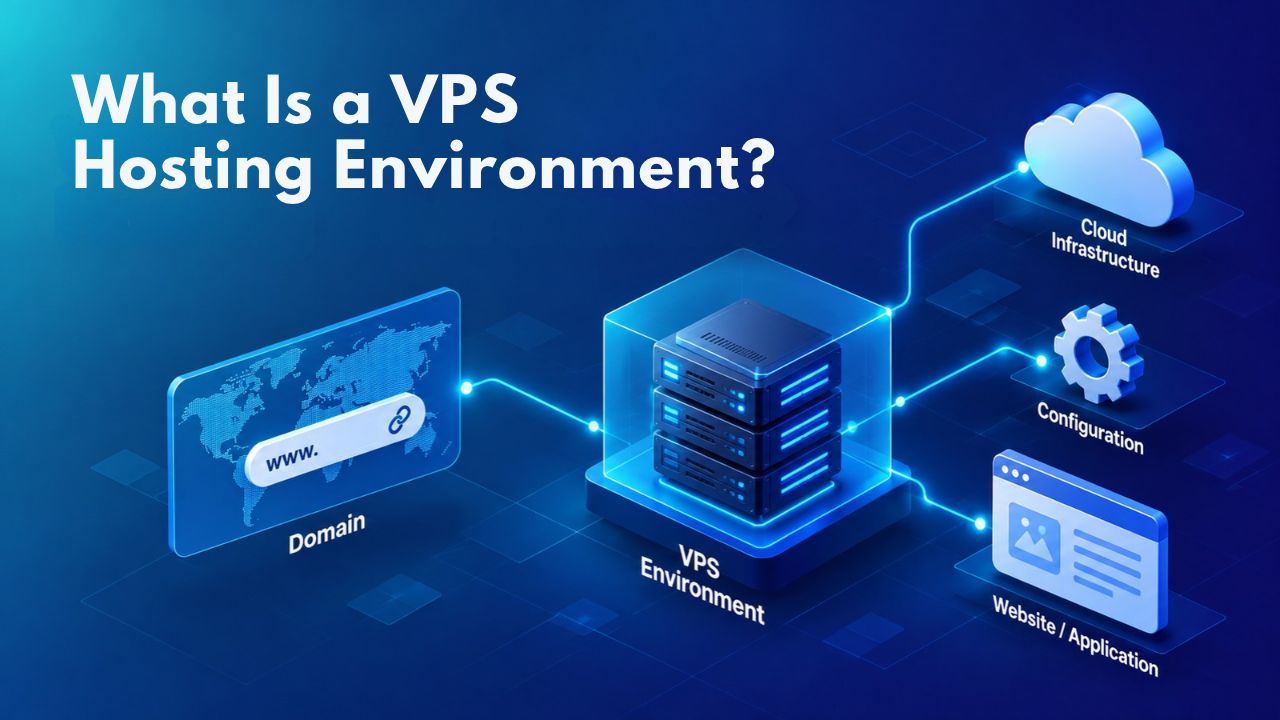
A Virtual Private Server isolates your server environment from others on the same physical machine using virtualization technology. Each VPS gets its own dedicated CPU cores, RAM, storage, and bandwidth allocation. Unlike shared hosting, where one neighbor’s traffic spike or resource-intensive backup can slow everyone down, your resources stay separated and predictable. This isolation makes VPS hosting a popular choice for growing websites, development teams, and businesses outgrowing shared hosting limitations.
Virtualization Creates True Isolation
Virtualization and KVM hypervisor technology, the software layer that partitions one physical server into isolated virtual environments, means your VPS behaves like a dedicated server but shares hardware costs with others. KVM (Kernel-based Virtual Machine) is a common hypervisor that delivers full control: you configure the server up to the operating system level, install any compatible software, and manage firewall rules yourself. No other customer’s traffic, code, misconfiguration, or security issues directly impact your isolated environment. This isolation boundary is absolute and enforced by the hypervisor.
This isolation has serious security implications for your applications and data. In shared hosting, a security breach on one website can potentially spread to neighboring sites on the same server, compromising customer data or application integrity. VPS partitions eliminate this risk by keeping security issues contained to your environment. This makes VPS hosting especially valuable for businesses handling sensitive customer data, running ecommerce checkout flows with payment processing, or managing confidential databases where security isolation is non-negotiable.
Dedicated Resources Mean Predictable Performance
When you allocate 2 vCPU cores and 4 GB of RAM to a VPS hosting plan, those resources are genuinely yours, not shared with other tenants and not available to other customers during peak times. Your application doesn’t compete for CPU time when traffic spikes or other users max out their servers. Database queries don’t slow because a neighbor started a video encoding job or ran a backup. This resource predictability is why performance-critical applications and rapidly growing businesses outgrow shared hosting and choose VPS hosting. You know exactly what CPU and memory your application has available, and you can plan scaling accordingly.
The financial model sits comfortably between shared hosting and dedicated servers, making VPS hosting a practical choice for developers building multiple client sites, agencies managing customer production environments, and businesses expanding beyond their initial shared plan. You pay for the resources you use without the overhead of purchasing, racking, and maintaining physical hardware yourself. This balance of control, performance, and cost is why VPS hosting has become the standard for production web applications.
VPS Hosting Plans & Pricing
Choose the VPS hosting plan that fits your website, application, or business requirements. Select a self-managed VPS for complete server control or a fully managed VPS with a dedicated team of experts to help manage your server.
Self Managed VPS 1 vCPU
1 GB RAM
Entry-level VPS hosting for lightweight websites and applications.
- 1 CPU Core
- 1 GB RAM
- 20 GB SSD Storage
- Linux only, no control panel

Self Managed VPS 2 vCPU
4 GB RAM
VPS hosting with additional CPU and memory for growing websites and applications.
- 2 CPU Cores
- 4 GB RAM
- 100 GB SSD Storage
Self Managed VPS 2 vCPU
8 GB RAM
Additional memory for more demanding websites and applications.
- 2 CPU Cores
- 8 GB RAM
- 100 GB SSD Storage
Self Managed VPS 4 vCPU
8 GB RAM
Increased processing power for business websites and applications.
- 4 CPU Cores
- 8 GB RAM
- 200 GB SSD Storage
Self Managed VPS 4 vCPU
16 GB RAM
High-memory VPS hosting for resource-intensive workloads.
- 4 CPU Cores
- 16 GB RAM
- 200 GB SSD Storage
Self Managed VPS 8 vCPU
16 GB RAM
Powerful VPS resources for demanding business applications.
- 8 CPU Cores
- 16 GB RAM
- 400 GB SSD Storage
Self Managed VPS 8 vCPU
32 GB RAM
Maximum self-managed resources for demanding workloads.
- 8 CPU Cores
- 32 GB RAM
- 400 GB SSD Storage
Fully Managed VPS 1 vCPU
2 GB RAM
Managed VPS hosting with expert server management.
- 1 CPU Core
- 2 GB RAM
- 40 GB SSD Storage
- Dedicated team of experts to fully manage your server
Fully Managed VPS 1 vCPU
4 GB RAM
Managed VPS resources for websites and business applications.
- 1 CPU Core
- 4 GB RAM
- 40 GB SSD Storage
- Dedicated team of experts to fully manage your server
Fully Managed VPS 2 vCPU
4 GB RAM
Managed VPS hosting with additional CPU resources.
- 2 CPU Cores
- 4 GB RAM
- 100 GB SSD Storage
- Dedicated team of experts to fully manage your server
Fully Managed VPS 2 vCPU
8 GB RAM
Managed VPS hosting with additional memory for growing workloads.
- 2 CPU Cores
- 8 GB RAM
- 100 GB SSD Storage
- Dedicated team of experts to fully manage your server
Fully Managed VPS 4 vCPU
8 GB RAM
Higher-performance managed VPS for demanding applications.
- 4 CPU Cores
- 8 GB RAM
- 200 GB SSD Storage
- Dedicated team of experts to fully manage your server
Fully Managed VPS 4 vCPU
16 GB RAM
High-memory managed VPS for resource-intensive workloads.
- 4 CPU Cores
- 16 GB RAM
- 200 GB SSD Storage
- Dedicated team of experts to fully manage your server
Fully Managed VPS 8 vCPU
16 GB RAM
Powerful managed VPS hosting for demanding business workloads.
- 8 CPU Cores
- 16 GB RAM
- 400 GB SSD Storage
- Dedicated team of experts to fully manage your server
Fully Managed VPS 8 vCPU
32 GB RAM
Maximum managed VPS resources for demanding workloads.
- 8 CPU Cores
- 32 GB RAM
- 400 GB SSD Storage
- Dedicated team of experts to fully manage your server
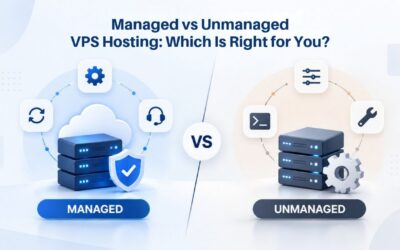
Managed vs. Unmanaged VPS: Choosing Your Support Model
The biggest decision when selecting VPS hosting isn’t CPU count or storage size; it’s whether you or the provider will manage the server’s operational tasks. This choice shapes everything: monthly cost, your responsibility, required expertise, and, crucially, who answers when something breaks at 2 a.m. Understanding the managed-versus-unmanaged distinction matters because it determines your total cost of ownership and operational burden.
Managed VPS: Provider Handles Operations and Support
With managed VPS hosting, the provider handles operating system updates, kernel security patches, control panel maintenance, baseline firewall configuration, 24/7 infrastructure monitoring, and most troubleshooting. You focus on your websites, applications, and business logic. The provider acts as an ongoing systems administration partner, proactively detecting and fixing infrastructure issues before you even notice them. They monitor disk space, apply security patches as soon as they’re available, and handle emergency response if the server has problems.
This model costs more monthly; managed support, continuous automation, and round-the-clock monitoring all add to operational expense. Still, the trade-off is clear and measurable: simplicity, reduced time burden, professional security hardening you might not implement yourself, and peace of mind. For teams without dedicated infrastructure staff, or businesses that can’t afford downtime that impacts customers, managed VPS hosting eliminates an entire category of operational risk. You can focus on building your business instead of managing server patches and security updates.
Unmanaged VPS: Full Control, Full Responsibility
Unmanaged VPS hosting gives you a bare operating system image and full root access, and then the entire management responsibility lands on your shoulders. You handle OS updates as soon as they ship, configure firewalls to your exact specifications, set up and monitor backups on your schedule, tune database performance, diagnose network issues when they occur, and troubleshoot security breaches if they happen. You control everything, but you also own everything. This includes applying security patches on day one, before vulnerabilities are exploited, and being available to debug server issues whenever they arise.
The monthly cost for unmanaged VPS hosting is significantly lower because you’re paying for infrastructure only, no staff, no monitoring, no support beyond hardware uptime. This is the right choice for experienced system administrators who love hands-on server configuration, developers building specialized applications that require custom setups, and teams running highly specialized workloads that managed VPS providers won’t support. Before choosing unmanaged hosting, confirm your team has the expertise to handle security patching, performance tuning, and crisis troubleshooting independently. Nearly half of VPS users have left providers because support was inadequate, so in-house expertise is essential for unmanaged hosting success.
Operating System and Stack Selection
VPS hosting platforms support multiple operating systems, each suited to different applications and development environments. Choosing the right OS upfront prevents painful migrations later and ensures your stack runs optimally on your infrastructure.
Linux Dominates for Cost and Compatibility
Linux operating systems represent roughly 60% of the VPS hosting market, and for good reason. Linux is open-source, runs efficiently on minimal resources, boots quickly, and supports nearly every popular web framework and tool: Apache and Nginx web servers, Node.js, Python, Ruby, PHP, databases like MySQL and PostgreSQL, containerization tools like Docker, and development frameworks across all languages. Common distributions include Ubuntu (extremely popular for hosting), Debian (stable and reliable), AlmaLinux (Red Hat compatible), and CentOS. These options give you flexibility to match your development and production environments.
Linux is especially attractive for developers because it’s free, familiar from personal development machines and coding bootcamps, and gives you full control without licensing restrictions or unexpected costs. From small WordPress blogs to massive distributed applications, Linux VPS hosting delivers proven, cost-effective performance. The open-source ecosystem means countless tutorials, documentation, and community support exist for whatever you’re building. Most modern web development happens on Linux, making it the natural choice for hosting your projects.
Windows VPS for Windows-Specific Workloads
Windows Server VPS hosting is essential if your application requires Windows: legacy .NET Framework applications, Windows-native SQL Server (not the cross-platform SQL Server on Linux), Remote Desktop Protocol (RDP)-based remote access workflows, or specialized enterprise software that only runs on Windows. Windows licensing adds cost; there’s no free tier like Linux, but if your tech stack requires Windows, there’s no alternative. Many enterprises and corporate applications have deep Windows dependencies that can’t be easily refactored.
Windows VPS also supports powerful all-in-one administration tools: Group Policy for centralized configuration across multiple servers, Active Directory for identity management and domain control, and PowerShell for powerful automation and scripting. Choose Windows for compliance requirements tied to enterprise software, traditional business applications, development environments where Windows is mandatory, or when your customers’ infrastructure is Windows-based. Your application requirements determine the choice between Linux and Windows, not cost alone.
Resource Allocation: CPU, RAM, and Storage Sizing
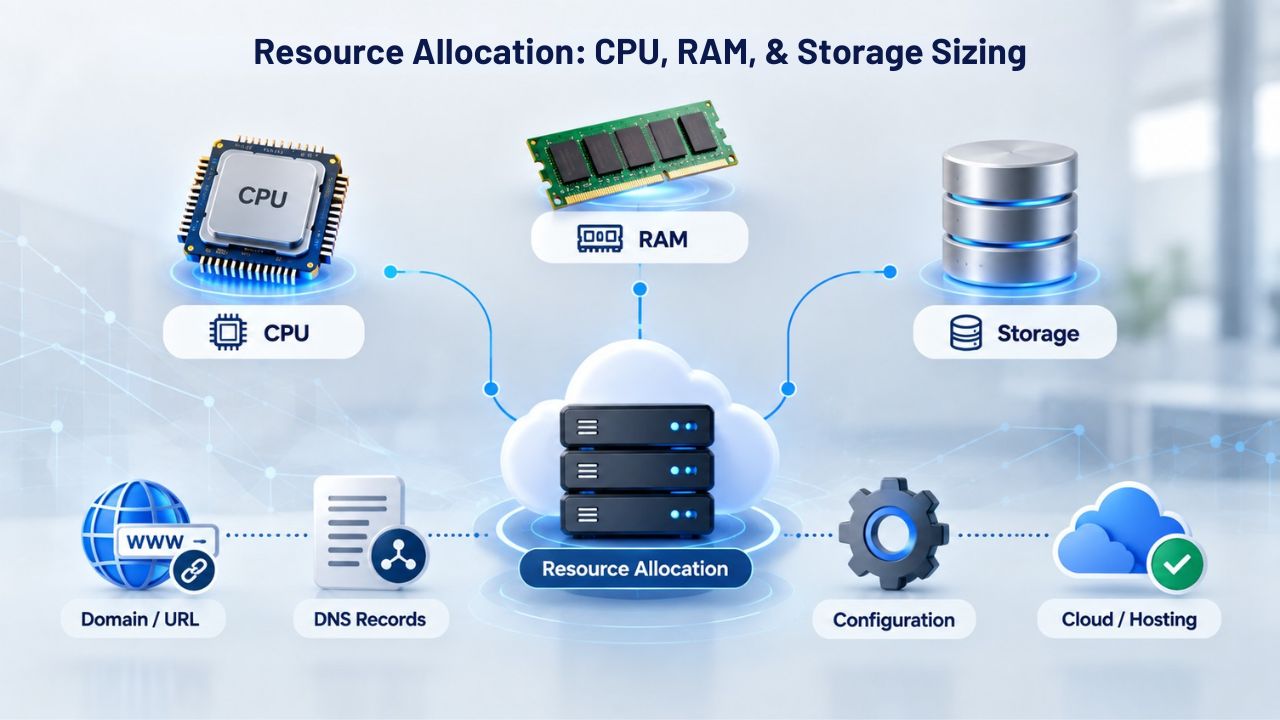
Choosing the right VPS hosting plan means matching resources to your actual workload, not picking the cheapest option or assuming bigger is always better. Effective sizing maps workload pressure- CPU time for processing requests and code, RAM for caches and data retention, and storage for capacity and speed- to the resources you actually need, then adds 1.5–2× headroom for traffic peaks and unexpected loads.
CPU and RAM: Processing Power and Memory Requirements
CPU time handles incoming web requests, executes application code, runs database queries, performs SSL/TLS handshakes, and runs background jobs. The number of vCPU cores you need depends on whether your workload is parallel (many requests arrive simultaneously) or serial (single-threaded code that runs on one core per request). Most web applications spread work across multiple requests, so mid-range core counts with strong per-core performance fit best. Realistically, a small WordPress blog needs 1–2 vCPU cores, a production web application benefits from 2–4 cores, and high-traffic APIs or CI/CD pipelines should start at 4+ cores.
RAM holds active data, application caches, operating system buffers, and database working sets in memory for fast access. The single biggest database performance lever isn’t query tuning; it’s having enough RAM for the working set to fit in memory instead of spilling to slow disk swap space. Guidelines: 1–2 GB RAM for landing pages and small sites, 2–4 GB for WordPress blogs and business websites, 4–8 GB for eCommerce stores with product catalogs, and database servers need 50–80% of their active dataset in RAM. Measure your baseline load under real traffic, multiply by 1.5–2× for peak headroom, and pick the plan that covers that number. Starting slightly higher is cheaper than constant performance problems and repeated upgrade churn.
Storage Type and Capacity: The Speed and Space Layer
Storage type matters more than raw capacity for application responsiveness. NVMe SSDs deliver up to 3× faster I/O than SATA SSDs or older mechanical drives, significantly cutting database query latency and reducing page load times. For dynamic websites, eCommerce platforms, and applications with frequent read/write operations, NVMe is non-negotiable.
The performance difference is noticeable to users and can affect search engine rankings through page speed signals. Capacity depends on your workload: small blogs run comfortably on 40–50 GB, WordPress installations with plugins on 50–100 GB, eCommerce stores with product images on 100–250 GB, and applications with large databases on 250+ GB. Account for future growth and backup overhead so you don’t run out of space during peak seasons or holiday traffic spikes.
Performance, Uptime, and Infrastructure Reliability
Server responsiveness and availability directly impact user experience, customer satisfaction, and business metrics like conversion rates. Understand what you’re actually buying when a provider advertises uptime commitments or performance specifications.
Uptime Commitments and How They Matter
When a VPS hosting provider states 99.9% uptime, they mean their infrastructure is engineered to minimize downtime through redundant power supplies, backup network connectivity, and 24/7 monitoring with automatic remediation. GoDaddy’s VPS infrastructure typically commits to 99.9% uptime and includes 24/7 network monitoring and DDoS protection. That translates to roughly 43 minutes of maximum planned or unplanned downtime per month, a reasonable target for production infrastructure. The infrastructure includes monitoring and alert systems that detect problems and trigger automatic failover when hardware fails.
However, uptime depends on many factors beyond the provider’s control: your application code quality, your configuration choices, how well you’ve sized resources for your actual traffic, security practices you implement yourself, and external network conditions. Even a perfectly reliable infrastructure can run an unoptimized application that slows down or crashes. A misconfigured database can consume all available memory. Poor application code can leak resources. Uptime is genuinely shared responsibility between provider and user. Your provider can’t guarantee your application won’t have bugs, your code won’t leak memory, or your customers won’t trigger unexpectedly high load.
Provisioning Speed and Deployment Windows
Typical VPS provisioning ranges from under 1 minute to 15 minutes after order confirmation, depending on the provider’s automation capabilities, your selected operating system, and verification processes. Modern automated deployment using snapshots is fastest; manual configuration takes longer. Once your VPS is live, resource upgrades (more CPU, RAM, or storage) often apply without downtime, meaning you can scale elastically as traffic grows without migrating to a new server. You can provision capacity quickly when a feature launches, scale down when a campaign ends, and pay only for what you use each month.
This provisioning responsiveness makes VPS hosting practical for rapid scaling and testing. This elasticity, combined with transparent pricing, helps explain why VPS hosting has grown to nearly $5.1 billion in market size globally and is expected to reach $14.1 billion by 2033 as businesses continue moving online. The speed advantage over physical servers, which require racking and manual setup and can take days or weeks, makes VPS hosting the default for production applications and development environments.
VPS Comparison and Sizing Reference
| Feature / Decision Factor | What to Check | Why It Matters |
|---|---|---|
| Resource tier (CPU/RAM/storage) | Baseline load + traffic peaks + growth headroom | Sizing prevents under-performance and over-spending |
| Operating system choice | Linux (60% market) vs. Windows licensing | Stack compatibility and total cost of ownership |
| Management model | Managed (provider handles) vs. Unmanaged (you manage) | Support availability, expertise required, monthly cost |
| Uptime / SLA | 99.9% with redundancy and 24/7 monitoring | Business continuity and acceptable downtime threshold |
| Storage type | NVMe vs. SATA SSD vs. HDD | NVMe delivers 3× faster I/O for dynamic workloads |
| Baseline security tooling | Firewall, DDoS, SSL, automated backups included | Shared responsibility; user must add application-level hardening |
| Support response time | 24/7 availability and ticket SLA | Critical for downtime-sensitive or high-traffic applications |
Secure Your VPS Foundation Today
Choosing the right VPS hosting depends on matching resources to your real workload, understanding your support needs, and planning for sustainable growth. Niya Digital’s VPS Hosting service brings a reseller platform built on GoDaddy’s proven infrastructure, with guided plan selection and responsive onboarding support to help you scale confidently without managing your own data centers.
Security Fundamentals and Shared Responsibility
VPS hosting includes baseline security tools, firewalls, DDoS protection, and SSL certificates, but the provider can’t harden your application code or enforce your security policies. Security is genuinely shared between provider and user, and both layers matter equally.
Provider-Side Security Measures
GoDaddy’s VPS infrastructure includes 24/7 network monitoring, advanced DDoS protection, free SSL certificates (first year), and network-level threat remediation to catch attacks at the infrastructure boundary. These are table stakes: the provider secures the physical hardware, network backbone, and data-center facilities so you don’t have to buy servers, rent rack space, or manage network security yourself. The provider handles physical security, network monitoring, and infrastructure availability. They patrol data centers, manage redundant power and network, and have emergency procedures for hardware failures.
However, the provider cannot secure your application, your database, or your code. That responsibility is entirely yours. Unpatched WordPress plugins, weak database passwords, misconfigured file permissions, and poor coding practices can completely compromise your VPS even if the infrastructure is fortress-like. A SQL injection vulnerability in your application code bypasses all network-level security. Weak credentials allow attackers to log in directly. Your application is your responsibility.
User-Side Hardening Best Practices
Start with fundamentals for your operating system: change the default SSH port to deter automated attacks, disable direct root login (use sudo instead for administrative tasks), enforce strong password policies or switch to SSH key authentication, configure the firewall to block unnecessary ports, keep the OS and all software patched, restrict user access using the principle of least privilege, and actively monitor server logs for suspicious login attempts. These are baseline hygiene measures that prevent 99% of automated attacks. Many compromises happen because these basics aren’t implemented.
Additional security layers: use SSL/TLS for all web traffic, enable SELinux or AppArmor for mandatory access controls, deploy Fail2Ban to block repeated failed login attempts, maintain regular offsite backups, and implement intrusion detection if you run sensitive applications. Security is a continuous process, not a one-time checklist. Threats evolve, new vulnerabilities are discovered, and best practices change. Your VPS requires ongoing attention to remain secure.
Backup, Snapshots, and Disaster Recovery
Data loss is the nightmare scenario: lost customer records, corrupted databases, destroyed backups. Understanding backup strategies and recovery options prevents panic when something goes wrong. Niya Digital’s team has found that customers who maintain both snapshots and backups recover from disasters significantly faster than those relying on either approach alone.
Snapshots for Quick Rollback
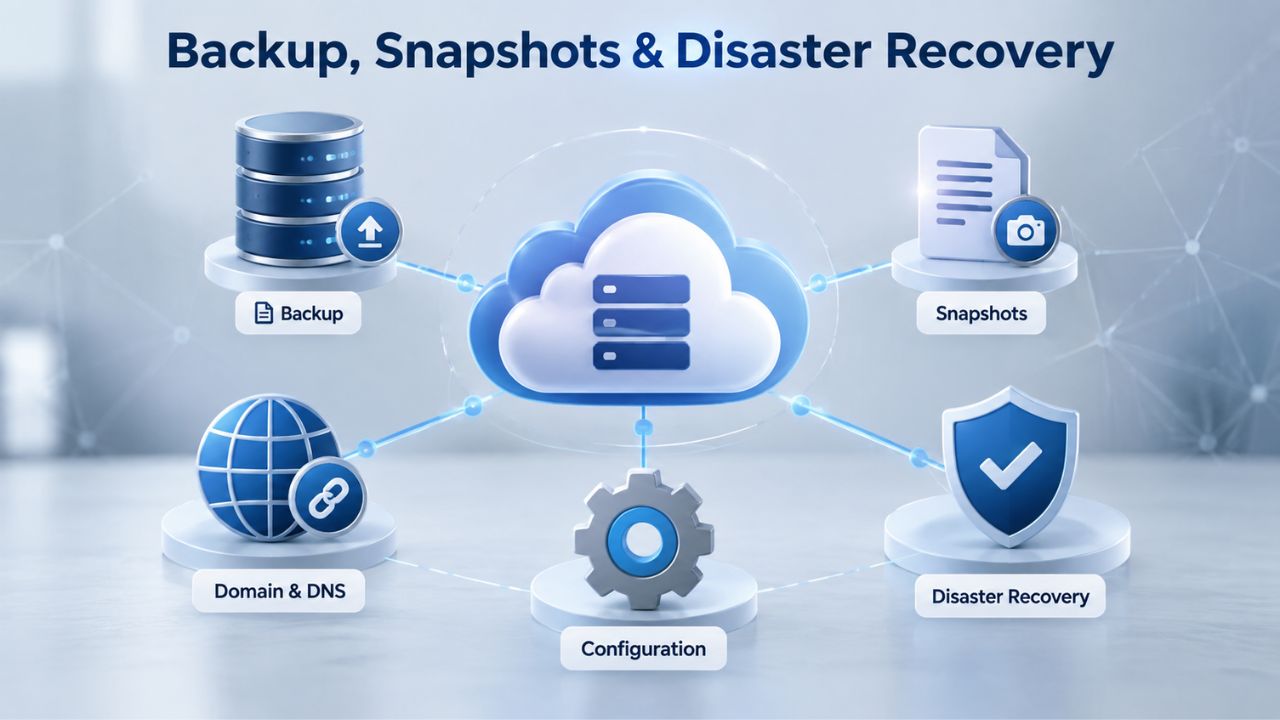
A snapshot is an instant image of your entire VPS, the operating system, all applications, all data, and the exact state at the moment it was taken. If you make a bad configuration change, install broken software, or suffer a cyberattack, you roll back to the last known good snapshot in minutes. Snapshots are typically stored on the same infrastructure as your VPS, available free for 7 days, then moved to long-term storage if you want longer retention. Recovery is fast because the snapshot is stored locally, and the entire server returns to that saved state.
The trade-off: snapshots capture and restore everything; you can’t extract a single file; the entire server reverts to that point in time. If you took a snapshot before a breach, restoring it will undo all changes since then, including any legitimate work done after the breach. Automated backups are different: typically incremental (only recent changes), scheduled automatically, and stored offsite on separate infrastructure.
This means you can restore individual files, recover to any backup point in time, and survive even if your entire VPS is destroyed because your backup is stored elsewhere. Backups take longer to restore than snapshots and cost more for offsite storage. Best practice: use both. Snapshots are quick rollbacks for immediate problems; automated backups are disaster recovery for catastrophic data loss.
When to Migrate from Shared Hosting to VPS
Shared hosting works fine for small websites and blogs. At some point, a growing business outgrows it, and performance deteriorates. Recognizing the signs prevents performance crises and customer frustration.
Shared Hosting Limitations That Force Upgrade
Shared hosting allocates limited, shared resources across dozens or hundreds of other sites on the same physical server. One neighbor launching a massive traffic spike or running resource-intensive backups can noticeably slow your site. You can’t install custom software, modify core server settings, or run specific languages or frameworks your host doesn’t explicitly allow or support. If you need root access for development tools, container runtimes, custom applications, or specific configurations, shared hosting won’t allow it. You’re confined to the provider’s pre-approved stack.
Additional constraints: limited email accounts, capped backups, weak security isolation from other sites on the same server, and performance degradation during traffic spikes or peak seasons. eCommerce sites during Black Friday or Cyber Monday, SaaS platforms during user onboarding waves, and content marketing sites during campaigns regularly hit these limits. Shared hosting providers often oversell their infrastructure, assuming not all sites peak at the same time, but yours might peak exactly when others do.
Why VPS Hosting Fixes These Problems
VPS hosting isolates your resources completely; no neighbor’s traffic affects yours, no matter how heavy their load. You get root access and can install anything compatible with your OS. Performance scales linearly with your actual workload: you buy 2 vCPU and 4 GB RAM, you get exactly that allocation, not a fraction of shared resources. The cost difference is modest, often only 2–3× more than shared hosting but far less than dedicated servers.
Migration itself is straightforward: back up your website files and databases on shared hosting, provision your new VPS, transfer the data, test everything thoroughly, then update DNS to point to the new server. Many providers offer assisted or free migration services to make this simple.
Total Cost of Ownership vs. Plan Features
The cheapest VPS plan is rarely the best value; hidden costs often appear later. Understanding total cost prevents surprise expenses and ongoing waste.
What’s Actually Included
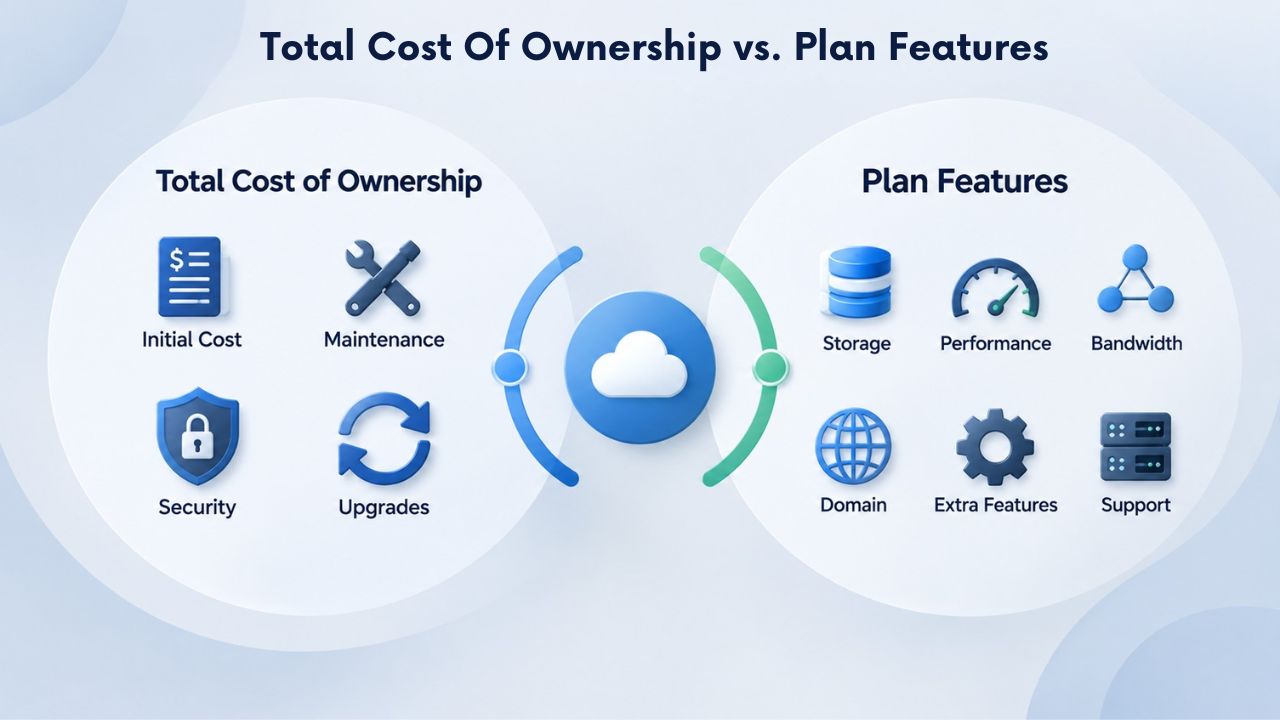
Compare plans feature-by-feature, not price-by-price alone. A low sticker price might hide setup fees, weak CPUs, transfer limits, or add-on charges for backups, additional IP addresses, and SSL certificates that competitors include for free. Look for these factors: what’s included in the base plan, which features cost extra, whether SSL certificates renew for free or at an additional cost, whether resource upgrades apply smoothly without downtime, and what support tiers cost if you need more than is included. The true monthly cost isn’t the headline number; it’s the base plan plus support, plus backups, plus any upgrades you need.
For managed VPS, factor in the value of 24/7 expert support; downtime costs far more than support premiums. One hour of downtime affecting your customers costs far more than a year of support. For unmanaged VPS, account for the time you or your team will spend managing the server, plus any contracted third-party support you’ll need if issues arise outside your expertise. Calculate the real total.
Long-Term Scaling Costs
Start by mapping your growth: expect a typical site on shared hosting to require a VPS upgrade within 6–18 months if growing. Plan for resource upgrades (more RAM, CPU, storage) as your audience grows, not after performance already suffers and customers are frustrated. A plan with easy vertical scaling costs less in migration and reconfiguration than repeatedly moving to new servers. Choose a VPS hosting provider offering flexible upgrades, transparent renewal pricing, and no surprise billing. The total cost- plan price plus support, plus backups, plus upgrades- is what you actually evaluate, not the headline monthly rate.
Resource Sizing by Workload
| Workload Type | CPU Priority | RAM Priority | Storage Priority | Typical Requirements |
|---|---|---|---|---|
| Landing pages / small sites | Low | Low | Low | Stable performance, minimal traffic |
| WordPress / business blogs | Medium | Low | Low | Moderate traffic, database queries |
| eCommerce stores | High | High | High | Catalog, checkout, analytics |
| SaaS applications | High | High | Medium | Concurrent users, APIs, background processes |
| Database servers | High | High | High | Fast storage and RAM for query performance |
| CI/CD runners / build pipelines | High | Medium | Medium | Compute-intensive workflows, temporary storage |
| AI/ML inference workloads | High | High | Medium | Vector databases, model serving, VRAM needs |
Security, Backups, and Compliance Strategy
Data protection and regulatory compliance aren’t afterthoughts; they’re foundational. Understanding how backups, snapshots, and security settings protect your data and meet compliance requirements prevents headaches down the road.
Backup Strategy That Matches Your Recovery Needs
Data loss from hardware failure, ransomware, accidental deletion, or security breaches happens more often than most businesses expect. Your backup strategy should be layered and tested: automated daily backups stored offsite on a separate infrastructure (so if your VPS is compromised, backups remain safe), snapshots for quick rollback to known good states, and regular testing of restoration procedures to confirm backups actually work. Many organizations have backups they’ve never tested, only to discover during a crisis that they’re corrupted or incomplete.
Compliance requirements often mandate specific backup retention periods, secure storage locations, and documentation of recovery procedures. Healthcare organizations need HIPAA compliance, financial institutions need SOX controls, and e-commerce sites need to protect payment card data. Your backup strategy should align with your industry’s compliance requirements. Offsite storage also protects against data-center-wide disasters: fires, natural disasters, or major infrastructure failures.
Compliance and Regulatory Considerations
If your business handles customer data, processes payments, or operates in regulated industries, compliance is non-negotiable. Different regulations apply in different jurisdictions: GDPR in Europe (regulates data handling and privacy), CCPA in California (gives consumers data rights), HIPAA for healthcare data, PCI DSS for payment card data, and others. Your VPS infrastructure and backup strategy must support these requirements. Data residency requirements may require your servers and backups to stay in specific countries or regions. Audit trails and logging may be required to prove who accessed what data and when.
Niya Digital’s infrastructure, running on GoDaddy’s platform, is designed to support compliance needs. But compliance is ultimately your responsibility: you must configure your application correctly, control access properly, and maintain required documentation. Work with legal and compliance experts in your industry to ensure your VPS deployment meets all applicable requirements.
Ready to Build on Solid Infrastructure?
A VPS hosting platform that matches your workload, supports your growth, and gives you control over your destiny removes hosting as a business constraint. VPS hosting scales with you: from launching a new product feature to handling seasonal traffic spikes to expanding globally. Niya Digital’s platform brings guided onboarding, real-time provisioning, and accessible support so you can focus on building your applications instead of managing infrastructure.
Frequently Asked Questions
What’s the difference between VPS and shared hosting?
Shared hosting allocates limited, shared resources across many sites on one physical server, so neighbors’ traffic affects yours. VPS gives you dedicated CPU, RAM, and storage, completely isolated from other users. VPS offers better performance under load, more control, security isolation preventing one compromise from spreading to your site, and scalability to grow without migration. The cost is higher, typically 2–3× shared hosting, but far less than dedicated servers for similar performance.
Do I need root access, or is managed VPS enough?
Root access lets you install custom software, configure the server exactly, and run specialized applications. Managed VPS suits teams without infrastructure expertise who want a hands-off approach; unmanaged VPS is for developers or sysadmins who need full control and customization. Choose based on your team’s technical skills and whether your stack requires custom tools or software that shared hosting providers won’t allow.
How much CPU and RAM do I actually need?
Start by measuring your current workload under real traffic or estimating it from comparable sites. Small blogs need 1–2 vCPU and 2 GB RAM; eCommerce stores need 2–4 vCPU and 4–8 GB RAM; database servers need 2–4 vCPU and 4–8 GB RAM minimum. Multiply your baseline by 1.5–2× to cover traffic spikes, then pick the plan covering that number. You can always upgrade later if needed, so starting conservatively is fine; you’ll see performance issues if undersized.
What happens if my site gets hacked?
Managed VPS includes baseline security hardening and monitoring, but the provider doesn’t secure your application; that’s your responsibility. If hacked, restore from a snapshot or backup and patch the vulnerability immediately. Snapshots restore the full server in minutes; backups let you recover individual files if needed. Maintain regular backups before incidents occur so you have known good states to restore.
Can I upgrade my VPS plan without downtime?
Yes, most providers allow vertical scaling (more CPU, RAM, storage) without stopping your server. The upgrade usually applies in minutes with no downtime. Horizontal scaling (adding more VPS instances behind a load balancer) requires application changes but scales further. Ask your provider about their upgrade process and downtime policies before committing to confirm expectations.
How fast is VPS provisioning?
Provisioning typically takes 1–15 minutes, depending on the provider’s automation and your OS selection. You receive login credentials and can deploy applications immediately. This speed is a major advantage over physical dedicated servers, which require physical racking and manual setup that takes days or weeks.
What’s the difference between snapshots and backups?
Snapshots are point-in-time full-server images stored on the same infrastructure; fast to restore but can’t recover individual files. Backups are incremental (capturing only changes), often stored offsite, and allow file-level recovery. Use snapshots for quick rollback; backups for disaster recovery. Ideally maintain both for complete coverage.
Is 99.9% uptime a guarantee?
Providers state 99.9% uptime as an infrastructure design goal with 24/7 monitoring and automatic remediation. But uptime depends on factors outside their control: your code quality, your configuration, application performance, traffic patterns, and external network conditions. Uptime is a shared responsibility between the provider and the user. Poor application code or misconfiguration can cause downtime even on perfectly reliable infrastructure.
Should I choose Linux or Windows VPS?
Linux is cheaper, efficient on resources, and supports almost every web framework and tool. Choose Linux unless your application requires Windows-specific software, SQL Server, or RDP-based workflows. For most developers and web applications, Linux is the practical default and has far more community documentation and tutorials.
How do I migrate from shared hosting to VPS safely?
Back up all files and databases on shared hosting, provision your new VPS, transfer the data, test everything thoroughly, then update DNS to point to the new server. Keep shared hosting active during the transition so you don’t lose anything if issues arise. Most providers offer assisted or free migration services to simplify the process.
What’s total cost of ownership and why does it matter?
Total cost includes plan price, support level, backups, resource upgrades, and any add-ons. A cheap plan with high support costs or frequent upgrades can cost more annually than a higher-priced plan with everything included. Compare annual total cost, not the headline monthly rate.
Why do almost half of VPS users leave their provider?
Nearly 50% of VPS users have switched providers specifically because support response times were inadequate. Although most users learn through trial and error and online tutorials (only 31% have formal training), they still expect responsive help when things fail. Before choosing a provider, confirm support availability, typical response time, and escalation paths.
Can I run multiple websites on one VPS?
Yes, with proper configuration. A single VPS can host multiple WordPress sites, web applications, or email accounts if resources allow. Use virtualization at the application level (containers, separate user accounts, virtual hosts) to isolate each site and prevent one from affecting the others.
What security tools should I enable?
Enable the firewall to block unnecessary ports, require SSH keys instead of passwords, disable direct root login, keep the OS and software patched, restrict sudo access, monitor logs actively, use SSL/TLS for all web traffic, and maintain regular backups. Enable SELinux or AppArmor for mandatory access controls and Fail2Ban for brute-force prevention.
How often should I take snapshots?
Take snapshots before major changes: OS updates, software installation, configuration changes, or security updates. Take backup snapshots weekly or monthly for routine protection. Keep at least one recent snapshot so you can recover quickly if something goes wrong unexpectedly.
Glossary
- VPS (Virtual Private Server): An isolated virtual environment on a physical server with dedicated CPU, RAM, storage, and bandwidth. Sits between shared hosting and dedicated servers in cost and control level.
- Root Access: Full administrative control over a server, allowing you to install any compatible software, fully manage configuration, and make system-level changes up to the operating system.
- KVM Virtualization: Kernel-based Virtual Machine technology that partitions one physical server into multiple isolated virtual environments. Each VPS behaves like an independent machine to its users.
- vCPU: Virtual CPU core allocated to a VPS. Performance depends on clock speed, CPU generation, and how cores are shared, not just the number of cores listed.
- NVMe SSD: NVMe (Non-Volatile Memory Express) solid-state storage that delivers up to 3× faster I/O than SATA SSDs for random-access patterns typical in web applications and databases.
- Uptime / SLA: Service Level Agreement; 99.9% uptime means approximately 43 minutes of maximum downtime per month. Represents infrastructure design, not application or user-side performance guarantees.
- Snapshot: A point-in-time full-server backup that captures the operating system, applications, and all data. Enables fast rollback to that exact state; cannot restore individual files from a snapshot.
- Scalable VPS Hosting: Infrastructure designed to grow with your traffic and resource needs without migration, using vertical scaling (more CPU/RAM) or horizontal scaling (more instances).