VPS Hosting vs Shared Hosting: Why Developers Choose Root Access
Shared hosting environments house dozens or hundreds of websites on a single server, with all users dividing the available CPU, RAM, and bandwidth. You access it through a control panel and FTP, but custom software installation is restricted, and you can’t tune the system. Developers working on modern projects need the ability to configure their entire environment from the operating system up. A VPS Server isolates your environment with dedicated resources allocated solely to your projects and provides root access and full administrative control over the server.
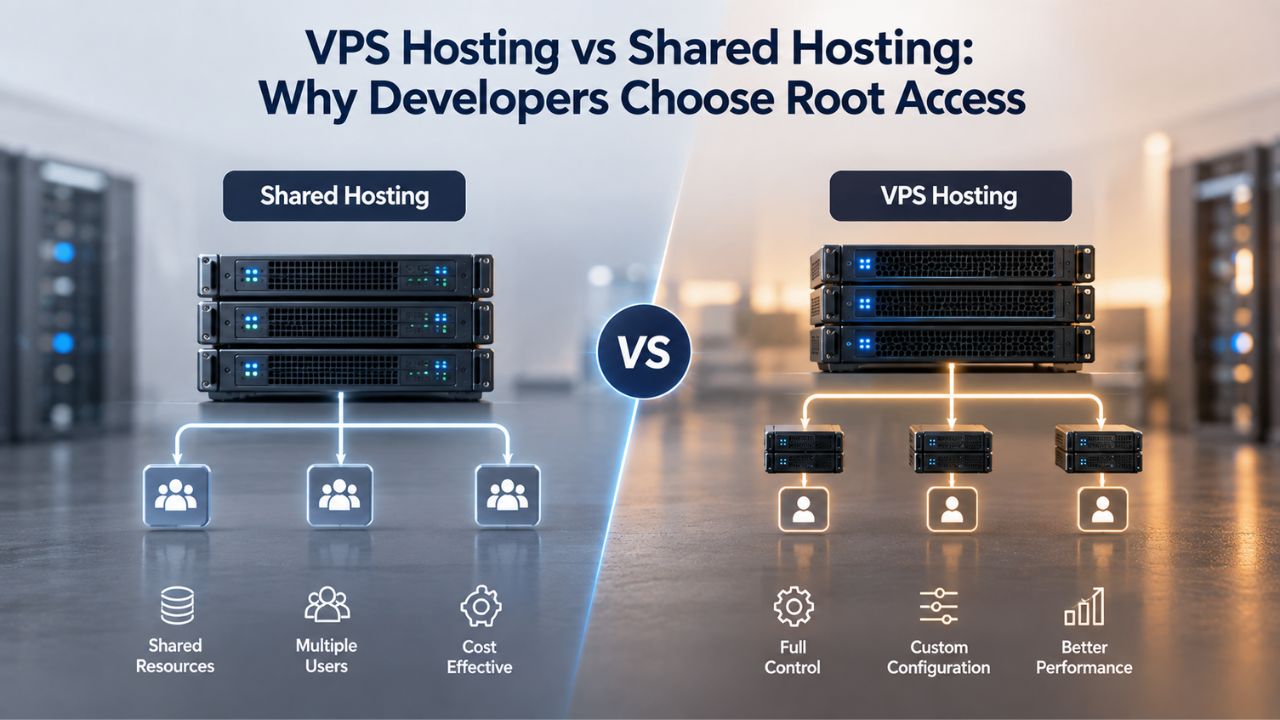
Resource Isolation Prevents Noisy-Neighbor Performance Degradation
On shared hosting platforms, another user’s resource-intensive script, database query, or traffic spike can consume available CPU and memory, slowing your site even though you’ve done nothing wrong. This scenario, known as the “noisy neighbor” problem, is a fundamental limitation of shared hosting architecture. VPS Hosting provides dedicated CPU cores, RAM, and storage allocation reserved for your projects, ensuring consistent performance regardless of what workload other customers run on the same physical hardware.
Each Virtual Private Server operates independently through virtualization technology. Your application processes execute on cores assigned exclusively to your VPS; no other customer’s workload competes for those cycles. Your allocated RAM stays available for your application, caches, and databases. This isolation is critical for developers debugging performance issues; you can confidently determine whether slowness stems from your application code or infrastructure contention. When you’re trying to measure genuine application behavior, resource isolation matters immensely.
Complete Control Over Your Technology Stack
Shared hosting restricts you to software versions and tools the provider pre-installs and maintains. If you need Node.js version 18 but the host offers only version 14, you’re blocked. If your project requires Redis for caching or a specific version of Python with particular libraries, the provider decides whether to support it. With root access on a VPS Hosting environment, you install exactly what your project requires. No gatekeepers, no support requests, no waiting; you control the entire software stack.
This control enables developers to replicate production environments locally. You test your deployment process, verify library compatibility, and optimize configuration before pushing to your live server. You’re not negotiating with your hosting provider about which tools are “allowed” or “supported.” You build infrastructure suited to your project’s needs, from operating system selection to application runtime versions and system-level services. That is why developers often choose VPS Hosting with root access, ownership, and flexibility as projects mature.
VPS Hosting Plans & Pricing
Choose the VPS hosting plan that fits your website, application, or business requirements. Select a self-managed VPS for complete server control or a fully managed VPS with a dedicated team of experts to help manage your server.
Self Managed VPS 1 vCPU
1 GB RAM
Entry-level VPS hosting for lightweight websites and applications.
- 1 CPU Core
- 1 GB RAM
- 20 GB SSD Storage
- Linux only, no control panel

Self Managed VPS 2 vCPU
4 GB RAM
VPS hosting with additional CPU and memory for growing websites and applications.
- 2 CPU Cores
- 4 GB RAM
- 100 GB SSD Storage
Self Managed VPS 2 vCPU
8 GB RAM
Additional memory for more demanding websites and applications.
- 2 CPU Cores
- 8 GB RAM
- 100 GB SSD Storage
Self Managed VPS 4 vCPU
8 GB RAM
Increased processing power for business websites and applications.
- 4 CPU Cores
- 8 GB RAM
- 200 GB SSD Storage
Self Managed VPS 4 vCPU
16 GB RAM
High-memory VPS hosting for resource-intensive workloads.
- 4 CPU Cores
- 16 GB RAM
- 200 GB SSD Storage
Self Managed VPS 8 vCPU
16 GB RAM
Powerful VPS resources for demanding business applications.
- 8 CPU Cores
- 16 GB RAM
- 400 GB SSD Storage
Self Managed VPS 8 vCPU
32 GB RAM
Maximum self-managed resources for demanding workloads.
- 8 CPU Cores
- 32 GB RAM
- 400 GB SSD Storage
Fully Managed VPS 1 vCPU
2 GB RAM
Managed VPS hosting with expert server management.
- 1 CPU Core
- 2 GB RAM
- 40 GB SSD Storage
- Dedicated team of experts to fully manage your server
Fully Managed VPS 1 vCPU
4 GB RAM
Managed VPS resources for websites and business applications.
- 1 CPU Core
- 4 GB RAM
- 40 GB SSD Storage
- Dedicated team of experts to fully manage your server
Fully Managed VPS 2 vCPU
4 GB RAM
Managed VPS hosting with additional CPU resources.
- 2 CPU Cores
- 4 GB RAM
- 100 GB SSD Storage
- Dedicated team of experts to fully manage your server
Fully Managed VPS 2 vCPU
8 GB RAM
Managed VPS hosting with additional memory for growing workloads.
- 2 CPU Cores
- 8 GB RAM
- 100 GB SSD Storage
- Dedicated team of experts to fully manage your server
Fully Managed VPS 4 vCPU
8 GB RAM
Higher-performance managed VPS for demanding applications.
- 4 CPU Cores
- 8 GB RAM
- 200 GB SSD Storage
- Dedicated team of experts to fully manage your server
Fully Managed VPS 4 vCPU
16 GB RAM
High-memory managed VPS for resource-intensive workloads.
- 4 CPU Cores
- 16 GB RAM
- 200 GB SSD Storage
- Dedicated team of experts to fully manage your server
Fully Managed VPS 8 vCPU
16 GB RAM
Powerful managed VPS hosting for demanding business workloads.
- 8 CPU Cores
- 16 GB RAM
- 400 GB SSD Storage
- Dedicated team of experts to fully manage your server
Fully Managed VPS 8 vCPU
32 GB RAM
Maximum managed VPS resources for demanding workloads.
- 8 CPU Cores
- 32 GB RAM
- 400 GB SSD Storage
- Dedicated team of experts to fully manage your server
Understanding VPS Server Architecture and Virtualization
A Virtual Private Server is created through virtualization technology, where specialized software called a hypervisor runs on a physical server and partitions it into multiple isolated virtual machines. From inside each VPS, you perceive a dedicated server with your own CPU cores, RAM, storage device, and network interface- a complete and independent environment, even though it’s sharing underlying hardware with other customers.
How Virtualization Technology Enables Isolation and Flexibility
GoDaddy’s VPS Hosting infrastructure uses KVM (Kernel Virtual Machine) virtualization, a robust technology that isolates each VPS at the hypervisor level. This isolation is enforced through virtualization boundaries that prevent any VPS from accessing another’s memory or disk space. You can install any compatible operating system, make any system-level configuration change, and run any service inside your VPS without affecting neighboring customers. If an attacker compromises a neighboring VPS, that breach stays contained within their environment; your server remains unaffected by their security failure.
The virtualization architecture also enables dynamic resource management. Most VPS providers, including those offering Niya Digital VPS Hosting services, allow you to increase allocated CPU cores or RAM on demand. The upgrade typically requires only a brief server restart, during which your VPS is temporarily offline, but you don’t migrate to a new server or reinstall anything. This elasticity distinguishes VPS from dedicated servers, where physical hardware upgrades require more complex procedures. Developers value this flexibility for adapting to changing workload demands.
Dedicated Resources: CPU Cores, RAM, and SSD Storage Allocation
When you provision a VPS Hosting Plan with 2 vCPU cores and 4GB of RAM, those resources belong exclusively to your VPS. Not oversold, not theoretically shared, those 2 CPU cores are reserved and available only for your application processes. Similarly, 4GB of RAM is allocated specifically to your server instance. This contrasts sharply with shared hosting, where hundreds of websites compete for shared resource pools, making performance predictions unreliable.
Storage on modern VPS Hosting services typically runs on NVMe solid-state drives rather than traditional spinning hard disks. NVMe SSD storage delivers read and write speeds roughly three times faster than conventional hard-disk storage, which matters significantly for database queries, file-system operations, application startup sequences, and handling traffic bursts. For developers building applications where response time affects user experience, faster storage translates directly to better performance and faster iteration during development cycles.
Root Access: The Essential Feature for Developer Control
Root access (or administrative access on Windows-based VPS servers) grants unrestricted administrative authority over every aspect of your server. You can modify system configuration files, adjust security policies and firewall rules, install software packages without approval, manage user accounts, configure services, and control permissions at the operating system level. For developers building production applications, this level of control is non-negotiable.
Installing Custom Software and Development Tools Without Restrictions
Full root access lets you install any software, specialized libraries, and development tools your project requires. Need Docker containerization for consistent deployment across environments? Install it. Want a specific Python version compiled with custom NumPy builds and scientific libraries? You control that installation completely. GitHub Actions runners for CI/CD, monitoring agents, specialized databases, message queues, caching layers- all available when you need them, configured exactly as your project requires.
In contrast, shared hosting providers control what software is available. A host might block Docker installation citing security or performance concerns, or refuse to install specific packages, leaving you unable to proceed. With root access to a VPS Server, you make those decisions yourself, weighing security considerations against project requirements based on your own infrastructure knowledge and risk tolerance. A provider’s blanket policies do not constrain you.
SSH and Command-Line Control for Deployment Automation
Root access is typically granted through SSH (Secure Shell), an encrypted protocol for remote command-line connection using key-based authentication. You generate an SSH key pair on your local machine, copy the public key to your VPS, and then disable password-based login entirely. You subsequently connect securely via ssh user@your-vps-ip, landing at a command prompt with full terminal access to your server.
For developers accustomed to terminal-based workflows, SSH access is liberation. You don’t navigate control panels or click through web interfaces. You run git clone to pull your repository, execute npm install or pip install -r requirements.txt to install dependencies, deploy Docker containers, execute database migrations, and restart services, all via the command line. This terminal-based approach enables fully scriptable deployment pipelines where every step is captured in scripts or deployment tools, making deployments repeatable and version-controlled.
Scaling Your VPS as Projects Grow from Development to Production
A core advantage of VPS Hosting for developers is the ability to start with modest resources and scale incrementally as your project grows. You don’t commit to expensive dedicated server infrastructure upfront. You provision a 1 vCPU plan for your early-stage project. As traffic and complexity grow, you can upgrade to 2 vCPU, then 4 vCPU, without migrating to a new server or reinstalling your application.
Vertical Scaling: Adding CPU Cores and RAM When Your Workload Demands It
Most VPS Hosting providers enable straightforward CPU, RAM, and storage upgrades through your control panel, often with minimal downtime and usually requiring only a brief server restart. You initiate the upgrade through your account dashboard, the hypervisor reallocates resources to your VPS, and within minutes your server recognizes the additional CPU cores and memory. Your application automatically picks up the extra resources at the next restart or service restart, requiring no code changes or reconfiguration.
This flexibility prevents two costly mistakes: undersizing your VPS (running with insufficient resources, causing performance problems and poor user experience) and oversizing (paying for compute capacity you don’t use yet). Start with the resources you genuinely need for your current workload, then grow incrementally as demand increases. This pay-for-what-you-need model makes VPS Hosting cost-efficient for developers with unpredictable growth patterns or seasonal traffic variations.
Planning for Traffic Spikes and Adjusting as Your Application Matures
Monitoring your VPS’s CPU usage, RAM consumption, and disk-space availability shows when your current plan is no longer enough. Watch for CPU usage consistently above 80%, RAM allocation nearing full capacity, disk storage running low, or application response times degrading under increased traffic. These signals indicate your current plan can’t handle current demand, and you need to upgrade.
For projects with predictable traffic patterns, seasonal e-commerce sites experiencing holiday shopping surges, or event websites drawing known visitor peaks, you can strategically upgrade before the expected surge, then downgrade afterward. Niya Digital’s VPS Hosting offering includes plans ranging from entry-level configurations suitable for lightweight APIs and staging environments through high-performance setups for production applications with databases and heavy background processing. This range lets you choose a plan that matches your current needs and upgrade as requirements evolve.
Security Hardening and Protection on Your VPS
Root access is powerful, and powerful tools require disciplined practices. A fresh VPS Server exposed to the internet becomes a scanning target within minutes as automated attacks probe for default credentials and unpatched software vulnerabilities. Unlike shared hosting (where the provider hardens the system for all customers), security on an unmanaged VPS is your responsibility. However, following baseline hardening practices dramatically reduces your attack surface.

SSH Key Authentication and Firewall Rules for Access Control
SSH key authentication replaces traditional password login, making brute-force attacks ineffective. You generate a cryptographic key pair on your local machine, paste the public key into your VPS’s authorized_keys file, then disable password authentication entirely in the SSH configuration. Attackers attempting thousands of password guesses gain nothing; they cannot use an SSH key they don’t possess. This shifts your security model from something-you-know (passwords, which attackers might guess or intercept) to something-you-have (a private key, which stays only on your local machine).
A firewall then restricts inbound network traffic to only the ports you explicitly allow. Using UFW (Uncomplicated Firewall) on Ubuntu or Debian, you permit SSH access, HTTP traffic on port 80, and HTTPS on port 443, denying all other inbound connections by default. This two-layer approach, SSH key authentication plus firewall restrictions, closes the two largest attack vectors targeting fresh VPS instances. Attackers cannot brute-force your SSH password (you don’t allow passwords), and they cannot scan other ports (the firewall blocks them).
Implementing Baseline Protection Layers
Fail2Ban automatically bans IP addresses after repeated failed login attempts, adding rate-limiting protection that prevents large-scale automated brute-force scanning. Automatic security updates ensure your operating system and system packages receive critical patches the day maintainers release them, closing known vulnerabilities before attackers can exploit them at scale. Combined with SSH hardening and firewall rules, these practices create multiple overlapping layers of defense against common intrusion patterns.
Security on VPS Hosting is a shared responsibility. Niya Digital’s infrastructure and GoDaddy’s network backbone provide baseline DDoS protection, redundant network connectivity, and physical data-center security. You provide disciplined SSH configuration, firewall policy, timely system patching, and application-level security measures (HTTPS enforcement, database access restrictions, input validation). Each layer you add reduces risk, but no single layer eliminates it; defense-in-depth is the realistic security model for internet-facing servers.
Discover How Root Access and Scaling Transform Your Development Workflow
VPS Hosting gives you complete control over your server environment, install custom tools, scale resources on demand, and deploy applications exactly as your project requires. Whether you’re moving from shared hosting limitations or optimizing infrastructure for growing traffic, the right VPS Hosting Plan adapts to your evolving needs without the cost of dedicated servers.
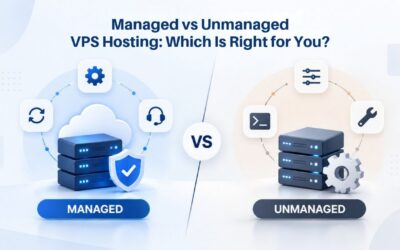
Managed vs Unmanaged VPS: Choosing Your Operational Model
VPS Hosting comes in two distinct operational models, each representing a different balance between control and operational burden. Understanding this trade-off is essential to selecting a plan that matches your team’s capabilities and available bandwidth.
Self-Managed VPS: Complete Control and Full Responsibility
An unmanaged VPS, also called self-managed, provides raw infrastructure with the hosting provider handling only physical hardware maintenance and network connectivity. Everything from the operating system up is your responsibility: OS installation and configuration, security hardening, software updates and patches, performance tuning, backup setup and testing, incident investigation and recovery, and 24/7 monitoring and alerting. You rent the virtualized server with complete freedom; you assume all operational duties.
This model strongly appeals to experienced developers and systems administrators who want complete control and have the time or a dedicated team to manage ongoing operations. You don’t wait for provider support to investigate performance issues, apply kernel patches, or respond to security incidents; you handle everything immediately, the way you prefer. This appeals to infrastructure enthusiasts who view server management as part of their craft rather than a distraction from their primary work.
Fully Managed VPS: Outsourcing Infrastructure to Focus on Applications
A fully managed VPS includes provider-handled OS updates, kernel patches, control panel maintenance, security monitoring, and 24/7 technical support for infrastructure issues. You remain responsible for your applications and site content. Still, the provider manages layers beneath: operating system security patches, web server configuration optimization, database server monitoring and tuning, network-level security, and proactive incident prevention. This frees your team to focus on feature development and product improvement rather than server administration chores.
Developers building production SaaS platforms often prefer managed VPS because infrastructure maintenance pulls them away from business-critical work. Niya Digital offers both Self-Managed and Fully Managed VPS Hosting plans, with identical underlying infrastructure; you choose based on your team’s operational capacity, infrastructure expertise, and preference. Both include full root access; the difference is who handles ongoing system administration. Evaluate your team’s realistic bandwidth before choosing; if you commit to self-managed but cannot sustain security patches and monitoring, managed VPS is a worthwhile investment.
Snapshots, Backups, and Disaster Recovery Planning
You are responsible for protecting a VPS hosting environment against data loss, configuration errors, and security breaches. Modern VPS providers offer two complementary tools: snapshots for rapid rollback and managed backups for long-term protection.
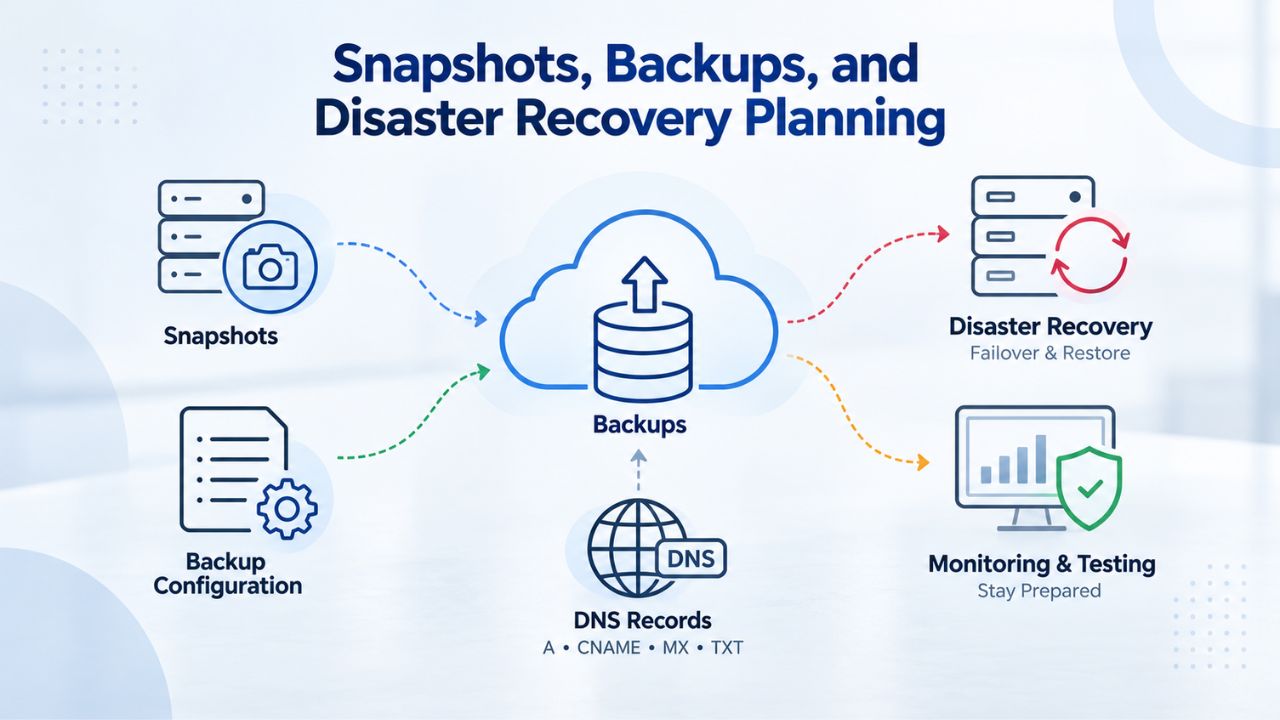
Point-in-Time Snapshots for Safe Deployment Testing
A snapshot captures an on-demand, point-in-time image of your entire VPS disk state. You create a snapshot before deploying major application updates, making significant database schema changes, or installing new system software. If a deployment breaks your application, a database migration fails, or configuration changes cause unexpected behavior, you can restore from that snapshot in minutes, reverting all changes and bringing your VPS back to its pre-deployment state.
Snapshots are typically stored on the same infrastructure as your VPS, enabling fast access and restore times, often under a minute. This speed makes them ideal for protecting against configuration errors, botched deployments, and testing scenarios. However, because they live on the same infrastructure, they don’t protect against catastrophic data-center failures. Snapshots complement but don’t replace geographic redundancy for disaster recovery.
Automated Backups vs On-Demand Snapshots: Complementary Strategies
GoDaddy’s VPS Hosting infrastructure includes 7 days of automated snapshot backups, allowing restoration to any point within the past week. For stronger disaster recovery and compliance requirements, managed backup services store copies on separate infrastructure in different geographic locations. If your primary data center burns down, gets flooded, or experiences cascading network failures, off-site backups remain accessible and unaffected.
Best-practice data protection combines both approaches: use on-demand snapshots before risky operational changes (deployments, migrations, infrastructure changes) for rapid rollback within minutes, and rely on automated managed backups for long-term data protection and geographic redundancy. Test your restore process regularly; a backup is only valuable if you can reliably restore from it when disaster strikes. Developers often overlook backup testing until they need recovery and discover a critical flaw in their backup strategy.
Setting Up Staging and Production Environments on Your VPS
A single VPS Server with sufficient resources can host multiple independent environments simultaneously: production applications serving real users, staging copies for testing deployments, and development projects running in isolation without affecting live services.
Running Multiple Sites and Applications on One VPS
With root access, sufficient CPU cores, and adequate RAM, you install a web server (Nginx or Apache) and application runtime (Node.js, Python, PHP) once on your VPS. You then host multiple independent websites or projects by configuring separate virtual hosts or application instances. Each site listens on its own port (or domain name, if you configure DNS and virtual hosts), operates independently, and doesn’t interfere with others on the same server.
Optional control panels like cPanel or Plesk streamline this multi-site setup, providing graphical interfaces for virtual host creation, domain management, SSL certificate installation, and user account provisioning. Without a control panel, you configure everything through SSH, which requires more initial work and a steeper learning curve but offers complete transparency and control over every configuration detail.
Maintaining Separate Production and Staging Environments for Testing
A staging environment is a replica of your production infrastructure where you test deployments, database migrations, and configuration changes before applying them to the live server. On a single VPS Hosting instance, you run both simultaneously: production listening on standard HTTPS port 443, staging listening on a non-standard port like 8443. You deploy new code to staging first, run comprehensive tests, verify database migrations complete successfully, then verify the application functions as expected with production data.
This workflow enables modern CI/CD pipelines where automated tests run on staging automatically after each code commit. Once tests pass and you’ve done manual verification, you promote the code to production with confidence. If something breaks in production, you still have staging running the previous version, a reference environment for debugging while you investigate and fix the issue. This staging capability is difficult or impossible to set up on shared hosting but is straightforward on a VPS with sufficient resources.
Resource Sizing for Common Developer Workload Types
Selecting the right VPS plan requires an accurate understanding of your application’s resource needs. Undersizing causes performance problems and unhappy users; oversizing wastes money on unused capacity. Matching plan size to workload demands prevents both mistakes.
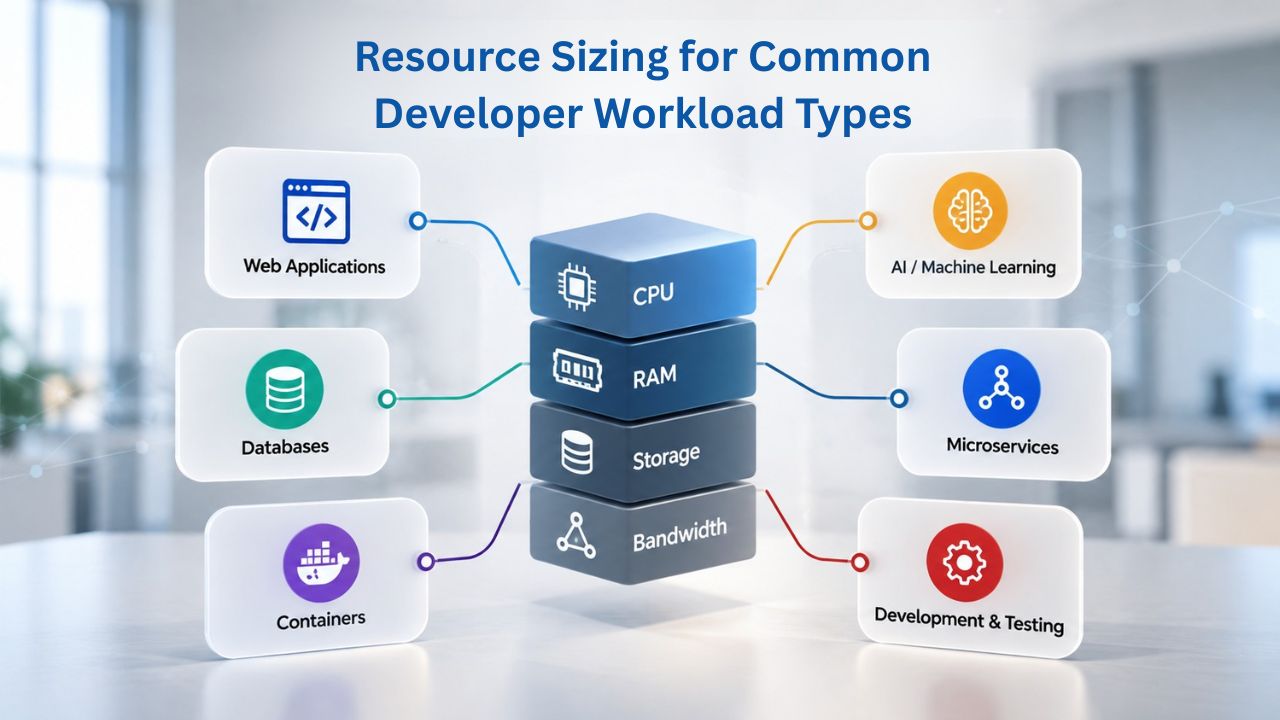
Entry-Level Projects: Lightweight APIs, Staging, and Learning Environments
Lightweight Node.js APIs, Python Flask applications, staging environments, and early-stage production services fit comfortably on 1–2 vCPU cores with 2–4GB RAM and 40–100GB of SSD storage. A single-threaded Express server or simple Flask API doesn’t consume substantial CPU. RAM consumption comes from your application code, imported libraries, and any databases running on the same VPS instance.
For testing and development deployments, 2GB RAM provides a reasonable baseline. Production services benefit from at least 4GB to avoid excessive disk swapping when traffic spikes or your application uses unexpected memory. Many developers start with a 2GB plan for staging, then upgrade to 4GB when promoting to production, ensuring sufficient headroom for production workloads.
Mid-Tier Production Services with Databases and Background Processing
Mid-scale production applications with active databases and background job workers typically require 4–8 vCPU cores, 8–16GB of RAM, and 200GB or more of SSD storage. Databases like PostgreSQL and MySQL consume significant RAM when configured for good performance; they cache query results, indexes, and working data in memory, dramatically improving response times. Worker processes for email delivery, image processing, report generation, or data transformation each consume CPU and memory, multiplying resource demands.
If your application is database-heavy with complex queries and large datasets, allocate RAM generously. The database will use available RAM for caching, dramatically accelerating query response times. A database constrained by insufficient RAM resorts to disk reads, which are millions of times slower than memory access. For database-driven applications, RAM is often your most important upgrade, more impactful than additional CPU cores.
| Workload Type | Recommended CPU | Recommended RAM | Recommended Storage | Typical Use Case |
|---|---|---|---|---|
| Lightweight staging / API | 1–2 vCPU | 2–4GB | 40–100GB SSD | Testing, demos, small proof-of-concept APIs |
| Small production application | 2 vCPU | 4GB | 100GB SSD | Blog, small SaaS product, portfolio site |
| Mid-scale production with database | 4 vCPU | 8–16GB | 200GB SSD | Production app with active database and traffic |
| High-traffic or multi-service workload | 8+ vCPU | 16GB+ | 400GB+ SSD | Scaling applications, microservices, real-time systems |
Choosing the Right VPS Hosting Plan for Your Project Needs
Dozens of VPS plans exist from various providers, varying widely in resource allocations, management options, and feature sets. A systematic evaluation process narrows your options to a plan that genuinely fits your project requirements and operational capabilities.
Evaluating Your Application’s CPU and RAM Requirements
Begin by understanding your application’s actual resource profile. Run your application locally and observe CPU usage and memory consumption during normal operation and when handling peak traffic. For production, multiply those local measurements by 1.5–2× to account for unexpected traffic spikes, caching overhead, and operational headroom. If your local API uses 500MB of RAM, plan for 1–2GB on your production VPS to provide a safety margin.
After deploying to your VPS, monitor CPU utilization, RAM consumption, disk I/O, and application response times for the first week. If CPU consistently runs above 80%, RAM allocation approaches full capacity, disk space becomes constrained, or response times degrade under normal traffic, you’ve undersized your plan. Upgrade quickly; performance problems directly hurt users and business metrics. If you’re consistently using only 30% of allocated resources, you might downgrade to reduce costs, though maintaining headroom prevents performance surprises.
Deciding Between Self-Managed and Fully-Managed Support Tiers
Consider realistically whether your team wants the operational burden of system administration. Some developers enjoy infrastructure work and consider server management part of their core skills. Others view infrastructure management as a distraction from their primary mission, building products. Self-Managed plans run Linux without a control panel, giving you direct SSH access and full customization at a lower cost. Fully-Managed plans include professional server administration by Niya Digital’s team, handling updates, patches, and monitoring, so you focus on your application.
Evaluate whether you have bandwidth to handle 24/7 monitoring, apply security patches within days of release, investigate performance issues, restore from backups if necessary, and respond to incidents at 2 AM. If that’s not realistic for your team, managed VPS is worth the cost. If you’re a systems-savvy developer passionate about infrastructure, self-managed VPS gives you full control and learning opportunities. An honest assessment of your team’s capacity prevents regrettable decisions.
| Decision Factor | Self-Managed VPS | Fully-Managed VPS |
|---|---|---|
| Who manages OS updates and patches? | You / your team | Hosting provider |
| Who configures security hardening? | You / your team | Hosting provider + you |
| SSH access and root control? | Yes | Yes |
| Control panel included? | Optional (cPanel/Plesk) | Optional (cPanel/Plesk) |
| Operational time investment | High | Low |
| Best suited for | Developers, sysadmins, infrastructure enthusiasts | Busy teams, non-technical users, focus on product |
| Monitoring and alerting setup? | Your responsibility | Provider’s responsibility |
| Incident response and recovery? | Your responsibility | Provider’s responsibility |
Explore Your VPS Hosting Options Today
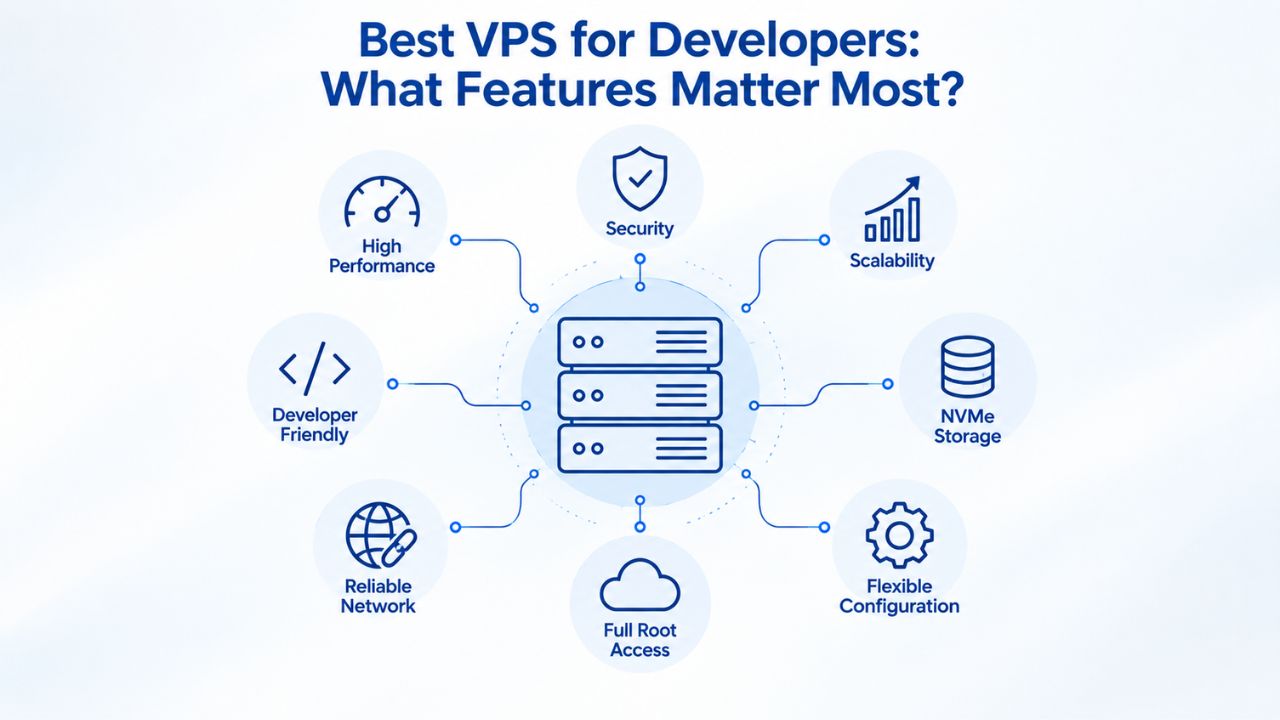
You’ve evaluated the features that matter most to developers: complete root access, dedicated resource isolation, security control, and seamless scaling as your projects grow. VPS Hosting from Niya Digital delivers all these capabilities on proven infrastructure, whether you’re running staging environments for testing, deploying your first production application, or scaling an existing service handling increased traffic.
Frequently Asked Questions
What is the core difference between VPS Hosting and shared hosting environments?
Shared hosting divides one server among hundreds of websites, each sharing CPU, RAM, and bandwidth resources. A Virtual Private Server isolates your environment with dedicated resources and root access. You gain performance consistency, the ability to install custom software, and complete configuration control, capabilities unavailable on shared hosting platforms where the provider controls all software and settings.
How does resource isolation on a VPS improve performance compared to shared hosting?
Shared hosting suffers from the “noisy neighbor” problem: another site’s traffic spike or resource-intensive process consumes shared CPU and memory, slowing your own application even if you’ve done nothing wrong. VPS Hosting reserves specific CPU cores and RAM exclusively for your instance. Your performance stays consistent because no other customer can access your allocated resources, regardless of their activity.
Can I run multiple independent websites and applications on a single VPS?
Yes. With sufficient resources and a web server like Nginx or Apache, you host multiple independent sites by configuring separate virtual hosts or application instances. Each site runs independently on the same VPS and is accessed through different domain names or ports. Optional control panels streamline this multi-site setup, though SSH configuration offers complete control.
What technical knowledge do I need to manage an unmanaged VPS successfully?
Basic Linux comfort is helpful: SSH connection, file permissions, package installation with apt or yum, and viewing system logs. Many developers acquire these skills quickly through practice. If you’re uncomfortable with command-line system administration, managed VPS services handle system-level tasks, or you can hire managed support for self-managed plans.
What is the practical difference between snapshots and traditional backups?
A snapshot captures a point-in-time disk image stored on your VPS infrastructure, fast to restore (often under a minute) but not geographically redundant. A backup copies data to separate infrastructure, often in different locations, slower to restore but protected against data-center failures. Both serve different purposes: snapshots for rapid rollback after deployment mistakes, backups for disaster recovery.
What are the essential security hardening steps for a fresh VPS instance?
Critical steps:
(1) configure SSH key authentication and disable password login,
(2) enable a firewall restricting inbound traffic to only required ports,
(3) install Fail2Ban to rate-limit login attempts,
(4) enable automatic security updates for your operating system, and
(5) configure any application-level security like HTTPS and database access controls.
Can I upgrade my VPS plan after initial provisioning?
Yes. Most VPS Hosting providers allow straightforward CPU, RAM, and storage upgrades through your account dashboard with minimal downtime, typically requiring only a brief server restart. No server migration is necessary; the hypervisor reallocates resources to your existing VPS, and your application continues running.
What uptime guarantee does VPS Hosting typically provide?
GoDaddy’s VPS Hosting infrastructure publishes a 99.9% uptime commitment, maintained through 24/7 network monitoring and DDoS remediation. Actual uptime depends on infrastructure reliability, your application configuration, application code quality, and external factors; no provider can guarantee outcomes on its own.
Is VPS Hosting secure compared to dedicated servers or shared hosting?
VPS Hosting
provides strong isolation, making it more secure than shared hosting (where your environment shares the OS with hundreds of others). It offers similar security potential to dedicated servers but requires you to maintain security through OS hardening and patches. Security is a shared responsibility: the provider secures the infrastructure, and you secure the operating system and applications.
What’s the standard approach for deploying code to a VPS?
Common workflows:
(1) SSH into your VPS,
(2) clone your Git repository or pull the latest changes with git pull,
(3) install dependencies,
(4) run database migrations if needed, and
(5) restart your application service.
You can automate this with CI/CD platforms like GitHub Actions or GitLab CI that connect to your VPS via SSH and run deployment scripts.
Can I run production databases like PostgreSQL or MongoDB on my VPS?
Absolutely. With root access, you install PostgreSQL, MySQL, MongoDB, or any database system. Performance depends on allocated resources; databases benefit significantly from extra RAM for query caching. For mission-critical databases, managed VPS services can handle monitoring, backups, and maintenance, reducing operational burden.
What operating systems are available for VPS Hosting?
Most providers offer Linux distributions (Ubuntu, Debian, CentOS, AlmaLinux) and Windows Server options. You typically choose your preferred OS during initial provisioning. Linux distributions are lightweight and cost-effective; Windows is necessary if you need the .NET Framework or Windows-specific software.
How is VPS Hosting different from a dedicated server?
A dedicated server gives you exclusive access to all physical server resources with no virtualization. VPS shares underlying hardware but isolates each customer’s resources through virtualization. Dedicated servers cost significantly more; VPS balances capability and cost-efficiency for most developer and small-business needs.
What is root access used for on a VPS?
Root access enables software installation, operating system configuration changes, user account management, firewall and security policy configuration, performance tuning, and application deployment, giving you full administrative control over your server environment.
Glossary
- Virtual Private Server (VPS): A virtualized server offering isolated CPU, RAM, and storage on shared physical hardware, running independently with root access and a dedicated operating system. Each VPS appears as a complete private server despite sharing underlying infrastructure.
- Root Access: Full administrative privilege on Linux and Unix systems, allowing unrestricted installation, configuration management, system file modification, user account management, and service control. Equivalent to administrator access on Windows systems.
- SSH (Secure Shell): Encrypted protocol enabling remote command-line access to servers. Authentication uses SSH key pairs (cryptographic public and private keys) rather than passwords, providing superior security against brute-force attacks.
- Hypervisor / Virtualization: Software layer running on physical servers that creates and manages virtual machines. KVM (Kernel Virtual Machine) is the hypervisor technology powering most modern VPS Hosting infrastructure, isolating each VPS through virtualization boundaries.
- Snapshot: On-demand point-in-time disk image of your VPS, capturing the complete server state. Snapshots enable rapid rollback to previous configurations if deployment fails, configuration changes cause problems, or security incidents occur.
- Firewall: A security tool that controls inbound and outbound network traffic based on defined rules. Typically allows only essential ports (SSH, HTTP, HTTPS) and denies all other traffic by default, reducing your attack surface.
- Uptime / SLA (Service Level Agreement): Service provider’s commitment regarding guaranteed availability. A 99.9% uptime SLA means the provider commits to a maximum of about 43 minutes of downtime per month, with potential credits if they fail to meet that guarantee.
- NVMe SSD: High-performance solid-state storage technology that delivers read and write speeds far faster than traditional spinning hard drives, resulting in faster database queries, application startup, and overall server responsiveness.