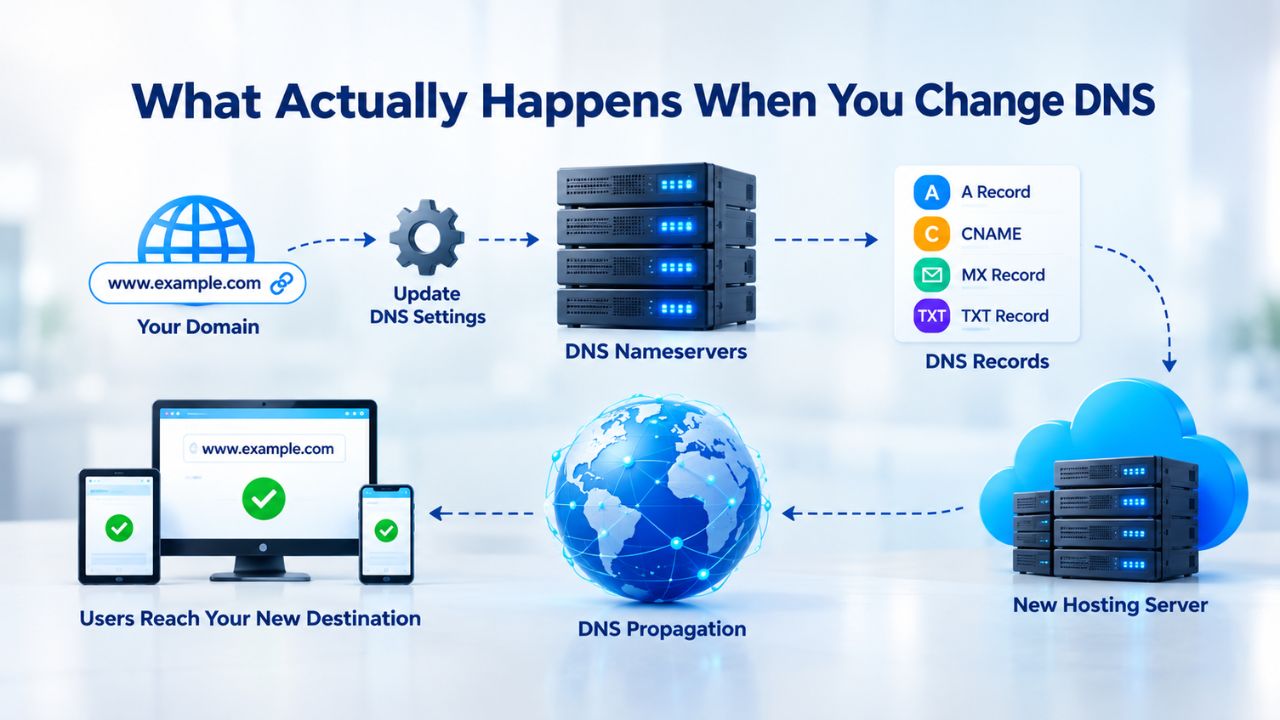
What Actually Happens When You Change DNS
When you modify your domain’s DNS settings, you’re not simply flipping a switch; you’re instructing a global system of servers to route traffic differently. This process involves multiple independent steps that must work in coordination, and understanding each one is essential for diagnosing problems.
The Registrar Updates the Registry
The moment you change your domain’s nameservers at your registrar, a command travels to the registry operator, the organization responsible for managing your TLD’s central database. The registry stores a pointer to your new nameserver address in its zone file, the authoritative list of where your domain’s DNS records live. This registry-level update typically completes within minutes, but the real work of propagating your change across the global DNS system has only just begun.
Your registrar is the business you bought your domain from; ICANN authorizes it to sell and manage domain registrations. The registry operator maintains the TLD’s central database. ICANN’s governance model deliberately separates these roles to ensure stability, security, and fair competition. This separation means your registrar can only change the pointer at the registry level, but the individual DNS records (A, MX, CNAME, TXT, and others) that actually direct traffic to your website and email servers live on whatever nameserver you’ve selected, often a hosting provider or specialized DNS service that operates entirely independently from your registrar.
Understanding this layered architecture is critical: when you register a domain name online, you’re buying the right to use that name and the ability to point it wherever you want. The registrar is your interface to the registry, but it doesn’t store your DNS records.
Resolvers Query the New Nameserver
Once the registry update propagates to the root nameserver system, internet-connected clients called DNS resolvers begin querying your new nameserver whenever users try to visit your domain or send email to it. An ISP or public DNS service, such as Google Public DNS or Cloudflare DNS, typically operates a resolver. When a user types your domain into a browser, their computer asks a resolver, “Where does this domain point?” The resolver checks the nameserver you’ve specified, fetches your DNS records from that authoritative nameserver, and returns the answer, directing traffic to your website’s IP address, mail servers, and other online services.
This sounds simple in theory, but here’s the critical challenge: thousands of these resolvers exist worldwide, each maintaining its own cache of DNS records. They don’t all update instantly when you change your nameserver. Some resolvers will fetch your new nameserver address immediately; others will continue serving old, cached records for hours or days. This distributed architecture is what makes the internet resilient and fast, but it’s also why DNS changes don’t take effect globally all at once.

Domain Name Registration
Each and every domain name comes with all you need to get online.
- Domain Forwarding and Masking: Direct any domain name you own to your website. Anyone who types that domain name into their browser is taken directly to your website.
- Domain Locking: Domain locking prevents accidental or intentional transfers of domain ownership and stops anyone from redirecting your nameservers.
- Total DNS Control: Manage your domain nameserver (DNS) records and set your email, FTP, sub-domains and website location all from one control panel.
- Change of Registration: Assign your domain name to someone else or change the contacts for your domain online anytime.
- Status Alerts: Monitor the status of your domain and get instant alerts if there's been a change.
- Auto Renew Protection: No need to watch expiration dates to make sure you renew on time! Auto renew keeps your domains, hosting, website builders, and other products in your name and under your control.
Domain Disclaimers:
- Special savings apply only to first year of registration. You must purchase entire section to qualify for special savings.
- The final price may differ because of additional sales, fees, and promotions.
- Products will automatically renew until cancelled. You may turn off the auto-renewal feature by visiting your account.
- Change of registration may require a fee for certain domains.
Why DNS Changes Take Time: The Propagation Model
“DNS propagation” is industry shorthand for the time required for a DNS change to reach resolvers globally and for those resolvers to refresh their cached copies of your records. This process isn’t instantaneous, and timing variations are a common source of confusion and frustration for domain owners managing their online presence.
Global Distribution Creates Delays
ICANN’s DNS documentation explains that DNS propagation typically takes 24–48 hours for full global visibility, though many users see changes within minutes to a few hours. This wide range exists because DNS resolvers are geographically distributed and independently operated by different organizations. Your ISP’s resolver in Mumbai may update faster than a resolver in Stockholm; a public DNS service in California may see your new nameserver before a corporate resolver in Tokyo. No central authority forces all resolvers to update at the same time.
You’re not waiting for a single company or system to push an update across the internet. You’re waiting for thousands of independent DNS resolvers, each running on its own schedule and cache timer, to happen to check your domain again and fetch fresh records from your new nameserver. Some will do so within minutes; others will take hours or even approach two days. This natural, distributed propagation makes the DNS system robust, but it also makes immediate, uniform results impossible.
Checking Propagation Across Regions
To verify that your DNS changes have propagated globally and are being resolved consistently, use public DNS-checking tools such as MXToolbox, DNS Checker, or command-line tools like nslookup and dig. These tools query multiple DNS resolvers across different geographic regions and show you the current state of your DNS records as seen from each location. This geographic view is invaluable because it shows that propagation is working, even if your personal internet connection hasn’t caught up yet.
If one DNS checking tool shows your new nameserver and another shows your old one, propagation is still in active progress; this is completely normal. This doesn’t mean something is broken; it means you’re observing the natural, distributed nature of the DNS system at work. Patience, combined with periodic spot-checks from multiple tools across different regions, is your best strategy. By checking every few hours over 24–48 hours, you can watch the propagation happen and gain confidence that your migration is proceeding as expected.
Nameservers vs. DNS Records: The Confusion Point
One of the most common mistakes domain owners make is conflating two distinct operations: changing your nameserver address and changing individual DNS records within the same nameserver. Understanding the difference between these operations is essential for diagnosing why your domain isn’t working and for knowing what fix to apply.
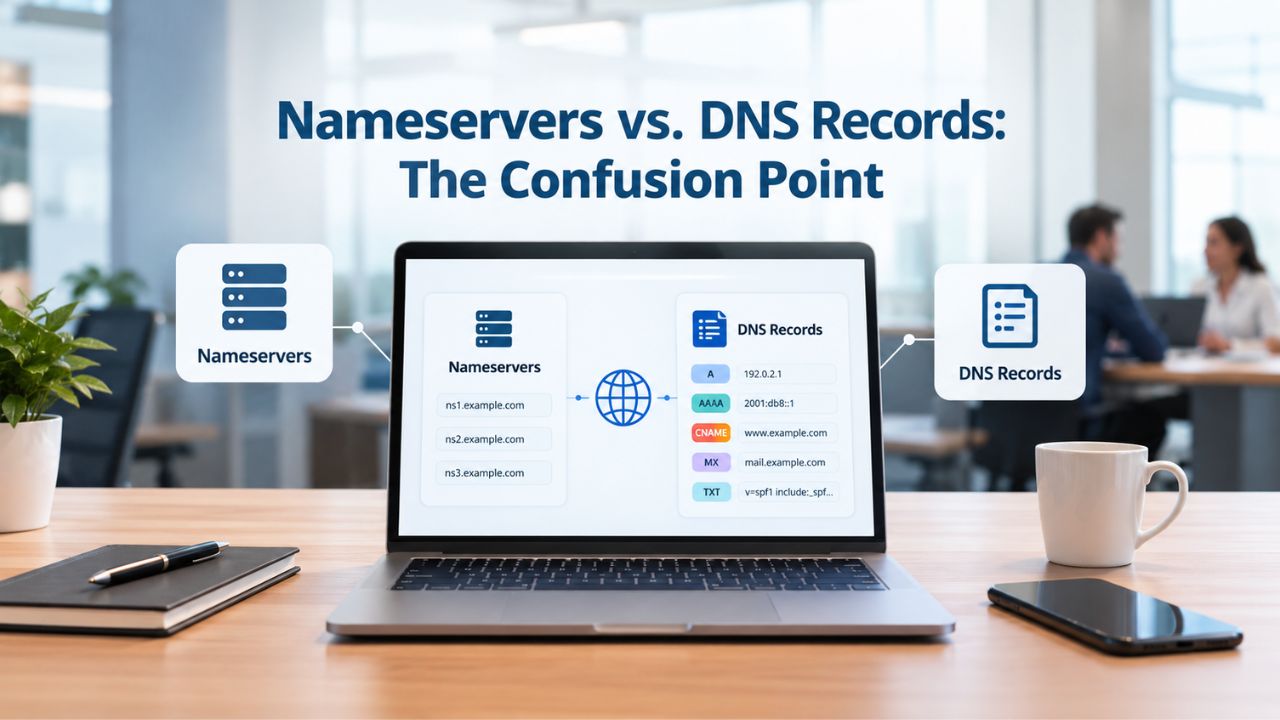
What a Nameserver Change Is
A nameserver (NS) change updates the server address where your DNS records live. You perform this operation at your registrar by editing your domain’s nameserver settings in the domain management dashboard. When you switch from one DNS provider to another, for example, from your registrar’s built-in DNS service to a specialized provider like Cloudflare, you’re making a nameserver change. This action updates the NS record at the registry, and that update then propagates across resolvers globally, typically taking 24–48 hours for full propagation.
Nameserver changes are significant, global operations. When you change your nameserver, you’re effectively telling the entire internet, “My DNS records have moved to a different location.” Every resolver that queries your domain’s status will eventually be directed to this new location, but that redirection isn’t instant. This is why nameserver migrations are typically planned and why the 24–48 hour propagation window exists. The old registrar or DNS provider may continue to host your DNS records for a transition period, ensuring business continuity.
What Individual DNS Record Changes Are
An individual DNS record change means modifying a specific entry, like an A record pointing to your website’s IP address, or an MX record pointing to your email server, within the same nameserver where that record already lives. If you’re editing records in your hosting provider’s DNS control panel while keeping that same hosting provider as your nameserver, you’re not making a nameserver change. You’re simply editing data that already lives on that nameserver.
These record-level changes are often instant or very fast, limited only by the TTL (Time-To-Live) value of that specific record. The nameserver itself doesn’t need to be updated at the registry; you’re just modifying existing data in place. This is why you can quickly fix a website IP address or update an MX record without waiting 24–48 hours. The distinction matters enormously when troubleshooting: if your domain stopped working after changing nameservers, you’re dealing with propagation delays and possible incomplete record migration. If your domain stopped working after editing a record within the same nameserver, the issue is likely a misconfiguration, an incorrect value, or a resolver cache delay at your specific ISP.
Most Common Reasons Your Domain Stopped Working
When a domain goes offline or stops working after a DNS change, one of these scenarios almost always applies. Identifying which one fits your situation will speed recovery and help you apply the right fix.
Incorrect Nameserver Address Entered at Registrar
The most frequent cause of DNS migration failure is a typo or copy-paste error when entering the new nameserver address at your registrar. An extra character, a missing digit, or a malformed domain name means your registrar is pointing to a server that doesn’t exist or that isn’t authorized to host your DNS records. The result is immediate failure: resolvers attempt to query a nameserver that isn’t there, and your domain becomes completely unreachable.
Verify the correct nameserver address in your new DNS provider’s documentation, usually on their DNS settings page or in their welcome email. Double-check every character of the nameserver address, including dots, hyphens, and any numbers. Confirm the change has been saved at your registrar by checking the nameserver field again. Use a public DNS tool to confirm resolvers see the new NS record; if they don’t after an hour or two, recheck your registrar’s settings immediately. This is one of the most common mistakes and also one of the fastest to fix once identified.
Incomplete DNS Record Migration
You switched nameservers, but you didn’t copy all your DNS records to the new provider. Your website’s A record exists on the new nameserver, but your email’s MX record doesn’t, or you missed some CNAME records or TXT records needed for specific services. Users can visit your site, but email bounces, or certain integrations fail while others work perfectly.
Before switching nameservers, always export a complete list of all DNS records from your current provider (A, AAAA, CNAME, MX, TXT, SRV, and any others your domain uses). Save this list to a file. Then cross-reference this list with the records you’ve created on your new provider. If you’re missing even one record, create it immediately on the new provider. This scenario often results in partial functionality: some services work while others don’t, which can be confusing until you realize that a specific record type is missing entirely.
| Scenario | Root Cause | How to Detect | How to Fix |
|---|---|---|---|
| Website unreachable, email unreachable | Nameserver addresses are incorrect or have not fully propagated | Use nslookup or an online DNS checker to verify the domain is still resolving to the old nameservers after one hour | Verify the nameserver entries at the registrar and ensure they exactly match those provided by the DNS or hosting provider |
| Website works, email bounces | MX records were not migrated to the new DNS provider | Run nslookup -type=MX yourdomain.com or dig MX yourdomain.com | Add the missing MX records (and related SPF, DKIM, and DMARC records if applicable) to the new DNS zone |
| Partial services work | DNS migration is incomplete (missing A, CNAME, TXT, SRV, or other records) | Check each DNS record type individually using nslookup or dig | Compare the old and new DNS zones and recreate any missing records from your backup |
| Works for some users, not others | Recursive DNS resolver caches have not yet expired | Test DNS resolution from multiple geographic locations or public DNS resolvers | Allow 24–48 hours for propagation to complete and continue monitoring DNS resolution |
| Nothing works after 48 hours | Incorrect nameserver delegation or stale DNS configuration | Check the domain’s delegated nameservers using a WHOIS or DNS lookup and verify the authoritative DNS zone | Correct the delegated nameservers at the registrar and confirm the authoritative DNS zone contains all required records |
| Mixed results; old provider still handling some traffic | High TTL values caused recursive resolvers to retain cached DNS records | Query the authoritative nameservers directly to determine whether old DNS servers are still responding | Reduce TTL values (typically to 300–600 seconds) before future migrations and wait for existing caches to expire |
How to Verify Your DNS Is Working: Tools and Techniques
When your domain isn’t working after a DNS change, the first step is to gather objective data on what resolvers worldwide are actually seeing. Public DNS tools provide transparent insight into the current state of your DNS records from multiple vantage points.
Command-Line Tools for Advanced Troubleshooting
If you’re comfortable with the command line, nslookup (Windows) and dig (Mac/Linux) are powerful, free tools that query specific DNS resolvers and show you exactly what DNS records they’re serving. Example: nslookup yourdomain.com returns your A record, showing the IP address that resolvers think your website points to. nslookup -type=MX yourdomain.com returns your MX records, showing which servers are configured to receive email for your domain. You can also query a specific nameserver directly: nslookup yourdomain.com ns1.yourprovider.com asks that specific nameserver what it knows about your domain, allowing you to verify that the new provider actually has the records you think you created.
These command-line tools show whether your new nameserver is hosting the records you created and whether different resolvers worldwide see different answers. They’re especially useful for domain owners managing complex DNS configurations or migrating multiple records at once. The command line is intimidating for some users, but it provides unambiguous, direct answers that can’t be misinterpreted.
Online DNS Propagation Checkers
Websites like MXToolbox, DNS Checker, or Cloudflare’s DNS Propagation Tool let you enter your domain and instantly see what multiple DNS resolvers worldwide report. These tools query resolvers from different geographic regions and present the results in a user-friendly format that doesn’t require command-line knowledge.
A good DNS checking tool shows you the authoritative nameserver for your domain, the A record (website IP) as seen from multiple geographic locations, MX records (email servers), and any propagation discrepancies across regions. If different tools report different nameservers, propagation is still in progress; wait a few hours and check again. If all tools consistently report your new nameserver but some records are missing, the issue is incomplete migration of records to the new provider, not a propagation problem.
Get Expert Help with Your Domain DNS Migration
Changing DNS doesn’t have to be risky or time-consuming. Niya Digital’s domain registration services and professional DNS management support help you migrate safely, with expert guidance at every step and 24/7 assistance if issues arise. We ensure your records migrate correctly, your website stays online, and your email continues flowing without interruption throughout the entire process.
Best Practices Before You Change DNS
The best way to avoid DNS outages and reduce the risk of extended downtime is to plan your DNS migration. A few simple precautions taken 24–48 hours before your planned nameserver change can eliminate most problems and speed recovery if something goes wrong.
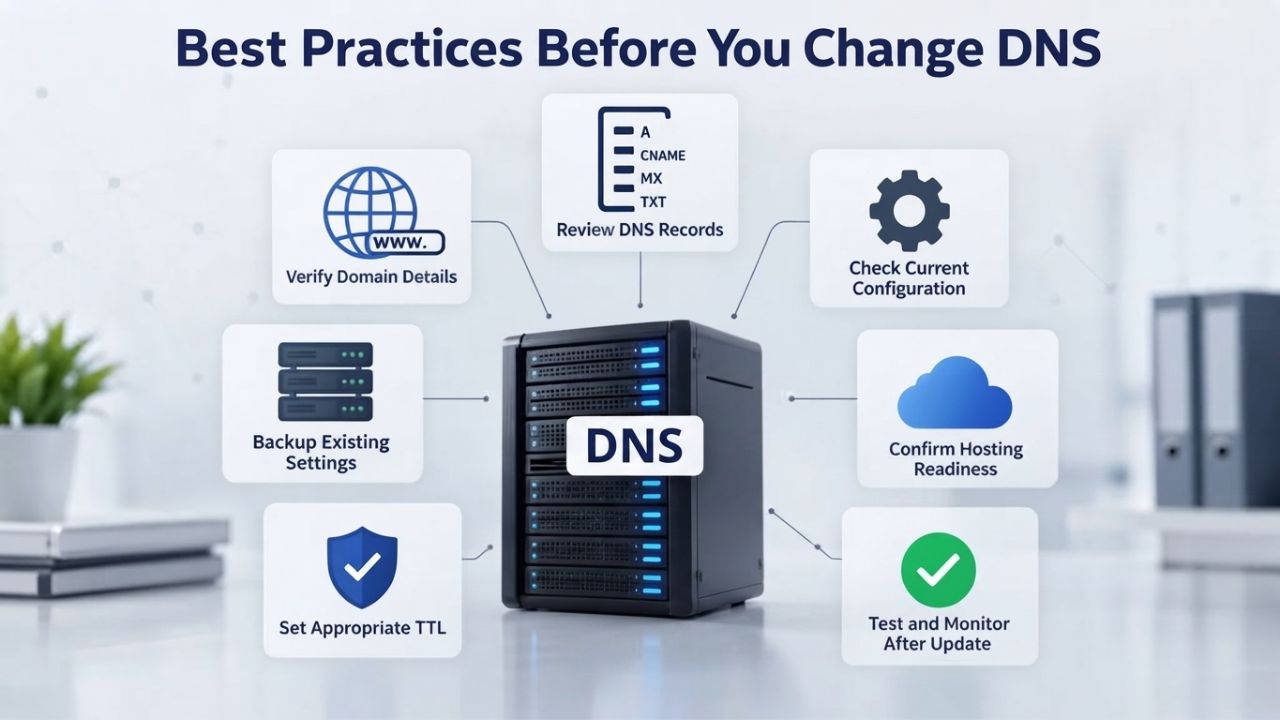
Lower Your TTL Value
Access your current DNS provider’s control panel and lower the TTL (Time-To-Live) value on all records to 300–600 seconds (5–10 minutes) at least 24–48 hours before your planned migration. TTL is a DNS setting that tells resolvers how long to cache your records before fetching a fresh copy. A default TTL of 86400 seconds (24 hours) means some resolvers will stubbornly hold your old DNS records in their cache for an entire day after you switch nameservers, creating extended downtime.
By lowering TTL before your migration, you force resolvers to check more frequently. Once you complete your migration and all resolvers have fetched your new records from the new nameserver, you can safely raise TTL back to a standard value like 86400 to reduce unnecessary DNS queries worldwide. This two-phase approach- lower before, raise after- minimizes both disruption risk during the migration window and resolver load during normal operations.
Back Up and Verify All DNS Records
Before making any nameserver changes, export a complete list of every DNS record associated with your domain and save it somewhere safe, preferably in multiple formats (CSV and text file). Most DNS providers offer a bulk export function in their control panel. This backup serves two critical purposes: as a reference while you’re creating records on your new provider, and as a safety net if something goes wrong and you need to roll back to your old provider quickly.
Create all your DNS records on your new provider before officially switching nameservers at the registry. This critical step is one many domain owners skip. Test your critical records (A, MX, CNAME) using nslookup or a DNS checker tool, specifically querying your new nameserver to confirm it’s serving the records correctly. For example: nslookup yourdomain.com ns1.mynewprovider.com confirms that your new provider’s nameserver is serving your A record before you make it the authoritative nameserver for your domain. Only after all records are verified should you change the NS record at your registrar.
What to Do If Your Domain Still Isn’t Working After 48 Hours
If you’ve waited the full 24–48 hour propagation window and your domain still isn’t resolving correctly or services remain offline, the issue has moved beyond normal propagation delays. A configuration error or incomplete setup usually needs attention.
Confirm Nameserver Changes Took Effect at Registry
Use a WHOIS lookup tool or the dig command to query the registry directly and confirm that your domain’s NS records have actually been updated from your old provider to your new one. If WHOIS still shows your old nameserver after 48 hours, the registry update failed; go back to your registrar’s control panel and resubmit the nameserver change carefully. Make sure you’ve saved the change; sometimes forms time out during submission and changes aren’t actually saved.
Niya Digital’s team has found that many outages lasting beyond 48 hours stem from incomplete or failed nameserver updates at the registrar level. This often happens because of form-submission errors, browser timeouts, or account permission issues that prevent the change from being saved. Verify the change in your registrar’s dashboard by logging out and logging back in to confirm the new nameservers are actually displayed.
Verify New Provider’s Nameserver Is Accessible
Use a tool like nslookup -type=NS yourdomain.com or visit a public DNS checker to confirm that at least one of your domain’s nameservers is responding to queries. If you get a “timed out” or “server not found” error for all nameservers, that indicates your new provider’s nameserver address is incorrect, or the nameserver infrastructure is down.
Contact your new DNS provider’s support team immediately. Provide the nameserver addresses you entered at your registrar and ask them to verify that those addresses point to working nameservers. Ask them to confirm that your domain’s NS records are actually configured to point to their infrastructure. This can be a misconfiguration on their end, a typo in the address you entered, or a temporary infrastructure issue that they can resolve quickly.
Minimizing Disruption During a DNS Migration
While DNS changes inherently require propagation time, you can structure your migration approach to minimize user impact, make rollback easier if something goes wrong, and gain confidence as you proceed through the process.
Phased Record Cutover and Testing Strategy
Instead of switching all nameservers at once, consider migrating records one category at a time, with testing between each phase. First, move your website’s A record to the new provider and monitor carefully for issues over a few hours. Once you’re confident the website is working from the new provider, move your MX records (email) to the new provider. Continue with secondary records (CNAME, TXT, SPF, DKIM, etc.) last.
This phased approach isolates problems elegantly. If email breaks but the website works perfectly, you immediately know the issue is isolated to MX records or email configuration, not a fundamental nameserver configuration error. For domains with many subdomains or complex configurations, phased migration can add time. Still, it dramatically reduces the risk of total outages and speeds up debugging if something does go wrong. Test each phase using command-line tools and public DNS checkers before moving to the next phase.
DNS Migration Preparation Checklist
| Phase | Task | Timing | Verification Method |
|---|---|---|---|
| Planning | Lower the TTL value for all existing DNS records | 48 hours before migration | Log in to the current DNS provider and confirm TTL values are set to 300–600 seconds |
| Planning | Export a complete backup of the DNS zone | 48 hours before migration | Save a CSV or BIND zone file and verify the record count matches the existing DNS zone |
| Preparation | Create all DNS records on the new provider | 24 hours before migration | Review the new provider’s DNS control panel and verify that every required record has been added |
| Preparation | Validate critical DNS records on the new authoritative nameserver | 12 hours before migration | Query the new nameserver directly using nslookup or dig to verify responses |
| Migration | Update the domain’s nameserver delegation at the registrar | Day of migration | Confirm the new nameserver entries are displayed correctly in the registrar’s control panel |
| Verification | Monitor DNS propagation | First 6 hours | Use DNS Checker or similar tools to verify that the new nameservers are visible across multiple regions |
| Monitoring | Continue checking global propagation | First 24 hours | Use MXToolbox or queries from multiple public DNS resolvers to confirm consistent DNS responses worldwide |
| Finalization | Verify all services operate correctly | After 48 hours | Test website availability, email delivery, APIs, SSL certificates, and third-party integrations |
Common DNS Mistakes and How to Avoid Them
Beyond core propagation and configuration issues, certain preventable mistakes keep showing up in DNS support tickets and troubleshooting forums. Recognizing these patterns helps you avoid them and complete your DNS migration smoothly.
Batch Updating Without Testing Individual Records
Migrating a domain with dozens of DNS records in one bulk operation, without testing them individually, is high-risk. If a single record is incorrect or missing, you won’t know which one until users report problems with specific services. This makes debugging much harder and extends downtime.
Instead, migrate records in small batches of 5–10, test each batch with nslookup or an online DNS tool to confirm the records are present and correct, and then move to the next batch. This methodical approach takes slightly longer but provides confidence at each step and makes any problems immediately obvious. For domains with 20–50+ records, batch migration in groups provides the best balance of speed and safety.
Mismatched Nameserver Names and IPs
Some DNS providers give you both a nameserver name (e.g., ns1.provider.com) and a corresponding IP address. If you enter only the nameserver name at your registrar without the IP, or only the IP address without the nameserver name, the registry may not be able to resolve one from the other. This causes lookup failures.
Always confirm with your DNS provider exactly which nameserver name and IP pair you should use at your registrar. Cross-check the nameserver address you enter character for character against your provider’s official documentation. When in doubt, contact the provider’s support team to get the exact text to use. Copy and paste directly from their official documentation rather than typing it manually to avoid typos.
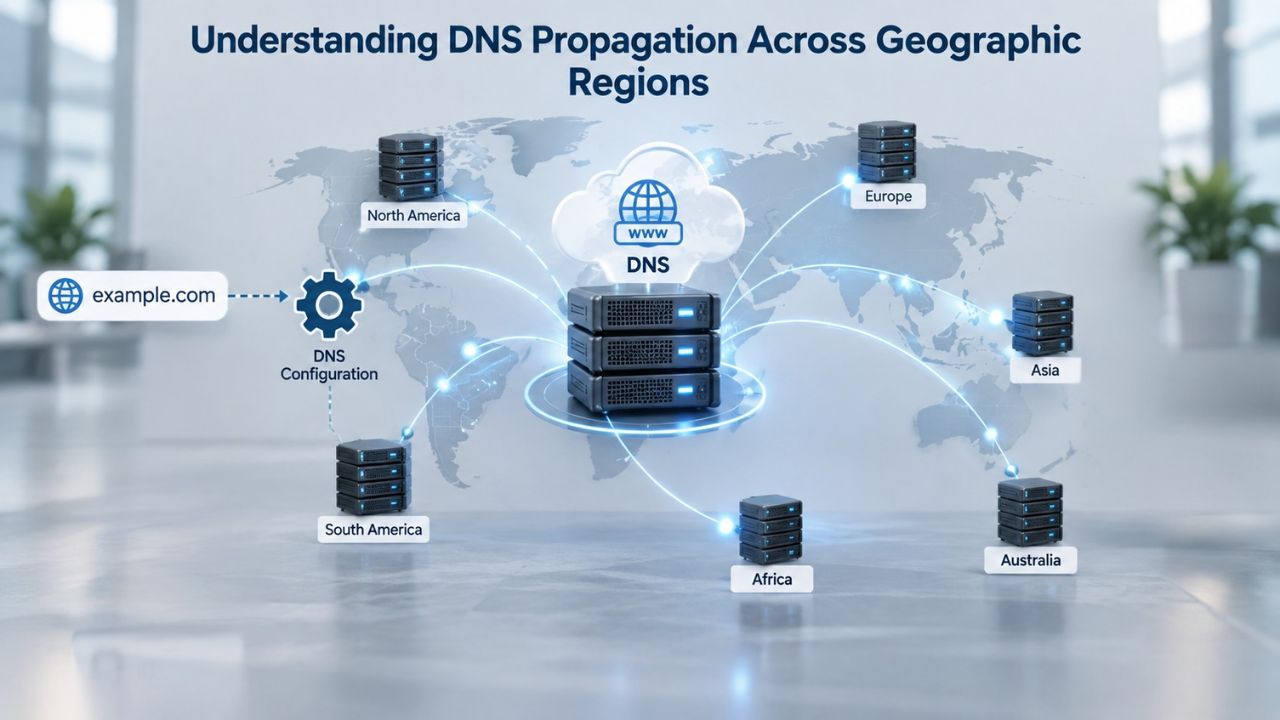
Understanding DNS Propagation Across Geographic Regions
DNS propagation is not uniform worldwide. Different regions, ISP resolvers, and public DNS services update at different rates because of their geographic location, resolver cache settings, and independent infrastructure. This geographic variation often causes the most confusion and frustration for domain owners watching their migration unfold.
Why Your Colleague Sees It, You Don’t
DNS resolver caches are refreshed independently, and ISP-operated resolvers often lag behind public DNS services like Google Public DNS or Cloudflare DNS. Your ISP’s resolver in one location may cache your old DNS records for hours, while a colleague in another country using a public DNS service sees your new records instantly. Both of you are correct; you’re just seeing different snapshots of the same global system at different points in its update cycle.
This is normal during DNS migration. If your ISP resolver updates slowly, you’ll keep seeing the old website or experiencing email delays even after friends and colleagues worldwide report that everything is working fine. This can be frustrating, but it doesn’t mean something is wrong with your migration. Check your propagation status using a global DNS propagation checker tool that queries multiple geographic regions. If most regions worldwide show your new nameserver, you’re in the normal propagation window and should expect full convergence within 24–48 hours.
Asking Users in Different Regions to Test
If you’re concerned about whether your DNS migration is actually working globally or if you’re experiencing local resolver lag, ask colleagues or friends in different countries to test your domain. If they can access your website and it’s working fine while you still see issues, the problem is almost certainly your local ISP’s resolver cache, not a global DNS problem.
This simple test often provides valuable peace of mind and confirmation that your DNS migration is proceeding normally. Knowing that the new infrastructure is working correctly worldwide while you wait for your ISP’s cache to expire is much less stressful than wondering if something is fundamentally broken. You can also temporarily change your computer’s DNS resolver to Google Public DNS (8.8.8.8) or Cloudflare DNS (1.1.1.1) to bypass your ISP’s resolver and see whether your domain works immediately.
Simplify DNS Management with Niya Digital’s Domain Services
Managing domain DNS and handling migrations doesn’t have to be complex or stressful. Niya Digital provides comprehensive domain management and hosting support, with expert guidance on nameserver changes, DNS configuration, security features like domain locking and DNSSEC, and 24/7 troubleshooting when things go wrong. Whether you’re performing your first domain transfer or managing a portfolio of hundreds of domains, our team handles the technical details so you can focus on growing your business online. We’re here to help you establish a secure, reliable online identity backed by trusted domain registration services and professional support.
Frequently Asked Questions
Why does DNS propagation take 24–48 hours if the registry updates in minutes?
The registry update is fast, but thousands of independent DNS resolvers worldwide must then query your domain’s authoritative nameserver, each with its own cache and update schedule. Until each resolver individually checks your new nameserver and refreshes its cached copy, some users will see old records. This gradual, distributed process is why full propagation typically takes 24–48 hours, though many users see changes within minutes to hours.
Can I speed up DNS propagation?
Propagation is governed by global DNS architecture, not by any individual provider. However, lowering your TTL 24–48 hours before a planned migration forces resolvers to check more frequently, reducing the time they serve stale cached records. After migration, raise TTL back to normal. Lowering TTL is the closest thing to “speeding up” propagation, though it doesn’t eliminate the 24–48 hour window.
What’s the difference between a nameserver and a DNS record?
A nameserver is the actual server that hosts all your DNS records. You specify which nameserver hosts your domain’s DNS at your registrar. A DNS record is an individual entry (A, MX, CNAME, TXT, etc.) on that nameserver that directs traffic to specific IPs or services. Changing nameservers is a global change that propagates; editing records within the same nameserver is usually instant.
Should I lower my TTL before every DNS change?
Yes, if you’re planning a significant change like switching nameservers. For minor record edits within your existing nameserver, TTL lowering is less critical. For nameserver migration, it’s essential to prevent extended outages.
What happens if I don’t back up my DNS records before switching providers?
You’ll have to recreate records from memory, which is error-prone. If you miss a record, that service won’t work. Always export and save your complete DNS record set before switching providers.
Can a wrong nameserver address cause immediate failure?
Yes. Resolvers won’t find your domain’s DNS records, resulting in immediate failure for all services. The fix is immediate: correct the nameserver address at your registrar. Propagation of the corrected nameserver takes 24–48 hours.
How do I know if my domain is using the correct nameserver?
Use a WHOIS lookup tool or run nslookup -type=NS yourdomain.com. Cross-reference this with the nameserver address your DNS provider gave you. If they match, your nameserver is correctly configured.
What is DNSSEC, and should I enable it?
DNSSEC digitally signs your DNS records to prevent DNS spoofing and hijacking attacks. It ensures resolvers can verify your records haven’t been tampered with. Enabling DNSSEC is recommended for e-commerce, financial, or high-value domains, though it requires support from your registrar and DNS provider.
Is it safe to delete my old nameserver records immediately after switching?
No. Wait 48–72 hours to ensure propagation is complete. If something goes wrong, old provider records are your safety net. Ask them to keep records live for a few days, then formally request they stop hosting after stability is confirmed.
Why does my domain work for some users but not others?
This almost always indicates incomplete global DNS propagation. Use a global DNS propagation tool to check status across regions. If most regions show your new nameserver, wait 24–48 hours for full convergence.
Can I test my DNS configuration before switching nameservers?
Yes. Use nslookup yourdomain.com ns1.yournewprovider.com to query your new provider’s nameserver directly before making it authoritative. You can also edit your local hosts file to test the new provider’s IP on your computer before global propagation.
What should I do if I accidentally delete a critical DNS record during migration?
If you have your backup record set, recreate it on your current provider immediately. If not, contact your old provider; they may still have records in their system. Going forward, keep backups and test before deleting them.
How do I prevent my domain from expiring due to DNS outages?
DNS outages don’t cause expiration, but they can prevent renewal reminder emails if your domain email is misconfigured. Ensure your registrant email address is correct in your registrar’s account settings. Enable auto-renewal and set calendar reminders before expiration.
Is there a risk to changing DNS frequently?
Frequent changes increase the risk of human error and can confuse resolver caches. Each change initiates a new propagation cycle with temporary inconsistencies. Plan DNS changes carefully and make them infrequently, testing thoroughly between changes.
What’s the relationship between domain registrars, DNS providers, and hosting providers?
Your registrar manages your domain name and NS records at the registry. Your DNS provider hosts the DNS records that direct traffic to your services. Your hosting provider runs the servers where your website files live. Different companies often hold these three roles, though some combine them.
Glossary
- Authoritative Nameserver: The server that holds the current, definitive version of your DNS records for your domain. All DNS queries eventually reach the authoritative nameserver to fetch accurate record data.
- DNS (Domain Name System): The global system that translates human-readable domain names (like yourbusiness.com) into numerical IP addresses that computers use to connect over the internet.
- DNS Propagation: The time required for DNS changes to spread across the global network of DNS resolvers, typically 24–48 hours, during which different users may see different versions of your DNS records depending on which resolver their ISP uses.
- Domain Locking: A registrar-level security feature that prevents a domain from being transferred to another provider without explicit authorization, protecting against unauthorized domain hijacking.
- Nameserver (NS Record): The address of the server where your domain’s DNS records are actually hosted. You set this at your registrar; the registry points to it via the NS record.
- TTL (Time-To-Live): A DNS setting measured in seconds that tells DNS resolvers how long to cache a record before fetching a fresh copy from the authoritative nameserver. A TTL of 86400 means resolvers cache that record for 24 hours.