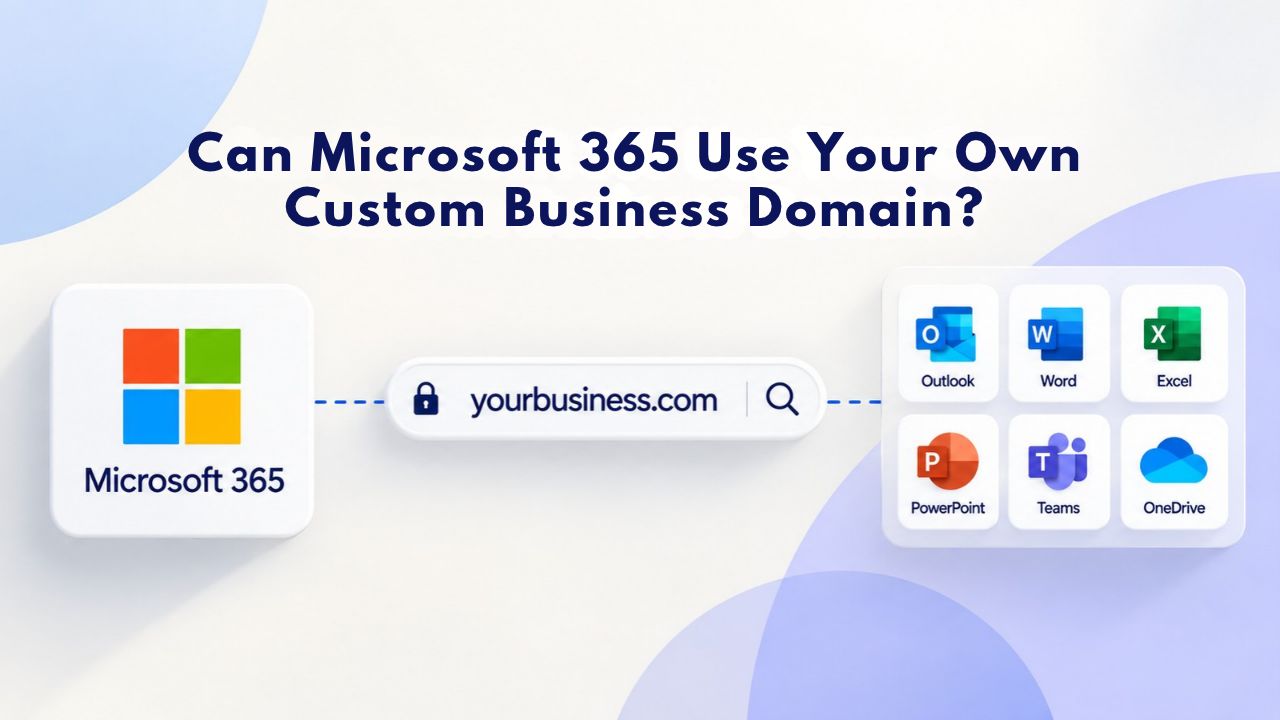
Yes, Microsoft 365 Business plans fully support custom business domain email addresses. You can connect any domain you own to receive and send professional email through Microsoft 365. Setup involves DNS verification and adding routing records, typically completing within 24–48 hours. Only Business-tier plans include this feature; consumer subscriptions do not. Niya Digital resells Microsoft 365 subscriptions and related setup, hosting, and support services, operating in partnership with an authorized Microsoft partner network.
Which Microsoft 365 Plans Support Custom Domains?
Not every Microsoft 365 subscription offers custom domain email. Understanding which plan tier includes this capability is the essential first step toward professional branded business email. The feature is reserved for business accounts with administrative access to the Microsoft 365 Admin Center, where you manage and configure domains.
Business Basic, Standard, and Premium Include Custom Email
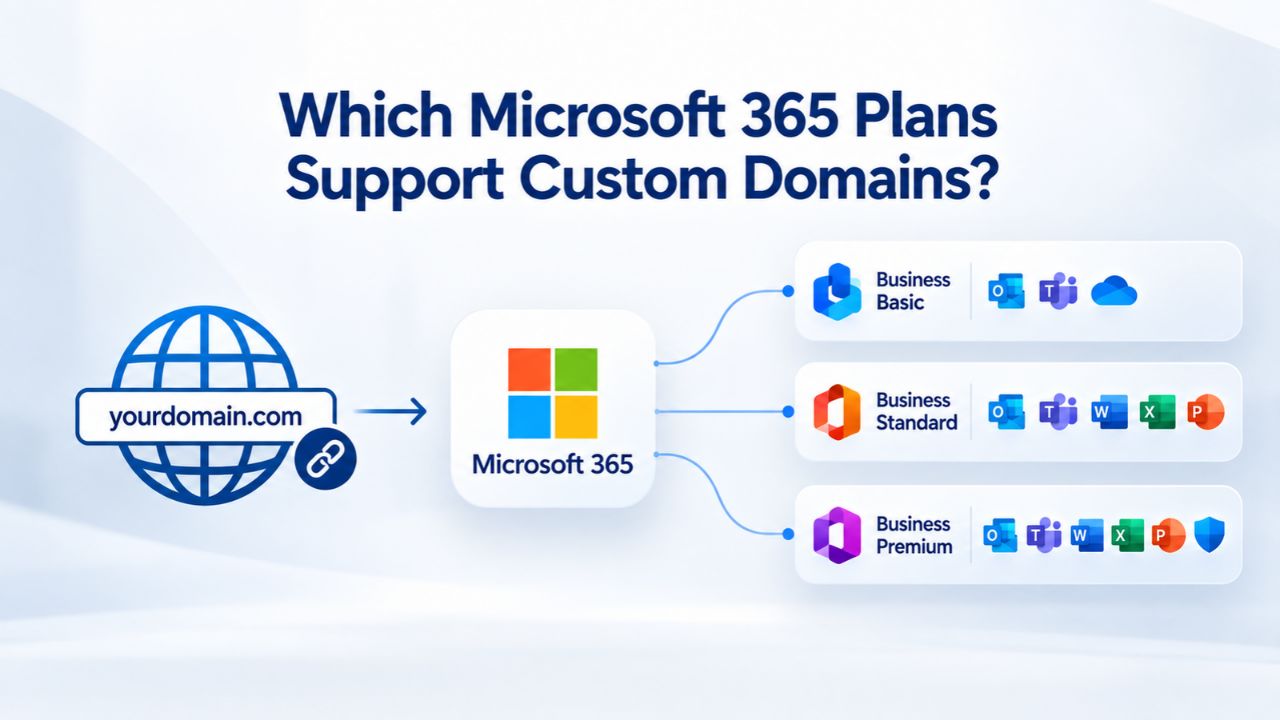
Microsoft 365 Business Basic, Business Standard, and Business Premium all support custom business domain email addresses. Each plan includes full access to the Microsoft 365 Admin Center, where you add your domain, verify ownership, and assign it to user mailboxes. These plans combine branded email with productivity apps and cloud collaboration tools in a single integrated subscription. They’re the entry point for businesses that need professional email plus modern productivity capabilities.
All three Business plans include 100 GB primary mailbox storage and 50 GB archive storage per user, with Business Premium offering expanded archive capacity of 1.5 TB. This generous storage means most small businesses will never face practical capacity constraints. You can assign the custom domain to as many users as your subscription licenses support, and each user gets their own mailbox with full email, calendar, and contact management.

Domain Name Registration
Each and every domain name comes with all you need to get online.
- Domain Forwarding and Masking: Direct any domain name you own to your website. Anyone who types that domain name into their browser is taken directly to your website.
- Domain Locking: Domain locking prevents accidental or intentional transfers of domain ownership and stops anyone from redirecting your nameservers.
- Total DNS Control: Manage your domain nameserver (DNS) records and set your email, FTP, sub-domains and website location all from one control panel.
- Change of Registration: Assign your domain name to someone else or change the contacts for your domain online anytime.
- Status Alerts: Monitor the status of your domain and get instant alerts if there's been a change.
- Auto Renew Protection: No need to watch expiration dates to make sure you renew on time! Auto renew keeps your domains, hosting, website builders, and other products in your name and under your control.
Domain Disclaimers:
- Special savings apply only to first year of registration. You must purchase entire section to qualify for special savings.
- The final price may differ because of additional sales, fees, and promotions.
- Products will automatically renew until cancelled. You may turn off the auto-renewal feature by visiting your account.
- Change of registration may require a fee for certain domains.
Microsoft 365 Business Plans: Domain Support Overview
| Feature | Business Basic | Business Standard | Business Premium |
|---|---|---|---|
| Custom Domain Email | ✓ | ✓ | ✓ |
| Admin Center Access | ✓ | ✓ | ✓ |
| Mailbox Storage | 100 GB | 100 GB | 100 GB |
| Archive Storage | 50 GB | 50 GB | 1.5 TB |
| Desktop Office Apps | ✓ | ✓ | ✓ |
| Web Office Apps | ✓ | ✓ | ✓ |
| Microsoft Teams | ✓ | ✓ | ✓ |
| OneDrive Storage | 1 TB | 1 TB | 1 TB |
| SharePoint | ✓ | ✓ | ✓ |
| Email Protection | ✓ | ✓ | ✓ |
| Advanced Threat Detection | — | — | ✓ |
| Device Security | — | — | ✓ |
| Phone/Web Support | ✓ | ✓ | ✓ |
Consumer and Apps-Only Plans Exclude Custom Domain Support
Microsoft 365 Personal and Family subscriptions do not support custom domain email. These consumer plans lack access to the Microsoft 365 Admin Center, which is required to add, verify, and manage custom domains. Although consumers can use Microsoft 365 for personal productivity, they cannot create professional, branded email addresses. Switching from a Personal or Family plan to a Business plan requires a separate purchase; there is no direct upgrade path between subscription tiers.
Microsoft 365 Apps for Business delivers only Office desktop applications and OneDrive cloud storage. This plan excludes email, Teams, and domain management features entirely. If your business needs email alongside Office applications, you must choose Business Basic, Standard, or Premium instead. This distinction matters because many small business owners initially buy Apps for Business thinking it includes email, only to discover they need to upgrade or buy a different plan.
What Domain Ownership Requirements Apply?
Before you add a custom domain to Microsoft 365, you must own it or have full administrative access to its DNS registrar account. Ownership verification is non-negotiable; Microsoft does not activate custom email for domains it cannot verify you control. This requirement protects both your organization and Microsoft from abuse.

Own or Control the Domain Name
You need either a domain already registered in your name or registrar login credentials that allow you to manage its DNS records. If you registered your domain with a major registrar, you’ll access their DNS management panel to add the Microsoft-required records. A new domain purchased during Microsoft 365 signup works the same way: you get immediate registrar access and can start setup the same day. Many registrars provide straightforward, user-friendly DNS management interfaces, making this process accessible even for non-technical users.
If your business domain is already used for a website, custom domain email setup won’t interrupt your web hosting. Your website continues to be served by your current web host, while your email routes to Microsoft 365 via the MX record. These DNS changes affect only email delivery, not your website or any other services. This flexibility allows you to consolidate email management under Microsoft 365 while keeping your website infrastructure unchanged.
The Domain Must Be Unique to Your Microsoft 365 Tenant
Once you add a domain to your Microsoft 365 tenant, you can’t use the same domain in another Microsoft 365 organization without removing it first. If a domain is already associated with another tenant, for example, from a legacy subscription or a previous company, you must remove it from the old tenant before adding it to your current one. If you have access to the old tenant’s admin center, you can remove it yourself. If not, contact Microsoft Support with proof of domain ownership (via DNS verification), and they can release it. This process typically takes one to two business days.
Pre-Setup Checklist: Domain and Access
Before opening the Microsoft 365 Admin Center to add your domain, confirm you have your registrar login credentials, know the exact domain name you’ll use, and have admin permissions in your Microsoft 365 tenant. If you purchased the domain through a reseller or someone else in your organization registered it, verify that you can access the registrar account or get temporary access from whoever holds it. Many common setup delays stem from lacking registrar credentials at the critical moment, not from DNS complexity itself.
DNS Records and Domain Verification: What You Add
Domain verification and email routing require specific DNS records at your registrar. These records aren’t complex; most registrars provide simple forms to enter them, but accuracy is essential. A single character error in an MX record value can silently route email away from Microsoft 365, causing messages to be lost or sent to the wrong server.
Required DNS Records for Email Routing
Microsoft 365 requires an MX (Mail Exchange) record to direct the internet to deliver your domain’s email to Microsoft 365 servers instead of a previous provider. Microsoft Learn provides the exact MX value your specific tenant needs; it follows the format [token].mail.protection.outlook.com and includes a priority number (typically 0 for highest priority). If you have multiple MX records for your domain, Microsoft 365’s MX record must have the lowest priority number to ensure mail arrives at Microsoft 365 first.
Supporting DNS records strengthen email security and improve deliverability. An SPF (Sender Policy Framework) TXT record lists which mail servers are authorized to send email from your domain, reducing the risk of phishing attacks and email spoofing. A DKIM (DomainKeys Identified Mail) CNAME record provides cryptographic proof that outgoing mail from your domain originates from an authorized server. An Autodiscover CNAME record lets Outlook clients configure automatically, without requiring users to enter server addresses manually. Microsoft’s setup wizard displays each record’s exact value, and you copy these verbatim into your registrar’s DNS manager.
Domain Verification: Proving You Own It
Before Microsoft 365 accepts email for your domain, it must verify ownership. The verification process uses a unique TXT DNS record that Microsoft provides (typically starting with MS=ms…). You add this TXT record to your domain’s DNS at your registrar, then return to the Microsoft 365 Admin Center and click Verify. Microsoft checks for the record; if it finds it, it confirms ownership. Verification typically completes within 24 hours, though it can happen faster. Once verified, you can remove the verification TXT record if you prefer, though Microsoft allows you to leave it in place.
This verification step is passive and does not route email or cause downtime. It simply proves you control the domain’s DNS settings. During this phase, your existing email continues to work normally. No messages are lost, and no service interruption occurs. This gentle approach gives you time to prepare your mailboxes and get ready for the cutover without pressure or risk.
How Long Does Custom Domain Setup Take?
The setup timeline depends on DNS propagation speed, your organization’s email migration complexity, and whether you use automatic configuration or manual DNS entry. Most small businesses complete end-to-end setup within 24–48 hours from domain verification to first incoming email, though the actual hands-on work is only one to two hours spread across that window.
Setup Process and Timeline
The sequence begins with domain verification: add a TXT record at your registrar (five to 30 minutes), then wait for Microsoft to confirm it (typically within 24 hours). Next, create all user mailboxes in the Microsoft 365 Admin Center; do this before changing the MX record to prevent email loss. Then add the MX and supporting DNS records at your registrar (15–60 minutes of manual work). After you add the DNS records, allow 1 to 48 hours for global DNS propagation; during this window, email may route inconsistently as internet caches update.
Finally, confirm email is arriving by sending a test message from an external email address to your new Microsoft 365 address and verifying it lands in Outlook. End-to-end, the process is straightforward, but DNS propagation delays mean you cannot accelerate the timeline beyond typical propagation periods. Niya Digital’s team has found that businesses often underestimate the importance of creating all mailboxes before changing the MX record. Skipping this step causes users to miss emails while the system attempts to deliver to non-existent mailboxes. Waiting a few hours to provision users completely prevents these headaches later and ensures a smooth transition.
Why User Setup Must Happen Before MX Changes
The order of operations protects against email loss during the transition. If you change your MX record to point to Microsoft 365 before creating user mailboxes in the tenant, incoming mail for those users has nowhere to land and bounces back to the sender. Creating mailboxes first ensures they exist and are ready to receive email as soon as DNS propagates. Microsoft Learn’s guidance on domain setup emphasizes this sequence as critical. The principle is absolute: mailboxes must exist in Microsoft 365 before email starts routing to them.
This seems obvious, but it’s easy to overlook when you’re eager to get email flowing. The temptation to change the MX record immediately after verification is strong, but resisting it for a few hours saves significant disruption. If possible, test with users first: move one or two mailboxes, verify their email works, then move the rest. This incremental approach builds confidence and catches configuration issues before your entire team experiences them.
Email Migration: Planning Your Move from Another Provider
If you’re currently using a different email provider (Gmail, a legacy Exchange server, or another Microsoft 365 tenant), moving to Microsoft 365 custom domain email requires careful planning and structured execution. The risks are minimal if you follow an established process, but rushing the migration can result in missed emails or lost data.
Migration Strategies and Approaches
Small migrations (under 10 mailboxes) can often be done over a weekend using Microsoft’s built-in tools or free third-party options. Larger or more complex migrations (50+ mailboxes, archive retention, calendar dependencies) benefit from professional support and planning. The key principle is “test before cutover”: migrate a small group of users first, verify their email, contacts, and calendar all arrived correctly, then migrate the remaining mailboxes. Only after confirming everything works correctly should you change the MX record to point to Microsoft 365. This phased approach reduces risk and lets you catch DNS or authentication issues before they affect your entire organization.
Professional migration services can handle the technical details, manage the phasing, and provide support if issues arise. Many small businesses choose this route because it transfers the complexity and risk to experienced professionals. Whether you migrate yourself or hire help, the fundamental approach remains the same: prepare your Microsoft 365 environment, move data non-destructively, test thoroughly, then flip the DNS switch when ready.
Avoiding Downtime and Data Loss
Email does not delete during migration; professional migration tools create a complete copy in Microsoft 365 while leaving the original on the old server untouched until you confirm the copy is complete. This non-destructive approach means zero data loss if something goes wrong. Timing matters for message flow: if you change the MX record while users still have mail in the old system, some email may continue arriving at the old mailbox and some at the new one. Professional migration tools handle this by moving the final batch of messages after confirming the cutover window, then flipping DNS when all users have been notified to check Outlook.
The key is coordination. Before changing the MX record, ensure all users know to check their new Outlook mailboxes. Some businesses send a company-wide notification before the cutover. Others stagger the cutover by department. The approach matters less than communication and verification. Once you confirm DNS has propagated and mail is arriving in Microsoft 365, the migration is complete. You can archive or delete the original mailboxes based on your data retention policy.
Ready to Configure Your Microsoft 365 Custom Domain?
Custom domain email setup is straightforward when you understand the requirements and avoid common pitfalls. Niya Digital helps small and mid-sized businesses plan, configure, and migrate to Microsoft 365, ensuring your domain setup is accurate and mailboxes are ready. Your team is productive on day one. Whether you’re setting up your first custom domain or migrating from another platform, our team provides setup services and post-migration support. Explore our Microsoft 365 setup services to learn how we can accelerate your deployment.
Security Features Protecting Your Custom Domain Email
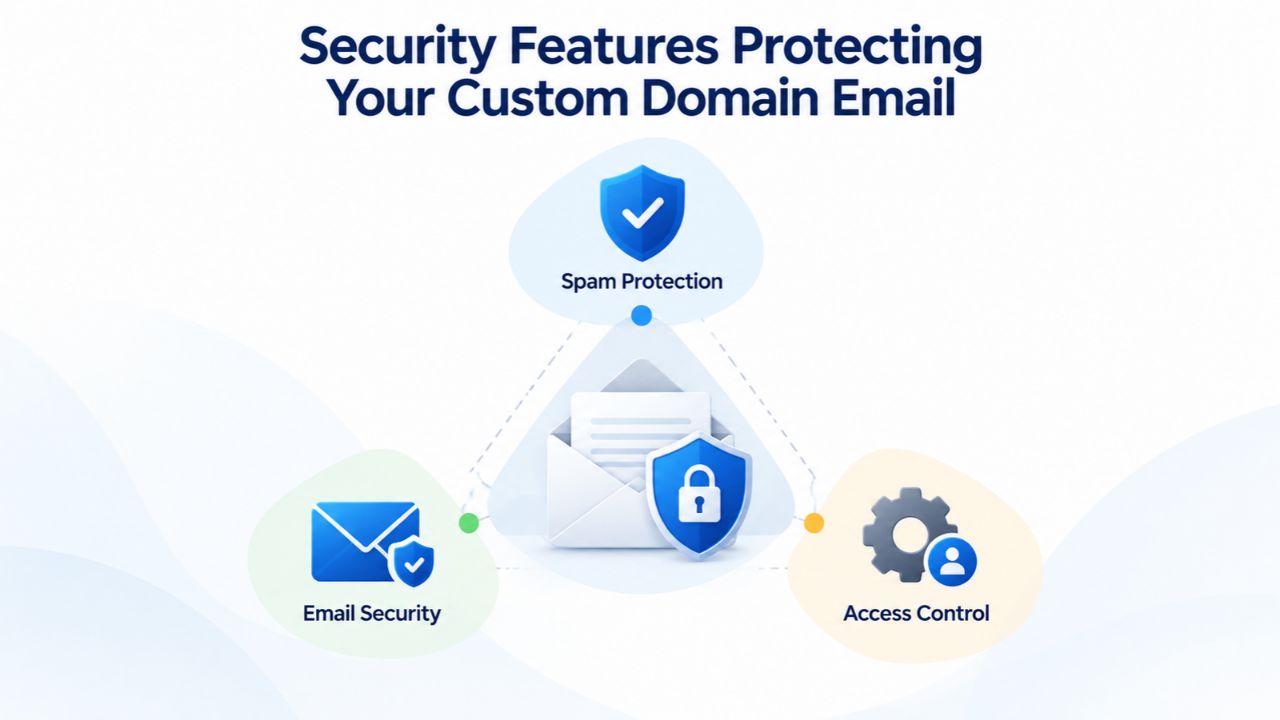
Microsoft 365 Business plans include built-in security features for custom domain email. These protections reduce the risk of phishing, malware, and unauthorized access without additional licenses or complex configuration. Security is automatic and always on.
Threat Protection and Email Filtering
All Business plans include Exchange Online Protection, which automatically filters spam, malware, and phishing attempts before they reach user inboxes. Emails flagged as suspicious are quarantined, and administrators can review or delete them. The filtering is transparent to legitimate users; legitimate mail reaches Outlook normally, while dangerous mail is blocked. Business Premium adds extra layers of protection: Microsoft Defender for Business defends against ransomware and malware on company devices, and Microsoft Defender for Office 365 Plan 1 provides time-of-click URL inspection and advanced threat detection.
These protections are particularly valuable for custom domain email because they prevent attackers from impersonating your domain to trick users into revealing credentials or downloading malware. Email authentication records (SPF, DKIM) work together with these threat filters to verify that incoming mail claiming to be from your domain actually comes from authorized servers. This layered approach makes custom domain email significantly more secure than personal or consumer email.
Multifactor Authentication and Message Protection
Custom domain email benefits from multifactor authentication (MFA), which requires users to verify their identity via phone or app in addition to their password. MFA significantly reduces account takeover risk even if a password is compromised. All Business plans support MFA at no additional cost and with simple setup. Additionally, users can mark individual emails as Confidential or Restricted to limit forwarding, copying, and printing, protecting sensitive information within your organization.
Together, these capabilities create a security posture aligned with modern business needs. Your email is no longer just a communication tool; it’s a protected channel for business-critical information. Employees can safely discuss confidential client data, financial information, or strategic plans, knowing multiple security layers defend their email.
Email Storage, Limits, and Mailbox Capacity
Each Microsoft 365 Business plan includes generous email storage. Understanding your storage allocation helps you plan for growth and long-term archiving needs without worrying about hitting limits prematurely.
Mailbox Storage and Attachment Limits
Microsoft 365 Business Basic and Standard each provide 100 GB of primary mailbox storage and 50 GB of archive storage per user. Business Premium offers 100 GB of primary and 1.5 TB of archive per user; the archive is automatically enabled. It expands as older mail is moved into it. Individual email messages can be up to 150 MB including attachments; for larger files, Microsoft recommends storing them in OneDrive or SharePoint and sharing a secure link instead. Deleted items can be recovered for up to 30 days through Outlook’s Recover Deleted Items feature.
These limits are per user, not per domain. A team of 10 users on Business Standard has 1 TB total mailbox storage (100 GB each × 10) plus 500 GB archive. Most small businesses never reach these limits; typical business email stays well under 50 GB per user even after years of accumulation. If a user exceeds their primary mailbox quota, mail flow isn’t disrupted; the mailbox stops accepting new mail only after the archive quota is also full, which is rare.
Archiving and Compliance Features
Retention policies can automatically move mail older than a specified age to archive, freeing primary mailbox space and improving Outlook performance. Larger organizations with compliance requirements (financial records retention, legal holds) use retention policies and eDiscovery tools built into Microsoft 365 to meet audit requirements. For most small businesses, the default setup is sufficient: primary storage for active email, archive for older mail, and compliance handled through user-initiated cleanup as needed.
Archive mailboxes are separate from your primary inbox, so older mail doesn’t clutter current communications. Yet it remains accessible; users can search and retrieve archived messages if needed. This combination of capacity and organization means your team never has to choose between keeping email history and maintaining a manageable inbox.
Email Setup Timeline: From Verification to Delivery
| Phase | Action Required | Typical Timeframe | What Happens |
|---|---|---|---|
| 1. Domain Verification | Add the Microsoft-provided TXT record at your DNS provider or registrar | 5–30 minutes | The TXT record is published to DNS, allowing Microsoft 365 to verify domain ownership (typically within 24 hours) |
| 2. Mailbox Creation | Create user accounts and assign Microsoft 365 licenses in the admin center | Hours to 1 day | Each user receives a mailbox that is ready to send and receive email after DNS configuration is complete |
| 3. DNS Records Addition | Add MX, SPF, DKIM, and Autodiscover DNS records | 15–60 minutes | The required DNS records are published, and global DNS propagation begins |
| 4. DNS Propagation | Allow DNS caches worldwide to refresh | 1–48 hours | Email routing gradually transitions from the previous provider to Microsoft 365 |
| 5. Email Routing Active | Send and receive test emails | After propagation | External email is delivered to Microsoft 365 mailboxes through the new MX records |
| 6. Cutover Confirmation | Verify all users can send and receive email successfully | Same day | The migration is complete, and Microsoft 365 becomes the primary email service |
Cost and Total Cost of Ownership: Beyond the Subscription
The subscription cost is only part of the total investment in custom domain email. Domain registration, setup support, and potential migration services add to the picture. Understanding the full cost picture helps justify the investment and plan your budget.
Subscription, Domain, and Support Included
Microsoft 365 Business plans include custom domain email, admin center access, and phone/web support at no additional charge beyond the per-user subscription cost. Domain registration is a separate cost paid directly to your registrar (typically annually), but it’s minimal compared to subscription costs. Optional setup support ranges from basic guidance to full-service configuration and migration depending on your needs and technical comfort level. Over a year, a small business might budget for subscriptions, domain renewal, and optional setup support. Still, these costs are modest compared to the productivity gains from professional email and integrated tools.
All Business plans include support. If you run into issues with domain setup, email delivery, or account configuration, you can contact Microsoft support by phone or web chat. This included support removes the worry of being stuck with an unreachable problem. Many businesses also work with resellers like Niya Digital for setup assistance, which provides additional context and guidance specific to their organization.
Comparing Feature Value: Microsoft 365 vs. Standalone Email
All major business email platforms support custom domains and offer professional email features. The differences lie in integration, storage, and included tools. Microsoft 365 Business plans bundle email with a full Office suite (Word, Excel, PowerPoint), Teams for chat and meetings, OneDrive for file storage, and SharePoint for team collaboration. This integration means you’re not juggling separate apps for email, documents, and meetings; everything works together in Outlook, Teams, and the web. Other platforms like competing productivity suites offer similar all-in-one approaches with email, meet, drive, and docs, but integration depth varies. Email-only providers offer lower-cost options but lack the productivity apps or team collaboration features.
The decision often comes down to what your business actually needs. If you need Microsoft Office for document creation and collaboration, Microsoft 365 often delivers better value than buying email and Office separately. If you’re already using competing productivity suites for other work, staying within that ecosystem might make more sense. The key is evaluating total cost and features together, not just the email component in isolation.
Comparing Custom Domain Email: Platform Overview
Custom domain email is standard across major business communication platforms. All allow you to add your own domain for branded email. The differences lie in feature depth, security, and included productivity tools. Comparing them on equal terms helps you decide if Microsoft 365 is the right fit for your business needs.
Feature Set and Integration Breadth
Microsoft 365 Business plans bundle email with a comprehensive Office suite (Word, Excel, PowerPoint), Teams for chat and meetings, OneDrive for file storage, and SharePoint for team collaboration. This integration means you’re not juggling separate apps for email, documents, and meetings; everything works together in Outlook, Teams, and the web. Competing platforms like Google’s productivity suite offer similar all-in-one approaches with Gmail, Meet, Drive, and Docs. Email-only providers offer more focused solutions for businesses that need only email and already use other productivity tools.
Integration depth matters if your team does a lot of document collaboration or meeting management alongside email. If email is just one part of your workflow and you’re already comfortable with specific tools, you might prefer staying within that ecosystem. If you’re starting fresh or consolidating tools, Microsoft 365’s all-in-one approach can simplify management and reduce tool switching.
Security and Compliance Capabilities
Microsoft 365 Business Premium includes advanced threat protection and endpoint security features that go beyond basic spam filtering. These additional protections are valuable if your business handles sensitive client or financial data. Competing platforms provide phishing and malware detection but require paid add-ons for advanced security features. Email-only providers typically include basic spam protection but lack the depth of Microsoft’s threat management and compliance tooling.
If your business operates in a regulated industry or regularly handles confidential information, Microsoft 365 Premium’s built-in security and compliance features are a meaningful advantage. If you have simpler security needs and are comfortable managing additional vendors, other platforms can work well. The key is to understand your actual security requirements and compare platform capabilities honestly.
Common Setup Mistakes and Troubleshooting
DNS configuration is straightforward, but small errors can silently break email delivery or delay it unexpectedly. Knowing what typically goes wrong helps you avoid common pitfalls or quickly fix issues if they occur.

Typical Pitfalls and Solutions
Wrong MX Record Priority: If you accidentally set your Microsoft 365 MX record to a higher priority number than your old email provider’s MX record, mail may continue going to the old system instead of switching to Microsoft 365. Solution: Verify your Microsoft 365 MX has priority 0 (or the lowest number if multiple MX records exist), and remove your old provider’s MX or set it to a higher number. Microsoft’s MX record guidance clarifies how priority numbers work and which one should be lowest.
SPF Record Conflicts: If an SPF TXT record already exists from a previous email provider, creating a new SPF record replaces it entirely, breaking mail from the old system and potentially causing deliverability issues. Solution: Append Microsoft’s SPF value to the existing SPF record instead of replacing it entirely. The result is a single SPF record listing both the old provider and Microsoft 365 as authorized senders during the transition period.
Mailboxes Not Created Before MX Change: Email arrives before user mailboxes exist, causing bounces and lost messages. Solution: Always create mailboxes first, then change the MX record. This is the most common delay, and you can prevent it by following the correct setup order. If you’re nervous about the process, test with one or two users.
Registrar Doesn’t Support Domain Connect: Some registrars require manual DNS entry instead of automatic configuration. Solution: Most registrars provide a simple DNS record form; copy the MX, SPF, DKIM, and Autodiscover values from the Microsoft 365 setup wizard directly into the form. It takes 10 minutes and is error-proof if you copy accurately without typos.
DNS Propagation Confusion: Admins assume DNS changes are instant; in reality, they take time to propagate globally. Solution: Changes propagate over hours, so test email delivery after waiting two to 24 hours. If email still doesn’t arrive after 24 hours, check that DNS records are correct using an online DNS checker (like MXToolbox) to verify records are live and accurate.
Custom Domain Email Is the Professional Standard
Custom business domain email is no longer a luxury; it’s a baseline for professionalism and credibility. Microsoft 365 Business plans make it accessible and integrate it with the productivity tools your team needs for modern work. Once your domain is set up, users send and receive mail as yourname@yourcompany.com, projecting professionalism and legitimacy in every email sent.
Setup is fast and straightforward when you understand the requirements and avoid common mistakes. You need just four or five DNS records at your registrar; verification takes a day, and email starts arriving as soon as propagation completes. Storage is generous, security features are automatic and always on, and support is included.
Get Expert Help With Your Microsoft 365 Setup
For small businesses transitioning from Gmail or another platform, the combination of professional email, Office apps, Teams, and integrated productivity often makes Microsoft 365 the most practical and cost-effective choice. Niya Digital supports businesses at every stage, from choosing the right plan to configuring your domain and migrating email from another provider. Start your custom domain setup today, or contact us to discuss your specific situation with our team of Microsoft 365 specialists.
Frequently Asked Questions
Can I use a domain I already own with Microsoft 365?
Yes. If you already own a domain and have access to your registrar login, you can add it to Microsoft 365 immediately without any additional purchase or registration. Microsoft 365 works with domains registered anywhere in the world. You’ll verify ownership by adding a TXT DNS record at your registrar, then add MX and supporting records for email routing. The domain is yours to keep if you ever switch providers; you control it, not Microsoft.
Which Microsoft 365 plans include custom domain email?
Microsoft 365 Business Basic, Business Standard, and Business Premium all include custom domain email and access to the admin center where you manage domains. Microsoft 365 Personal, Family, and Apps for Business do not include this feature. Only Business plans grant access to the admin tools required to add and manage custom domains. If you’re currently on a Personal or Family plan and need custom email, you’ll need to purchase a Business plan separately; there is no direct upgrade path between these subscription tiers.
How long does it take to set up a custom domain with Microsoft 365?
Verification typically takes five to 30 minutes to add a TXT record at your registrar, plus up to 24 hours for Microsoft to confirm it. After verification, adding MX and supporting DNS records takes 15–60 minutes. DNS propagation across the internet takes one to 48 hours (often 15 minutes to a few hours in practice). So end-to-end, most small businesses are set up within 24–48 hours, though the actual hands-on work is only one to two hours spread across that window.
Can I migrate my email from Gmail or another provider without losing data?
Yes. Professional email migration tools create a complete copy of your email, contacts, and calendar in Microsoft 365 before changing any DNS records. Your original email stays on the old server until you confirm the copy is complete. Once verified, you change the MX record to point to Microsoft 365, and mail starts routing there. This non-destructive approach means zero data loss if you migrate carefully and in the correct sequence.
What happens to my email if I forget to create mailboxes before changing the MX record?
Email sent to your domain will bounce back to the sender with a “mailbox not found” error if the mailbox doesn’t exist in Microsoft 365. This is why the setup order matters critically: create all user mailboxes in the admin center first, then change the MX record. This ensures mailboxes are waiting to receive email when DNS propagates and mail starts routing to Microsoft 365. Reversing this order causes temporary but avoidable mail loss.
Do I need to know DNS or technical details to set up a custom domain?
No. The Microsoft 365 setup wizard guides you step by step and shows the exact values to add at your registrar. You copy and paste the values into your registrar’s DNS form. Most registrars have simple, user-friendly DNS managers, and adding a record is no more complex than filling out a form. If you’re uncomfortable with DNS, Niya Digital’s setup services can handle the entire process.
Can I use multiple custom domains with one Microsoft 365 subscription?
Yes. You can add up to 900 custom domains or subdomains to a single Microsoft 365 tenant. Each domain can have its own users and email addresses. For example, you could have name@company.com and name@division.company.com both in the same Microsoft 365 subscription. This flexibility allows growing businesses to consolidate multiple brand identities under one admin center.
What security features protect my custom domain email?
All Business plans include Exchange Online Protection, which automatically blocks spam and malware. Business Premium adds advanced threat protection and endpoint security. All plans also support multifactor authentication, which significantly reduces the risk of account takeover. Custom domain email is more secure than consumer email because these protections are built in and active by default.
Can I keep my website on a different host while using Microsoft 365 for email?
Yes. Your domain’s MX record points email to Microsoft 365, but your website’s A or CNAME record continues pointing to your web hosting provider. The two don’t interfere. You can host your website anywhere (GoDaddy, Squarespace, a self-hosted server) while using Microsoft 365 for email at the same domain. This flexibility is one advantage of DNS-based routing.
What if my domain is already added to another Microsoft 365 tenant?
You must remove the domain from the old tenant before you can add it to a new one. If you have access to the old tenant’s admin center, you can remove it yourself. If not, contact Microsoft Support with proof of domain ownership (DNS verification), and they’ll release it. This process takes one to two business days. Only one Microsoft 365 tenant can use a domain at a time.
Can I use a subdomain (like mail.company.com) instead of my main domain for email?
Yes, subdomains work the same way as primary domains. You add the subdomain to Microsoft 365, verify ownership, add DNS records for the subdomain, and create mailboxes using addresses like name@mail.company.com. This is useful if you want to keep your primary domain for a website while using a subdomain for email. However, most businesses prefer using the main domain for email credibility.
What happens to my custom domain email if I cancel my Microsoft 365 subscription?
Email stops working immediately because the MX record still points to Microsoft 365, and your mailboxes are deleted after a retention period. To keep email service running, you must either switch to a different email provider before canceling and update your MX record, or renew your subscription. Your domain itself is not affected; you retain ownership, and you can add it to a different email service whenever you choose.
Do I need a specific plan level if I have a large team (50+ users)?
Microsoft 365 Business plans support up to 300 users per tenant. If your team exceeds 300 users, you should consider Microsoft 365 Enterprise plans, which are designed for larger organizations. For teams up to 300, Business Standard or Business Premium work well depending on your security and collaboration needs. The choice depends on the features you need, not the team size.
Is custom domain email included in the price, or is it an add-on?
Custom domain email is fully included in Microsoft 365 Business Basic, Standard, and Premium. There’s no additional cost beyond the per-user subscription price. Domain registration and renewal are separate costs paid directly to your registrar, but they’re minimal. Setup support is optional; many businesses configure domains themselves, while others choose professional assistance.
How do I know if my domain setup is working correctly?
Send a test email from an external email account (like a personal Gmail address) to your new Microsoft 365 address and confirm it arrives in Outlook. Check that the From address shows your custom domain, not a default onmicrosoft.com address. You can also use online DNS checkers like MXToolbox to verify your MX record is live and pointing to the correct Microsoft 365 servers.
Glossary
- MX Record: A DNS entry that directs incoming email for your domain to Microsoft 365 servers. “MX” stands for Mail Exchange. Each domain has one primary MX record (priority 0) and optionally backup MX records for redundancy and failover protection.
- DNS (Domain Name System): The internet service that translates domain names (like yourcompany.com) into server addresses. Your domain registrar manages your DNS records in a control panel or through the registrar’s website.
- Domain Verification: The process of proving you own a domain before Microsoft 365 activates custom email. Verification uses a TXT DNS record with a unique Microsoft-provided value; once Microsoft detects the record, it confirms ownership.
- SPF (Sender Policy Framework): A DNS TXT record that lists which mail servers are authorized to send email from your domain, helping prevent email spoofing and phishing attacks directed at your domain.
- DKIM (DomainKeys Identified Mail): A cryptographic signature automatically added to outgoing emails, proving an authorized server sent them for your domain. DKIM is optional but recommended to improve deliverability and reduce spam filtering risk.
- Tenant: Your Microsoft 365 organizational workspace containing all users, licenses, subscriptions, and settings. Each business has one tenant, and domains are registered to the tenant (not to individual users).
- Autodiscover: An automatic setup service that allows Outlook clients to configure email accounts using only your domain name; users don’t need to enter server addresses manually.