Why Backups Matter for Business Continuity
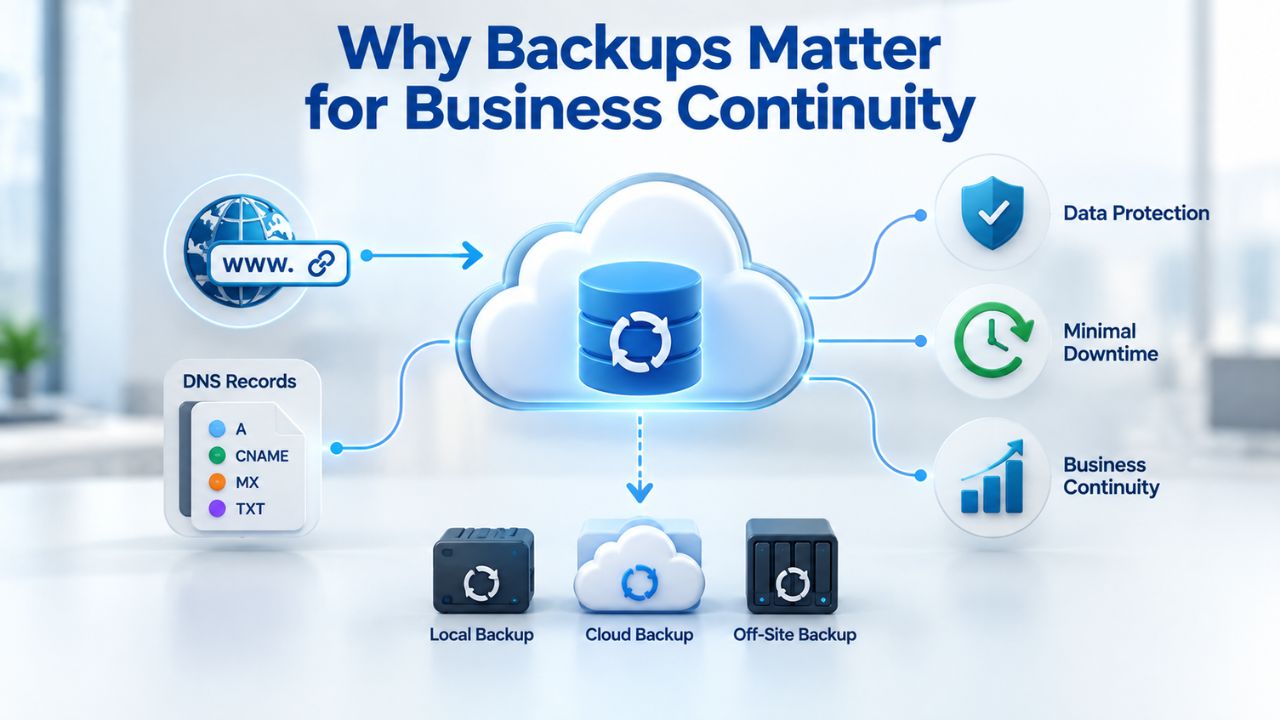
Website downtime costs money, damages trust, and derails business operations. A robust backup strategy is your fastest path to recovery and business resilience.
Understanding Data Loss Risk
A 2024 report by DataNumen found that 85% of organizations experienced one or more data loss incidents over the past year. The causes are diverse: hardware failures account for 40–44% of incidents, human error for 29–32%, software corruption for 14%, and malware attacks for the remaining 7%. Whether your site runs WordPress, Joomla, Drupal, or a custom platform, the risk is constant. No business is exempt from data loss; only those with adequate protection are.
Data loss sources aren’t always external threats. A developer accidentally deletes critical files. A theme or plugin update corrupts your database. Your hosting provider experiences an unexpected outage. A ransomware attack encrypts your entire server. A team member misconfigures permissions and loses access to essential systems. Any of these scenarios can take your site offline indefinitely, unless you have a backup stored in a secure, off-site location. That backup becomes your insurance policy against catastrophic loss.
The Financial & Operational Impact
The cost of downtime is staggering. For small businesses, downtime costs average $427 per minute; for larger enterprises, it reaches $9,000 per minute. A single hour of downtime can cost thousands in lost sales, missed customer interactions, and reputation damage. Every minute your site is offline, you’re hemorrhaging revenue while your customers turn to competitors.
The long-term consequences are even worse. 93% of businesses that suffer data loss lasting more than 10 days file for bankruptcy within a year. A backup strategy that gets your site back online quickly, within hours, not days, is the difference between recovery and permanent closure. That is why implementing a backup strategy before disaster strikes isn’t optional; it’s a business imperative.
Website Backup Plans & Pricing
Select the Website Backup package that best fits the size and peace of mind requirements of your website. Your data is safeguarded without going over budget thanks to our adaptable choices.
Website Backup 5 GB
Recommended for documents and files.
- Automatic daily backups
- Built-in daily malware scanning
- Back up a file, folder or an entire database
- Continuous security monitoring
- Downloads to local storage
- Easy one-click restore
- Secure cloud storage
- Expert 24/7 customer support
- One website per account

Website Backup 25 GB
Recommended for photos and music.
- Automatic daily backups
- Built-in daily malware scanning
- Back up a file, folder or an entire database
- Continuous security monitoring
- Downloads to local storage
- Easy one-click restore
- Secure cloud storage
- Expert 24/7 customer support
- One website per account
Website Backup 50 GB
Recommended for videos and multimedia.
- Automatic daily backups
- Built-in daily malware scanning
- Back up a file, folder or an entire database
- Continuous security monitoring
- Downloads to local storage
- Easy one-click restore
- Secure cloud storage
- Expert 24/7 customer support
- One website per account
Backup Types Explained: Full, Incremental, and Differential
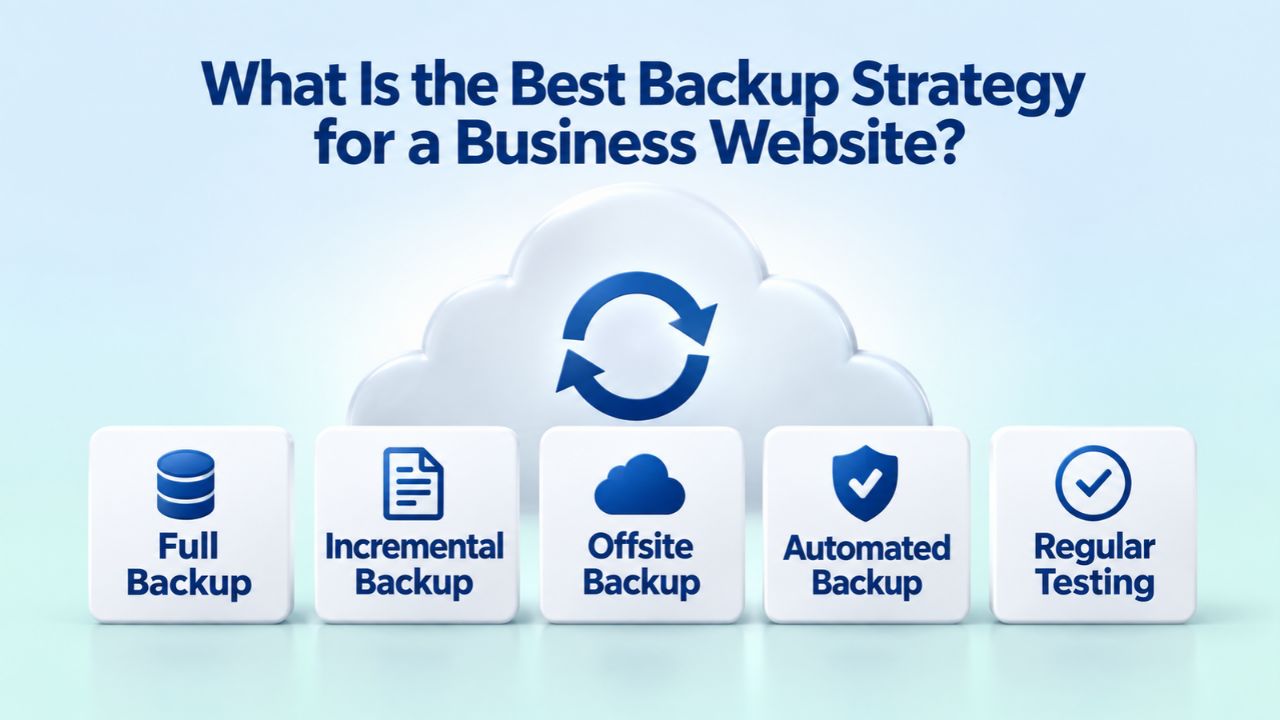
Not all backups are created equal. Choosing the right backup type depends on your site’s update frequency, storage budget, recovery timeline, and data volume. Understanding the differences allows you to build a strategy that matches your specific needs.
Full Backups: Complete but Resource-Heavy
A full backup captures your entire website at a single point in time: all files, all database records, all configuration settings, and all user data. Full backups are ideal for initial setups, before major updates, or as a regular baseline checkpoint when complete data integrity is essential. The advantage is simplicity: to restore your site, you need only the full backup- no chains, no dependencies, no missing pieces. Download the backup file and restore it.
The trade-off is resource consumption. Full backups consume significant storage space and processing power, and they take longer to complete. For large sites with thousands of files and substantial databases spanning gigabytes of data, a nightly full backup may not be practical. This is why many strategies use full backups weekly or monthly, combined with faster incremental backups in between. A full backup serves as your baseline; incrementals capture the changes that follow.
Incremental & Differential Backups: Efficiency vs. Recovery Speed
Incremental backups save only the data that has changed since the last backup, whether full or incremental, using less storage and processing power. Because your site changes constantly (new posts, comments, plugin updates, user registrations), incremental backups are efficient and run quickly. A daily incremental backup requires far less bandwidth and server resources than a full backup.
However, restoration takes longer when using incrementals. To restore from incremental backups, you need the last full backup plus all subsequent incremental backups in sequence. If one is missing or corrupted, recovery fails. Differential backups split the difference: they track changes since the last full backup only, balancing storage efficiency with faster recovery. A hybrid strategy, weekly full backups plus daily incrementals, gives you backup speed with straightforward recovery and minimal complexity during restore.
| Backup Type | Storage Requirement | Recovery Speed | Best For |
|---|---|---|---|
| Full | High (all data) | Fast (single file) | Complete recovery, critical checkpoints, initial baseline |
| Incremental | Low (changes only) | Slower (requires full + chain) | Frequently updated sites, storage-constrained environments |
| Differential | Medium (changes since full) | Medium (full + latest differential) | Balanced approach: efficiency with manageable recovery |
| Hybrid (Full + Incremental) | Medium overall | Fast (full) + moderate (incrementals) | Most business sites: weekly full + daily incrementals |
| Continuous (Real-Time) | Variable | Immediate | High-transaction e-commerce, mission-critical SaaS, healthcare applications |
| Weekly Full + Daily Incremental | Medium (combined) | Fast overall | Typical small-to-medium business sites with daily content updates |
| Weekly Full + Daily Differential | Medium (combined) | Medium overall | Balance between incremental speed and differential simplicity |
The 3-2-1 Backup Strategy: Your Backup Blueprint
The 3-2-1 rule is a time-tested framework developed over decades of disaster recovery experience. It eliminates single points of failure and ensures recovery options even when multiple systems fail simultaneously.
Three Copies, Two Media Types, One Off-Site
The 3-2-1 rule states: keep three copies of your data, store them on two different media types, and keep one copy off-site. In practice, this might look like: your original live website (copy 1), a backup on your hosting server’s local storage or a network-attached storage device (copy 2), and a backup stored in cloud storage with a separate provider (copy 3). Each copy is independent; no single failure mode affects all three simultaneously.
Why three copies? Because a single backup is not enough security. Hardware fails with no warning. Storage media becomes corrupted without obvious symptoms. One backup plus one failure leaves you with nothing, no recovery path, no rollback option, no way forward. Two independent backups give you redundancy and a safety net. A third copy, stored off-site, protects against localized disasters (fires, floods, earthquakes) and facility-level outages that might destroy both on-premises copies. Three copies mean two failures can occur without losing your ability to recover.
Eliminating Single Points of Failure
The “two media types” principle prevents a shared failure mode. If you store all three copies on the same cloud provider, a breach or service outage at that provider compromises all three. By using different media, local storage for one, cloud storage with Provider A for another, cloud storage with Provider B for a third, you ensure no single failure can wipe out all copies. A ransomware attack that exploits one system architecture won’t affect systems built on different infrastructure. A software bug in one backup tool won’t corrupt backups managed by a different vendor.
The “one off-site” requirement protects against ransomware and catastrophic server failure. Ransomware attacks targeting both production systems and local backup infrastructure are increasingly common. An off-site backup stored independently, with separate credentials and access controls, remains safe even if attackers compromise your main server. Similarly, if your hosting provider experiences a data-center-level disaster or your facility is destroyed, your off-site backup is unaffected. Off-site storage is your insurance against the worst-case scenarios.
Automated Daily Backups vs. Manual Backups
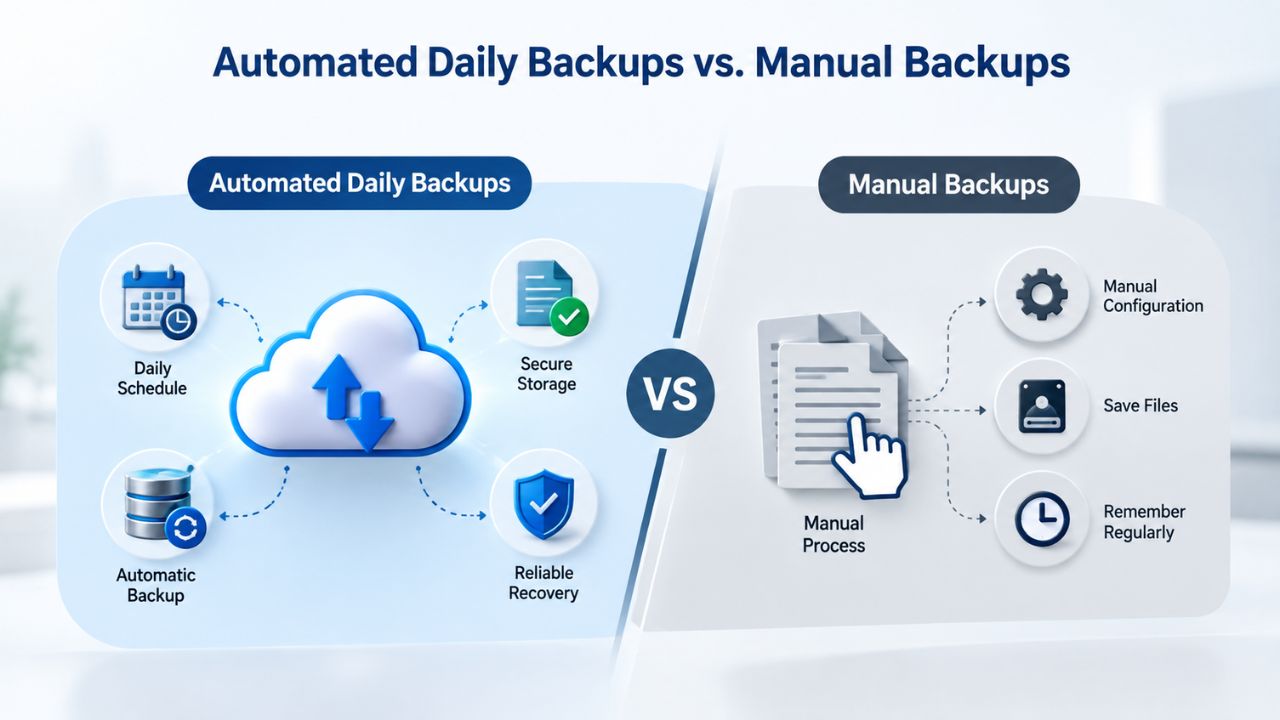
Consistency saves businesses. Automated backups remove the human element and the risk of human error from data protection. They transform backup management from a risky manual process into a reliable, repeatable system.
Why Automation Matters
Manual backups depend on someone remembering to run them, selecting the right files, verifying the backup completed successfully, and monitoring for errors. Missing a backup window, backing up the wrong data, or overlooking a database are all common mistakes. Over weeks or months, manual processes drift. People get busy, priorities shift, and backups get skipped. Studies show that businesses relying on manual backup procedures experience significantly higher data loss rates than those using automation.
Automated backups run on a schedule without intervention, judgment, or human fallibility. Every day at your specified time, say 2 AM, your backup software connects to your server, captures your files and database, validates the backup, and stores the copy securely. You receive a confirmation email when the backup completes successfully. If the backup fails, you’re notified immediately with an error code and description. Over time, automation builds a reliable backup history you can depend on. The process never gets lazy; it never takes a day off.
Scheduling Backups During Low-Traffic Hours
A backup process requires server resources: CPU cycles, disk I/O, and network bandwidth. Running backups during peak traffic hours slows your site for visitors, increases page load times, and may cause timeouts for users. The best practice is to schedule automated backups during low-traffic periods, late nights, early mornings, or weekends, depending on your traffic patterns.
Most backup services allow you to customize your backup start time to match your site’s unique usage patterns. For a business-to-business site with heaviest traffic during weekday business hours, an overnight backup window works well. For a global e-commerce site with round-the-clock traffic, automated backups during off-peak periods for your primary market minimize performance impact. Some sites benefit from multiple daily backups at staggered times to distribute the load and keep fresh backups available.
Off-Site Cloud Storage: Protection Against Disasters
On-premises backups are convenient, but they’re vulnerable to the same disasters that damage your primary server. Off-site storage is where your real protection lies.
Ransomware, Server Failure, and Facility Disasters
A backup stored only on your hosting server offers no protection if an attacker encrypts or deletes it alongside your live data. Off-site storage prevents this catastrophic scenario. Off-site cloud storage keeps your backups safe even if ransomware, malware, or a determined hacker compromises your server. The backup is isolated in a separate facility, with separate credentials, and accessible only through secure authentication. An attacker who breaches your main server cannot reach your off-site backup without compromising the backup provider’s infrastructure, a much harder target.
Server failure is another constant risk. Hard drives fail with no warning. In Q1 2025, the annualized failure rate for hard drives was 1.42%, meaning roughly 1 in 70 hard drives will fail over a year. If your hosting provider’s server fails. you have no off-site backup, your data is gone forever unless the hosting provider offers its own backups, which may not be retained long enough or covered by your hosting agreement. An off-site backup stored independently survives server failure and lets you recover to a new hosting provider or a new server within the same provider.
How Cloud Backup Storage Works
Cloud backup services use geographically distributed data centers with built-in redundancy. Your backups are stored across multiple servers in multiple locations, so a single hardware failure, network outage, or data-center incident doesn’t affect your backup. Data is encrypted during transit (using SFTP, a secure file transfer protocol) and at rest (using AES-256 encryption, a military-grade encryption standard). Even if someone intercepted or accessed a backup file without authorization, it would be unreadable without the encryption key.
Daily backups are compressed to save storage space, reduce bandwidth usage, and lower storage costs. Compression uses mathematical algorithms to shrink backup file sizes without losing data. When you restore, the system automatically reverses the compression, and your files return to their original size. You can also download backups to your local computer for additional redundancy, supporting the 3-2-1 rule. Backup retention policies allow you to specify how long backups are kept before being automatically deleted, meeting compliance requirements while managing storage needs.
Ready to Protect Your Website?
Website downtime and data loss don’t wait for the perfect moment to strike. A backup strategy implemented today prevents tomorrow’s crisis. Niya Digital’s Website Backup Service provides automated daily backups, secure off-site cloud storage, and one-click restore- everything you need to recover quickly if disaster strikes. Start protecting your website data now.
Choosing the Right Backup Frequency for Your Site
How often should you back up? The answer depends on how frequently your site changes and how much data loss you can tolerate. A weekly backup strategy works for some sites; others require hourly backups to stay protected.
Content Update Rate & Recovery Requirements
A static site that publishes one blog post per month needs less frequent backups than a high-traffic e-commerce platform processing hundreds of orders daily. For small or static sites, full backups once a week are sufficient. For blogs with regular content updates, daily backups are recommended to capture new posts and comments within a 24-hour window. For transaction-heavy platforms, you may need multiple backups per day.
The concept of RPO (Recovery Point Objective) helps clarify this decision. RPO is the maximum amount of data loss you can tolerate in an incident. If an incident occurs on Wednesday and you’ve only backed up on Monday, you’ve lost two days of data (posts, comments, customer orders, configuration changes). For e-commerce or membership sites where transactions represent revenue, losing days of data is financially catastrophic. For content-heavy sites where a few hours of lost posts is acceptable, daily backups are sufficient. Defining your RPO drives your backup frequency decision.
Balancing Frequency with Storage & Performance
More frequent backups consume more storage and use more server resources during backup windows. A site performing hourly backups uses significantly more resources than one backing up daily. Each backup consumes disk space, network bandwidth, and CPU cycles. For most business websites, daily backups provide an ideal balance: frequent enough to capture important changes, infrequent enough to avoid performance impact, and manageable for storage.
Consider your site’s growth rate and data volume when planning storage. A small WordPress blog with 50 MB of data can easily handle weekly full backups. A large e-commerce site with 10 GB of data backing up daily needs more strategic planning; using incremental backups after a weekly full backup reduces storage consumption significantly while maintaining fast recovery.
| Site Type | Update Frequency | Recommended Backup Schedule | Rationale |
|---|---|---|---|
| Static Blog / Portfolio | Monthly or less | Weekly full backup | Changes are infrequent; weekly captures all updates |
| Content Blog / News Site | Daily posts/comments | Daily backup | New content each day; captures posts and reader engagement |
| E-Commerce Site | Hourly transactions | Daily or hourly backup | Orders and inventory change constantly; daily captures most, hourly for critical sites |
| Membership / SaaS Platform | Continuous updates | Daily or real-time | User activity and subscriptions constantly changing; daily minimum |
| High-Traffic Marketplace | Real-time transactions | Real-time or hourly | Critical data freshness; downtime costs thousands per minute |
| Healthcare / Regulated Site | Continuous + compliance | Real-time + long-term retention | HIPAA/regulatory requirements; complete audit trail required |
| Small Business WordPress | 2–3 posts/week | Daily backup | Manageable frequency; captures all changes without excessive storage |
Database Backups + File Backups: Why Both Matter
Your website has two distinct components with different roles, and protecting both is essential for a complete recovery.
Your WordPress Database Contains Critical Data
A complete WordPress backup includes the MySQL database (which stores posts, pages, comments, categories, tags, usernames, passwords, and emails) and website files (which include images, videos, themes, plugins, and graphics). The database is where your site’s content lives: every blog post, customer review, user account, and transaction record. Without a database backup, you cannot restore this content. You could reinstall WordPress, but your posts, pages, and user data would be gone forever.
Database backups are different from file backups because databases require specialized export/import procedures. A database backup exports structured data from your database into a format (typically SQL) that you can re-import into a fresh database. Simply copying database files from your server’s filesystem isn’t a reliable backup method; you need a database export through the proper database management tools. Backup services detect your WordPress installation and automatically back up both files and the database, or you can configure backup tools manually if auto-detection doesn’t identify your setup.
Website Files Are Equally Essential
Your file system contains your themes (which define your site’s appearance and functionality), plugins (which add features), custom code (which implements business logic), configuration files (which store settings), and media uploads (which include all images and videos). Together, these files and your database form the complete picture of your site. Themes define your site’s appearance; plugins add functionality; custom code implements business logic specific to your business.
Some backup tools offer the option to back up only the database and the /uploads folder (containing media files), skipping themes and plugins under the assumption that these can be redownloaded from repositories. This approach is risky for production sites. A plugin you customized with company-specific functionality, a theme with extensive custom styling, or a critical configuration file may not be easy to recreate. Best practice is to back up your entire website, database plus all files, especially for your first backup or before major changes. Once you establish a baseline full backup, you can use incremental backups to capture changes more efficiently while maintaining complete recovery capability.
Testing Your Backups Before Disaster Strikes
A backup that’s never been tested is a backup you can’t trust. Testing proves recovery will work when you need it most.
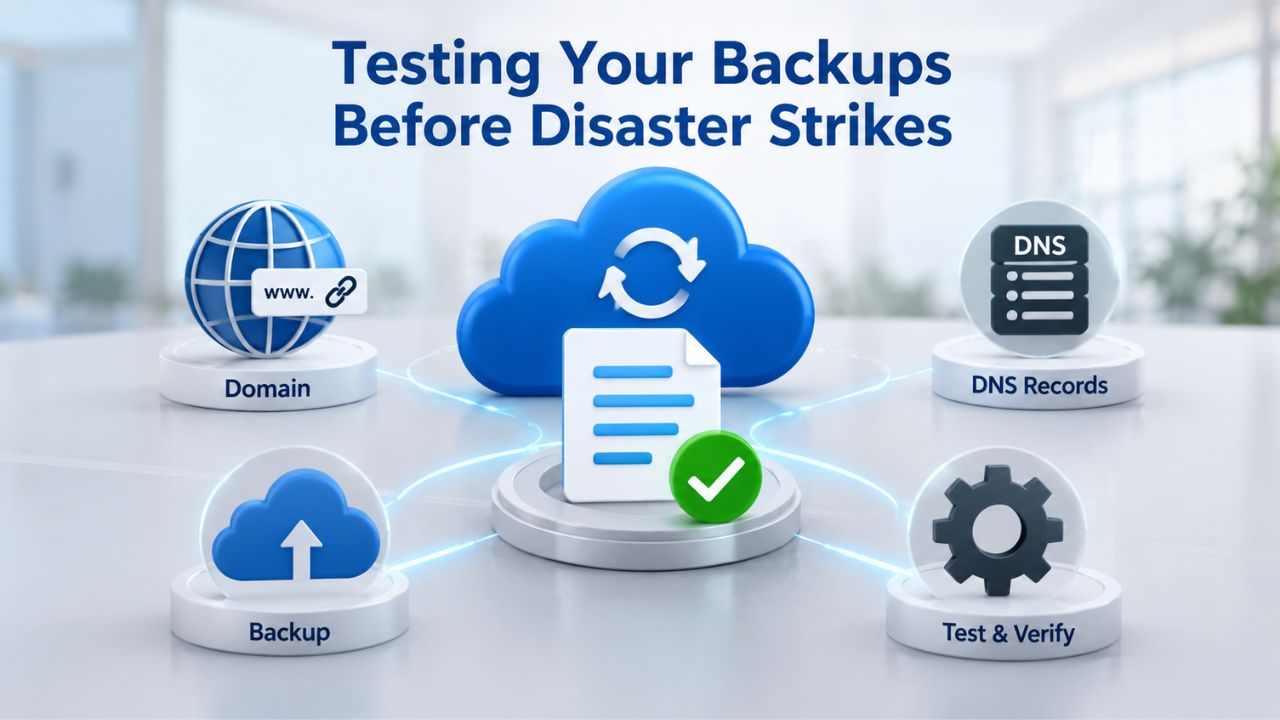
Why Backup Testing Is the Real Proof
Many teams assume that a successful backup job means their backups are good. A backup software dashboard showing green checkmarks and “Backup Complete” notifications feels reassuring and suggests everything is working as planned. But a successful backup job only proves data was written to storage; it doesn’t prove the data can be recovered, is malware-free, or that your applications will start.
Consider realistic disaster scenarios. A ransomware attack silently corrupts your files before your backup captures them; your backup completes successfully, but it contains corrupted data. Or a backup tool fails to capture your database completely due to a permission error, but reports success anyway. Or a backup’s file permissions are lost during storage, so when you restore it, your site won’t start because the web server can’t read the files. Or a database schema changed without the backup tool detecting it, and the backup cannot be re-imported. None of these problems show up in a backup job log. They only reveal themselves when you try to restore.
Restore Testing in Staging Environments
The best way to validate a backup is to restore it to an isolated staging environment, a sandbox or virtual machine separate from your production site, and verify that the restored site boots, loads, and functions correctly. A staging environment is a test copy of your live site where no failures can hurt real users. Staging uses separate hosting, a separate database, and a separate domain, so you can safely test restore procedures without risking your production site.
Here’s a practical testing workflow: On Sunday evening, restore your most recent backup to your staging environment. Start by checking basic functionality: Does the site load? Do pages render? Is the database connected? Then drill deeper: Check user accounts, verify recent posts appear, confirm plugin functionality, test forms and transactions. This testing should happen at least monthly; for critical sites, weekly testing is recommended. After verification, delete the test environment. When a real incident strikes, you’ll have proven your backups work; you won’t be discovering problems during an actual emergency.
Compliance & Data Retention: Meeting Legal Requirements
If your site collects personal information from visitors, you likely have legal obligations around data retention and protection. These aren’t optional guidelines; they’re enforceable regulations with significant penalties.
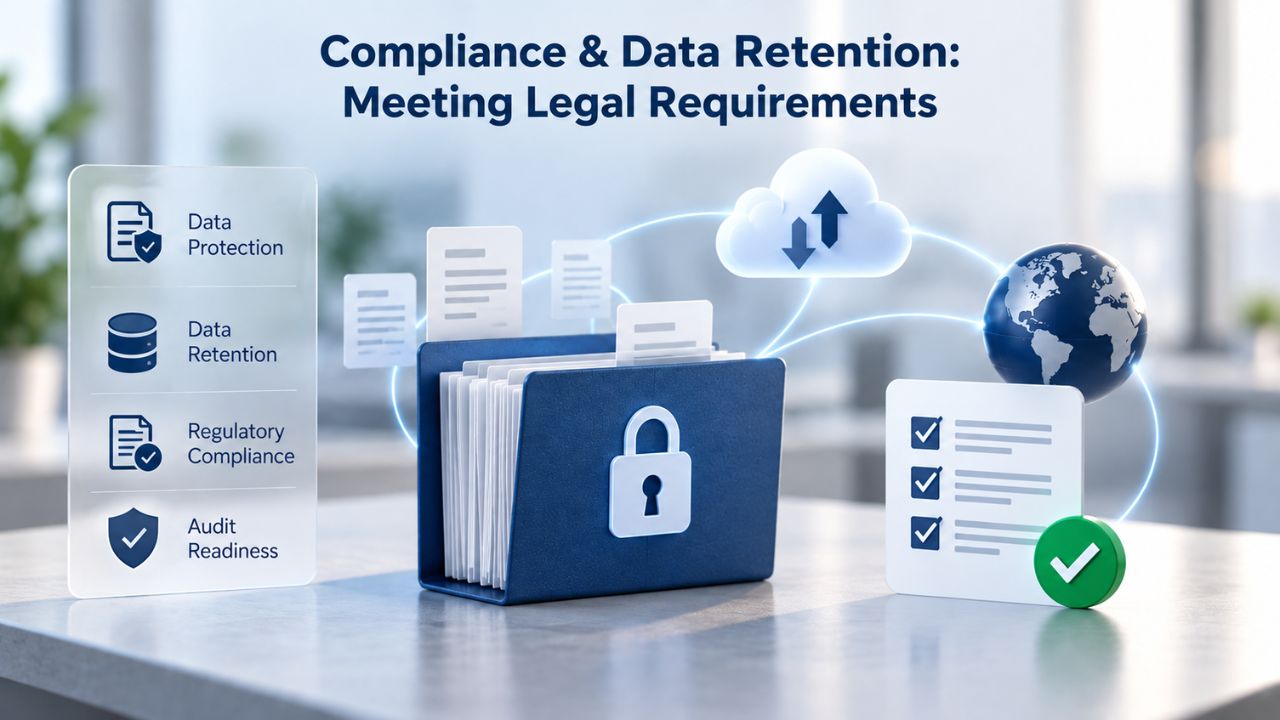
GDPR, CCPA, and Backup Retention Obligations
Under GDPR (General Data Protection Regulation), organizations must implement appropriate technical and organizational security measures ensuring the ability to restore data promptly in the event of an incident. GDPR also requires regular testing of backup effectiveness, testing that backups can actually be restored, not just that backup jobs complete. Similarly, CCPA (California Consumer Privacy Act) requires organizations to implement data retention policies and disclose them in privacy statements.
These aren’t just policies; they’re enforceable regulations with severe consequences for non-compliance. GDPR violations carry fines up to €10 million or 2% of global revenue. CCPA violations carry fines up to $2,500 per violation or $7,500 per intentional violation. Your backups must be part of your compliance strategy. Backup retention policies should specify how long you keep backups, where they’re stored, and how you eventually delete them to respect user privacy rights.
Secure Deletion and Privacy Frameworks
Data retention requirements vary significantly by industry and jurisdiction. Healthcare data (HIPAA) has different retention windows than payment card data (PCI DSS). EU resident data (GDPR) has different retention rules than California resident data (CCPA). A backup strategy for a business serving multiple jurisdictions must account for different rules. Your backup strategy must align with the specific regulations that apply to your business based on where your users are located and what data you collect.
When backups reach the end of their retention period, they must be securely deleted, not just deleted from your dashboard, but cryptographically erased so recovery is impossible. This requirement exists because a data protection regulation like GDPR includes a “right to be forgotten”. If a user requests that you delete their personal data, you must delete it from live systems and all backups. Cloud backup services handle this deletion automatically under retention policies, so you don’t have to manage expired backups manually.
One-Click Restore & Recovery Time: Getting Your Site Back Online
When disaster strikes, speed matters. The faster you restore, the less revenue you lose and the less damage is done to your reputation and search rankings.
Streamlined Restoration Process
Restoring a website manually- uploading files via FTP, re-importing your database via phpMyAdmin, troubleshooting file permissions, and updating configuration settings- takes hours, even for experienced developers. A backup service with one-click restore turns this complex, error-prone process into minutes. Niya Digital’s Website Backup Service provides a dashboard where you select a backup date, click Restore, and the system automatically downloads and restores your files and database.
The restore process validates file integrity as it restores, restores database connections, updates configuration files, and verifies that your site is accessible and functional before confirming completion. The process includes safeguards to prevent overwrites of important files and to ensure data consistency during restoration. If you need hands-on help navigating the restore process or verifying your site is back online, expert support is available 24/7 to guide you through recovery. This eliminates the stress of trying to troubleshoot restore problems during a crisis.
Getting Your Site Back Online Fast
Website downtime for even a few hours causes ranking drops in search engines, lost customer traffic, and significant revenue impact. One-click restore gets your site back online fast, typically within minutes for file restoration and slightly longer for large database restores, depending on your site’s size and the speed of your connection. Even for large sites with multi-gigabyte databases, restore times are measured in minutes, not hours.
Google doesn’t penalize short downtime (under 24 hours). Still, prolonged outages (days) can cause temporary ranking drops that take weeks to recover. A quick restore using a recent backup is your fastest path back to normal operations and search visibility. This is why a backup strategy that combines frequent, reliable backups with a one-click restore process is your best insurance against data loss incidents.
Implement Your Backup Strategy Today
Data loss doesn’t wait for a convenient time. Your backup strategy should be in place before disaster strikes, not after. The time to implement backups is now, while your site is running normally. Waiting for an incident to force action means facing a crisis without protection. Start with automated daily backups, secure off-site cloud storage, continuous security monitoring, and one-click restore- the core elements of a modern backup strategy. Every day you delay is another day your site is unprotected.
Frequently Asked Questions
What is the difference between a backup and disaster recovery?
A backup is a safe copy of your data; disaster recovery is the process of using that backup to restore operations. Backups are the foundation of disaster recovery. You need both a reliable backup and a tested recovery process to claim true disaster recovery readiness. Together, they enable business continuity when emergencies strike.
How much does website downtime cost?
Downtime costs depend on your business size and industry. Small businesses lose roughly $427 per minute; large enterprises lose $9,000 per minute. A single hour of downtime can cost thousands in lost sales, missed customer interactions, and reputation damage. Faster recovery through backups significantly reduces financial impact.
Can I restore individual files from a website backup?
Yes. Backup services provide granular restore options, letting you select specific files or folders to restore, or restore your entire site at once. This granular control is useful if only a few files are corrupted and you don’t need a full-site restore. You can restore a single image, a specific database table, or any subset of your site.
How long do backups need to be retained?
Retention depends on your backup frequency and business needs. Most services retain backups for 30 days, allowing you to restore to any point in the past month. Compliance requirements (GDPR, HIPAA, PCI DSS) may mandate longer retention periods. Consult your industry-specific regulations and your data protection policy.
What if my backup gets corrupted?
This is why testing is essential. Regular restore tests to a staging environment catch corrupted backups before a real incident forces you to use them. Most backup services maintain multiple backup copies with redundancy and checksums to detect corruption. Testing proves this protection works in your situation.
Does backing up slow down my website?
Backups run during scheduled windows and consume server resources like CPU and disk I/O. If backups run during peak traffic, your site may slow slightly for visitors. Scheduling backups during low-traffic hours (nights, early mornings, or weekends) minimizes performance impact on customer experience.
What’s the difference between FTP and SFTP backups?
FTP (File Transfer Protocol) transfers files over an unencrypted connection; SFTP (SSH File Transfer Protocol) encrypts data during transfer using SSH encryption. SFTP is more secure and prevents eavesdropping on backup data during transmission. SFTP is the recommended method for sensitive data and is the default for modern backup services.
Do I need to download backups to my computer?
Downloading backups is optional but adds an extra layer of redundancy supporting the 3-2-1 rule. Cloud backups alone are sufficient if they’re stored with a reputable provider with strong infrastructure. Downloading adds local redundancy and gives you a portable copy you control directly.
How often should I test my backups?
Test critical backups weekly or monthly through restore testing. Test backups quarterly for broader coverage. At minimum, test backups annually before assuming they’re reliable. Regular testing catches problems before they become crises during actual disasters.
Can I move my website to a new hosting provider using a backup?
Yes. A complete website backup (files and database) can be restored to a new hosting provider, though some configuration adjustments may be needed (database credentials, FTP settings, DNS records). Backup service support teams can help guide you through migration restores.
What happens to my backups if my hosting provider goes out of business?
If your backups are stored off-site with a separate cloud provider (like AWS), they remain safe and accessible. If backups are stored only on your hosting provider’s servers, you may lose them or be unable to access them. This is why off-site, independent storage is part of the 3-2-1 rule.
Does backup encryption slow down restoration?
No. Encryption happens during backup storage and transmission; restoration is just as fast. Encrypted backups are decrypted automatically during restore using the encryption key, with no noticeable speed difference. Encryption protects your data without impacting performance.
What should I do if I discover a backup failed?
If you discover a backup failed (via notification or testing), investigate the cause immediately. Common causes are permission errors, insufficient storage space, network connectivity issues, or database locks. Fix the underlying problem and verify the next backup completes successfully. Contact support if failures persist.
Are there any backup file size limits?
Backup plans include storage limits that vary by service and plan type. If your site exceeds your plan’s storage limit, you can upgrade to a larger plan. Most business websites fit comfortably within mid-tier plans. Consider your site’s growth trajectory when selecting a backup storage plan.
Can I automate the backup process entirely?
Yes. Automated scheduled backups are the backbone of a modern backup strategy. Set your backup frequency (daily, weekly, or monthly), choose your retention period, and the backup system handles everything automatically with no manual intervention needed. You automatically receive notifications about backup status.
Glossary
- Off-Site Backup: A copy of your website data stored at a remote location separate from your main hosting server, typically in a cloud data center or with a separate backup provider. Off-site backups protect against localized disasters like fires, floods, natural disasters, or facility-level outages that might destroy on-premises copies.
- Incremental Backup: A backup that captures only the data that has changed since the last backup (full or incremental). Incremental backups use less storage than full backups but require the original full backup plus all subsequent incrementals to restore completely. Each incremental depends on the previous backup in the chain.
- Restore Point: A saved state or snapshot of your website at a specific point in time. A restore point allows you to roll your site back to that version if newer data is corrupted, lost, or hacked. Think of restore points as bookmarks in your website’s history that you can jump back to.
- Backup Retention Period: How long backups are stored and available for restoration before being automatically deleted. Most services retain backups for 30 days, but you can customize retention periods based on compliance requirements and business needs. Retention policies must balance protection with privacy regulations.
- One-Click Restore: A simplified restore process that allows you to recover files or your entire website from a backup with a single action in the backup dashboard, without manual FTP uploads, database imports, or command-line instructions. One-click restore transforms a complex technical process into a simple point-and-click operation.
- FTP/SFTP: File Transfer Protocol (FTP) and SSH File Transfer Protocol (SFTP) are methods for transferring backup data between your website server and backup storage. SFTP encrypts data during transfer using SSH encryption, preventing eavesdropping. SFTP is the modern standard and more secure than FTP.
- Database: A structured repository of website data including posts, pages, comments, user accounts, transaction records, and configuration settings. Databases organize data in tables and require specialized backup methods (export/import) distinct from file system backups. WordPress uses MySQL databases to store site content.
- Staging Environment: A test copy of your live website used to verify backups and test restore procedures without affecting production. Staging environments run on isolated servers where backup tests can safely fail, providing a risk-free space to validate recovery procedures before actual disasters occur.