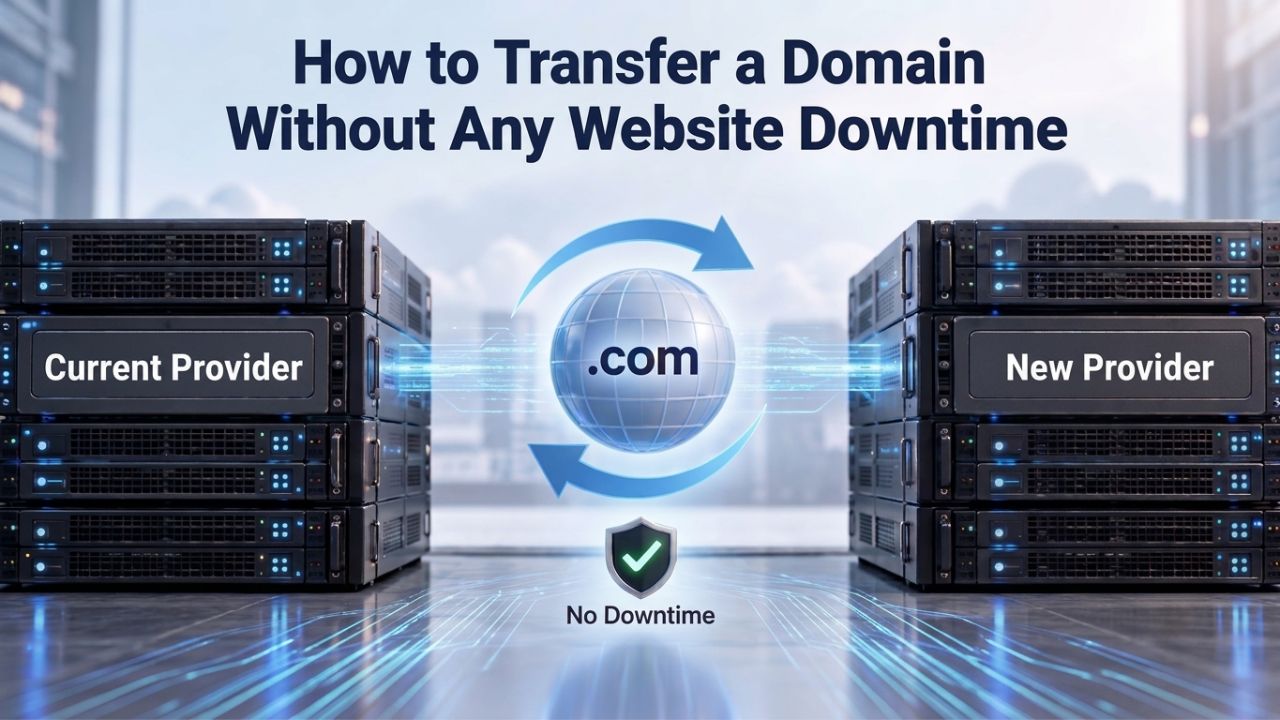
Transferring a domain from one ICANN-accredited registrar to another is simpler than many believe, and you can prevent downtime with proper planning. Many domain owners delay transfers due to unfounded fears that their website will go dark or emails will stop flowing. In reality, the transfer process moves only your registration sponsorship, leaving your website hosting, email service, and DNS configuration untouched if you keep your nameservers pointed to an independent provider. Niya Digital resells domain registration and hosting services in partnership with an ICANN-accredited registrar.
Why Domain Transfers Don’t Cause Downtime
When you transfer a domain, you’re changing which company manages your registration record at the registry; you’re not moving your website, resetting your email, or disrupting any DNS records. This distinction is critical, and many registrants misunderstand it. Your domain’s registration sponsorship (who bills you for renewal, who holds the technical rights) moves from one registrar to another. Still, the actual nameserver records that point to your website, mail servers, and other services remain exactly where they are.
Understanding the Registrar vs. DNS Distinction
A domain registrar is the company that holds your registration at the registry and sends you renewal invoices. It is not necessarily the company hosting your website, managing your email, or controlling your DNS records. This distinction has become sharper in recent years as registrar services have unbundled. Your registrar provides the administrative interface where you can update nameservers, manage contact information, and renew your registration.
Your DNS provider (which may be your registrar, web host, a dedicated DNS service, or email provider) manages the DNS records: A records pointing to your website, MX records directing email, CNAME records for services, and TXT records for verification and authentication. When you transfer a domain between registrars, you change administrative sponsorship, not DNS infrastructure. The transfer process changes who bills you and who holds the registration record; it doesn’t touch your DNS, nameservers, or MX records. If your nameservers point to a provider independent of your old registrar, there’s nothing to break.
Nameserver Independence as Disruption Prevention
Your nameservers are the authoritative source for all DNS lookups on your domain. If you point your domain’s nameservers to ns1.yourhost.com and ns2.yourhost.com (for example, your web hosting provider’s nameservers), then your domain will resolve correctly as long as those nameservers are online and answering queries, regardless of which registrar holds your domain registration. When you transfer to a new registrar, the registry updates your registration record (changing the registrar pointer), but your nameserver delegation remains unchanged.
DNS queries from visitors’ browsers, email routers, and other systems continue to go to your hosting provider’s nameservers, which return the same IP addresses and records they did before the transfer. This means your website, email, and all other services bound to DNS keep working seamlessly. If a domain uses nameservers from your hosting company or an independent DNS provider, those nameservers will continue to function after the domain transfer so that no downtime will be observed. The key is ensuring your old registrar doesn’t manage those nameservers as a bundled service that disappears when you leave.

Domain Name Registration
Each and every domain name comes with all you need to get online.
- Domain Forwarding and Masking: Direct any domain name you own to your website. Anyone who types that domain name into their browser is taken directly to your website.
- Domain Locking: Domain locking prevents accidental or intentional transfers of domain ownership and stops anyone from redirecting your nameservers.
- Total DNS Control: Manage your domain nameserver (DNS) records and set your email, FTP, sub-domains and website location all from one control panel.
- Change of Registration: Assign your domain name to someone else or change the contacts for your domain online anytime.
- Status Alerts: Monitor the status of your domain and get instant alerts if there's been a change.
- Auto Renew Protection: No need to watch expiration dates to make sure you renew on time! Auto renew keeps your domains, hosting, website builders, and other products in your name and under your control.
Domain Disclaimers:
- Special savings apply only to first year of registration. You must purchase entire section to qualify for special savings.
- The final price may differ because of additional sales, fees, and promotions.
- Products will automatically renew until cancelled. You may turn off the auto-renewal feature by visiting your account.
- Change of registration may require a fee for certain domains.
The 60-Day Transfer Lock and When It Applies
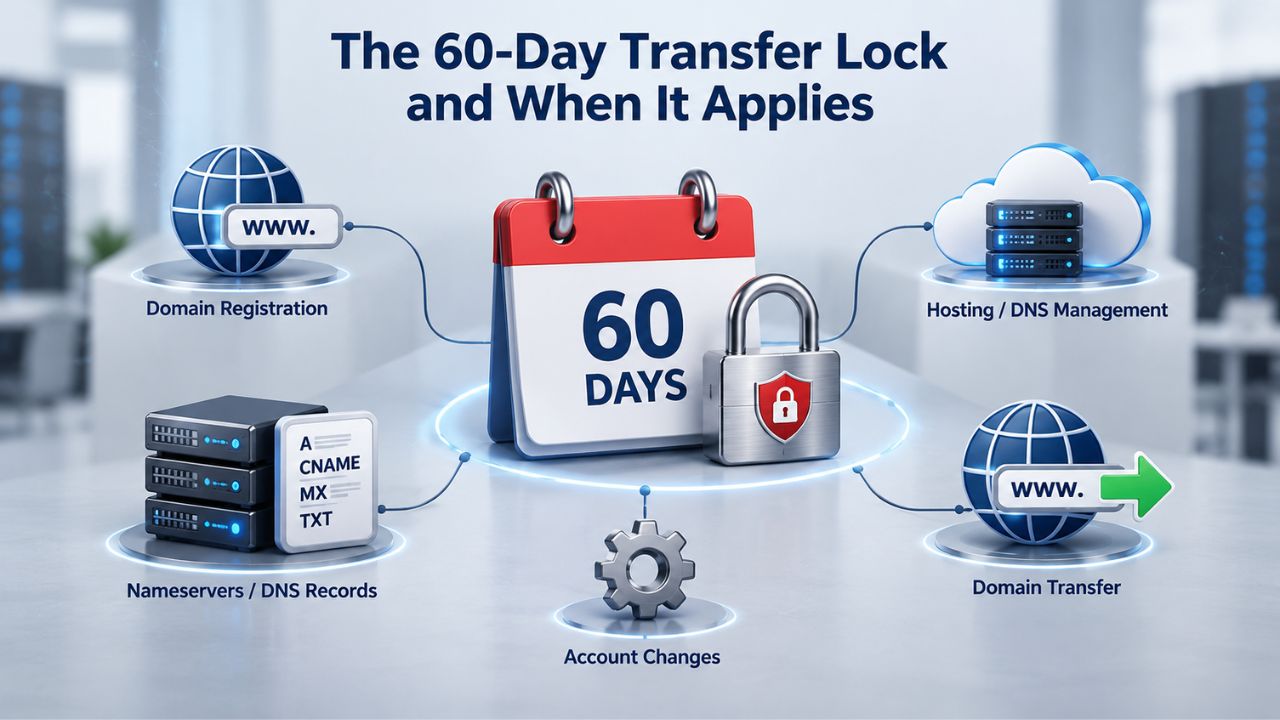
ICANN policy imposes a 60-day transfer lock on domain registrations in three specific scenarios, and understanding which one(s) apply to your domain is essential for planning your transfer. These locks exist to prevent unauthorized transfers and give registrants time to detect and report fraudulent activity. The registry enforces them; no registrar can override them, and they apply uniformly across all ICANN-accredited registrars worldwide.
The Change of Registrant Opt-Out: How It Works
Some ICANN-accredited registrars offer the option to opt out of the 60-day transfer lock that normally follows a registrant change. This is a voluntary feature; registrars are not required to offer it, but many do to accommodate customers’ business needs. If your registrar offers the opt-out, you will typically see a checkbox or toggle during the registrant-change process that says something like “I understand the transfer lock will be waived” or “Opt out of 60-day transfer lock.” Checking this box before you confirm the registrant change means the lock will not be imposed.
Critically, you must choose the opt-out before you submit the change; you can’t opt out after the registrant has already been changed. If you miss this step and realize too late that you need to transfer, your only recourse is to wait the full 60 days. Different registrars implement the opt-out differently: some show a prominent warning, while others bury it in an advanced settings section. If you anticipate needing to transfer soon after a registrant change, contact your registrar’s support team in advance to confirm whether they offer the opt-out and how to access it.
Expired Domains and the Redemption Grace Period
If your domain has expired and you’ve missed the standard renewal grace period (typically 30–45 days depending on the registrar), it enters the Redemption Grace Period (RGP), during which you can still recover it but only through your current registrar and typically at a substantial cost. Domains in an RGP (after expiration grace period has lapsed) are locked and cannot be transferred until restored by the current registrar, sometimes requiring a redemption fee.
The RGP typically lasts 30–42 days, depending on the registry. During this time, you cannot transfer the domain to a new registrar; you must first restore it (renew it retroactively) at your current registrar, paying both the redemption fee and the standard renewal fee. Only after restoration is complete can you proceed with a transfer. If you miss both the renewal grace period and the RGP, the domain enters Pending Delete status for 5 days, after which it drops from the registry entirely and becomes available for anyone to register.
Preparing Your Domain: The Pre-Transfer Checklist
Preparation prevents most transfer-related problems. Before you even contact your new registrar, you need to complete a series of steps with your current registrar and verify your DNS setup. This preparation window, ideally 1–2 weeks before your intended transfer date, is when you unlock your domain, gather your authorization code, verify your contact information, and set up your DNS at the new location if needed.
Domain Transfer Readiness Checklist
| Preparation Step | Why It Matters | Timeline |
|---|---|---|
| Unlock domain at current registrar | Required by ICANN; transfer cannot proceed without unlock status | 1–2 weeks before transfer |
| Obtain EPP/transfer authorization code | Proof of ownership; gaining registrar requires this code to initiate transfer | 1–2 weeks before transfer |
| Verify registrant contact email accuracy | Registrar verification emails are sent to this address; an incorrect email delays or fails the transfer | 1–2 weeks before transfer; update well before to avoid triggering 60-day lock |
| Export or document all current DNS records | Ensures nothing is lost when DNS moves to new registrar; serves as backup reference | 1 week before transfer |
| Set up DNS records at new registrar | Duplicates your current DNS configuration at the new location; must be ready before nameserver cutover | 48 hours before transfer |
| Lower TTL values to 300 seconds or less | Speeds DNS propagation if changes are needed; ensures caches refresh quickly during transition | 24 hours before transfer |
| Verify new registrar’s nameservers are responding | Confirm DNS is live and authoritative at new location before changing nameserver delegation | 24–48 hours before transfer; use DNS lookup tools to verify globally |
| Change nameservers at old registrar to point to new registrar | Updates registry delegation; allows new registrar’s DNS to become authoritative | 24 hours before transfer initiation |
| Confirm website and email work through new nameservers | Tests that DNS pre-staging is successful; website loads, email delivers, SSL certs valid | 24 hours before transfer initiation |
| Contact new registrar to confirm EPP code validity | Ensures your code hasn’t expired or been invalidated; resolve any issues before transfer submission | Immediately before transfer initiation |
Gathering Your Authorization Code and Registrant Verification
Next, obtain your transfer authorization code, also called an EPP code, transfer key, domain secret key, or auth code (terminology varies by registrar and region). This code is unique to your domain and proves you have legitimate control over it. ICANN policy requires the EPP code, and your losing registrar must provide it securely.
Your registrar typically generates it on demand through your control panel or provides it via support. Request the code from your current registrar; it usually appears immediately or is emailed to your registrant contact address. Write it down or store it securely; you’ll need it when submitting your transfer request to your new registrar. Most EPP codes are valid for 30–60 days, so if you’re not ready to transfer immediately, double-check the expiration before proceeding. If your EPP code expires, you can request a new one at any time.
Documenting Your Current Configuration
Before you make any changes, export and document your complete domain configuration. This includes all DNS records (A records, MX records, CNAME records, TXT records, SPF, DKIM), current nameservers, DNSSEC settings if enabled, and WHOIS privacy status. Take screenshots of each section and save them in a shared folder or password manager that your team can access.
This backup serves two purposes: it’s a reference guide if you need to recreate records manually at your new registrar, and it’s insurance if something goes wrong during the transfer. If your new registrar offers an import feature but it fails, you’ll have a complete record of exactly what to recreate. Additionally, document your domain’s current registrar, your account login credentials for that registrar, and any relevant support contact information. This documentation becomes invaluable if you need to troubleshoot issues or if your registrar’s support team needs to help you recover a failed transfer.
The DNS Pre-Setup Strategy: Your Downtime Prevention Arsenal
The most powerful downtime-prevention strategy is to set up your DNS at your new registrar or on a third-party DNS provider 48 hours before you initiate the registrar transfer. This approach ensures your nameservers already point to the correct infrastructure before your domain registration moves, so the transfer itself doesn’t affect DNS resolution. The mechanics are straightforward but require attention to detail and timing.
Lower TTL and Wait for Propagation
Lowering TTL ahead of time is a small but essential step many registrants skip, which can cause temporary resolution issues during transfer. TTL is measured in seconds and determines how long DNS records stay cached. Most registrars set a default TTL of 3600 seconds (1 hour) or higher, sometimes as high as 86400 (1 day) or even 604800 (1 week). If you change nameservers or DNS records while a high TTL is active, old cached records might be served for hours after the change, causing some users to see the old, incorrect data while others see the new data.
By lowering TTL to 300 seconds (5 minutes) or less a day before transfer, you ensure that DNS caches refresh quickly. Importantly, this change takes time to propagate, which is why we wait 24 hours before changing nameservers. You’re essentially pre-staging the low TTL so that when you make actual changes, cached data expires quickly. After the transfer completes and you’ve confirmed everything works correctly, you can raise the TTL back to a normal value to reduce DNS server load.
Managing TTL Before a Nameserver Change
The practical timeline for TTL management is strict but straightforward: lower your TTL 24 hours before you plan to change nameservers, wait a full day for that low TTL to propagate globally, then change your nameservers at your old registrar.
This sequence ensures that when nameservers update, cached DNS records expire quickly worldwide, preventing a scenario where some regions of the internet still serve stale data. Meanwhile, others may have already switched to the new nameservers. Skipping this step or shortening the wait time is how many registrants create transfer-related issues. An extra 24 hours of preparation can save hours of potential downtime.
Managing Email During Domain Transfer
Email is a frequent source of transfer anxiety, but like website hosting, email is independent of domain registration and continues uninterrupted if you’ve prepared correctly. Your domain’s MX (Mail Exchanger) records, which direct incoming email to your mail servers, are DNS records managed at the DNS level, not by your registrar. As long as your MX records remain correct and your mail server is online, email works regardless of which registrar holds your domain.

Avoiding Self-Inflicted Email Problems
The most common email problem during a domain transfer isn’t the transfer itself, but missing MX records at the new registrar or accidentally overwriting them. When you import your DNS records to your new registrar, make sure you include MX records. Some registrars have import tools that copy records automatically; others require manual entry. If you omit records, email will fail after the transfer because the new registrar’s DNS (now authoritative for your domain) won’t have MX records to direct incoming mail.
After your transfer completes, test email delivery immediately: send yourself an email to a mailbox on your domain and confirm it arrives. If email fails, check that your MX records are present and correct at your new registrar’s DNS interface. If they’re missing, add them manually and wait 24–48 hours for propagation. This is why pre-transfer MX record testing at your new registrar is essential; it prevents surprises after the transfer completes.
Separating Email Migration From Domain Transfer
One scenario that occasionally causes problems is changing email providers during a transfer. If you’re moving to a new email service (e.g., from your hosting provider’s email to Google Workspace) as part of your registrar transfer, change email providers first, test thoroughly for a week, then transfer your domain. This separates the two changes and makes troubleshooting easier if issues arise.
The golden rule is to make one major change at a time, verify it works, then move to the next. Stacking a registrar transfer, DNS changes, and email provider migration simultaneously creates multiple variables, and if something fails, it becomes difficult to pinpoint the cause. By separating these operations, you maintain control and can roll back individual changes if needed without affecting others.
Get Expert Transfer Assistance
Don’t let transfer concerns prevent you from moving to a better domain registrar. Niya Digital makes the domain transfer process simple with step-by-step guidance, fast processing, and dedicated support throughout every stage. Whether you’re
transferring a single domain or migrating an entire domain portfolio, our team helps ensure a smooth transition with minimal disruption, secure handling, and expert assistance from start to finish.
Initiating the Transfer: Authorization and Verification Steps
Once you’ve prepared your domain, gathered your authorization code, verified contact information, and (ideally) pre-staged your DNS, you’re ready to initiate the transfer with your new registrar. From here, the process is largely out of your hands: a coordinated dance between your old registrar, your new registrar, and the registry, with verification steps involving you. Start by logging into your new registrar’s account (create one if you haven’t already) and selecting the option to transfer a domain.
What Happens Behind the Scenes During Verification
After both registrars receive your authorization, the old registrar must verify to the new registrar that they’ve confirmed your intent and provide any necessary transfer information. If all verifications succeed, the old registrar sends an approval to the registry, and the registry updates your domain’s sponsoring registrar record to point to your new registrar.
This typically completes within 5–10 days, depending on how quickly verification emails are processed. Domain transfers can take 7 to 10 days to complete, though some registrars or registries may be faster. You can monitor the transfer status in your new registrar’s account; most provide a transfer tracker that shows which step is currently in progress.
Why Registrant Verification Matters for Domain Transfers
The verification process protects everyone. It prevents unauthorized domain transfers by requiring explicit confirmation from the registrant, and it creates an audit trail that both registrars and the registry maintain. If a domain is ever stolen, this verification record becomes evidence of what should have happened versus what actually occurred.
From a practical standpoint, the verification step is usually seamless if you’ve prepared correctly: you receive an email, click a link or reply, and the process continues automatically. Delays happen mainly when registrant contact information is outdated, or spam filters intercept the verification email. That is why validating your registrant email address well before transfer initiation matters.
Common Transfer Mistakes and How to Avoid Them
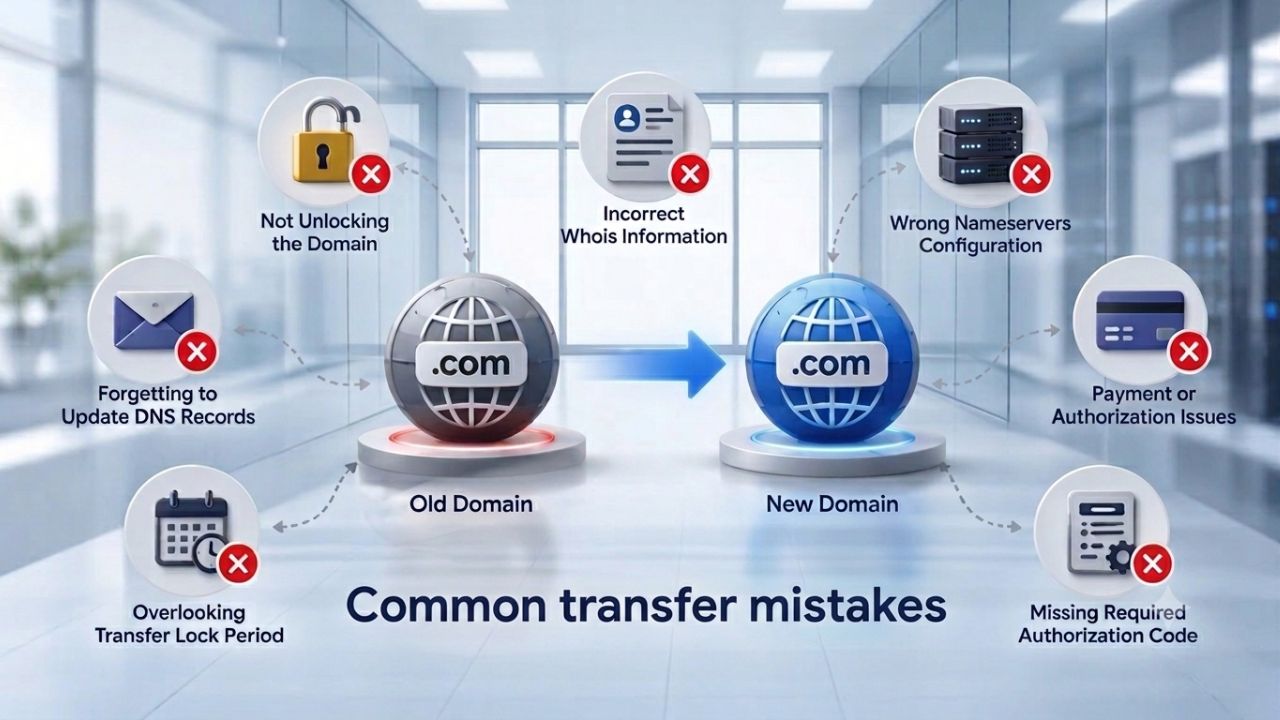
Even with planning, transfer mistakes happen. Understanding the most common pitfalls and how to prevent them dramatically increases your chances of a smooth, downtime-free transfer. The single most frequent mistake is making DNS changes during the active transfer window. After you’ve initiated the transfer but before it’s complete, resist any urge to modify your DNS records, change nameservers, or make other DNS-related adjustments.
Incorrect or Missing Contact Information
A third common mistake is having incorrect contact information on file. If your registrant email address is wrong or inaccessible, you won’t receive authorization requests during the transfer process, and your transfer will stall or fail. Before initiating a transfer, update your registrant email to an address you actively monitor. Similarly, if your registrant email address is on your company’s domain (e.g., john@mycompany.com), make sure you maintain access to that mailbox even during domain transfers.
Some registrants change jobs and lose access to their company email, then can’t complete a domain transfer because they can’t receive authorization emails. A best practice is to use a personal email (not tied to your company domain) as your registrant contact, so you maintain access even during business transitions.
Avoiding Expired or Invalid EPP Codes
Using an expired EPP code. EPP codes are typically valid for 30–60 days. If you request your code but don’t initiate a transfer immediately, check the expiration date before proceeding. If it’s expired, request a new one. Similarly, if you receive an error message that your EPP code is invalid, verify you’ve typed it correctly; EPP codes are case-sensitive and sometimes include special characters.
If you’re certain it’s correct and it’s still invalid, request a fresh code from your old registrar. Some registrars allow only one outstanding EPP code per domain at a time, so if you’ve previously requested a code and didn’t use it, requesting a new code might invalidate the old one. Always keep your EPP code confidential; don’t share it via email or unencrypted messages, as it grants access to transfer your domain.
Transfer Timelines and What Affects Speed
Domain transfers typically take 5–10 business days from start to completion, but several factors influence the speed. Understanding these factors helps you set realistic expectations and troubleshoot if your transfer seems stalled. The first determinant is how quickly your old registrar responds to verification requests.
How to Monitor and Troubleshoot Transfer Progress
Most new registrars provide a transfer status page or dashboard where you can track progress. Log in to your account and look for a “Pending Transfers” or “Transfer Status” section. It should show your domain and a status like “Awaiting Authorization,” “With Registry,” “Completing,” or “Complete.” Some registrars provide more granular status updates showing which step is in progress. Email updates are also common; registrars often send status notifications when your transfer moves to a new stage.
If your transfer seems stuck (e.g., it shows “Awaiting Authorization” for more than 10 days), contact your new registrar’s support team. They can contact the old registrar to check the status and push for approval if there’s an issue. Most issues are resolvable with a support ticket and a follow-up phone call if needed.
Resolving Common Domain Transfer Denials
If your transfer is denied, you’ll receive a notification stating the reason. Common reasons include an expired or incorrect EPP code, a domain that’s still within its 60-day lock, a domain under registrar hold, or missing registrant verification.
Most denials are fixable: obtain a new EPP code, wait for the lock to expire, contact your old registrar to remove any holds, or update your registrant information and try again. Once you resolve the underlying issue, you can resubmit your transfer request. Keep records of all transfer attempts and correspondence with registrars; this documentation is useful if you need to escalate issues or file a complaint with ICANN.
After the Transfer: Verification and Post-Transfer Steps
Once your transfer completes, your new registrar will notify you. At this point, your domain registration sponsorship has moved, but DNS resolution should already be working if you completed the DNS pre-staging strategy described earlier. Don’t assume everything is working perfectly; take time to verify. Log into your new registrar’s account and confirm that all your DNS records are present and correct.
Domain Transfer Timeline and Process Phases
| Phase | Typical Duration | What Happens | Key Actions |
|---|---|---|---|
| Pre-Transfer Preparation | 1–2 weeks | You gather authorization code, verify contact info, set up DNS at new registrar, prepare nameservers | Unlock domain, export DNS records, request EPP code, lower TTL, update registrant email if needed |
| Transfer Initiation | Immediate | You submit transfer request to new registrar with domain name and EPP code | Log into new registrar, enter domain and EPP code, submit transfer request |
| New Registrar Verification | 1–3 days | New registrar sends authorization email to your registrant contact address | Receive authorization email, click link or respond to confirm transfer intent |
| Old Registrar Verification | 1–3 days | Old registrar sends verification email; you approve or registrar confirms automatically (depending on method) | Receive and respond to old registrar’s verification email; approve transfer intent |
| Registry Processing | 1–5 days | Registry receives approval from both registrars and updates domain sponsorship record | Automatic; registry updates its database; no action required from you |
| DNS Propagation & Activation | 24–48 hours | New registrar becomes authoritative for DNS; changes propagate globally; services remain online if DNS was pre-staged | Monitor DNS lookup tools; confirm website and email work; update any records needed |
| Transfer Completion & Verification | Same day as registry processing | Transfer marked “Complete” in new registrar account; verify all services functioning | Log into new registrar, confirm DNS records present, test website and email, verify DNSSEC/WHOIS privacy settings if applicable |
| Total Time | 5–10 business days typical | — | — |
Updating Your Domain Management Workflows
After verifying your domain is working, update your internal documentation and workflows. Note your new registrar’s name, customer support contact information, your domain’s new renewal date (which may have been extended during the transfer), and any new login credentials if your new registrar uses a different account system.
If your team uses shared password managers or documentation to manage domains, update those records to point to the new registrar. Set a calendar reminder for your domain’s new expiration date so you don’t accidentally let it lapse. Enable automatic renewal at your new registrar if you prefer not to renew manually every year. Niya Digital’ team has found that registrants who document their domain settings, renewal dates, and registrar contact information immediately after a transfer are less likely to experience lapsed renewals or lost domains in the future. Taking 15 minutes to update your records after a successful transfer is an investment in long-term domain security and operational continuity.
Why Professional Support Matters During Transfers
Domain transfers are standardized processes governed by ICANN. Still, complications can arise, and expert support can resolve issues quickly. When issues occur during a transfer, ICANN policy requires registrars to assist and escalate to the registry operator if needed.

Proactive Support for Smooth Domain Transfers
Professional support goes beyond problem-solving. When you’re managing multiple domains, coordinating transfers, or operating in a regulated industry where downtime carries high costs, expert guidance upfront can prevent most problems. A support specialist can review your specific configuration, identify potential risks, and recommend transfer sequencing if you’re moving multiple domains.
They can also help you coordinate with your hosting provider and email service to keep all parties aligned during the transition. This proactive approach, treating the transfer as a coordinated project rather than an isolated transaction, is what separates smooth migrations from ones that create unexpected disruptions.
When to Escalate Transfer Issues
Most transfers complete without any issues, but if your transfer is delayed beyond the expected 10-day window or if you receive a failure notification, don’t wait; contact your new registrar’s support team immediately. Provide them with your domain name and the date you initiated the transfer. They can check the status with the registry and your old registrar, identify any holds or verification delays, and take corrective action.
If your old registrar is slow to verify, your new registrar’s support can follow up on your behalf. If your domain is in an unexpected lock status, support can help determine why and when it will be released. If an authorization email went to an incorrect address, support can contact your old registrar to have verification resent or updated. Having professional support in your corner means issues get resolved in days rather than weeks.
Ready to Transfer Your Domain?
Transferring your domain doesn’t have to involve downtime or unnecessary complexity. With the right preparation and expert guidance, you can move your domain between registrars while keeping your website and email running smoothly. Niya Digital,
working alongside an ICANN-accredited registrar partner, provides the domain transfer support, DNS management, and registration services you need to ensure a secure and seamless transition from start to finish.
Frequently Asked Questions
Will my website go offline when I transfer my domain?
No, your website will not go offline if you’ve kept your nameservers pointed to an independent provider (your hosting provider, a third-party DNS service, or your new registrar’s DNS). A domain transfer changes only your registration sponsorship, not your DNS or hosting.
As long as your nameservers keep operating and resolving correctly, your website remains accessible. Downtime during a transfer typically results from changing nameservers during the transfer window or using your old registrar’s default nameservers without preparing an alternative in advance. Plan by setting up your DNS at your new registrar 48 hours before the transfer to eliminate downtime.
How long does a domain transfer take?
Domain transfers typically take 5–10 business days from start to finish, depending on how quickly you respond to authorization emails and how fast your registrars and the registry process the request. Some transfers complete in 2–3 days if all parties move quickly; others may take up to 2 weeks if delays or verification holds occur.
You can monitor progress through your new registrar’s transfer status page. Once the transfer is marked “Complete,” your domain’s registration sponsorship has moved, but verify that all your DNS records and services are functioning correctly before considering the process fully done.
Can I transfer an expired domain?
You can transfer expired domains only if they are still within the renewal grace period (typically 30–45 days after expiration). Once a domain enters the Redemption Grace Period (after the renewal grace period expires), it cannot be transferred until it’s restored (renewed retroactively) by your current registrar, usually at a substantial cost.
If a domain enters Pending Delete status (typically after 5 days in RGP), it’s no longer recoverable and will drop back to the registry, available for anyone to register. To avoid this situation, renew your domain well before expiration or enable automatic renewal at your registrar.
What is an EPP code, and do I need one to transfer?
An EPP (Extensible Provisioning Protocol) code is a unique authorization code required by ICANN policy to transfer a domain between registrars. It proves you have legitimate control of the domain and prevents unauthorized transfers. Your current registrar can generate an EPP code through your account management portal or send one via a support request.
The code is typically valid for 30–60 days. Enter the code in your new registrar’s transfer form to authorize the transfer. If your EPP code expires before you use it, request a new one; you can request as many as you like.
Will my email stop working during a domain transfer?
No, your email will not stop working if your MX records (which direct email to your mail server) are correctly configured and point to an independent email service. DNS records control email, not domain registration. As long as your MX records remain unchanged and your mail server stays online, email will keep flowing regardless of which registrar holds your domain.
To ensure continuity, confirm your MX records are set at your new registrar before the transfer completes. If you’re changing email providers as part of your domain transfer, migrate to the new email service first, test thoroughly, then transfer your domain; this separation prevents complications.
What’s the difference between a domain transfer and changing my nameservers?
A domain transfer moves your registration sponsorship from one ICANN-accredited registrar to another; it changes who manages your registration, bills you for renewals, and holds your administrative rights. Changing nameservers updates which DNS provider is authoritative for your domain’s DNS records but doesn’t move your registration.
You can change nameservers without transferring (pointing your old registrar’s domain to a new registrar’s nameservers, for example), or you can transfer your registration to a new registrar and keep the same nameservers if you’ve moved your DNS to an independent provider. For most downtime-free transfers, you change your nameservers first (48 hours before), verify they’re working correctly, then complete the registrar transfer.
Can I transfer a domain within 60 days of registering it?
No, ICANN policy prevents registrar-to-registrar transfers for 60 days after initial registration. This lock is automatic and applies to all ICANN-accredited registrars and all gTLDs (.com, .net, .org, etc.). The lock prevents unauthorized transfers of newly registered domains and gives registrants time to verify their registration.
If you need to transfer a newly registered domain, you must wait 60 days. However, you can make other changes during this time, such as updating contact information, modifying DNS, renewing the domain, etc.
Will my WHOIS privacy protection transfer to my new registrar?
No, WHOIS privacy (which masks your contact information in the public WHOIS database) is a service your registrar provides and doesn’t transfer automatically.
After your domain transfer completes, if you want to keep your contact information hidden, you’ll need to request WHOIS privacy from your new registrar. Some registrars include it free with domain registration; others charge a small annual fee. Contact your new registrar to inquire about enabling privacy protection.
Can I transfer a domain with a 60-day lock after changing my registrant information?
Generally, no, you cannot transfer a domain within 60 days of changing your registrant contact information. However, some registrars offer an opt-out option that you can select before making the registrant change, which waives the 60-day lock.
You must choose the opt-out before you confirm the registrant change; you cannot opt out retroactively. If you need to change registrant information and transfer your domain, ask your current registrar whether they offer the opt-out, or plan to make the registrant change first and wait 60 days before transferring.
What if my domain transfer fails?
If your transfer fails, your new registrar will notify you with a reason (common reasons: invalid EPP code, domain still locked, missing authorization, expired domain). Once you’ve identified the reason, you can fix it and resubmit.
For example, if your EPP code expired, request a new one; if your domain is still locked, wait for the lock to expire or contact your old registrar to remove it. Most failed transfers are recoverable with a correction and a retry. If the transfer fails, your domain stays with your old registrar, so you’re not at risk of losing it.
How do I verify that my DNS records transferred correctly?
After your transfer completes, log into your new registrar’s DNS management interface and confirm that all your records are present (A records, MX records, CNAME records, TXT records). Use a free DNS lookup tool (mxtoolbox.com, whatsmydns.net) to perform global DNS lookups and verify that your domain resolves correctly from multiple locations worldwide.
Test your website by visiting it in a browser and checking that it loads properly and that the SSL certificate is valid. Send a test email to a mailbox on your domain to confirm email delivery. If any service fails, check your DNS records for errors and update them as needed.
Do I need to keep my old registrar account open after a transfer?
You don’t need to keep your old registrar account open, but it’s often convenient to keep it open for a few days so you can reference old DNS records or settings if needed. However, once you’ve verified your domain works correctly with your new registrar, you can close your old account to simplify management.
Be aware that closing your account may delete any data stored there (DNS records, email forwarding, parked pages, etc.), so export anything important first. Some registrars charge for dormant accounts, so closing accounts you no longer use can save money.
Can I transfer a domain that’s registered in a country code TLD (like .co.uk or .de)?
Country-code TLDs (.co.uk, .de, .fr, etc.) have their own transfer policies and requirements that vary by registry. Some allow transfers between registrars; others require you to stay with a designated registrar.
Before attempting a transfer, research your specific ccTLD’s transfer policy or ask your current registrar whether transfers are possible. If transfers are allowed, the general process is similar to gTLD transfers, but requirements (authorization codes, waiting periods, verification steps) may differ significantly.
What should I do if I don’t receive the authorization email from my registrar during a transfer?
If you don’t receive an authorization email from your registrar within 24–48 hours of initiating a transfer, check your spam or junk folder; authorization emails sometimes get filtered. If you don’t receive the email, contact your new registrar’s support team to confirm they submitted the transfer request to your old registrar.
Ask them to verify the registrant email address on file. If your registrant email is wrong or you can’t access it, contact your old registrar to update it before retrying the transfer. Once your registrant email is correct and accessible, resubmit the transfer request.
Is domain transfer assistance available if I get stuck?
Yes, ICANN policy requires your new registrar to provide transfer support. If your transfer stalls, fails, or you encounter issues, contact your new registrar’s customer support team; they can troubleshoot on your behalf, contact your old registrar if needed, and guide you through any complications.
Most registrars provide email, phone, and live chat support for domain transfers. Niya Digital and our ICANN-accredited registrar partner offer dedicated transfer support to keep your move smooth and your domain secure throughout the process.
Glossary
- Authorization Code (EPP Code): A unique security code required by ICANN to authorize a domain transfer between registrars. Your current registrar generates it, and you must enter it in your new registrar’s transfer form. Valid for 30–60 days.
- DNS (Domain Name System): The global system that translates domain names into IP addresses. When you type a domain into your browser, DNS resolves that domain to the server’s IP address, directing your traffic to the correct website.
- ICANN: The Internet Corporation for Assigned Names and Numbers; the nonprofit organization that oversees domain name policies, registrar accreditation, and dispute resolution for the internet’s domain name system.
- MX Record (Mail Exchanger Record): A DNS record that specifies which mail server handles incoming email for a domain. It includes a priority value and the mail server address. Multiple MX records with different priorities allow for mail server redundancy.
- Nameserver: A server that answers DNS queries by providing IP addresses associated with domain names. Nameservers are specified in your domain’s registrar settings and direct traffic to your website, email, and other services.
- Registrant: The person or organization listed as the legal owner of a domain registration. The registrant contact email is used for transfer authorization and renewal notices.
- Redemption Grace Period (RGP): A period (typically 30–42 days) after domain expiration during which the previous owner can restore the domain at an increased cost. After RGP, the domain enters Pending Delete status and eventually drops to the registry.
- TTL (Time-to-Live): A value (in seconds) that specifies how long resolvers cache DNS records. Lower TTL values (e.g., 300 seconds) speed up DNS change propagation; higher values (e.g., 3600+ seconds) reduce DNS server load.