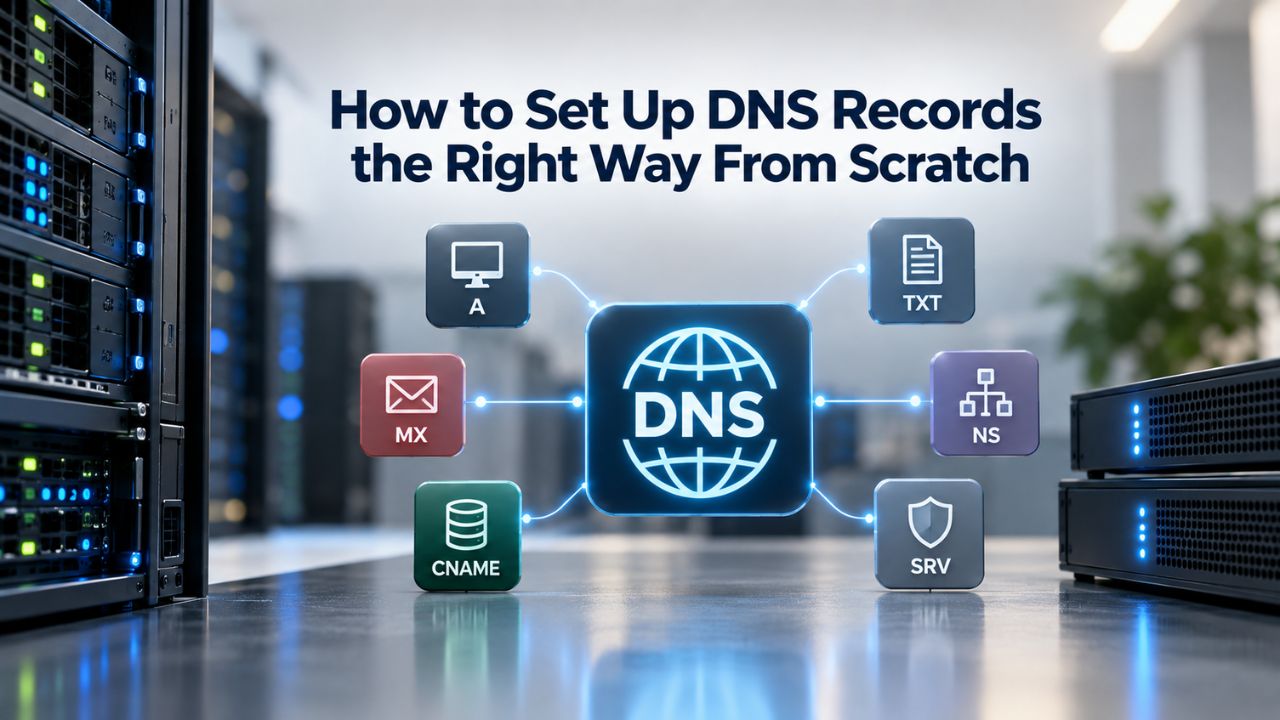
Why DNS Setup Matters (and Why It Breaks)
DNS is the backbone of your online presence. A domain name alone does nothing; DNS records tell the internet where your website lives, which servers handle your email, and which services you’ve authorized to send mail on your behalf. Without correct DNS configuration, visitors cannot reach your site, emails bounce, and integrations fail. Industry analysis across major outages from 2015 to 2025 found that misconfiguration and human error account for the vast majority of DNS-related downtime, not malicious attacks or infrastructure failures.
The risk escalates when multiple services depend on a single domain. A website hosted on one server, email on another, and third-party verification services pointing to yet another all use DNS to resolve their addresses. If one record is wrong, the entire chain can break. Niya Digital’ team has found that many outages occur not during initial setup but during migrations, when administrators forget to update a secondary record or trigger an unexpected transfer lock. Understanding DNS record structure and change timing prevents these costly mistakes.
Understanding the DNS Stack
The Domain Name System is a hierarchical lookup system. When you type a domain into your browser, your computer asks a resolver, typically operated by your internet service provider, to translate the domain name into an IP address. The resolver queries the root nameservers, then the TLD registry servers (for .com, .org, etc.), and finally your authoritative nameservers, which hold the actual records for your domain. Each step in the chain relies on the previous one being correct. If your nameserver is unreachable or points to the wrong address, the entire lookup fails, and browsers cannot reach your site.
Your domain registrar manages nameserver delegation at the registry level. When you register a domain, the registrar tells the registry which nameservers are authoritative for your domain. When you later change those nameservers to point to a new hosting provider or a premium DNS service, that change must propagate through the global DNS system, a process that typically takes 24 to 48 hours. During propagation, some users may see the old nameservers while others see the new ones. This asynchronous behavior is one reason DNS changes are often misunderstood and why testing from multiple locations is essential.
Record Structure and Purpose
Every DNS record consists of a name, a type, a value, and a TTL (time-to-live). The name identifies what the record applies to: the root domain (@), a subdomain (www, mail), or a wildcard (*). The type specifies what kind of information the record holds: an IP address (A), another domain alias (CNAME), mail servers (MX), or verification text (TXT). The value is the data itself: an IP address, a domain name, or a text string. The TTL tells resolvers how long to cache the record before asking again, measured in seconds.
A high TTL (like 86400 for 24 hours) caches records longer, reducing query load but slowing propagation of changes. A low TTL (like 300 for 5 minutes) means frequent queries to your authoritative servers but faster updates worldwide. Choosing the right TTL depends on your change frequency; most stable configurations use 3600 seconds (one hour) as a middle ground. However, the exact value should match your operational needs and how much temporary inconsistency you can tolerate during migrations.

Domain Name Registration
Each and every domain name comes with all you need to get online.
- Domain Forwarding and Masking: Direct any domain name you own to your website. Anyone who types that domain name into their browser is taken directly to your website.
- Domain Locking: Domain locking prevents accidental or intentional transfers of domain ownership and stops anyone from redirecting your nameservers.
- Total DNS Control: Manage your domain nameserver (DNS) records and set your email, FTP, sub-domains and website location all from one control panel.
- Change of Registration: Assign your domain name to someone else or change the contacts for your domain online anytime.
- Status Alerts: Monitor the status of your domain and get instant alerts if there's been a change.
- Auto Renew Protection: No need to watch expiration dates to make sure you renew on time! Auto renew keeps your domains, hosting, website builders, and other products in your name and under your control.
Domain Disclaimers:
- Special savings apply only to first year of registration. You must purchase entire section to qualify for special savings.
- The final price may differ because of additional sales, fees, and promotions.
- Products will automatically renew until cancelled. You may turn off the auto-renewal feature by visiting your account.
- Change of registration may require a fee for certain domains.
The Five Record Types You’ll Actually Use
The DNS specification defines dozens of record types, but you’ll interact with only a handful in practice. Understanding what each one does and when to use it eliminates confusion and prevents the most common configuration errors. These five record types cover most domain management scenarios.
A and AAAA Records: The Address Records
An A record maps your domain (or subdomain) to an IPv4 address, four octets like 192.0.2.1. When someone visits your website, their browser’s resolver queries your DNS server for an A record and receives the IP address of your web server. AAAA records do the same job for IPv6 addresses, which use a longer format like 2001:db8::1. Most domains today have both an A record (for legacy compatibility) and an AAAA record (for future-ready IPv6 traffic). Create an A record for your root domain (@) and typically for www as well, pointing both to your web hosting provider’s IP address or load balancer.
An important limitation: a domain name can have multiple A records, but not every combination is valid. If a name already holds a CNAME record (which creates an alias to another domain), you cannot add an A record to the same name; the two types are mutually exclusive. This constraint prevents confusion about which record takes precedence. When migrating hosting providers, update your A record to point to the new server’s IP, and verify the change has propagated globally before shutting down the old server. Using a low TTL during migrations (24 hours before the change) helps minimize the inconsistency window.
CNAME Records: Creating Aliases
A CNAME (Canonical Name) record creates an alias from one domain name to another. For example, you might point blog.example.com to example.wordpress.com; a CNAME tells resolvers to look up the target domain and use its A record. CNAME records are useful for delegating subdomains to third-party services, CDNs, email providers, or hosting platforms without changing your root domain’s A record. However, CNAME records have a strict rule: a domain cannot hold a CNAME alongside other record types. If www.example.com has a CNAME, you cannot also put an MX, TXT, or NS record on that same name.
The root domain itself (@) typically cannot be a CNAME, only a subdomain. Some registrars and DNS providers offer “CNAME flattening” or “ALIAS records” as workarounds, which allow root-domain aliasing by converting the CNAME into A or AAAA records behind the scenes. If your domain’s root points to a CDN or third-party platform, check your provider’s documentation for their preferred method. Never create circular CNAME chains (A → B → A) or chains longer than necessary, as these can cause resolution failures or excessive latency.
Mail Records: MX and TXT (for Email and Verification)
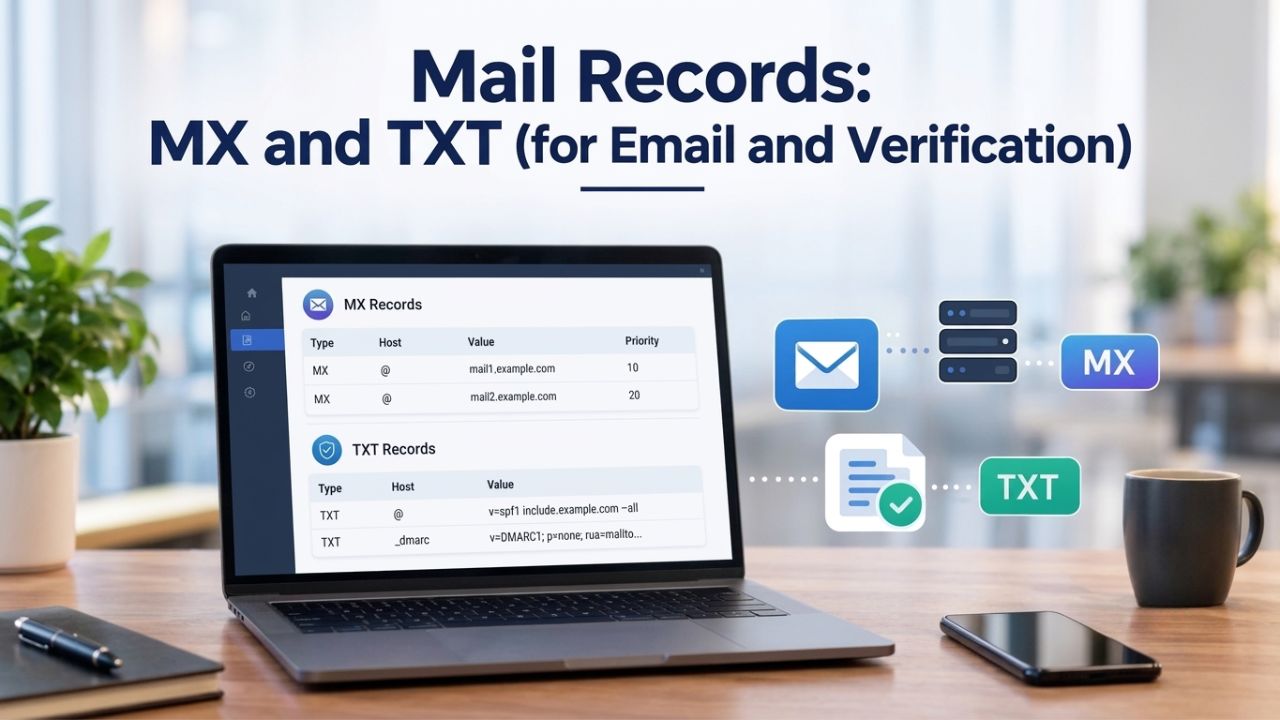
Email delivery depends entirely on DNS. When someone sends mail to you@example.com, their mail server queries your DNS for MX records (Mail Exchange records) to find which server should receive the message. Without MX records, emails bounce immediately. TXT records store text-based information used for email authentication, domain ownership verification, and other purposes. Together, these two record types are essential for reliable email and secure domain management.
MX Records and Mail Server Priority
An MX record points to a mail server’s hostname and includes a priority number. Lower numbers have higher priority, so mail servers are tried in order of priority until one accepts the message. A typical setup includes multiple MX records (e.g., priority 10 for your primary mail server, priority 20 for a backup) so email still arrives even if one server is temporarily offline. An MX record must point to a hostname (not an IP address), so it typically points to another DNS name with an A record. Mail servers often support a “catch-all” configuration that accepts mail for all users. Still, you can also create separate MX records for specific recipients if your setup requires it.
MX records must point to hostnames with A or AAAA records; they cannot point directly to IP addresses. This design lets mail servers scale horizontally; if a mail server’s IP address changes, you update only its A record, not every MX record pointing to it. When migrating email providers, update your MX records to point to the new provider’s mail servers, set a low TTL a day before the change, and keep the old mail server online for at least 48 hours to catch any in-flight mail. Some hosting providers offer MX record suggestions; always verify them against your actual mail server’s documentation before saving.
TXT Records for Email Authentication and Domain Verification
TXT records store arbitrary text data. The most common use is email authentication: SPF (Sender Policy Framework) records, DKIM (DomainKeys Identified Mail), and DMARC (Domain-based Message Authentication, Reporting, and Conformance) all use TXT records to tell mail servers which hosts are authorized to send mail from your domain. These records reduce spoofing and improve deliverability to Gmail, Outlook, and other providers. Third-party services (Google Workspace, Shopify, Mailchimp) often request TXT records to verify domain ownership. They provide a random string; you add it as a TXT record, and they confirm they can read it.
A domain can hold multiple TXT records, and mail authentication often requires several: one SPF record, one or more DKIM records (for each mail server), and optionally one DMARC record (which aggregates reports from mail providers about authentication failures). Setting up these records correctly isn’t technically difficult, but it requires careful attention to syntax; a typo in an SPF record can block legitimate mail, while a missing DKIM record can send mail to spam folders.
Your email provider’s documentation should include exact TXT record values; copy them character for character into your DNS control panel. Once deployed, email authentication records take effect within a few hours (after TTL expiry), and you should monitor your email provider’s reports for delivery issues during the first week.
Name Servers and Zone Delegation
Your domain registrar maintains the authoritative list of nameservers for your domain at the registry level. When someone looks up your domain, they’re directed to those nameservers, which then return your DNS records. Changing nameservers is a global delegation operation; it tells the entire internet where to find your authoritative DNS data. Understanding nameserver delegation is critical when switching hosting providers, using premium DNS services, or managing multiple domains across different providers.
How Nameserver Delegation Works
When you register a domain, the registrar assigns default nameservers, typically three or four hostnames like ns1.registrar.com, ns2.registrar.com, etc. These servers hold copies of your zone file and respond to DNS queries about your domain. If you want to use different nameservers (e.g., your hosting provider’s DNS servers or a premium DNS service), you update the nameserver delegation at your registrar. The change propagates through the DNS root system over a few hours to a day, and afterward, all DNS queries for your domain route to the new nameservers.
Each nameserver is itself identified by an IP address, which is published in the DNS root zone. This creates a bootstrap problem: how do resolvers find a nameserver’s IP address if they need to query that nameserver to find other records? The answer is that nameserver addresses (called “glue records” or “NS records” at the root level) are maintained separately and cached by resolvers. This is why changing nameservers is a top-level operation done at the registrar level, not in your zone file. Updating a nameserver delegation takes longer than updating a record within a zone, typically 24 to 48 hours for full global propagation.
Understanding Zone Files and Apex Delegation
A zone file is the complete set of DNS records for a domain, stored on your authoritative nameservers. It includes all A, CNAME, MX, TXT, and other records you’ve configured. Zone files also include NS records (nameserver records) that describe the authoritative nameservers for subdomains. For example, you might delegate mail.example.com to a separate set of nameservers run by your email provider, creating NS records in your zone file that point to that provider’s nameservers. Subdomain delegation allows different teams or services to manage their own DNS records independently without affecting the parent domain.
When you transfer a domain between registrars, you also transfer control of the zone file; the registrar’s tools become your means of editing records. During a transfer, DNS records typically stay live on the old registrar’s nameservers until you change the nameserver delegation or until the transfer completes (depending on your registrar’s process). To avoid downtime, minimize the time between updating nameservers and verifying that records are live on the new servers. Test from multiple locations (using dig, nslookup, or online DNS checkers) to confirm the change has propagated globally before you decommission the old servers.
TTL and DNS Propagation: Timing Expectations
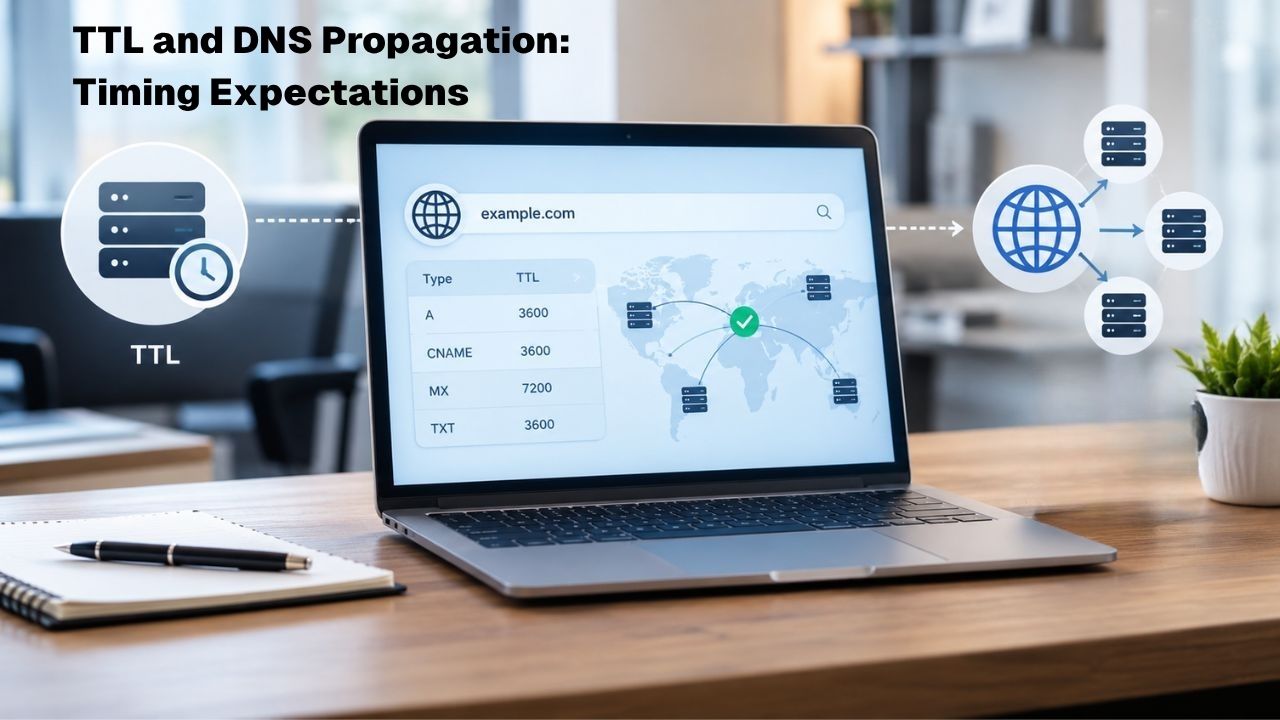
TTL (Time-to-Live) is often misunderstood. It’s not the time before a record expires; it’s the instruction to resolvers about how long to cache the record. Understanding TTL behavior helps you manage change windows and minimize service disruption when migrating domains or records.
How TTL Affects Caching and Propagation
When a resolver queries your authoritative nameserver and receives a record, it caches the response for the TTL duration. During that time, subsequent queries for the same record return the cached value without contacting your authoritative server. A high TTL (24 hours or more) reduces query load on your nameserver but means changes take much longer to reach all resolvers globally. If you change an A record and set its TTL to 86400, most resolvers will serve the old IP address for up to a full day, so some users will see your old website while others see the new one.
A low TTL (300 seconds or 5 minutes) ensures changes propagate quickly but increases query load on your authoritative servers. Lower your TTL 24 hours before making a significant change (like moving to a new hosting provider), then raise it again after the change is complete. This strategy gives you fast propagation when you need it and reduced query load during stable periods.
Keep in mind that TTL is a suggestion; some recursive resolvers and ISPs ignore low TTLs to reduce query traffic, so “true” propagation times are often longer than TTL values suggest. When migrating, consider also keeping both the old and new servers online for 48 hours after the change, so any stray requests or cached lookups still work. This grace period significantly reduces customer complaints and caught-too-late support tickets.
Why DNS Propagation Is Not Instantaneous
DNS queries are recursive: a resolver asks the root, then the TLD server, then your authoritative server, and caches each response independently. Each level of the hierarchy can cache for its own TTL, so a query that takes 3 hops can theoretically be cached at 3 different points. When you change a record, the cache at your authoritative server updates immediately, but caches at recursive resolvers and ISPs may not refresh until their cached TTL expires.
Additionally, different software implementations handle TTL differently; some obey it strictly, while others apply minimum and maximum bounds. For these reasons, DNS changes rarely appear instantly worldwide; 24 to 48 hours is the industry standard expectation. Propagation is not all-or-nothing; it’s gradual. Minutes after a change, some users will see the new record. After 2–4 hours, most will. After 24 hours, the vast majority will, though a small fraction may still see the old value if they use ISP resolvers with aggressive caching policies.
To verify that a change has propagated, query multiple DNS checkers from different geographic locations, or use command-line tools like dig or nslookup against public resolvers (8.8.8.8 for Google, 1.1.1.1 for Cloudflare). If critical services depend on DNS changes, schedule migrations during low-traffic windows and monitor uptime dashboards closely during propagation.
DNS Record Types Reference
| Record Type | Purpose | Example Value | Used For |
|---|---|---|---|
| A | Maps domain to an IPv4 address | 203.0.113.10 | Website hosting, web servers |
| AAAA | Maps domain to an IPv6 address | 2001:db8::1 | IPv6-ready website hosting |
| CNAME | Creates an alias to another domain | example.wordpress.com | Subdomain delegation to third-party services |
| MX | Directs email to mail servers | mail.example.com | Email delivery (includes priority) |
| TXT | Stores text data | v=spf1 include:_spf.example.com ~all |
Email authentication (SPF, DKIM, DMARC), domain verification |
| NS | Identifies authoritative nameservers | ns1.provider.com | Subdomain delegation |
| SOA | Specifies zone authority and settings | Primary NS, admin email, serial number | Zone file metadata, zone transfers |
Manage Your Domain DNS With Confidence
Effective DNS management keeps your domain connected to the right websites, email services, applications, and other online systems. Niya Digital provides professional domain DNS hosting and expert guidance to help you configure records, manage nameservers, adjust TTL settings, and make DNS changes smoothly. Get the support you need to keep your domain services reliable and properly connected.
Common Setup Mistakes That Cause Outages
Real-world DNS outages rarely result from malicious attacks; they result from misconfiguration by well-intentioned administrators. These five mistakes account for most DNS-related downtime in production environments.
Missing or Incorrect Nameserver Delegation
The most common mistake is registering a domain with one registrar, setting up DNS records with another, but forgetting to update the nameserver delegation at the registrar. If your registrar’s default nameservers are ns1.registrar.com but your records are on ns1.provider.com, your domain remains “broken” until you update the nameserver delegation.
Resolvers query the registrar’s nameservers, find no records, and return a negative response; your website is effectively offline even though the records exist elsewhere. To prevent this, always verify the nameserver delegation at your registrar matches the nameservers your DNS provider gave you. Test with dig +trace yourdomain.com to follow the lookup chain and confirm you’re hitting the right authoritative nameservers. Another variant is updating nameservers but not waiting for propagation before testing.
If you change nameservers and immediately check, your ISP’s cached nameserver list may still point to the old servers. Use a public DNS checker or query a public resolver directly (e.g., dig @8.8.8.8 yourdomain.com) to bypass local caching and see what the authoritative nameservers actually return. Never remove the old nameservers from your registrar until you’ve confirmed the new ones are responding correctly globally.
Orphaned or Stale Records
During migrations, old DNS records sometimes remain in the zone file after the service they pointed to has moved. A CNAME pointing to a deleted CDN, an MX record for a mail server that no longer exists, or an A record for a retired web server wastes space and can confuse later operators. More problematic, if you rebuild a server with the same hostname, the stale record may point to an IP address now owned by an entirely different customer (in cloud environments, IPs are recycled). Always audit your zone file after a migration and delete records for services that no longer exist.
Use version control or back up zone files before making bulk changes so you can review what changed and roll back if needed. If your DNS provider doesn’t offer automated backups, export your zone file regularly and store it. Some registrars and DNS providers offer zone file diffs or change logs; enable these if available to track who changed what and when.
TTL Set Too High or Too Low
A TTL of 86400 (24 hours) suits stable records that rarely change. However, records you plan to update soon, like an A record during a migration, or an MX record during a mail provider switch, should have a TTL of 300 to 1800 seconds (5 to 30 minutes). Forgetting to lower TTL before a change means you’ll spend 24 hours with half your traffic seeing the old value. Conversely, a TTL of 60 seconds on a stable record creates unnecessary query load on your authoritative servers, and some ISP resolvers may ignore it anyway.
Best practice is to set a standard TTL (like 3600 seconds) for all records during stable periods, lower it to 300 for any record you plan to change within the next 24 hours, and raise it back to 3600 once the change is complete and verified. Modern DNS providers allow per-record TTL adjustments, so there’s no excuse for applying a universal value that doesn’t fit your scenario.
Misconfigured CNAME and NS Record Coexistence
You cannot have both a CNAME and other record types (like A, MX, or TXT) on the same domain name. If you accidentally create a CNAME on www.example.com and then try to add an A record to www.example.com, the second record is silently ignored or rejected. Similarly, if you have a CNAME on example.com (the root), you cannot add MX or TXT records to handle mail and verification. This constraint exists by design to prevent ambiguity. If a name resolves to an alias (CNAME), the resolver must follow the alias to get the actual address, so other record types are unreachable.
When delegating subdomains to third-party services, use either a CNAME (for full subdomain delegation) or NS records (for nameserver delegation), never both. If a service instructs you to create “a CNAME and an MX record,” it’s likely a support document error; interpret it as “create a CNAME if the service is your entire website, or NS records if it’s a specific function like mail.” Reach out to the service provider if instructions are unclear.
Typos in Record Values
A single wrong character in an IP address, hostname, or SPF rule can silently break the record. Mail may not deliver, websites may not load, or services may time out mysteriously. The risk is especially high for long records like SPF, DKIM, and DMARC, which use complex syntax. Always copy values directly from your provider’s documentation into your DNS control panel rather than typing them.
Many modern DNS providers validate records before saving (e.g., checking that an MX value is a valid hostname with an A record), so enable any validation your provider offers. After creating or updating a record, use dig or nslookup to query it and confirm the value matches what you intended.
Domain Security: Locks, Authentication, and DNSSEC
Domain security operates at multiple levels. Registrar-level locks prevent unauthorized transfers, multi-factor authentication protects your account, and DNSSEC digitally signs DNS records. Together, these tools significantly reduce the risk of unauthorized changes, though no single measure is a complete guarantee

Registrar Locks and Multi-Factor Authentication
A registrar lock (also called a “transfer lock” or “client transfer prohibited” status) is a flag set by your registrar that prevents anyone from transferring your domain to another registrar without your explicit permission. Enabling the lock is one of the quickest ways to prevent domain hijacking. If an attacker gains access to your registrar account, they cannot transfer your domain away without removing the lock first. Most registrars enable locks by default; always verify yours is active in your account settings.
Equally important is multifactor authentication (MFA) on your registrar account. MFA requires a second form of verification (usually a code from your phone or authenticator app) when you log in, so password theft alone isn’t enough to access your account. If your registrar supports MFA, enable it immediately. The same applies to email accounts linked to your domain registrations; if an attacker compromises your email, they can use password-reset links to access your registrar account. Treat your email and registrar account with the same security rigor as your banking accounts.
Understanding DNSSEC and DNS-Level Integrity
DNSSEC (Domain Name System Security Extensions) is a cryptographic signing system that prevents attackers from tampering with DNS records in transit. When you enable DNSSEC on a domain, the authoritative nameserver digitally signs all records with a private key. Resolvers that validate DNSSEC can verify the signature using the public key, confirming that records haven’t been modified.
DNSSEC does not encrypt DNS queries (your ISP can still see which domains you visit) and does not prevent an attacker with access to your registrar account from changing records; it only protects against “man-in-the-middle” attacks that intercept and modify DNS traffic in transit. Enabling DNSSEC requires generating cryptographic key pairs, publishing the public key in DNS, and signing your zone file. Most modern DNS providers offer one-click DNSSEC enablement and handle key management automatically.
However, DNSSEC adds complexity and can cause issues if misconfigured (e.g., expired keys will break DNS lookups). Enable DNSSEC only if your DNS provider offers good tooling and documentation, and if you have time to monitor its status. For most small organizations, registrar locks and MFA provide sufficient security against common threats. DNSSEC is more critical for high-profile domains, financial institutions, and government sites.
Monitoring for Unauthorized Changes
Many registrars and DNS providers offer email notifications for account access, record changes, and transfer requests. Enable these alerts so you’re notified immediately if someone tries to change your DNS records or transfer your domain. Set up notifications for administrative actions (like nameserver changes) separately from routine activity so that you can respond quickly to unauthorized changes. Some providers also offer log archives showing who changed what and when; review these logs regularly as part of your security audit.
WHOIS, RDAP, and Your Registration Data
When you register a domain, a global database stores your contact information (name, email, address). For decades, this database was accessible via WHOIS, a simple protocol that returned raw contact information. Privacy concerns and regulations like GDPR led to changes: personal data is now redacted by default, and access is restricted to parties with legitimate interests. Understanding the current state of registration data access helps you manage privacy and respond to legitimate inquiries.
The WHOIS to RDAP Transition
WHOIS returned human-readable text but used inconsistent formats across registries, making automated parsing difficult. RDAP (Registration Data Access Protocol) is the modern replacement; it returns structured JSON data, enforces HTTPS encryption, and supports role-based access control. As of January 28, 2025, ICANN no longer requires most gTLD registries and registrars to provide WHOIS services, replacing them with RDAP. The transition isn’t instantaneous; some legacy exceptions remain, and many registrars still offer WHOIS for backward compatibility.
For domain owners, the practical change is minimal. You access your registration data through your registrar’s control panel, not through WHOIS lookups. When you need to verify someone’s domain registration, you query RDAP (or legacy WHOIS) via your registrar’s tools or public RDAP servers. The redaction policies remain the same: personal contact details are hidden, but registrar information, creation dates, and other administrative data are still public.
Privacy Protection and Data Minimization
ICANN’s Registration Data Policy, updated in 2024, simplified registration: administrative and billing contacts are no longer required, and technical contact information is optional. If you include an Organization name in your registration, that entity is treated as the legal domain owner for data-protection purposes. These changes reflect global privacy regulations and reduce the personal information you must expose when registering a domain.
If you wish to keep your personal details private, use a privacy proxy service (often called “private registration” or “WHOIS privacy”). Your registrar or a third party acts as the public registrant, and it stores your actual contact information but doesn’t list it publicly. The proxy forwards mail sent to it to you. This approach suits personal domains or if you’re concerned about spam or unwanted contact. However, privacy services may interfere with some domain transfer processes; always check with your registrar before enabling privacy on a domain you plan to transfer soon.
Managing DNS When Domains Change
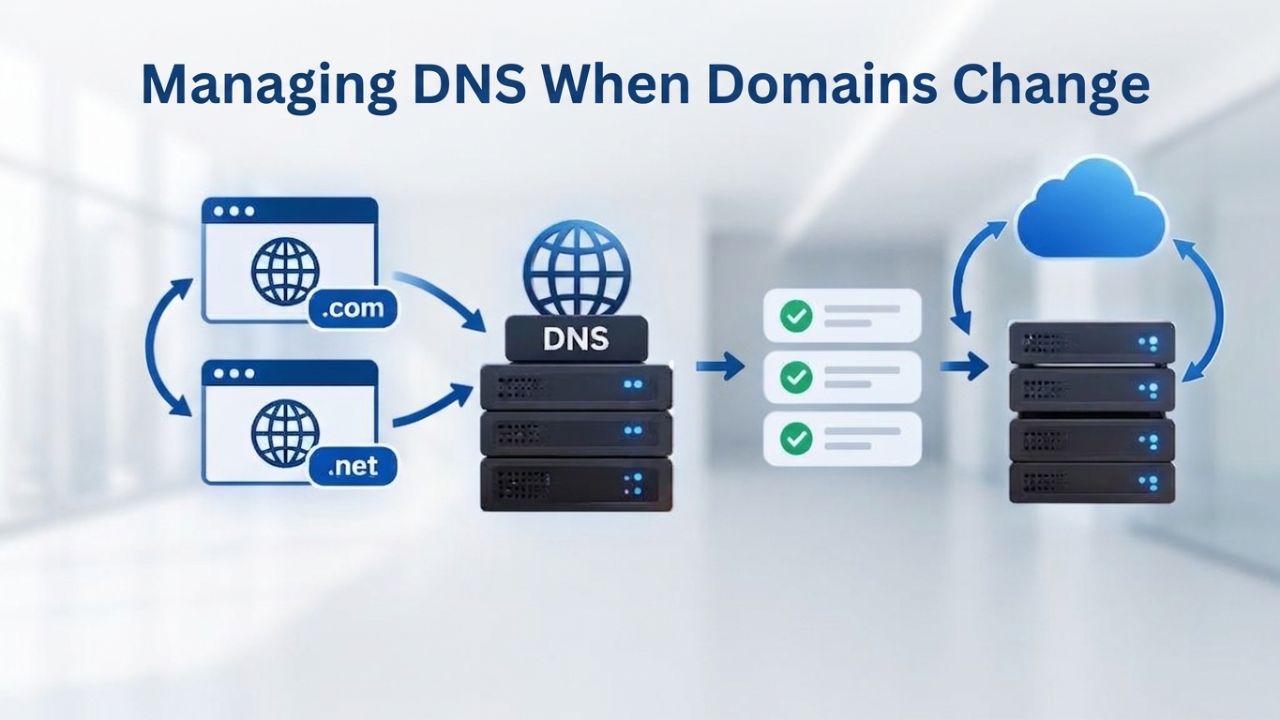
Domain ownership and DNS management often involve transfers between registrars, nameserver changes, and renewal decisions. Each of these events can disrupt DNS if you don’t handle them carefully.
Preparing for a Domain Transfer
A domain transfer moves registration from one ICANN-accredited registrar to another. The process involves obtaining an authorization code (also called an “EPP code” or “transfer code”) from your current registrar, providing it to the new registrar, and waiting for confirmation. During the transfer, your DNS records and registrar lock status should remain intact; the registry simply updates which registrar manages your account. However, ICANN policy imposes a 60-day transfer lock after certain events, including a change to the registrant contact information, preventing any transfer to another registrar until the lock period expires.
Before initiating a transfer, lower the TTL on all your DNS records to 300 seconds. This ensures that if nameservers change during the transition, the change propagates globally within 5 minutes rather than taking 24 hours. After the transfer completes, restore TTL to 3600 or higher. Also, verify that your current registrar has no pending locks or disputes. If a domain is in the redemption grace period or flagged for abuse, the transfer will fail. Some registrars let you transfer multiple domains at once using bulk tools; if you manage many domains, use them to streamline the process.
Nameserver Changes and Propagation
When you switch hosting providers or upgrade to a premium DNS service, you update your nameserver delegation at your registrar. The change is global and affects DNS queries worldwide, so you need to test and verify it. Before changing nameservers, export your current zone file from your old provider and import it into the new provider. Verify that all your records (A, MX, TXT, etc.) were migrated correctly. Then, change the nameserver delegation at your registrar and wait for propagation (typically 24 to 48 hours).
During this window, different users may see different results from your DNS queries; some will hit the new nameservers, others the old. Minimize this inconsistency by lowering TTL beforehand and testing thoroughly. Use the dig +trace command to debug propagation: dig +trace yourdomain.com will show the full lookup path from root to your authoritative server, confirming which nameservers you’re hitting. If the trace points to old nameservers even hours after you’ve changed them, your update may not have propagated yet; wait longer and test again. Once propagation is complete, verify all critical services (website, email, APIs) are working, then decommission the old nameservers.
Domain Renewal and Grace Periods
Domains expire on a date set when you register them, typically one or more years in the future. Most registrars offer auto-renewal; your card is charged automatically on the expiration date, and registration is extended for another year. Auto-renewal is the recommended default; it prevents accidental expiration. However, you must keep your payment method current; if your card expires or is declined, auto-renewal fails, and your domain will eventually be deleted.
After expiration, a domain typically enters an auto-renew grace period (usually 45 days) during which you can renew at the standard rate. If you don’t renew within that window, the domain enters a redemption grace period (approximately 30 days) where renewal costs significantly more. After the redemption grace period ends, the registry purges the domain and makes it available for anyone to register. To avoid this, enable auto-renewal, monitor your registrar’s notifications, and keep your payment method up to date.
During renewal, DNS records remain unchanged; renewal extends the registration period. However, if you transfer a domain during or shortly after renewal, be aware that some registrars apply credits for unused registration time, while others do not. Check your registrar’s transfer policy before renewing, especially if you’re planning to switch providers soon.
Building Your Setup Checklist
Setting up DNS correctly requires attention to detail and testing. This section distills the guidance above into a repeatable checklist you can use for any domain or hosting migration.
Pre-Migration Planning
Before making any DNS changes, document your current state. Export your zone file from your current DNS provider or request it from your registrar. Take a screenshot of your current nameserver delegation at the registry level (visible via WHOIS/RDAP or your registrar’s control panel). Note any special configurations, such as DNSSEC, CNAME flattening, or subdomain delegations. Create a simple spreadsheet listing each record type, name, and value; this becomes your verification checklist and your backup if something goes wrong.
Next, lower the TTL on all records to 300 seconds. This is usually a bulk operation in your DNS provider’s interface. Document the old TTL values so you can restore them later. Notify your team and any external services that depend on your domain about the planned migration window, even if it’s just an internal spreadsheet update. Finally, prepare your new DNS provider: create accounts, import your zone file if the new provider offers that, and verify all records are present and correct before switching nameservers.
Executing the Migration
On migration day, follow these steps in order: first, verify that the new DNS provider is serving your zone correctly by querying their public nameserver. Use dig @ns1.newprovider.com yourdomain.com to query their server directly, bypassing your registrar and ISP caches. If all records return correctly, proceed. Second, update the nameserver delegation at your registrar to point to the new provider’s nameservers. This is the “go live” step; after this, the global DNS system will gradually start routing queries to your new provider. Do not delete the old nameservers yet.
Third, monitor propagation. Use a DNS checker tool or query multiple public resolvers to confirm that your new nameservers are being hit. If possible, test from multiple geographic locations. This process typically takes a few hours to 48 hours depending on TTL values and resolver behavior. During propagation, monitor your website and email to ensure they’re working. If something breaks, you have a 48-hour window to roll back by changing nameservers back at your registrar. Fourth, after propagation is complete and you’ve verified all services are working, delete the old nameservers from your registrar and decommission the old DNS servers.
Domain Lifecycle and EPP Status Codes
| Status Code | Meaning | DNS Behavior | What You Should Do |
|---|---|---|---|
| ok | Domain is active and operational | DNS works normally | Monitor for changes; ensure lock is enabled |
| addPeriod | Domain is in initial grace period (5-30 days after registration) | DNS works normally | No action required unless you want to delete |
| clientTransferProhibited | Domain is locked (cannot transfer between registrars) | DNS works normally | Unlock at registrar if you need to transfer; otherwise leave locked for security |
| redemptionPeriod | Domain is in recovery window after deletion request (~30 days) | DNS may be inactive; zone removed from registry | Restore immediately at registrar if you want to keep the domain |
| pendingDelete | Domain awaits purge after redemption period ends (~5 days) | DNS is inactive; domain will be deleted soon | Contact registrar immediately to restore; after this, domain is lost |
| autoRenewPeriod | Domain is in grace period after auto-renewal | DNS works normally | No action needed; auto-renewal was successful |
| transferPeriod | Domain is in grace period after transfer to new registrar | DNS may temporarily serve from old or new nameservers; test propagation | Verify nameserver delegation; restore TTL after propagation |
| inactive | Nameservers have not been assigned to the domain | DNS lookups fail; website and email are unreachable | Assign nameservers at your registrar or DNS provider |
Post-Migration Verification
After 48 hours, run a final verification: query your domain from multiple locations and confirm all records return expected values. If you run critical services, run a synthetic test: visit your website, send a test email to your domain, and call your APIs. Verify that DNSSEC (if enabled) is valid, and that redirects or rewrites work as expected. Once everything is stable, restore the TTL on all records to 3600 or higher (depending on how often you change it).
Document any DNS issues you encountered and how you resolved them; this documentation helps with future migrations and trains your team. Some DNS providers offer analytics or query logs; review these to confirm normal traffic patterns and identify any anomalies. Finally, set a calendar reminder to audit your DNS records quarterly, check for stale records, verify critical records (MX, SPF, DMARC) are still correct, and confirm your registrar lock is enabled and MFA is active on your account.
Get Professional DNS Management Support
Setting up DNS correctly is critical but often complex. Whether you’re migrating to new infrastructure or building from scratch, having the right partner makes all the difference. Niya Digital offers domain registration services integrated with DNS hosting, security features, and expert support to help you configure records correctly and keep them running reliably.
Frequently Asked Questions
What’s the difference between a domain registrar and a DNS provider?
A domain registrar sells you the right to use a domain name for a period of time (typically a year) and maintains your registration at the registry level. A DNS provider hosts your DNS records on authoritative nameservers and handles queries from the internet.
Your registrar manages which DNS provider is authoritative for your domain (via nameserver delegation), but they’re separate services. You can register with one company and use DNS from another, though most registrars offer DNS hosting as part of their service.
How long does it take for DNS changes to go live?
DNS propagation is not instantaneous. After you change a record, most resolvers worldwide will see the new value within 2 to 4 hours, but global propagation typically takes 24 to 48 hours. Some resolvers and ISPs may cache records longer than their TTL suggests, so true propagation is often slower than the TTL value indicates.
During propagation, different users may see different results; some hit your new server while others still see the old one. For critical changes, lower TTL to 300 seconds 24 hours before the change, then raise it back to 3600 after verification.
Can I have multiple A records on the same domain?
Yes, you can have multiple A records on the same domain name, each pointing to a different IP address. This is called “round-robin DNS” and is useful for load balancing; queries return all A records, and clients typically connect to one of them in rotation.
However, round-robin DNS is basic load balancing; for production use, deploy a proper load balancer that monitors server health and removes failed servers from rotation. Never mix A records and CNAME records on the same name; choose one or the other.
What happens if I make a typo in an A record’s IP address?
Most DNS providers will silently accept the record (they don’t validate that the IP belongs to an active server). Your website will be unreachable when visitors query that record and receive the wrong IP.
To catch this, query the record yourself after creating it using dig yourdomain.com +short and verify the IP address matches your hosting provider’s documentation. If there’s a typo, update the record and wait for the TTL to expire before retesting.
Can I use CNAME and A records on the same domain name?
No, CNAME and A records are mutually exclusive on the same domain name. If www.example.com has a CNAME pointing to example.wordpress.com, you cannot add an A record to www.example.com. If you need both, restructure your setup: use an A record on the root domain (example.com) and a CNAME on the subdomain (www.example.com points to example.wordpress.com), or use your hosting provider’s “CNAME flattening” feature if available.
What’s the purpose of NS records in my zone file?
NS records in your zone file identify the authoritative nameservers for subdomains. If you delegate mail.example.com to a separate mail provider’s nameservers, you’d create NS records in your example.com zone file pointing to that provider’s nameservers. This lets you manage subdomains independently without changing the parent domain’s nameservers. The NS records at the registry level (updated via your registrar) identify the authoritative nameservers for the entire domain.
How do I test if my DNS changes have propagated globally?
Use a public DNS checker tool or query public resolvers directly. For example, dig @8.8.8.8 yourdomain.com queries Google’s public resolver, bypassing your ISP’s cache. If different public resolvers return different values, propagation is in progress. Once all public resolvers return the same value, propagation is complete. The dig +trace command shows the full lookup path and helps debug which nameservers are authoritative.
What does “TTL” mean and how should I set it?
TTL (Time-to-Live) is a value measured in seconds that tells DNS resolvers how long to cache a record. A TTL of 3600 means resolvers should cache the record for one hour before querying again.
Stable records can have a high TTL (24 hours or more) to reduce query load. Records you plan to change should have a low TTL (300 to 1800 seconds) 24 hours before the change so the update propagates quickly worldwide. After you complete and verify a change, restore TTL to a high value.
If I enable WHOIS privacy, will it affect my domain’s functionality?
No, WHOIS privacy (or privacy proxy services) only hides your personal contact information in WHOIS/RDAP lookups. Your domain’s functionality, DNS resolution, email delivery, and website hosting remain unchanged.
However, some domain transfer processes may require temporarily disabling privacy, and registrars may add a small annual fee for privacy services. Always check your registrar’s policies before enabling privacy.
What’s the difference between an ICANN-accredited registrar and a domain reseller?
An ICANN-accredited registrar is directly contracted with ICANN and holds accounts at the registry level. A reseller partners with an accredited registrar and resells domain registration and DNS services under its own brand.
Both offer the same core services (registration, DNS, transfers), but the accredited partner manages a reseller’s backend. As an end user, you interact with the reseller’s website and support team; the accreditation is invisible. Niya Digital is a reseller that partners with an ICANN-accredited registrar.
Can I use my domain for email even if I don’t have a website?
Yes, absolutely. Email delivery depends only on MX records. When someone sends mail to you@yourdomain.com, their mail server queries your domain’s MX records to find the mail server.
You don’t need an A record or any website. Configure MX records pointing to your email provider’s mail servers (they’ll supply the hostnames), and add SPF and DKIM records for authentication. Your domain can serve as your email identity without any web presence.
What should I do if my domain expires?
Don’t panic. After expiration, your domain typically enters an auto-renew grace period (usually 45 days), during which you can renew at the standard rate. During this period, your DNS records remain live, so your email and website keep working.
After the grace period ends, the domain enters the redemption grace period (approximately 30 days), when renewal costs significantly more. If you miss both windows, the domain is purged and becomes available for anyone to register. Enable auto-renewal to avoid this scenario.
How do I prevent someone from stealing my domain?
Use a combination of three practices:
(1) enable a registrar lock on your domain (prevents transfers without permission),
(2) enable multifactor authentication on your registrar account (prevents password-based takeover), and
(3) keep your email account secure (attackers can use password-reset links to access your registrar).
If your email is compromised, immediately change your registrar password and enable MFA. Monitor for suspicious logins by enabling email notifications for account access.
Is DNSSEC required, and should I enable it?
DNSSEC is not required for basic domain functionality, but it adds security against certain attacks. DNSSEC digitally signs DNS records so resolvers can verify they haven’t been tampered with in transit.
It does not prevent unauthorized access to your registrar account or DNS provider account. Enable DNSSEC only if your DNS provider offers good tooling and documentation, and if you have time to monitor its status. For most small organizations, registrar locks and MFA are sufficient.
What’s the best way to migrate DNS to a new provider?
Follow these steps:
(1) export your zone file from your current provider,
(2) lower TTL to 300 seconds on all records,
(3) import your zone into the new provider and verify all records are correct,
(4) update nameserver delegation at your registrar to point to the new provider’s nameservers,
(5) monitor propagation using dig or a DNS checker,
(6) verify all services (website, email, APIs) are working,
(7) after 48 hours, restore TTL to 3600 or higher,
(8) Decommission old nameservers.
This process minimizes downtime and allows rollback if issues arise.
Glossary
- A record: A DNS record that maps a domain name to an IPv4 address (e.g., 192.0.2.1). The fundamental record type that directs web browsers to a website’s server.
- CNAME record: A “canonical name” record that creates an alias from one domain name to another. Used to delegate subdomains to third-party services. Cannot coexist with other record types on the same domain name.
- DNS (Domain Name System): The global system that translates human-readable domain names (like example.com) into IP addresses that computers use to route traffic.
- EPP status code: A standardized code that indicates the state of a domain registration, such as ok (active), clientTransferProhibited (locked), or redemptionPeriod (pending deletion). Visible via WHOIS/RDAP lookups.
- MX record: A “mail exchange” record that directs email traffic to mail servers. Includes a priority number to support multiple mail servers for redundancy.
- Nameserver: A DNS server that holds and serves DNS records for one or more domains. Your registrar manages which nameservers are authoritative for your domain at the registry level.
- RDAP (Registration Data Access Protocol): The modern replacement for WHOIS. A standardized protocol that returns structured domain registration data in JSON format via HTTPS. ICANN phased out WHOIS in favor of RDAP as of January 2025.
- TTL (Time-to-Live): A value (in seconds) that tells DNS resolvers how long to cache a record. A high TTL reduces query load but delays global propagation of changes. A low TTL speeds propagation but increases server load.
- TXT record: A text record used to store arbitrary text data. Commonly used for email authentication (SPF, DKIM, DMARC) and domain ownership verification.