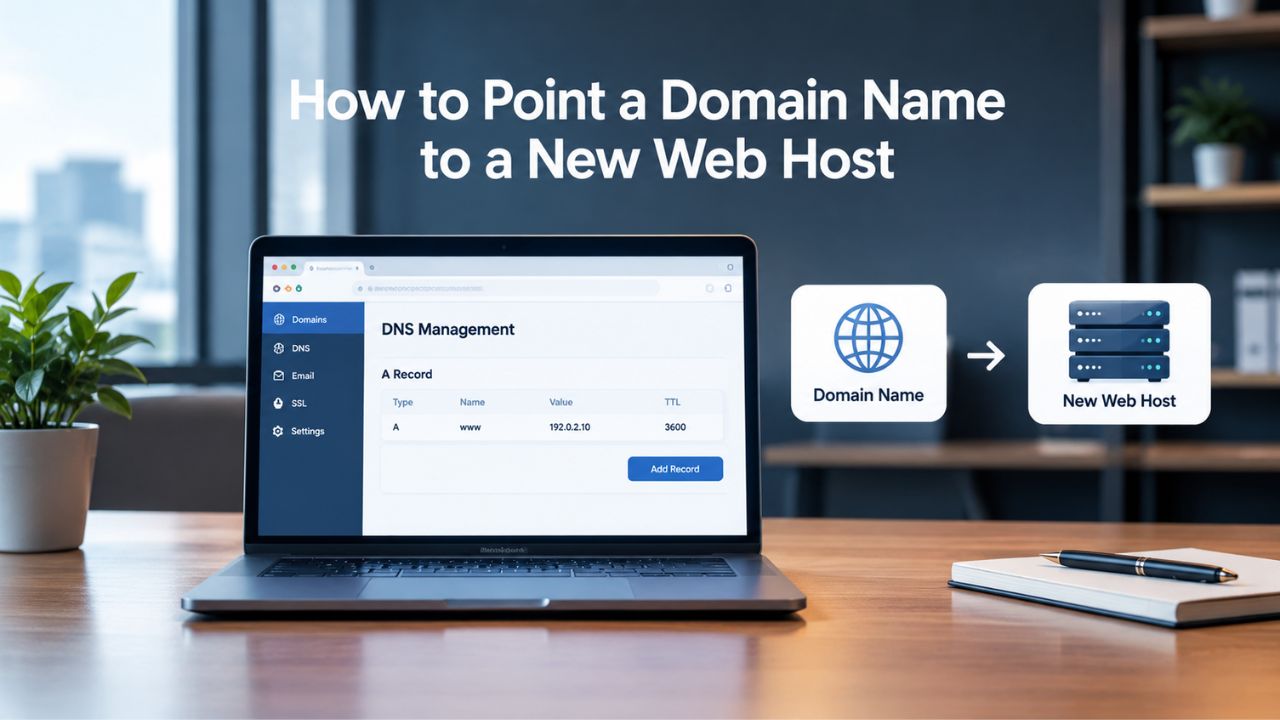
Registrar and Hosting Provider: Two Separate Services
Your domain registrar manages domain registration, renewal, and the nameserver settings that the public internet consults when looking up your domain. Your hosting provider operates the web server infrastructure where your site files, databases, and applications actually live. These are fundamentally separate services; you can register with one company and host your website with another. When you point a domain to a new host, you’re simply updating the nameserver records at the registrar to direct DNS queries to the new hosting provider’s servers. This process does not require a full domain transfer or unlocking the domain, though many users mistakenly believe it does.
How Registrars and Hosting Providers Work Together
A registrar, such as an ICANN-accredited registrar partner, holds your domain registration and manages the nameserver settings stored in the DNS system. A hosting provider operates the web server where your website files are stored and served to visitors. When a visitor types your domain into their browser, the registrar’s nameserver settings direct that DNS query to the hosting provider’s nameservers, which then respond with the IP address of your website and serve your content. Changing this direction, pointing to a new host, requires updating only the nameserver settings at the registrar, not transferring the domain registration itself or unlocking it in any way.
The key insight is that your registrar controls the directions to your website, while your hosting provider hosts the website itself. These two functions are completely independent. You can change hosting providers without changing registrars, change registrars without changing hosting providers, or change both. The critical step when switching hosts is updating the nameserver settings at your registrar to point to your new hosting provider’s nameservers.
Why Conflating These Services Causes Delays
Many people reach out to their registrar asking them to “move the website” to a new host, but the registrar only manages the domain name and nameserver settings; they don’t control where your website is hosted. Conversely, hosting providers often receive requests to update nameserver settings that are entirely outside their control; those settings live at the registrar, not at the hosting provider. This confusion causes back-and-forth support contacts, delays in completing the migration, and unnecessary frustration.
Niya Digital’s team has found that many users initially contact the wrong provider because they don’t mentally separate domain registration from web hosting, which can significantly delay what should be a straightforward process. Understanding these roles from the start prevents confusion and speeds up domain pointing. When you know that the registrar handles nameserver settings and the hosting provider handles DNS configuration on their servers, you can take the right steps in the right order. This knowledge also helps you know which provider to contact if something goes wrong during propagation.

Domain Name Registration
Each and every domain name comes with all you need to get online.
- Domain Forwarding and Masking: Direct any domain name you own to your website. Anyone who types that domain name into their browser is taken directly to your website.
- Domain Locking: Domain locking prevents accidental or intentional transfers of domain ownership and stops anyone from redirecting your nameservers.
- Total DNS Control: Manage your domain nameserver (DNS) records and set your email, FTP, sub-domains and website location all from one control panel.
- Change of Registration: Assign your domain name to someone else or change the contacts for your domain online anytime.
- Status Alerts: Monitor the status of your domain and get instant alerts if there's been a change.
- Auto Renew Protection: No need to watch expiration dates to make sure you renew on time! Auto renew keeps your domains, hosting, website builders, and other products in your name and under your control.
Domain Disclaimers:
- Special savings apply only to first year of registration. You must purchase entire section to qualify for special savings.
- The final price may differ because of additional sales, fees, and promotions.
- Products will automatically renew until cancelled. You may turn off the auto-renewal feature by visiting your account.
- Change of registration may require a fee for certain domains.
DNS Basics: How Your Domain Reaches Its Host
A domain name resolves to a web server’s IP address through DNS (Domain Name System) records stored on your hosting provider’s nameservers. The most common record type is an A record, which maps a domain to an IPv4 address like 192.0.2.1. Nameservers are the authoritative servers that hold these DNS records and answer queries about where your domain points. When you update nameservers at the registrar, you’re instructing the entire DNS system: “Look to these new nameservers for this domain’s DNS information.” All the DNS records for your domain, including A records for web hosting, AAAA records for IPv6, MX records for email, and TXT records for verification, live on the hosting provider’s nameservers, not at your registrar.
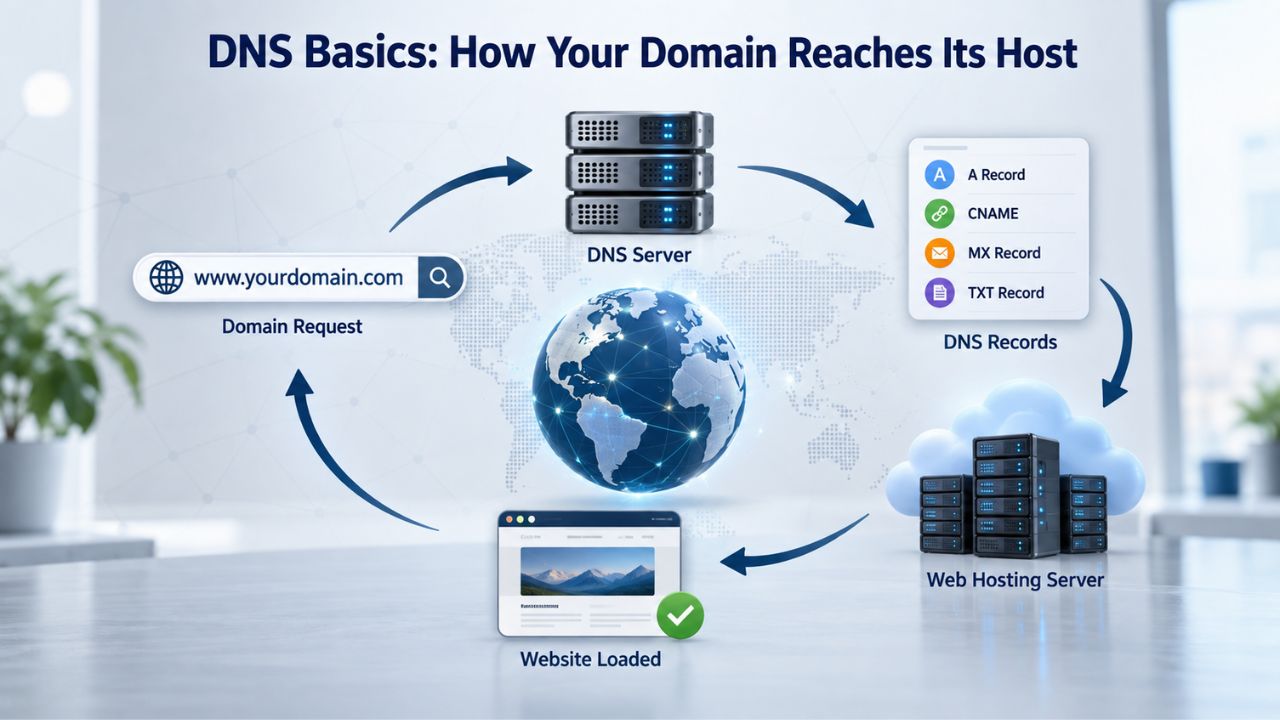
Understanding Nameservers and DNS Delegation
Nameservers are authoritative servers that answer DNS queries for your domain. Most hosting providers supply custom or branded nameservers as part of your hosting plan, typically labeled something like ns1.provider.com and ns2.provider.com. The registrar stores references to these nameservers in the DNS root and TLD servers. When someone looks up your domain, the internet’s DNS system follows these references to the correct nameservers and retrieves the DNS information from there. Updating nameservers at the registrar changes this delegation without touching the domain registration itself or anything about how your registrar stores your domain information, confirming that pointing to a new host is a DNS operation, not a registrar transfer.
This delegation system is what makes it possible to register a domain with one company and host with another. The registrar’s job ends at maintaining the correct nameserver references. Once someone’s DNS query reaches your hosting provider’s nameservers, the provider takes over and responds with the actual DNS records, like A records, MX records, and other configurations. The beauty of this system is its flexibility; you can change any part of the chain without breaking the others.
A Records, AAAA Records, and Other DNS Record Types
An A record maps your domain name to an IPv4 address, which is the traditional way websites have been addressed on the internet. An AAAA record does the same for IPv6 addresses, the newer internet protocol that will eventually become the standard. MX records direct email traffic to the correct mail server so your domain email works correctly. TXT records store verification codes for email authentication (SPF, DKIM, DMARC) and domain ownership verification. CAA records control which certificate authorities can issue SSL certificates for your domain. All these records live on your hosting provider’s nameservers, not your registrar’s.
When you switch hosts, your new hosting provider will configure all necessary DNS records on their nameservers before you change the nameserver settings at your registrar. The registrar’s role ends with pointing to the right nameservers; it doesn’t manage or store any of these individual DNS records. This separation is important because it means your registrar doesn’t need to know anything about your email setup, SSL certificates, or website configuration- only about which nameservers to point to for DNS lookups.
| Service Responsibility | Domain Registrar | Web Hosting Provider |
|---|---|---|
| Domain registration & renewal | Manages the entire domain registration and renewal lifecycle | Not involved |
| Nameserver settings (NS records) | Stores and updates nameserver delegation at the registry | Provides the authoritative nameservers |
| Individual DNS records (A, AAAA, MX, TXT, CAA) | Typically does not manage DNS records unless DNS hosting is provided | Configures and maintains DNS records on its DNS servers |
| Domain transfer between registrars | Manages the transfer process between registrars | Not involved |
| Web server infrastructure | Not involved | Operates and maintains web servers and hosting infrastructure |
| Email hosting | Not involved unless offered as a bundled service | Manages mail servers and related DNS (MX) records |
| SSL certificates | Not involved unless bundled with domain services | Issues, installs, and manages SSL/TLS certificates for hosted websites |
The Registrar’s Role: Updating Nameserver Settings
At the registrar, you don’t change individual DNS records; you change the nameserver names themselves. This one-time update delegates all DNS authority for your domain to the new hosting provider. Log into your registrar account, navigate to the domain management section for the domain you’re pointing, find the DNS settings or nameserver section, and replace the old nameserver names with the new ones provided by your hosting provider. Save your changes, and the registrar updates the TLD’s nameserver references in the global DNS system. Most registrars require at least two nameservers for a domain to function, and many allow up to thirteen for redundancy.
Locating the Nameserver Update Option
Every registrar’s interface differs, but the nameserver setting is always located in the domain management area. Look for tabs or menu items labeled “Manage Domain,” “DNS Settings,” “Nameservers,” or “Domain Details”; the exact label varies by registrar. Some registrars auto-detect your hosting provider based on your account and suggest the correct nameservers; others require you to enter them manually. Having the exact fully qualified hostnames (e.g., ns1.example.com, ns2.example.com) from your hosting provider’s documentation or support team prevents typos and pointing failures that could make your website unreachable.
The interface typically shows your current nameservers and lets you enter new ones. Some registrars delete old nameservers automatically when you enter new ones; others require you to delete the old ones first explicitly. If you’re unsure about the exact process, contact your registrar’s support team; they handle this standard operation dozens of times daily and can walk you through it quickly. Taking a screenshot of the nameserver settings before you make changes is also a good safety measure.
Avoiding Common Entry Errors
The most common pointing failure is an incorrect or mistyped nameserver name. Even a single typo in a nameserver hostname will prevent DNS resolution entirely and make your site unreachable to everyone. Double-check each nameserver hostname character by character against your hosting provider’s documentation before saving. If you’re not sure, ask your hosting provider to confirm the exact hostnames you should use; they’re accustomed to this request and will provide precise guidance. Many pointing support tickets are resolved simply by correcting a typo in a nameserver hostname.
Some registrars also require you to provide IP addresses (glue records) for the nameservers if they use your domain as the nameserver name (a rare but valid configuration). If your hosting provider says to use ns1.yourdomain.com and ns2.yourdomain.com as nameservers, ask whether you need to provide IP addresses for those; your hosting provider will clarify exactly what information is needed. The key is getting every character right before you save.
The Hosting Provider’s Role: Preparing the DNS Zone
Your hosting provider prepares your domain’s DNS zone before you point to them. This means configuring your A records, AAAA records, MX records, and any other DNS records needed for your site and email on their nameservers. This step is critical: if the DNS zone isn’t configured on the new nameservers before you change the nameservers at the registrar, your website and email will stop working as soon as DNS propagates worldwide. Always confirm with your hosting provider that your zone is ready and live on their nameservers before you update nameservers at the registrar.
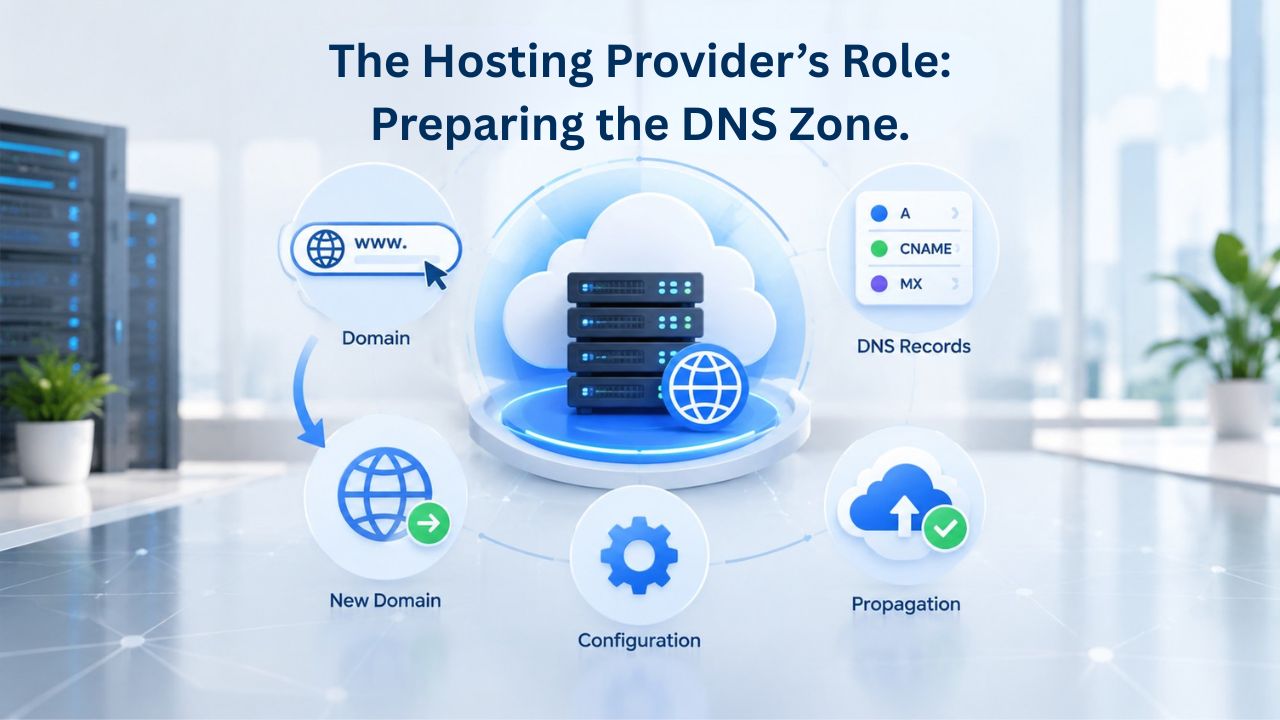
What “Zone Already Configured” Means
A properly configured zone means all necessary DNS records (A, AAAA, MX, TXT, CAA, and any others your site needs) are already on the hosting provider’s nameservers and working correctly. You can verify this by asking your hosting provider directly whether the zone is “live” or “ready” on their nameservers, or by using free DNS-checking tools like whatsmydns.net to query the new nameservers directly and confirm the records are present and correct. Many hosting providers allow you to test the nameservers before you make them live by temporarily pointing your domain to them to verify everything works.
If you query the new nameservers and see your DNS records (especially the A record pointing to your website), you can be confident that the zone is ready. If the records don’t appear, contact your hosting provider and let them know that DNS queries to their nameservers aren’t returning your records. They can investigate and add the missing records before you complete the pointing. This verification step takes a few minutes but prevents the common, disruptive mistake of switching nameservers to a server with no zone configured.
Coordinating with Your Hosting Provider
Contact your hosting provider’s support team before you change nameservers at the registrar. Many providers have formal checklists or pre-migration guides that walk you through the steps and confirm everything is ready. Confirm that your account is fully set up, your DNS zone is active and configured on their nameservers, and SSL certificates (if applicable) are in place. Some hosting providers even offer to help with the pointing process or provide step-by-step guides customized to your registrar.
This coordination step is essential because it catches any missing configuration before you make the change. If your hosting provider says they need a few more hours to configure your zone or set up SSL, you know to wait before changing the nameserver at your registrar. Rushing this step is a common cause of downtime when switching hosts. Taking time to coordinate ensures both teams are ready and that the transition is smooth.
Before You Point: Preparation Steps
Preparation reduces disruption risk and speeds global propagation of your DNS changes. Lower the TTL (Time-to-Live) value on your domain’s DNS records 2448 hours before the pointing change. TTL is a number (in seconds) that tells DNS caches worldwide how long to store a record before checking for updates. A lower TTL means DNS caches refresh more frequently, so your new nameservers’ records propagate faster once you make the change. Also, confirm the new hosting provider has your zone ready and that you have the correct nameserver hostnames written down and ready to enter.
Lowering TTL Before the Switch
Most registrars allow you to lower the TTL for individual DNS records or globally for the entire domain. A typical default TTL might be 3600 (one hour) or 86400 (one day). If you’re planning to point your domain, lower it to 300 (five minutes) or 600 (ten minutes) about 2448 hours in advance. This means DNS caches will refresh much more often once you change nameservers, so your new nameservers’ records will propagate significantly faster. This does not eliminate propagation time, but it reduces the window during which some users see outdated records.
After the pointing change is complete and you’ve verified that your site is working correctly on the new host for a full day, you can restore the TTL to a higher value to reduce DNS query load and improve performance. Keeping TTL permanently low adds unnecessary overhead; it causes slightly more DNS queries globally and provides no benefit once the migration is complete. The temporary reduction is a strategic move just for the migration window.
Verifying DNS Records on the New Nameservers
Before changing nameservers at the registrar, ask your hosting provider to confirm your DNS zone is active and correct on their nameservers. You can verify this yourself by using a DNS checker tool and querying the new nameservers directly. Enter your domain, select the new nameservers, and confirm that A records and other critical records appear correctly and point to the right values. This verification step prevents the common mistake of switching to a server with no zone configured.
If you use a tool like dnschecker.org, you can specify exactly which nameservers to query and see how those servers respond. If your A record shows the correct IP address when you query the new nameservers, you’re ready to proceed. If no records appear or they appear incorrect, contact your hosting provider and ask them to check the zone configuration. Once you see all records appearing correctly, you can confidently make the nameserver change at your registrar.
Explore Niya Digital Domain & Hosting Services
Get expert support for pointing your domain to a new web host. Niya Digital offers domain registration and hosting services designed to simplify DNS management and nameserver updates. Our team of specialists can guide you through every step of the pointing process, helping you avoid downtime and common errors. Secure domain name hosting paired with reliable hosting infrastructure keeps your site online smoothly.
Step-by-Step: Updating Nameservers at the Registrar
Log in to your registrar account and navigate to the domain management section for the domain you’re pointing. Locate the nameserver or DNS settings; this is typically found under a tab or menu labeled “Manage Domain,” “DNS,” or “Nameservers.” You’ll see your current nameservers listed, often labeled “Nameserver 1,” “Nameserver 2,” etc. Replace them with the new nameservers your hosting provider provides, entering each one exactly as specified, including any trailing periods if your registrar’s interface requires them. After entering all nameservers, save your changes. The registrar will then update the TLD’s nameserver records, and DNS propagation begins worldwide.
Saving and Confirming the Change
After entering the new nameservers, look for a “Save,” “Update,” or “Confirm” button and click it. Wait for a confirmation message that the change has been processed. Some registrars show the change immediately; others take a few minutes to process and update the TLD’s records. If you receive an error message, double-check that you’ve entered each nameserver hostname correctly with no extra spaces or typos, and that there are no trailing spaces after the last character. If the error persists, contact your registrar’s support team; they can verify the nameserver format, check for any registrar-specific requirements, and ensure the change is processed correctly.
After you save successfully, your registrar will send a confirmation email and may also update the nameserver information displayed in your account immediately. Some registrars record the change time in your account history, which helps you track when propagation should be complete. Take a screenshot of the confirmation or note the time you made the change, as this helps you track propagation and know when to expect full global visibility.
What Happens Immediately After You Save
The registrar updates the registry’s authoritative records for your TLD (e.g., .com, .org, .net) to point to your new nameservers. This change propagates to the root nameservers and TLD nameservers over a period of hours. At this moment, DNS propagation begins in earnest. DNS resolvers worldwide will gradually update their caches to reflect the new nameservers. Some users will see the old website; others will see the new one, depending on which nameservers their ISP’s DNS resolver consulted and when it last refreshed its cache. This is normal during the propagation window; no error or malfunction is occurring.
During this transition period, it’s normal for your website to be intermittently accessible from different locations or devices. Your email might also be intermittently unavailable if MX records are changing. Don’t be alarmed; this is exactly how DNS propagation works. The entire system is designed to handle gradual transitions, and full propagation to all global resolvers typically completes within 2448 hours.
Monitoring Propagation: What to Expect
According to industry DNS resources, DNS propagation typically takes anywhere from a few minutes to 2448 hours, and nameserver changes often take up to 48 hours to propagate fully to all global resolvers. During this time, DNS resolvers worldwide gradually update their caches as the TTL values on the old records expire. You may notice that your site works in some locations or on some devices before others. Email may also be intermittently unavailable if the change involves MX records. This is not a failure or error; it’s the normal, expected DNS propagation process in action.

Using DNS Checking Tools
Free online tools like whatsmydns.net and dnschecker.org let you monitor propagation progress from multiple global locations in real time. Enter your domain, select your record type (A record for web pointing, MX for email, or NS for nameservers), and see how different DNS resolvers around the world are currently responding. A mix of old and new records during propagation is normal; all resolvers should show the new records within 2448 hours. These tools query DNS resolvers from multiple geographic locations, giving you a realistic picture of how propagation is progressing globally.
Most of these tools use a color-coded display where green indicates the new record is visible and red or gray indicates the old record is still being cached. You’ll typically see a gradual shift from mostly red to mostly green over the 2448 hour window. Don’t refresh these tools obsessively. DNS propagation happens in the background, and checking multiple times an hour won’t speed it up. Check once in the morning and once in the evening, and by the second day you should see the new nameservers dominant globally.
Factors That Affect Propagation Speed
Propagation speed depends on TTL values, the user’s geographic location, Internet Service Provider (ISP) DNS refresh cycles, and DNS caching by browsers or devices. Users with aggressive DNS caching or older ISP resolvers may see the old records longer than others. Lowering the TTL beforehand mitigates this by forcing caches to refresh more often.
Geographic factors also play a role; some regions may see the change faster than others because DNS queries are routed through different internet infrastructure. ISPs in different countries often have different caching policies, so users in one region might see the change within an hour while users in another region take the full 48 hours.
| Time Factor | Expected Duration | Notes |
|---|---|---|
| DNS cache refresh with standard TTL | 24–48 hours | Full global propagation for nameserver changes |
| DNS propagation with lowered TTL (300 seconds) | 5 minutes to 4 hours | Much faster when TTL is reduced before the change |
| ISP DNS resolver cache refresh | 24+ hours | Some ISPs ignore TTL and maintain longer caches |
| Root and TLD nameserver updates | A few hours | Automatic once the registrar processes the change |
| Global visibility (near completion) | 24–48 hours | Most resolvers worldwide show the updated DNS records |
| Rare edge cases | Up to 72 hours | Unusual caching behavior or delays from specific ISP resolvers |
Troubleshooting Common Pointing Mistakes
Wrong A record configuration and incorrect DNS record entries are among the most common DNS mistakes that can make a website unreachable. If your site is still unreachable after the propagation window (48+ hours), check for typos in the nameserver entries, confirm that the new hosting provider’s zone is correctly configured on their nameservers, and verify that you saved your changes at the registrar and received confirmation. Most pointing failures come from entry errors, not DNS system issues or provider-side failures.
Incorrect or Typoed Nameserver Names
A single mistyped character in a nameserver hostname will prevent DNS resolution entirely. Double-check each nameserver name against your hosting provider’s documentation, character by character. If you’re not sure, ask your hosting provider to confirm the exact hostnames you should enter at your registrar. Many pointing support tickets resolve by correcting a single mistyped character. The most common mistakes are transposed numbers, missing dots, or extra spaces.
If you made an error, log back into your registrar, go to the domain nameserver settings, and correct the entry immediately. Save the correction, and propagation will restart with the corrected information. The old information may continue serving for a while during the old TTL’s lifetime, but eventually all resolvers will pick up the corrected nameserver information. This is why a lower TTL helps thehelps the correction propagate faster.
DNS Zone Not Configured on New Nameservers
If your hosting provider hasn’t configured your DNS zone on their nameservers yet, your website will appear offline to everyone once the nameserver change propagates globally. Confirm with the hosting provider that the zone is active and correct on their nameservers before you change nameservers at the registrar. If you’ve already made the change and your site is now unreachable, contact your hosting provider immediately to verify the zone is configured. While they add any missing records, you can temporarily revert to the old nameservers at your registrar to restore access, then make the pointing change again once everything is ready.
To check if this is the issue, use a DNS checker tool to query your hosting provider’s nameservers directly. If your A record doesn’t appear when you query their nameservers, the zone likely isn’t configured. If it appears but still doesn’t work, ask your hosting provider whether there’s a configuration issue, like a firewall rule or misconfigured DNS. Once the zone is fully configured and responsive, changing the nameservers at the registrar will complete the pointing successfully.
DNSSEC and Domain Pointing: Special Considerations
DNSSEC (Domain Name System Security Extensions) adds cryptographic signatures to DNS records to prevent DNS spoofing and forged responses. If your domain has DNSSEC enabled at the registrar, you may need to disable it before changing nameservers, then re-enable it after propagation completes. Some registrars recommend disabling DNSSEC before changing nameservers to avoid validation failures. The exact steps depend on your registrar and hosting provider, so check their documentation or contact support for their specific DNSSEC coordination process before you make the pointing change.
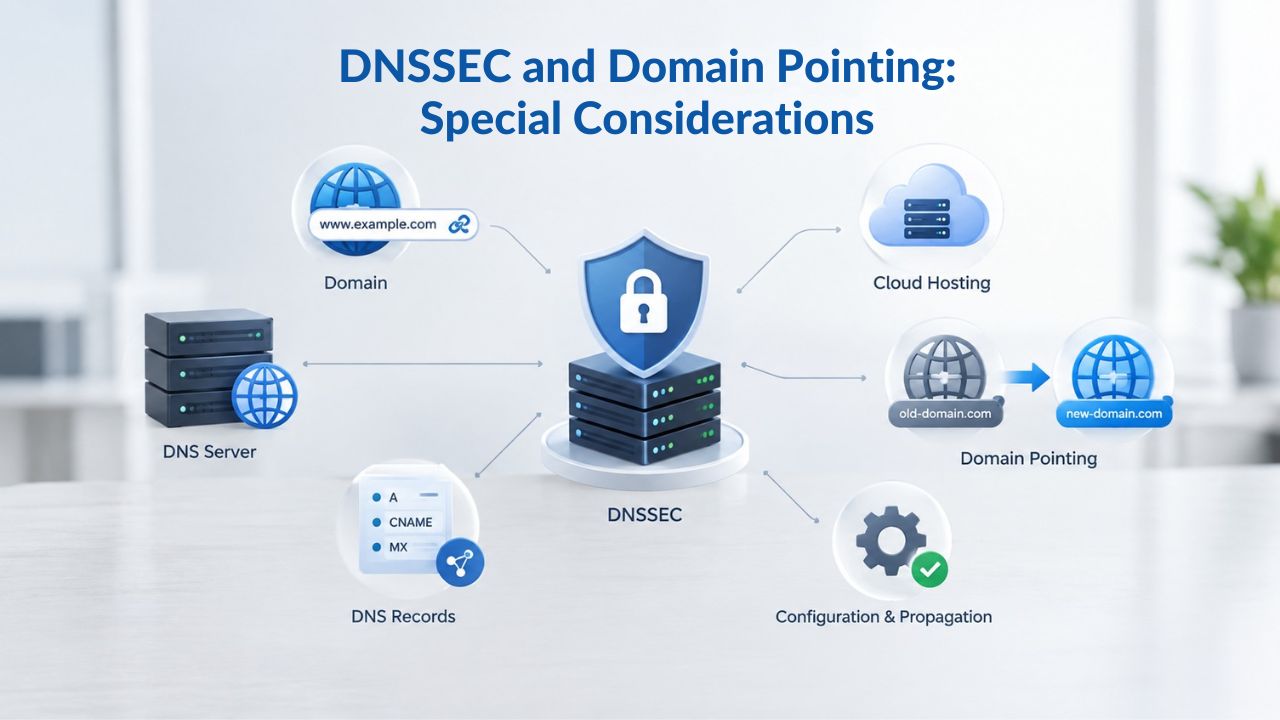
When DNSSEC Must Be Disabled
If your domain has DNSSEC enabled and you change nameservers without disabling it first, DNSSEC validation may fail if the old and new nameservers’ DNSSEC configurations don’t match exactly. This would make your domain unreachable for users with DNSSEC-validating resolvers. When DNSSEC is enabled, coordinate DS record changes with the nameserver swap to avoid a validation failure. Most modern hosting providers can handle DNSSEC properly, but coordination during the handoff is important. Check with your registrar about whether DNSSEC is currently enabled on your domain and what steps they recommend.
If your registrar says DNSSEC is enabled, ask how to disable it temporarily. Typically, you’ll disable it at the registrar, wait for propagation, change nameservers, and then re-enable it after the new nameservers are fully propagated. Your hosting provider can tell you if they require anything special for DNSSEC signing on their nameservers.
Re-enabling DNSSEC After Propagation
After the new nameservers are fully propagated and your site is working correctly, you can re-enable DNSSEC if desired. Confirm with your hosting provider that they support DNSSEC and that the new DNS zone has DNSSEC signing enabled and ready before you re-enable it at the registrar.
Re-enabling DNSSEC adds an extra layer of security against DNS spoofing attacks and confirms that all your DNS records are cryptographically signed and validated. The re-enablement process typically takes just a few clicks in your registrar’s control panel once your hosting provider has configured DNSSEC on their nameservers.
Support and When to Reach Out
If your domain still doesn’t resolve after 4872 hours, or if you’re unsure about any step in the process, contact your registrar or hosting provider’s support team. Clearly describe whether your question is about registrar-level settings (updating nameservers) or hosting-level issues (DNS zone configuration on the hosting provider’s nameservers). Providing both teams with details, including your old nameservers, your new nameservers, the exact time you made the change, and any error messages, helps them diagnose problems quickly and accurately.
Getting Help from Your Registrar
Your registrar can confirm that nameserver changes were received and processed successfully at the registry level, verify the exact format required for nameserver entries, check for any registry-specific restrictions or limits, and troubleshoot unusual propagation delays.
They can also advise on TTL settings and help coordinate DNSSEC-related changes. Registrar support is the right place for any questions about updating nameserver settings, domain locks, or issues with the nameserver change itself.
Getting Help from Your Hosting Provider
Your hosting provider can confirm that your DNS zone is fully configured on their nameservers, provide the exact nameserver hostnames you should use at the registrar, verify that all DNS records are live and correct on their servers, and help coordinate DNSSEC configuration if needed.
They can also check their server logs to confirm DNS queries reach their nameservers after propagation completes. Hosting provider support is the right place for questions about DNS zone setup, individual DNS records, or issues accessing your site once nameservers are pointing to them.
Start Your Domain Pointing Today with Niya Digital
Successful domain pointing depends on a clear understanding of roles, careful preparation, and attention to detail. Niya Digital, in partnership with an ICANN-accredited registrar, offers domain registration and hosting services designed to simplify the entire process. Whether you’re pointing a single domain or managing multiple migrations, our support team understands both registrar-level and hosting-level requirements and can guide you through every step. Preparation, patience, and clear communication with both your registrar and hosting provider are key to a smooth, successful transition.
Frequently Asked Questions
What’s the difference between a domain registrar and a web hosting provider?
A registrar manages your domain name registration, renewal, and the nameserver settings that direct DNS queries to your hosting provider. A hosting provider operates the web server infrastructure where your site files, databases, and applications live. You buy a domain from a registrar and web hosting from a hosting provider; they are separate services, though some companies bundle them.
Do I need to transfer my domain to point it to a new host?
No, absolutely not. Pointing a domain to a new host is a simple DNS operation at the registrar level. A domain transfer is a completely different process that moves the entire domain registration from one registrar to another. Pointing updates only the nameserver settings at your current registrar to direct DNS queries to the new hosting provider; your domain registration stays exactly where it is.
How long does DNS propagation actually take?
Propagation typically takes 2448 hours for full global visibility, though many users see their new site within a few hours. Lowering your TTL 2448 hours before the change can speed this up significantly. In rare cases, certain DNS records might take up to 72 hours to propagate globally. Factors like ISP caching policies, geographic location, and specific resolver behavior also affect how long it takes.
Can I still access my old website during propagation?
Yes, completely normal. During propagation, different DNS resolvers return different answers depending on when they last updated their cache. You’ll see the old site in some locations and the new site in others depending on which resolver answered the DNS query. Both copies remain accessible during this period; it’s not an error or malfunction- it’s how DNS propagation is designed to work.
What if I made a mistake entering the nameserver information?
Log back into your registrar, go to the domain nameserver settings, and correct the entry immediately. Save the correction, and DNS propagation will restart with the corrected nameserver information. If the error was significant, the old nameservers may continue serving for a while, but once the old TTL expires, all resolvers will pick up the corrected nameservers, and everything will work correctly.
Does pointing a domain to a new host require unlocking the domain?
No. You only need to unlock a domain for a full registrar transfer. Pointing to a new host is a DNS change that your registrar allows even if the domain lock is active. Domain locks prevent unauthorized transfers between registrars; they don’t prevent DNS updates or nameserver changes at your current registrar.
Can I lower the TTL on my domain without problems?
Yes, lowering TTL is completely safe. Lower TTL increases DNS query traffic slightly because resolvers refresh more often, but it causes no problems. It’s perfectly safe to lower TTL 2448 hours before a DNS change like pointing to a new host, then restore it afterward. Keeping TTL permanently low is unnecessary and adds minor DNS overhead, so restore it once your migration is complete.
What if my website goes down after I change nameservers?
The most common cause is that the new hosting provider’s DNS zone wasn’t configured before the nameserver change took effect. Contact the hosting provider to confirm the zone is active on their nameservers, then use a DNS-checking tool to verify the records are present and correct. If records are missing, ask the hosting provider to add them. You can temporarily revert to the old nameservers at your registrar while they fix the zone, then make the change again.
Does DNSSEC affect pointing a domain to a new host?
DNSSEC can prevent DNS resolution if it’s enabled and the old and new nameservers’ DNSSEC configurations don’t match. Some registrars recommend disabling DNSSEC before changing nameservers, then re-enabling it after propagation completes. Check your registrar and hosting provider’s documentation for their specific DNSSEC coordination process before making the change.
Can I point my domain to multiple hosts or nameservers?
Standard DNS allows you to point to multiple nameservers (typically 24 for redundancy). All of them must be authoritative for your domain and contain identical DNS records. You cannot split subdomains to different hosts at the nameserver level without using CNAME records on the hosting provider’s nameservers, which is a more advanced configuration.
How do I check if my domain has finished propagating?
Use a DNS checker tool like whatsmydns.net or dnschecker.org and look for your domain’s A record from multiple global locations. When all or nearly all locations show the new IP address or nameservers, propagation is nearly complete. Full propagation is confirmed when 100% of global resolvers consistently show the new records.
What if I need to point my domain before my new host is ready?
Wait for your hosting provider to confirm their DNS zone is configured and ready. Pointing before the zone is live will make your site completely unreachable. If timing is tight, discuss this with the hosting provider; they may expedite zone setup or provide a temporary subdomain to test your site before the official pointing.
Can I use CNAME records to point my domain to a new host instead of changing nameservers?
CNAME records can redirect subdomains (like www.yourdomain.com) to another host, but they cannot be used for the root domain itself (yourdomain.com). To point the full domain, you must change nameservers. CNAME records are a DNS hosting feature that your hosting provider’s nameservers manage, not something you update at the registrar.
What is an A record, and how does it relate to pointing my domain?
An A record is a DNS record that maps your domain name to an IPv4 address. It lives on your hosting provider’s nameservers, not at the registrar. When you point a domain by changing nameservers, you’re telling DNS to consult the new hosting provider’s nameservers, where their A records specify the IP address for your domain.
Do I need to contact support to point my domain to a new host?
Not always. If you’re comfortable navigating your registrar’s domain settings and your hosting provider provides clear nameserver details, you can do this yourself. However, support is free, and they can catch potential errors before they cause downtime. It’s often worth a quick confirmation call or email to verify everything before you make the change.
Glossary
- Nameserver (NS record): A server that holds DNS records for a domain and directs DNS queries to the correct IP address or mail server. Updating nameserver settings at the registrar tells the internet which nameserver to consult for your domain’s DNS information.
- TTL (Time-to-Live): A number (in seconds) that tells DNS caches worldwide how long to store a DNS record before refreshing from the authoritative source. A lower TTL enables faster propagation of changes but slightly increases DNS query traffic. Typical values range from 300 (5 minutes) to 86400 (24 hours).
- DNS Propagation: The process by which DNS changes (like new nameservers or A records) spread across the internet’s global network of caches and resolvers. Full propagation typically takes 2448 hours globally, though some updates appear within minutes depending on TTL values and cache behavior.
- A Record: A DNS record that maps a domain name to an IPv4 address (e.g., 192.0.2.1). A records live on your hosting provider’s nameservers and tell browsers the IP address where your website is hosted.
- AAAA Record: A DNS record that maps a domain name to an IPv6 address. Similar to an A record, but for the newer IPv6 internet protocol. Most modern hosting providers offer both A and AAAA records for full protocol compatibility.
- CNAME (Canonical Name): A DNS record that aliases one domain name to another. Often used to point subdomains (e.g., www.yourdomain.com) to a different host, but cannot be used for the root domain itself.