
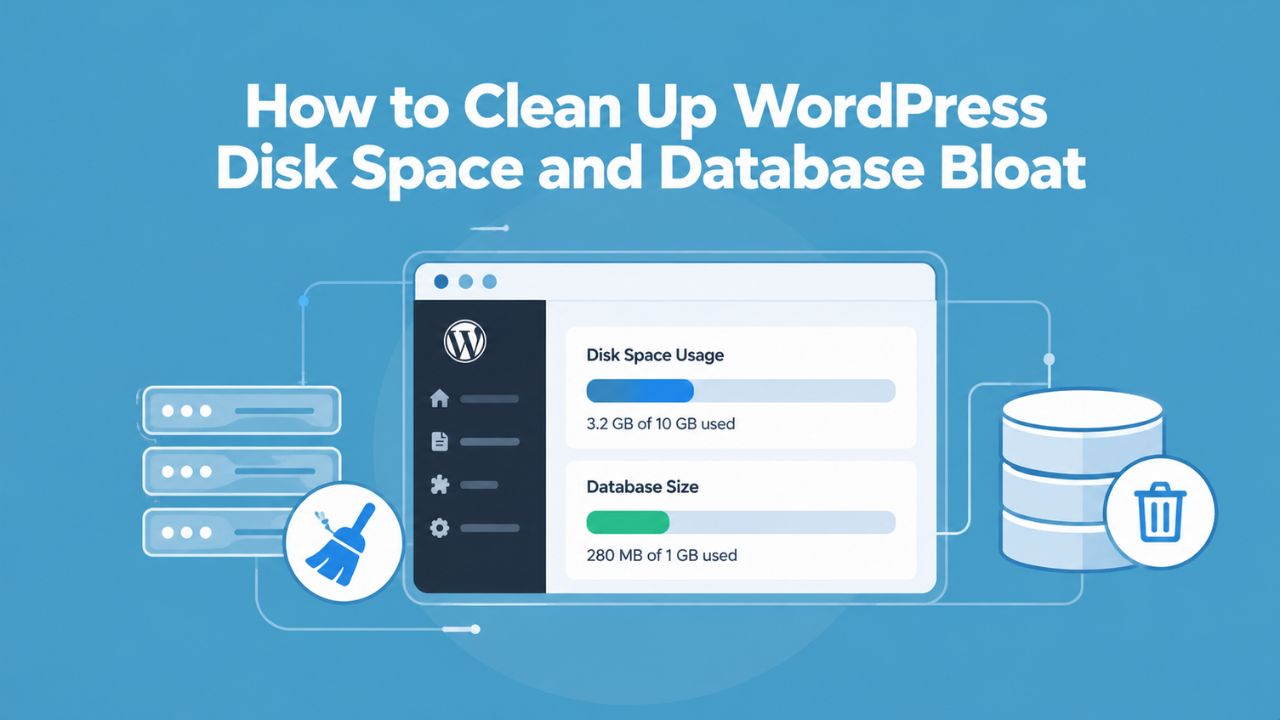
Every WordPress site accumulates unnecessary data over time; post revisions, expired transients, spam comments, and orphaned plugin metadata silently consume storage and degrade performance. Identify bloat sources, clean them safely, and implement preventive maintenance to keep your database lean and responsive.
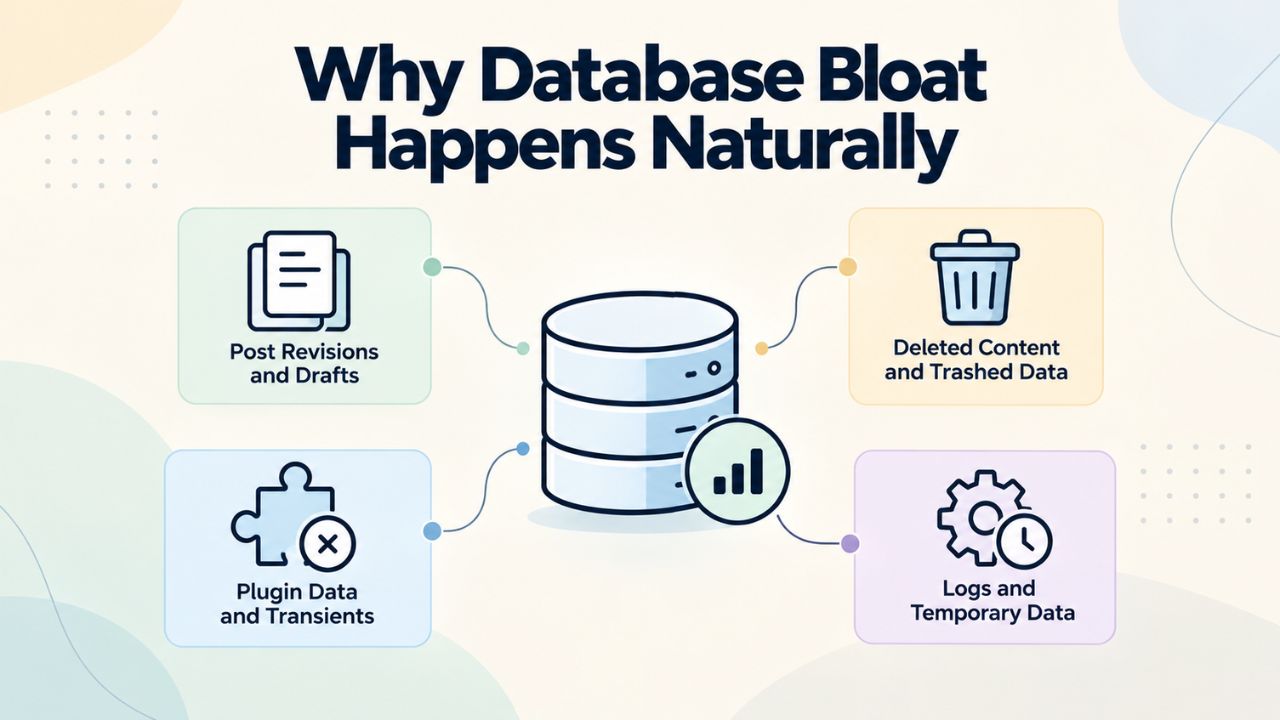
Why Database Bloat Happens Naturally
WordPress was built for flexibility and content management, not automated database housekeeping. The platform prioritizes safety and user experience over storage optimization, which means bloat accumulates automatically as your site operates. Understanding why this happens is the first step toward preventing it.
Post Revisions Stack Up Automatically
WordPress automatically saves a complete copy of your post every time you click Save Draft or Update. This revision system is a powerful feature; it lets you compare older versions, recover from mistakes, and maintain a complete edit history for compliance or content auditing. However, this safety net comes at the cost of database growth. According to WordPress documentation on revisions, by default WordPress stores an unlimited number of revisions per post.
Consider the real-world impact: a blog post edited during the writing process might be saved 50+ times as you refine the content. A product page updated seasonally accumulates revisions year after year. An active content marketer managing dozens of posts across multiple edits creates thousands of revision rows. On a site with 200 posts, each edited an average of 100 times over its lifetime, you’re storing 20,000 revision entries in your database, many of which you’ll never access again. These revisions take up database rows, consume disk space, increase backup file sizes, and add overhead to every database query that touches the posts table.
The revision system is invaluable during active editing, but maintaining years of historical revisions serves diminishing returns. Most site owners don’t need to restore a post from a version created six months ago, yet WordPress keeps every single one unless you configure a limit or manually delete old revisions.
Expired Transients Never Delete Themselves
WordPress transients are temporary cached values designed to reduce database load. Plugins use them to store API responses, feed caches, report calculations, and other data that doesn’t need to persist permanently. When a transient is created, you assign an expiration time, typically between 1 hour and 24 hours. This is where the problem begins.
WordPress uses a lazy deletion approach for transients: it only removes them when code tries to read them after the expiration time has passed. On a busy site with hundreds of plugins creating thousands of unique transient keys, this lazy approach fails to keep up. Disabled or poorly-maintained plugins leave transient records behind. WP-Cron failures (common on sites without regular traffic) mean scheduled cleanup doesn’t run. The result: your wp_options table fills with dead transient entries that serve no purpose. Each expired transient still consumes database space and adds query overhead every time WordPress loads options.
Spam Comments and Trashed Posts Accumulate Indefinitely
Comment spam is relentless on popular WordPress sites. Akismet, reCAPTCHA, and other security plugins catch most spam, but those flagged comments remain in your database indefinitely unless you delete them manually. Similarly, when you delete posts or move comments to trash, WordPress marks them as deleted but doesn’t purge them from the database. The default trash retention period is 30 days, but if that WP-Cron task fails to run, trashed content lingers forever.
On a blog receiving hundreds of comments monthly, even with effective spam filtering, your wp_comments table can accumulate thousands of spam and trashed entries. Each one occupies a database row plus associated metadata, increasing table size and slowing queries that filter by comment status. A news site or popular product blog might store tens of thousands of spam comments from years of operation.
Orphaned Metadata from Deleted Plugins
Every plugin that stores custom data creates entries in WordPress’s meta tables: wp_postmeta for post-level data and wp_usermeta for user data. When you delete a plugin, its metadata often remains behind as orphaned rows that reference posts or users that have been deleted. A product review plugin, for example, creates postmeta entries for each product. If you delete the plugin and later delete some products, those orphaned postmeta entries stay in the database, referencing products that no longer exist.
This orphaned data is particularly problematic because it accumulates silently. A site using 20 plugins over its lifetime, with even a few leaving behind orphaned records, can accumulate hundreds of thousands of orphaned rows. These records waste space and slow query processing, especially on sites that filter or sort by custom field values.
WordPress Pricing Plans
Choose the WordPress hosting plan that fits your website needs, with reliable performance, security, storage, backups, and tools to help your site grow.
WordPress Basic
A great way to get started.
- 1 website
- 10 GB NVMe storage
- Unmetered bandwidth
- Free SSL Certificate *
- WordPress pre-installed
- Weekly backups
- Web Application Firewall
- Daily malware scans
- One-time malware removal

WordPress Deluxe
Improve your site performance with Cloudflare CDN.
- 1 website
- 20 GB NVMe storage
- Unmetered bandwidth
- Free SSL Certificate *
- WordPress pre-installed
- Daily backups
- Web Application Firewall
- Daily malware scans
- One-time malware removal
- Up to 2x faster performance with global Cloudflare CDN **
- Enhanced security with DDoS protection
- Staging site
WordPress Ultimate
Add online marketing with more sites, storage and security.
- 1 website
- 30 GB NVMe storage
- Unmetered bandwidth
- Free SSL Certificate *
- WordPress pre-installed
- Daily + on-demand backups
- Web Application Firewall
- Daily malware scans
- Unlimited malware removal
- Up to 2x faster performance with global Cloudflare CDN **
- Enhanced security with DDoS protection
- Staging site
- WordPress code optimizer
- Smart WordPress plugin manager
- Sell online with WooCommerce
How Database Bloat Slows Your Site
The connection between database health and site performance is direct and measurable. WordPress executes database queries on nearly every page view. A lean database responds quickly; a bloated one adds unnecessary overhead to every request.
Bloat Increases Query Execution Time and TTFB
Every WordPress page load requires dozens or even hundreds of database queries. The server must retrieve posts, postmeta, comments, options, user data, and countless other records to assemble your page. When your database is bloated with revisions, transients, spam comments, and orphaned metadata, each query must process more rows to find the actual data it needs.
Time to First Byte (TTFB), the delay between sending a request to your server and receiving the first response byte, directly measures server processing time. Google’s performance guidance recommends keeping TTFB under 800 milliseconds because it establishes the floor for Largest Contentful Paint (LCP), one of the Core Web Vitals that affect search rankings. A bloated database pushes TTFB higher by increasing query execution time. On uncached pages or for logged-in admin users browsing the WordPress dashboard, this delay compounds with every page load.
The impact becomes visible in your WordPress admin experience. Slow admin pages, sluggish media library browsing, and delays when editing posts often trace back to database bloat. These aren’t just frustrations for site managers; they affect the entire editing workflow, making content creation slower and more painful. Site visitors don’t see these admin delays, but they feel the impact of higher TTFB on frontend pages, which leads to slower page loads, lower engagement, and potentially worse search rankings.
Backup Files Grow Unnecessarily Large
Database size directly determines backup file size. A bloated database creates massive backup files that consume server storage, take longer to create, take longer to upload to offsite backup storage, and take longer to restore if disaster strikes. A site that should have a 100 MB database bloated to 500 MB not only wastes disk space but also affects your disaster recovery capability. Restoring a 500 MB database backup takes significantly longer than restoring a lean 100 MB database, critical time when your site is offline and customers can’t access it.
This compounds over time. A site running backups to cloud storage (common for redundancy) pays bandwidth and storage fees based on backup size. Reducing database bloat by 400 MB means smaller, faster backups that restore more quickly if needed. Some hosting providers limit backup retention or frequency based on total storage used; a bloated database forces you into more expensive hosting plans to maintain reasonable backup policies.
Admin Dashboard Performance Suffers
WordPress admin pages query the database heavily. The Posts page, Media Library, and plugin settings pages all pull large datasets from your database. A bloated database makes these admin pages load longer, respond more slowly to user input, and create a frustrating experience for content managers. The dashboard itself loads postmeta for each post displayed, making the list view slower when your postmeta table is filled with orphaned records.
| Bloat Category | What It Is | Safe to Delete? | Impact on Speed | Typical Volume on Neglected Sites |
|---|---|---|---|---|
| Post Revisions | Saved copies of every post/page edit | Yes, completely safe | Medium (thousands of extra rows) | High (100+ per active post) |
| Expired Transients | Temporary cached data past expiration date | Yes, regenerate on demand | Low–Medium (per-query overhead) | Medium–High (plugin-dependent) |
| Spam Comments | Comments marked as spam by filters | Yes, never needed | Low (comment queries less frequent) | High (hundreds on popular sites) |
| Trashed Comments | Comments moved to trash, not deleted | Yes, same as spam | Low (similar overhead) | Medium (depends on moderation) |
| Orphaned Post Meta | Metadata referencing deleted posts | Yes, parents don’t exist | Medium (impacts custom queries) | High (plugin-dependent) |
| Orphaned User Meta | Metadata referencing deleted users | Yes, no references | Low (user queries less common) | Low–Medium (depends on turnover) |
| Auto-Drafts | Incomplete posts created but unsaved | Yes, never published | Negligible (few rows) | Medium (created continuously) |
| Trashed Posts | Posts moved to trash, not deleted | Yes, after 30 days | Low (post queries include these) | Low–Medium (depends on practices) |
Identifying Bloat in Your WordPress Database
Diagnosis precedes treatment. Before cleaning your database, understand what’s using your space and where the biggest opportunities for improvement lie. Most site owners don’t know their database size or composition until they run diagnostics.
Check Your Hosting Control Panel’s Disk Usage
Your hosting provider displays disk usage in the control panel (cPanel, Plesk, hPanel, or a custom dashboard). Log in and navigate to the Files or Storage section. Look for “MySQL Databases” or “Database Size” to see exactly how much space your WordPress database occupies. A baseline understanding helps you gauge the problem’s severity.
A fresh WordPress installation occupies only 2–5 MB. After a year of typical operation, 100 posts, moderate comments, and several plugins, expect 20–50 MB. A multi-year site with thousands of posts, active content management, and many plugins might naturally reach 200–300 MB. If your database exceeds 500 MB without proportional content volume, bloat is present and significant. Cross-check this against your uploads folder size (where images and media live). If your database size exceeds your media folder size, database bloat is definitely the primary culprit.
Many hosting panels also display inode usage, the count of individual files and database entries. High inode counts can trigger performance penalties on shared hosting. Cleaning orphaned records reduces inode usage alongside database size, providing dual benefits.
Run a Database Audit with Diagnostic Plugins
The most precise diagnosis comes from plugins designed specifically for database analysis. DBStorage Insights and WP-Optimize scan your database and report exactly what’s consuming space: each table’s size and row count, revisions per post, expired transient counts, spam comment volumes, and orphaned metadata counts.
DBStorage Insights displays a breakdown showing posts sorted by disk usage (including all revisions), plugins ranked by disk footprint, theme files, and counts of orphaned tables from deactivated plugins. WP-Optimize offers a simpler interface with checkboxes for each cleanup category, letting you preview what will be deleted before confirming. Both are free and available from the WordPress.org plugin directory, with no ads, no tracking, and no external data sending.
Install your chosen plugin, activate it, and navigate to its admin page. Review the database report carefully; it shows exactly what’s consuming space before you delete anything. The numbers tell a story: if you see 5,000 post revisions but only 50 posts, your site is storing 100 revisions per post on average, a strong indicator to set revision limits. If you see 10,000 expired transients, your cleanup schedule needs attention. This diagnosis informs your cleanup strategy.
Post Revisions and How to Limit Them
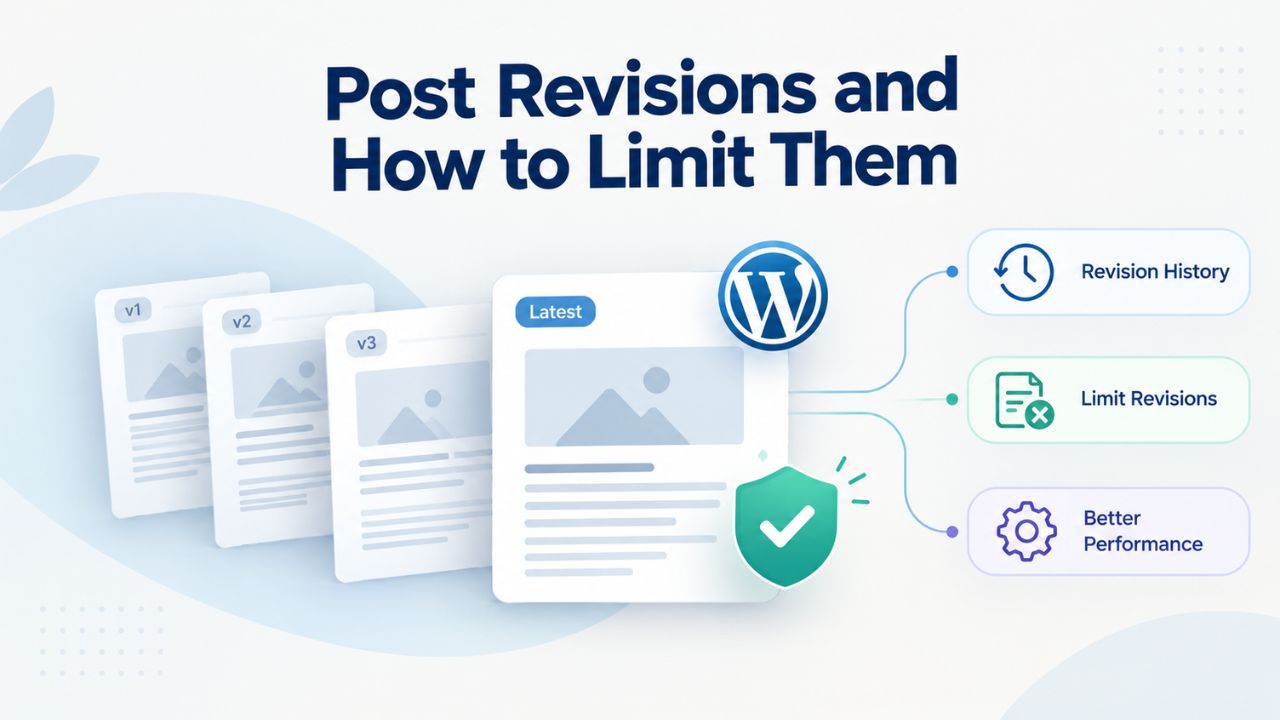
Post revisions are the easiest bloat source to control because WordPress provides a built-in setting to cap them. You can set a maximum number of revisions per post, delete old revisions retroactively, or disable revisions entirely based on your workflow needs.
Limit Revisions in wp-config.php
To control how many revisions WordPress retains, define the WP_POST_REVISIONS constant in your wp-config.php file. This file lives in your site’s root directory and contains WordPress configuration settings. Access it via FTP, SFTP, or your hosting control panel’s file manager.
Locate the line that says “/* Add any custom values between this line and the ‘stop editing’ line */”. Below that line, add:
Replace 5 with your preferred number. A limit of 3–10 revisions per post strikes a balance for most sites: it retains enough history to recover from editing mistakes and compare recent versions, without storing years of minor edits. Consider your workflow: high-volume news sites or collaborative environments might prefer 10, while personal blogs might be comfortable with 3. Setting the value to false disables revisions entirely (WordPress still saves one auto-save per user per post, preserving a minimal safety net).
Save the file and the setting takes effect immediately on all new revisions. This setting doesn’t retroactively delete existing revisions; you must clean those separately. After you set a limit, any revisions beyond the maximum are automatically deleted as new revisions are created, so your database doesn’t grow indefinitely in the future.
Delete Old Revisions Safely with Plugins or SQL
Retroactively deleting existing revisions requires either a cleanup plugin or direct SQL access. The plugin approach is safer for most users and provides a preview before deletion. WP-Optimize, Advanced Database Cleaner, and WP-Sweep all include revision cleanup features. Install your chosen plugin, navigate to its cleanup section, review the preview showing how many revisions will be deleted, and confirm.
For developers comfortable with SQL, you can delete revisions directly via phpMyAdmin (accessed through your hosting control panel). Select your WordPress database, click the SQL tab, and run:
This SQL command deletes all revisions in one operation. On large sites with thousands of posts and accumulated revisions, this query can take several minutes. Run it during low-traffic periods to avoid timeout errors and resource contention. Always create a backup before running direct SQL queries; if something goes wrong, you can restore from the backup.
After deletion, your database shrinks measurably. On a site with thousands of accumulated revisions, you might recover 100+ MB of space. Future backups are smaller because the database no longer includes years of historical revisions.
Cleaning Up Expired Transients
Expired transients are invisible to non-technical users but consume significant space on plugin-heavy sites. Most site owners don’t think about transients until a database audit reveals thousands clogging the wp_options table.
Understand Why Transients Accumulate
Transients are temporary cached values stored in the wp_options table with an expiration timestamp. Plugins use them extensively: caching plugins store rendered page fragments, SEO plugins store analysis results, API-integration plugins store fetched data. The design intention is that expired transients get cleaned up automatically. The reality: WordPress uses lazy deletion, only removing transients when code tries to read them after expiration.
On busy sites with hundreds of plugins creating thousands of unique transient keys, lazy deletion falls behind. Disabled plugins don’t clean up their transients. WP-Cron tasks can fail to run if your site receives no traffic or has cron misconfiguration. The result: expired transients accumulate indefinitely, each consuming bytes and adding query processing overhead.
A site running for several years with 10+ active plugins might store 5,000–10,000 expired transients. On every page load, WordPress queries the entire wp_options table, forcing the database to sift through these dead entries before retrieving the options you need. The overhead compounds across thousands of page views.
Remove Expired Transients with Plugins or Manual SQL
Database cleanup plugins make this simple: WP-Optimize includes a “Delete expired transients” checkbox in its cleanup interface. One click removes all transients whose expiration date has passed. If you prefer manual SQL, use this query in phpMyAdmin:
WHERE option_name LIKE ‘_transient_timeout_%’
AND option_value < UNIX_TIMESTAMP();
This query specifically targets transient timeout markers (the entries that store expiration times) whose timeout value (stored as a Unix timestamp) is in the past. It leaves active transients alone, ensuring it deletes only truly expired data. For comprehensive cleanup, you should also delete the corresponding transient data rows without “timeout” in their names, which most cleanup plugins handle automatically.
Deletion is completely safe. When WordPress or a plugin needs a transient and doesn’t find the expired one, it simply regenerates it. Your site never runs missing a critical cached value; the recalculation might take slightly longer on the first request after cleanup, but your site remains fully functional.
Ready to Optimize Your Database Performance?
A lean, efficient database is fundamental to WordPress site speed and reliability. Every millisecond of TTFB reduction improves user experience and search rankings. Niya Digital’s managed WordPress hosting includes automated backups, database monitoring, and performance optimization features, keeping your database lean without manual intervention. Whether you’re recovering from years of accumulation or implementing proactive maintenance, professional hosting support makes database health sustainable.
Removing Spam and Trashed Comments
Comment spam accumulates faster than most site owners realize. Popular posts attract hundreds of spam comments daily. Security plugins like Akismet and reCAPTCHA catch most spam, but those flagged comments remain in your database indefinitely unless you delete them permanently. Similarly, WordPress keeps trashed comments indefinitely; only you can permanently remove them.
How Comments Bloat Your Database Over Time
Each spam or trashed comment occupies a row in the wp_comments table plus associated rows in wp_commentmeta for additional metadata. A popular blog post can accumulate hundreds of spam attempts daily. Over years, popular sites store tens of thousands of spam comments. These serve no purpose after moderation; they’re never displayed, never referenced, and only consume storage and add query overhead.
WordPress doesn’t auto-delete spam or trash comments. The trash retention period (default 30 days, configured by the EMPTY_TRASH_DAYS constant) only applies if WP-Cron runs successfully. Many sites have misconfigured cron or low traffic, so cron tasks don’t run. Result: spam comments accumulate indefinitely, inflating your database and backup file sizes.
Approved and pending comments are valuable; they represent real site engagement and reader comments. Only spam and trashed comments should be deleted. Most moderation tools let you review comment status (approved, pending, spam, trash) before cleanup, so you can verify you’re deleting only unwanted content.
Delete Spam and Trashed Comments via Plugins or SQL
Use a cleanup plugin for the safest approach. WP-Optimize, Advanced Database Cleaner, and WP-Sweep all offer checkboxes for “Delete all spam comments” and “Delete all trashed comments”. The plugin preview shows you the count before you confirm, letting you verify the scope. On large sites, this can be thousands of rows; plugins process them in batches to avoid timeouts.
For manual deletion via SQL in phpMyAdmin:
DELETE FROM wp_comments WHERE comment_approved = ‘spam’;
DELETE FROM wp_comments WHERE comment_approved = ‘trash’;
Run each query separately and note the row count deleted. Associated comment metadata is typically cleaned up automatically by database optimization tools. If you want to manually verify no orphaned metadata remains, use:
DELETE FROM wp_commentmetaWHERE comment_id NOT IN (SELECT comment_ID FROM wp_comments);
This deletes any metadata rows referencing comments that no longer exist in the comments table.
Preventing Future Accumulation: Configure Akismet or your anti-spam plugin to automatically delete spam comments older than 30 days. This prevents the endless accumulation that makes massive cleanup operations necessary later.
Deleting Orphaned Metadata from Deactivated Plugins
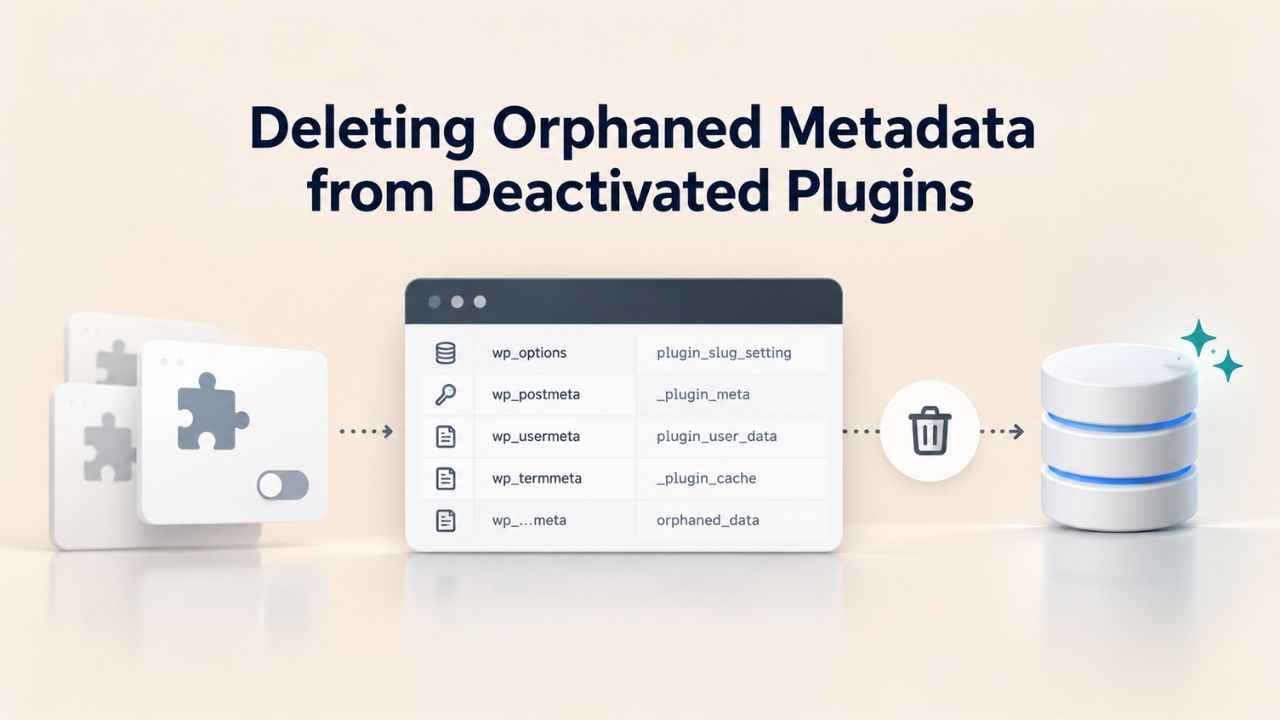
When plugins deactivate or uninstall improperly, they leave orphaned database records behind. Postmeta rows reference posts that no longer exist. User meta rows reference deleted users. Entire database tables created by plugins become unused. This orphaned data is safe to delete but invisible to most users until a database audit reveals it.
Identify Orphaned Records from Deleted Plugins
Database diagnostic plugins show non-standard tables- anything beyond WordPress’s 11 core tables. These custom tables were created by plugins. If the plugin is no longer active, its tables are orphaned. Similarly, postmeta and usermeta rows can reference posts or users that have been deleted (their parent records don’t exist). This orphaned metadata serves no purpose and can be safely removed.
Identifying orphaned data matters because it reveals patterns. If you deactivate 20 plugins over your site’s lifetime and each leaves behind some metadata, you could accumulate hundreds of thousands of orphaned rows. This data never causes functionality issues (the plugins aren’t running anyway), but it wastes space and adds database processing overhead.
Clean Orphaned Data Safely
Advanced Database Cleaner’s Pro version specifically targets orphaned tables and metadata. The free version of WP-Optimize also includes orphaned postmeta cleanup. Both plugins scan your database, identify orphaned records, show you the count, and provide one-click deletion. This is the safest approach because the plugin verifies that the parent records don’t exist before deleting them.
For manual SQL verification, use this query to find orphaned postmeta:
If the count is significant, you can delete these records:
This query only deletes postmeta rows whose post_id doesn’t exist in the posts table, preventing accidental deletion of valid metadata.
Best Practice When Uninstalling: Look for an “Uninstall” option in the Plugins admin page, separate from just “Deactivate”. An uninstall button runs the plugin’s cleanup hooks and properly removes its database records. If no uninstall option exists, use a cleanup plugin to remove orphaned data after deactivation.
Tools for Automated Database Cleanup
One-time cleanups provide immediate relief, but ongoing maintenance prevents bloat from returning. Several free and freemium plugins offer scheduled automated cleanup, running maintenance tasks on a schedule you define.
Compare Popular Database Cleanup Plugins
| Plugin | Primary Approach | User Skill Level | Scheduling Options | Safety Features |
|---|---|---|---|---|
| WP-Optimize | Comprehensive one-click cleanup with granular checkboxes; integrated scheduler | Beginner–Intermediate | Weekly, bi-weekly, monthly, custom intervals | Preview before deletion, backup recommendation |
| Advanced Database Cleaner | Detailed category-by-category selection; Pro version includes orphaned table detection | Beginner–Advanced | One-time or scheduled | Dry-run preview, detailed logging |
| WP-Sweep | Simple, focused cleanup interface; emphasizes comments and revisions | Beginner | One-time or scheduled | Clear category organization, safe defaults |
| Dejunk DB | One-click preset cleanup with automatic pre-deletion backups | Beginner | One-time cleanup (free version) | Built-in backup creation before deletion |
| DBStorage Insights | Diagnostic tool showing exact sizes; cleanup buttons per category | Intermediate | Display only (scheduled cleanup requires manual runs) | Comprehensive reporting, safe deletion options |
WP-Optimize is the most popular because it balances simplicity with comprehensive features. After initial setup, you set when to run cleanups (weekly on Sundays, for example), choose what to clean, and the plugin handles the rest automatically. No manual intervention needed.
Configure Scheduled Maintenance
Most plugins have a Settings or Scheduling section where you define:
Cleanup Frequency: Weekly works for active sites; monthly for stable sites. Choose intervals that match your site’s content velocity.
What to Clean: Checkboxes for revisions, transients, spam comments, trashed comments, orphaned metadata. Don’t check categories you’re unsure about; conservative settings are safer than aggressive ones.
Retention Settings: For example, “Delete revisions older than 30 days” or “Keep the 5 most recent revisions per post”. Conservative retention means you keep a month or two of history for recovery while removing bulk accumulation.
Notifications: Some plugins email you a report after each cleanup, showing what was removed and how much space was recovered.
Start with conservative settings. As you gain confidence in the cleanup process, you can adjust more aggressively. The goal is to prevent bloat growth, not achieve the absolute smallest database.
Manual Cleanup via SQL and wp-config
Advanced users comfortable with direct database access can clean up via SQL queries and config file edits. This approach offers maximum control but carries higher risk if queries are malformed.
Access Your Database via phpMyAdmin
Your hosting control panel (cPanel, Plesk, hPanel, or custom dashboard) includes phpMyAdmin, a web interface for MySQL database management. To perform manual cleanup:
- Log in to your hosting control panel
- Navigate to phpMyAdmin (usually under the Databases or Files section)
- Select your WordPress database from the list on the left sidebar
- Click the SQL tab at the top
- Paste cleanup queries and click Run
Execute queries carefully. Always test on a backup database if possible. If your hosting includes automated backups, take a manual snapshot before running large deletions. This snapshot serves as your rollback point if anything goes wrong.
Common cleanup queries include deleting revisions, expired transients, spam comments, and orphaned metadata (examples provided in previous sections). Execute one query at a time and note the result showing how many rows were affected.
Use WP-CLI for Advanced Users
Developers with SSH access can use WP-CLI (WordPress command-line interface) for faster, more powerful cleanup. WP-CLI lets you perform database operations from your server’s command line, which is faster for large operations and easier to script for recurring cleanup.
Common WP-CLI cleanup commands:
# Delete all revisionswp post delete $(wp post list –post_type=revision –format=ids) –force
# Delete expired transients
wp transient delete –expired
# Delete spam comments
wp comment delete $(wp comment list –status=spam –format=ids)
# Delete trashed comments
wp comment delete $(wp comment list –status=trash –format=ids)
WP-CLI processes large operations more efficiently than the web interface. On a site with 50,000 revisions, a WP-CLI command finishes in seconds; the same operation via phpMyAdmin might time out. This speed and reliability make WP-CLI ideal for bloated sites.
Long-Term Maintenance Strategies to Prevent Future Bloat
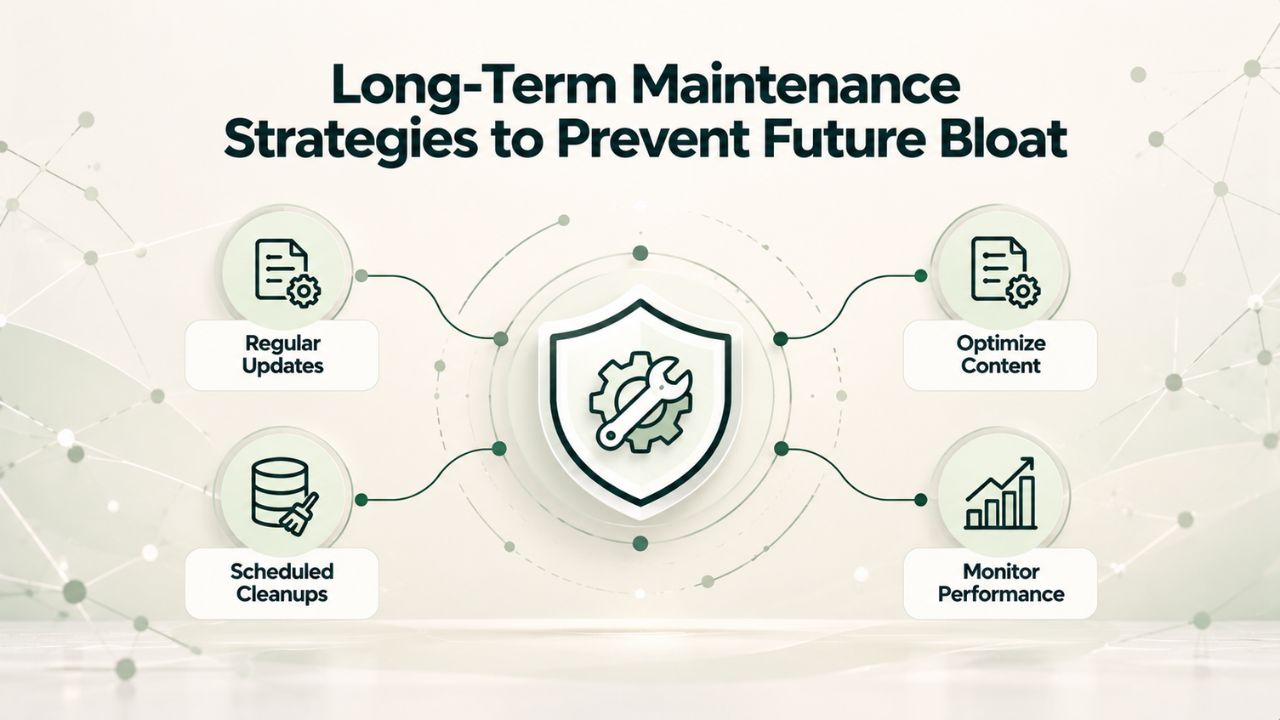
One-time cleanup provides immediate relief, but lasting performance requires treating database maintenance as an ongoing habit. Setting limits and automating cleanup prevent the slow creep that makes sites sluggish over time.
Configure Settings to Prevent New Bloat from Forming
The easiest prevention is stopping bloat before it starts. Set WP_POST_REVISIONS in wp-config.php to cap revisions automatically. Configure your anti-spam plugin to auto-delete spam comments older than 30 days. Schedule a cleanup plugin to run monthly or weekly to automatically remove accumulated junk. These configuration decisions, made once, enforce themselves forever.
A site with these settings never accumulates the dramatic bloat that forces massive cleanup operations. The database grows only with legitimate content additions. Preventive configuration creates a self-maintaining database that stays lean indefinitely.
Delete Plugins Properly Using Uninstall, Not Just Deactivate
When you’re done with a plugin, click “Delete” from the Plugins admin page, not just “Deactivate”. Deletion runs the plugin’s uninstall hooks, which should clean up its database records. Deactivation leaves all plugin data intact. Some plugins clean up better than others; if you’re unsure, use a cleanup plugin afterward to verify that no orphaned tables or metadata remain.
Keep a mental note of plugins you’ve used over your site’s history. If you ever need to audit for orphaned data, you’ll know which ones to check. This historical awareness helps you understand your database composition and identify potential cleanup opportunities.
Monitor Backup Size as a Health Indicator
Backup file size indirectly measures database health. If backups grow by 50 MB every month without adding equivalent content, bloat is accumulating. Many hosting providers display backup sizes in the control panel. If backups consistently grow faster than your content, run cleanup and establish a new baseline.
After cleanup, take a new backup and compare its size to the previous one. A well-maintained database typically plateaus in size once bloat is removed and prevention is in place. If backup size stabilizes, your maintenance routine is working effectively.
Start Your Database Optimization Journey Today
A lean, optimized database keeps your WordPress site fast, responsive, and maintainable. Performance directly impacts user experience, engagement metrics, and search rankings. Niya Digital’s managed WordPress hosting plans include automated optimization features, backup services, and performance monitoring, keeping your database healthy without requiring manual effort. Combined with the cleanup and prevention strategies outlined in this guide, proactive database maintenance shifts from emergency repair to automatic, sustainable performance.
Frequently Asked Questions
What exactly is WordPress database bloat, and how serious is it?
Database bloat refers to unnecessary data accumulating in your WordPress database over time: post revisions (saved copies of every edit), expired transients (cached data past its expiration), spam comments, trashed comments, orphaned plugin metadata, auto-drafts, and trashed posts. This data consumes disk space and slows database queries because WordPress must process more rows on every page load. Bloat builds gradually; most site owners don’t notice until performance visibly degrades or backups slow down. A neglected site can grow its database from a healthy 50 MB to a bloated 500+ MB over several years.
Will cleaning my database actually speed up my site, or is this just a claimed benefit?
It depends on how much bloat has accumulated. A site with minimal revisions and well-maintained plugins sees little speed improvement from cleanup. Sites with years of history, frequent edits, many plugins, and no prior maintenance see measurable improvements: faster admin pages, quicker dashboard load times, faster backups, and reduced TTFB. Core Web Vitals may improve if bloat was pushing Time to First Byte over Google’s thresholds. The most reliable indicator is backup file size; after cleanup, backups shrink visibly, and subsequent backups grow more slowly.
Is it actually safe to delete post revisions, or could I regret this decision?
Yes, deleting post revisions is completely safe. Revisions are purely historical; WordPress never needs them for site operation. If you’re concerned about losing edit history, set a revision limit (5–10 is sensible) and clean up older revisions, keeping recent ones for recovery. WordPress doesn’t regenerate deleted revisions once they’re gone, so make sure you’re comfortable with your retention decision. Always back up your database first, but the actual deletion is safe, widely practiced, and has caused no negative impacts on millions of WordPress sites.
What are orphaned metadata, and why do they accumulate when plugins deactivate?
Orphaned metadata refers to database records in wp_postmeta or wp_usermeta tables that reference parent posts or users that no longer exist. When a plugin is deleted without proper uninstall cleanup, its custom postmeta rows remain even if the parent post is deleted later. Deleting a postmeta’s parent post doesn’t cascade delete the metadata. Orphaned data is completely safe to delete because nothing depends on it; the parent record is gone, so the metadata is useless. Plugins will never regenerate it, and WordPress won’t notice its absence.
Can I disable post revisions entirely, or is there a minimum I should keep?
You can disable revisions by setting define( ‘WP_POST_REVISIONS’, false ); in wp-config.php. WordPress still saves one autosave per user per post, so you still have a safety net. However, you’ll lose the ability to compare versions or restore previous post versions. For most sites, capping revisions at 5–10 is safer than disabling entirely, giving you history for recovery without bloat. High-volume collaborative sites might prefer 10 or 15; personal blogs might be comfortable with 3.
What are transients, and why do they matter for database size?
Transients are temporary cached values (API responses, feed caches, calculation results) that WordPress and plugins store in the database with an expiration time. Transients reduce expensive repeated operations. However, WordPress deletes expired transients only when code tries to read them (lazy deletion). On busy sites, expired transients accumulate indefinitely. Cleaning expired transients is safe; WordPress or the plugin regenerates them on demand, causing no data loss. A site running for several years might accumulate 5,000–10,000 expired transients.
How often should I run database cleanup, weekly, monthly, or just once?
On active sites (blogs, news, ecommerce) with frequent posts and comments, monthly cleanup is reasonable. On stable sites with infrequent updates, quarterly cleanup suffices. Once you’ve cleaned old bloat, automated monthly cleanups prevent new accumulation. Most plugins allow scheduling, so you set it once and forget it; no manual remembering required. The goal is to prevent bloat growth, not achieve the absolute smallest database, so balance frequency with your site’s activity level.
Is creating a backup before cleanup really necessary, or am I overthinking this?
Creating a backup is strongly recommended before running cleanup. Cleanup plugins are safe and widely used by millions, but if a query misfires or you accidentally select the wrong option, having a backup lets you restore quickly. Most hosting plans include automated backups; take an extra manual backup before cleanup if you’re deleting a lot. Cleanup plugins often include backup functionality or abort if backups aren’t available, adding extra safety layers.
What’s the difference between “Delete” and “Deactivate” for WordPress plugins?
Deactivating stops a plugin from running but leaves its database tables and metadata intact. Deleting removes the plugin files and runs its uninstall hooks, which should clean up its database records. If you deactivate a plugin you’re done with, it can leave orphaned data indefinitely. Always use “Delete” when you’re certain you won’t need a plugin again. After deletion, use a cleanup plugin to verify no orphaned tables remain, ensuring complete cleanup.
Can automated cleanup accidentally delete important data or break my site?
No, if configured conservatively. Automated cleanup plugins typically delete only revisions older than a set number of days, spam comments (not approved comments), trashed items, and expired transients. None of these categories contain live content or settings your site needs to function. Set retention rules generously (e.g., “keep revisions from the last 60 days”) and monitor the first few cleanup runs to build confidence. The safest approach is to start with conservative settings and adjust more aggressively as you gain confidence.
How large should my WordPress database be for a typical site?
A fresh WordPress installation is 2–5 MB. After a year of normal use (100 posts, moderate comments, a few plugins), expect 20–50 MB. A multi-year site with thousands of posts and many plugins might naturally reach 200–300 MB. If your database is 500+ MB without proportional content, you have bloat. Compare your database size to your uploads folder; if the database is larger than media files, database bloat is definitely the primary issue. Your hosting control panel shows both sizes clearly.
Can I run multiple cleanup plugins simultaneously, or should I stick with just one?
Stick with one plugin to avoid conflicting operations or redundant deletions. Running multiple cleanup plugins on the same database increases risk and serves no benefit; one well-configured plugin handles all cleanup needs. Choose based on your comfort level and feature preferences, trust it completely, and schedule it consistently. If you want to audit what multiple plugins would do before committing, use DBStorage Insights (diagnostic only, doesn’t delete) to review options, then select and commit to one cleanup tool.
What does “autoload” mean in database settings, and should I worry about it?
Autoload options are database settings that WordPress loads into memory on every single page request, whether the page needs them or not. Over time, plugins add many options to wp_options with autoload=yes, bloating memory usage on every page load. Large autoload data increases TTFB significantly. Advanced cleanup plugins can reduce autoload size, but this requires more caution and technical knowledge. Most standard cleanup (revisions, transients, comments) doesn’t touch autoload data. Start with basic cleanup; advanced autoload optimization is for experienced users.
How do I know if my WP-Cron is working properly and actually running scheduled cleanup?
WP-Cron is WordPress’s built-in task scheduler, but it’s not a true operating-system cron job. Instead, it relies on page requests triggering the scheduled tasks. If your site receives no traffic or has low traffic, WP-Cron tasks might not run regularly. You can verify WP-Cron functionality by installing a diagnostic plugin or checking your site’s logs. Many hosting providers include built-in WP-Cron configuration options in the control panel. If WP-Cron isn’t running, you can either increase site traffic or ask your hosting provider to set up a real cron job to trigger WordPress’s scheduled tasks.
What should I do immediately after cleanup to ensure my site remains optimized?
After cleanup, take a new database backup and note its size; this is your new baseline. Then configure prevention settings: set WP_POST_REVISIONS in wp-config.php to a reasonable limit, configure your anti-spam plugin to auto-delete old spam comments, and schedule a cleanup plugin to run monthly. These one-time configurations help prevent bloat from returning. Monitor your backup file sizes monthly; if they start growing faster than your content, it’s time to clean up again or review your prevention settings.
Glossary
- Post Revisions: Saved copies of post and page edits that WordPress stores automatically. Every time you click Save Draft or Update, a new revision is created, allowing you to compare versions and restore previous content. By default, WordPress stores unlimited revisions, which can significantly bloat the database over time, especially on sites with frequent edits.
- Transients: Temporary cached values stored in the wp_options database table with an expiration timestamp. WordPress and plugins use transients to cache expensive calculations, API responses, feed data, and other information that doesn’t need permanent storage. Transients are designed to expire automatically, but WordPress only removes them when code tries to read them after expiration; lazy deletion means expired transients can accumulate indefinitely on busy sites.
- Orphaned Metadata: Database records in wp_postmeta or wp_usermeta tables that reference parent posts or users that no longer exist. When posts are deleted, associated plugin metadata often remains because WordPress doesn’t automatically cascade-delete related metadata rows. Orphaned metadata is safe to delete because nothing depends on it; the parent record no longer exists, making the metadata useless.
- Auto-Drafts: Incomplete post or page drafts automatically created when you click “Add New” in the WordPress admin, but never saved or published. WordPress automatically deletes auto-drafts older than 7 days via WP-Cron, but if cron is misconfigured or your site has low traffic, auto-drafts can accumulate indefinitely. They consume minimal space individually but add up in high-traffic admin areas.
- TTFB (Time to First Byte): A performance metric measuring the delay between sending a request to your web server and receiving the first byte of response data. This measures pure server processing time, independent of network speed or file size. Bloated databases increase TTFB by slowing server processing; Google recommends keeping TTFB under 800 milliseconds because it directly impacts Largest Contentful Paint, a Core Web Vital used in search rankings.
- Core Web Vitals: A set of performance metrics published by Google that measure real-world user experience and affect search rankings. The three main Core Web Vitals are Largest Contentful Paint (LCP, measures loading speed), Interaction to Next Paint (INP, measures responsiveness), and Cumulative Layout Shift (CLS, measures visual stability). Database bloat indirectly harms Core Web Vitals by increasing TTFB, which increases LCP.
- WP-Cron: WordPress’s built-in task scheduler runs background maintenance tasks like auto-draft deletion, spam cleanup, and plugin-scheduled events. WP-Cron is not a true operating-system cron job; it piggybacks on page requests. If your site receives no traffic, WP-Cron tasks don’t run. On high-traffic sites, WP-Cron typically runs reliably; on low-traffic sites, maintenance tasks might accumulate.