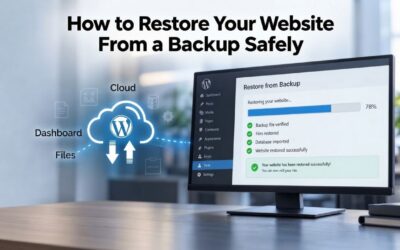
You wake up Monday morning to find your website gone, not damaged, but completely unreachable. A plugin broke during an update, or worse, a hacker encrypted your files. Your hosting provider’s last backup is three weeks old. Everything added since then is lost forever. Niya Digital is an authorized reseller of CodeGuard (GoDaddy Website Backup)-powered website backup services, not an independent operator of backup infrastructure.
CodeGuard (GoDaddy Website Backup) operates the automated backup capture, off-site storage, and one-click restore technology. Data safety depends on many factors outside any single provider’s control: how frequently you back up, how quickly you notice an issue, your hosting conditions, and your credential security. Regular backups and a reliable partner reduce, but don’t guarantee, protection against all data loss scenarios.
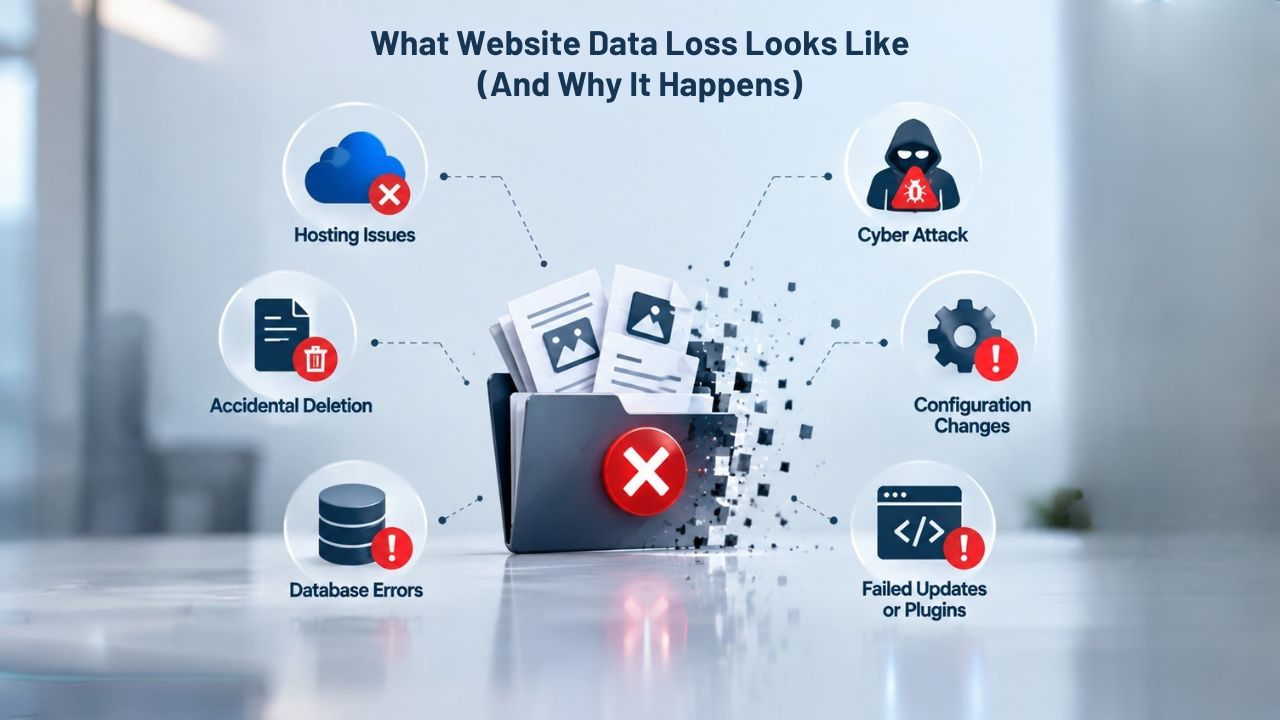
What Website Data Loss Looks Like (and Why It Happens)
Website data loss isn’t a theoretical risk; it’s happening to thousands of sites right now. Understanding the real-world causes of data loss helps you build a strategy that actually protects your business. Whether the threat comes from external attackers, failed updates, or human error, the outcome is always the same: without a recent backup, recovery becomes expensive and time-consuming.
Daily Threats to Your Website
Approximately 30,000 websites are hacked every day globally, with 4.1 million websites having active malware at any given moment. However, hacks represent only one class of data loss. Failed plugin or theme updates frequently break WordPress sites, leaving them completely non-functional. Server crashes and hosting provider outages can wipe databases without warning, especially if backups are stored on the same infrastructure. Accidental deletion by a team member, corrupted databases from software bugs, and failed site migrations are equally common causes of data loss.
A website backup solution is your insurance policy against all of these risks. Without a recent backup, recovery requires hiring a developer to manually rebuild lost content, losing days or weeks of work, and watching revenue evaporate while your site remains offline. The average cost of one hour of downtime across all organizations in 2025 is $14,056 per minute, representing a 150% increase from 2014 baselines. For e-commerce sites during peak shopping hours, costs can easily exceed $540,000 per hour.
Why Your Host’s Backup Isn’t Enough
Most hosting providers include a basic backup service as a standard feature, but these backups often fail to meet real-world needs. Hosting-provided backups are often weekly or monthly; capturing your site only once a week leaves six days of unprotected work. More critically, hosting backups are almost always stored on the same servers that run your live site. If that server hardware fails, both your live site and your backups are lost at the same time. If malware or ransomware compromises the server, locally stored backups may be encrypted or deleted alongside your site.
A true website backup and restore service operates independently from your hosting. Off-site backup storage protects against local weather disturbances, cyberattacks, and hardware failures- risks you cannot control alone. Niya Digital’s team has observed that the difference between recovering a site in 30 minutes versus 30 hours comes down to whether an off-site backup exists and is immediately accessible.
Website Backup Plans & Pricing
Select the Website Backup package that best fits the size and peace of mind requirements of your website. Your data is safeguarded without going over budget thanks to our adaptable choices.
Website Backup 5 GB
Recommended for documents and files.
- Automatic daily backups
- Built-in daily malware scanning
- Back up a file, folder or an entire database
- Continuous security monitoring
- Downloads to local storage
- Easy one-click restore
- Secure cloud storage
- Expert 24/7 customer support
- One website per account

Website Backup 25 GB
Recommended for photos and music.
- Automatic daily backups
- Built-in daily malware scanning
- Back up a file, folder or an entire database
- Continuous security monitoring
- Downloads to local storage
- Easy one-click restore
- Secure cloud storage
- Expert 24/7 customer support
- One website per account
Website Backup 50 GB
Recommended for videos and multimedia.
- Automatic daily backups
- Built-in daily malware scanning
- Back up a file, folder or an entire database
- Continuous security monitoring
- Downloads to local storage
- Easy one-click restore
- Secure cloud storage
- Expert 24/7 customer support
- One website per account
Full Backups vs. Incremental Backups: When to Use Each
Not all backups capture data the same way, and understanding the differences helps you choose the right approach for your site. Full backups and incremental backups serve different purposes, and the most robust backup strategies often combine both methods to maximize efficiency and protection.
Understanding Full Backups
A full backup captures everything: all website files, databases, email accounts, and configuration settings, typically saved as compressed archive files, like zip, tar, or 7z, which makes it simple to restore the full site or extract individual components if needed. Full backups represent the most comprehensive backup option and remain the best choice for complete recovery scenarios where you need to restore your entire site to an exact point in time. The trade-off is significant: full backups consume substantial storage space and require considerable time to complete, especially for larger websites with thousands of files or multi-gigabyte databases.
A weekly full backup ensures you always have a complete copy available for emergency recovery. Starting with a full backup is always smart practice; it provides a strong foundation for your backup strategy. Knowing you have a complete copy of everything provides considerable peace of mind and a solid base for building your broader backup plan.
The Efficiency of Incremental Backups
Incremental backups only save the changes made since the last backup, whether that previous backup was a full backup or another incremental backup. They’re dramatically more efficient than full backups for regular use. Think of it like tracking daily changes in a document: you don’t rewrite the entire document every day; you save the edits you made that day. Incremental backups capture only new or modified data, ignoring everything already backed up, which results in much faster backup creation times and significantly reduced storage consumption.
Incremental backups are especially useful for frequently updated websites, capturing content changes, theme updates, added plugins, and new features. They’re ideal for active sites and large websites where full backups can be very time-consuming and storage-intensive. However, restoring from incremental backups can take longer because you must combine and reassemble multiple backup sets to create a complete restore point.
How Often Should You Back Up? Choosing the Right Frequency
Backup frequency isn’t universal; it depends directly on how often your site changes and how much data loss you can tolerate. Base frequency decisions on your update patterns, data sensitivity, and business continuity requirements. Getting this decision right protects you without wasting resources on unnecessary backups.

Website Backup Types & Selection Matrix
| Backup Type | What It Captures | Best Suited For | Storage Efficiency | Restore Speed | Recovery Completeness |
|---|---|---|---|---|---|
| Full Backup | All website files, database, email, settings | Initial baseline, complete recovery needs, weekly capture | Least efficient; largest archive files | Fastest (single restore point) | 100% complete (one file) |
| Incremental Backup | Only changes since last backup | Frequent daily backups, active sites, storage optimization | Most efficient; smaller individual files | Slower (multiple files combined) | 100% complete (reassembled) |
| Database-Only Backup | Database tables, posts, comments, user data | Dynamic content protection, database-critical sites | Moderate efficiency; database-specific | Moderate speed (database only) | Posts/pages only, no files |
| File-Only Backup | Themes, plugins, uploads, static assets | File protection, media-heavy sites | Moderate efficiency; files only | Moderate speed (files only) | Theme/plugins only, no content |
| Differential Backup | Changes since last full backup | Balance between speed and storage, weekly full + daily differential | Moderate efficiency | Moderate restore speed | Complete via full + differential |
Understanding Your Update Patterns
Static websites with minimal updates typically need weekly backups; if you update monthly, weekly backups far exceed your needs. Dynamic websites with frequent content updates need daily backups to keep pace with changes. E-commerce sites benefit from real-time or 12-hourly backups to ensure transactional data and customer information are captured constantly. Membership and SaaS sites with hourly user data changes may require hourly or continuous backups to minimize data loss in emergencies.
The frequency of your content updates should heavily influence your backup schedule decision. If you add new blog posts daily or multiple times daily, daily backups are necessary; you want to avoid losing a week’s worth of published content. If you add products, process orders, or accept user registrations multiple times daily, more frequent backups protect critical business data. Conversely, if you update monthly, weekly backups provide more than adequate protection.
Why Daily Backups Have Become Standard
As a general rule of thumb, daily backups represent the ideal solution for most WordPress websites and dynamic sites. Daily backups mean you’ll always have an updated version to restore, and you’ll never lose more than 24 hours of work. Daily frequency strikes the sweet spot: it’s frequent enough to minimize data loss significantly, yet not so expensive or resource-intensive that it becomes impractical for most websites. Daily is the industry standard recommendation for sites generating revenue or serving customer data.
However, daily backups are only useful if they’re automated; manual daily backups inevitably fail. You get busy and skip just one day (which turns into weeks), you back up only before major changes (missing all small daily updates), or you store backups on your computer (which can fail or be stolen). You don’t test whether backups actually work until it’s too late. An automated website backup service removes this burden entirely, capturing your site on a predictable schedule without requiring any action from you beyond setup.
Website Backup Frequency Decision Framework
| Website Type | Update Frequency | Recommended Backup Interval | Risk of Missed Backup | Typical Recovery Scenario | Backup Storage Needed |
|---|---|---|---|---|---|
| Static Blog | Monthly or quarterly content updates | Weekly backups | Lose 1-4 weeks of minor updates/comments | Accidental page deletion, plugin error | Minimal (static files only) |
| Active WordPress Blog | Daily posts and comments | Daily backups | Lose 24 hours of posts and user interaction | Plugin update breaks site, malware injection | Moderate (growing database) |
| Small E-Commerce | Real-time transactions and orders | 12-hourly to real-time backups | Lose hours of transactions and orders | Ransomware attack mid-day, payment failure | Growing (transaction history) |
| SaaS/Membership Site | Hourly user data changes | Hourly or continuous backups | Lose hours of user account changes | Server hardware failure during peak usage | Substantial (active databases) |
| Corporate Website | Weekly content and blog updates | Daily backups | Lose days of recent changes | Malware injection, need clean version, reputational risk | Moderate to large (media assets) |
Why Off-Site Storage Matters More Than You Think
Here lies a critical flaw in most DIY backup strategies: the backup sits on the same server as your live website. If that server catches fire, gets hacked, suffers a hardware failure, or is compromised by a hosting provider’s security breach, you lose both your live site and the backup at the same time. Off-site data backup stores backups away from the primary site to protect data and enable recovery; it prevents on-site damage from natural disasters, cyberattacks, and hardware failures.
The Protection Off-Site Offers
By storing critical data and applications off-site, you protect them from local weather disturbances, power outages, and server failures that could affect on-site backups at the same time. You also gain protection from cyberattacks and ransomware targeting your hosting infrastructure; third-party cloud storage providers use strong encryption on their servers to prevent unauthorized access. Additionally, trusting your backups to a third-party cloud storage provider means that the organization handles all regulatory compliance requirements and security certifications associated with your website and data.
CodeGuard (GoDaddy Website Backup) stores all backups on Amazon Web Services Simple Storage Service (S3), which provides market-leading resilience and redundancy for backups. Off-site backups are encrypted using the AES-256 encryption standard, ensuring your data remains secure even if storage infrastructure were physically compromised. This geographic separation and encryption provide genuine disaster recovery capability; if your hosting data center burns down, your backups remain intact and accessible.
Cloud Storage as Your True Disaster Recovery Plan
Off-site cloud backup solutions are among the most cost-effective, user-friendly, and highly available ways to implement off-site backups. Data is stored digitally in the cloud, providers handle all storage systems and security infrastructure, and restoration from your off-site cloud backup would be fast and easy even if you lost your physical office or hosting location. This is why cloud website backup has become the professional standard. You’re not just protecting against hacks; you’re protecting against every class of disaster: fire, flood, data center failures, ransomware, and accidental deletion.
Off-site backups are your only genuine protection if your hosting provider itself is compromised or goes out of business. Local backups assume your hosting stays reliable and accessible. Off-site backups assume nothing except the cloud provider’s infrastructure, and cloud providers are specifically designed to maintain redundancy and availability across geographic regions.
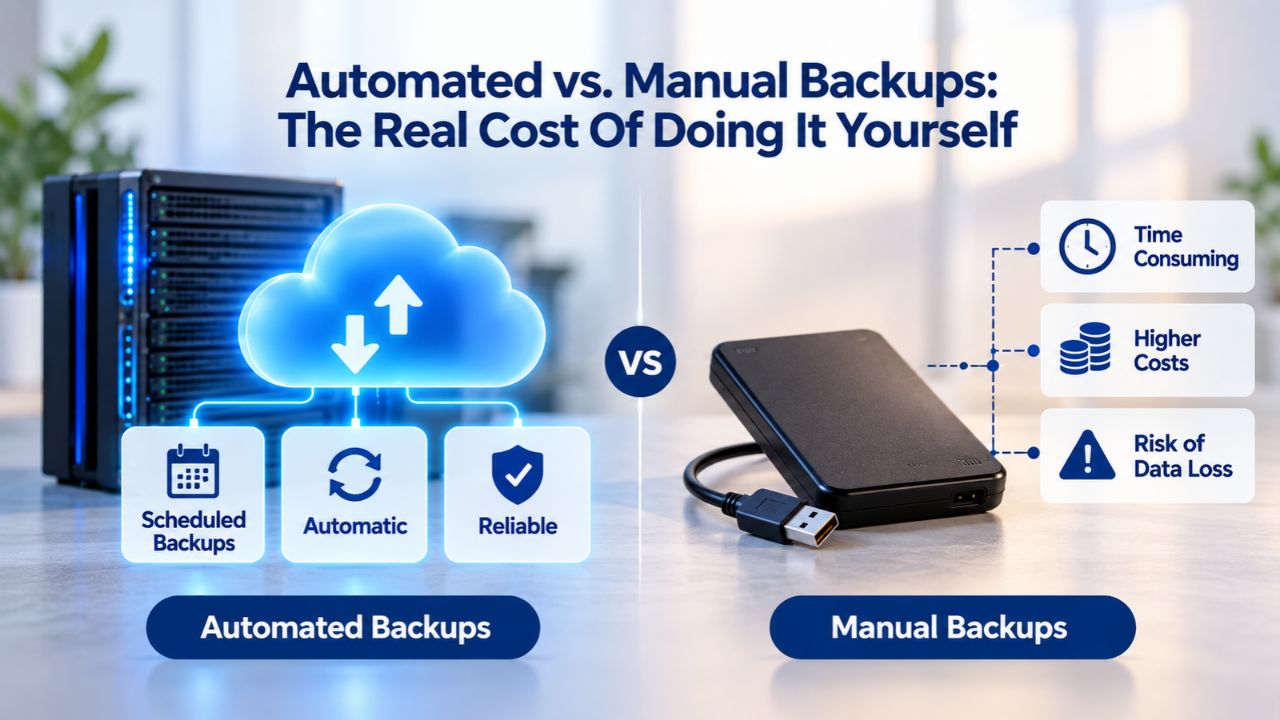
Automated vs. Manual Backups: The Real Cost of Doing It Yourself
You could theoretically back up your website manually every single day. Download your files via SFTP, export your database via phpMyAdmin, zip everything together, and upload it to cloud storage. You’d repeat this process daily, test restores monthly, update documentation with every backup, and rotate old backups to manage storage. In theory, this is straightforward. In practice, almost no website owner maintains this discipline beyond a few weeks.
Why Manual Backups Fail
Even the most disciplined website owners consistently fail at manual backup routines. You get busy and skip just one day (which invariably turns into weeks); you back up only before major changes (missing all small daily updates); or you store backups on your personal computer (which can fail or be stolen). You don’t test whether backups actually work until it’s far too late. One missed backup means one day of completely unprotected work. One broken backup (corrupted file, incomplete database export, failed compression) means you have no fallback when disaster strikes unexpectedly.
Manual backups require you (or a developer) to own the entire process: remember to create backups on schedule, navigate FTP and database tools correctly, verify backups completed successfully, test restores regularly, manage storage and old files, and troubleshoot failures. The cognitive load and technical skill required mean most website owners don’t maintain the process consistently. Email notifications get missed, schedules slip, testing gets postponed indefinitely. By the time you realize your backups haven’t run in months, you’re already vulnerable.
The Automation Advantage Is Substantial
Automated website backup scheduling removes the human element entirely from the equation. Automated backups ensure consistent data protection without the risk of forgetting to run them, so that you can focus on your business operations. You configure the service once, and it captures your entire site on a predictable schedule forever. The backup service stores data off-site, encrypts it automatically, and notifies you immediately if any failures occur, all without requiring your intervention.
The cost difference compared to manual management is compelling. Manual backup infrastructure (your time managing the process, cloud storage setup and management, testing overhead, restore recovery labor during emergencies) easily outweighs a subscription to a managed backup service. By the time you’ve spent 20 hours manually backing up and testing restores, a managed service will have paid for itself many times over. Managed services like the one Niya Digital offers through CodeGuard (GoDaddy Website Backup) also include human support during restore emergencies, a critical feature when seconds of downtime cost substantial revenue.
Start Protecting Your Website From Data Loss
Your website deserves protection that actually works. Off-site backups eliminate the single biggest flaw in DIY strategies: local backup failure during local disasters. Niya Digital’s Website Backup Service, powered by CodeGuard (GoDaddy Website Backup), stores your data securely off-site with encryption, tests automatically, and alerts you to any issues. Stop storing backups on the same server as your live site; keep them safe elsewhere.
Testing Your Backups: The Step Most People Skip
Here’s a hard truth that backup professionals have learned the painful way: a backup that has never been tested might not work when you need it most. Most backup tools assume everything is fine once the backup is created, but unless you’ve actually tested restoration, you can’t be certain the data is recoverable. A corrupted file, an incomplete database export, a storage failure, or a restore permission issue could leave your backup useless in a genuine crisis.
Safe Testing Methods
Safe backup testing requires a staging site or local development environment to restore your backup files and database. This lets you simulate a real restore, confirm plugins and themes work after restoration, and ensure everything works before a disaster strikes. The goal isn’t to restore your live site (which would immediately disrupt service), but rather to prove that your backup is complete and actually recoverable to a working state.
Access your backup portal and review backup details, including file count, total size, and verification results. Compare these numbers across different backups; they should remain similar unless you’ve made major changes to your site. Look for backup status indicators (typically green for success, yellow for minor warnings, red for failures). After restoring to a staging environment, check that images display correctly on all pages, verify that document downloads function, confirm that videos play without issues, and ensure everything renders properly on different devices.
What Functionality to Test
For dynamic websites with user interactions (e-commerce, membership, contact forms), test interactive elements thoroughly during restore testing. Submit a test form and verify responses arrive, perform searches and confirm results appear, complete a mock checkout to verify payment processing flows, and create a test user account to verify registration and login functionality. Check server and application error logs for any warnings or errors that need addressing. It’s also advisable to verify that your website renders correctly across different browsers (Chrome, Firefox, Safari, Edge) and displays properly on various mobile devices.
The only way to know your backup will restore your site successfully is to perform a safe restore in a test environment before you need to do it live. This testing transforms backup confidence from assumption into verified fact.
One-Click Restore vs. Manual Recovery: Speed and Peace of Mind
When disaster strikes your website, every minute of downtime costs money in lost sales, diminished customer trust, and search engine ranking impacts. For e-commerce sites generating $1.2M in annual revenue, one hour of downtime equals roughly $137 in direct lost sales during average traffic, but this assumes baseline traffic; most businesses see traffic peaks during business hours, when downtime costs can be 1.5 to 3 times higher. Understanding recovery options helps you choose a backup service that minimizes your financial exposure.
How One-Click Restore Works
One-click restore functionality simplifies recovery, turning a multi-hour technical process into a single-action operation. CodeGuard (GoDaddy Website Backup) enables easy one-click restoration of website backups, eliminating the restoration complexity and saving precious time and stress by getting your site back to where it was before the issue occurred. Select the backup point (a specific date and time when your site was functioning correctly), then click Restore. The service reassembles files, reinitializes databases, updates configurations, and verifies functionality. Minutes later, your site is live again.
The restoration process is completely transparent; the service handles every technical step. The system extracts files from backup storage, imports database dumps, updates WordPress configuration files, reinitializes plugins and themes, and verifies everything works correctly before bringing your site back online. This automation eliminates the opportunity for human error that plagues manual restores.
Why Manual Recovery Is Slow and Risky
Manual recovery requires you or a developer to manually download backup files, reassemble multiple incremental backups into a complete dataset, import database dumps using command-line tools, restore files to correct directories via SFTP, update configuration files, and test functionality at each step. This multi-step process introduces risk and delays at every stage: files might be restored to the wrong directories, database imports might fail silently with partial data loss, plugin incompatibilities might break site functionality after restore, and file permissions might prevent the site from loading.
You’re doing this complex process under time pressure while your site generates zero revenue and customers try to reach you and can’t. Stress and urgency increase mistakes and delay recovery further. A managed website restore service with one-click functionality eliminates this complexity; you’re not running SQL commands or debugging file permissions at 2 AM while panic sets in.
Database Backups vs. File Backups: Both Are Necessary
Your website fundamentally consists of two distinct components that must be protected together: static files (themes, plugins, images, CSS, JavaScript code) and a dynamic database (WordPress posts, pages, comments, user accounts, settings, custom data). Database backups focus specifically on website databases, which store all dynamic content, user data, and information that changes regularly; this is essential for websites with frequently updated information like e-commerce platforms, membership sites, or active blogs. File backups protect your static website assets. Without both components, your site cannot function.
What Gets Backed Up in Each Type
Database backups preserve all dynamic website content and functionality: WordPress posts, pages, categories, tags, comments, user roles, user metadata, plugin settings, theme options, and custom post types. For WordPress sites, the database holds everything that makes your site unique and functional; without it, you have only blank theme templates. File backups preserve your website infrastructure: the WordPress core installation, active themes, plugins, custom code, media uploads, and configuration files. Together, files and database make your complete website.
A common backup failure occurs because backup strategies back up only files and assume the hosting provider handles database backups separately. Or the reverse: backups capture the database but overlook media files and plugins. If your database corrupts while files remain intact, your site won’t function, even with files. If your files get deleted while the database survives, your theme and plugins are gone, and the site displays errors. A reliable database backup service must capture both components at the same time, on identical schedules, to keep them in sync.
Unified Backup Solutions
That’s why managed backup services exist: they handle the technical complexity of backing up both components correctly. They maintain database and file backups together, test both simultaneously, store both securely, and restore both as a unified package. DIY backup attempts frequently skip the database, miscalculate file permissions, or forget to test whether the database actually restores correctly to a functional state. Professional backup services eliminate these common mistakes.
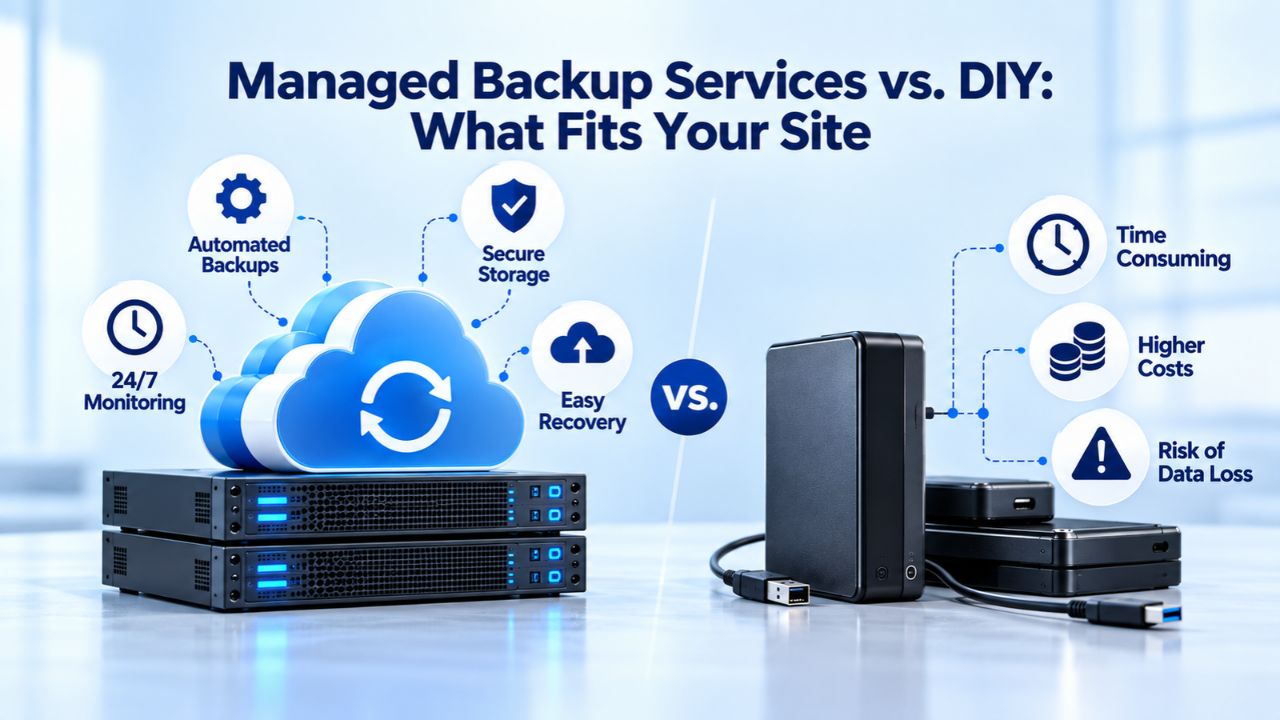
Managed Backup Services vs. DIY: What Fits Your Site
If your website is a personal blog with no critical data and minimal traffic, a DIY backup strategy might be acceptable; downloading files quarterly and uploading them to cloud storage represents a minimal investment. But the moment your site generates revenue, stores customer data, contains irreplaceable content, or serves as essential business infrastructure, DIY backup becomes a liability that can destroy your business.
When DIY Backup Might Work
DIY backup requires you to own and manage the entire process: remember to create backups on schedule, navigate technical tools correctly, verify captures complete successfully, test restores regularly to confirm functionality, maintain and rotate old backups, manage storage constraints, and troubleshoot failures when they occur. Many hosting providers include hourly, daily, or weekly backups with their plans. Still, some hosts include only random weekly backups taken at unpredictable times, meaning your backup might be a week out of date when you need to restore it.
You’re also responsible for ensuring backups are encrypted, stored in geographically diverse locations with redundancy, and accessible outside your hosting environment. For a static website that changes quarterly and generates no revenue, this might work. For an active blog, e-commerce site, or membership platform, DIY backup is inadequate and dangerous.
The Case for Managed Services
A managed website backup service handles all of this complexity. You configure it once, and it runs automated backups on your chosen schedule, stores them off-site with redundancy, encrypts them automatically, tests them periodically, alerts you to any failures, and provides expert support if you need to restore. Niya Digital’s Website Backup Service, powered by CodeGuard (GoDaddy Website Backup), adds a reseller layer of onboarding support, account management, and hands-on restore guidance during emergencies, meaning you’re not alone troubleshooting during a crisis.
The cost calculation is straightforward. Manual backup infrastructure (your time managing systems, cloud storage setup and maintenance, testing overhead, developer labor during restore emergencies, potential data loss from missed backups) easily outweighs a reasonable subscription to a managed backup service. For any site generating revenue or serving customers, managed backup is the obvious professional choice.
Red Flags: Signs Your Current Backup Strategy Is Failing
Your site might already have a backup solution in place, perhaps your hosting includes one, or you installed a backup plugin months ago. But backups fail silently and invisibly. Your host might have changed its backup retention policy without notifying you. Your plugin might have encountered an error and stopped running. Your cloud storage might have hit a quota limit. You won’t discover these problems until you actually try to restore and find that your backup doesn’t exist or is corrupted.
Warning Signs to Watch For
Watch carefully for these warning signs that indicate your backup strategy is failing:
(1) You’ve never tested a restore from your current backup; if you haven’t verified it works, you’re essentially gambling.
(2) You don’t know where your backups are stored or who has access to them; documentation and access control matter.
(3) Your backups are older than you expect (weekly when you thought they were daily, or months old when you thought they were recent).
(4) You’ve never received a backup failure notification; either backups aren’t running, or alerts aren’t configured.
(5) Your backup service doesn’t provide encryption or off-site storage (local-only backups are useless).
(6) You can’t restore individual files without restoring your entire site, a limitation that matters during partial corruption.
(7) Recovery takes more than an hour even with backups in hand, unacceptable for revenue-generating sites.
Taking Action
Audit your current strategy immediately by logging into your hosting control panel and verifying when the last backup ran. Check whether the backup includes both files and database, not just one component. Confirm it’s stored separately from your live site, not on the same server. Perform an actual test restore to a staging environment, not because you expect it to fail, but to definitively prove it works. If any step fails or takes too long, you need a better backup solution before disaster strikes.
Website backup and restore services like the one Niya Digital offers exist specifically because DIY and basic hosting backups fail so consistently. Choosing the right service now, before disaster occurs, is the difference between a one-hour incident and a business-ending crisis that could take weeks or months to recover from.
Strengthen Your Data Protection Strategy Today
A website backup solution isn’t a luxury feature or optional add-on; it’s the essential foundation of any reliable web presence. Without backup protection, you’re one bad update, one security breach, or one server failure away from losing everything you’ve built.
Niya Digital’s Website Backup Service, powered by CodeGuard (GoDaddy Website Backup), automates daily backups, stores them securely off-site with encryption, and makes recovery straightforward with one-click restore functionality. This combination of automated protection, off-site storage, and professional support means you can run your business confidently without constantly worrying about data loss. Explore your options today and stop gambling with your most critical business asset.
Frequently Asked Questions
What happens if my backup fails without me noticing?
Most backup services send email alerts immediately if a backup attempt fails, but you need to check those emails regularly and act on failures actively. Better-managed services include multiple backup copies with automatic retry mechanisms, so a single failed backup doesn’t leave you unprotected.
If you see backup verification failures, first check your website to make sure it’s running normally and not showing error messages. Create a manual backup to see if the issue persists. If problems continue across multiple backup attempts, contact your backup provider’s support team immediately; repeated failures need professional attention.
How long does website restoration actually take?
Restoration time depends on your site’s total size and your hosting server’s processing speed. With CodeGuard (GoDaddy Website Backup)’s one-click restore, the service handles all technical complexity automatically. Small sites under 100MB typically restore within 5-15 minutes.
Larger sites ranging from 1-5GB may take 30-60 minutes. Very large sites exceeding 10GB might require 1-3 hours. The key advantage is that one-click restore eliminates manual steps; you’re not hand-assembling databases or uploading files via SFTP, you’re simply clicking restore and waiting while the service manages everything.
Should I keep backup copies on my personal computer too?
Yes, absolutely. The industry-standard 3-2-1 backup rule states: keep 3 copies, use 2 different storage types, and keep 1 copy off-site. If your backup service represents your off-site copy (copy #1), keeping a copy on your personal computer provides local redundancy (copy #2), and a copy on an external hard drive provides additional protection (copy #3).
This strategy protects against the unlikely scenario where your cloud backup provider experiences a catastrophic failure. However, computer-based copies are only useful if you periodically test restores and keep them reasonably current.
What backup frequency is sufficient for a small business website?
For most dynamic websites (blogs, small e-commerce sites, business websites with frequent content changes), daily backups are the professional baseline; they mean you’ll never lose more than 24 hours of work. For very small sites that update only weekly or monthly, weekly backups might suffice, though daily is safer and usually inexpensive.
For e-commerce sites, membership platforms, or SaaS applications with customer transactions, more frequent backups (every 12 hours or real-time) protect critical business data from significant loss.
Can I restore just one file instead of the entire website?
Yes, most professional backup services, including those powered by CodeGuard (GoDaddy Website Backup), let you restore individual files or folders. This granular restore capability is essential when a single page, image, or plugin gets corrupted or accidentally deleted.
You browse your backup with a file browser, select the specific file you need, and restore only that component; you don’t need to restore your entire site for a single missing asset. This efficiency saves time during partial recovery situations.
What if my backup is corrupted and I don’t discover it until I need to restore?
This is precisely why testing matters and why multiple backup copies are essential. The only way to truly verify a backup is actually usable is to test restoring it to a staging environment; this lets you confirm that plugin and theme functionality works correctly after restore.
If testing reveals corruption, your service should keep multiple backup copies from previous dates, so you can restore from an earlier, uncorrupted backup. If all backups fail, you have a much bigger problem, which is why off-site, encrypted, redundantly storedredundantly stored backups with professional monitoring are necessary.
Does off-site backup protect against ransomware attacks?
Partially, yes. If your website gets infected with ransomware, you can restore to a previous uninfected version at any time. However, sophisticated ransomware sometimes encrypts backups stored on the same network as the live site or accessible through compromised credentials.
Off-site cloud backup (like CodeGuard (GoDaddy Website Backup) on Amazon Web Services) protects effectively because it’s geographically separate and protected by access controls; a hacker cannot encrypt backups they cannot reach. Combined with daily malware scanning and continuous security monitoring that keeps malicious actors away from your data, you have substantial protection.
How much backup storage will I actually need?
Storage requirements depend on your site size and retention period. A typical WordPress blog with 500 posts and several thousand images might use 500MB-2GB. An e-commerce site with years of orders and product photography might require 10-50GB. A SaaS application with user databases might need 50-500GB.
When you approach your storage limit, most services let you upgrade your disk storage allowance by adjusting your plan, typically in seconds through the service dashboard. Start with a smaller plan, watch how much storage your backups use over time, and scale up as your site grows.
Should I include email backups in my website backup strategy?
Yes, email backups are important and should be included. Email accounts, settings, and message archives live on your hosting server, so a complete automatic website backup includes those components. If you use a third-party email provider (Gmail, Office 365, Zoho Mail), those services typically maintain their own backup systems independently. But email hosted on your website domain or forwarded through your hosting should definitely be backed up with your website.
What’s the practical difference between a backup and a complete disaster recovery plan?
A backup is simply a copy of your data; a comprehensive disaster recovery plan is the full strategy for recovering from any incident and resuming operations. Off-site backups reduce the risk of complete data loss, help you meet regulatory requirements for data retention and recoverability, and form the technical foundation of disaster recovery strategies.
A complete plan includes: regular automated backups, off-site encrypted storage, periodic testing procedures, documented restore processes, internal communication protocols to notify your team, customer communication templates, and business continuity priorities (which site features restore first). A backup service handles the backup piece; your organization plans the broader recovery strategy.
If I switch hosting providers, can I take my backups with me?
Yes, absolutely; this is a major advantage of off-site cloud-based backups. Off-site backups are completely independent of your hosting provider and can be restored to any hosting environment.
When you move to a new host, you restore your backup to the new hosting account. This independence is critical; always keep at least one backup copy off-site or in the cloud so you can recover your website even if your primary hosting provider is compromised or goes out of business.
What regulatory requirements govern website backups and data retention?
Specific backup and data retention requirements vary widely by jurisdiction and industry. GDPR (European Union regulation) mandates data retention periods and recoverability capabilities. HIPAA (US healthcare industry regulation) requires backup and disaster recovery capabilities.
PCI DSS (Payment Card Industry Data Security Standard) requires regular backups and tested restore procedures. Most personal websites aren’t subject to strict regulatory requirements. Still, if you collect customer payment information or personal data, confirm which rules apply to your industry and geographic region.
How often should I test my website backup restore process?
Test restoring your backup to a staging site or local development environment regularly; quarterly testing is considered best practice, or immediately after major site changes (installing new plugins, updating themes, adding significant content volumes).
At minimum, test once before going live with a new backup service to confirm the restore process works correctly. Regular testing catches backup failures early, when there’s no crisis pressure, allowing you to fix problems before an actual emergency occurs.
Can I automate backup testing to run without manual intervention?
Some advanced backup services offer automated backup verification that checks file integrity, database consistency, and restoration readiness without human intervention.
CodeGuard (GoDaddy Website Backup) includes automated verification that continuously monitors backup health. However, you should still run manual restore tests at least once per quarter to be sure your data is truly recoverable in a real crisis. Automation catches obvious failures, but only a real restore test confirms end-to-end recoverability.
What should I do today to improve my website’s backup strategy?
Take these specific actions today:
(1) Log into your hosting control panel and note when the last backup ran and whether it includes both files and database.
(2) If your host provides backups, verify they’re stored off-site and encrypted.
(3) If you’re using a backup plugin, check its logs for any errors.
(4) Perform a test restore to a staging environment to confirm it actually works.
(5) If any step fails or takes longer than expected, upgrade to a managed backup service.
(6) Document your backup strategy so your team knows where backups are stored and how to restore if needed.
Glossary
- Automatic Website Backup: A scheduled backup process that captures your website’s files and database at regular intervals (typically daily) without requiring manual action or user intervention, running consistently on a predetermined schedule.
- Database Backup: A complete backup of your website’s database containing all dynamic content, including posts, pages, comments, user accounts, settings, and custom data, stored separately from website files.
- Off-Site Backup Storage: Backup data stored on geographically separate servers (typically cloud-based infrastructure located in different regions), ensuring recovery is possible even if your primary hosting site is destroyed, hacked, or fails.
- One-Click Restore: A streamlined website restoration process where the backup service automatically reassembles files, initializes databases, and redeploys your entire website to a previous point in time with a single user action.
- Restore Point: A timestamped snapshot of your website’s complete state (files, database, configuration) at a specific moment in time, selectable for restoration if data loss, corruption, or malware damage occurs.