
Your website attracts visitors every day, but without analytics, you’re operating in the dark. You don’t know who they are, where they come from, or what actions they take. Google Analytics turns this blind spot into actionable insight, showing which pages attract traffic, which traffic sources convert best, and where friction keeps visitors from becoming customers. Niya Digital is an authorized reseller of Website Builder-powered website building and hosting services, not an operator of its own independent builder infrastructure. Overall site performance depends on design quality, content relevance, ongoing SEO effort, and competitive factors beyond any single platform’s control.
What Is Google Analytics and Why It Matters for Website Builders
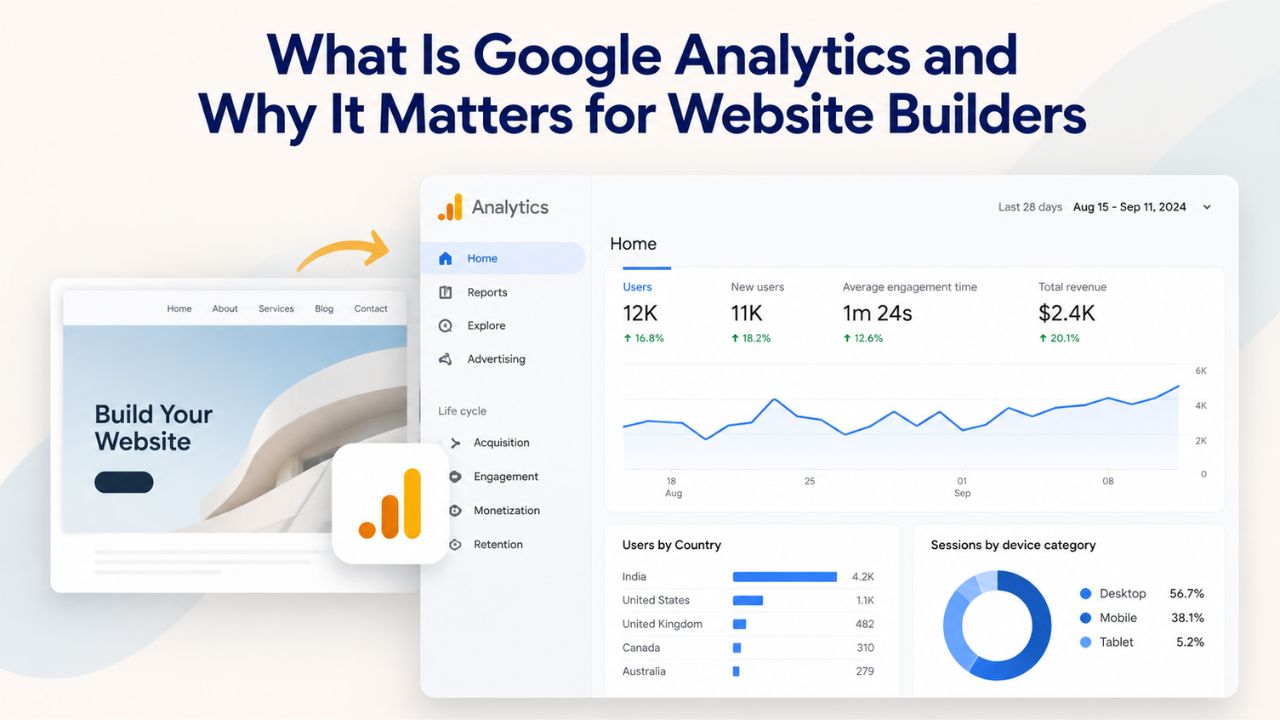
Google Analytics is a free analytics platform operated by Google that tracks and reports on visitor behavior, traffic sources, and engagement metrics across your website. When someone visits your site, Analytics captures their journey, which page they landed on, how long they stayed, what device they used, and what actions they took. This data transforms from invisibility into visibility, giving you the concrete information you need to make informed decisions about your site and business strategy.
Understanding Website Visitor Behavior and Tracking Basics
When a visitor arrives at your website, Google Analytics quietly observes and records their activity. Every page view, every click, every scroll generates a data point. These individual data points flow into Google’s secure servers and aggregate into reports that reveal patterns: Do visitors arrive from search engines or social media? Do they spend time reading content or bounce immediately? Do they convert by completing a contact form, making a purchase, or signing up for a newsletter?
The connection between your site and Google Analytics begins with a tracking code called a measurement ID, a unique identifier formatted like G-XXXXXXXXXX. This code tells Google Analytics which website data belongs to which account, ensuring that traffic to your site doesn’t get mixed with anyone else’s. Most website builders, including Niya Digital’s Website Builder Service powered by GoDaddy Website Builder’s technology, simplify this connection. Instead of pasting code into your site’s HTML header, you paste your measurement ID into your website builder’s settings panel, and the builder handles the rest automatically. No coding expertise required.
Understanding how this tracking works is important because it shapes what data you see and how you interpret it. Google Analytics doesn’t see every individual visitor by name or email address; instead, it recognizes unique browsers and devices through cookies and fingerprinting methods. This privacy-by-design approach protects visitor privacy while still giving you the aggregated patterns you need. When you see “100 users this month,” you’re looking at 100 unique browsers or devices, not 100 individually named people.
Why Analytics Matters for Small Businesses and Website Builders
Small businesses often rely on their website as their primary digital presence, sometimes their only storefront. Without analytics, decisions about what to change, what to improve, or what to invest in are educated guesses at best. A business owner might assume their homepage needs a redesign, but analytics may reveal the real problem is a high bounce rate on the product page. Another might think social media drives their best traffic, but data shows organic search visitors convert at five times the rate of social referrals.
Niya Digital’s team has observed that small-business owners who regularly review analytics and act on findings are significantly more likely to allocate resources effectively, improve user experience, and grow revenue than those who operate without this data. Analytics removes guesswork and replaces it with evidence. You discover that your mobile-traffic bounce rate is 60% while desktop is 30%, so you invest in mobile design. You see that evening visitors outnumber morning visitors 3-to-1, so you schedule social-media posts for early evening. You notice one blog post drives 40% of your organic traffic, so you create more content in that topic area.
For e-commerce sites built with a website builder tool, analytics becomes even more critical. You can see which products generate interest through page views, which marketing channels drive purchases versus window shopping, and whether your checkout flow causes cart abandonment. For service businesses, analytics reveals which content pieces attract leads, which geographic areas send the most qualified visitors, and which pages convert browsers into inquiries. For membership or subscription sites, analytics shows which onboarding steps cause drop-off and where users most often disengage.
Website Builder Plans & Pricing
Create a professional website with flexible website builder plans designed for businesses, portfolios, and growing online brands. Choose a plan that matches your needs and build, customize, and manage your website with easy-to-use tools, responsive designs, and essential features for a strong online presence.
Website Builder Personal
Share your passion online.
- Responsive mobile design
- Website hosting
- Rapid Page-Load performance
- Create a blog
- Security (SSL)
- 24/7 support

Website Builder Business
Create an online presence for your business.
- Responsive mobile design
- Website hosting
- Rapid Page-Load performance
- Create a blog
- Security (SSL)
- 24/7 support
- PayPal Buy Now or Donate button
- Search Engine Optimization (SEO)
Website Builder Business Plus
Attract more customers.
- Responsive mobile design
- Website hosting
- Rapid Page-Load performance
- Create a blog
- Security (SSL)
- 24/7 support
- PayPal Buy Now or Donate button
- Search Engine Optimization (SEO)
- Social Media Integration
- Share content to Facebook
- Online Appointments
Website Builder Online Store
Sell products and services.
- Responsive mobile design
- Website hosting
- Rapid Page-Load performance
- Create a blog
- Security (SSL)
- 24/7 Support
- PayPal Buy Now or Donate Button
- Search Engine Optimization (SEO)
- Social Media Integration
- Share content to Facebook
- Online Appointments
- Built-in shopping cart
- Sell physical and digital products
- Accept credit and debit cards, PayPal and more
- Flexible shipping options
- Discounts and promotions
- Manage inventory
Why Small Businesses Should Track Website Analytics
Implementing analytics isn’t about having data for its own sake; it’s about answering three questions that directly impact your bottom line: Are people finding your website? Are they engaging with your content and offerings? Are they taking the actions you need them to take? Without analytics, these remain mysteries. With analytics implemented and reviewed, they become measurable facts that guide strategy.
The Business Case for Tracking Website Metrics
Every visitor to your website represents an opportunity. That person took time out of their day to arrive at your digital doorstep. They saw something in search results or a social post that captured their attention. What happens next, whether they stay and explore, engage with your content, or bounce away within seconds, directly determines your business outcomes. If you don’t track what happens, that opportunity becomes invisible and unmeasurable.
Consider a practical example: A service-based business with a website builder site receives 500 visitors monthly but generates only one or two customer inquiries. Without analytics, the owner might blame poor website design or weak marketing. With analytics, they discover that 60% of visitors land on a pricing page (from paid ads), but that page has a 75% bounce rate; they leave immediately without ever seeing the services page. The problem isn’t overall traffic or design; it’s that the paid-ad landing page isn’t aligned with visitor expectations. By fixing that page, they could cut bounces in half and potentially double inquiries from the same traffic.
Another example: An e-commerce site notices that mobile visitors account for 65% of traffic but only 20% of purchases. Desktop visitors are 35% of traffic but 80% of purchases. This disparity suggests the mobile checkout experience needs improvement; the site looks mobile-responsive, but the purchase flow is cumbersome on phones. Redesigning mobile checkout could unlock significant revenue from the 65% of traffic currently browsing but not buying.
The investment to set up analytics is minimal, typically 10-15 minutes to create an account and connect it to your website builder site. The data begins flowing within minutes, and insights emerge over days and weeks as patterns form. Google Analytics itself is completely free for virtually all small-business use cases, making it one of the highest-ROI tools available to website owners.
Specific Questions Analytics Answers for Website Builders
Website analytics for website builder platforms address real, pressing business questions. How many people visited your site this month, and is traffic growing month over month? Which pages attract the most visitors? Are you creating content people actually want? Where do your visitors come from? Are they finding you through search engines, social media, direct links, or paid ads? What device do most visitors use? Are they on mobile, desktop, or tablet? What percentage of visitors leave after viewing just one page? Are you attracting relevant traffic or mismatched browsers?
For sites with an online store or checkout functionality, analytics answers conversion-specific questions: How many visitors actually complete a purchase? Where in the checkout process do people abandon their cart? Which product pages generate the most views but the lowest sales? Are there products that attract interest but don’t convert? Which marketing channel delivers the highest-converting traffic? Visitors from paid ads, organic search, and social media may have vastly different purchase rates.
For lead-generation sites, service businesses, consultants, or agencies, analytics reveals: How many visitors submit a contact form each month? Which pages drive the most form submissions? Do visitors who arrive through organic search submit more inquiries than those from social media? Which traffic sources deliver the highest-quality leads, those most likely to become paying customers? Can you identify common characteristics of visitors who convert versus those who bounce?
For content-focused sites like blogs or publications, analytics shows: Which articles attract the most readers? Do readers spend time engaging with content, or do they bounce quickly? Which topics drive repeat visits? Are visitors discovering your content through search engines, meaning it has long-term SEO value, or only through temporary social-media spikes? Understanding these patterns helps you double down on what works and adjust or retire what doesn’t.
Getting Started: Setting Up Your Google Analytics Account
Creating a Google Analytics account is straightforward and requires only a Google account; you can use Gmail, a Google Workspace account, or a Google account created with any email address. The setup takes five to ten minutes, and once complete, you’ll receive a unique measurement ID to paste into your website builder settings.
Website Builder Setup & Timeline Guide
| Setup Step | What You Do | Typical Time | Verification Method |
|---|---|---|---|
| Create Google Analytics Account | Sign in to Google, create an account, property, and data stream | 5 minutes | Receive measurement ID (looks like G-XXXXXXXXXX) |
| Copy Measurement ID | Copy your GA4 measurement ID to clipboard | 1 minute | ID appears in your Analytics property settings |
| Log Into Website Builder | Access your website builder account and site settings | 2 minutes | Navigate to Settings, Integrations, or SEO section |
| Paste Measurement ID | Paste ID into Analytics field; Save | 2 minutes | Field shows your measurement ID; changes are saved |
| Wait for Data Collection | Builder embeds tracking code; Google processes data | 24-48 hours | Standard reports populate; real-time shows instantly |
| Verify Tracking Works | Visit your site; check real-time report in Analytics | 5 minutes | Real-time report shows your visit within seconds |
| Review Initial Baseline | Review first month of data; identify top pages/sources | 15 minutes | Establish starting metrics; set quarterly improvement goals |
Create Your Google Analytics Account and Property
Visit Google Analytics at analytics.google.com and sign in with your Google account. Click the “Create” button to start the setup wizard. Select “Account,” then enter your business name and choose your data-reporting location (this affects timezone and currency for reports). Accept Google’s data-processing terms, which are standard for analytics services.
Once your account is created, Google automatically creates a “property,” essentially a container for data collection from one website. Your property needs a name (usually your business name or website name) and a website URL. After you save it, Google generates your measurement ID, a code like G-XXXXXXXXXX or G-ABCDEFGHIJK. Copy this ID and save it somewhere safe; you’ll need it to connect analytics to your website builder site. This measurement ID is your unique analytics fingerprint; it tells Google which website’s data belongs to which property in your account.
Within your property, Google automatically creates a “data stream” for web tracking. A data stream is a collection point where Google Analytics receives and processes all the traffic data from your website. For a simple website builder site, you need one property and one data stream. If you run multiple websites, each gets its own property and measurement ID to keep data separate and clean. This separation prevents accidentally mixing traffic from your main website with traffic from a blog subdomain or a separate project site.
Understand GA4 Structure and Data Streams
Google Analytics 4 (GA4) is the current version of Google Analytics, and it organizes data hierarchically: Your Account sits at the top level, beneath it are Properties (one per website), and beneath each property are Data Streams (web or app tracking). For a website builder site, you’ll work primarily at the property level, reviewing reports, tracking conversions, and managing integrations.
GA4’s default tracking automatically collects certain data without any configuration. Page views, user counts, session data, traffic source information, and device information arrive automatically once your measurement ID is installed. This automatic tracking provides immediate value; you can see traffic patterns without additional setup. However, GA4 also supports custom tracking for business-specific actions, such as form submissions, product purchases, video plays, PDF downloads, or any custom event you define. Custom tracking requires intentional setup but gives you business-specific insights that automatic tracking cannot provide.
Understanding this structure matters because it shapes your analytics strategy. You don’t need to configure anything to start seeing basic traffic reports; they begin appearing within 24-48 hours. Custom tracking can wait until you’re comfortable with the platform and understand which specific actions matter most to your business. This phased approach lets you gain basic analytics literacy before diving into advanced configurations.
Connecting Google Analytics to Your Website Builder Site
The simplest and most reliable way to add Google Analytics to a website builder site is through your builder’s built-in integration feature. Most modern website builders, including Niya Digital’s Website Builder Service powered by GoDaddy Website Builder, include a dedicated settings field where you paste your measurement ID, no code editing required.
Adding Google Analytics to Your Website Builder
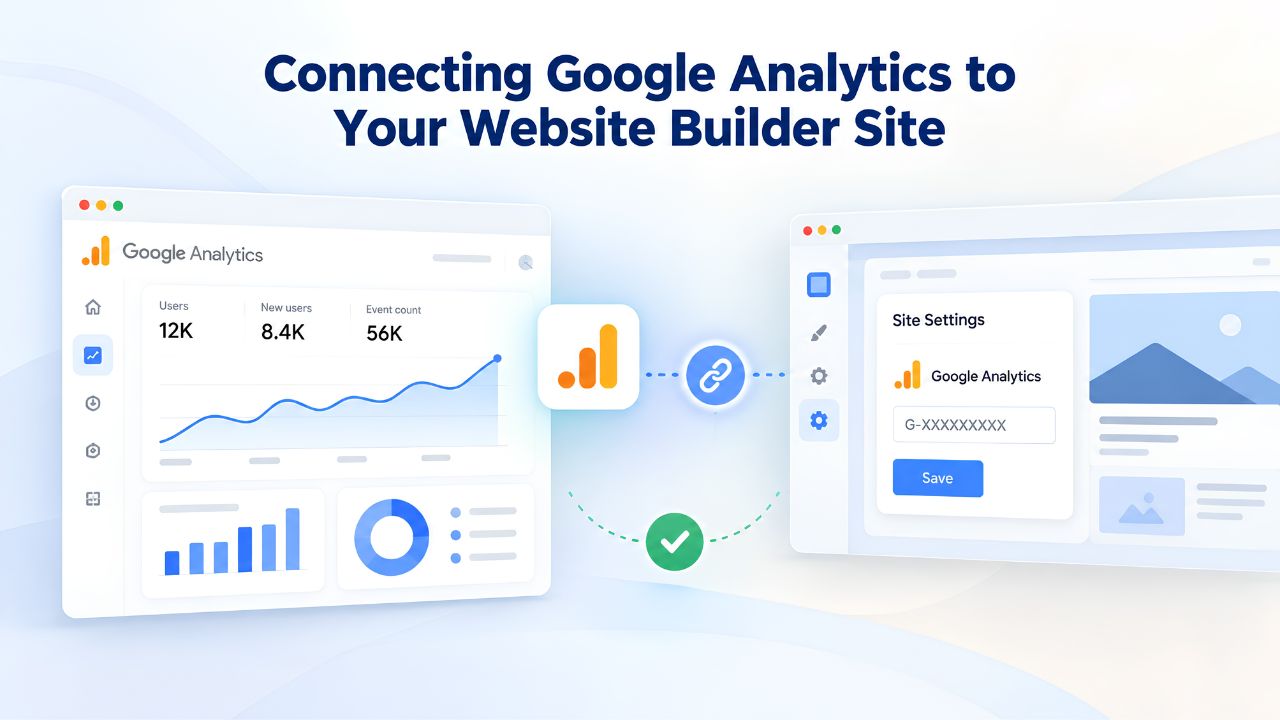
Log in to your website builder account and navigate to your site settings (often labeled “Settings,” “SEO,” or “Integrations,” depending on your platform). Look for an “Analytics” or “Google Analytics” field. Paste your GA4 measurement ID (the code starting with G-) into this field and save. Your website builder automatically embeds this tracking code on every page of your site.
This integration is seamless because your website builder handles all the technical work behind the scenes. The builder injects your measurement ID into the standard Google Analytics code snippet and places it on every page of your site. You never see the code; the builder manages it. This automation prevents common mistakes like forgetting to add the code to certain pages or installing an outdated code version.
After you save your measurement ID in your website builder settings, your site is connected to Google Analytics. However, data won’t appear in your reports immediately. Google Analytics typically shows real-time data within seconds (visible in the real-time report), but standard reports update with a 24-48 hour delay. This delay happens because Google processes and verifies data for accuracy before including it in historical reports. Be patient; don’t assume something went wrong if you don’t see data in your standard reports after an hour. Wait 24-48 hours for the standard reports to populate.
Verify Your Tracking Is Working
Before assuming your setup is complete, verify that tracking is actually active. The easiest way to verify this is with GA4’s real-time report. Open Google Analytics, navigate to your property, and click “Reports” in the left sidebar. Under “Realtime,” click “Overview.” This report shows visitors currently on your site in real time.
Now open your website builder site in a browser and visit a few pages. Within seconds, you should see yourself appear in the real-time report. You’ll see your visit logged with your device type, approximate location (based on IP address), and the pages you viewed. If you see your own visit logged, tracking is working correctly. If the real-time report stays empty after you’ve visited your site, double-check that your measurement ID is correctly pasted into your website builder settings and that you saved the changes.
Some website builders cache settings or require you to republish your site after making changes for new settings to take effect. If you’ve verified the measurement ID is correct. However, if tracking still isn’t working, try clearing your browser cache or visiting your site in an incognito/private browser window to avoid cached versions. If tracking works after 24-48 hours but you want additional confirmation before that waiting period, the real-time report is your best diagnostic tool.
Understanding Key Metrics and Reports in Google Analytics
Google Analytics presents data through predefined reports organized by topic. Mastering the main reports, Overview, Traffic Sources, Pages, Device Category, and Conversions, gives you visibility into the metrics that matter most for your website builder site’s success.
| Metric | What It Measures | Why It Matters | Healthy Range or Pattern |
|---|---|---|---|
| Users | Total unique visitors in your date range | Site reach and growth trajectory | Growing month-over-month indicates expanding audience |
| Sessions | Visit periods (30 minutes of inactivity ends a session) | Visit frequency and repeat traffic | More sessions than users indicates loyalty |
| Page Views | Total pages viewed by all visitors | Content consumption and depth | Higher pages/session indicates engagement |
| Bounce Rate | % of sessions viewing only one page before leaving | Page relevance and quality match | Depends on page type; blogs often 50-70%, product pages 20-40% |
| Avg. Session Duration | Average time spent per visit | Engagement level | Longer is usually better; compare by traffic source and page |
| Traffic Source | Channel bringing visitors (organic search, direct, social, referral, paid ads) | Acquisition effectiveness | Organic search typically most valuable; varies by business type |
| Device Category | Mobile, desktop, or tablet usage breakdown | Optimization priorities | Mobile typically 50-70%; must ensure mobile performance |
| Events / Conversions | Custom actions tracked (purchases, form submissions, sign-ups) | Business outcome measurement | Track what matters to your specific business |
The Core Metrics Your Website Builder Site Should Track
Understanding the difference between traffic metrics and business metrics is crucial. Traffic metrics tell you how many people visit and how they behave on your site. Business metrics tell you whether visitors are achieving your goals. A website attracting 10,000 monthly visitors means nothing if none of them convert. A site with 500 monthly visitors but 50 monthly customers dramatically outperforms the first site.
Start by understanding your traffic baseline: How many unique users visit monthly? What’s your average session duration? What percentage of visitors bounce? These baseline metrics establish a starting point. Once you understand current performance, you can set improvement targets: “Increase monthly users 20% by Q3,” “Reduce homepage bounce rate from 65% to 50%,” or “Increase average session duration from 90 seconds to 3 minutes.”
Business metrics require intentional setup. If you run an online store, track purchases as a conversion event. If you’re a service business, track form submissions as a conversion. If you run a membership site, track sign-ups. These custom events don’t happen automatically; you must define them in Google Analytics (or your website builder’s settings, if available). Once configured, they turn Analytics from a traffic-reporting tool into a business-reporting tool.
Interpreting Users, Sessions, and Page Views
The relationship between users, sessions, and page views confuses many new analytics users. Here’s the fundamental difference: A user is a unique individual or browser. A session is a visit; one user can generate multiple sessions. Page views are the total number of pages viewed; one session can include multiple page views.
Imagine a scenario: Maria visits your site on Monday, reads one blog post, and leaves. That’s one user, one session, one page view. On Wednesday, Maria returns and reads three blog posts. That’s still one user (same browser), but now two sessions (Monday and Wednesday are separate visits), and four total page views (one from Monday, three from Wednesday). Google Analytics counts this as: 1 user, 2 sessions, 4 page views.
This distinction matters because it reveals visitor behavior patterns. If you have 100 users, 150 sessions, and 300 page views, it means your average user visits 1.5 times (repeat rate is healthy) and views 2 pages per session (engagement is moderate). If those same 100 users generated 100 sessions and 100 page views, it would mean no one returns, and visitors view only one page, a sign of either poor content relevance or a poor user experience. Conversely, if 100 users created 500 sessions and 1,500 page views, repeat traffic is very high, and engagement is exceptional.
Ready to Track Your Website’s Growth
Niya Digital’s Website Builder Service, powered by GoDaddy Website Builder’s reliable hosting and site-building technology, integrates analytics seamlessly into your site setup. Our team supports you through analytics implementation and early interpretation, ensuring you gain insight from day one. Begin building your analytics-ready website with confidence; every visitor interaction becomes actionable data that drives your business forward.
Traffic Sources and Device Performance: Discovering Where Your Visitors Come From
Understanding where your traffic originates is essential for allocating your marketing and content resources effectively. Google Analytics categorizes traffic into channels: organic search (people who found you through Google or other search engines), direct (people who typed your URL directly or used a bookmark), social (clicks from social-media platforms), referral (clicks from other websites), and paid ads (if you run Google Ads or other paid campaigns).
Analyzing Traffic Source Data
Each traffic source tells a different story about visitor intent and value. Organic search visitors typically have the highest intent; they actively searched for something related to your business and clicked your result. These visitors are often the most qualified and most likely to convert. Direct traffic consists of returning visitors who know your URL or bookmarked your site; these are warm leads and loyal visitors. Social traffic can vary wildly in quality depending on what type of content you share and whether it’s from a direct link or a reshare; social visitors might be highly engaged or casually browsing.
Review your traffic-source breakdown monthly. If organic search drives 60% of traffic, that’s strong; it indicates your content ranks well, and people actively search for what you offer. If 80% of traffic is direct, it suggests strong brand recognition and repeat traffic. If 50% of traffic is social but your conversion rate is low, it might mean your social content attracts browsers rather than buyers; you may need to adjust your social strategy or landing-page experience.
Your website builder’s analytics integration automatically provides traffic-source breakdowns. Most website-builder analytics tools show traffic-source data alongside conversion data, so you can see not just which channels drive the most traffic, but which channels drive the highest-quality, most-converting visitors. A traffic source might drive only 10% of visits but 40% of conversions; that channel deserves your focus.
Optimizing for Mobile and Device Performance
Device data reveals how visitors access your site and whether your design is optimized for their experience. Mobile typically accounts for 50-70% of traffic for most website-builder sites, but the percentage varies by industry and audience. For example, a B2B consulting site might see 40% mobile traffic, while a local-business site or restaurant might see 80%+.
The critical metric isn’t just what percentage of traffic is mobile; it’s whether mobile users convert at similar rates to desktop users. Some sites see mobile traffic with half the conversion rate of desktop, a sign that the mobile experience is suboptimal. Your website builder site should be mobile-responsive (designs automatically adjust to screen size), but mobile-responsive in appearance doesn’t guarantee mobile-responsive in function. A mobile-responsive homepage might display correctly on phones, but the checkout process might be cumbersome, or images might load slowly.
Use analytics to benchmark your device performance. Compare bounce rate, average session duration, and conversion rate between mobile and desktop visitors. If mobile performance lags significantly, investigate. Is your site fast on mobile? Does your mobile navigation work intuitively? Is checkout mobile-optimized? Niya Digital’s Website Builder Service, powered by GoDaddy Website Builder, provides mobile-responsive templates by default, but ongoing testing and analytics-informed optimization ensure mobile visitors have an excellent experience.
Setting Up Conversion Goals and Tracking Customer Actions
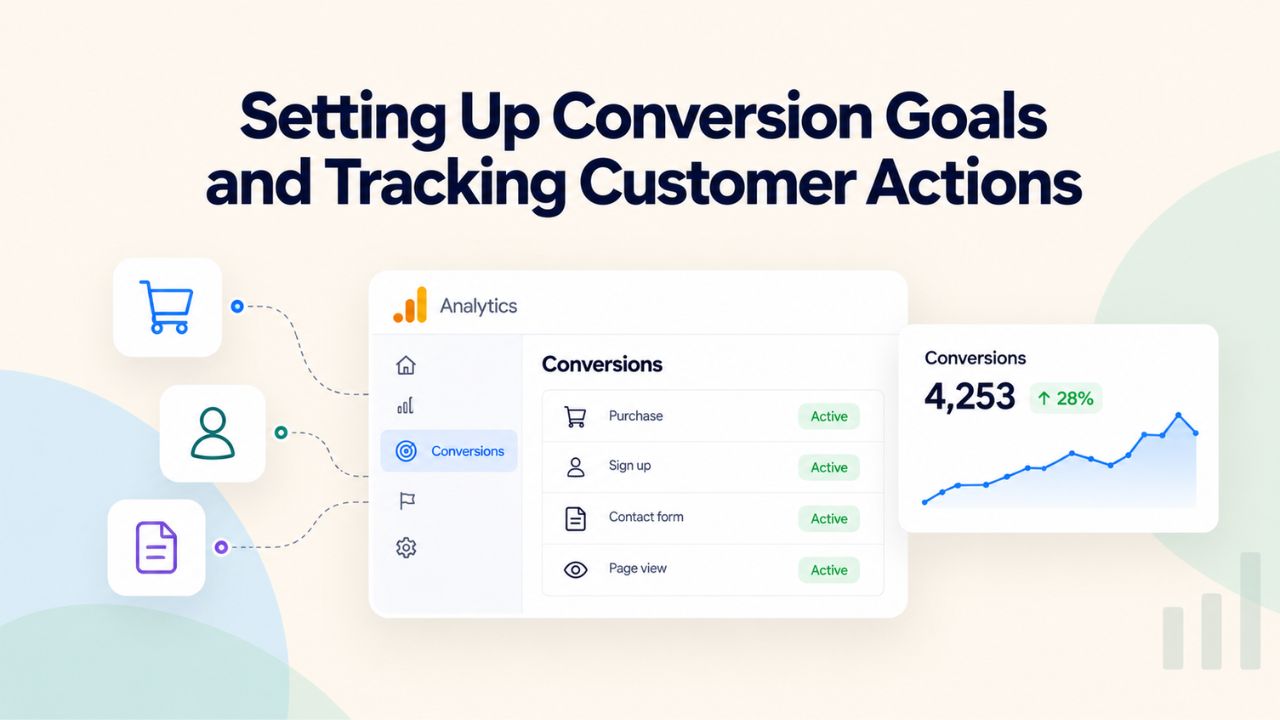
Google Analytics tracks traffic automatically, but custom tracking of conversions, form submissions, purchases, sign-ups, or any action important to your business requires intentional setup. A conversion is any action a visitor takes that aligns with your business goal. Without conversion tracking, you know how many people visit but not how many achieve your desired outcome.
Why Conversion Tracking Matters
Consider a hypothetical scenario: A service business website receives 2,000 visitors each month. Without conversion tracking, the owner sees this traffic number and might think, “Great, we’re getting good visibility.” But if only three of those 2,000 visitors submit a contact form- a 0.15% conversion rate- the site is failing at its core purpose despite strong traffic. Conversion tracking reveals this gap.
Another example: An e-commerce site tracks both visits and purchases. Without tracking purchases as a conversion, the owner sees that organic search drives 50% of traffic and paid ads drive 30%. But conversion tracking reveals that paid ads, though driving less traffic, convert at 3% while organic search converts at 0.5%. The higher-converting channel might deserve a larger budget despite driving less raw traffic.
Conversion tracking transforms analytics from a curiosity into a decision-making tool. You move from “How much traffic are we getting?” to “How much revenue is each traffic source generating?” or “Which pages drive the most customers?” This reframing is profound. Many website owners optimize for traffic volume without realizing they should optimize for traffic quality and conversion rate instead.
Setting Up Events and Conversions in GA4
GA4 calls tracked actions “events.” Automatic events, page views, scrolls, and outbound clicks happen without configuration. Custom events, form submissions, product purchases, video plays, or download clicks, require you to define them. You can set up a custom event in two ways: in your website builder’s settings (if it offers simplified event setup) or directly in Google Analytics.
If your website builder includes a contact form, shopping cart, or other interaction feature, check whether the builder offers automatic event tracking for these. Many modern website builders auto-track form submissions, purchases, and other key actions without requiring configuration. For Niya Digital’s Website Builder Service powered by GoDaddy Website Builder, built-in forms and checkout features often include automatic event tracking.
For custom events not covered by automatic tracking, navigate to Google Analytics and click Admin (bottom left). Under “Data Collection and Modification,” select “Events.” Click “Create Event,” name it (e.g., “download_whitepaper” or “video_play”), and define the matching criteria. You can match events based on page URL, button clicks, or other parameters depending on how your site is configured.
For e-commerce sites, GA4 provides pre-built e-commerce events: view_item, add_to_cart, begin_checkout, purchase, and others. If your website builder has e-commerce capabilities, check whether these events are automatically tracked or whether you need to enable them. Once e-commerce events are tracked, you gain powerful insights: which products attract views, which get added to carts, and crucially, which actually sell, revealing gaps between interest and conversion.
Interpreting Your Analytics Data: What the Numbers Mean
Raw data becomes valuable only when you interpret it correctly. A 50% bounce rate sounds bad until you learn that blog-focused sites commonly see 50-70% bounce rates; the metric alone doesn’t indicate success or failure. Your interpretation must account for context: industry norms, page type, and business goals.
Spotting Trends and Patterns in Your Data
Avoid drawing conclusions from daily or weekly fluctuations; these are noise, not signal. Website traffic varies naturally by day of the week and time of year. A single slow day or a viral day doesn’t indicate a trend. Instead, review monthly or quarterly data to identify real patterns. Google Analytics lets you compare any date range against another; use this feature to compare this month with last month or this quarter with last year.
A sustained, consistent increase in traffic over multiple months indicates real growth. A sudden spike might indicate a viral social post, press mention, or ranking surge; investigate these spikes by checking traffic-source data. Did the spike come from one specific source? If so, capitalize on it; if social media caused the spike, analyze what content resonated. If search caused it, optimize similar pages for the same keywords.
Conversely, declining traffic often signals a problem requiring investigation. If overall traffic dropped 30% month over month, that’s significant. Check whether the decline happened across all traffic sources or was concentrated in one channel. If organic search traffic dropped but social and direct remained flat, it might indicate a ranking drop or algorithm change affecting your visibility. If all traffic sources declined equally, it might indicate a site-wide technical issue like downtime or a DNS problem.
Avoiding Misinterpretation and False Signals
High traffic doesn’t equal success if visitors aren’t converting. A landing page might receive 10,000 monthly visitors but generate zero inquiries if the page messaging doesn’t match visitor intent. Conversely, a page with 200 monthly visitors might generate 50 inquiries if it targets high-intent traffic. Quality matters far more than quantity.
Another common misinterpretation: confusing correlation with causation. You add a new blog post, and traffic increases the following week. Did the blog post cause the increase, or would traffic have increased anyway? Use analytics to form hypotheses, but test them deliberately. If you add blog posts for two months and traffic consistently grows, the correlation is stronger. If you change your site design and bounce rate immediately improves, the relationship is likely causal.
Be cautious about making big decisions based on small sample sizes. If you see one mobile visitor convert and zero desktop visitors in a single day, that doesn’t prove mobile visitors are better. With only one conversion, the data is too small to indicate a real pattern. Look for patterns across hundreds or thousands of visitors and multiple weeks before drawing firm conclusions.
Analytics, Privacy, and Compliance
Google Analytics collects detailed information about visitor behavior. Depending on where your site operates and your industry, data-privacy regulations govern how you collect, store, and use this data. Understanding and complying with these regulations protects your visitors and your business.
GDPR and CCPA Compliance for Website Analytics
The European Union’s General Data Protection Regulation (GDPR) requires that websites obtain informed consent from European visitors before tracking them with analytics. GDPR doesn’t ban analytics; it requires transparency and consent. Before loading Google Analytics for an EU visitor, your site must display a clear privacy notice explaining that you collect data and obtain the visitor’s permission to do so.
Similarly, the California Consumer Privacy Act (CCPA) gives California residents rights over their personal data. CCPA doesn’t strictly require consent before analytics (unlike GDPR), but it does require clear disclosure of data collection and use, as well as visitor rights to access, delete, or opt out of data collection.
Compliance isn’t optional if your site receives EU or California traffic. Most website builders, including platforms powered by GoDaddy Website Builder, provide built-in privacy banner and cookie-consent tools. These tools display a consent banner to visitors (especially those from regulated jurisdictions), explain that you use analytics and cookies, and request permission before tracking begins. Once a visitor consents, analytics begins collecting data. If they decline, analytics is not loaded.
Set up your website builder’s privacy tools during initial configuration or onboarding. Niya Digital’s onboarding support guides new site owners through these privacy settings, ensuring compliance from day one. Failing to implement consent mechanisms can result in fines and reputation damage; implementing them is straightforward and takes minimal effort.
Best Practices for Privacy-Respecting Analytics
Even where not legally required, respecting visitor privacy builds trust and demonstrates integrity. In Google Analytics settings, enable IP anonymization, which removes the last octet of visitor IP addresses before Google stores the data. This obscures precise location information and improves visitor privacy without sacrificing valuable analytics insights.
Review what data you’re actually collecting. Do you need to track every interaction, or only key actions? Collecting less data reduces privacy risk. If your website builder tracks every scroll event by default, consider whether that granular tracking serves your business goals or adds noise.
Update your privacy policy whenever you implement new tracking or change your data practices. Your privacy policy should disclose that you use Google Analytics, what data you collect, how long you retain it, and how visitors can opt out. A transparent privacy policy, combined with a consent mechanism, shows respect for visitor privacy and helps you comply with regulations.
Using Analytics to Drive Growth and Continuous Improvement
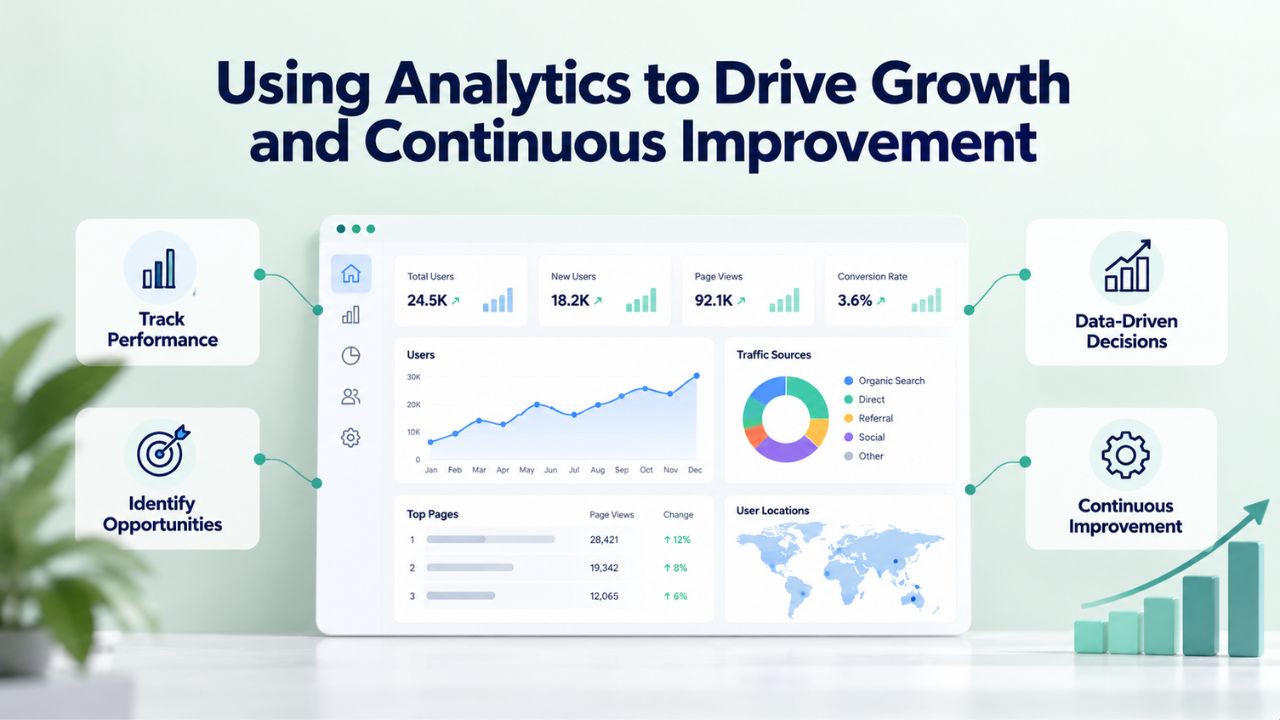
Analytics data is only valuable if you act on it. A site that collects analytics but never reviews or acts on findings gains no benefit. Effective analytics use is a habit: review reports monthly, identify patterns, prioritize changes, implement them, and measure the impact.
Prioritizing High-Impact Optimization Opportunities
Don’t try to optimize everything simultaneously. Instead, start with your highest-traffic, highest-bounce pages. If your homepage receives 1,000 monthly visitors and has a 60% bounce rate, redesigning it could reduce bounces to 40%, meaning 200 additional visitors stay on your site and explore further. That’s a high-impact opportunity.
Similarly, identify underperforming pages by comparing bounce rate and session duration against your site average. Pages significantly worse than your average are candidates for redesign, content updates, or deletion. Conversely, identify your best-performing pages, those with low bounce rates and long session duration. These pages demonstrate what your audience finds valuable; create more content in that style or topic.
For traffic-source analysis, identify your highest-quality traffic source (lowest bounce rate, highest conversion rate) and your lowest-quality source. Double down on what works; reconsider investment in underperforming channels. If organic search has a 1% conversion rate and social media has 0.2%, organic search is higher quality, even if raw traffic numbers might mislead you.
Building an Iterative Improvement Process
Sustainable improvement comes from small, regular changes that you test and measure over time. Instead of redesigning your entire site at once, change one element each week or month. Modify a homepage headline, adjust navigation, improve page speed, add customer testimonials, or reorganize content. Measure the impact of each change over 2-4 weeks before making additional changes. This iterative approach prevents wasting effort on changes that don’t move the needle.
Document your experiments and results. A simple spreadsheet tracking each change and its impact (bounce rate, conversion rate, traffic) builds institutional knowledge over time. After six months or a year of small improvements, you’ll have cumulatively made significant progress, and you’ll know exactly which changes worked.
Successful website owners make analytics review a recurring habit: weekly for quick updates (did we hit our weekly visitor goal?), monthly for deeper analysis (what changed this month and why?), and quarterly for strategic planning (are we on track for our quarterly goals?). This rhythm ensures data informs decisions rather than becoming archived reports no one reviews.
Launch Your Website with Analytics Tracking Built In
Niya Digital’s Website Builder Service combines user-friendly website design tools, reliable hosting, and seamless analytics integration, giving you everything you need to build, launch, and grow with confidence. Your visitor data tells your business story; let’s start reading it today.
Frequently Asked Questions
How long does it take for data to appear in Google Analytics after I set it up?
After connecting your measurement ID to your website builder, real-time data appears within seconds in the real-time report. This immediate feedback confirms that tracking is working. However, historical reports, the standard reports you’ll use most often, update with a 24-48 hour delay. Google uses this delay to process and verify data for accuracy. This is normal. Most website builders display setup completion confirmation within minutes, but your first meaningful insights emerge after a day or two as data accumulates in standard reports.
Is Google Analytics really free for my website builder site, or are there hidden costs?
Google Analytics 4 is completely free for essentially all small-business websites. You only pay if your site exceeds 10 million monthly events, a threshold almost no small business reaches. Website builders like Niya Digital’s, powered by GoDaddy Website Builder, include analytics integration at no additional cost on all plan levels. There are no hidden costs, no premium features you must pay for, and no limit on how long you can use free Analytics. It’s genuinely free forever for small businesses.
What’s the actual difference between “Users” and “Sessions” in my reports?
A user is one unique person or browser that visits your site. A session is one visit from that user. One user can create multiple sessions over time. If Maria visits Monday, that’s one user and one session. If Maria returns Wednesday, that’s still one user but now two sessions. If Maria invites her friend John to visit, that’s two users total. Understanding this distinction prevents misinterpreting your data. Growth in sessions without growth in users means repeat visits are increasing (good engagement). Growth in users without growth in sessions means new visitors aren’t returning (opportunity to improve retention).
My bounce rate seems really high; does that mean my site is bad?
Not necessarily. Bounce rate interpretation depends heavily on page type and industry. A blog post might have a 60-70% bounce rate because readers find the answer they need and leave satisfied; that’s actually healthy for blog content. A product page with a 40% bounce rate might be disappointing. A contact page with a 20% bounce rate is excellent. Compare your bounce rate against industry benchmarks and similar page types, not against arbitrary numbers. High bounce rates become concerning when they represent wasted traffic, visitors arriving with the wrong expectations, or a poor user experience. Low bounce rates indicate that visitors find what they want and explore further.
Which traffic source should I invest in based on my analytics?
Look beyond raw traffic volume. A traffic source sending 1,000 visitors with a 0.5% conversion rate is less valuable than a source sending 100 visitors with a 5% conversion rate. Prioritize based on conversion value and quality, not just quantity. Organic search typically delivers the highest-quality traffic over time; these are active searchers with intent. Social media and paid ads may drive more volume but often lower quality. Use analytics to calculate the actual value each source brings, then allocate your marketing budget accordingly.
Can my visitors see that I’m tracking them with Google Analytics?
Visitors don’t receive notifications when a site loads Google Analytics, but they can discover it through browser tools or privacy-focused browser extensions. More importantly, ethical practice requires transparency: your privacy policy should disclose that you use Google Analytics, and if regulations like GDPR require it, you should obtain consent before tracking. Most website visitors expect analytics on modern websites; it’s normal business practice. Transparency about analytics builds trust more than hiding it ever could.
What’s a reasonable page-load speed, and how does it relate to analytics?
Google recommends that pages load in under 3 seconds on desktop and under 4 seconds on mobile. Page speed affects both user experience and search rankings. You can check your site’s page speed in Google PageSpeed Insights or Google Search Console. Most website builders provide decent page speed by default, handling hosting and optimization for you. Niya Digital’s Website Builder Service, powered by GoDaddy Website Builder, provides mobile-responsive design and hosting infrastructure optimized for speed. If your site speed is slow, the issue typically relates to images (unoptimized for the web) or heavy external scripts (like slow analytics implementations), not the platform itself.
Do I need to set up conversion tracking without touching any code?
Many website builders, including those powered by GoDaddy Website Builder, offer no-code conversion setup. If your builder includes contact forms or checkout functionality, check your site’s analytics settings to see whether form submissions or purchases are automatically tracked as events. If automatic tracking exists, conversion events begin flowing immediately without coding. If not, you can create custom events directly in Google Analytics by defining the event name and matching criteria, no coding required, just descriptions of when the event should trigger.
What regulations affect how I collect and use website analytics data?
GDPR (European Union) requires consent before tracking EU visitors. CCPA (California) requires disclosure of data collection and visitor rights to access or delete data. Other countries and regions have similar privacy regulations. The safest approach is to assume regulations apply if your site receives traffic from Europe or California, implement consent mechanisms and a clear privacy policy. Your website builder should provide privacy-banner tools to simplify compliance. No complex coding is needed; most builders handle compliance infrastructure for you.
Should I worry about analytics causing my website to load slower?
Google Analytics adds minimal overhead to page load time, typically less than 100 milliseconds (0.1 seconds) on modern internet connections. For most websites, analytics is unnoticeable. Website builders typically optimize analytics implementation, loading it asynchronously so it doesn’t block page rendering. Analytics overhead is negligible compared to other factors like unoptimized images or slow hosting. Focus on broader performance optimization before worrying about analytics specifically.
Can I export my analytics data, or is it locked inside Google Analytics?
Google Analytics allows you to export reports as CSV, PDF, or Google Sheets. You’re never locked in; you can extract your data anytime. Google Workspace integrations (Google Sheets, Google Data Studio) also allow live connections to analytics data. If you ever change platforms or want to analyze data elsewhere, your historical data is accessible and exportable. This openness means you own and can move your data.
How often should I review my analytics reports to make good decisions?
Weekly reviews (quick 10-minute checks) keep you aware of trends and alert you to sudden changes. Monthly detailed reviews (30-45 minutes) help you identify patterns and plan optimizations. Quarterly strategic reviews (using full quarterly data) guide major decisions about content, design, and marketing direction. Avoid checking analytics daily; day-to-day fluctuations are noise and can lead to overreacting to temporary spikes or dips. Weekly minimum, monthly deep-dive, quarterly strategy is a healthy cadence.
What’s the relationship between analytics data and SEO performance?
Analytics shows you which pages visitors actually view and how long they spend on pages. This engagement data complements SEO metrics from Google Search Console, which shows you which keywords you rank for and click-through rates in search results. Together, they reveal: Does a page rank but have a high bounce rate (content doesn’t match search intent)? Does a page get traffic from one keyword but not from related keywords (opportunity for content expansion)? Is a page ranking well and converting well (continue optimizing similar content)? Analytics + Search Console create a complete SEO picture.
How does analytics help with mobile-website optimization?
Analytics shows you device-breakdown data and lets you compare mobile vs. desktop performance separately. Compare bounce rates, session duration, and conversion rates between mobile and desktop. If mobile performance is significantly worse, investigate: Is your site mobile-responsive in appearance? Does it load quickly on mobile? Is mobile navigation intuitive? Is checkout mobile-friendly? Analytics identifies the problem (mobile underperformance); other tools and testing identify why. Your website builder should provide mobile-responsive design, but analytics reveals whether mobile optimization is working.
What’s the first action I should take after setting up analytics and seeing initial data?
Your first action should be benchmarking: establish what’s normal for your site. Review your first full month of data (or first 30 days if you’re starting new) and note: monthly users, bounce rate, average session duration, top traffic source, top pages. These become your baseline. Then set one quarterly goal: increase users 20%, reduce bounce rate 10%, increase conversions by 50%, or whatever matters most to your business. Use monthly reporting to track progress toward that goal. One focused goal beats trying to optimize everything simultaneously.
Glossary
- Google Analytics: A free platform by Google that tracks and reports visitor behavior, traffic sources, engagement metrics, and conversions across your website or site.
- Measurement ID: A unique tracking code (formatted as G-XXXXXXXXXX) assigned to your Google Analytics property that connects your website to your analytics account.
- Session: A period of visitor activity on your website, typically ending after 30 minutes of inactivity; one user can generate multiple sessions over time.
- Bounce Rate: The percentage of sessions in which a visitor views only one page then leaves, indicating relevance mismatch or poor user experience.
- Conversion: A specific visitor action that aligns with your business goal, such as a purchase, form submission, or sign-up; also called an event or goal.
- Traffic Source: The origin channel through which visitors arrive at your site: organic search, direct (typed URL), social media, referral links, or paid advertising.
- Event: A tracked visitor action in Google Analytics, ranging from automatic events (page views) to custom events (form submissions, purchases, downloads).
- UTM Parameters: URL tags (like utm_source=facebook) that track which specific campaigns, sources, or mediums drive traffic and clicks to your site.