
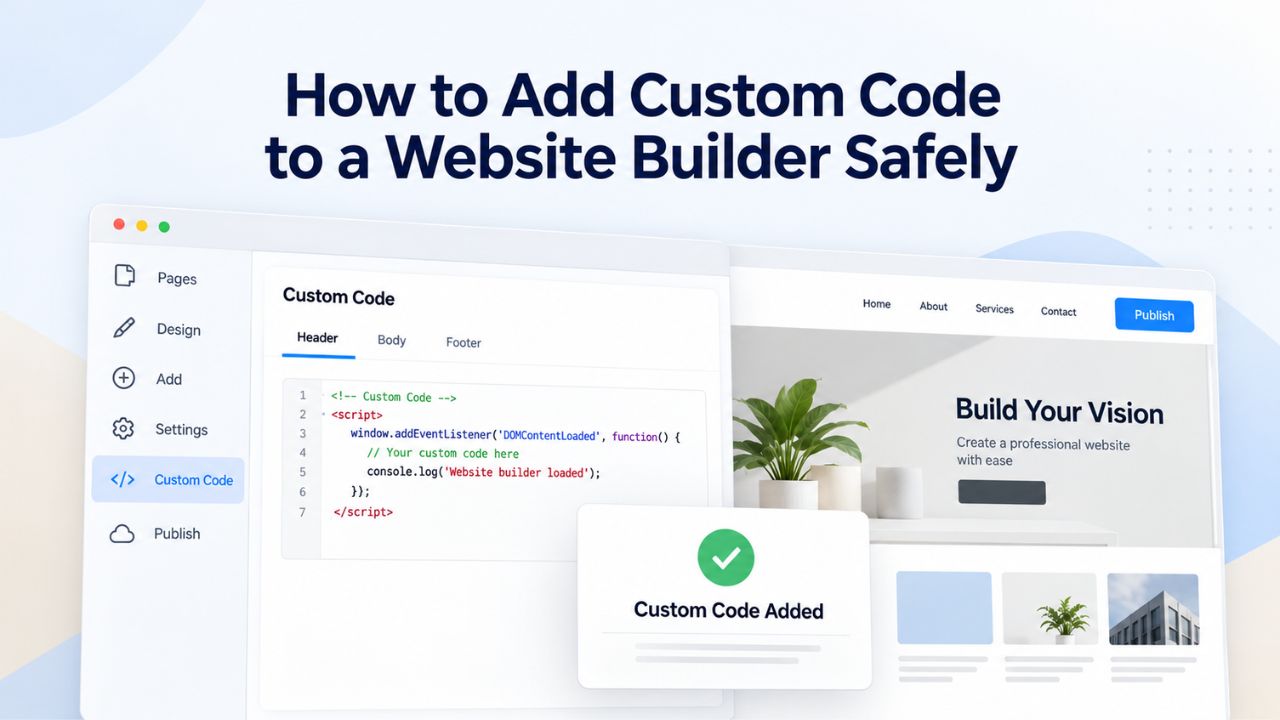
A website builder lets non-technical business owners launch professional sites quickly without hiring developers. Yet most builders limit customization to templated features. Custom code unlocks capabilities- custom forms, embedded maps, analytics tracking- that drag-and-drop editors alone cannot deliver.
Adding custom code safely requires understanding security risks, verifying code sources, and testing thoroughly before going live. Niya Digital is an authorized reseller of Website Builder-powered website builder services rather than an operator of its own independent builder infrastructure. Site performance and results depend on many factors outside any single provider’s control, including your code choices, ongoing maintenance, and how third-party scripts are configured.
Why Custom Code Matters in Website Builders
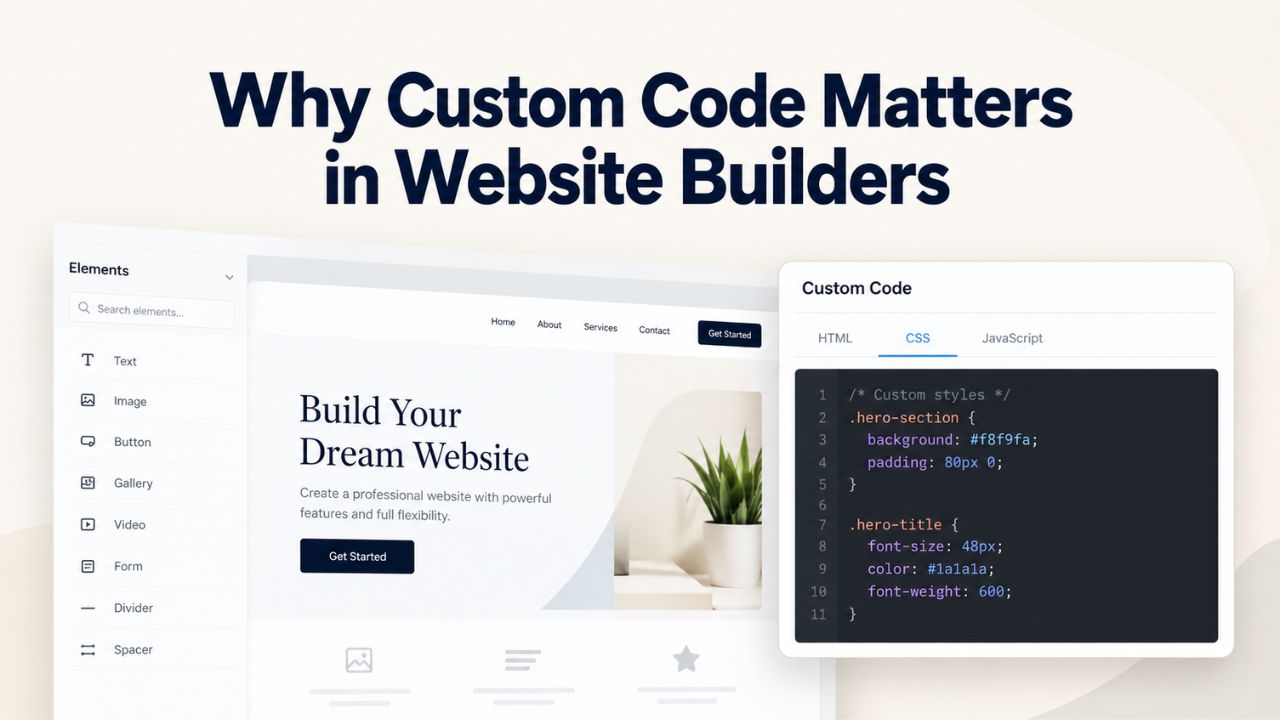
Website builders exist to make site creation accessible to non-coders. Yet business needs often exceed what a drag-and-drop interface offers by default. Custom code- HTML, CSS, or JavaScript you write or retrieve from a trusted source- bridges that gap. It lets you integrate specialized tools, add unique functionality, and extend your builder’s native capabilities beyond templates.
When Drag-and-Drop Isn’t Enough
Most website builders include standard features: contact forms, image galleries, e-commerce basics, and SEO tools. For many small businesses, these solve the core problem. However, certain integrations demand custom code. Analytics platforms like Google Analytics require a tracking code snippet. Payment processors offer embeddable checkout widgets. Chatbots, appointment schedulers, and lead-capture forms often come as code you embed, not as pre-built builder blocks. In these cases, custom code isn’t optional; it’s how the integration works.
When your business needs to track visitor behavior beyond what built-in analytics offer, or to connect a specialized third-party tool to your site, custom code provides the solution. Without this flexibility, you might use workarounds, link to external pages, manage separate systems, or forgo integrations altogether. A website builder with custom code support gives you the best of both worlds: easy design for most of your site, plus precise integration for specialized needs.
Real-World Use Cases
Custom code solves real business problems every day. A dental practice uses a custom appointment-booking script to sync with their office calendar. A small retailer embeds a live inventory checker pulled from their point-of-sale data. An e-commerce store adds a custom warranty calculator that dynamically modifies product prices. A consultant integrates a Calendly widget for booking calls. Each relies on code outside the website builder’s native toolkit.
The flexibility custom code provides also supports experimentation. If you want to test a new analytics tool before committing to full integration, custom code lets you add a tracking snippet quickly. If a third-party service releases a new feature via code snippet, you can activate it immediately without waiting for your builder to add official support. This agility is valuable for growing businesses that iterate often.
Website Builder Plans & Pricing
Create a professional website with flexible website builder plans designed for businesses, portfolios, and growing online brands. Choose a plan that matches your needs and build, customize, and manage your website with easy-to-use tools, responsive designs, and essential features for a strong online presence.
Website Builder Personal
Share your passion online.
- Responsive mobile design
- Website hosting
- Rapid Page-Load performance
- Create a blog
- Security (SSL)
- 24/7 support

Website Builder Business
Create an online presence for your business.
- Responsive mobile design
- Website hosting
- Rapid Page-Load performance
- Create a blog
- Security (SSL)
- 24/7 support
- PayPal Buy Now or Donate button
- Search Engine Optimization (SEO)
Website Builder Business Plus
Attract more customers.
- Responsive mobile design
- Website hosting
- Rapid Page-Load performance
- Create a blog
- Security (SSL)
- 24/7 support
- PayPal Buy Now or Donate button
- Search Engine Optimization (SEO)
- Social Media Integration
- Share content to Facebook
- Online Appointments
Website Builder Online Store
Sell products and services.
- Responsive mobile design
- Website hosting
- Rapid Page-Load performance
- Create a blog
- Security (SSL)
- 24/7 Support
- PayPal Buy Now or Donate Button
- Search Engine Optimization (SEO)
- Social Media Integration
- Share content to Facebook
- Online Appointments
- Built-in shopping cart
- Sell physical and digital products
- Accept credit and debit cards, PayPal and more
- Flexible shipping options
- Discounts and promotions
- Manage inventory
Understanding XSS and Security Risks
Custom code introduces security risks that drag-and-drop builders are designed to prevent. The most common threat is cross-site scripting (XSS), a vulnerability where attackers inject malicious scripts into web pages. Understanding this risk and how to prevent it is the first step to safe custom code use.
What Cross-Site Scripting Is and How It Works
Cross-site scripting (XSS) is a web security vulnerability that lets attackers inject malicious JavaScript into trusted websites. When a website fails to properly validate or encode user input before displaying it, attackers craft inputs that include scripts. Once these scripts appear on the page, they execute in visitors’ browsers with full access to session data, cookies, and browsing context.
The attack unfolds in stages. An attacker creates a malicious payload, usually JavaScript disguised as harmless text. They get this payload into the website’s content by exploiting a data input field, manipulating a URL parameter, or (worst case) injecting it directly into code the site owner adds. When a visitor arrives, the browser interprets the payload as legitimate code and runs it. The malicious script can steal session cookies, redirect the visitor to a phishing site, deface the page, or capture form input. Even major platforms like Google, Facebook, and YouTube have been exploited by XSS attacks.
Why Custom Code Amplifies This Risk
When you paste custom code into a website builder, you add executable JavaScript directly to your site’s pages. If that code comes from an untrusted source, or if you misunderstand what it does, you may introduce an XSS vulnerability yourself. A script designed to steal form data might look benign if you don’t read it carefully. A third-party widget, if compromised or if its vendor fails to maintain it securely, could turn your site into an attack vector for your own visitors.
The risk multiplies with third-party code. Third-party scripts account for roughly 45% of all requests made by websites, and approximately one-third of those are JavaScript. Each third-party script you add expands your attack surface. If the vendor behind that script gets hacked, your site could become a platform for XSS attacks against your visitors. This is not theoretical, major ad networks, analytics providers, and widget services have suffered breaches that compromised their third-party code.
Trusting Your Code Sources
Before pasting any custom code into your website, you must verify its source. This is your first and strongest line of defense against XSS and other code-based attacks.
Where to Source Custom Code Safely
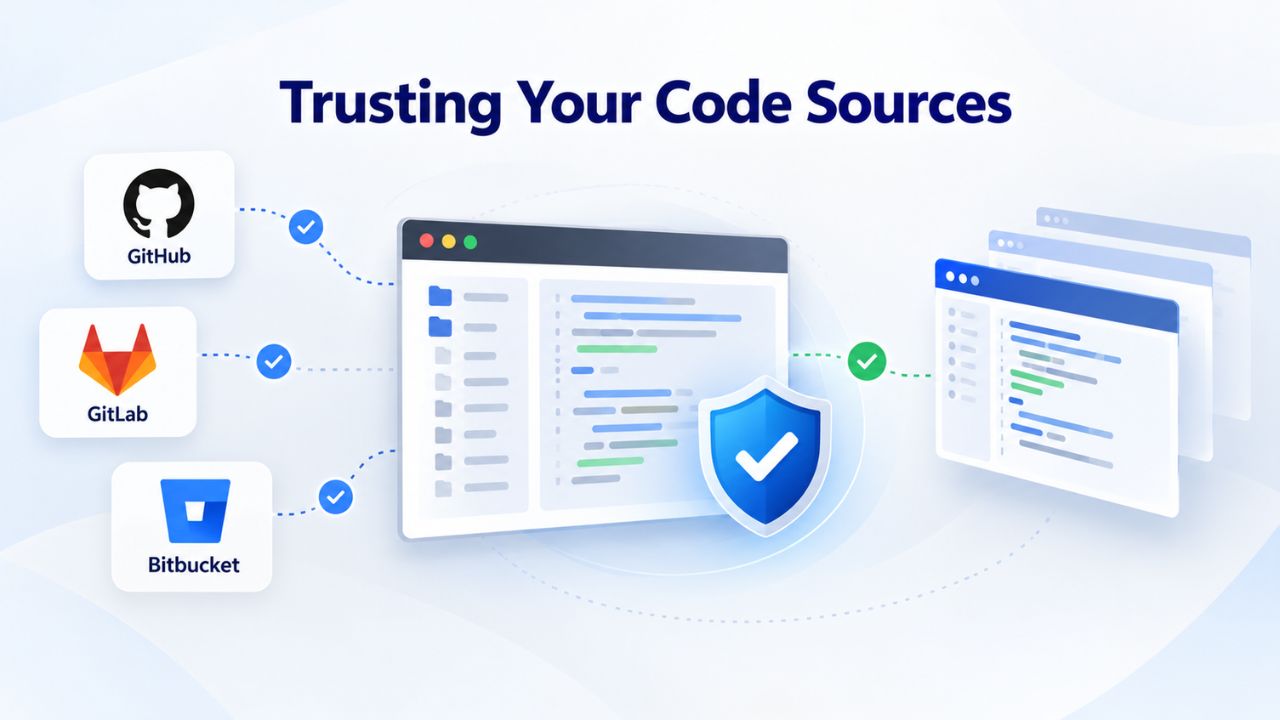
Always source custom code from official, vendor-controlled channels. If you need Google Analytics on your site, copy the tracking code directly from Google’s analytics dashboard, not from a blog post quoting it, and not from a forum discussion. If you’re embedding a Calendly widget, use the embed code Calendly provides in your account settings. This ensures the code you add matches what the vendor intended and hasn’t been modified or intercepted.
Avoid copying code from social media posts, Reddit threads, Quora answers, or blog comments, no matter how helpful they seem. Even well-intentioned third parties can make mistakes, they may omit security safeguards, misunderstand what the code does, or pass along malware inadvertently. The official documentation is always the safest source. Most reputable third-party providers offer clear “how to embed” instructions directly in their product. Use those.
Identifying Red Flags in Code
Certain warning signs suggest the code you’ve found isn’t trustworthy. Code with eval() statements, a JavaScript function that executes arbitrary text as code, is risky. Code that accesses or manipulates your site’s forms, especially password fields, should raise suspicion. Code from anonymous authors, code with no explanation of what it does, or code hosted on obscure domains are all red flags. If a code snippet seems overly complex, uses obfuscation (code deliberately made unreadable), or comes without documentation, it’s likely not trustworthy.
When in doubt, ask the service provider directly. If you’re considering adding a third-party widget and its embed code looks suspicious, contact the vendor’s support team and ask them to confirm the code is legitimate. Reputable companies have support channels specifically for security questions. Taking ten minutes to verify a code source is a small investment compared to the damage a compromised script can cause.
Avoiding Common Custom Code Mistakes
Most custom code security issues stem not from malicious actors but from careless practices. Understanding these mistakes helps you avoid them.
Custom Code Security & Performance Risk Assessment
| Code Type | Security Risk | Performance Impact | Mitigation Strategy |
|---|---|---|---|
| Analytics (Google Analytics, Facebook Pixel) | Low (first-party, vendor-trusted) | Low–Medium (tracking overhead minimal) | Load in footer; use async attribute; batch tracking calls |
| Custom form handler (user-written) | High (unvalidated input; XSS risk) | Low (minimal impact) | Validate all inputs server-side; escape output; test for XSS |
| Third-party chatbot widget | Medium (depends on vendor) | High (large script; blocks rendering) | Verify vendor security; use defer; load only on select pages |
| Official payment gateway embed | Low (vendor manages security) | Medium (multiple API calls) | Use async loading; test performance; verify SSL/TLS encryption |
| Custom JavaScript animation | Medium (DOM manipulation risk) | Low–Medium (code complexity dependent) | Test for DOM vulnerabilities; minimize code size; use CSS alternatives |
| Abandoned third-party library | High (unpatched vulnerabilities) | Variable (depends on library) | Migrate to maintained alternative; test before deploying |
Deploying Untested Code Directly to Your Live Site
Your instinct might be to find a code snippet, paste it into your live website, and see if it works. This approach combines several risks. If the code contains syntax errors, your entire site might break. If the code contains an XSS vulnerability or calls an unreliable third-party service, your visitors bear the risk before you notice. If the code performs poorly, your site’s speed suffers while you troubleshoot.
Instead, always test custom code in a staging or duplicate environment first. Most website builders allow you to create a draft or duplicate of your site for testing. Add your custom code there, test all related functionality, check page speed, and verify no errors appear in the browser console. Only deploy to your live site once you’ve confirmed everything works. This approach takes minimal time but prevents most custom-code disasters.
Ignoring Performance and Abandonment Risks
A single third-party script seems harmless, but scripts accumulate. At the median, mobile pages ship 375 kilobytes of third-party JavaScript against just 168 kilobytes of first-party code. Each script you add increases page load time, delays rendering, and consumes visitor bandwidth. The top ten third-party scripts have a median blocking time of 1.4 seconds; on the median site, third-party code blocks the main thread for more than 2 seconds.
Before adding custom code that loads third-party JavaScript, verify the library is actively maintained. Check whether the library’s repository has recent commits and an active community. If a library hasn’t been updated in three years, use a maintained alternative instead. Abandoned libraries don’t receive security patches. Vulnerabilities discovered after abandonment will never be fixed. This small due diligence prevents future security and performance headaches.
Measuring Performance and Impact
Custom code affects site performance in measurable ways. Before going live, assess that impact and use strategies to minimize it.
Quantifying the Real Cost of Custom Code
A real-world example illustrates the scale: a Webflow site with custom code accounting for nearly 1MB of script scored 50+ on PageSpeed Insights. Still, when custom code was blocked, the speed index increased from 63 to 96. This site’s performance was almost entirely driven by custom code. The solution required identifying each custom code snippet, testing performance with and without it, and removing or optimizing the worst offenders.
Your situation may be less extreme, but the principle holds: custom code degrades site speed unless you actively manage it. Tools like PageSpeed Insights, Chrome DevTools, and WebPageTest let you measure this degradation precisely. Run a performance test before adding custom code, again immediately after, and regularly thereafter. If speed drops, investigate which script is responsible and decide whether its functionality justifies the performance cost.
Optimizing Scripts to Reduce Impact
Not all performance degradation is acceptable. Deferring JavaScript, using the “defer” attribute to load scripts after page rendering starts, can improve performance significantly. In one case, deferring all JavaScript shaved 3 seconds off page load time. When adding custom code that loads third-party JavaScript, use async or defer attributes so scripts don’t block page rendering.
Another strategy is to reduce the volume of third-party scripts altogether. Before adding a third-party widget, ask whether a simpler solution exists. Could you use a native HTML form instead of a third-party form builder? Could you use a CSS animation instead of a JavaScript library? Could you load the script only on pages where it’s needed, rather than site-wide? Each choice trades some functionality for speed. For most small businesses, speed and reliability are worth that tradeoff.
Get Started Adding Custom Code Safely
Ready to unlock advanced functionality for your website? Niya Digital’s Website Builder Service gives you the flexibility to add custom code when you need it, plus built-in support to help you implement it safely. Explore features designed for growing businesses that want both ease of use and professional-level customization.
Planning Your Implementation Strategy
Adding custom code safely follows a clear process. Planning this workflow prevents most problems.
Custom Code Implementation & Testing Workflow
| Step | Action | Typical Timeframe | Key Safeguard |
|---|---|---|---|
| 1. Identify Need | Confirm no built-in feature exists; document what you’re solving for | 15–30 min | Check builder’s native features and app marketplace first |
| 2. Source Code | Retrieve from official vendor dashboard or documentation; verify legitimacy | 15–45 min | Never copy from forums or social media; use official sources only |
| 3. Review Code | Inspect for eval(), obfuscation, DOM risks, unescaped input; understand purpose | 15–60 min | Look for red flags; use developer tools; contact vendor if uncertain |
| 4. Test in Staging | Add to duplicate site; verify functionality; check console; measure performance | 30–60 min | Run PageSpeed Insights; test all related features; check for XSS |
| 5. Deploy to Live | Copy tested code to live site; monitor for errors and performance for 24–48 hours | <5 min | Keep staging version; be ready to revert immediately if issues arise |
| 6. Monitor & Maintain | Quarterly audit: verify services maintained; update code versions; monitor speed | Ongoing (quarterly) | Set calendar reminder; subscribe to vendor security bulletins |
Identifying Your Need and Confirming Custom Code Is Necessary
Begin by confirming that custom code is actually necessary. Does your website builder have a built-in feature that solves your problem? Many builders offer native integrations with popular services for analytics, email capture, appointment booking, and live chat. Check your builder’s marketplace or app store first. If a built-in integration exists, use it. The builder manages and updates built-in integrations, reducing your maintenance burden and security risk.
Only consider custom code if no built-in feature exists. This disciplined approach keeps your site simpler, faster, and easier to maintain. Document what need you’re trying to solve, “add Google Analytics tracking,” “embed appointment widget,” “display live Twitter feed”, so you stay focused on finding the minimal code solution, not the most feature-rich one.
Sourcing and Reviewing Your Code Before Testing
Once you’ve confirmed custom code is necessary, get it from an official source. Log in to the third-party service’s account or dashboard and look for an “Embed” or “Get Code” option. Read the official documentation. If you’re building a custom script from scratch, consult recognized resources like MDN Web Docs for JavaScript best practices. Write down the source of your code and the date you retrieved it, including a link to the official documentation. This creates a record you can refer to later if you need to update or troubleshoot.
Before pasting any code into your site, read it carefully. You don’t need to be a programmer to spot red flags. Look for eval() statements, document.write() calls, or deliberately obfuscated code. Do you see variable names like “malicious” or “exploit”? Does it access sensitive form fields or cookies? If yes to any of these, don’t add it. Find an alternative or contact the vendor to confirm the code is legitimate. For simpler code, analytics tracking, widget embeds, AdSense snippets, verify it makes sense and only calls the intended service.
Testing and Validation Before Going Live
Thorough testing is your final defense before custom code touches your live site. This section covers tools and strategies to verify everything works safely.
Creating a Staging Environment and Using Developer Tools
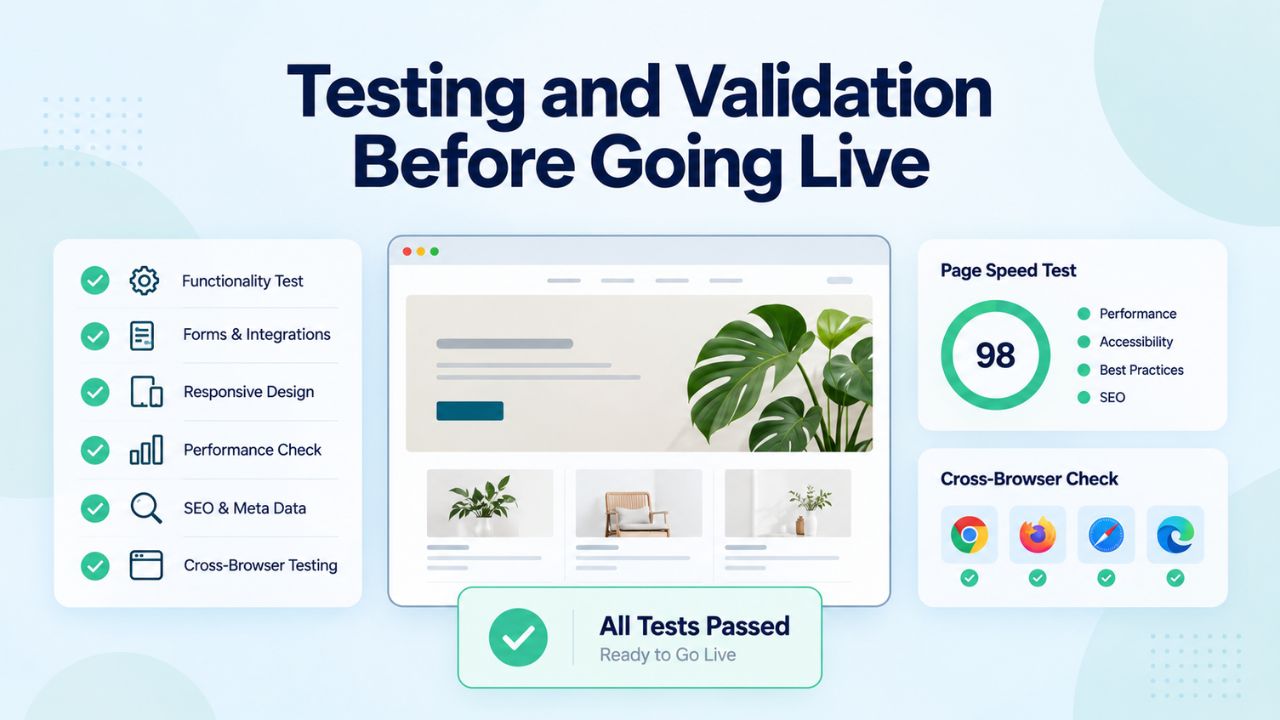
Before deploying to your live site, create a duplicate or staging version of your site in your website builder. Add the custom code there and test all related functionality. If it’s tracking code, verify tracking data appears in the third-party service’s dashboard. If it’s a widget, verify it displays correctly and responds to interaction. Use your browser’s developer tools to check for JavaScript errors in the console; any red error messages indicate your code is broken or conflicting with the site.
Open Developer Tools in Chrome, Firefox, Safari, or Edge (usually F12 or right-click → Inspect). Look at the Console tab for errors. Look at the Network tab to see what resources (JavaScript files, images, API calls) your page loads. If you see unexpected third-party domains or slow-loading resources, investigate whether custom code is responsible. The Performance tab lets you record a page load and see which scripts consume the most time. If custom code is blocking page rendering, it will appear as a long task in the Performance timeline.
Measuring Performance and Verifying Functionality
Document your site’s performance metrics before and immediately after adding custom code. Note page load time, largest contentful paint (how long until main content renders), and cumulative layout shift (how much the page shifts as elements load). These metrics matter for user experience and search ranking. If custom code increases page load time by more than 2–3 seconds, it has a significant negative impact that may not be acceptable.
Test all related functionality thoroughly before deploying. If you’ve added a custom form, submit test data and verify it arrives. If you’ve added tracking code, confirm events are recording in your analytics dashboard. If you’ve embedded a widget, interact with it on multiple devices (desktop, tablet, phone) to ensure it works everywhere. If you’ve added a payment integration, run a test transaction using your payment provider’s sandbox environment. Create a checklist of what you expect to work, and tick off each item during testing.
Maintaining Your Custom Code Long-Term
Custom code doesn’t end once you deploy it. Ongoing maintenance keeps it secure and performant over months and years.
Conducting Regular Audits and Updating Dependencies
Set a calendar reminder to audit your custom code quarterly or semi-annually. Review each custom code snippet and ask: Is this third-party service still active and maintained? Has the vendor released a newer version of this code? Have any security advisories been issued for libraries this code depends on? Has this integration’s functionality been replicated by your website builder as a native feature? For third-party scripts, visit the vendor’s website to check whether your version is current. If not, retrieve the latest version from the official source and test it in staging before updating live. If a third-party service you rely on is abandoned, remove the integration promptly; abandoned code is a permanent security liability.
If your custom code relies on third-party libraries (jQuery, Bootstrap, or any JavaScript framework), ensure those libraries remain up-to-date. Libraries regularly release security patches. Outdated versions leave you vulnerable to known exploits. Check your site’s dependencies periodically, test updates in staging, and deploy them to live once verified. If updating a library is difficult or breaks functionality, consider replacing it with a modern alternative.
Monitoring Performance Trends and Staying Vigilant
Performance degrades over time as you add features, third-party services expand their scripts, and browser bloat increases. Monitor your site’s speed metrics monthly or quarterly using PageSpeed Insights or similar tools. If performance has declined since you last checked, investigate whether custom code is responsible. Third-party scripts sometimes increase in size with updates. If your site has gotten slower, the culprit is often a third-party library or service you added months ago.
Once you’ve identified the problem, decide whether to optimize it or remove it. Many third-party scripts offer options for lighter loading or conditional execution. Some can be deferred to load after page interaction. Others are too heavy and should be replaced or removed. This ongoing discipline keeps your site fast and reliable. Stay subscribed to security bulletins from the third-party services you rely on; if a vendor gets hacked, you need to know immediately so you can remove or patch the compromised code.
Troubleshooting Issues When Custom Code Breaks
Despite careful testing, problems sometimes occur after deployment. Knowing how to diagnose and fix issues quickly minimizes impact to your visitors and your business.
Identifying Errors Using Browser Developer Tools
When custom code causes problems, start by diagnosing the issue. Open your browser’s developer tools (F12 or right-click → Inspect) and navigate to the Console tab. JavaScript errors appear here in red text. These error messages tell you exactly what went wrong: “Uncaught ReferenceError: undefined function,” “Syntax error: unexpected character,” or “Failed to fetch resource.” Read the error message and the line number it references in your custom code. Often, the fix is simple, a typo, a missing quote, or incorrect syntax.
The Network tab shows which resources (scripts, stylesheets, images) failed to load. If you see a 404 error for a third-party script URL, that resource is no longer available, or the URL is incorrect. Check that the URL still exists and hasn’t changed. The Performance tab helps you identify whether custom code is causing slow page load or rendering delays. If you see long tasks attributed to custom code, you may need to optimize or defer the script.
Rolling Back and Reverting Problematic Code Quickly
If an error is severe, your site is broken or fundamentally slow, the fastest fix is to revert. Remove the custom code section entirely. Most website builders allow you to delete a section or block in seconds. Your site will return to normal immediately. Once you’ve stabilized your live site, diagnose the problem in your staging environment, fix the code, test thoroughly, and re-deploy only when you’re confident it works.
Keep a backup of pre-custom-code versions of your site when possible. Most builders maintain version history, so you can roll back to an earlier published version if needed. If you’ve made custom code changes that broke everything, revert to the last known-good version and start fresh. This is why documenting your code changes is valuable; you can reference what worked before and what didn’t. After a major issue, take time to understand what went wrong before trying again.
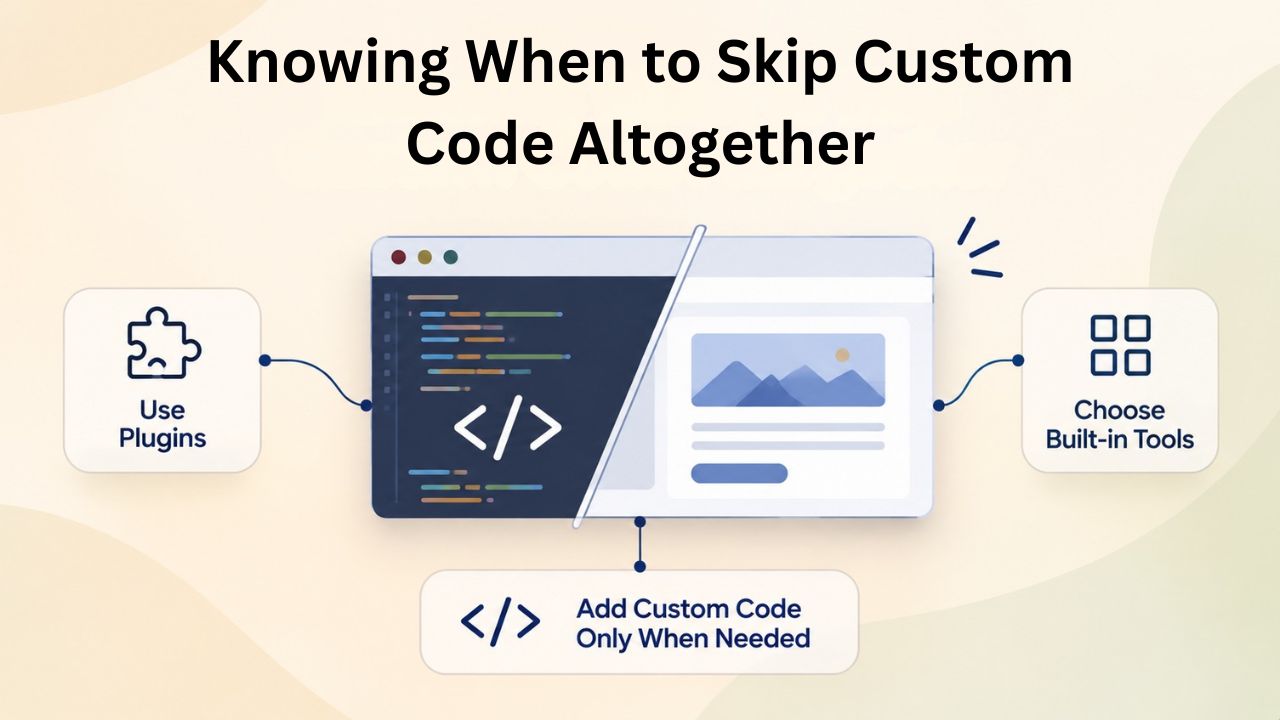
Knowing When to Skip Custom Code Altogether
Sometimes the best decision is not to use custom code at all. Recognizing when built-in features and alternatives solve your problem saves you security and performance headaches.
Leveraging Built-In Features and Native Integrations First
Before considering custom code, exhaust your website builder’s native features. Modern website builders offer substantial functionality without custom code. Contact forms, email capture, analytics, SEO tools, appointment booking, live chat, and e-commerce most now come as built-in blocks or integrations. GoDaddy Website Builder lets you add Google Analytics, Facebook Pixel, and other tracking codes directly in Settings without requiring a custom code section.
Using built-in features has clear advantages. The builder maintains these features and updates them as platforms change. Performance is optimized since the builder controls when and how these integrations load. Security is managed by the builder’s team. Your responsibility shrinks to configuration alone; you don’t manage code or updates. For most small businesses, built-in features solve the problem without the risks of custom code.
Exploring Alternative Services and Third-Party Integrations
If your website builder lacks a built-in integration, check whether an alternative integration exists that doesn’t require custom code. Many third-party services now offer integrations through platforms like Zapier or Make (formerly Integromat), which connect services without code. If you need to connect your website form to a CMS system, for example, Zapier may offer a template that does this without code; you only configure which fields map to which system fields.
Explore whether a different service offers the core functionality you need and integrates natively with your builder. Sometimes trading features yields a much simpler implementation. If the appointment booking system you wanted requires custom code but your builder integrates natively with another solid alternative, the native integration may be worth the feature sacrifice. This disciplined approach keeps your site maintainable and secure while still meeting your business needs.
Building Your Website With Confidence
You now understand how to add custom code safely, when it’s necessary, how to source it responsibly, and how to test and maintain it long-term. The key is balance: use custom code when built-in features don’t suffice, but lean on native integrations and simple alternatives whenever possible. Niya Digital’s Website Builder Service combines ease of use with the flexibility to customize when you need it, plus support to help you along the way.
Frequently Asked Questions
What exactly is custom code in a website builder?
Custom code refers to HTML, CSS, or JavaScript that you add to extend your website builder’s functionality beyond drag-and-drop blocks. It enables integrations with third-party services, custom forms, embedded widgets, and specialized functionality your builder doesn’t offer natively. Most modern website builders let you add custom code through dedicated HTML blocks or sections. GoDaddy Website Builder, which powers Niya Digital’s Website Builder Service, lets you add custom code to specific sections of your website. Custom code gives you flexibility but requires careful security and performance management.
How can I determine if code is safe to add to my website?
Safe code comes from official, vendor-controlled sources. Log in to the third-party service’s dashboard and use the “Embed” or “Get Code” option provided there, not from blog posts, forums, or social media. Verify the vendor is reputable and actively maintains the service. Check the code for red flags: eval() statements, obfuscation, or unclear purpose. If code looks suspicious, contact the vendor’s support team directly. You can also use browser developer tools to inspect code before adding it. When in doubt, skip it and find an alternative.
Will custom code slow down my website?
Yes, custom code, especially third-party JavaScript, can significantly slow your site. Third-party scripts account for roughly 45% of all requests by websites, and they can add 1+ seconds of load time. Test performance before and after adding custom code using PageSpeed Insights. Use async or defer attributes to prevent scripts from blocking page rendering. Load scripts only on pages where they’re needed. If a script slows your site too much, optimize it or remove it. Site speed matters for user experience and search rankings.
What is cross-site scripting, and why is it relevant to me?
Cross-site scripting (XSS) is a security attack where malicious scripts are injected into web pages to steal visitor data or compromise their browsers. If you add untrusted custom code, you may inadvertently create an XSS vulnerability on your site. Visitors could have their session data stolen or be redirected to phishing sites. Even major platforms like Google and Facebook have been exploited by XSS. Protect yourself by sourcing code only from official vendors, testing in staging first, and reviewing code before adding it to your live site.
Do I need to test custom code in a staging environment?
Absolutely. Always test custom code in a staging or duplicate version of your site first. Verify the code works, check the browser console for errors, and measure performance impact. Only after confirming everything works should you deploy to your live site. This approach prevents broken integrations, performance degradation, and security issues from reaching your visitors. Most website builders make creating a test site easy; use that feature. The time you invest in testing saves you from far worse problems later.
How frequently should I audit and update my custom code?
Audit your custom code at least semi-annually or quarterly. Check whether third-party services and their libraries remain maintained. Update third-party scripts to the latest versions. If a service you rely on is abandoned or the vendor goes out of business, remove the integration promptly. Monitor your site’s performance monthly; if it degrades, investigate whether custom code is responsible. This ongoing discipline keeps your site secure and fast. Set a calendar reminder so you remember to audit regularly.
Can I use code from GitHub or open-source repositories safely?
You can use code from GitHub if it comes from a reputable, actively maintained project. Check that the repository has recent commits, an active community, and clear documentation. Avoid code from abandoned projects or single-author repositories with no community support. Even if code is open-source and free, it’s only safe if it’s actively maintained and has a community that catches and fixes security issues. Always test any GitHub code extensively in staging before deploying to live. Verify the license allows your intended use.
What should I do immediately if custom code breaks my website?
If custom code causes an error, your site may display incorrectly or become unusable. This is why testing in staging is essential: you catch errors before they reach visitors. If an error occurs on your live site, revert the code immediately by removing the custom code block or section. Most website builders save previous versions, so you can also revert to an earlier version. Fix the code in staging, re-test thoroughly, and only then re-deploy. Keep your staging site as a safety net you can always fall back on.
Do I need programming skills to use custom code safely?
You don’t need to be a programmer to source and deploy custom code safely, but you do need carefulness and discipline. Verify the source of your code. Read it; even if you don’t understand every line, you can spot obvious red flags. Test it before going live. Monitor its performance. Follow best practices like using async/defer attributes. These are discipline practices, not technical skills. If you feel unsure about any code snippet, ask a professional for a quick security review. The cost is negligible compared to the risk of a security breach.
Can my website builder protect me from XSS vulnerabilities?
Website builders protect you from XSS vulnerabilities with built-in features that escape user input and validate code. However, when you add custom code, you’re responsible for its security. The builder can’t monitor or validate code you add. This is why sourcing code from official vendors and reviewing it yourself are essential. The builder provides the framework; you provide the discipline to keep custom code secure. Think of it as the builder providing a locked house; you’re adding your own door, so you must secure it.
What’s the difference between HTML, CSS, and JavaScript in custom code?
HTML defines the structure and content of web pages. CSS controls visual styling (colors, layouts, fonts). JavaScript adds interactivity and dynamic behavior (responding to clicks, loading data, triggering animations). Most custom code you’ll add is either JavaScript (third-party widgets, analytics, interactive tools) or HTML (embeds, structured content). CSS is rarely added as custom code. Understanding this distinction helps you grasp what different code snippets do and why you’re adding them. Analytics code is JavaScript. An embed is usually HTML.
Should I host custom code on my own server or use the builder’s code section?
Use the builder’s embedded code feature whenever possible. GoDaddy Website Builder provides dedicated HTML sections for custom code, and most builders do the same. This keeps everything in one place and is simpler than managing external code. Hosting custom code on your own server introduces additional complexity and responsibility for maintenance and uptime. Unless you have a specific reason to host code externally, which is rare for most small businesses, embed it directly in the builder. The builder’s version control and backups are also easier to manage.
If I copy custom code from one website to another, will it work?
Yes, if the code is generic and self-contained. For example, Google Analytics tracking code is the same for any site so that you can use it on multiple sites. However, code that’s specific to one site (customized with your business ID, unique form action URLs, or site-specific configurations) won’t work elsewhere without modification. Always test code in a staging environment before deploying it, even if it’s generic. Verify it’s still current and that the third-party service hasn’t released a newer version since the original site was built.
What’s my first action if a third-party service I rely on gets hacked?
If a vendor whose code you’ve embedded gets hacked, remove the code immediately. Don’t re-add it until the vendor confirms the vulnerability is patched. Monitor the vendor’s security announcements. Once they release a patched version, get it from the official source, test it in staging, and redeploy. This is another reason to audit your custom code regularly; you’ll catch security breaches sooner and respond faster. Stay subscribed to security bulletins from the third-party services you rely on. A few minutes of vigilance prevents major damage.
What should I do if custom code causes an error after I deploy it live?
If custom code breaks your live site after deployment, revert immediately. Remove the custom code section or block entirely; in most website builders, this takes seconds. Your site will return to normal. Once stabilized, go to your staging environment and diagnose the problem. Check the browser console for JavaScript error messages. Check the Network tab to see whether resources failed to load. Fix the code in staging, test thoroughly, and redeploy only when you’re confident. Keep backups of pre-custom-code versions. Most builders maintain version history, so you can roll back to an earlier published version if needed. Reversion speed matters more than understanding the problem immediately.
Glossary
- Website Builder: A drag-and-drop or visual tool that allows non-technical users to create, design, and publish websites without writing code. Niya Digital’s Website Builder Service, powered by GoDaddy Website Builder, is an example.
- Custom Code: User-written or user-provided HTML, CSS, or JavaScript added to a website to extend functionality beyond the website builder’s native features. Custom code integrates third-party services, adds specialized functionality, or implements custom design elements.
- Cross-Site Scripting (XSS): A web security vulnerability in which attackers inject malicious scripts into web pages to steal visitor data, compromise browsers, or redirect users to malicious sites. XSS occurs when user input or untrusted code is displayed without proper validation.
- HTML Encoding: The practice of converting special characters (such as <, >, &, “, and ‘) into safe text representations so they cannot be interpreted as code by the browser. Proper HTML encoding prevents malicious scripts from executing.
- Third-Party Script: JavaScript code loaded from an external domain (not your own website) to add functionality such as analytics, ads, live chat, or tracking. Third-party scripts improve functionality but also introduce performance and security risks.
- Async/Defer Attributes: HTML attributes used when loading JavaScript files that control when and how scripts execute. “Async” loads the script in parallel; “defer” loads it in parallel but executes after the page is ready. Both prevent scripts from blocking page rendering.
- Staging Environment: A duplicate or test version of your website used for testing changes, custom code, and new features before deploying them to your live, public website. Staging protects real visitors from broken or insecure changes.