
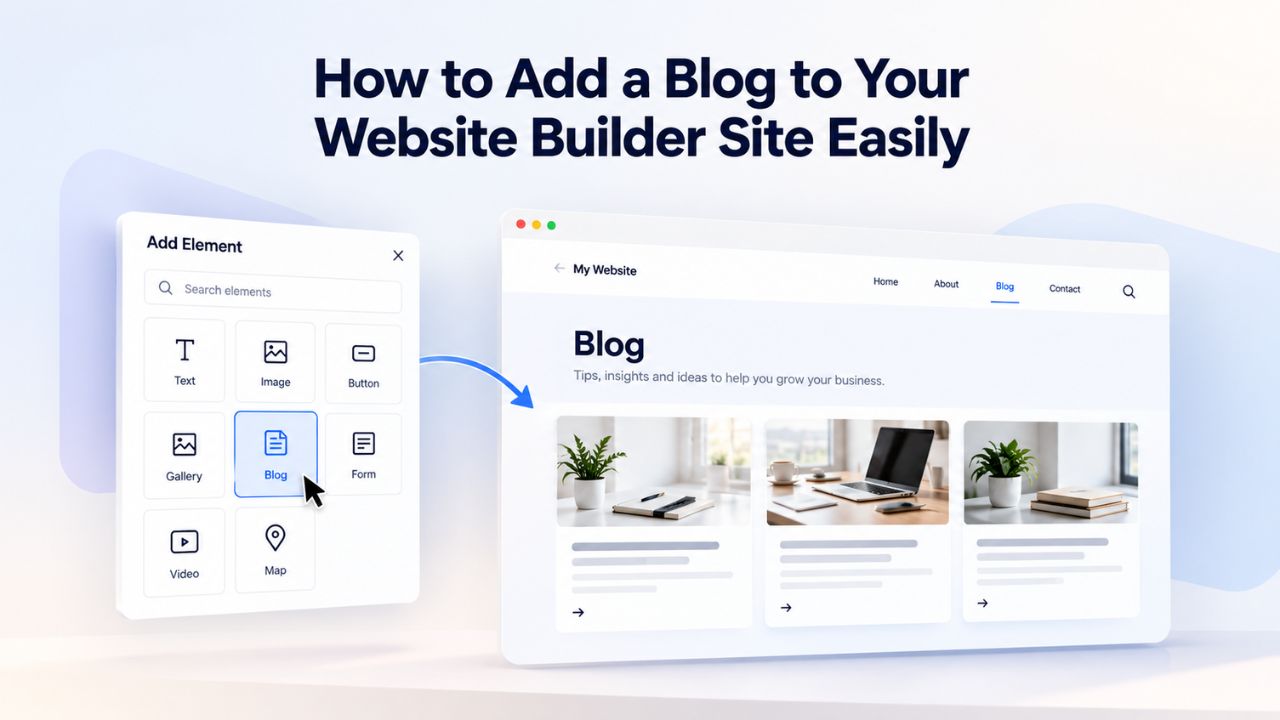
A blog transforms your website from a static storefront into a dynamic hub that attracts repeat visitors, builds credibility with your audience, and generates qualified leads over time. Yet many small-business owners delay launching a blog because they assume it requires technical expertise, coding knowledge, or expensive development help. Niya Digital operates as an authorized reseller of GoDaddy Website Builder-powered website building services, not as an independent developer of builder technology. Website performance, traffic, and conversion outcomes depend on numerous factors beyond any platform’s control, including your content quality, ongoing SEO effort, audience niche, competitive landscape, and how actively you maintain your site.
Why Your Business Needs a Website Builder Blog
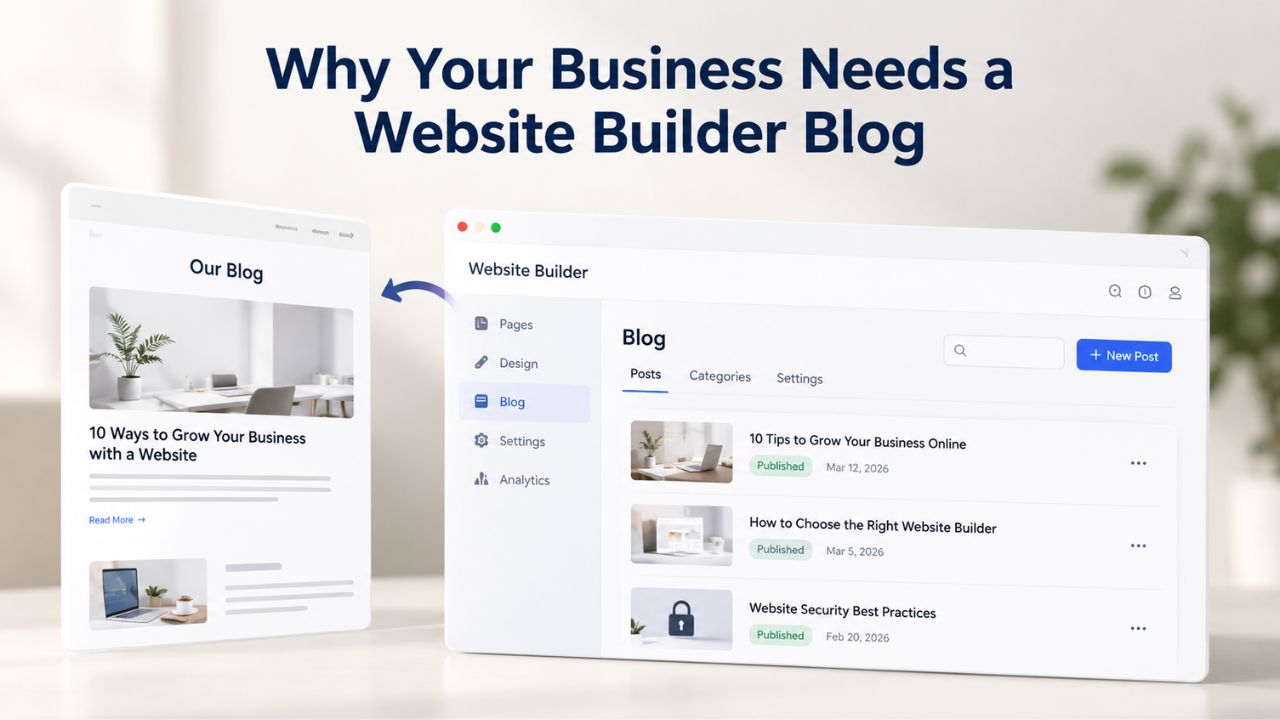
A blog is one of the highest-return investments a small business can make in its online presence. The evidence is compelling: small businesses that blog get 126% more lead growth than those that don’t, according to industry research tracking small-business marketing outcomes. Beyond lead generation, blogs drive measurable traffic increases; companies with blogs generate 55% more website visits than those without. This traffic compounds over time as older posts continue attracting organic search visitors months and years after publication.
The Business Case for Consistent Blogging
When potential customers land on your website, a blog signals activity and investment. A static website with no published content since last year may signal to visitors that you’ve moved on or abandoned your business. A blog with regular, fresh posts proves you’re actively engaged, knowledgeable about your industry, and genuinely interested in helping customers solve problems. This perception directly influences purchasing decisions. 81% of businesses report that their company blog is useful to critical for their business, and 25% of marketers report that their company blog is critical to their business.
The customer acquisition impact is equally significant: 57% of companies with a blog have acquired a customer from it, meaning more than half of businesses running blogs see direct revenue attribution. For companies that publish more frequently, the numbers climb dramatically: 92% of companies that blog multiple times per day have acquired a customer from their blog. This doesn’t mean you need to publish daily; companies that post 1-2 times per month have 67% more sales opportunities than companies that don’t blog. Consistency at a sustainable pace outperforms sporadic bursts of activity.
Niya Digital’s support team has observed that small-business owners who commit to modest but regular blogging, one to two posts monthly, typically report noticeable increases in website engagement, email list growth, and customer inquiries within their first 90 days of publishing. The blog becomes a customer magnet because it answers real questions your target audience searches for online.
How Blogs Strengthen Your Search Engine Visibility
Beyond customer psychology, blogs are fundamental to search engine optimization (SEO). Search engines rank websites based on content relevance, topical authority, and user engagement signals. Every new blog post is a new indexed page with its own keywords, internal linking opportunities, and structured content that helps search engines understand what your business is about and who you serve. When you categorize your blog posts, search engines can more easily understand the relationships between different topics and keywords on your website, reinforcing your site’s topical authority in specific areas.
A website with ten pages plus thirty blog posts has three times as many opportunities to rank for relevant search terms as a website with only ten pages. As your blog grows, you accumulate backlink opportunities, social sharing potential, and repeat visitor traffic, all factors that influence search rankings. Website builders also handle the technical SEO foundations automatically: responsive mobile design, fast page loading, clean HTML structure, and SSL encryption are built into every page you publish.
Website Builder Plans & Pricing
Create a professional website with flexible website builder plans designed for businesses, portfolios, and growing online brands. Choose a plan that matches your needs and build, customize, and manage your website with easy-to-use tools, responsive designs, and essential features for a strong online presence.
Website Builder Personal
Share your passion online.
- Responsive mobile design
- Website hosting
- Rapid Page-Load performance
- Create a blog
- Security (SSL)
- 24/7 support

Website Builder Business
Create an online presence for your business.
- Responsive mobile design
- Website hosting
- Rapid Page-Load performance
- Create a blog
- Security (SSL)
- 24/7 support
- PayPal Buy Now or Donate button
- Search Engine Optimization (SEO)
Website Builder Business Plus
Attract more customers.
- Responsive mobile design
- Website hosting
- Rapid Page-Load performance
- Create a blog
- Security (SSL)
- 24/7 support
- PayPal Buy Now or Donate button
- Search Engine Optimization (SEO)
- Social Media Integration
- Share content to Facebook
- Online Appointments
Website Builder Online Store
Sell products and services.
- Responsive mobile design
- Website hosting
- Rapid Page-Load performance
- Create a blog
- Security (SSL)
- 24/7 Support
- PayPal Buy Now or Donate Button
- Search Engine Optimization (SEO)
- Social Media Integration
- Share content to Facebook
- Online Appointments
- Built-in shopping cart
- Sell physical and digital products
- Accept credit and debit cards, PayPal and more
- Flexible shipping options
- Discounts and promotions
- Manage inventory
Accessing the Blog Feature in Your Website Builder
To get started with a website builder blog, go to your site’s editor and find the blog tool in the content management interface. GoDaddy Website Builder’s blog feature takes the guesswork out of adding a blog to your website by walking you through a simple process, with all the tools you need at your fingertips. The entire setup process is designed for beginners with no technical background.
Finding and Activating the Blog Section
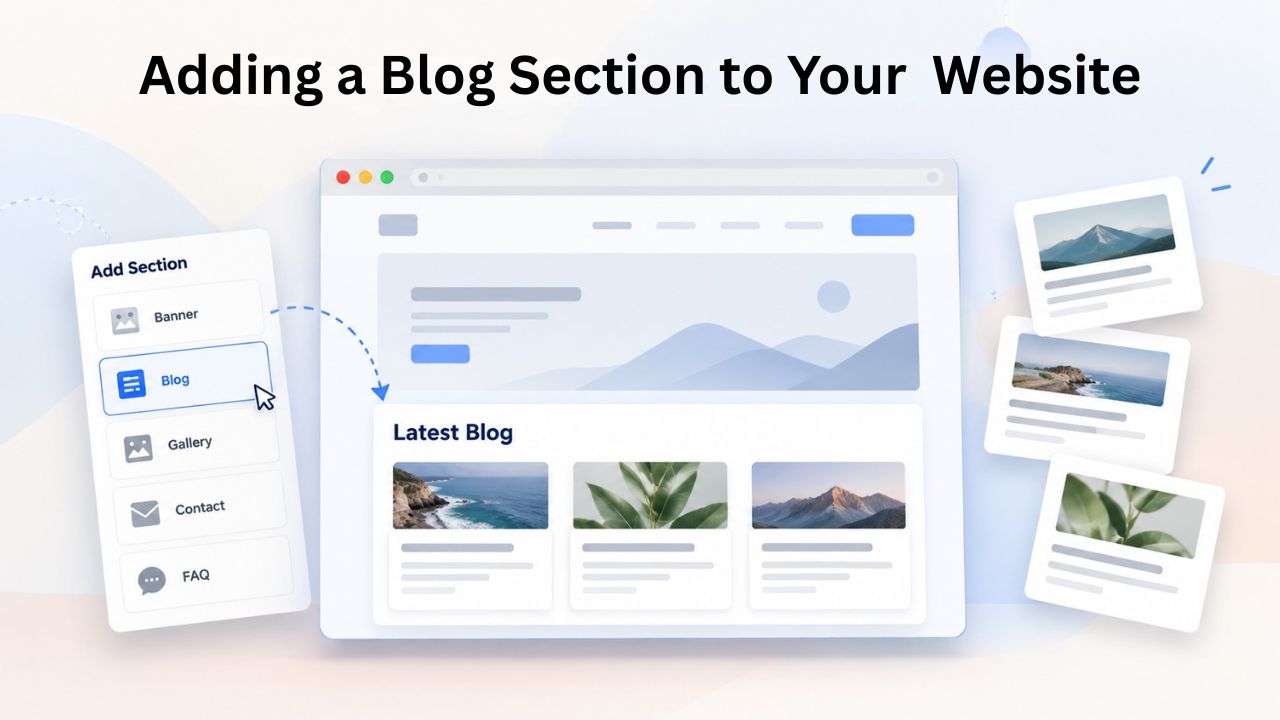
Log in to your website builder account and open the site you want to edit. In the editor interface, you’ll see a content palette, library, or menu system (exact naming varies by builder version) containing pre-built sections: hero images, testimonial blocks, gallery layouts, contact forms, and more. Among these sections, you’ll find the Blog section. You can add one blog section per page, meaning each page can include one blog feed or blog preview area. To add multiple blog feeds to your site, you’ll create multiple pages and assign different categories to each, which we’ll explore in detail later.
The blog section, like all page elements in a modern website builder, uses a drag-and-drop interface. Click the blog section in your content library, then drag it onto the page where you want it to appear. The section drops into place automatically, and the page layout adjusts to accommodate it: no coding, no complex setup wizards, no technical steps to complete. If the blog section doesn’t immediately appear in your content palette, scroll through your library or search for “blog” to locate it quickly.
Choosing the Right Location for Your Blog
Before you add a blog section to a page, think strategically about where your blog serves your visitors best. Some businesses feature a blog prominently on their homepage, showcasing recent posts to every visitor and signaling that the company is active and engaged. Others dedicate an entire Blog page separate from the homepage, creating a clear content hub where visitors can browse posts by category, read archives, and subscribe to updates. A service-based business, such as a consulting firm, agency, or professional practice, might place blog excerpts on the homepage and link to the full blog page. An e-commerce store might keep the blog entirely separate from product pages to avoid diluting the shopping experience.
Consider your core business goal. If your primary objective is thought leadership and customer education, feature the blog prominently. If your focus is direct sales and transactions, the blog can remain secondary but still valuable as a trust-building asset. A practical approach is to start with a dedicated Blog page, establish a publishing rhythm, and later promote your best-performing posts to the homepage as social proof of your expertise. This two-stage approach lets you test before investing heavily in homepage real estate.
Adding a Blog Section to Your Website
Once you’ve decided where your blog will live, the actual process of adding a blog section to your page takes only moments. Go to the page and location where you want to add your blog posts, then add a section by searching for Blog and selecting Add on the layout you want to use. Website builders typically offer several blog layout templates; some display a featured post with thumbnails of recent articles below, others show a clean grid of post cards, and still others present a traditional chronological list with featured images and excerpt text.
Understanding Blog Layout Options
Different layouts serve different purposes. A grid layout, for example, works well for visual content and gives all posts equal visual weight. A chronological list layout emphasizes the most recent content and suits businesses that publish frequently or want to emphasize breaking news and timely updates. A featured post layout with smaller recent articles below highlights your best content while still making newer posts discoverable. Look at your content and audience preferences: if your posts are heavily visual (photography, design work, recipes), choose a layout with large images. If your posts are text-heavy with minimal imagery, a clean list or card layout keeps readers focused on headlines and excerpts.
After selecting your layout, the builder may prompt you to configure basic settings: blog title, introduction text, whether to show featured images, and how many posts to display per page. These settings shape how your blog appears to visitors but aren’t permanent; you can change them anytime. Some builders also let you choose whether to display an author byline, publication date, category tags, read-time estimates, and social share buttons. Each of these elements adds context and encourages engagement, but too many can clutter the design. Start with essentials (date, category, read-time) and add more if your design supports it.
The One-Section-Per-Page Rule and Why It Matters
You can only add one blog section per page. This isn’t arbitrary; it’s a design principle that keeps page layouts clean and focused. When visitors land on a page, you want a clear information hierarchy and a single primary goal. Multiple blog sections on one page would create visual competition and decision paralysis. The workaround is elegant: if you want to feature multiple distinct topic blogs (e.g., “Product Updates” and “Industry Insights”), create separate pages, assign different categories to each page’s blog section, and link between them. This keeps each page focused while organizing content topically.
The beauty of this approach is that you’re not actually running multiple separate blogs; you’re running one blog with strategic categorization and page placement. All posts flow into a single editorial calendar and subscriber list, but readers see them organized by topic based on which page they visit. This is more efficient than managing multiple blogs and creates a seamless user experience with intuitive navigation.
Customizing Blog Appearance and Settings
After adding a blog section to your page, customize its appearance to match your brand and set expectations for visitors. Select the Blog section and use the editor panel on the right to edit the blog title, layout, accent color, and background image. This customization ensures your blog feels integrated with your overall site design, not like a separate tool bolted on as an afterthought.
Choosing a Blog Title That Attracts Readers
Your blog title is the first impression readers get about what to expect. Generic titles like “Blog” or “News” tell visitors nothing about content focus. Specific, benefit-oriented titles set clear expectations and improve click-through rates from your website and search results. If you’re a financial advisor, “Personal Finance Tips” clearly signals that readers will find practical money guidance. If you’re a fitness coach, “Strength Training for Busy Professionals” tells visitors exactly who the content serves and what benefit they’ll gain. If you run a small business, “Small Business Growth Strategies” or “Entrepreneur’s Guide to Scaling” positions your blog as a resource for your target audience.
The title should align with your brand voice and content pillars. If your business emphasizes data and research, your blog title can reference insights or industry trends. If your brand is more approachable and conversational, your title can be friendlier and less formal. The blog title appears as a heading on your blog page and often in browser tabs and email newsletters, so clarity matters. A good test: if someone saw only your blog title without seeing your website, would they know what kind of content to expect? If not, revise the title.
Customizing Colors and Visual Design
Edit the layout, accent color, and background image to align with your brand’s visual identity. Accent colors often highlight interactive elements, post titles, category tags, or call-to-action buttons within the blog section. Your accent color should either match or complement your site’s primary brand color to create visual cohesion.
If your website uses a teal button color throughout, your blog’s accent color should ideally be the same teal, not a conflicting orange. Background images or colors set the visual tone. A light background keeps the blog clean and text-focused. A textured background or subtle pattern adds visual interest without overwhelming post content. A full-bleed background image risks reducing text readability, so use this option cautiously or only if your background image is very light or heavily blurred.
The goal is consistency. Visitors should feel that your blog is part of your website, not a separate platform. Consistent color schemes, typography, and visual hierarchy reinforce brand recognition and make navigation feel intuitive. Spend a few minutes on visual customization; it pays dividends in perceived professionalism and brand coherence.
Setting Display Options for Maximum Clarity
Most blog sections let you configure which metadata appears with each post: author name, publication date, category tags, estimated read time, social share buttons. Each element adds context but also visual weight. On mobile devices, space is limited, so prioritize essentials: publication date (so readers know if content is current) and category tag (so readers understand the topic). Author name is valuable if you have multiple authors and want to build personal brand recognition. Read-time estimates help busy readers decide whether they have time for a post. Choose three to five metadata elements and arrange them in order of importance to your audience.
Publishing Your First Blog Post
The moment you’ve been building toward has arrived: creating and publishing your first blog post. The content-creation workflow in a modern website builder is intentionally streamlined; you focus entirely on writing great content while the platform handles formatting, technical setup, and publishing mechanics. Open your blog, click “Create New Post” or “Write Article,” and a blank post editor appears. You’ll add a title, write body content in a visual editor (no HTML required), add images, set metadata, and publish.
Crafting a Title That Attracts Readers and Search Engines
Your blog post title serves multiple audiences: it must hook readers who see it in search results or social media, signal topicality to search engines, and promise a benefit or answer to the reader’s underlying question. The best titles are specific, keyword-rich, and benefit-focused. Compare “Website SEO Mistakes” (generic and vague) with “5 Website SEO Mistakes Killing Your Traffic” (specific, benefit-clear, and keyword-optimized). The second title tells readers exactly what the post covers, implies they’re losing traffic because of these mistakes, and includes keywords search engines recognize.
Aim for 50–70 characters (roughly seven to ten words) so your title displays fully in search results and browser tabs. Avoid clickbait phrases (“You Won’t Believe This One Weird Trick”) because they damage credibility and frustrate readers. Instead, be clear and compelling: promise specific, actionable value. Include your primary keyword naturally; if you’re writing about “email marketing for small businesses,” include that phrase in your title if it fits. If it doesn’t fit naturally, use related variations: “Email Marketing: The Small Business Owner’s Complete Guide” includes the keyword and clearly signals content scope.
Writing Body Content That Engages and Converts
Write your post body in the visual editor, which works like a simplified version of Microsoft Word or Google Docs. You’ll type paragraphs, apply formatting (bold, italics, links), add bullet points, and insert images without touching code. Structure your post with a clear introduction (state what the reader will learn and why it matters), body sections with subheadings that organize information logically, and a conclusion that summarizes key takeaways and suggests next steps.
Keep paragraphs short (two to four sentences) and break up text with subheadings every 200–300 words. Blog articles with images get 94% more views, so include two to four relevant images throughout your post. Use images to illustrate concepts, show before-and-after examples, display tool screenshots, or demonstrate processes. Ensure images are optimized (compressed for fast loading) and relevant to your content; random stock photos cheapen your credibility.
Moving from Draft to Published Post
The publish workflow prioritizes safety and quality. As you write, your post auto-saves as a draft. You can return to editing as many times as needed; drafts never expire or disappear. When you’re satisfied with your content, preview how the post will look on desktop and mobile devices. Check for typos, broken links, awkward line breaks, and missing images. Verify that your featured image displays correctly and that your meta description (the preview text in search results) is compelling and complete. Once the preview looks polished, click Publish, and your post goes live instantly, indexed by search engines and visible to visitors.
| Publishing Element | What to Include | Why It Matters |
|---|---|---|
| Post Title | 50–70 character title with primary keyword | Appears in search results, browser tabs, and social shares; influences click-through rates and search visibility |
| Meta Description | 150–160 character summary of post content | Appears below post title in search results; the first text readers see that convinces them to click |
| Body Content | 1,500–2,500 words covering topic thoroughly | Comprehensive content ranks better in search; longer posts attract more backlinks and social shares |
| Subheadings (H2/H3 tags) | 3–5 section headers organizing content logically | Breaks up text for readability; helps search engines understand post structure and key topics |
| Images | 2–4 relevant, optimized images throughout post | Images improve engagement; blog articles with images get 94% more views |
| Internal Links | 2–3 links to related posts or relevant website pages | Internal links improve SEO; keep readers on your site longer by pointing them to related resources |
| Featured Image | One high-quality, on-brand image (1200 x 800 px minimum) | Featured image appears in blog feeds, social shares, and search results; influences click-through rates |
| Category Assignment | One primary category that reflects post topic | Organizes post for readers; helps search engines understand topical relevance and content structure |
| Tags | 3–5 keyword tags describing specific post details | Tags improve discoverability; readers browsing specific tags find your post through multiple keyword paths |
| Publish Date | Current date when post goes live | Signals freshness to readers and search engines; impacts post ordering in blog feeds |
Publish Your First Blog Post This Week
Your first blog post is closer than you think. Niya Digital’s Website Builder Service eliminates technical barriers: no coding, no complexity, just drag-and-drop publishing. Choose a template, customize colors to match your brand, write your first post, and publish live within minutes. Access the tools you need to launch and grow a blog that drives traffic and builds lasting customer trust.
Organizing Posts with Categories
As your blog grows beyond your first handful of posts, organization becomes essential. Without structure, readers face a chronological jumble of content with no clear way to find posts relevant to their interests. Search engines also struggle to understand your content’s topical architecture. Categories solve both problems by grouping related posts under broad topic areas that both readers and search engines use to navigate and prioritize content.
Creating a Category Structure That Scales
A category allows you to group similar blog posts. Think of categories as the chapter divisions in a book. A business blog about sales, marketing, and product development would have categories for each discipline: Sales Tips, Marketing Strategies, Product Updates. A lifestyle blog covering travel, food, and wellness would organize posts as Travel, Recipes, Health & Fitness. Each post belongs to one primary category, creating a logical taxonomy that survives as your blog scales from 10 posts to 100.
Begin by identifying 5-7 broad topics that represent the main themes of your website. Too few categories (just one or two) provide minimal organization value. Too many categories (fifteen or more) overwhelm readers and fragment your content into thin topic areas. The sweet spot is five to seven: broad enough to organize diverse content meaningfully, yet focused enough that each category contains a critical mass of related posts. Starting with five categories means each one needs just ten posts to reach fifty total posts, a realistic milestone for an active blog.
Best Practices for Category Naming and Management
Category names should be clear, specific, and immediately understandable to a first-time visitor. “Resources” is too vague. “Small Business Financing Options” is better. “Quick Tips” lacks focus; “Email Marketing for Small Business” signals exact content. Your category names become clickable navigation links on your blog pages and in post sidebars, so they’re your main tool for guiding readers to related content. Category names also appear in URLs and search results, so they’re visible SEO elements; choose names that include relevant keywords when possible.
Avoid creating a new category for every topic. This temptation hits most bloggers around post fifteen to twenty, when existing categories start to feel crowded. Resist it. Adding a sixteenth category for a single post defeats the organizational purpose. Instead, ask: does this post fit within one of your existing categories, even imperfectly? Usually, the answer is yes. Only add a new category when you’ve published at least three to five posts in that topic area and recognize it’s becoming a substantial content pillar.
Leveraging Categories for SEO Strength
When you categorize your blog posts, search engines can easily understand the relationship between different topics and keywords on your website. Category pages themselves become indexed pages that rank for category-related keywords. A “Small Business Marketing” category page can rank for searches like “small business marketing tips,” bringing traffic to your blog feed. Each post within that category reinforces the category page’s topical authority. Over time, you develop what SEOs call “topical clusters,” multiple posts on related themes that collectively signal deep expertise in a specific area. Search engines reward this structure with better rankings.
Clear categorization also improves internal linking opportunities. When you publish a new post about “Social Media Marketing,” you can easily identify and link to other posts in the Social Media category, creating a web of internal links that distribute authority throughout your blog and encourage readers to explore related content. This structure is far more powerful than random, scattered links and requires minimal extra effort once your category system is established.
Using Tags for Better Discoverability
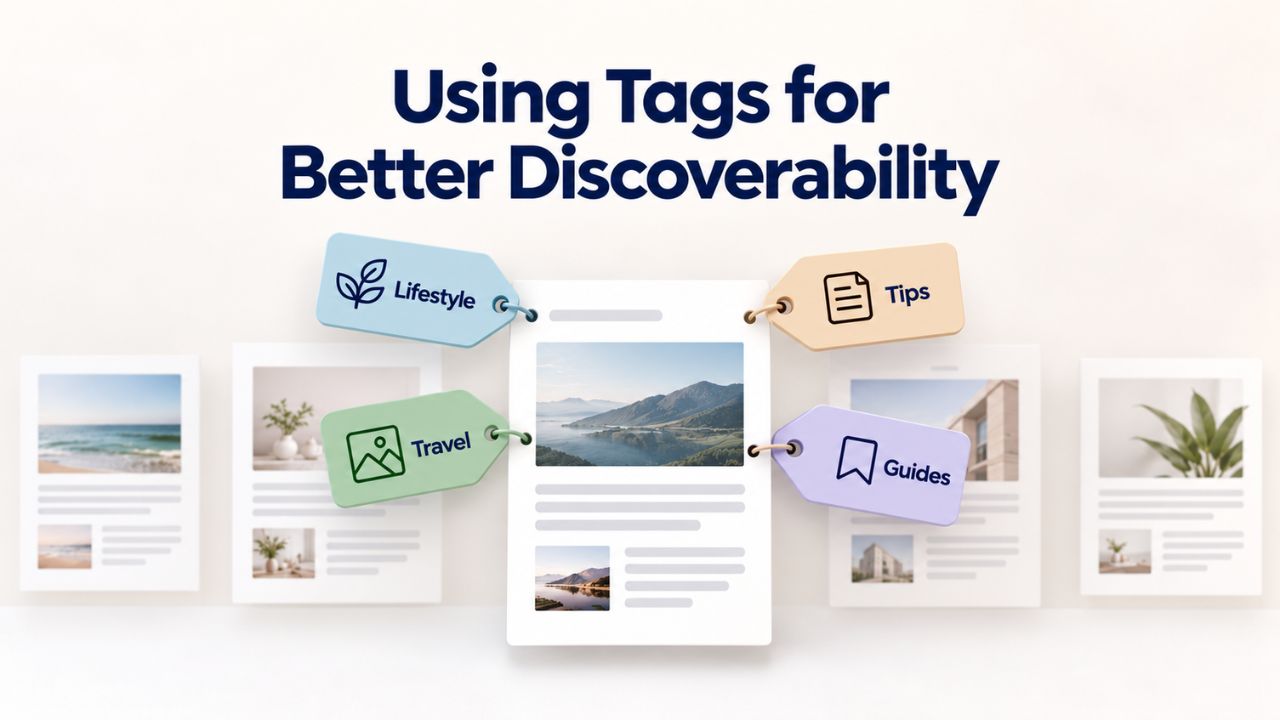
While categories organize your blog at a structural level, tags describe the specific, granular details of individual posts. Tags are searchable keywords that make a post discoverable through multiple keyword pathways, giving readers additional ways to find your content and giving search engines additional signals about post relevance.
Understanding Tags as a Discovery Layer
A tag makes a blog post easier to find and provides more information about your content. Imagine you’ve published a blog post titled “5 Budget-Friendly Vacation Destinations for Families.” The post belongs in the Travel category (structural organization), but its specific details deserve tagging. Appropriate tags might include “Family Travel,” “Budget Vacations,” “Summer Travel,” “Beach Destinations,” “Kid-Friendly Activities,” and “Travel Tips.” A blog post can have any number of tags but only one category.
These tags operate as searchable keywords that let readers find the post through different search angles. Someone searching your blog for “family travel” discovers this post even if they don’t know the specific destinations mentioned. Someone searching “budget vacations” finds it as well. A reader interested in “beach destinations” and another interested in “kid-friendly activities” both land on your post. By tagging strategically, you multiply the ways readers can discover your content through multiple keyword pathways.
Tagging Strategy for Maximum Reach and SEO Impact
The best tags are keywords your audience actually searches for. Tag words that your site visitors might use when searching. If you run a fitness blog and write a post about “Strength Training for Marathon Runners,” appropriate tags might include “Marathon Training,” “Strength Exercises,” “Running Performance,” “Injury Prevention,” and “Endurance Sports.” These tags capture the specific nuances that a reader searching for “marathon training tips” or “injury prevention for runners” would use.
Avoid creating tags that duplicate your category names. If you have a category called “Recipes,” you don’t need a tag called “Recipes” on every recipe post; that redundancy wastes the tagging opportunity. Instead, use tags for specific attributes and qualities: “Gluten-Free,” “Vegan,” “Under 30 Minutes,” “One-Pot Meals,” “Dairy-Free,” “Beginner-Friendly.” These tags are more specific than the category and help readers narrow results to exactly what they’re seeking. Similarly, don’t over-tag. Aim for three to five tags per post, tags that truly describe specific content attributes. Ten or twenty tags per post dilute the signal and confuse readers browsing by tag.
| Blog Topic | Recommended Category | Complementary Tags | Why This Tagging Strategy Works |
|---|---|---|---|
| Fitness Blog | Strength Training | “Home Workouts,” “Dumbbells,” “Body Weight,” “Injury Prevention,” “Beginner Exercises” | Readers can filter by workout type or location; search engines see detailed topic signals |
| Marketing Agency Blog | Paid Advertising | “Google Ads,” “Facebook Ads,” “Budget Tips,” “Conversion Optimization,” “Small Business” | Different readers search different ad platforms; tags let them find their specific need |
| Real Estate Blog | First-Time Homebuyers | “Mortgage Tips,” “Home Inspection,” “Neighborhood Guide,” “Financial Readiness,” “Down Payment” | Buyers at different stages of the journey search different keywords; tags guide them to relevant content |
| E-Commerce Blog | Product Guides | “Size Guide,” “Material Comparison,” “Care Instructions,” “Sustainability,” “Trending Products” | Customers searching specific product information discover detailed guides through tags |
| HR Consultant Blog | Employee Management | “Hiring Tips,” “Remote Work,” “Performance Reviews,” “Workplace Culture,” “Legal Compliance” | HR professionals search specific HR challenges; tags help them find solutions in your blog |
Setting Up Email Subscriber Notifications
A blog’s true power emerges when readers return repeatedly. One-time visitors are nice, but recurring readers become loyal customers and brand advocates. Email subscriber notifications ensure your latest posts reach interested readers automatically, transforming casual visitors into your most engaged audience. When someone subscribes to your blog via email, they receive a message whenever you publish a new post, with a preview and a link back to your site. This drives repeat traffic and builds a direct communication channel with your most invested readers.
Building Your Email Capture System
Tell people when a new post is published by sending snippets of your blog post to subscribers. Most website builders include built-in email capture functionality, often called a newsletter signup form, subscriber form, or email capture widget. You can add this form to your blog page in strategic locations, above your blog feed (to catch readers before they browse), at the end of your blog feed (to capture interested readers after they’ve scrolled), or at the end of individual posts (to convert deeply engaged readers).
Email capture forms are simple: they typically include fields for the reader’s name and email address, a compelling call to action explaining the benefit (“Get new marketing tips every week”), and a submit button. Keep forms minimal; more fields mean fewer subscriptions. A single email field or email plus first name is optimal. Longer forms asking for company size, industry, and buying timeline add friction that reduces signups. Collect those details later, through follow-up emails or a survey after someone has subscribed and experienced your content’s value.
Growing Your Subscriber Base Strategically
Starting small is perfectly fine. Your first email list might contain just close colleagues and friends. What matters is establishing the foundation. Every blog post is an opportunity to convert a reader into a subscriber. Add a clear, benefit-focused call-to-action to your blog page and individual posts: “Get New Posts by Email,” “Weekly Industry Insights to Your Inbox,” or “Join 500+ [Your Industry] Professionals Getting Weekly Tips.” Specificity works better than generic language. “Join 500+ Small Business Owners” is more compelling than “Subscribe.”
Offer a simple, valuable incentive if appropriate for your blog and audience. If you write about personal finance, offer a free downloadable budget template for subscribers. If you cover fitness, offer a free workout plan. If you focus on business strategy, offer a free strategic planning template. The lead magnet should require just an email address to download, creating a low-friction way to grow your list. Over time, as your subscriber base grows and you build trust through consistent, valuable content, your email list becomes your most valuable marketing asset, owned directly, independent of algorithm changes or platform policies.
Automating Email Delivery Without Extra Effort
Once email capture is configured, the system runs on autopilot. When you publish a new post, subscribers receive an automated email with a preview and a link to the full post on your website. You can configure content such as the form’s name, title, description, and disclaimer text, and customize the design to match your site’s style. Most builders let you customize the email template, so subscriber emails match your brand, your logo, colors, and tone of voice. Customization builds recognition and trust, making subscribers more likely to click through to your blog.
Optimizing Blog Posts for Search Engines
Publishing a blog post is just the beginning. To help readers discover your posts organically through search, optimize each post for search engine visibility. On-page SEO, the practice of optimizing your content and metadata to improve search rankings, is within every blog author’s reach. Search Engine Optimization involves optimizing websites to improve their visibility and ranking on search engine results pages. The good news is that website builders automate many technical SEO foundations (mobile responsiveness, site speed, clean code), so you can focus on content optimization.
Essential On-Page SEO Elements Every Post Needs
One of the first steps in SEO optimization is to ensure that your primary keywords are included in the title tags. Your blog post title is the single most important SEO element because it appears in search results, browser tabs, social media shares, and email subject lines. A keyword-rich, compelling title signals both reader intent and search engine topicality. Aim for 50–60 characters to ensure your title displays fully in search results. Include your primary keyword naturally; never force keywords into titles in ways that sound awkward or unnatural. “Email Marketing for Small Businesses: Complete Guide” works better than “Email Marketing Small Business Best Practices Tips SEO.”
A clear structure and easy navigation keep readers engaged longer, which signals SEO value. Use one H1 tag (your post title) as your page’s main heading. Organize sections with H2 subheadings and H3 sub-subheadings, creating a logical hierarchy that search engines read to understand your content structure. Use subheadings and bullet points to break down your content into easily digestible bits. This formatting improves readability for human readers and makes content easier for search engines to parse. Break dense paragraphs into shorter sections, use bullet points to highlight key takeaways, and vary sentence length to maintain reader interest.
Metadata, Keyword Placement, and Internal Linking
Meta descriptions provide a brief overview of your blog content. This 150–160 character text appears under your post title in search results and is often the first text a searcher reads that persuades them to click. Write a compelling, benefit-focused meta description that includes your primary keyword if it fits naturally. Include a soft call-to-action when appropriate: “Learn the five proven strategies to increase website traffic” signals value and encourages clicks. Most website builders let you edit the meta description directly in the post editor’s SEO settings.
Keyword placement throughout your content matters for relevance signaling. Include your primary keyword in the first paragraph (within the first 100 words), in at least one subheading, and naturally throughout the body content. Don’t force keywords; the content should read smoothly for human readers while incorporating keywords in logical places. Find opportunities to link to other relevant pages on your website.
Internal links serve two purposes: they keep readers on your site by pointing them to related resources, and they distribute authority throughout your site, signaling to search engines which pages are most important. When you mention a related topic you’ve covered in another blog post, link to that post. If you reference a service or product you offer, link to the relevant page.
Scaling Your Blog: Creating Multiple Topic Areas
As your blog matures and you publish regularly, you may want to feature multiple distinct topic areas or create the impression of specialized blogs within a single content hub. Rather than creating multiple separate blogs (which is complex and inefficient), you can leverage categories strategically to create focused topic feeds. Websites + Marketing lets you create multiple blog sections on your website, one blog section per page. Combined with blog categories, you control which posts appear in each section.
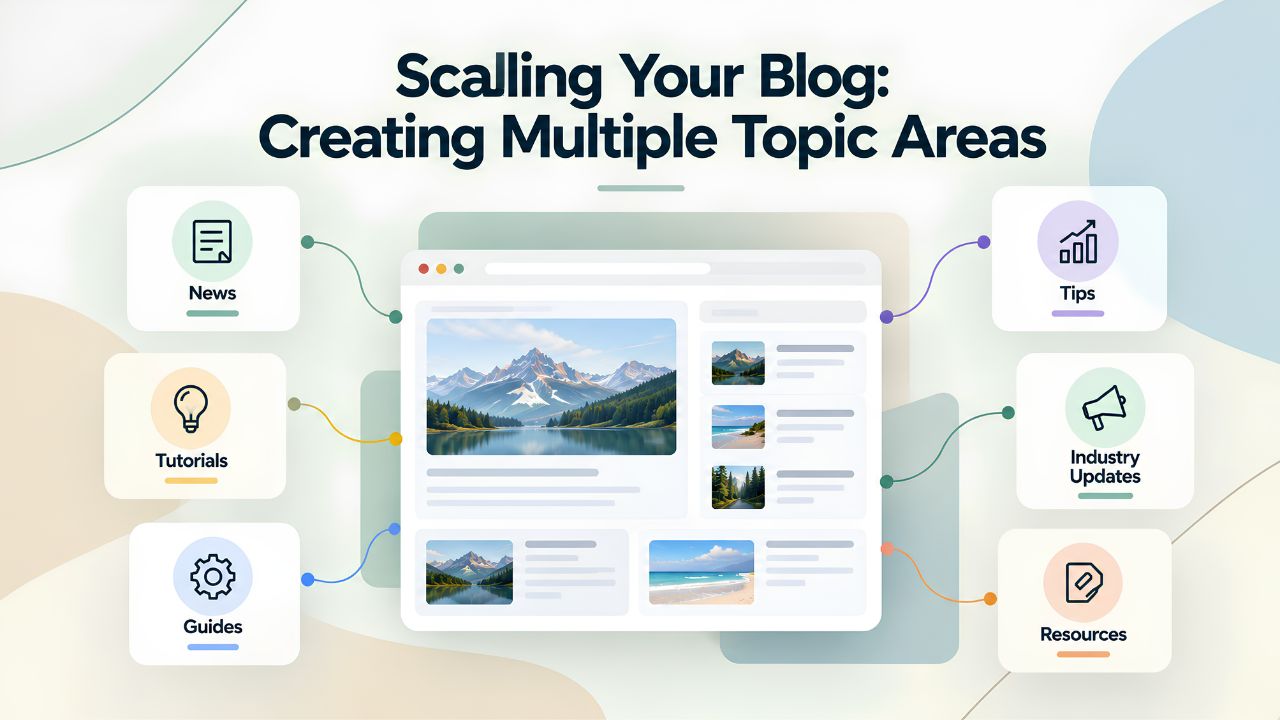
Strategy for Creating Topic-Focused Blog Sections
Imagine you run an e-commerce business selling fitness equipment and nutritional supplements. You might create two dedicated pages: one titled “Fitness Training Tips” and another titled “Nutrition & Wellness Advice.” Each page features its own blog section configured to display only posts from its respective category. Readers visiting your “Fitness Training Tips” page see only fitness-related articles. Readers on “Nutrition & Wellness Advice” see only nutrition and supplement content. This structure presents a cleaner, more focused user experience while maintaining a single unified blog behind the scenes.
To implement this strategy, establish your categories upfront, with clear definitions of what content each category will include. Create categories for each distinct topic area: Fitness Training, Product Reviews, Nutrition, Customer Success Stories, Company News, etc. When publishing a new post, assign it to the appropriate category. Then, on each topic-focused page, configure that page’s blog section to filter and display only posts from its relevant category. The blog feed on your “Fitness Training Tips” page automatically shows only posts tagged with the Fitness Training category. In contrast, the blog feed on “Nutrition & Wellness Advice” shows only Nutrition posts.
Managing Multiple Topic Areas Without Extra Complexity
This approach is elegant because it doesn’t require maintaining separate blogs or editorial calendars. You’re working within one blog with strategic categorization. All your subscriber data stays unified; someone can subscribe to get notifications about all new posts, or (if your email system supports it) choose which categories interest them. Your website analytics treat all blog traffic as unified metrics, giving you a comprehensive view of your blog’s overall performance. Search engines recognize thematic clustering of related posts, which reinforces topical authority in each area; the more posts you have about fitness training, the more authoritative your site becomes on that topic.
Create multiple blogs on your site by creating blog sections on additional pages and using categories to control which posts appear in each. This arrangement works exceptionally well for consultancies and agencies serving multiple client types (e.g., a marketing agency with separate blogs for e-commerce clients, B2B clients, and nonprofits), for retailers selling diverse product categories (e.g., a sporting goods store with separate fitness and outdoor adventure blogs), and for thought leaders covering multiple related specialties (e.g., a business coach with separate blogs for personal development, financial freedom, and entrepreneurship). The category-based filtering approach scales beautifully from five topic areas to fifty.
Start Your Blog and Build Reader Loyalty Today
Explore Niya Digital’s Website Builder Service to access everything you need: professional templates, drag-and-drop design tools, built-in email capture, category management, and hosting optimized for blog performance.
Frequently Asked Questions
How often should I publish blog posts to see meaningful results?
Consistency outweighs frequency. Companies that post 1-2 times per month have 67% more sales opportunities than companies that don’t blog, according to industry data tracking small-business marketing effectiveness. One to two well-researched, valuable posts per month beats sporadic bursts of activity or daily posts of lower quality. Choose a publishing rhythm you can sustain indefinitely; inconsistent blogging damages your credibility more than having no blog at all. Most importantly, never abandon your blog after three or four months of inactivity, as this signals to both readers and search engines that your business is stagnant or disengaged.
Can I add a blog to an existing website builder site, or do I need to rebuild?
No rebuild necessary. Open your existing website in the editor, navigate to the page where you want to add a blog section, locate the Blog section in your content library, drag it onto the page, and customize it. Adding a blog to an established website takes minutes and doesn’t affect existing pages or content. This is one of the beauties of website builders; they’re built for incremental updates and feature additions. You can add a blog to a homepage, create a dedicated blog page, or both.
What if I already maintain a blog on a separate platform like Medium or WordPress.com? Can I integrate it?
Most website builders support RSS feed integration, allowing you to display external blog posts on your site. If you prefer to display blog posts from your existing blog, select External blog feed and enter the feed URL of that blog. Most blog feed URLs end with /rss. However, this approach comes with trade-offs: subscribers click back to the external platform, you lose direct email subscriber relationships, and your website builder analytics don’t capture blog traffic. For long-term success, migrating your blog directly into your website builder (most builders make this straightforward with import tools) keeps everything in one place, strengthens your website’s SEO, and simplifies management.
How many categories should I create when starting my blog?
Begin by identifying 5-7 broad topics that represent the main themes of your website. Fewer than five categories provide minimal organizational value as your blog grows. More than seven fragments your content into thin topic areas where each category contains very few posts. The sweet spot is five to seven: broad enough to distinguish your content pillars meaningfully, yet focused enough that each category accumulates meaningful post volume over time. You can always add categories later as your blog matures and new content pillars emerge, but starting lean prevents premature over-categorization.
Do tags significantly impact SEO, or are they mainly for reader navigation?
Tags help readers navigate your blog by creating alternate discovery paths and help search engines understand granular content details, but categories are the primary SEO organizational structure. Tags are supplementary; they provide readers and search engines with additional context about specific post attributes. Focus first on creating clear categories and keyword-rich titles and meta descriptions. Tag refinement comes second. Don’t create dozens of tags; instead, use tags sparingly and strategically for specific post attributes that readers might actually search for.
What’s the ideal length for blog posts? Do longer posts always rank better?
SEO research suggests an ideal blog post length of 1,500-2,500 words, with a sweet spot at 2,450. However, a 1,000-word post that thoroughly answers a specific question and is optimized for SEO outperforms a 3,000-word post that’s poorly structured and vague. Length is a means to an end (comprehensive coverage), not the goal itself. Write posts long enough to explore your topic and answer reader questions completely and fully, but not so long that you lose readers’ attention or dilute your main points. Some topics naturally demand 3,000 words; others are adequately covered in 1,200. Let topic complexity and depth of treatment guide length, not arbitrary word counts.
What if I can’t see a Blog section in my website builder’s content library?
First, scroll through your content library to ensure the Blog section isn’t simply below the current view. If it’s truly missing, check your website builder plan; some basic plans might have limited content sections, though blogging is typically standard. If you’ve confirmed blog sections aren’t available on your current plan, contact support to confirm availability or explore plan options. Alternatively, ensure you’re on a Blog page (not a product page or restricted page type) where sections can be added.
Can I restrict my blog to specific readers or password-protect entire sections?
Yes. Most website builders include privacy and visibility settings for individual posts and blog sections. You can mark posts as draft (visible only to you), private (visible only to password-protected viewers), or public (visible to all). This is useful if you want to test post layouts before publishing, create members-only blog content, or temporarily hide posts while revising them. Check your blog settings for visibility and privacy options; these controls typically appear in the post editor alongside the publish button.
How do I measure whether my blog is working? What metrics matter most?
Monitor three key metrics:
(1) website traffic from blog posts (visible in Google Analytics, showing which posts drive most visits),
(2) email subscriber growth (tracking new subscribers each month), and
(3) customer inquiries or conversions attributable to blog content.
Most website builders integrate with Google Analytics, letting you see how much traffic your blog generates and which posts perform best. If even one customer per month comes from a blog post, your blog has paid for itself in value. More importantly, blogs compound: traffic and authority grow over time as older posts keep ranking in search results and bringing in visitors months after publication.
Should I include images in every blog post, or are they optional?
Blog articles with images get 94% more views. Images dramatically improve engagement and are no longer optional for professional blogs. Aim for two to four relevant images per post. Ensure images are optimized (compressed for fast loading, not massive files), relevant to your content, and on-brand. Use images to illustrate concepts, show before-and-after examples, display tool screenshots, or visually demonstrate processes. Avoid random stock photos that feel disconnected from your content; irrelevant images reduce credibility.
Can I edit or update posts after publishing them?
Absolutely. Published posts are fully editable. Open any published post, make changes, and save. Your updates go live immediately. Updating older posts to reflect new information, correct errors, or improve quality is common and recommended. Search engines appreciate fresh content updates, and improving older posts can boost their rankings. Many successful blogs set aside time each month to review and update older, high-performing posts, ensuring the information stays current and accurate.
How do I encourage readers to subscribe to my blog email list?
Add a clear, benefit-focused call-to-action to your blog page and individual posts. Rather than generic “Subscribe,” use specific language: “Get Weekly Marketing Tips,” “Industry Insights Every Friday,” or “Join 500+ Business Owners.” Consider offering a low-friction lead magnet, a free downloadable resource (guide, template, checklist) that requires just an email address to access. Promote your blog on social media, add links to your email signature, and mention it in customer conversations. Personalized recommendations often convert better than generic calls to action.
What should I write about in my first blog post?
Choose a topic you understand deeply, and your target audience cares about. Avoid generic “Welcome to Our Blog” posts; they don’t provide value and don’t rank for meaningful search terms. Instead, answer a common customer question, create a how-to guide for a frequent problem, share industry trends and insights, or provide a resource your ideal customer has been searching for. Your first post should demonstrate your expertise and deliver genuine value, setting the tone for everything that follows.
Can website builder blogs generate revenue through ads, affiliate links, or sponsorships?
Yes, many website builders support advertising, affiliate links, and sponsored content. As your blog attracts significant traffic, these can generate supplementary revenue. However, prioritize content quality and audience growth first. Monetization follows traffic; it doesn’t create traffic. Focus on creating valuable content consistently, building your subscriber base, and becoming a trusted voice in your industry. Revenue opportunities emerge naturally as your audience and authority grow.
Glossary
- Blog: A regularly updated section of a website featuring dated articles, posts, or entries, typically displayed in reverse chronological order (newest first). Blogs serve as a content hub for sharing expertise, industry insights, company updates, stories, or helpful resources with website visitors and search engine crawlers.
- Blog Post: An individual article or entry published on a blog, typically ranging from 1,000 to 2,500 words, that covers a specific topic relevant to the blog’s focus area. Each post has its own URL, metadata, category, tags, publication date, and social sharing options.
- Category: A broad topic grouping used to organize related blog posts into logical sections. Each post belongs to one primary category, helping both readers and search engines understand your site’s topical structure and content organization.
- Tag: A keyword descriptor or label applied to individual blog posts to improve searchability and provide additional context about the post’s specific content. A single post can have multiple tags, creating multiple discovery pathways for readers.
- Responsive Design: A website layout and design approach that automatically adapts and resizes to display correctly on any device, desktop computer, tablet, or mobile phone, ensuring a consistent, readable user experience regardless of screen size.
- SEO (Search Engine Optimization): The practice of optimizing website content, structure, and technical elements to improve visibility and rankings on search engine results pages, thereby attracting more organic (non-paid) traffic from search engines.
- Meta Description: A 150–160 character text summary of a webpage that appears beneath the page title and URL in search engine results, helping users understand the page’s content and influencing whether they click through to visit your site.
- Email Subscriber: A website visitor who voluntarily provides their email address to opt in to notifications about new blog posts, newsletters, company updates, or other regular content from a business.
- Internal Link: A hyperlink from one page on your website to another page on the same website, used to guide readers to related content and to help search engines understand your site’s structure and content relationships.
- Blog Archive: A chronological or categorical listing of all previously published blog posts, organized by date, topic, or other sorting criteria, allowing readers to browse older content and search engines to crawl deeper into your blog history.