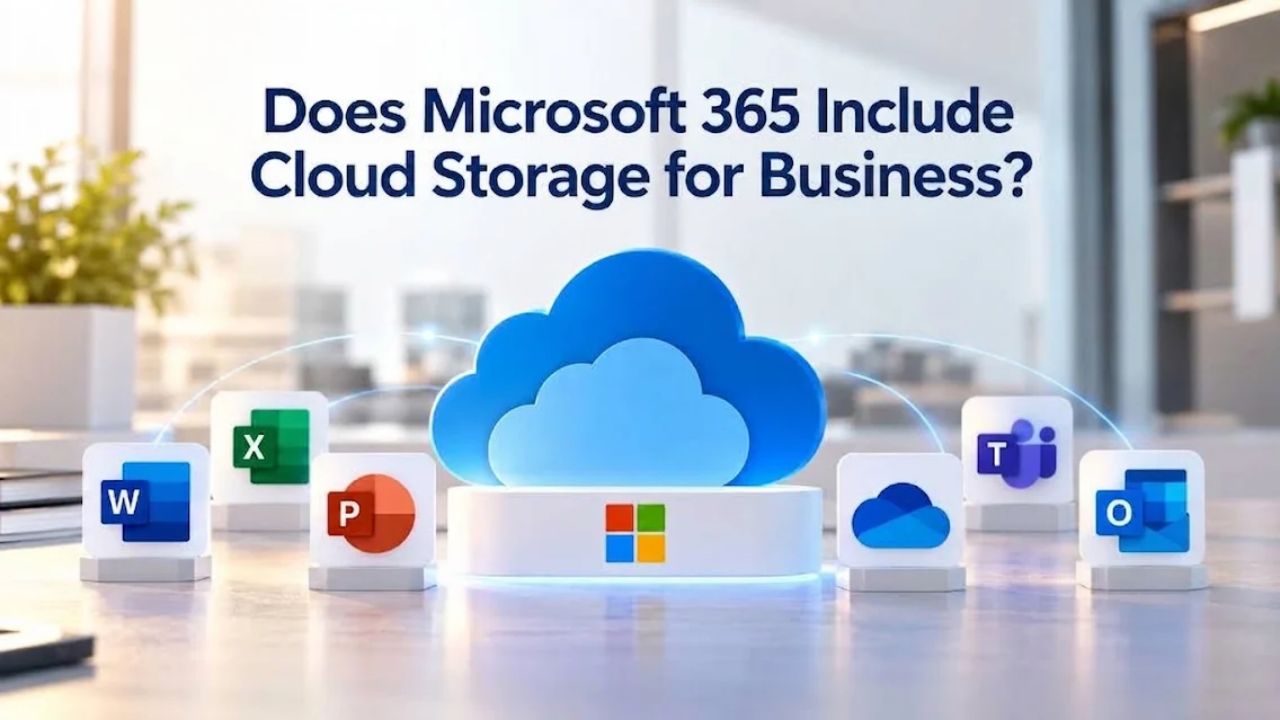
Microsoft 365 delivers more than Office apps; it includes integrated cloud storage for every employee. If you’re evaluating Microsoft 365 Business Email options or already subscribed, understanding your storage allocation helps you make the most of your investment. Niya Digital resells Microsoft 365 subscriptions and related services, operating in partnership with an authorized Microsoft partner network.
Yes, All Business Plans Include Cloud Storage at No Extra Cost
Microsoft 365’s cloud storage model is built-in, not optional. Every licensed user receives personal file storage plus full access to shared team storage, regardless of which business plan your organization chooses. This bundled approach simplifies licensing and removes the need to negotiate separate storage subscriptions or pay per-gigabyte overages for baseline file sharing. Storage is provisioned automatically when you license users, so it’s ready to use immediately.
OneDrive Provides 1 TB of Personal Storage Per User
OneDrive for Business is included with every Microsoft 365 business plan and provisions each employee with 1 TB of personal cloud storage. This storage space is designed for individual work files, documents, spreadsheets, presentations, and photos that an employee creates or uses in their day-to-day role. Files stored in OneDrive sync automatically across the employee’s devices (laptop, tablet, phone) and remain accessible offline, so work continues without interruption even without an internet connection. The sync client on desktop computers behaves like a regular folder, allowing drag-and-drop operations and automatic cloud uploads.
OneDrive includes a 93-day recycle bin, meaning accidentally deleted files can be recovered within that window without administrator intervention. The service also maintains unlimited version history, allowing users to restore a document to any previous save point if edits were made incorrectly or data was corrupted. OneDrive’s sharing capabilities let employees grant permission to specific colleagues or external partners, with granular controls like “view only” or “edit” access, and the ability to revoke access instantly if needed. This flexibility supports both internal collaboration and client-facing work without requiring IT involvement in permission management.
SharePoint Delivers Shared Team Sites and Pooled Organizational Storage
SharePoint Online is included in every Microsoft 365 business plan and serves as the team and organizational storage layer. Rather than individual work files, SharePoint hosts shared document libraries, team project folders, and company-wide intranet portals where employees find policies, announcements, and knowledge resources. Unlike OneDrive’s per-user model, SharePoint uses pooled tenant-level storage, meaning all team sites in an organization draw from one shared pool based on the company’s total employee count. This pooled approach prevents individual sites from hitting per-site limits and lets organizations allocate storage strategically based on business priorities.
SharePoint automatically backs all files shared in Microsoft Teams channels, creating a searchable, version-controlled archive of project work and team conversations. This automatic linkage means files don’t disappear when chat messages age out; they persist in SharePoint indefinitely (or per retention policies). You can find them through search even if no one remembers which Teams channel they were in. SharePoint’s records management features let organizations apply retention policies so files are automatically deleted or archived when regulatory or business requirements dictate. This integration simplifies compliance and reduces manual file management overhead.
Microsoft 365 Plans & Pricing
Find the Microsoft 365 plan that fits your needs, whether you're using it at home, with your family, or for your business. With a range of plans designed for different budgets and requirements, you can enjoy the tools you need to stay productive, connected, and protected.
Microsoft 365 Email Essentials
Professional email with 10GB of email storage.
- Professional email using your domain name
- 10GB storage for email, contacts & calendar
- Sync across all devices
- Shared online calendars
- Up to 400 email aliases

Microsoft 365 Email Plus
Professional email with 50GB of email storage.
- Professional email using your domain name
- 50GB storage for email, contacts & calendar
- Sync across all devices
- Shared online calendars
- Up to 400 email aliases
Microsoft 365 Online Business Essentials
Office web apps & professional email.
- Office apps (online only)
- 1TB OneDrive storage
- Unlimited online meetings & HD video
- Professional email using your domain
- 50GB email storage
- Sync across all devices
Microsoft 365 Business Professional
Office apps on 5 devices, web apps & professional email.
- Office apps installed on up to 5 devices
- Office web apps
- 1TB OneDrive storage
- Business apps included
- Professional email using your domain
- 50GB email storage
How Storage Allocations Work Across All Business Plans
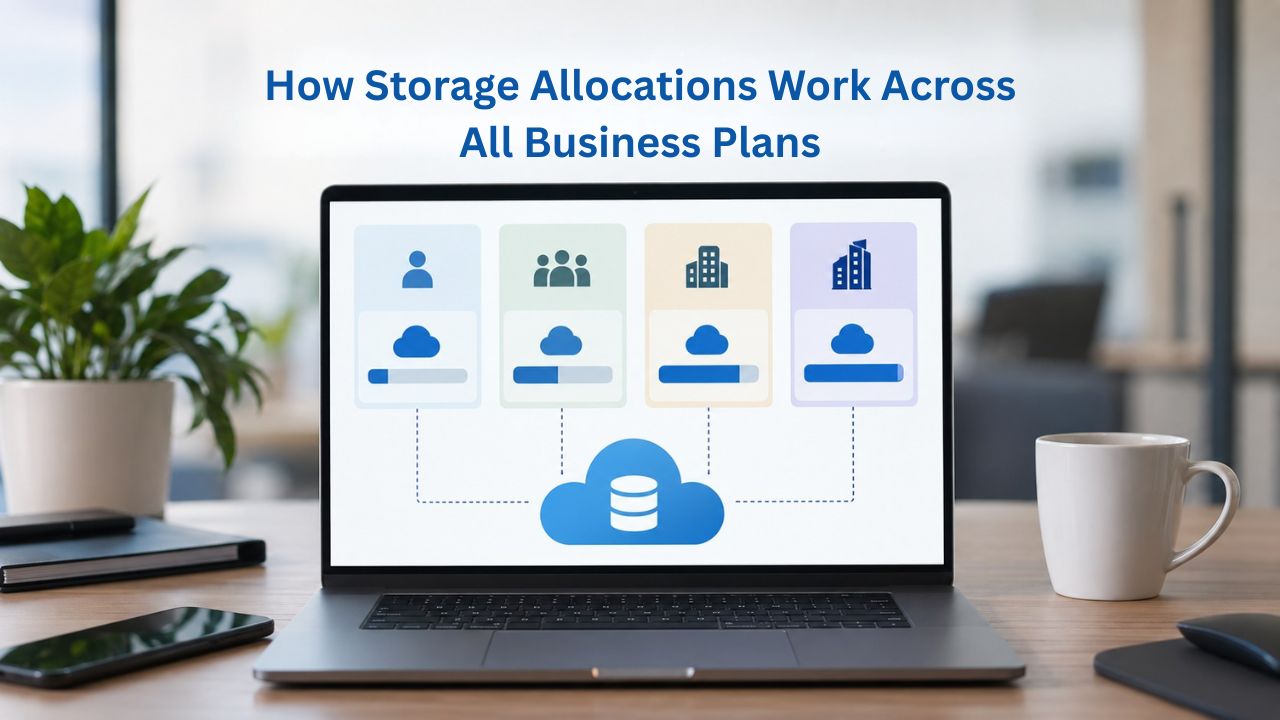
Understanding your storage quota is essential to plan file growth and avoid surprise capacity limits. The formula is identical across Business Basic, Business Standard, and Business Premium, keeping costs predictable as your team scales and allowing organizations to choose plans based on feature needs rather than storage differences.
Storage Breakdown: Personal and Pooled Tiers
Every Microsoft 365 business user receives 1 TB of personal OneDrive storage, while SharePoint pooled storage is calculated as 1 TB base plus 10 GB per licensed user. For a 100-person company, this means 2 TB of pooled SharePoint storage (1 TB base + 1 TB from 100 users × 10 GB each) and 100 TB of individual OneDrive storage (1 TB × 100 users). These two pools are completely separate and don’t share allocation; a user’s OneDrive doesn’t consume SharePoint quota, and vice versa. Individual SharePoint site collections can grow up to 25 TB before hitting per-site limits, and a single file can be up to 250 GB.
The storage formula is identical across all plans: your organization receives a baseline of 1 TB plus 10 GB for each licensed user. A company that primarily uses OneDrive for personal work and rarely needs SharePoint team sites may never exhaust either pool. In contrast, design or media teams with large files might approach storage limits within 12–18 months. Niya Digital’s team has found that most organizations underestimate file accumulation in the first year due to duplicate versions, archived project folders, and media-heavy departments, making early monitoring and expansion planning worthwhile. Version history and recycle bin retention also consume storage, so understanding these factors helps organizations predict when they may need to expand.
| Component | Allocation | Included in All Plans? | Storage Type | Expandable? |
|---|---|---|---|---|
| OneDrive per user | 1 TB | Yes (Business Basic, Standard, and Premium) | Per-user storage | Yes, expandable to 5 TB at no additional cost, and up to 25 TB upon request |
| Base pooled SharePoint storage | 1 TB | Yes (all plans) | Tenant-wide shared storage | Yes, additional tenant storage can be purchased |
| Per-user SharePoint contribution | 10 GB × licensed users | Yes (all plans) | Tenant-wide shared storage | Automatically increases as licensed users are added |
| Individual site maximum | 25 TB per site | Yes (all plans) | Per-site storage limit | No, cannot exceed the 25 TB per-site limit |
| Single file maximum | 250 GB per file | Yes (all plans) | Per-file size limit | No, files cannot exceed the maximum size limit |
| Recycle Bin retention | 93 days | Yes (all plans) | Per-user and per-site | Yes, administrators can manage retention settings; deleted items are recoverable within the retention period |
| Version history | Unlimited | Yes (all plans) | Per-document | Automatic versioning; no manual backup required for document revisions |
What Happens When You Approach or Exceed Quotas
When your SharePoint pooled storage reaches 95% capacity, Microsoft emails tenant administrators so they can plan next steps. At 100%, your organization enters read-only mode: files remain readable and downloadable, but you can’t upload new files until you free up space or purchase additional storage. This safeguard prevents data loss while giving administrators time to act before a hard stop impacts business operations. For most organizations, this threshold provides enough warning to implement cleanup or expansion strategies.
OneDrive operates on a similar model: as users approach their 1 TB allocation, they see a warning and can request an increase to 5 TB at no extra cost or delete older files to free space. Administrators can proactively request expansion for individual users or the entire tenant, scaling capacity based on actual usage patterns and department needs. Unlike SharePoint expansion (which incurs ongoing costs), OneDrive expansion to 5 TB is free, and expansion to 25 TB is also available at no charge through support requests, removing cost barriers for power users with legitimate storage needs.
Expanding Storage Beyond Base Allocations
Your starting allocation is not a hard ceiling. Both OneDrive and SharePoint offer practical paths to add storage as file volumes grow, with different expansion mechanisms for each tier. Planning expansion early prevents urgent mid-project storage outages and keeps operations running smoothly as the organization scales.
OneDrive Expansion: Free Increases Up to 5 TB
Administrators can request an increase to 5 TB per user at no extra cost by contacting Microsoft Support, typically within a few business days. Support requests also allow increases up to 25 TB per user, expanding personal storage for power users without requiring add-on purchases. This multi-tiered approach acknowledges that some employees (video editors, data analysts, architects) naturally accumulate larger files and need more personal workspace than typical users. The expansion is permanent once granted, not a temporary allowance that expires.
When a user requests an increase, the process is straightforward and doesn’t change recurring billing; the new quota applies immediately and permanently to their OneDrive. Administrators can also grant increases proactively if they notice usage patterns trending toward the 1 TB limit across certain departments or identify upcoming projects that will require additional space. This proactive approach prevents user frustration from running out of storage mid-project and maintains productivity across teams.
SharePoint Expansion: Adding More Licensed Users and Archival
Once your organization exhausts pooled SharePoint storage, the primary option is to add licensed users, each of which automatically contributes 10 GB to your pooled quota. This approach can be more cost-effective than purchasing raw storage, particularly for organizations on growth trajectories. Before purchasing overages, consider whether adding employees (who bring additional OneDrive allocation, security capabilities, and license benefits) is more valuable than storage alone. Another practical option is archival: reviewing and deleting old project folders, inactive team sites, and obsolete file versions can often free 20–40% of used space without losing operationally important data.
Organizations can also implement archival strategies that move old or compliance-held files to separate storage tiers, freeing active SharePoint space for ongoing work. Retention policies and eDiscovery searches within SharePoint can identify files eligible for deletion, compression, or offline archival. Many organizations find that combining user expansion, targeted archival, and retention policy optimization provides sustainable storage management without ongoing per-gigabyte costs.
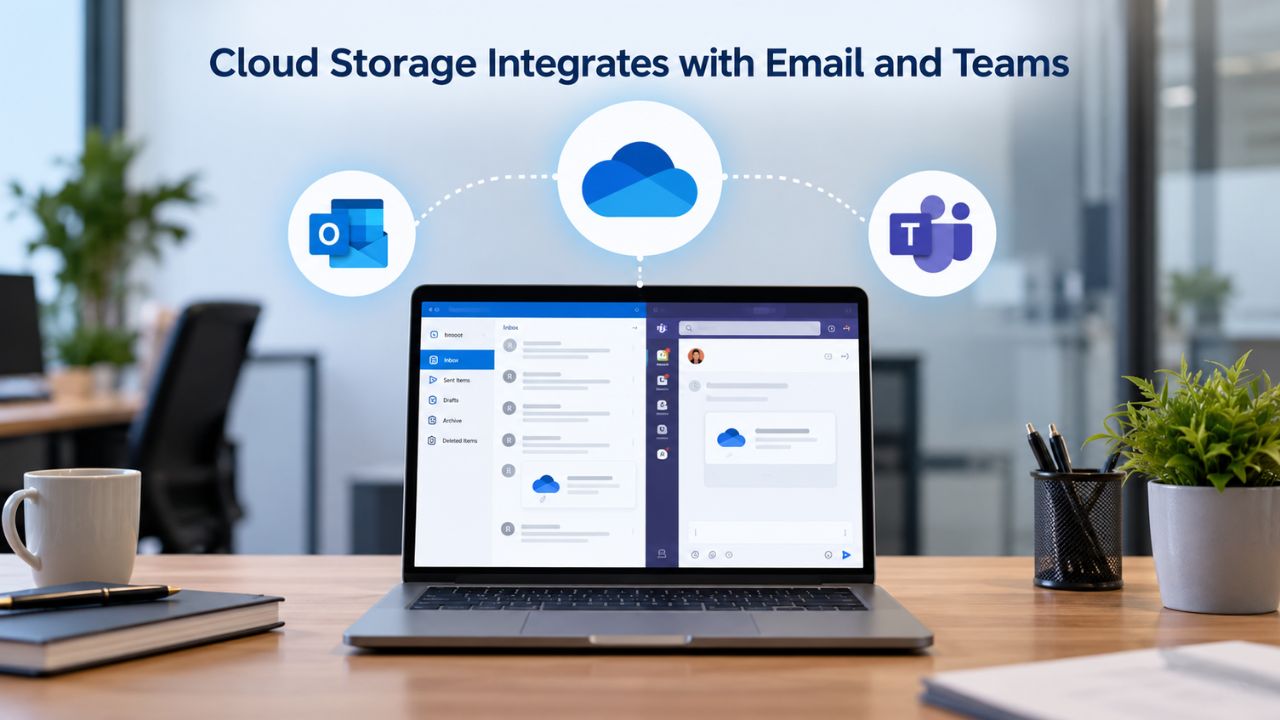
Cloud Storage Integrates with Email and Teams
Cloud storage isn’t isolated; it’s woven into how employees work with email and collaborate in teams. Understanding these integrations helps teams move away from attachment-heavy workflows and embrace centralized file management that supports compliance and collaboration.
Outlook Links Replace Large Email Attachments
When an employee in Outlook composes a message and adds a large attachment, they can upload the file to OneDrive and insert a sharing link instead. This workflow automatically detaches the file from email, stores it centrally in OneDrive, and gives all recipients access to the latest version without requiring them to download an attachment from multiple emails. Recipients click the link and see the current file in their browser or desktop app; if the original file is updated, everyone sees the new version immediately without re-sending emails.
This behavior significantly reduces email server load, eliminates versioning confusion (no more “Final_v3_REAL.docx” naming chaos), and ensures recipients always access the authoritative file rather than conflicting copies. Organizations that enable this behavior across Outlook typically see storage consumption reductions of 30–50% within six months as attachment traffic declines. The shift to link-based sharing also supports compliance, since linked files in OneDrive and SharePoint are subject to retention policies and eDiscovery searches in ways that email attachments often are not.
Teams Channels Back Files Into SharePoint Automatically
Every Microsoft Teams channel has an underlying SharePoint team site. When team members upload files to a Teams channel, the files are stored in the channel’s SharePoint folder, creating a searchable, version-controlled archive of project work. This automatic linkage means files shared in Teams conversations don’t disappear when chat messages age out; they persist in SharePoint indefinitely (or per retention policies). You can find them through search even if no one remembers which Teams channel they were in. This behavior transforms Teams from an ephemeral communication tool into a permanent knowledge repository.
Teams also lets you pin important files to the Files tab in a channel, making frequently referenced documents visible without requiring team members to scroll through message history. This interface reduces friction and keeps the team focused on active work rather than searching for shared files. SharePoint’s retention and compliance capabilities automatically apply to Teams-backed files, making it simpler to meet regulatory requirements around data preservation and deletion. The integration is automatic and requires no additional user configuration.
Real-Time Collaboration and Built-In Version Control
One of the most transformative features of cloud storage in Microsoft 365 is simultaneous multi-user editing. When multiple team members open the same document at the same time, they see each other’s edits appearing in real time without saving, overwriting, or emailing versions back and forth. This co-authoring capability fundamentally changes how teams work on shared content and accelerates collaboration cycles.
Multiple Users Editing a Single Document Simultaneously
Co-authoring works across all major Office apps, Word, Excel, PowerPoint, and OneNote, and across all platforms: desktop, web, and mobile. When User A changes a shared spreadsheet, User B sees the change appear on their screen within seconds, along with a visual indicator showing “User A is editing.” This real-time feedback loop eliminates the save-overwrite-recover cycle that plagues traditional file sharing, where the last person to save a file wins and earlier changes are lost. Conflict resolution is automatic and intelligent: if two users edit the same paragraph or cell at the same time, Microsoft 365 tracks the changes. It alerts both users so they can review what happened and decide which version to keep.
This transparency prevents silent data loss and supports audit trails for compliance-sensitive work. Teams can work together on complex documents, proposals, reports, and budgets without coordination overhead or version management tools. The co-authoring experience works seamlessly whether team members are in the same office or distributed across time zones, enabling asynchronous collaboration without losing visibility into active changes.
Version History Is Automatic and Unlimited
Every time a document is saved in OneDrive or SharePoint, the system automatically creates and stores a timestamped version. Unlike traditional manual versioning, where users download copies with different names (report_final_v2_FINAL.docx), Microsoft 365 version history is unlimited and requires no user action. You can restore a document to any previous version with a single click, even versions from months ago. If you discover corrupted data in a file weeks after it was saved, recovery is immediate and doesn’t require administrator intervention.
SharePoint version management offers additional controls: major versions (full saves) can be retained indefinitely or pruned per retention policies, and minor versions (intermediate saves) can be kept for a specified timeframe. This flexibility supports compliance, keeping major versions for regulatory retention periods while deleting minor versions to conserve storage. Version history is particularly valuable in regulated industries where audit trails and historical records are required for compliance investigations.
Ready to Choose the Right Microsoft 365 Plan and Cloud Storage Setup?
Cloud storage in Microsoft 365 is far more than file backup; it’s the foundation for modern teamwork, enabling real-time collaboration, compliance, and secure file access across devices and locations. Whether your organization has 5 employees or 300, the included OneDrive and SharePoint storage gives you room to grow, and expansion options scale with your needs. Niya Digital helps organizations choose the right Microsoft 365 Business Email plan and configure cloud storage to match your team’s workflow and compliance requirements.
Security, Encryption, and Compliance Features Built Into Storage
Every file stored in Microsoft 365 cloud storage is protected by multiple security layers, from encryption to access controls to compliance tracking. These protections are built in, not add-ons, and help organizations meet regulatory requirements across industries from healthcare to finance to legal services.
Encryption at Rest and in Transit
OneDrive and SharePoint automatically encrypt all files using BitLocker and Distributed Key Manager (DKM) technologies. This encryption protects data stored on Microsoft’s servers, so even physical access to storage devices doesn’t reveal file contents without the encryption keys. Data in transit, when files move between an employee’s device and Microsoft’s servers, is protected by Transport Layer Security (TLS) encryption, creating a secure tunnel that prevents interception or eavesdropping. This layered encryption approach ensures that sensitive business information remains protected whether it’s at rest or in motion.
This encryption is transparent to users; it requires no extra configuration or passwords. For organizations with heightened security requirements, Microsoft also offers Customer Key, which lets organizations manage their own encryption keys in Azure Key Vault, ensuring Microsoft cannot decrypt their data even if Microsoft systems were compromised. This customer-managed approach gives organizations additional control and auditing capabilities for compliance-sensitive data.
Access Controls, Compliance Detection, and Audit Logging
Multi-factor authentication (MFA) is included with all business plans and can be required for OneDrive and SharePoint access, adding a second verification step beyond passwords. Organizations can also set conditional access policies to restrict access from risky locations, unmanaged devices, or unusual login patterns, protecting files if laptops are stolen or devices are lost. Data Loss Prevention (DLP) policies detect sensitive information in files, credit card numbers, Social Security numbers, health information, or custom keywords like “confidential”, and prevent unauthorized sharing. For compliance-heavy industries, eDiscovery tools allow organizations to search and place legal holds on files for investigations without disrupting ongoing work, and audit logs track who accessed which files and when.
Conditional access policies can require additional verification for users accessing sensitive SharePoint sites or OneDrive folders, adding defense in depth. Together, MFA, conditional access, DLP, and audit logging create a comprehensive security framework that protects against both external attacks and internal data exfiltration. Organizations can customize these policies to match their risk profiles and regulatory requirements.
Additional Table for DOCX
| Feature | OneDrive | SharePoint | Availability | Use Case |
|---|---|---|---|---|
| Real-time co-authoring | Yes, supports Word, Excel, PowerPoint, and OneNote | Yes, supported across Microsoft Office applications | All plans | Multiple users can edit the same document simultaneously without overwriting changes |
| Version history (unlimited) | Yes, automatic and unlimited | Yes, automatic and unlimited | All plans | Recover previous document versions after accidental edits, corruption, or for audit purposes |
| Recycle Bin recovery | 93 days (configurable) | 93 days per site (configurable) | All plans | Restore deleted files within the retention period without requiring IT intervention |
| Offline access & sync | Yes, desktop sync client and mobile app | Yes, offline sync and mobile app support | All plans | Continue working without an internet connection; changes synchronize when connectivity is restored |
| Granular sharing permissions | Yes, supports view-only, edit, specific people, and anonymous links | Yes, supports site groups, view-only, and edit permissions | All plans | Enable secure collaboration with internal and external users while maintaining access control |
| Retention policies & legal hold | Yes, supports automatic retention and deletion policies | Yes, supports retention policies, auto-delete, and eDiscovery holds | Business Premium+ | Meet regulatory compliance requirements, legal holds, and long-term data governance |
| Encryption (at rest & in transit) | Yes, protected with BitLocker, Distributed Key Management (DKM), and TLS | Yes, protected with BitLocker, Distributed Key Management (DKM), and TLS | All plans | Protect data against unauthorized access, interception, and physical storage compromise |
| Audit logging & compliance reporting | Yes, records file access and user activity | Yes, records access, edits, sharing, and administrative activity | All plans | Support security investigations, compliance reporting, and audit requirements |
Mobile Access and Offline File Synchronization
Employees increasingly work from multiple locations and devices. Microsoft 365 cloud storage supports this mobility through mobile apps, offline sync, and cross-platform file access, enabling work to continue across desks, client meetings, and travel without interruption. Organizations can enforce security policies on mobile devices to protect sensitive files, even on personal phones.
Mobile Apps Enable Full File Access on Phones and Tablets
The OneDrive and SharePoint mobile apps for iOS and Android provide full-featured file access on smartphones and tablets. Users can view, edit, and share documents directly in mobile apps, and changes sync back to the cloud immediately. Mobile apps support offline access; users can download specific folders or files to their device and edit them without an internet connection. Once connectivity returns, changes upload automatically. This capability is essential for field workers, traveling employees, and teams in regions with unreliable internet connectivity.
Selective sync is a key feature: users can choose which OneDrive folders to sync to their phone rather than syncing entire storage, conserving device storage space while keeping critical files available offline. For team sites, pinning files or folders to a mobile device makes them available offline, enabling fieldwork or remote access without cellular data. The mobile experience includes the same version history, recycle bin recovery, and sharing controls as the desktop and web interfaces, providing consistent functionality across all devices.
Desktop Sync Client Integrates OneDrive Like a Regular Folder
On Windows and Mac computers, the OneDrive sync client creates a folder on the desktop that behaves like any other folder. Users can drag files in and out, create new documents directly in the OneDrive folder, and the sync engine automatically uploads changes to the cloud. Bandwidth throttling settings prevent large uploads from consuming all internet bandwidth during business hours, allowing background syncing without disrupting video calls or other work. Files in the OneDrive sync folder can be opened and edited without internet connectivity; changes are staged locally and uploaded once reconnected.
The desktop sync client also supports selective sync, letting users choose which folders sync to their computer and which remain cloud-only to optimize local storage. This offline-first approach is particularly valuable for remote workers, traveling employees, and teams in areas with unreliable internet. Users can configure sync to pause during business-critical hours or bandwidth-intensive activities, giving them fine-grained control over synchronization behavior.
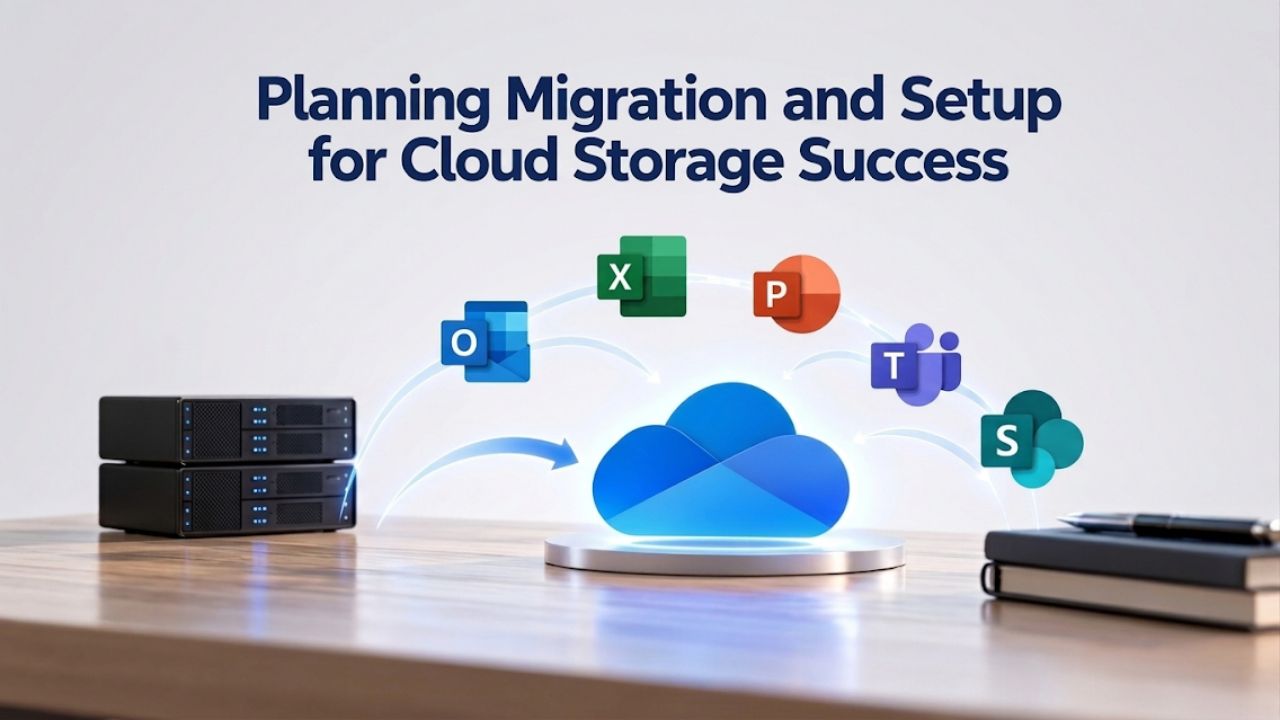
Planning Migration and Setup for Cloud Storage Success
Migrating from on-premises file servers or another cloud service to Microsoft 365 cloud storage requires planning to minimize disruption and set teams up for success. Several key steps often determine migration outcomes and user adoption rates, so structured planning is critical.
Audit Files and Plan Your Storage Organization
Before migration, audit your existing file repositories to identify obsolete, duplicate, or abandoned files that don’t need to move to the cloud. Many organizations discover that 10–30% of archived data can remain on legacy systems or be safely deleted, reducing migration time and initial cloud storage requirements. This cleanup also prevents technical debt from accumulating; old, obsolete files in the cloud create search clutter and compliance headaches for years. Categorize files by retention requirements and compliance sensitivity; flag files with mandatory retention periods (financial records, legal documents, health information) so retention policies can be applied immediately upon migration.
Clear guidance on which files belong in OneDrive (personal, individual work) versus SharePoint (shared, team, organizational resources) is equally critical. Without this direction, employees default to uploading everything to OneDrive, creating silos and making shared files difficult to discover. Define categories: individual projects go to OneDrive; shared team resources, policies, and knowledge bases go to SharePoint. Document use cases for your organization during onboarding: “Department meeting notes → SharePoint,” “Your personal client list → OneDrive,” “Shared project templates → SharePoint.” Providing this framework during onboarding prevents months of confusion and reorganization.
Configure Policies, Test, and Train Before Launch
Decide your external sharing model: will external users (clients, vendors, partners) have access to shared files, and with what permissions? Configure these settings before launch to prevent accidental oversharing during the transition. Also establish retention policies for compliance-sensitive files so they’re automatically preserved or deleted per regulatory requirements from day one.
Test your retention and hold policies in a pilot environment before applying them organization-wide to ensure they operate as expected. Allocate time for FAQ sessions, documentation, and department-specific training to address how cloud storage fits into existing workflows, since structured onboarding supports adoption more effectively than simply activating licenses and hoping users figure it out independently.
Storage Costs and How Allocations Fit Into Plan Selection
Cloud storage allocations are bundled into Microsoft 365 plan pricing; there are no separate per-gigabyte charges for your base allocation, making budgeting straightforward. Understanding how storage factors into plan selection helps organizations choose the most cost-effective option for their needs and growth trajectory.
Base Allocations Included in All Plan Tiers
Microsoft 365 Business Basic, Business Standard, and Business Premium all include 1 TB of OneDrive per user and full access to pooled SharePoint, no additional storage subscription required. The bundled approach simplifies licensing and removes one variable from the decision. Cloud storage is not a premium or add-on feature; it’s a core component of every business subscription. At each plan tier, organizations receive identical cloud storage allocation but different supporting tools: Basic includes web and mobile Office apps; Standard adds desktop apps; Premium adds advanced security and device management.
The key takeaway is that cloud storage is bundled into the plan price across all tiers, not reserved as a premium add-on. This bundling simplifies licensing and often lowers total cost of ownership than buying Office apps, email, and cloud storage separately. Most organizations find their included storage lasts 2–3 years before they need additional capacity, making the effective per-gigabyte cost very low over time.
Choosing the Right Plan Based on Your Storage Needs
Selecting a Microsoft 365 plan is ultimately about balancing cost, storage, and collaboration features. The good news is that every tier includes cloud storage, removing one variable from the decision. What differs is the supporting tools, security features, and application availability across plans. Many organizations assume they should choose the lowest-cost plan if cloud storage allocations are identical across all tiers, but plan selection should reflect broader needs: do employees need desktop Office apps (Standard and Premium include them; Basic doesn’t)? Do you need advanced security and device management (Premium includes advanced threat protection; Basic and Standard don’t)?
An organization of creatives and designers might prioritize a higher-tier plan for desktop apps and video editing tools, even if their cloud storage needs would fit the basic plan. A financial services firm handling sensitive data might choose a premium tier for advanced threat protection, regardless of storage requirements. Forward-looking organizations estimate 3-year file growth during planning and confirm that included storage will cover that period without expansion. If your growth trajectory suggests you’ll need additional storage within 12 months, planning and budgeting for expansion helps avoid mid-year surprises.
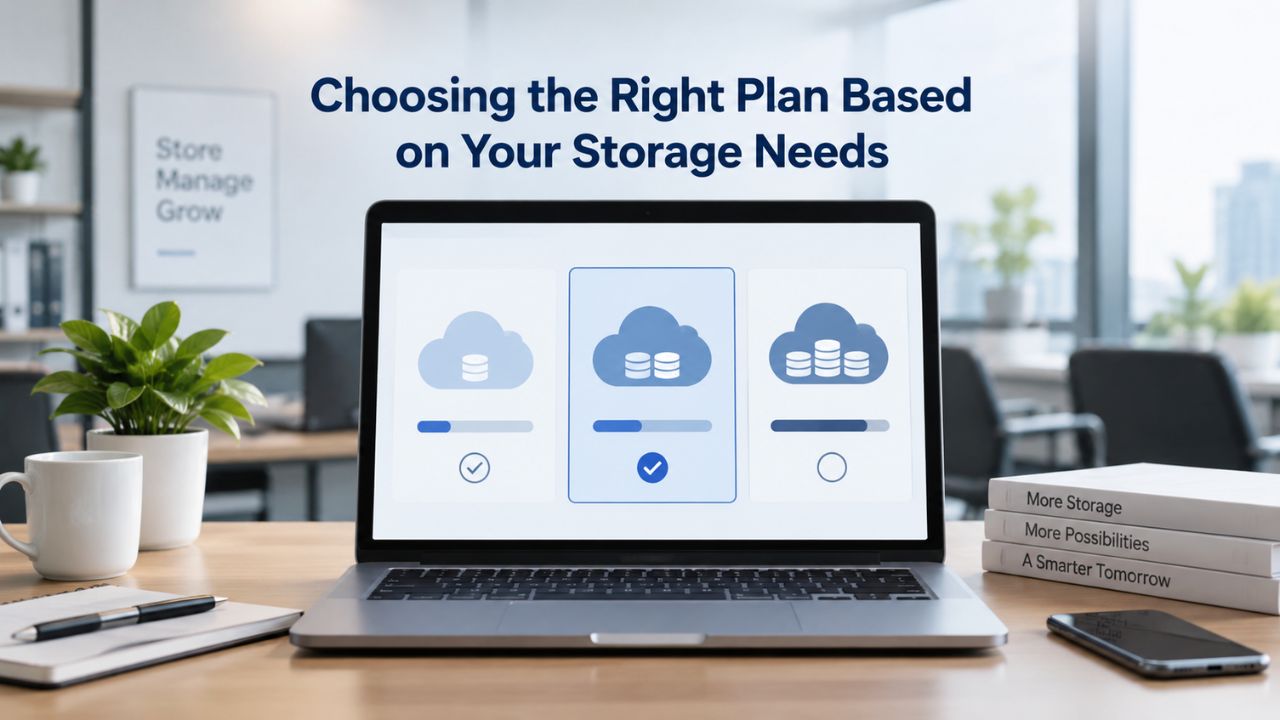
Choosing the Right Plan Based on Your Storage Needs
Selecting a Microsoft 365 plan involves balancing cost, storage, and collaboration features. The good news is that every tier includes cloud storage, removing one variable from the decision equation. What differs is the supporting tools, security features, and application availability across plans. Storage allocation alone should not drive plan selection; instead, evaluate your organization’s broader productivity and security requirements.
Understanding Plan Differences Beyond Storage
Every Microsoft 365 business plan includes identical 1 TB per user OneDrive and full pooled SharePoint access. Many organizations assume they should choose the lowest-cost plan when cloud storage allocations are identical, but plan selection should reflect broader needs. Do employees need desktop Office apps (Standard and Premium have them; Basic doesn’t)? Do you need advanced security and device management (Premium includes advanced threat protection; Basic and Standard don’t)? Does your organization require data loss prevention and insider risk management (included in Premium)? These questions often determine plan choice more than storage considerations.
An organization of creatives and designers might prioritize a higher-tier plan for desktop apps and video editing tools, even if their cloud storage needs would fit the basic plan. A financial services firm handling sensitive data might choose a premium tier for advanced threat protection and compliance tools, regardless of storage requirements. The supporting applications and security features often provide greater value and business impact than the storage component alone.
Planning Storage Growth and Expansion Strategy
Forward-looking organizations estimate 3-year file growth during planning and confirm that included storage will cover that period. For most companies, included storage lasts 2–3 years before additional SharePoint capacity becomes necessary. Calculating this upfront, accounting for historical growth rates, anticipated new hires, and expected data volume increases, helps avoid mid-year budget surprises. If your growth trajectory suggests you’ll need additional capacity within 12 months, planning and budgeting in advance prevents operational disruptions.
Consider also whether adding licensed users is more cost-effective than purchasing raw storage. Each new employee license automatically adds 10 GB to your pooled SharePoint quota, and a new user license may cost less than purchasing storage separately. Organizations can combine user expansion, targeted archival strategies, and retention policy optimization to manage storage sustainably. This multi-faceted approach often provides better long-term economics than responding reactively when storage reaches capacity.
Ready to Explore Your Cloud Storage Options?
Real-time collaboration and version control transform how teams work together on shared content. Cloud storage isn’t just file backup; it’s the foundation for modern productivity and compliance. Niya Digital helps organizations plan and configure Microsoft 365 cloud storage to match your team’s collaboration style and regulatory needs. Our team can walk you through storage allocation sizing, migration planning, and adoption strategies to ensure your organization realizes the full value of included cloud storage.
Frequently Asked Questions
Is cloud storage included in all Microsoft 365 business plans, or only premium tiers?
Cloud storage is included in all three business plans, Business Basic, Business Standard, and Business Premium, at no extra cost. The allocation is identical across all tiers: 1 TB of OneDrive per user and full access to pooled SharePoint. Cloud storage is not a premium or add-on feature; it’s a core component of every business subscription.
Whether you choose the entry-level plan or the premium tier, storage allocation stays the same. This bundling makes costs easier to forecast because you don’t pay extra to enable cloud storage for your team.
How much total storage does a 50-person company receive in total?
A 50-person company receives approximately 1.5 TB of pooled SharePoint storage (1 TB base + 10 GB × 50 users) plus 50 TB of individual OneDrive storage (1 TB × 50 users). The OneDrive and SharePoint allocations are separate pools, so you use the 1.5 TB for shared team files and the 50 TB for personal work files.
If your organization primarily uses OneDrive and rarely touches SharePoint, you likely won’t fill either pool for years. Conversely, design or media teams with large files may exhaust pooled storage faster because video, image, and CAD files take up more space.
Can I request more OneDrive storage beyond 1 TB without paying extra?
Yes. Administrators can request an increase to 5 TB per user at no extra cost through Microsoft Support, a process typically completed within a few business days. You can also request increases up to 25 TB per user through the same support channel.
The expansion process is straightforward and can take a few business days. This flexibility means you don’t need to buy add-on storage immediately if one or two users approach their 1 TB limit; instead, you can scale their allocation based on actual need and project requirements.
What happens if my organization runs out of SharePoint storage?
When your SharePoint pooled storage reaches 95% capacity, Microsoft notifies administrators via email. At 100%, your tenant enters read-only mode: files remain accessible and readable, but you can’t upload new files until you free space or add capacity. This prevents surprise outages and gives you time to plan before running out of space.
Most organizations address this by adding licensed users (each adds 10 GB to the pool), archiving old project folders, or implementing retention policies that delete aged files per compliance requirements.
Is all data in Microsoft 365 cloud storage automatically encrypted?
Yes. All files are encrypted at rest using BitLocker and Distributed Key Manager (DKM) and in transit using Transport Layer Security (TLS). Encryption is automatic, transparent, and included in all plans.
For organizations that need more control, Microsoft 365 supports Customer Key, which lets you manage your own encryption keys. Multi-factor authentication and conditional access policies add additional layers of protection on top of encryption, preventing unauthorized access even if credentials are compromised.
Can external users or clients access files in my SharePoint or OneDrive?
Yes. You can share OneDrive files or SharePoint team sites with external users by sending a link or granting access to their email address. External users don’t need a Microsoft account to access shared files if you use anonymous links, though organizational policy may restrict this.
You control permissions; external users can have view-only or edit access. You can also revoke access instantly by removing a person’s name or disabling a link. This flexibility makes Microsoft 365 cloud storage useful for client collaboration without giving outsiders access to your organization’s entire file system.
How long does Microsoft keep old versions of my files?
OneDrive and SharePoint keep unlimited version history by default; you can restore a document to any previous version, even one from six months ago, without manually backing up each version. This means you can recover from corrupted data or accidental edits without losing information.
Version history is especially useful if a document is corrupted or someone makes an accidental edit. Retention policies can be configured to automatically delete old versions for compliance purposes, but by default, it preserves all history indefinitely.
Is there a file size limit for files stored in cloud storage?
Individual files can be up to 250 GB, which accommodates most business use cases including large video files, CAD drawings, and databases. SharePoint site collections can grow up to 25 TB total.
These per-file and per-site limits are much larger than older file servers, so most organizations never hit them. If your organization regularly works with files larger than 250 GB, that’s an unusual scenario worth discussing with your Microsoft 365 provider to explore alternative architectures or specialized storage solutions.
Can I access Microsoft 365 cloud files offline on my laptop or phone?
Yes. OneDrive’s sync client on Windows and Mac lets you download specific folders to your computer; you can open and edit files offline, and changes sync automatically once you reconnect. Mobile apps support offline access for pinned files and folders.
SharePoint also offers offline capabilities through pinning and the web interface, though the offline experience is simpler than OneDrive. This offline-first approach ensures productivity continues even when connectivity is interrupted.
Do I need to pay extra for Data Loss Prevention or eDiscovery features?
Data Loss Prevention (DLP) and eDiscovery are included at no extra cost in Microsoft 365 Business Premium and higher tiers. Basic compliance capabilities like file versioning, recycle bin recovery, and audit logging are included in all business plans, supporting foundational compliance needs.
If you’re on a lower-tier plan and need advanced DLP, you may need to upgrade to a higher plan or purchase compliance add-ons. For organizations with strict regulatory requirements, the built-in compliance tools in higher tiers often eliminate the need for separate third-party solutions.
How does Microsoft 365 cloud storage compare to other cloud services?
Microsoft 365 integrates cloud storage with email, Teams, Office apps, and compliance tools in a single ecosystem, reducing the need to juggle multiple services and manage integrations. Storage is included in plan pricing across all tiers and doesn’t cost extra per gigabyte for your base allocation, making it cost-effective.
Other cloud storage services may offer larger free tiers or lower per-gigabyte overage costs, but they don’t bundle email, collaboration, and productivity apps. The integrated approach in Microsoft 365 often reduces total cost of ownership and simplifies IT administration compared to building a suite of point solutions.
What happens to cloud storage files when an employee leaves my organization?
When an employee is removed from Microsoft 365, their OneDrive is placed on hold for 30 days (configurable by administrators). During this period, a manager or designated admin can access the OneDrive to retrieve business files before it’s permanently deleted.
Administrators can extend the hold indefinitely to preserve employee files for compliance or audit purposes. Files in shared SharePoint team sites remain in the site even after the employee leaves, ensuring team projects aren’t lost when people depart. This behavior ensures business continuity and prevents loss of critical institutional knowledge.
Can I use cloud storage as a backup solution for my business data?
OneDrive and SharePoint are designed for active work and collaboration, not primary backup solutions. However, they do provide versioning (restore older file versions) and recovery capabilities (93-day recycle bin).
For compliance or disaster-recovery backups, many organizations supplement Microsoft 365 with dedicated backup software that creates separate, immutable copies outside the Microsoft cloud. This layered approach protects against ransomware and accidental deletion while keeping day-to-day work in the Microsoft ecosystem. Consider backup as a separate component of your data protection strategy.
Are there any restrictions on what types of files I can store in cloud storage?
Microsoft 365 cloud storage supports virtually all file types, documents, spreadsheets, presentations, media files, databases, archives, and more.
The maximum file size is 250 GB. Some enterprise organizations may restrict certain sensitive file types per compliance policies, but the default behavior is permissive. If your organization uses specialized formats or sensitive file types, verify compatibility before migrating. Most common business file formats are fully supported without restrictions.
How do I control who can access files I share in OneDrive or SharePoint?
Sharing is granular and flexible. You can send links to specific people with either “view only” or “edit” permissions, or create anonymous links that anyone with the link can access. You can revoke access instantly by removing a person’s name or disabling a link.
For team sites in SharePoint, you can assign people to site groups (Owners, Members, Visitors) with preset permission levels. Conditional access policies and multi-factor authentication add security layers to prevent unauthorized access even if a link is shared or credentials are compromised. Organizations can enforce policies requiring additional verification for sensitive site access.
Glossary
- OneDrive for Business: Personal cloud storage account assigned to each Microsoft 365 business plan licensee, providing 1 TB per user for individual files, documents, and photos. Files sync automatically across devices and can be shared with colleagues or external users with granular permission controls.
- SharePoint Online: Team and organizational cloud storage platform included in all Microsoft 365 business plans, enabling creation of team sites, departmental knowledge bases, intranet portals, and shared document libraries. Storage is pooled at the tenant level rather than assigned per user.
- Pooled Storage: Shared storage allocation at the organization (tenant) level calculated as 1 TB base plus 10 GB per licensed user, used for all SharePoint sites and Teams-connected sites in an organization. Distinct from per-user OneDrive storage.
- Co-authoring: Real-time simultaneous editing of documents by multiple users in Word, Excel, PowerPoint, or OneNote, with automatic saving and version tracking so changes don’t overwrite each other.
- Version History: Automatic timestamped records of every save of a file in OneDrive or SharePoint, allowing recovery of a document to any previous version without manual backup or external version control systems.
- Data Loss Prevention (DLP): Automated policies that detect sensitive information (credit card numbers, Social Security numbers, custom keywords) in files and emails, preventing unauthorized external sharing or requiring approval and encryption.
- eDiscovery: Search, retrieval, and preservation capability for locating files and emails during legal holds, audits, and compliance investigations without disrupting ongoing business operations.