What “Professional Business Email” Means in Microsoft 365
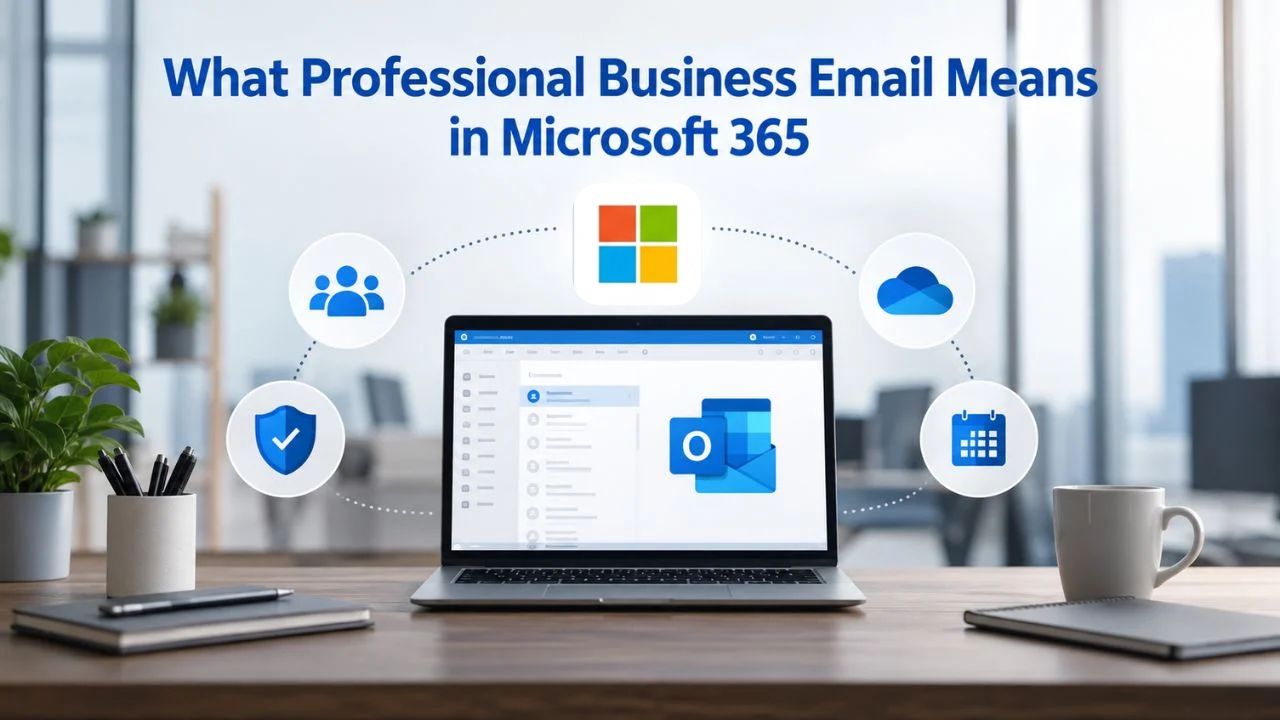
Professional business email goes beyond a personal email account. It uses your company’s domain (yourcompany.com) instead of a generic provider address, integrates with your business identity, and includes administrative oversight, compliance tools, and built-in team collaboration. Microsoft 365 business plans are designed from the ground up to provide Business Email Hosting that supports growing teams, not as an afterthought bolted onto a consumer product.
A Custom Domain Is the Defining Line
Custom-domain email is what separates a professional business presence from a personal setup. When your team sends emails from info@yourcompany.com or sales@yourcompany.com, clients see your business domain, not a generic @outlook.com address. This foundation affects trust, brand recognition, and how your communications are perceived in your industry. Microsoft 365 Admin Center guidance on adding a domain walks you through the setup process, which requires you to prove domain ownership and configure routing records (MX records) so email arrives at Microsoft’s servers instead of elsewhere.
The process is straightforward but not automatic. You’ll need access to your domain registrar account to complete verification and update DNS records. Many small businesses delegate this to an authorized Microsoft partner who can handle the technical steps, verify the domain, and get email flowing within hours. Niya Digital resells Microsoft 365 subscriptions and Microsoft 365 Setup Services and partners with an authorized Microsoft partner network, so if domain setup feels daunting, partners like ours can help directly.
Why Consumer Email Doesn’t Fit Business
Personal email accounts lack administrative controls, compliance logging, and security policies that businesses need to protect company data and meet regulatory requirements.
When you use a personal email for business, you lose visibility into what’s being sent, can’t enforce password policies or multi-factor authentication for the team, and have no audit trail if a regulatory authority asks questions. Microsoft 365’s business plans were built to close that gap; they include administrative dashboards, security policies, and retention rules from day one.

Domain Name Registration
Each and every domain name comes with all you need to get online.
- Domain Forwarding and Masking: Direct any domain name you own to your website. Anyone who types that domain name into their browser is taken directly to your website.
- Domain Locking: Domain locking prevents accidental or intentional transfers of domain ownership and stops anyone from redirecting your nameservers.
- Total DNS Control: Manage your domain nameserver (DNS) records and set your email, FTP, sub-domains and website location all from one control panel.
- Change of Registration: Assign your domain name to someone else or change the contacts for your domain online anytime.
- Status Alerts: Monitor the status of your domain and get instant alerts if there's been a change.
- Auto Renew Protection: No need to watch expiration dates to make sure you renew on time! Auto renew keeps your domains, hosting, website builders, and other products in your name and under your control.
Domain Disclaimers:
- Special savings apply only to first year of registration. You must purchase entire section to qualify for special savings.
- The final price may differ because of additional sales, fees, and promotions.
- Products will automatically renew until cancelled. You may turn off the auto-renewal feature by visiting your account.
- Change of registration may require a fee for certain domains.
Which Microsoft 365 Plans Include Email
Not all Microsoft 365 products include professional business email. The distinction matters because email is foundational to most businesses, yet some plans focus exclusively on desktop applications or personal productivity. Here’s what includes email and what doesn’t.
Plans That Include Business Email
Microsoft 365 Business Basic, Business Standard, and Business Premium all include professional business email with a 50 GB mailbox per user and custom-domain setup capability. Each plan adds progressively more security and collaboration features, but all three deliver the core email foundation. Business Basic is the entry point; it includes email, desktop Office apps, cloud storage, and team chat (Microsoft Teams). Business Standard adds everything Basic offers plus more advanced Teams collaboration and calendar sharing. Business Premium layers on security features like advanced threat protection and data loss prevention that safeguard email specifically.
If you’re running a small business and email is your priority, Business Basic delivers everything needed to send and receive professional email, manage your inbox, sync across devices, and back up your mailbox to the cloud. The mailbox limit (50 GB) covers most small teams for months or years before needing archive policies. When growth demands it, Microsoft 365 Service Descriptions document the available storage and retention capabilities.
Plans That Do NOT Include Email
Microsoft 365 Family and Personal are consumer products and don’t include custom-domain business email; they include only personal Outlook.com email. If your team is using Microsoft 365 Family to share Office apps across home computers, you’ll still need a separate business email provider for professional communication.
Microsoft 365 Apps for Enterprise (the desktop application suite) does not include Exchange Online email by default; you’d need to add it separately as an add-on license if your organization requires email through that channel. For most small and medium businesses, Business Basic, Standard, or Premium is the right choice because email is included from the start.
Key Differences Across Plans: Email and Security Features, Microsoft 365 Plans Compared
The table below shows how business email and security capabilities compare across Microsoft 365’s core plans:
| Feature | Business Basic | Business Standard | Business Premium | Family/Personal |
|---|---|---|---|---|
| Custom Domain Business Email | Yes (50 GB mailbox) | Yes (50 GB mailbox) | Yes (50 GB mailbox) | No (Outlook.com only) |
| Advanced Threat Protection (ransomware, zero-hour auto-purge) | No | No | Yes | N/A |
| Data Loss Prevention (DLP) | No | No | Yes | N/A |
| OneDrive Cloud Storage | 1 TB per user | 1 TB per user | 1 TB per user | 1 TB personal |
| Outlook Desktop App | Yes | Yes | Yes | Yes |
| Outlook Mobile App (iOS, Android) | Yes | Yes | Yes | Yes |
| Shared Mailbox Support | Yes | Yes | Yes | N/A |
| Delegate Access (calendar, mailbox) | Yes | Yes | Yes | N/A |
| Microsoft Teams | Yes | Yes | Yes | Outlook.com only |
| Email Retention & Archive Policies | Basic | Basic | Advanced (eDiscovery, litigation hold) | N/A |
Microsoft 365 Security Features & Threat Protection
Email security is non-negotiable for business, and Microsoft 365 Security Features are built into every plan. A single phishing email that compromises an employee’s password can expose your entire company’s data. Microsoft 365 plans include built-in defenses, but the depth of protection scales with the plan tier, so it matters to understand the difference between Basic, Standard, and Premium security.
Built-in Phishing and Spam Defenses
All Microsoft 365 business plans include foundational email security: advanced phishing and spam filters, malware detection, and attachment scanning. These defenses run on every incoming and outgoing message automatically; you don’t configure them manually, and they don’t require extra licenses. Microsoft scans trillions of emails annually and uses machine-learning models trained on that global dataset to identify and block threats before they reach your inbox. For small businesses with tight security budgets, this baseline protection handles most common attacks.
However, baseline protection has limits. It catches obvious phishing emails and known malware signatures, but sophisticated attacks- ones tailored to your industry or executive team, or using newly discovered vulnerabilities- can slip through. That’s why Business Premium exists. If your business handles sensitive client data, financial records, or intellectual property, or operates in a regulated industry, the additional security layers in Premium are worth the investment.
Advanced Threat Protection in Business Premium
Microsoft 365 Business Premium includes advanced threat protection features, including zero-hour auto-purge (ZAP), which detects phishing emails after they arrive in an inbox and removes them retroactively, and ransomware detection, which identifies patterns typical of ransomware attacks and blocks them before encryption can spread. Business Premium also includes data loss prevention (DLP). This policy engine scans email content and attachments for regulated data (credit card numbers, Social Security numbers, health records) and can block or warn before sensitive information leaves your organization.
For teams that regularly send sensitive documents via email, or for organizations in healthcare, finance, or legal industries where data breaches carry heavy fines and reputational damage, Premium’s advanced defenses are a practical necessity, not a luxury. Niya Digital’s team has found that email security concerns are consistently among the top reasons small businesses upgrade from Basic to Premium; the peace of mind justifies the cost.
Custom Domain Email Setup: What You Need to Know
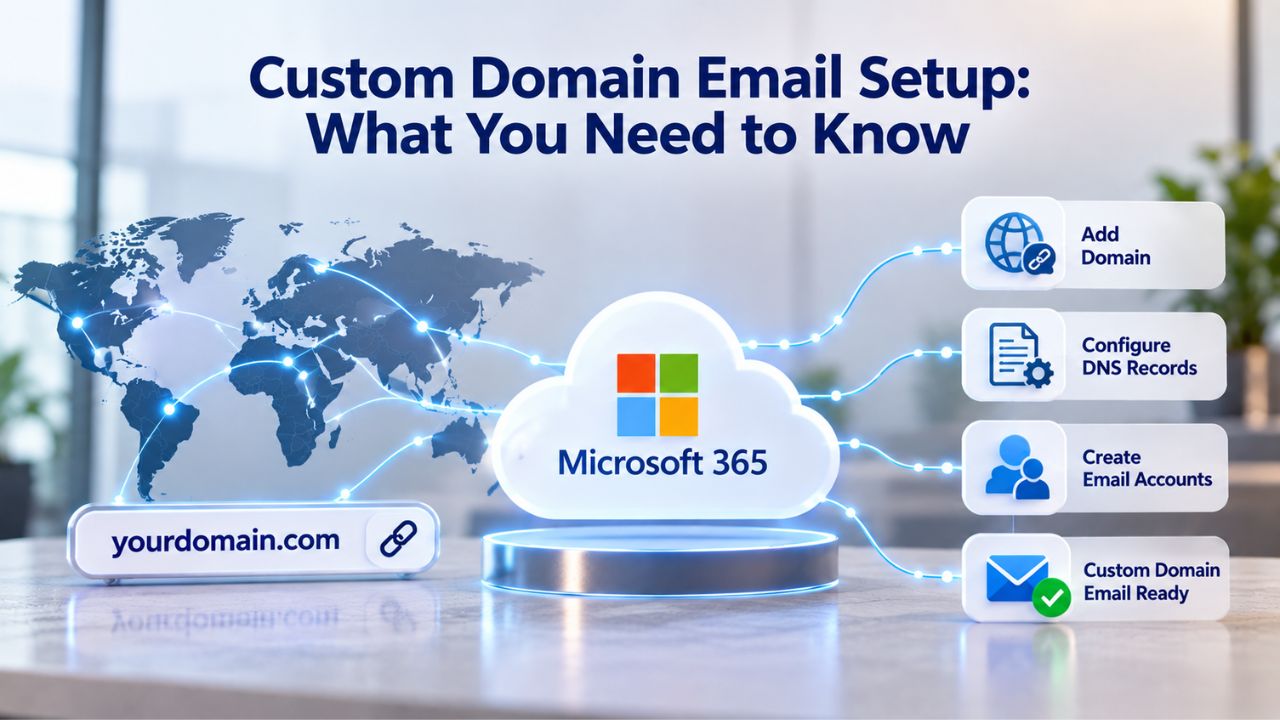
Custom domain email setup for Microsoft 365 requires a few concrete steps, and understanding the process ahead of time prevents surprises and unnecessary delays. The good news is none of the steps are technically complex, but they do require coordination and access to your domain registrar.
Domain Ownership and Verification
Before your team can send email from yourcompany.com, you must prove to Microsoft that you own the domain. Microsoft’s domain verification guidance walks through the process: you add your domain in the Microsoft 365 Admin Center, and Microsoft provides a verification token (a TXT record) that you paste into your domain registrar’s DNS settings. Once DNS propagates (usually within minutes to a few hours), Microsoft verifies the record and confirms your domain ownership. This step is a one-time setup; once verified, you never repeat it.
The most common friction point is access to the domain registrar account. You’ll need admin login credentials for your registrar to update DNS records, regardless of which provider hosts your domain. If your domain was registered years ago and that person is no longer with the company, finding the credentials or recovering account access can add a few days to the timeline. An authorized Microsoft partner can walk you through this step and, if needed, guide you through the registrar portal.
MX Records and Email Routing
Once your domain is verified, you need to configure MX records (Mail Exchange records) to tell the internet where to deliver email destined for your domain. Microsoft provides a list of MX record values specific to your region, which you add to your DNS records in the same registrar portal where you verified the domain. MX records tell email from outside senders how to reach your Microsoft 365 mailboxes instead of getting lost or routed to an old provider.
If you’re migrating from an older email provider (on-premises or cloud-based), the MX record update is when email flow switches from your old system to Microsoft 365. For safety, most migrations are planned so the old email system and Microsoft 365 can coexist briefly; users can test the new system while the old system still receives mail, giving time to catch issues. After a few days or a week of parallel running, the MX switch is made permanent. This staged approach prevents the catastrophic scenario where email intended for the company bounces for hours while DNS propagates.
Integration with Teams, OneDrive & Collaboration
One of Microsoft 365’s core strengths is that email doesn’t live in isolation. Your mailbox, calendar, file storage, and team chat all exist in a single tenant (a unified workspace) and integrate seamlessly. This architectural simplicity eliminates the complexity of syncing data across different platforms.
One Tenant, Connected Email and Cloud Storage
When an employee receives an email attachment or gets a Teams message with a link to a shared document, both point to the same OneDrive or SharePoint file storage. Opening a link in an email immediately shows permissions that the user already has, with no re-authentication or separate file-sharing setup needed. If someone on your team creates a shared mailbox (a single inbox that multiple team members access together, common for sales@, support@, or info@ addresses), they can also see which files the team has shared to that shared mailbox, all in one workspace.
Microsoft 365’s integrated architecture is documented in the platform overview. The practical benefit is that you spend less time managing separate systems and more time running your business. Email and collaboration feel like one product because they are designed as one.
Email Triggers Teams Notifications
When a message arrives in a shared mailbox, Microsoft can automatically notify the relevant Teams channel, so the team sees incoming customer emails in real time without checking Outlook separately. This integration accelerates response times for customer-facing teams. Conversely, a Teams message can be forwarded or shared as an email, creating a natural workflow where communication stays in the system rather than bouncing between platforms.
These integrations aren’t optional add-ons; they’re built into every Business plan. You don’t pay extra to enable them, and they don’t require an IT admin to configure complex connectors. They work out of the box because the systems share the same underlying architecture.
Get Started with Microsoft 365 Business Email
Microsoft 365’s integrated email and collaboration platform helps small teams communicate professionally and securely from day one. Niya Digital is a Best Microsoft 365 Reseller offering Microsoft 365 Business Email subscriptions and Microsoft 365 Setup Services, operating in partnership with an authorized Microsoft partner network. Let’s connect to understand which plan fits your team’s needs and guide you through a smooth deployment.
Email Storage, Archiving & Compliance
The 50 GB mailbox included in every Business plan is generous for active email. Still, long-term archiving and compliance, especially if your business is regulated, requires understanding how retention and archive policies work.
Mailbox Storage and OneDrive Backup
Each user in a Microsoft 365 Business plan receives 50 GB of mailbox storage, plus 1 TB of OneDrive personal cloud storage. The 50 GB is specifically for email, calendar, and contacts; OneDrive is a separate allocation for file backup and team collaboration. If a user accumulates 50 GB of email over years (rare for most small teams), Microsoft doesn’t delete it automatically; instead, administrators can set retention policies to archive old emails or delete them after a set period. Microsoft’s service descriptions detail the limits and retention capabilities.
The 50 GB limit covers most small teams for years because most emails take little storage. A typical business email occupies 50–100 KB; even teams with thousands of emails per person rarely hit the limit within a few years. When growth requires it, retention policies can automatically move or delete old emails, or you can enable archive mailboxes (a separate, larger storage area for historical mail) with an add-on license.
Compliance and Retention Policies
If your business operates in a regulated industry, healthcare, finance, legal services, or handles personally identifiable information (PII), retention policies ensure emails are preserved for as long as required by law and deleted afterward to manage liability. Business Premium’s retention and eDiscovery capabilities allow administrators to set automatic deletion timelines, hold emails for litigation, and search across the organization’s mailboxes for compliance audits.
Business Basic and Standard include basic retention policies but lack the advanced eDiscovery and litigation-hold features. If your business must demonstrate to a regulator that certain emails were preserved or that others were properly deleted on schedule, Business Premium’s compliance tools make that audit trail clear and defensible. For most small teams handling general business email, Basic’s retention capabilities are sufficient, but you should review them based on your industry.
Mobile & Remote Access
Your team needs to check email on phones, tablets, and at home offices, not just at a desk in the office. Microsoft 365 ensures email is accessible everywhere, on any device, with the security of a business subscription.
Outlook Mobile App Across All Plans
The Outlook mobile app for iOS and Android is included in every Business plan at no extra cost. It syncs with your mailbox in real time, supports push notifications so urgent emails alert you immediately, and allows offline access to previously downloaded emails if the network connection drops. You can open and share attachments directly from the app, and accept or reject calendar invitations from your phone; all core email tasks work seamlessly on mobile.
The app also respects your organization’s security policies. If your Microsoft 365 administrator has enabled multi-factor authentication or required strong passwords, the mobile app enforces those policies; it won’t let someone log in without passing the same authentication steps as a desktop user. This means employees can work remotely without exposing company email to unsecured devices.
Browser Access Anywhere
Beyond the mobile app, Outlook on the web (the browser version) works on any device with an internet connection and a web browser, no installation needed. This web version of Outlook includes most features of the desktop application: calendar management, contact groups, email forwarding rules, and delegate access. An employee who’s traveling can log into Outlook.com/webmail from a borrowed laptop, check business email, and log out, all without installing any software.
Because Outlook on the web and the Outlook desktop app sync to the same cloud mailbox, changes made in one place appear everywhere. If you read an email on your phone, it marks it as read on your desktop. If you snooze a message in Outlook on the web, it snoozes in your mobile app too. This unified inbox across devices is standard in Microsoft 365, not a premium feature.
Shared Mailboxes & Team Email Scenarios
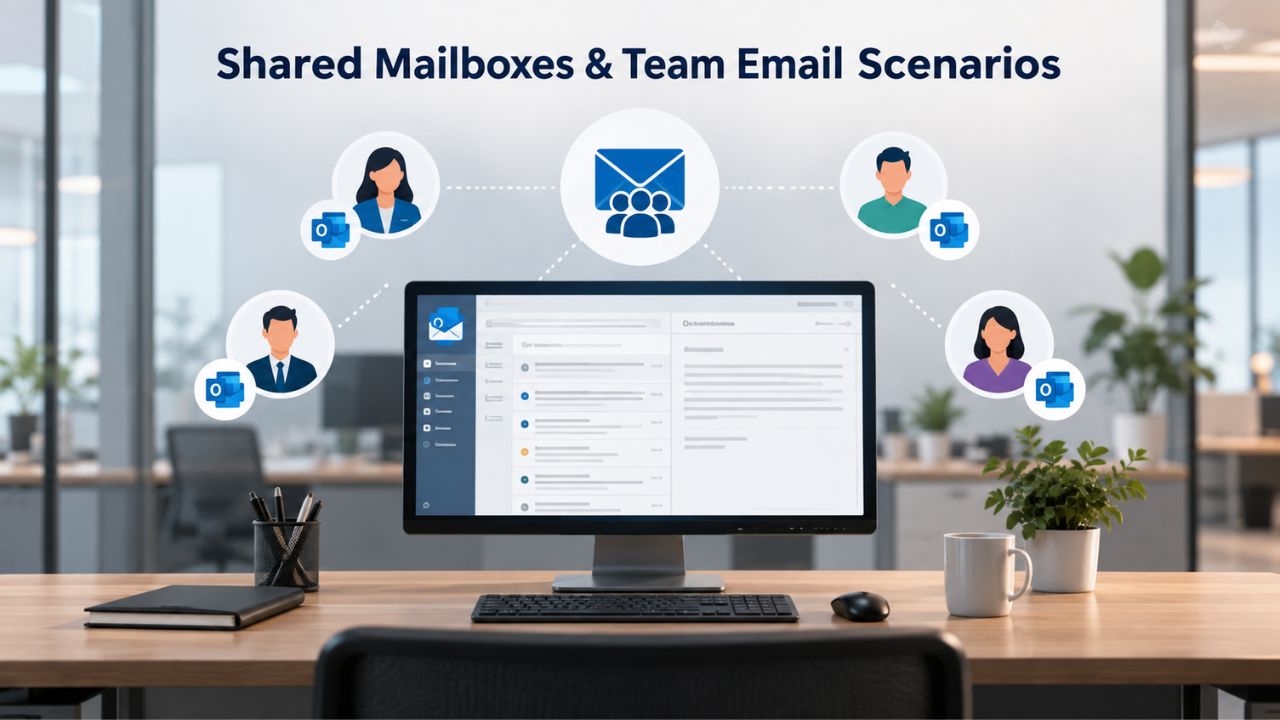
Many small businesses operate email addresses shared by multiple people. A customer might send a question to support@yourcompany.com, and you need the entire support team to see it and respond, not just one person. Microsoft 365’s shared mailbox feature supports this workflow without additional licensing.
Multi-User Access Without Extra Licenses
A shared mailbox in Microsoft 365 lets multiple team members access a single email address and send/receive from it. Unlike a distribution list (which forwards emails to individuals), a shared mailbox is a single inbox that all designated users can open, read, and reply from. Incoming mail to support@, sales@, or info@ addresses lands in the shared mailbox, and any team member assigned to it can pick up the message and respond.
Setting up a shared mailbox doesn’t require purchasing extra licenses. An administrator creates it in the Admin Center, assigns users, and it’s ready; everyone assigned sees the same inbox, reads the same messages, and can reply from the shared address. This feature is available in Business Basic, Standard, and Premium.
Delegation and Calendar Sharing
Related to shared mailboxes is delegation, which lets one person manage another person’s email and calendar on their behalf. If your CEO travels frequently, their assistant can access their mailbox, respond to routine emails, and manage their calendar. Microsoft’s delegation guidance walks through setting up delegate access, which is secure because the delegate logs in with their own credentials and Microsoft tracks all actions for audit purposes.
Calendar sharing is equally straightforward. An employee can grant their manager read-only or edit access to their calendar so the team can schedule meetings without constant back-and-forth emails. This foundational collaboration infrastructure is included in every Microsoft 365 Business plan.
Support & Uptime Expectations
Small businesses need to know what happens if something breaks. Microsoft 365’s support channels and availability guarantees are realistic and worth understanding before you commit to the platform.
Support Channels and Response Times
Microsoft 365 Business plans include support through the Admin Center, where administrators can open tickets and receive responses via email or live chat. Support hours and response times vary by issue severity: critical issues affecting business operations typically see a response within 1 business hour, while non-critical issues may take up to 24 hours. Exact SLA terms are available in the service agreement; this is not guaranteed 24/7 phone support like a dedicated vendor might offer. Still, it covers the essential issues an admin needs resolved quickly.
For specialized setup help, like domain verification, MX record configuration, or mailbox migration from an older system, Microsoft Support handles technical questions. Still, many small businesses find it faster to work with an authorized partner. An authorized Microsoft partner who provisions Microsoft 365 regularly can often set up domains and migrate email within hours because they’ve done the process hundreds of times. Niya Digital provides this kind of setup and support through our partnership with Microsoft, helping customers get email flowing without the learning curve of the Admin Center.
Service Availability and Uptime
Microsoft targets 99.9% availability for Exchange Online, the cloud email service underlying all Microsoft 365 plans. This translates to roughly 45 minutes of potential downtime per month, rare in practice. Maintenance runs automatically during off-peak hours, and Microsoft’s global infrastructure means that if one data center has an issue, email automatically routes to another. For small businesses that can’t afford email to be down for days, Microsoft 365’s uptime record is far more reliable than an on-premises server that depends on local IT staff and a single physical location.
Outages do occasionally happen; no cloud service has 100% uptime, but they’re uncommon and typically resolved within minutes to hours. When outages occur, Microsoft publishes real-time status updates via the Office 365 Service Health Dashboard, so administrators can see what’s happening and set expectations for their teams.
Choosing the Right Plan for Your Team
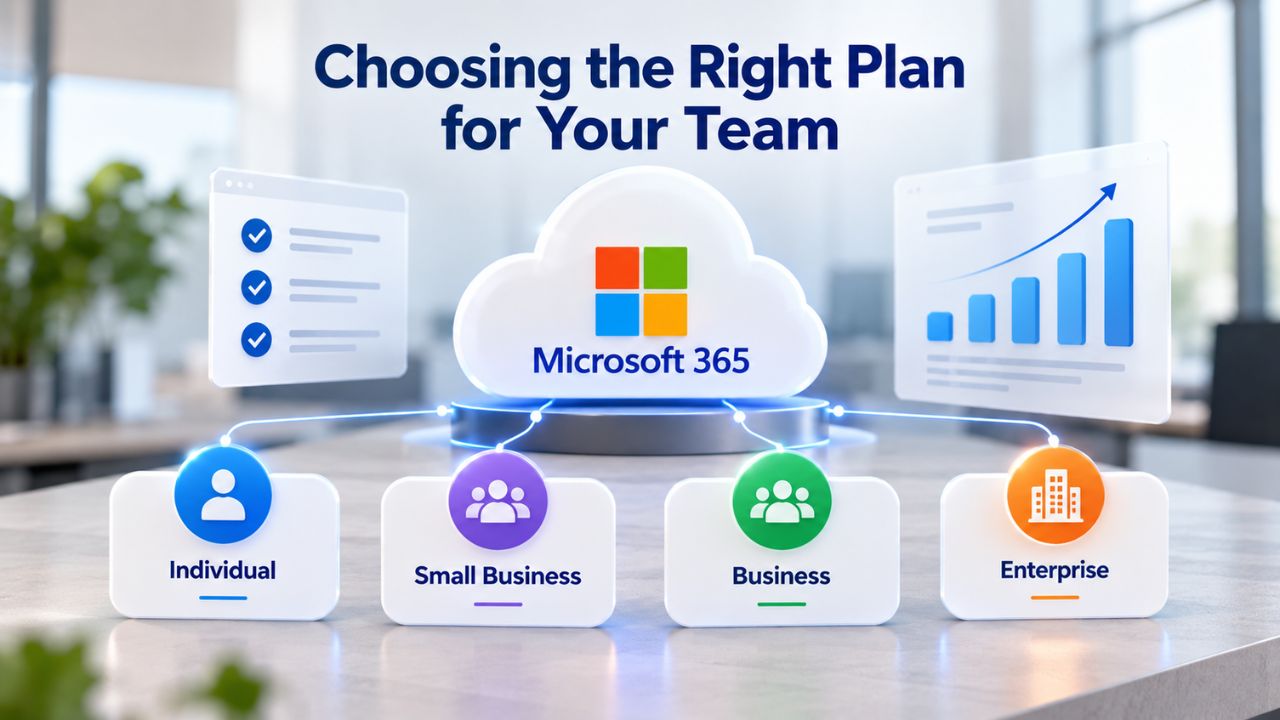
By now, the core question is answered: yes, Microsoft 365 includes professional business email. But which plan is right for your team? The decision depends on your security needs, collaboration priorities, and team size.
Decision Framework by Team Size and Risk Profile
For a solo entrepreneur or very small team (1–5 people) with general business email needs and no regulated data, Business Basic is the straightforward choice. It includes everything needed for professional email, Office desktop apps, and cloud file storage, all at the entry price. The security and compliance features are sufficient for most small operations because the risk surface is smaller.
As your team grows (5–20+ people) or you begin handling sensitive client data, Business Standard or Premium becomes prudent. Standard adds more Teams collaboration features, which accelerates communication as the team grows. Premium adds advanced threat protection and data loss prevention, which is necessary if your business processes payment information, health records, or intellectual property. A law firm, accounting practice, or healthcare office should default to Premium. A retail business with 10 employees handling general inquiries might be comfortable with Basic. A growing e-commerce business handling customer payments should jump to Premium.
The other factor is readiness. If you’re migrating from an older on-premises email system or an unsupported third-party provider, you’ll need time to plan the cutover, prepare DNS records, and test in parallel. An authorized partner can shorten that timeline significantly by handling the technical steps while you focus on communicating the change to your team.
Migration Readiness Checklist
Before switching to Microsoft 365 email, gather the essentials: domain access (registrar account credentials), a list of all active email addresses and their current provider, any archive or history you need to preserve from the old system, and license confirmation (one license per person who needs email). Most migrations take 2–5 days from MX record cutover to full stability, depending on complexity. If you’re moving from another cloud email provider, the process is faster because both systems are cloud-based. If you’re leaving on-premises email or an unsupported system, plan for more complexity.
Niya Digital’s team has found that planning, knowing your domain, your user count, and your current email provider, makes migrations smooth. Surprises (undiscovered on-premises servers, users without licenses, DNS records locked by an old admin) are the main culprits behind delayed deployments. Starting with a clear picture of what you’re migrating from prevents most delays.
Email Setup Readiness Checklist
Before launching Microsoft 365 business email, confirm you have the following in place:
| Step | What to Prepare | Why It Matters | Typical Timeframe |
|---|---|---|---|
| Domain Ownership | Ensure you have access to the domain registrar account to verify ownership | Proves ownership of the domain so Microsoft 365 can authorize email services | 5–15 minutes |
| MX Record Update | Have access to your DNS or registrar control panel to modify MX records | Routes incoming email to Microsoft 365 instead of the previous email provider | 5–30 minutes to update; DNS propagation may take several hours |
| Admin Account Designation | Assign one or more Microsoft 365 Global or Exchange administrators | Administrative accounts are required to configure, manage, and troubleshoot the Microsoft 365 tenant | Immediate |
| User License Assignment | Verify that every user has an active Microsoft 365 license | Mailboxes cannot be created or activated until an eligible license is assigned | Before migration begins |
| Calendar for Cutover | Select a maintenance window for changing the MX records | Planning the cutover minimizes disruption and reduces the risk of email delivery issues during DNS propagation | Typically planned 2–5 days before activation |
Ready to Move Your Team to Professional Business Email?
Professional business email builds customer trust, enables collaboration, and gives you control over compliance and security. Niya Digital resells Microsoft 365 subscriptions and setup services, partnering with an authorized Microsoft partner network to help small and medium businesses deploy email quickly and securely. Reach out to discuss which plan fits your team’s needs.
Frequently Asked Questions
Does every Microsoft 365 plan include custom domain email?
Microsoft 365 Business Basic, Standard, and Premium all include custom-domain email with a 50 GB mailbox. Microsoft 365 Family and Personal include only personal Outlook.com email, not business email. Microsoft 365 Business Basic feature details spell out what each plan includes.
How much email storage comes with Microsoft 365?
Each user receives a 50 GB mailbox for email, calendar, and contacts. This is separate from 1 TB of OneDrive personal cloud storage. If your mailbox grows beyond 50 GB (rare for most teams), administrators can set retention policies to archive old emails automatically or enable archive mailboxes. Microsoft’s service limits page documents all storage options.
Can I send email from my company domain immediately after subscribing?
No, you must first verify your domain ownership and configure MX records so mail routes to Microsoft. The verification and DNS setup typically take 5–30 minutes to complete, though DNS propagation globally can take up to 24 hours. Most email starts flowing within hours of the MX record update. Microsoft’s domain setup guide walks through the exact process.
Do I need to buy extra licenses for shared mailboxes?
No. Shared mailboxes (like support@ or sales@) don’t require extra licensing beyond the user licenses for team members who need access. One user license per person is sufficient. Microsoft’s shared mailbox documentation explains the setup.
What happens to my old email when I switch to Microsoft 365?
Your old emails remain with your previous email provider until you manually export or migrate them. Most migrations include a parallel-running period where both the old and new systems receive mail briefly, allowing users to transition gradually. An authorized partner can automatically migrate message history. Cloud-to-cloud migrations are generally faster than migrations from on-premises servers.
Is Microsoft 365 email secure enough for handling sensitive business data?
Microsoft 365 Business Basic and Standard include phishing and spam protection suitable for most businesses. Business Premium adds advanced threat protection, ransomware detection, and data loss prevention, necessary if you handle payment information, health records, intellectual property, or operate in a regulated industry. Business Premium security features provide compliance-level protection.
Can my team access email from phones and tablets?
Yes. The Outlook mobile app for iOS and Android is included in all Business plans and syncs email, calendar, and contacts in real time. Outlook on the web (browser-based) also works on any device with internet access. All access respects your organization’s security policies.
How much does Microsoft 365 business email cost?
Pricing varies by plan, region, and currency. When you buy Microsoft 365 Subscription plans, visit Microsoft’s official pricing page for current costs in your market. Niya Digital provides Microsoft 365 subscriptions and setup services; contact our team to discuss which plan fits your budget and needs.
What if I need help setting up a custom domain and email?
Many small businesses use an authorized Microsoft partner for setup assistance to avoid delays and technical friction. Niya Digital is a Microsoft 365 reseller and works with an authorized Microsoft partner network. We. We provide Microsoft 365 Migration Services and Email Migration to Microsoft 365, including domain verification, MX record configuration, and mailbox migration. Reach out to discuss your setup.
Does Microsoft 365 email integrate with my calendar and file storage?
Yes. All email, calendar, contacts, and OneDrive file storage exist in a single Microsoft 365 tenant and integrate seamlessly. Opening an email attachment or Teams link automatically shows your existing file permissions. Shared mailboxes can access team files without extra setup. Microsoft’s integration overview details how these systems work together.
Can multiple people access and send from one email address?
Yes. Shared mailboxes allow multiple team members to access a single email address (support@, sales@, info@) and send/receive from it without extra licensing. An alternative is delegate access, where one person’s assistant manages their mailbox and calendar on their behalf. Both are built into Business plans.
What’s the uptime guarantee for Microsoft 365 email?
Microsoft targets 99.9% availability for Exchange Online (Microsoft 365 email). This translates to roughly 45 minutes of potential downtime per month. Actual uptime is typically higher. Microsoft’s Service Level Agreement and the Office 365 Service Health Dashboard track real-time status and historical uptime.
How long does a migration from my old email provider take?
Most migrations take 2–5 days from MX record cutover to full stability. Cloud-to-cloud migrations are faster than on-premises migrations because both systems are cloud-native. Migrations from on-premises servers take longer because they require additional testing and message history export. Planning and parallel running (running both systems briefly) help prevent data loss and let users adjust gradually.
Do I have to worry about my data being backed up?
Microsoft 365 email is automatically stored redundantly across multiple data centers; this is part of the service. However, Microsoft does not provide a separate backup of deleted emails. If a user or administrator permanently deletes an email, it’s gone after the recovery window expires. For long-term compliance or historical preservation, use retention policies and archive mailboxes.
Can I buy just Microsoft 365 email without the other apps?
Yes. You can license Microsoft 365 email via Exchange Online separately from the desktop Office apps if your team only needs email and collaboration. However, the Business plans bundle email with Office apps and OneDrive because most small teams benefit from having all three together. Contact an authorized Microsoft partner to discuss licensing options that fit your specific needs.
Glossary
- Custom Domain: A business-owned internet domain (e.g., yourcompany.com) used as the email address suffix instead of a generic provider domain like @outlook.com. Custom domain email is the hallmark of a professional business presence.
- MX Records: Mail Exchange records in DNS that direct incoming email to the correct mail server. Updating MX records is the critical step that routes email from your domain to Microsoft 365 servers instead of an old provider.
- Shared Mailbox: An email inbox that multiple team members can access and send/receive from simultaneously, without each person needing a separate license. Common for team-managed addresses like support@, sales@, or info@.
- Exchange Online: Microsoft’s cloud-based email and calendaring service that powers email in all Microsoft 365 business plans. It includes mailbox storage, calendar, contacts, and the underlying infrastructure.
- Outlook on the Web: The browser-based version of Outlook email, accessible from any device with an internet connection and a web browser. Also called “Outlook Web Access” or OWA, it syncs seamlessly with the desktop Outlook app and mobile app.