Migrating a website from one Virtual Private Server to another sounds risky, but it doesn’t have to be. The anxiety most people feel centers on one fear: downtime. Yet with proper planning, staged preparation, and precise DNS management, you can move your entire operation to a new VPS server with minimal or zero downtime. Niya Digital is an authorized reseller of VPS hosting infrastructure, not an operator of its own independent data centers or hardware. Server performance, uptime, and security depend on many factors outside any single provider’s full control, including your own configuration choices, application code, traffic patterns, and security practices. We never guarantee outcomes; instead, we provide the tools, support, and guidance to help you migrate safely.
Why VPS-to-VPS Migration Matters
Businesses migrate between VPS providers for clear reasons: a site outgrows its current resource tier, a provider discontinues a plan, performance degrades under increasing traffic, or a business needs better support. Understanding why you’re migrating shapes how you approach it and what timeline you should expect.
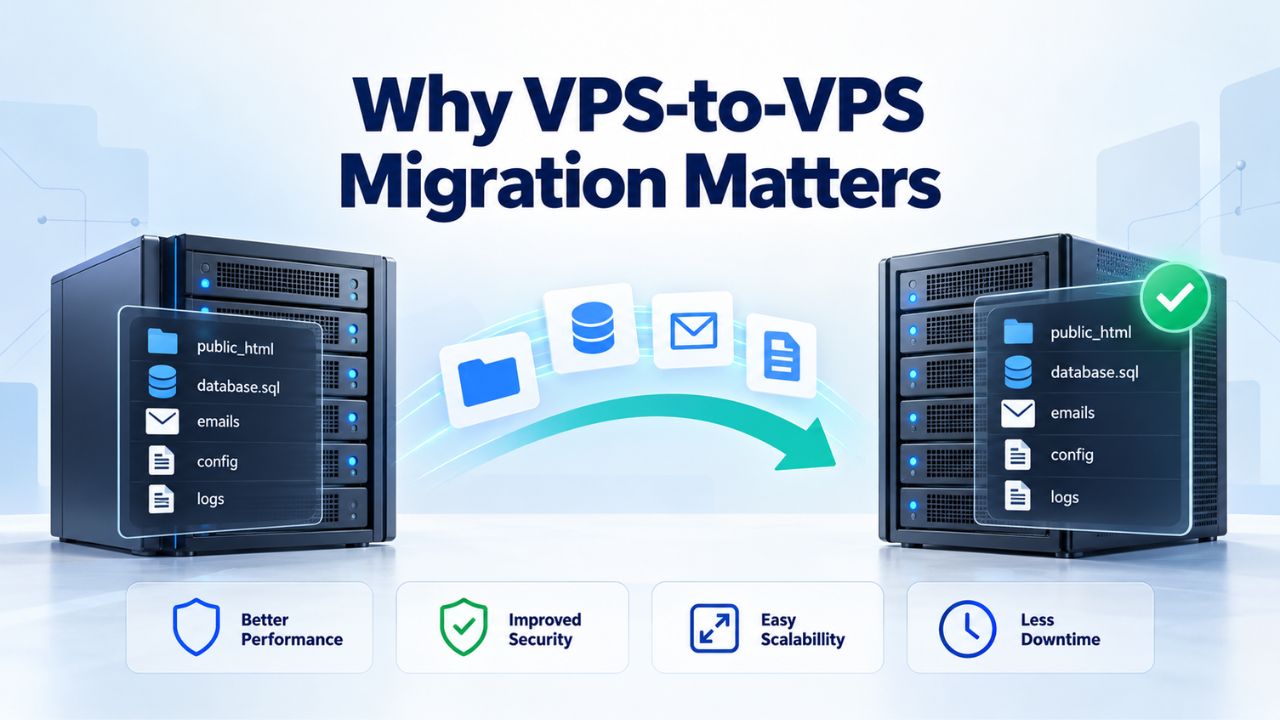
Growing Beyond Your Current VPS Tier
Your first VPS may have served you well for a year or two. As your website traffic climbs, your database grows, or you add resource-intensive features, the CPU, RAM, and storage you once had plenty of become real constraints. When your applications slow during traffic spikes or your database queries time out, upgrading your plan is often the first instinct. Yet sometimes a better solution is migrating to a provider that offers more flexible scaling, better performance for your specific workload, or managed support that handles the technical details for you so you can focus on your business.
A new VPS with properly sized resources eliminates performance bottlenecks that plague underpowered servers. The migration itself, though, requires care and planning; you’re replacing the infrastructure your business depends on. Rushing the process risks data loss, prolonged downtime, or broken application logic that doesn’t surface until your users complain and your revenue takes a hit. Taking the time to plan and execute the migration methodically transforms a risky operation into a controlled handoff with zero surprises.
Choosing the Right Time to Move
Most businesses wait too long before migrating. The warning signs are predictable: slow page loads during peak traffic hours, database query timeouts that cause errors, or support tickets accumulating about site unavailability during high-traffic periods. By the time migration becomes urgent, there’s no room for careful planning, and teams rush through the process. Instead, schedule migrations during a planned maintenance window so you can control cutover timing and validate the new server before real traffic hits it.
Niya Digital’s team has found that migrations succeed when they’re treated as projects, not afterthoughts. A detailed plan, a clear owner, and stakeholder sign-off before the cutover date prevent most surprises. When migration is planned as a structured process with backup verification, testing, and rollback procedures documented in advance, the actual cutover becomes a straightforward series of steps you’ve already rehearsed rather than an improvised scramble that keeps you up at night.
VPS Hosting Plans & Pricing
Choose the VPS hosting plan that fits your website, application, or business requirements. Select a self-managed VPS for complete server control or a fully managed VPS with a dedicated team of experts to help manage your server.
Self Managed VPS 1 vCPU
1 GB RAM
Entry-level VPS hosting for lightweight websites and applications.
- 1 CPU Core
- 1 GB RAM
- 20 GB SSD Storage
- Linux only, no control panel

Self Managed VPS 2 vCPU
4 GB RAM
VPS hosting with additional CPU and memory for growing websites and applications.
- 2 CPU Cores
- 4 GB RAM
- 100 GB SSD Storage
Self Managed VPS 2 vCPU
8 GB RAM
Additional memory for more demanding websites and applications.
- 2 CPU Cores
- 8 GB RAM
- 100 GB SSD Storage
Self Managed VPS 4 vCPU
8 GB RAM
Increased processing power for business websites and applications.
- 4 CPU Cores
- 8 GB RAM
- 200 GB SSD Storage
Self Managed VPS 4 vCPU
16 GB RAM
High-memory VPS hosting for resource-intensive workloads.
- 4 CPU Cores
- 16 GB RAM
- 200 GB SSD Storage
Self Managed VPS 8 vCPU
16 GB RAM
Powerful VPS resources for demanding business applications.
- 8 CPU Cores
- 16 GB RAM
- 400 GB SSD Storage
Self Managed VPS 8 vCPU
32 GB RAM
Maximum self-managed resources for demanding workloads.
- 8 CPU Cores
- 32 GB RAM
- 400 GB SSD Storage
Fully Managed VPS 1 vCPU
2 GB RAM
Managed VPS hosting with expert server management.
- 1 CPU Core
- 2 GB RAM
- 40 GB SSD Storage
- Dedicated team of experts to fully manage your server
Fully Managed VPS 1 vCPU
4 GB RAM
Managed VPS resources for websites and business applications.
- 1 CPU Core
- 4 GB RAM
- 40 GB SSD Storage
- Dedicated team of experts to fully manage your server
Fully Managed VPS 2 vCPU
4 GB RAM
Managed VPS hosting with additional CPU resources.
- 2 CPU Cores
- 4 GB RAM
- 100 GB SSD Storage
- Dedicated team of experts to fully manage your server
Fully Managed VPS 2 vCPU
8 GB RAM
Managed VPS hosting with additional memory for growing workloads.
- 2 CPU Cores
- 8 GB RAM
- 100 GB SSD Storage
- Dedicated team of experts to fully manage your server
Fully Managed VPS 4 vCPU
8 GB RAM
Higher-performance managed VPS for demanding applications.
- 4 CPU Cores
- 8 GB RAM
- 200 GB SSD Storage
- Dedicated team of experts to fully manage your server
Fully Managed VPS 4 vCPU
16 GB RAM
High-memory managed VPS for resource-intensive workloads.
- 4 CPU Cores
- 16 GB RAM
- 200 GB SSD Storage
- Dedicated team of experts to fully manage your server
Fully Managed VPS 8 vCPU
16 GB RAM
Powerful managed VPS hosting for demanding business workloads.
- 8 CPU Cores
- 16 GB RAM
- 400 GB SSD Storage
- Dedicated team of experts to fully manage your server
Fully Managed VPS 8 vCPU
32 GB RAM
Maximum managed VPS resources for demanding workloads.
- 8 CPU Cores
- 32 GB RAM
- 400 GB SSD Storage
- Dedicated team of experts to fully manage your server
Pre-Migration Planning & Resource Inventory
The most common cause of migration failure isn’t broken tools or network errors; it’s missing information. Before you touch a single file or modify any configuration, inventory everything your site depends on. This upfront work takes just a few hours but prevents catastrophic oversights that would otherwise surface mid-cutover when you’re under pressure.
Document Every System and Dependency
Create a comprehensive written inventory of all systems, databases, domains, email accounts, SSL certificates, DNS records, and third-party service integrations your site uses. List control panel credentials, SSH access details, FTP account information, and any services running outside the hosting environment, like a separate mail server or remote database. If your website depends on it, write it down in a single document that one person owns and can access when needed. This inventory serves two critical purposes: it prevents you from forgetting something important during cutover, and it gives you a baseline to compare against after migration completes to verify nothing was left behind.
Your inventory should include which PHP, Node.js, or Python version runs your application, which web server software (Apache, Nginx, LiteSpeed), which databases (MySQL, PostgreSQL, MongoDB), and any background job queues or scheduled tasks that run automatically. If you skip this documentation step and later discover a missing service on the new server, troubleshooting becomes expensive guesswork while your site is down or behaving incorrectly. A complete, written inventory eliminates that risk and gives everyone on your team a shared understanding of what needs to move.
Define Your Rollback Triggers and Procedures
Before cutover begins, explicitly decide when you’ll abort and roll back to the old server instead of proceeding. Immediate rollback triggers include source server failures that prevent data extraction, data corruption discovered during testing, or critical application errors on the destination server that don’t resolve within 30 minutes of investigation. Write these triggers explicitly in your migration plan; vague decisions like “if things look bad” fail when stress and emotions run high during an active incident.
Document the exact rollback procedure: Which DNS record do you revert and how? Who can make that change, and how do you contact them? How long does the revert take, and what’s your communication plan to notify stakeholders? A clear, written rollback plan removes the paralysis that happens when something goes wrong mid-cutover. It also gives you the confidence to proceed with the migration, because you know a well-defined escape route exists and has been tested.
| Phase | What Happens | Typical Timeframe | Owner | Success Signal |
|---|---|---|---|---|
| Inventory & Planning | Document all systems, databases, email, SSL, dependencies; define rollback triggers | 1 week | Migration lead | Written plan, stakeholder sign-off |
| Backup & Environment Prep | Create full backup of old server; provision new VPS; install OS/control panel | 2–7 days | Admin/Provider | Both servers accessible, environments match |
| TTL Reduction | Lower DNS TTL to 300–600 sec on all affected records | Start at 48 hrs before cutover | DNS admin | TTL change confirmed in global lookups |
| Pre-Cutover Testing | Test new server privately via hosts file; validate all functions | 1–3 days | QA/Developer | All core functions (login, forms, DB) working |
| Cutover Window | Update DNS, monitor propagation, verify old/new servers | 1–2 hours | Ops/Lead | New server serving live traffic correctly |
| Post-Cutover (24–72 hrs) | Monitor logs, user reports; verify email, backups; cleanup | 1–3 days | Ops/Support | Zero customer-reported issues, old server offline |
Full Backup & Rollback Strategy
A backup is your insurance policy. Without it, migration risk becomes unacceptable, and the entire operation becomes a high-wire act with no safety net. Create independent backups before anything changes, verify that restores work in practice, and keep the old server running throughout the cutover window so you always have a fallback option.
Create and Verify Independent Backups
Never rely on your hosting provider’s backup system alone, even if they promise daily backups. Create your own independent copy of all website files and databases under your direct control. Use your control panel’s backup feature if available, or manually export your database using phpMyAdmin or command-line tools and download your website files via FTP or SFTP. Test the restore process on a local machine or temporary server; a backup that can’t be restored is worse than useless, because it gives false confidence when you need it most.
For WordPress sites, plugins like All-in-One WP Migration provide automated export functionality that creates a single file you can download and keep. For custom applications built on frameworks like Laravel or Django, write a backup script that exports both the database and files on a regular schedule and stores them securely. Keep at least one backup copy outside your hosting provider’s data center, on your local machine, cloud storage like AWS S3, or a different hosting provider entirely. This protects against catastrophic provider-level failures, data center outages, or ransomware that could wipe all backup copies stored in one location.
Why You Keep the Old Server Running During Cutover
The single biggest mistake teams make is shutting down the old server immediately after they begin the migration. If something breaks on the new server, a database import fails silently, an SSL certificate doesn’t load correctly, or an application can’t find a config file, you’ve eliminated your only escape hatch. Instead, keep the old server running and accessible throughout the entire cutover window and for at least 24 hours afterward. Only after you’ve verified the new server is handling live traffic correctly for at least a full day should you cancel the old service.
This dual-server approach also handles dynamic sites gracefully. If your users continue creating data on the old server during the cutover (new orders arriving, forum posts being created, emails being received), a running old server preserves that data intact. You can perform a final data sync of any changes before flipping DNS permanently to the new server. The cost of keeping both servers live for a few extra hours is trivial compared to losing customer data, facing hours of downtime while you troubleshoot, or rebuilding content you forgot to migrate.
| Category | Item | Why It Matters | Risk if Skipped |
|---|---|---|---|
| Data | Full backup of website files and databases | Eliminates data-loss risk if cutover fails | Complete data loss or unrecoverable corruption |
| Data | Export database to independent file, test restore | Ensures database is portable and restorable | Broken database on new server, data inaccessible |
| DNS | Document current A, MX, CNAME, TXT records | Prevents DNS record omission or misconfiguration on cutover | Email down, subdomain broken, verification emails fail |
| DNS | Confirm TTL on all records, plan a 48-hour lowering window | Reduces cutover downtime window | 4–24 hours of partial unavailability while DNS cached |
| Access | Collect all hosting control-panel credentials, SSH/FTP access | Ensures you can move data and manage new server | Can’t access old server to extract data, locked out of new server |
| Access | Verify domain registrar access (separate from hosting) | Ensures you can update nameservers if needed | Registrar blocks DNS changes at cutover moment |
| Testing | Identify top 10 user workflows (checkout, login, form submission) | Tests real user impact, not just technical uptime | Silent failures in critical paths go unnoticed |
| Document all email accounts and forward/filtering rules | Prevents email loss and user mailbox disruption | Users miss incoming mail, forwarding rules orphaned | |
| SSL/Certs | Export current SSL certificate and private key, re-import to new server | Prevents HTTPS breakage and self-signed-cert errors | Website shows cert warnings, browsers block access |
| Support | Assign cutover owner and define escalation path; schedule support standby | Ensures someone is responsible if anything breaks mid-cutover | Confusion, delayed response, outage extends |
DNS Strategy: TTL Reduction & Cutover Timing
Most site downtime during migration comes from DNS caching, not from technical failures moving the data itself. Understanding DNS Time-to-Live (TTL) and managing it strategically can shrink your cutover window from 24+ hours of partial unavailability to minutes. This is the most overlooked yet most powerful downtime-reduction lever in any migration.
How TTL Controls Migration Downtime
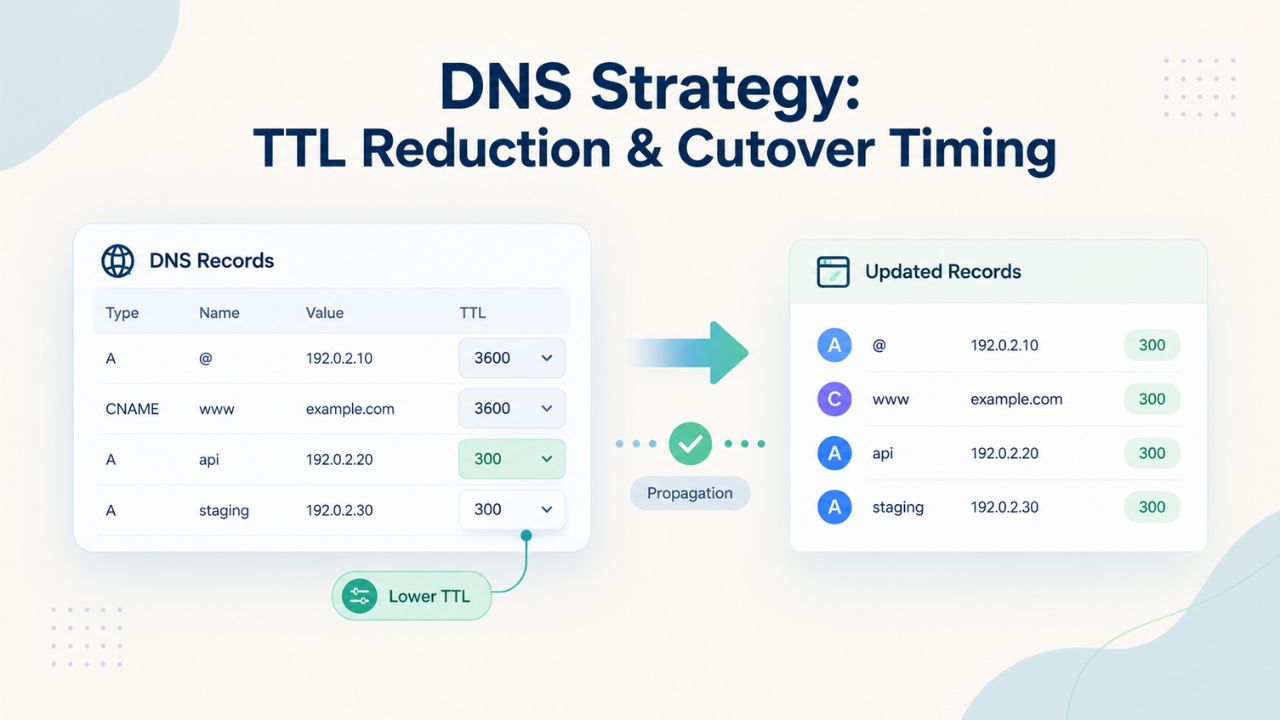
DNS records include a TTL value measured in seconds. When a visitor’s browser looks up your domain, their ISP’s DNS resolver caches the answer for the TTL duration. If your TTL is 86,400 seconds (24 hours), that resolver ignores updates to your DNS record for a full day; some visitors stay on the old server while others see the new one, creating inconsistency and partial downtime. This is why lowering TTL before migration is critical: it ensures that when you update your DNS record, resolvers check for the new answer quickly instead of serving a stale cached response.
Default TTL values typically range from 14,400 to 86,400 seconds (4 to 24 hours) depending on your DNS provider’s defaults. Start lowering these values at least 24–48 hours before your planned cutover. This gives resolvers time to expire their cached long-TTL values and start respecting the new, shorter TTL. Once the low TTL is live globally, a DNS record change propagates within minutes instead of hours or days. This transformation is fundamental: without TTL reduction, you’re guaranteed 4–24 hours of visitors seeing split behavior between old and new servers.
The 48-Hour TTL Reduction Timeline
Begin by identifying all DNS records your site uses: the A record pointing to your web server IP, MX records directing email traffic, CNAME records for subdomains or CDN, and TXT records for email verification and security. Reduce each one’s TTL to 300–600 seconds (5–10 minutes) at least 48 hours before cutover. Verify the change is live using free DNS lookup tools from multiple geographic locations, such as MXToolbox or Google’s DNS checker. Only once you’ve confirmed globally that the low TTL is being served should you schedule the final cutover.
After your DNS change succeeds and the new server is verified stable for 24–48 hours post-cutover, restore the TTL to its higher value for normal performance. A 300-second TTL during cutover is correct and necessary for responsiveness; maintaining it long-term wastes resources on frequent resolver queries. This two-phase TTL strategy gives you speed when you need it most, during the cutover window, and efficiency when you don’t.
Validation: Testing the New Server Before DNS Change
The safest migration approach fully verifies the destination server while the old one is still receiving traffic. This means testing the new server privately, before any public traffic reaches it. Use your local hosts file or a provider preview URL to validate every application function in isolation.
Using the Hosts File to Preview the New Server
Your computer’s hosts file lets you map a domain to any IP address locally on your machine alone. By adding a single line to your hosts file, only that machine treats the domain as already migrated, while everyone else still sees the old site. This is the gold standard for pre-cutover validation because it’s completely private: no public DNS changes, no propagation delays, and no visibility to users or automated monitoring tools.
Find your hosts file at C:\Windows\System32\drivers\etc\hosts (Windows, edit as Administrator), /etc/hosts (macOS), or /etc/hosts (Linux). Add a line mapping your domain to the new server’s IP address: [new-server-ip] example.com. Save the file. Now, when you browse to example.com, only your machine sees the new server while everyone else still sees the old site. Test everything thoroughly: log in to your admin panel, submit a form, check the database connection, verify email notifications arrive, confirm SSL loads without warnings. If anything breaks, you catch it before a single visitor reaches the new server and you fix it offline.
Testing Before Cutover Eliminates Emergency Rollbacks
Compare the old and new server behavior by accessing the same pages on both and verifying output matches. Test your top 10 user workflows, checkout on an e-commerce site, login functionality, payment processing, form submissions, file uploads, search functionality. If a workflow fails during pre-cutover testing, you fix it on the new server or adjust configuration, with zero customer impact. This is exponentially cheaper than discovering the same issue at 2 AM on cutover night when the new server is already live and serving real traffic.
Professional migration services include this validation step before any cutover begins. An independent tester reviews the new VPS environment end to end and confirms it matches the old server’s behavior, point by point. This removes the “did I miss something obvious?” anxiety that often haunts DIY migrations and gives you confidence to proceed.
Ready to Take the Next Step?
You now have the knowledge to execute a VPS migration safely with minimal risk and downtime. From detailed planning to post-cutover validation, each step builds on the last to keep your website, data, and customer experience stable throughout the move. Niya Digital’s VPS Hosting service includes onboarding support and migration assistance to keep your site stable, helping you avoid mistakes and ensuring every stage runs smoothly. Whether you’re upgrading resources, changing providers, or consolidating infrastructure, follow this process, and you’ll succeed.
Data Transfer Methods & Sequencing
Once you’ve planned, backed up, and verified your new server works, it’s time to move the actual data. Different data types, files, databases, and email require different transfer approaches. Sequencing matters: moving databases first, then files, then email, gives you a logical progression that matches how sites depend on these components.
File Transfer: Bulk Copy vs. Control Panel Backup
Large file transfers typically use rsync, SCP, or SFTP to move website files efficiently from the old server to a new one. Rsync is particularly powerful for large volumes and can resume interrupted transfers without re-copying everything. FTP works but is slower and less reliable for large files. Your hosting provider may also offer a control panel backup/restore process that packages everything into a single archive, which is simpler but may include unnecessary files.
For VPS-to-VPS transfers on the same provider or providers using compatible control panels like cPanel or Plesk, the backup/restore path is often fastest. A staged approach works best: perform a bulk initial copy 3–7 days before cutover to get most of the data moved, then run a second incremental copy (rsync with delta sync or FTP with only changed files) 24 hours before cutover to capture only files that changed. This minimizes the final sync time and leaves you with fresh files on the new server ready for cutover.
Database Migration: Backup, Transfer, and Final Sync
Export your database from the old server using your control panel or a database tool like phpMyAdmin. Save the SQL dump file to your local machine or a temporary location, then upload it to the new server and import it. For large databases over 500 MB, import directly on the server using command-line tools rather than a web interface, which can time out or consume too much memory.
For dynamic sites where data changes constantly during migration (e-commerce orders, forum posts, user signups), perform a final database sync immediately before DNS cutover. Put the old server into read-only mode or maintenance mode to stop new writes, dump the database one final time, and import that latest version on the new server. This ensures no transactions or user data are lost between the initial import and cutover.
Database & Email Migration
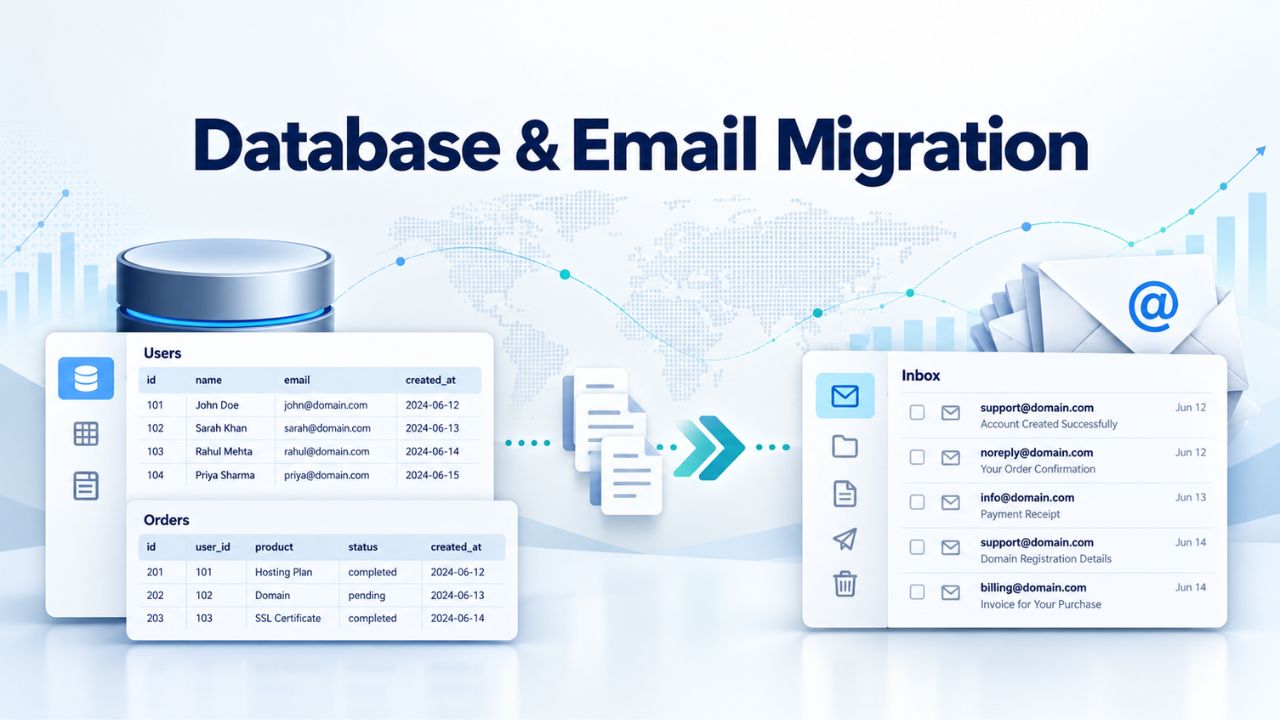
Databases and email hold most user data, so they need special attention during migration. A misplaced database export or forgotten email account creates lasting problems for users who suddenly lose access to their messages or application features.
Handling Email: On-Server vs. Third-Party Services
Email stored on your server (in cPanel/Plesk/DirectAdmin mailboxes) can be migrated by exporting and importing through your control panel, or by using specialized tools like imapsync that sync mailboxes account by account while preserving all settings. On-server email is complex because it includes not just messages but also user accounts, forwarding rules, autoresponders, spam filters, and folder structures. You must recreate each setting on the new server to preserve full functionality.
Many businesses find it simpler and more reliable to move to a third-party email service (Microsoft 365, Google Workspace, Proton Mail) rather than manage on-server email during migration. A third-party service removes email hosting from your VPS entirely, eliminating an entire class of migration risk. Email and website DNS are independent; MX records direct mail traffic to the email provider while A records still point to your web server. This independence means you can migrate websites and email on completely different schedules if needed.
Database Connection Verification After Migration
After importing your database to the new server, verify that your application can connect to it correctly. Check the database hostname, username, password, and port number in your application’s config files. These often change when moving between servers or control panels, and a misconfigured connection string may go unnoticed until a user tries to access a feature. Run a quick application test that exercises the database: view a site backup, run a database query from the admin panel, or trigger an application function that reads from the database.
Silent database-connection failures that don’t surface until users report broken features are expensive to debug after cutover when you’re already under stress. For databases on a separate server from your web application, update the connection string on the new web server to point to the old database server initially, then migrate the database and update the connection string again. This two-step approach lets you move files and databases independently without breaking anything.
Cutover Execution & Monitoring
The cutover window, when you actually update DNS records to point to the new server, happens quickly if you’ve prepared well. But it requires focused attention and real-time monitoring to catch and resolve issues as they emerge.
Executing the DNS Record Change
Once your TTL is low (300–600 seconds), you’ve verified your new server via the hosts file, and your final database sync is complete, you’re ready for cutover. Update the A record for your domain to point to the new server’s IP address. This change propagates globally within minutes, not hours, because resolvers respect the low TTL and check for updates frequently. Document the old and new IP addresses before making any changes; you’ll need this information to roll back if something unexpected happens.
Have your domain registrar and hosting provider support contacts available throughout the cutover. Assign one person as the cutover leader and one as the backup; decisions need a clear owner when something unexpected happens at 2 AM. Send a message to all relevant team members 30 minutes before cutover stating what’s about to happen and confirming everyone is ready.
Monitoring Old and New Servers During Propagation
During the 10–60 minute propagation window, traffic gradually shifts from the old to the new server. Some visitors still see the old server while others see the new one. Actively monitor both servers’ error logs, application performance, and user reports during this time. Watch for 500 errors, database connection failures, SSL certificate warnings, or missing assets that appear on the new server but not the old. If the new server shows errors the old server doesn’t, investigate and fix them immediately, or roll back if the issue can’t be fixed within 30 minutes.
Use a monitoring tool that checks your site from multiple geographic locations, simulating visitor experience from different ISP resolvers. This helps you quickly spot incomplete propagation or regional DNS issues. Once all monitoring checks pass for 30+ minutes and error logs stay quiet, propagation is complete, and you’ve successfully cut over to the new server.
Post-Cutover Validation & Cleanup
The first 24 hours after DNS cutover are critical. Problems discovered and fixed in the first day avoid customer impact; problems that hide for a week become crisis calls that damage trust.
Perform a 24-Hour Validation Window.
Check your website from multiple browsers and devices to ensure it loads correctly everywhere. Verify login functionality works, test forms, process a test payment if it’s an e-commerce site, and confirm email notifications arrive. Scan error logs (Apache/Nginx access logs, application error logs) for 404s, 500s, or other errors that weren’t present on the old server. Check that backup systems are functioning, scheduled tasks are running on schedule, and third-party integrations (payment processors, email newsletters, analytics) are reaching the right endpoints correctly.
Ask a few trusted users to test the site thoroughly and report any issues, no matter how small or obscure. Silent functionality issues (a form that doesn’t send, a report that doesn’t load, a broken checkout button) are worse than obvious errors because users work around them without telling you. A fresh user perspective catches these issues quickly when you can still fix them.
Cleaning Up and Safely Decommissioning the Old Server
After 24–48 hours of stable operation on the new server, you can safely stop paying for the old one. But before you cancel, document any last configurations, take a final backup, and allow another day or two for any lingering DNS resolvers to update fully. Some resolvers cache aggressively and take longer to update than others. Once you’re confident all traffic has moved to the new server, monitor your old server’s logs; they should show zero or near-zero traffic then. Then stop the old service.
Update your documentation and internal systems to reflect the new VPS environment. Record the new server’s IP address, control panel URL, SSH access information, and any configuration changes you made during migration. This documentation helps future migrations and ensures your team knows where to find things when you need to make changes.
Common Pitfalls & How to Avoid Them
Patterns emerge across hundreds of VPS migrations. Learning from others’ mistakes accelerates your own migration and prevents expensive failures that could have been avoided.
Mistake: Rushing Without Testing or Planning
The single most expensive migration mistake is deploying to production without thorough testing. Budget 3–7 days for the full cycle: inventory and planning, backup and environment prep, TTL reduction, pre-cutover validation via hosts file, final sync, cutover, and post-cutover validation. This timeline costs far less than emergency support tickets, customer complaints, lost revenue, or data recovery services needed after a botched 2-hour cutover.
Inadequate planning causes most failures, not broken technical tools or network issues. When teams skip the planning phase and wing it, forgotten dependencies emerge, misconfigured DNS records cause email to disappear, and unmigrated databases break applications mid-cutover. A structured plan prevents this entirely.
Mistake: Failing to Lower TTL Before Cutover
Migrating without lowering TTL first is like trying to make a sharp turn in a truck that takes 24 hours to react to the steering wheel. Visitors stay pointed at the old server for hours or days after you think they should see the new one, creating the false impression that the migration failed when really DNS caching is just working as designed. Apply this simple rule every migration: lower TTL 48 hours before cutover, verify it’s live, then schedule the DNS change. This single practice eliminates most post-cutover “did migration fail?” panic.
Mistake: Shutting Down the Old Server Too Early
Impatience is expensive. Turning off the old server the moment DNS cutover begins eliminates your rollback option immediately. The new server might have a broken database, a missing config file, or an application error that only surfaces once real traffic hits it. Without the old server running, you have no escape hatch; you’re forced to troubleshoot blind or restore from backup and try again, both of which significantly extend downtime.
Keep both servers running for at least 24 hours post-cutover. This costs almost nothing and gives you an escape route if the new server fails unexpectedly. It’s cheap insurance for your most critical operation.
Mistake: Not Testing Core Functions After Migration
Assuming the migration worked because the site homepage loads is dangerous. Hidden failures in checkout, login, payment processing, or form submission emerge only when users interact with the site. Test these critical paths immediately after cutover, or discover them via angry customer emails hours later, after you’ve already gone to bed.
A simple pre-migration inventory of the top 10 user workflows, followed by a 30-minute hands-on test of each one post-cutover, catches most issues before they impact real customers. This simple practice has prevented countless migrations from becoming disasters.
Ready to Move Forward With Confidence?
You now understand the full VPS migration process, from planning through post-cutover validation. The technical details are manageable if you follow the sequence: inventory, backup, TTL reduction, validation, transfer, cutover, and monitoring. Niya Digital’s VPS Hosting service includes guided support for each stage, helping you avoid mistakes and keep your site stable throughout the move. Whether you’re upgrading to a larger plan, switching providers, or consolidating multiple sites, the process stays the same.
Frequently Asked Questions
What is the difference between online and offline VPS migration?
Online migration keeps the old server running while data transfers, allowing some traffic to continue serving users. Offline migration stops services on the old server entirely, guarantees a complete and consistent data snapshot, and can be faster for large volumes. Online works best for minimal-downtime requirements; offline works best when brief downtime is acceptable, and you need maximum safety and certainty.
How long does a typical VPS migration take from start to finish?
A full migration, including planning, backup, testing, and post-cutover validation, typically takes 3–7 days of elapsed time with active work. The actual data transfer might take 4–24 hours depending on file size and bandwidth. The DNS cutover moment itself happens in minutes once TTL is lowered correctly, but the full process from start to confident completion spans about a week.
Can I migrate my website without any downtime?
Near-zero downtime is achievable by managing TTL correctly and using a final-sync strategy. Brief DNS propagation delays (minutes to 1 hour) are normal; some visitors may see a slightly stale cache during this window. True zero downtime is impossible because of global DNS caching, but proper TTL management reduces unavailability to levels most users won’t notice.
What happens to email during VPS migration?
Email requires specific attention. You must export on-server email from the old server and import it to the new one, or migrate it to a third-party email service. MX records direct mail traffic independently of records that direct web traffic, so you can migrate email and websites on different schedules if needed, or outsource email to Amplify.
Do I need to migrate my databases, or can I keep them on the old server?
You can keep databases on the old server and have your new web server connect remotely, but this creates a slow and fragile setup that depends on the old infrastructure staying live. Best practice is to migrate databases to the new VPS server. This gives your application faster, more reliable database access and reduces dependencies on the old infrastructure that you’re trying to retire.
What should I do if something breaks after I’ve already updated DNS?
If the new server fails after DNS cutover, you have two options: fix the issue quickly within 30 minutes while some traffic still routes to the old server, or revert the DNS record to point back to the old server and troubleshoot the new server while it’s offline. This is why keeping both servers live for 24 hours is critical; it preserves your rollback window.
How do I verify my SSL certificate works on the new server?
Export your SSL certificate and private key from the old server, import them to the new server’s control panel, and test by visiting your site in a browser. The browser should show a valid certificate with no warnings or errors. If warnings appear, the certificate wasn’t imported correctly, or the domain name doesn’t match the certificate exactly.
Should I test my site on the new server before updating DNS?
Absolutely. Use your hosts file to map your domain to the new server’s IP on your local machine only. Test all major functions before any public DNS change happens. This costs a few hours and prevents most post-migration disasters that could affect your business.
Can I migrate multiple websites during the same VPS migration?
Yes, if all sites are hosted on the same old VPS. Migrate them together on the same schedule. If they’re on different old servers, run separate migrations with separate TTL lowering and DNS cutover windows to reduce complexity and risk.
What if my hosting provider includes a migration service, should I use it?
Professional migration services from your provider handle the technical details, significantly reducing your risk. Services may be free for managed VPS plans or cost extra for unmanaged plans. They’re worth considering if your site is large, complex, or mission-critical, or if you lack technical expertise.
How do I know if my new VPS has enough resources for my website?
Baseline your current VPS’s CPU, RAM, and disk usage during peak traffic, then compare to the new plan’s specifications. General rule: CPU should have 30%+ headroom, RAM should handle peak traffic plus 20% overhead, and disk should stay under 80% capacity for optimal performance and reliability.
Can I roll back to my old server after the DNS cutover is complete?
Yes, if you kept the old server running. Update the DNS record back to the old server’s IP address. Propagation takes minutes with a low TTL. However, any data created on the new server after cutover won’t exist on the old server, so rollback works best within the first 24 hours.
What if my domain registrar is different from my hosting provider?
This is common and not a problem. You manage DNS records through your registrar even if hosting is elsewhere. Update the A record at your registrar to point to the new VPS’s IP address. Changes propagate through your registrar’s DNS servers, so they’re controlled by your registrar’s TTL settings, not the hosting provider’s.
Do I need to update nameservers during VPS migration?
Not usually. If your registrar’s nameservers are already pointing to your hosting provider’s nameservers or a third-party DNS service, you update individual records (A, MX, CNAME) but don’t change nameservers. Changing nameservers is riskier and slower; only do it if you’re changing DNS providers entirely.
How often should I test my backups to ensure they restore correctly?
Test your backup/restore process at least once before any migration, and monthly in normal operations. A backup that hasn’t been tested is useless; you won’t know it’s broken until an emergency forces you to restore, and you discover too late it doesn’t work.
Glossary
- VPS (Virtual Private Server): A virtualized server instance with dedicated CPU, RAM, storage, and root access, isolated from other users’ instances sharing the same physical hardware.
- Root Access: Administrator-level control over the VPS operating system, enabling custom software installation, full configuration management, and direct control over server services and settings.
- TTL (Time to Live): A DNS setting measured in seconds that controls how long DNS resolver servers cache a DNS answer before requesting fresh information from the authoritative nameserver.
- DNS Cutover: The moment when DNS records pointing to your domain are updated to direct traffic from the old server IP address to the new server IP address.
- Rollback: The process of reverting configuration or DNS records back to previous values after migration, allowing traffic to flow back to the old server if the new server fails.
- Downtime: A period when a website or service is inaccessible or unavailable to users, typically measured in minutes or hours during migration cutover or DNS propagation delays.
- MX Records: Domain Name System records that specify which mail servers handle email for a domain; separate from A records that direct web traffic.