
Why SSL Certificates Matter for WordPress Websites
Installing an SSL certificate on your WordPress site goes beyond compliance. It addresses a real problem visitors face daily: the “Not Secure” warning that appears when a site lacks HTTPS encryption. This warning erodes trust and can drive visitors away before they even view content.
Why SSL and HTTPS Matter for WordPress
An SSL Certificate establishes an encrypted connection between a visitor’s browser and your server, protecting sensitive data like login credentials, payment information, and contact form submissions. When HTTPS is active, browsers display a padlock icon and drop the warning, immediately signaling security to users. Beyond user confidence, search engines favor HTTPS sites, and browsers themselves prioritize HTTPS in the browsing experience, making SSL installation foundational rather than optional.
Niya Digital’s team has found that WordPress site owners often delay SSL installation because they underestimate how simple the modern process has become. Most hosting providers now automate the entire server-side setup, leaving only WordPress-specific configuration as a manual step.
SSL Certificate Type Decision Matrix
| Certificate Type | Best For | Validation Timeframe | Warranty | Use Case Examples |
|---|---|---|---|---|
| Free SSL (Let’s Encrypt) | Blogs, non-profit sites, any site on supporting hosts | 24–48 hours (AutoSSL) | Covered by hosting provider | Personal blog, non-profit, portfolio without budget |
| Domain Validation (DV) | Blogs, informational sites, small business | 15 min to 24 hours | $100,000 USD (Niya Digital) | Personal blog, portfolio, startup website, service description |
| Organization Validation (OV) | Small e-commerce, membership sites, business identity verification | 2–5 business days | $250,000+ USD | Online store, membership portal, business website with login |
| Extended Validation (EV) | Financial services, high-value e-commerce, healthcare, maximum trust | 5–10 business days | $1,000,000+ USD | E-commerce marketplace, health data portal, financial services site |
| Wildcard SSL | WordPress sites with multiple subdomains | Same as primary type | Same as primary type | Subdomain hosting (blog.example.com, store.example.com) |
| SAN/UCC SSL | Multi-domain WordPress setups, WordPress Multisite | Same as primary type | Same as primary type | Multiple distinct domains (example.com, example.net, example.org) |
SSL Certificate Plans & Pricing
Choose from a selection of SSL certificates designed to meet different website security and validation requirements. Find the right certificate to secure your website, protect sensitive information, improve search visibility, and build trust with your visitors.
Domain Validated (DV) SSL
(1-Site)
Protect 1 site.
- Domain validation
- SHA-2 & 2048-bit encryption.
- Boost SEO rankings
- Fast issuance in 5min
- Display HTTPS & padlock
- Security trust seal
- Support unlimited servers
- Free unlimited reissues
- $100,000 USD warranty
Domain Validated (DV) SSL
(5-Site)
Protect 5 sites.
- Domain validation
- SHA-2 & 2048-bit encryption.
- Boost SEO rankings
- Fast issuance in 5min
- Display HTTPS & padlock
- Security trust seal
- Support unlimited servers
- Free unlimited reissues
- $100,000 USD warranty
Extended Validation (EV) SSL
(1-Site)
Protect 1 site.
- Extended validation
- SHA-2 & 2048-bit encryption.
- Boost SEO rankings
- Display HTTPS & padlock
- Green address bar
- Security trust seal
- Support unlimited servers
- Free unlimited reissues
- $1,000,000 USD warranty
Extended Validation (EV) SSL
(5-Site)
Protect 5 sites.
- Extended validation
- SHA-2 & 2048-bit encryption.
- Boost SEO rankings
- Display HTTPS & padlock
- Green address bar
- Security trust seal
- Support unlimited servers
- Free unlimited reissues
- $1,000,000 USD warranty
Domain Validated (DV) SSL
(Wildcard)
Protect unlimited sub-domains.
- Domain validation
- SHA-2 & 2048-bit encryption.
- Boost SEO rankings
- Fast issuance in 5min
- Display HTTPS & padlock
- Security trust seal
- Support unlimited servers
- Free unlimited reissues
- $100,000 USD warranty
Choosing the Right Certificate Type for Your WordPress Site
SSL certificates come in three validation levels, each suited to different website purposes. Understanding the difference helps you select the right type without overpaying for features you don’t need or undersecuring sensitive data.
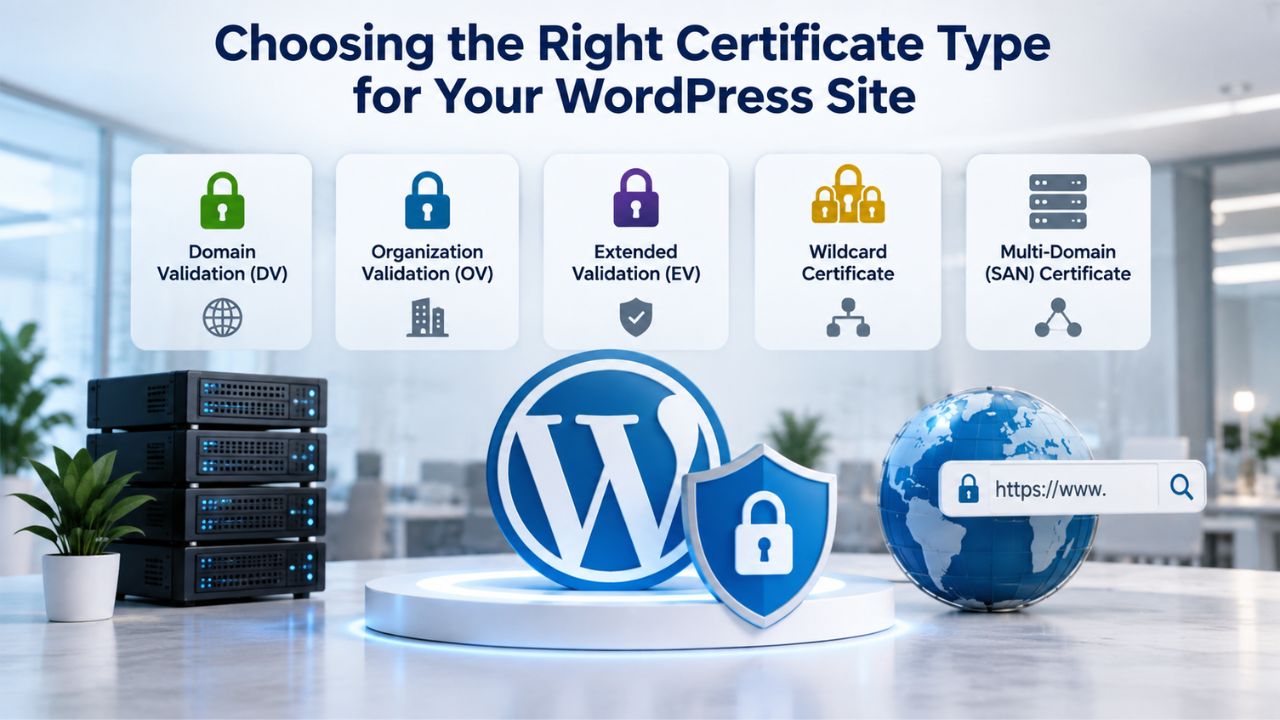
Domain Validation (DV) SSL Certificates
Domain Validation (DV) certificates verify only that you control the domain; the validation process checks your ownership via email or DNS record verification and typically completes in minutes. DV certificates are ideal for blogs, informational sites, and small business websites that do not handle sensitive financial transactions or require visitor identification. The certificate encrypts traffic as strongly as higher-tier options, but the validation level is lower, so browsers don’t display organizational verification details.
Niya Digital’s DV SSL for single-domain protection includes fast issuance (5 minutes), SHA-2 & 2048-bit encryption, free unlimited reissues, support for unlimited servers, and a $100,000 USD warranty. DV SSL is the most affordable option and the best starting point for most WordPress installations. If your site is a content hub, portfolio, or service description, DV SSL protects the connection and removes security warnings without added cost.
Organization Validation (OV) SSL Certificates
Organization Validation (OV) certificates require business verification beyond domain ownership. The Certificate Authority validates your business registration, legal address, and operational legitimacy, a process that takes 2 to 5 days but adds organizational trust signals. Browsers display the organization’s name in certificate details, signaling to visitors that a verified business stands behind the site. OV SSL is best for small e-commerce sites, membership portals, and any business handling customer data where trust beyond domain control matters.
An OV SSL Certificate from Niya Digital includes the same encryption strength as DV, plus organizational verification and a higher warranty (typically $250,000 to $500,000, depending on the plan). Visitors see the organization’s name when they click the padlock, which can reduce cart abandonment on e-commerce sites compared to DV-only certificates.
Extended Validation (EV) SSL Certificates
Extended Validation (EV) certificates require the most rigorous verification: legal business existence, physical address confirmation, authorized representative interviews, and operational legitimacy checks. The validation process typically takes 5 to 10 business days but provides the strongest trust signal: browsers display a green address bar with the organization’s name prominently shown, immediately visible without clicking. EV SSL is essential for financial institutions, high-value e-commerce, healthcare providers, and any site handling confidential transactions.
Niya Digital’s EV SSL includes extended validation, the green address bar indicator, SHA-2 & 2048-bit encryption, free unlimited reissues, and a $1,000,000 USD warranty. If your WordPress site processes payments, collects health information, or handles high-value transactions, EV SSL demonstrates maximum commitment to security and can significantly increase conversion rates on checkout pages.
Understanding SSL Validation Levels and Issuance Timeframes
The validation level you choose directly affects how long it takes to issue your certificate. Planning prevents missed launch dates or security gaps if a certificate expires during validation.
How DV SSL Validation Works
Domain Validation is the fastest path to SSL activation. Once you purchase a Domain Validation SSL, the CA sends a verification email to a pre-approved contact address for the domain (usually admin@yourdomain.com) or requires you to add a specific DNS record to your domain’s DNS settings. Click the email link or confirm the DNS record, and the certificate issues immediately, often within 15 minutes for existing domains already pointing to your hosting server.
If your domain requires DNS propagation (nameserver changes), issuance may take up to 24 hours while nameservers sync globally. GoDaddy and Starfield Technologies, the Certificate Authority behind Niya Digital’s certificates, typically issue DV certificates within this window. Once issued, the certificate is valid for 1 to 2 years. Most plans let you reissue it for free, unlimited times, giving you flexibility if you need to add domains or subdomains later.
How OV and EV SSL Validation Works
Organization Validation and Extended Validation require manual review by the Certificate Authority and take significantly longer. After you submit your certificate request with business documentation (registration papers, articles of incorporation, tax ID), the CA’s validation team reviews the information, often contacting your business phone number and verifying the registered business address. OV validation typically takes 2 to 5 business days, while EV validation can take 5 to 10 business days depending on document completeness and CA workload.
Starfield Technologies, the Certificate Authority issuing Niya Digital’s certificates, follows CA/Browser Forum Baseline Requirements and conducts thorough vetting for OV and EV certificates. Once validated and issued, OV and EV certificates are valid for 1 to 2 years. Unlike DV, these certificates should not be reissued without business changes; the validation work is licensed to your specific organization, not to unlimited future versions.
Installing SSL on Your WordPress Server (Server-Side Setup)
The first step in SSL installation happens at the hosting level, before WordPress even knows an SSL certificate exists. Most WordPress hosts provide either automatic SSL installation or a straightforward manual upload process. This section covers both paths.
WordPress SSL Certificate Installation Workflow
| Installation Method | Complexity | Typical Timeframe | Best For |
|---|---|---|---|
| AutoSSL (Free Let’s Encrypt) | Very Low, One Click | 24–48 hours | Blogs, informational sites, small business; budget-conscious owners |
| Manual Free SSL Upload | Low, Paste certificates | 15 minutes to 2 hours | Owners with hosting control panel access and technical comfort |
| Paid DV Certificate from Reseller | Low, Hosting panel upload | 15 min to 24 hours (DV issuance + installation) | Small business, e-commerce; faster issuance than free options |
| Paid OV/EV Certificate | Medium, Business verification | 5–14 days (validation + installation) | E-commerce, financial services, high-trust sites |
| Managed SSL Service | Very Low, Provider handles all | 1–2 hours (installation only) | Busy owners, mission-critical sites, sites handling sensitive data |
| Plugin-Based Installation | Low, Upload via WordPress plugin | 30 minutes to 2 hours | Owners with FTP access but limited hosting control panel access |
Using AutoSSL for Automatic Installation
Most modern WordPress hosting providers (especially those using cPanel) offer AutoSSL, a feature that automatically generates, installs, and renews free Domain Validation SSL certificates from Let’s Encrypt. AutoSSL requires no action from you; the certificate installs within 24 to 48 hours after you point a domain to your hosting server.
Log into your hosting control panel (cPanel, Plesk, or your host’s custom panel), navigate to the Security or SSL section, and look for “SSL/TLS Status,” “AutoSSL,” or “Let’s Encrypt” options. If your host has AutoSSL enabled, select your WordPress domain and allow the automatic process to run. The certificate typically installs within a few hours, though 24 hours is common if DNS propagation is required. Once AutoSSL completes, it often automatically enables an HTTPS redirect, meaning visitors are redirected to the secure version of your site.
Some hosts also offer one-click SSL installation for paid certificates from Niya Digital or other providers. If AutoSSL doesn’t suit your needs (for example, if you want OV or EV validation), your host’s dashboard usually has an “Upload New Certificate” or “Install Certificate” section where you paste the certificate files provided by your SSL provider.
Manual Certificate Upload (For Third-Party Certificates)
If you’ve purchased an SSL Certificate from Niya Digital’s SSL Certificates Service or another provider, you’ll receive three or four files: the certificate file (CRT), your private key (KEY), and the CA bundle (intermediate certificates). Log into your cPanel or hosting panel’s SSL/TLS Manager, locate “Upload A New Certificate,” and paste each file into its designated field.
Generate a Certificate Signing Request (CSR) in the same SSL/TLS section if you haven’t already; this cryptographic request tells the CA who the certificate is for and protects your private key. Upload the certificate files exactly as your SSL provider provides them, including the full header and footer of each file (the —–BEGIN and —–END lines). Verify the certificate is installed correctly by checking “Manage SSL Sites”; the system should automatically populate your domain, private key, and certificate fields.
Configuring WordPress Settings to Use HTTPS
Installing the SSL certificate on your server is only half the job. WordPress must know it should serve your site over HTTPS, not HTTP. Skipping this step leaves the certificate installed but unused; WordPress keeps generating HTTP links, defeating the certificate’s purpose.
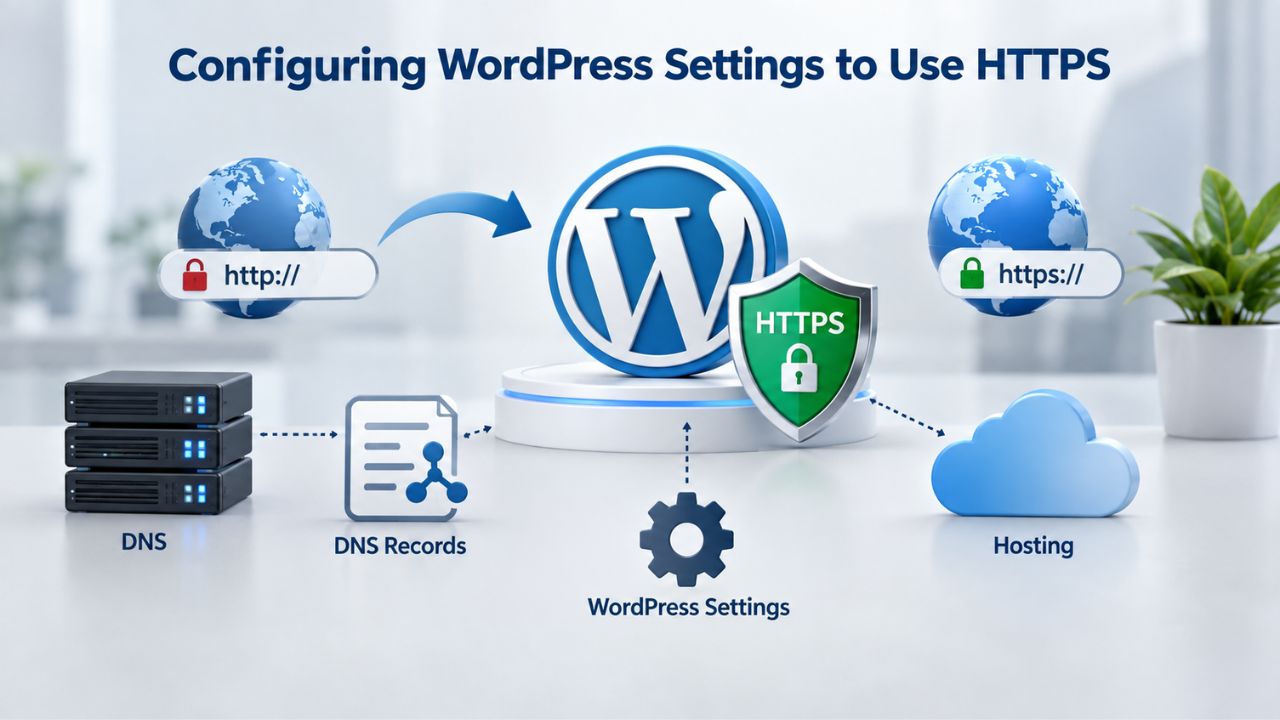
Updating WordPress URLs
Log in to your WordPress admin dashboard and go to Settings → General. Locate two fields: “WordPress Address (URL)” and “Site Address (URL).” Both must start with https:// (not http://). If either is still set to HTTP, change it now and click Save Changes. This single change affects every internal link, asset path, and redirect WordPress generates.
Some WordPress sites use separate WordPress and Site URLs for advanced setups. In most cases, both should match and use HTTPS. After changing these URLs, you may see a momentary login redirect; log in again, and WordPress will now serve HTTPS.
Force HTTPS Redirects
Ensure old HTTP URLs redirect automatically to HTTPS so visitors never land on an insecure version of your site. Most hosting providers enable this automatically when SSL is installed, but verify it works.
Visit your site’s homepage using http://www.yourdomain.com (not HTTPS) and confirm you’re immediately redirected to the HTTPS version. If not, you can add a redirect rule to your .htaccess file or use a plugin like Really Simple SSL to handle the redirect automatically.
Get Your WordPress Site Secured Today
SSL installation is the foundation of website trust and security. With your certificate installed and WordPress configured, you’re one step closer to removing security warnings and building visitor confidence. Niya Digital’s SSL Certificates Service simplifies certificate selection, provides expert installation guidance, and offers managed solutions for sites requiring hands-off security management. Browse Niya Digital’s Certificate Options to compare certificate types and find the right plan for your WordPress site’s security needs.
Diagnosing and Fixing Mixed Content Warnings
After SSL installation and WordPress configuration, you may still see a “Not Secure” warning or a broken padlock. This is almost always due to mixed content: the page loads some assets over HTTP instead of HTTPS.
What Causes Mixed Content
Mixed content occurs when an HTTPS page requests HTTP resources: images, stylesheets, scripts, or embeds. A single HTTP asset is enough to trigger a browser warning. Common sources include hardcoded HTTP URLs in your WordPress database (especially in post content and widget settings), plugin assets loading from HTTP URLs, theme files with outdated HTTP links, and third-party embeds (YouTube videos, Google Maps, social media widgets) that don’t support HTTPS.
Open your browser’s Developer Console (F12 or right-click → Inspect), go to the Console tab, and reload your site. Mixed content warnings appear with links to the exact HTTP resources causing the problem. This tells you whether the issue is in images, scripts, stylesheets, or embeds, making troubleshooting targeted rather than guesswork.
Fixing Mixed Content at the Source
Search your WordPress posts and pages for hardcoded http:// references using the WordPress search function or a plugin like Better Search Replace. Update YouTube embeds, Google Maps iframes, and social media widgets to use https:// versions. If a third-party service doesn’t support HTTPS, consider replacing it or removing it.
For plugin and theme issues, check plugin settings to ensure asset URLs use HTTPS. If a caching plugin is active (WP Rocket, W3 Total Cache, Litespeed), clear all caches, old cached versions may still reference HTTP URLs. Really Simple SSL and SSL Insecure Content Fixer are popular plugins that automatically rewrite HTTP URLs to HTTPS on the fly, useful if you can’t modify the database directly.
SSL Certificate Renewal and Expiration Management
SSL certificates have expiration dates, typically 1 to 2 years from issuance. If a certificate expires without renewal, browsers revert to “Not Secure” warnings and may block access. Planning prevents this.
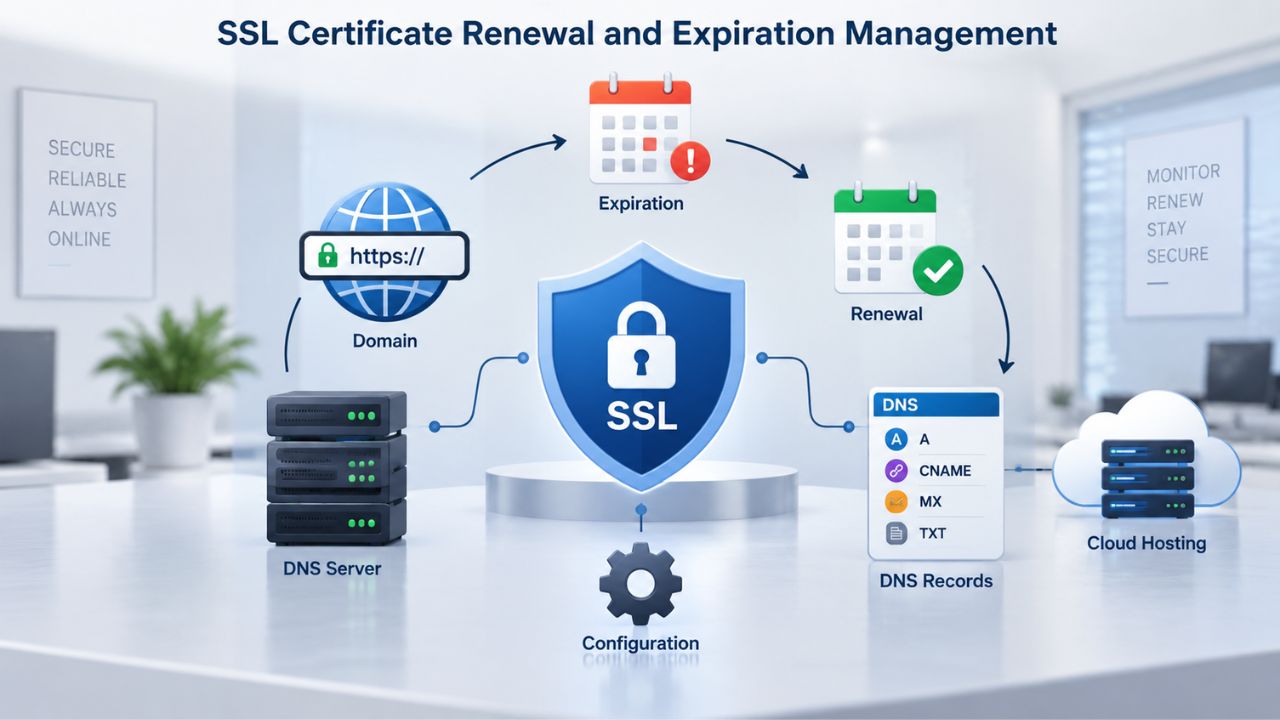
How Certificate Renewal Works
Most hosting providers handle renewals automatically if you’re using free Let’s Encrypt SSL via AutoSSL. Check your hosting dashboard or contact support to confirm auto-renewal is enabled. If you’re using a paid certificate from Niya Digital’s SSL Certificates Service, set a calendar reminder 30 to 60 days before expiration. Most providers send email reminders, but relying solely on email can lead to missed deadlines.
Renewal processes vary by provider. Some allow one-click renewal in your account dashboard; others require you to contact support. Niya Digital’s Managed SSL Service automates the entire renewal process, including installation and maintenance, eliminating manual renewal concerns.
Avoiding Expiration Issues
Mark certificate expiration dates in your calendar and set phone reminders. For free Let’s Encrypt certificates with 90-day validity, set a reminder for day 60. After renewal, verify the new certificate is installed and active, and test your site with an SSL checker tool (search “SSL checker” online) to confirm the expiration date has updated.
If a certificate expires before renewal completes, visitors will see browser warnings. Expired certificates can also trigger GDPR and PCI DSS compliance violations if your site processes sensitive data. Automation is your best defense: enable auto-renewal wherever possible and, if you manage multiple sites, use a service like Niya Digital’s Managed SSL to offload the task entirely.
Managed SSL Service vs. Self-Managed: When to Use Each
Two paths exist for WordPress SSL: installing and managing the certificate yourself, or delegating the work to your hosting provider or an SSL service.
Self-Managed SSL Installation
Self-managed installation is appropriate if you’re comfortable with hosting control panels, feel confident with the technical side, or manage a single WordPress site. The benefits are cost savings (free Let’s Encrypt via AutoSSL) and full control over certificate details. The trade-offs are that you own renewal responsibility, troubleshooting, and domain reconfiguration if your site grows.
Most WordPress site owners operate successfully with self-managed free SSL for years. If you follow a renewal calendar and promptly update WordPress URLs after migrations or domain changes, self-management is reliable. This path works best for blogs, content sites, and small business sites where downtime from an expired certificate is inconvenient but not catastrophic.
Managed SSL Service (Niya Digital Model)
Niya Digital’s Managed SSL Service handles certificate installation, renewal, and maintenance, eliminating manual intervention. The service includes automated installation, ongoing maintenance, expert support, and monitoring to catch issues before they affect your site. This is ideal for site owners who want to focus on content and business rather than infrastructure, or for WordPress sites handling sensitive data (e-commerce, memberships, health information).
Niya Digital’s Managed SSL Service works only with WordPress and Niya Digital hosting platforms, excluding self-managed servers. The cost is higher than free SSL but lower than typical managed services, and the time savings and peace of mind justify the expense for busy owners. If your WordPress site is critical to your business, a managed service reduces the risk of certificate-related downtime.
Troubleshooting Common SSL Issues on WordPress
Even with careful installation, SSL issues occasionally arise. Here’s how to diagnose and resolve the most common problems.
Domain Mismatch Errors (“ERR_CERT_COMMON_NAME_INVALID”)
This error occurs when the certificate’s domain doesn’t match your site’s URL. For example, if the certificate was issued for example.com but you’re visiting www.example.com, the mismatch triggers the warning. Resolve this by requesting a certificate reissue that includes both example.com and www.example.com, or by purchasing a wildcard certificate (*.example.com) that covers all subdomains.
Most SSL Certificate Providers like Niya Digital allow free reissues to cover additional domains or subdomains, so contact your provider’s support team with the domains you need covered and request a reissue. The new certificate typically issues within minutes or hours (for DV SSL) and can be reinstalled via your hosting panel’s SSL manager.
Mixed Content Warnings (Described Above)
Covered in detail in the “Diagnosing and Fixing Mixed Content Warnings” section above. Use your browser’s Developer Console to identify the specific HTTP resources causing the warning, then update URLs, cache, or plugin settings accordingly.
“Your Connection is Not Private” or “NET::ERR_CERT_AUTHORITY_INVALID” Errors
This error means the certificate is not installed, is invalid, or your browser doesn’t trust the Certificate Authority. First, verify the certificate is actually installed. Log into your hosting panel’s SSL/TLS section and confirm the certificate shows as “Installed” or “Active” with an upcoming expiration date, not an error status.
If installed but the error persists, clear your browser cache (Ctrl+Shift+Del on Windows/Linux, Cmd+Shift+Del on Mac) and try again. Your browser cache may hold old SSL information. Try accessing your site from an incognito/private browser window to rule out cache. If the error persists across browsers, the certificate may not be properly linked to your domain; contact your hosting support with your domain name and certificate details for manual verification.
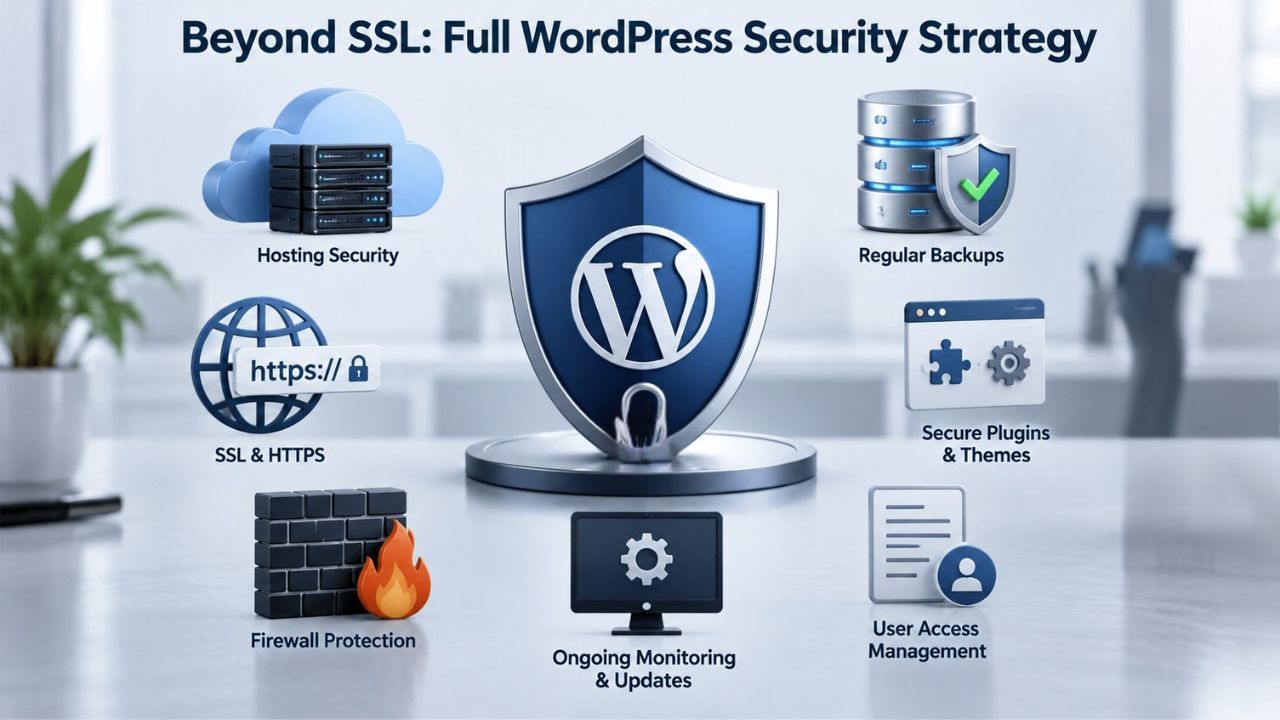
Beyond SSL: Full WordPress Security Strategy
Installing an SSL certificate is essential, but it’s one layer of security, not complete protection. An encrypted connection prevents data interception in transit, but it doesn’t detect malware, stop brute-force attacks, or prevent plugin vulnerabilities.
What SSL Certificates Protect and Don’t Protect
SSL encrypts data traveling between your visitor’s browser and your server, protecting login credentials, payment information, and form submissions from interception. It does not scan for malware, update outdated plugins, prevent unauthorized access, or secure your WordPress admin area beyond encryption. An HTTPS site can still be hacked; SSL keeps data in transit private.
Treat SSL as one foundational security layer among several. After installing SSL, implement additional protections: keep WordPress core, themes, and plugins updated; use strong admin passwords and two-factor authentication; install a security plugin (Wordfence, Sucuri, MalCare) for malware scanning and firewall protection; enable automatic backups; and monitor admin login activity. Together, these practices build defense-in-depth security.
Compliance Benefits of SSL and Their Limits
SSL installation helps meet compliance requirements like PCI DSS (Payment Card Industry Data Security Standard), GDPR (General Data Protection Regulation), and HIPAA (for health data). Auditors and regulators expect encrypted connections on sites handling sensitive data. However, SSL alone doesn’t achieve compliance; data protection, access controls, audit logging, and incident response plans are also required.
Verify specific compliance requirements for your industry and jurisdiction. If you process credit card payments, PCI DSS mandates SSL, but also requires secure storage, network segmentation, and regular security audits. If you collect EU resident data, GDPR requires technical safeguards like SSL plus legal agreements, consent mechanisms, and data retention policies. SSL is foundational; compliance is broader.
Add SSL to Your Complete WordPress Security Plan
SSL is your foundation, but full WordPress security includes updates, backups, malware scanning, and ongoing monitoring. After you’ve installed your SSL certificate and configured WordPress, take the next step by evaluating your site’s other security layers. Niya Digital offers integrated solutions, from SSL Certificates to Managed SSL Services to Website Backup and Security, that work together to protect your WordPress site comprehensively. View Niya Digital’s Security Services to explore backup and malware protection options that complement your SSL installation.
Frequently Asked Questions
Do I have to purchase an SSL certificate, or can I use free SSL?
Free SSL (Let’s Encrypt via AutoSSL) is available through most hosting providers and is perfectly secure for blogs, personal sites, and small business sites. It encrypts data as well as paid certificates but offers less validation; it verifies only domain ownership. Paid certificates (DV, OV, EV) add organizational verification and stronger warranties, which benefit e-commerce and sites handling sensitive data. Most WordPress site owners start with free SSL successfully; they upgrade to paid certificates only if trust signals matter to their audience.
How long does it take to install an SSL certificate on WordPress?
The entire process (server-side installation plus WordPress configuration) typically takes 15 minutes to 48 hours, depending on the method. AutoSSL takes 24–48 hours; manual upload of a free certificate takes 15 minutes to 2 hours; paid DV certificates are issued within 15 minutes to 24 hours after purchase and can be installed within minutes; OV and EV certificates take 2–10 days for validation before installation. Once installed, WordPress configuration (updating URLs) takes 2–3 minutes.
What is mixed content, and why does it trigger “Not Secure” warnings?
Mixed content occurs when an HTTPS page loads HTTP (insecure) resources like images, scripts, or embeds. Browsers warn users because the page claims to be secure but loads unencrypted content, which could be intercepted. Fix it by finding HTTP resources (check the Developer Console), updating URLs to HTTPS, or using a plugin like Really Simple SSL to rewrite URLs automatically.
Will installing SSL slow down my WordPress site?
No. SSL/HTTPS adds minimal performance overhead, typically negligible, and often imperceptible to users. Modern SSL implementations use efficient ciphers and protocols (TLS 1.3), and many CDNs and servers optimize HTTPS delivery. The trust and SEO benefits of HTTPS far outweigh any slight performance cost.
Can I install an SSL certificate on a WordPress.com site, or does it only work on self-hosted WordPress?
SSL support depends on your WordPress setup. WordPress.com provides free HTTPS on all sites (managed by WordPress). Self-hosted WordPress.org sites require you to install a certificate through your hosting provider. If you’re unsure whether your site is WordPress.com or self-hosted, check your hosting control panel. If you have cPanel or Plesk access, you’re self-hosted and can install SSL yourself or ask your host for help.
Do I need to renew my SSL certificate every year?
Yes, SSL certificates expire, typically after 1–2 years. Let’s Encrypt certificates (90-day validity) require renewal every 90 days, but most hosting providers automate this. Paid certificates from providers like Niya Digital expire after 1–2 years; set a reminder 30 days before expiration and renew through your provider’s dashboard or contact support. Automated renewal via hosting providers or managed services eliminates manual renewal concerns.
Is an SSL certificate enough to be PCI DSS compliant for an e-commerce site?
SSL is required for PCI DSS compliance but is not sufficient on its own. PCI DSS mandates encrypted connections (SSL), but also requires secure data storage, access controls, firewall protection, regular security audits, and incident response plans. Consult your acquiring bank or a PCI compliance officer for a full checklist. SSL is the foundation; compliance is comprehensive.
Can I move an SSL certificate from one domain to another?
Not directly. SSL certificates are bound to specific domain names. If you change domains, request a reissue for the new domain. Many providers, like Niya Digital, allow free reissues, so contact your provider and provide the new domain; the certificate is reissued for the new domain and remains valid for the remainder of the original certificate’s term.
What’s the difference between Niya Digital and other SSL providers?
Niya Digital is an authorized reseller of GoDaddy/Starfield-issued SSL certificates, offering domain, organization, and extended validation certificates alongside installation guidance and managed SSL services. Niya Digital’s certificates are issued by the same trusted Certificate Authority (Starfield Technologies) as many competitors, ensuring equal encryption and browser trust. Niya Digital’s value-add includes a reseller storefront (easy certificate-type selection and purchase), installation support, managed SSL service, and a customer-facing experience built on that CA relationship.
What happens if my SSL certificate expires?
Browsers display “Not Secure” warnings and may block access, showing visitors an error page. If your site handles sensitive data (payments, logins), an expired certificate can violate compliance requirements and harm SEO. Renewal is typically a simple dashboard action or a one-contact-with-support process, taking minutes to hours. Preventing expiration is simpler than recovering from it; enable auto-renewal or set a calendar reminder.
Is Niya Digital’s Managed SSL Service worth the cost?
The Managed SSL Service is worth the cost if you value time savings, peace of mind, or handle sensitive data. It eliminates renewal responsibility, handles installation and maintenance, and includes expert support, useful for busy owners or mission-critical sites.
For simple blogs or sites you manage closely, free AutoSSL is equally secure and sufficient. For e-commerce, memberships, or high-traffic sites, managed services reduce operational risk.
Can I use the same SSL certificate on multiple WordPress sites?
It depends on the certificate type. A single-domain DV certificate covers only one domain. A wildcard certificate covers unlimited subdomains of one parent domain (e.g., *.example.com). A SAN/UCC certificate covers multiple distinct domains (e.g., example.com, example.net) under one certificate. If you have multiple unrelated WordPress sites, you need either multiple single-domain certificates, one wildcard per parent domain, or a SAN certificate listing all domains.
What should I do if I see a certificate mismatch error?
A certificate mismatch error (like “ERR_CERT_COMMON_NAME_INVALID”) means the certificate doesn’t cover the domain you’re visiting. For example, a certificate issued for example.com won’t secure www.example.com unless it explicitly includes it.
Contact your SSL provider and request a reissue that includes both variants (example.com and www.example.com), or purchase a wildcard certificate. Reissues are typically free or low-cost.
Does installing SSL improve my Google search ranking?
SSL is a lightweight ranking signal for Google, meaning it has a small but measurable ranking impact. More importantly, HTTPS sites enjoy indirect SEO benefits: lower bounce rates, higher user engagement, and increased conversion, all signals Google factors into rankings.
Additionally, approximately 70% of voice search results come from HTTPS sites, so HTTPS affects visibility in growing search categories. Install SSL first for security and user trust; SEO benefits follow naturally.
How do I check if my SSL certificate is installed correctly?
Visit your WordPress site in a browser and look for a padlock icon in the address bar next to your domain. Click the padlock to view certificate details, confirm the certificate name matches your domain, and verify the expiration date is in the future.
Use an online SSL certificate checker (search “SSL certificate checker”) to see full certificate details, chain validation, and expiration dates. If you see “Not Secure” warnings or a broken padlock, troubleshooting follows the mixed content and certificate mismatch sections above.
Glossary
- HTTPS: Hypertext Transfer Protocol Secure, the encrypted version of HTTP that protects data transmitted between a browser and server. Indicated by a padlock icon and “https://” in the browser address bar.
- SSL/TLS: Secure Sockets Layer (SSL) and its modern successor, Transport Layer Security (TLS), are cryptographic protocols that encrypt data transmitted between a browser and a web server. “SSL” is commonly used as shorthand even though most sites now use TLS.
- Domain Validation (DV): The lowest level of SSL validation, verifying only domain ownership via email or DNS record confirmation. DV certificates issue quickly (minutes to hours) and suit blogs and sites that don’t handle sensitive data.
- Organization Validation (OV): Mid-tier SSL validation verifying domain ownership plus organizational identity (business registration, address, phone). OV certificates take 2–5 days to issue and display the organization name in certificate details, signaling business legitimacy.
- Extended Validation (EV): The highest SSL validation level, requiring rigorous verification of legal business status, physical address, operational legitimacy, and authorized representatives. EV certificates take 5–10 days to issue and display a green address bar with the organization name prominently visible in browsers.
- Wildcard Certificate: An SSL certificate with an asterisk (*) in the subdomain field that covers unlimited subdomains of a single parent domain (e.g., *.example.com secures blog.example.com, store.example.com, mail.example.com, etc.).
- Mixed Content: A security condition where an HTTPS page loads both secure (HTTPS) and insecure (HTTP) resources, triggering browser warnings. Mixed content weakens security and is common after WordPress SSL installation if HTTP URLs remain in content or plugin settings.
- Managed SSL Service: A service that automates SSL certificate installation, renewal, and maintenance on behalf of the site owner. Niya Digital’s Managed SSL Service handles these tasks for WordPress and Niya-hosted sites, eliminating the need to manage renewals manually.