
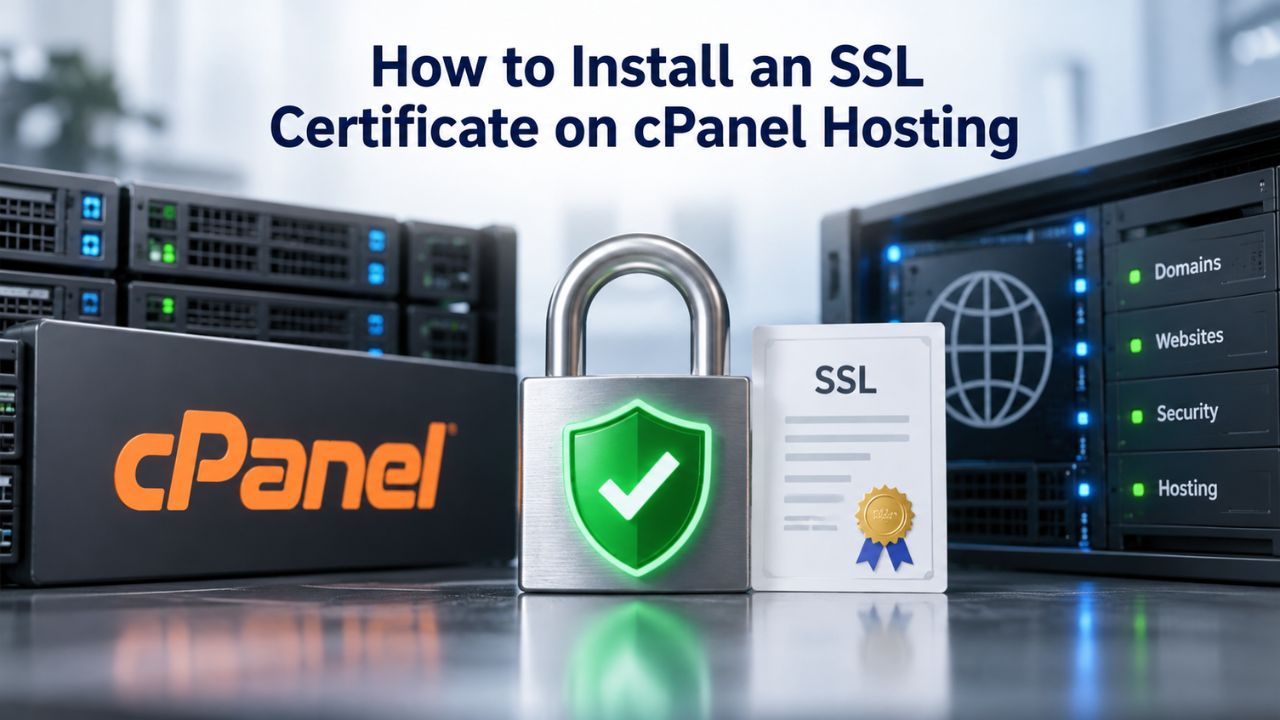
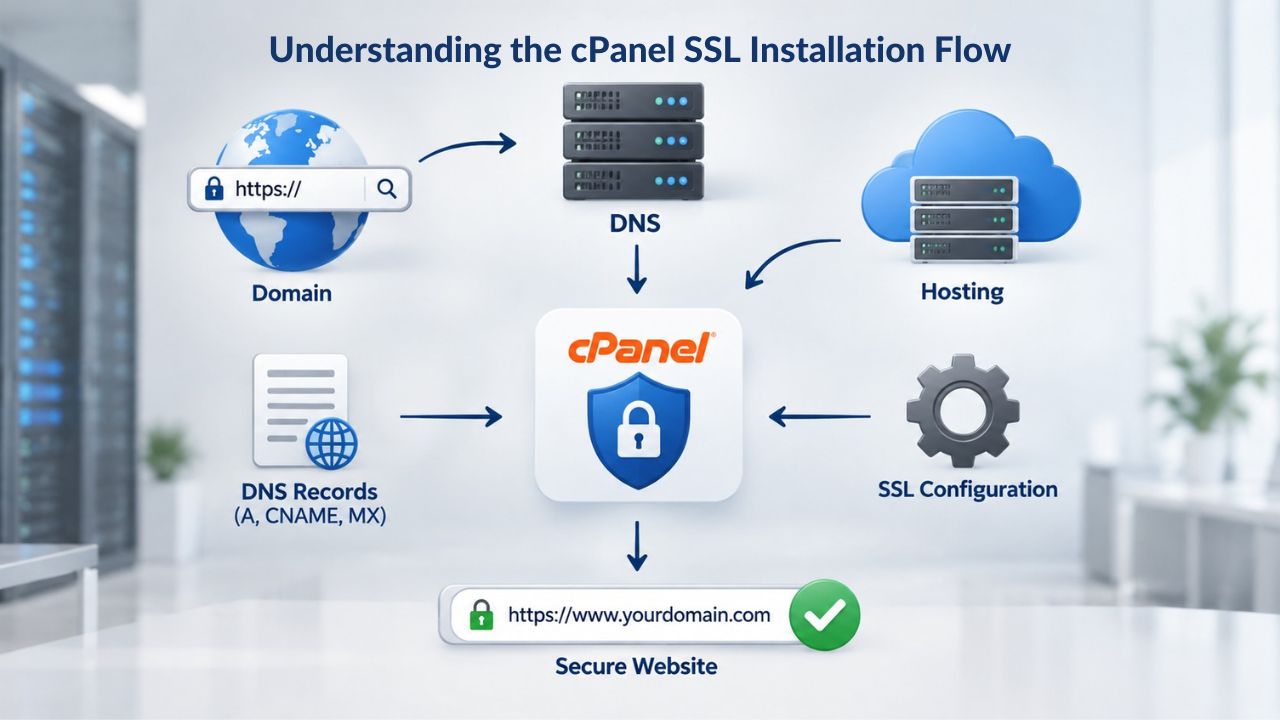
Understanding the cPanel SSL Installation Flow
SSL installation on cPanel is a sequenced process where each step depends on the previous one. The entire journey, from domain validation to a live HTTPS site, typically spans 1–2 hours for DV certificates or 2–5 business days for OV/EV certificates, then 15 minutes for actual installation on your server.
The Installation Sequence: CSR to Live HTTPS
The full flow starts before you even buy. You generate a Certificate Signing Request (CSR) on your cPanel server, submit it during purchase, wait for GoDaddy/Starfield’s validation process to verify your domain (and optionally your organization), receive your issued certificate, and then paste that certificate into cPanel alongside your private key and the certificate chain. The browser recognizes the certificate, the lock icon appears, and HTTPS is live.
This multi-step flow is not arbitrary. A CSR contains your domain name and public key, information tied specifically to your server. The validation process confirms you control the domain (or your organization exists). Only after both steps are complete can GoDaddy/Starfield issue your certificate.
Why Each Step Matters and What Goes Wrong
A CSR is unique to one server and one domain. You cannot use the same CSR for two servers or for a different domain. If you generate the CSR incorrectly, you’ll waste time and may need to reissue the certificate. If you skip the chain during installation, browsers will report the certificate as incomplete and block the connection. Each step has a single, necessary job; do it right, and you get a live certificate. Skip one, and the whole process stalls.
Installation errors often stem from misunderstanding these dependencies. A user generates a CSR, then regenerates it before validation completes, invalidating the first one and forcing a restart. Or they paste the certificate into the private-key field instead of the certificate field, and cPanel rejects it. Or they forget the chain entirely, and the certificate appears to install, but browsers report the chain as incomplete. Understanding the sequence prevents most of these mistakes.
| Step | What Happens | Who Handles It | Typical Duration |
|---|---|---|---|
| Generate CSR | Create a certificate signing request on cPanel | Site owner | 5 minutes |
| Purchase certificate | Select type, domain, submit CSR via Niya Digital | Site owner + Niya | 10 minutes |
| Domain validation | GoDaddy/Starfield verifies domain ownership (DV) | GoDaddy/Starfield | 1–2 hours (DV) |
| Organization validation | GoDaddy/Starfield verifies business identity (OV/EV) | GoDaddy/Starfield | 2–5 business days (OV/EV) |
| Certificate issuance | Certificate is ready for download/installation | Niya Digital storefront | Immediate (once validation passes) |
| Install on cPanel | Paste certificate, key, chain into cPanel SSL form; bind domain | Site owner (with support from Niya if needed) | 15 minutes |
| Verify installation | Check browser lock icon, test HTTPS; resolve mixed-content if present | Site owner | 10 minutes + debug time if issues arise |
SSL Certificate Plans & Pricing
Choose from a selection of SSL certificates designed to meet different website security and validation requirements. Find the right certificate to secure your website, protect sensitive information, improve search visibility, and build trust with your visitors.
Domain Validated (DV) SSL
(1-Site)
Protect 1 site.
- Domain validation
- SHA-2 & 2048-bit encryption.
- Boost SEO rankings
- Fast issuance in 5min
- Display HTTPS & padlock
- Security trust seal
- Support unlimited servers
- Free unlimited reissues
- $100,000 USD warranty
Domain Validated (DV) SSL
(5-Site)
Protect 5 sites.
- Domain validation
- SHA-2 & 2048-bit encryption.
- Boost SEO rankings
- Fast issuance in 5min
- Display HTTPS & padlock
- Security trust seal
- Support unlimited servers
- Free unlimited reissues
- $100,000 USD warranty
Extended Validation (EV) SSL
(1-Site)
Protect 1 site.
- Extended validation
- SHA-2 & 2048-bit encryption.
- Boost SEO rankings
- Display HTTPS & padlock
- Green address bar
- Security trust seal
- Support unlimited servers
- Free unlimited reissues
- $1,000,000 USD warranty
Extended Validation (EV) SSL
(5-Site)
Protect 5 sites.
- Extended validation
- SHA-2 & 2048-bit encryption.
- Boost SEO rankings
- Display HTTPS & padlock
- Green address bar
- Security trust seal
- Support unlimited servers
- Free unlimited reissues
- $1,000,000 USD warranty
Domain Validated (DV) SSL
(Wildcard)
Protect unlimited sub-domains.
- Domain validation
- SHA-2 & 2048-bit encryption.
- Boost SEO rankings
- Fast issuance in 5min
- Display HTTPS & padlock
- Security trust seal
- Support unlimited servers
- Free unlimited reissues
- $100,000 USD warranty
Choosing the Right Certificate Type for Your cPanel Site
Before you even generate a CSR, you need to pick a certificate type. The choice determines how long validation takes, what trust signals your visitors see, and whether the certificate covers one domain, subdomains, or multiple distinct domains.
Validation Level Trade-Offs: DV, OV, and EV Certificates
Domain Validation (DV), Organization Validation (OV), and Extended Validation (EV) certificates all encrypt data between your visitor’s browser and your server. The difference is what GoDaddy/Starfield validates before issuing the certificate, how quickly that validation happens, and what identity signals the certificate shows in the browser.
DV certificates verify only domain ownership, the fastest path to HTTPS. You prove domain control via email confirmation or a DNS record, typically within 1–2 hours. Visitors see a lock icon but no organization name. Ideal for blogs, portfolios, and test sites where speed matters more than brand trust signals.
OV certificates verify your organization’s legal business identity and take 2–3 business days. Visitors see the lock icon plus your business name in the certificate details, building stronger trust for small businesses and service sites.
EV certificates perform the deepest vetting, requiring business registration, phone verification, and sometimes legal documentation; 3–5 business days is typical. Browsers display the organization name in the address bar itself (green bar in some older browsers), signaling the highest trust level for e-commerce, financial services, and high-profile brands. All three encrypt equally; the gap is identity verification, and the trust signals your brand projects.
On cPanel, installation is identical for all three types: certificate + key + chain. Your choice affects validation time and trust perception, not the technical installation process itself.
| Certificate Type | Validation Scope | Typical Issuance Time | Trust Signal | Best For |
|---|---|---|---|---|
| Single-Domain | Domain ownership or organization identity | Depends on validation level (DV/OV/EV) | Varies by validation level | One primary domain with no subdomains, simplest use case |
| DV (Domain Validation) | Domain ownership only | 1–2 hours | Lock icon | Blogs, test sites, internal use, rapid deployment |
| OV (Organization Validation) | Organization’s legal identity | 2–3 business days | Lock icon + organization name in details | Small businesses, service sites, professional branding |
| EV (Extended Validation) | Deep organizational vetting | 3–5 business days | Lock icon + green address bar + organization name | E-commerce, financial services, high-trust brands, luxury goods |
| Wildcard | Primary domain + all subdomains | Varies (DV/OV/EV validation time + domain verification) | Same as underlying cert type | Multi-subdomain sites (api.example.com, mail.example.com, etc.) |
| Multi-Domain (SAN) | Multiple distinct domains | Varies (each domain validated) | Same as underlying cert type | Multi-brand sites, managed hosting for multiple customers |
Single-Domain, Wildcard, and Multi-Domain Certificates
A single-domain certificate covers one hostname (e.g., example.com). A wildcard certificate (e.g., *.example.com) covers the primary domain and unlimited subdomains, mail.example.com, api.example.com, shop.example.com, etc., all in one certificate. A multi-domain or SAN (Subject Alternative Name) certificate lists multiple distinct domains (e.g., example.com, shop.example.com, support.example.com) without wildcards, which is useful if you manage several customer or brand domains and want one certificate to protect them.
On cPanel, you install a wildcard or multi-domain certificate once and bind it to the primary listed domain; it automatically applies to all domains in that binding. No separate installation steps for each subdomain or alternative domain; one installation protects them all.
Generating a CSR on cPanel and Preparing for Purchase
Before buying an SSL certificate, you must generate a Certificate Signing Request on your server. The CSR contains your domain name, organization info (if ordering OV/EV), and a public key that GoDaddy/Starfield uses to issue your certificate.
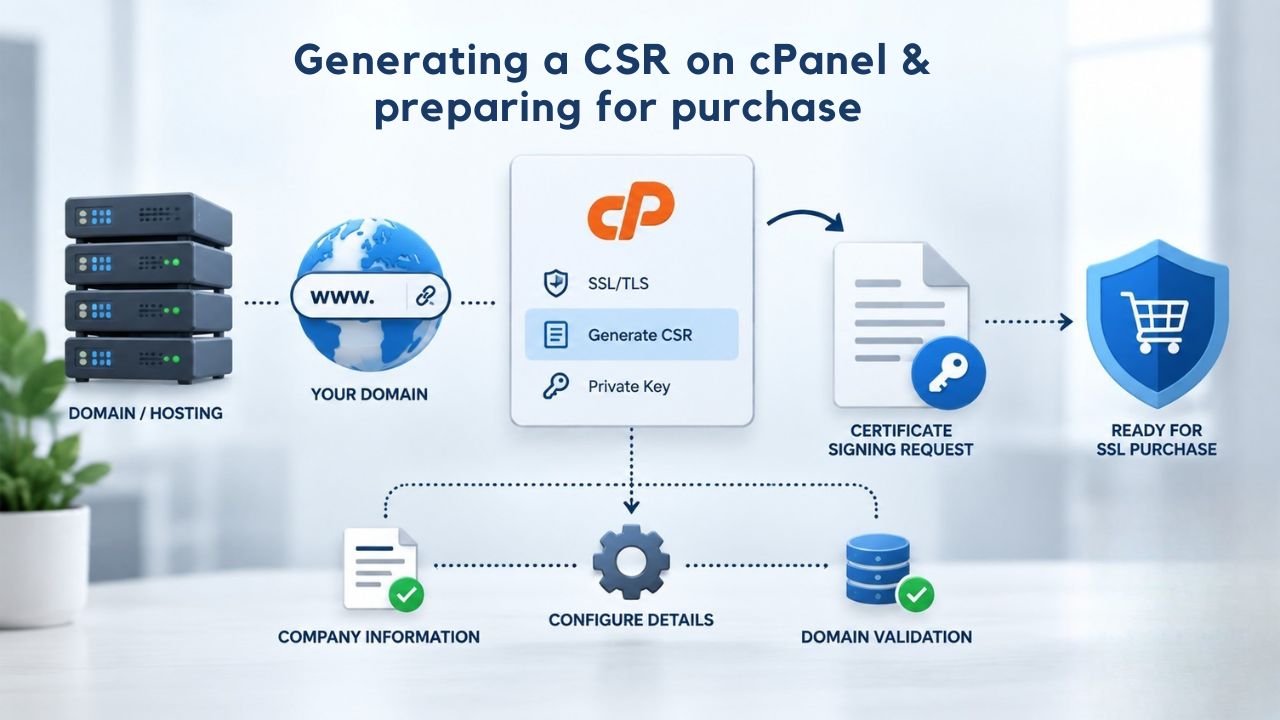
Creating the CSR: cPanel’s Private Key and Signing Request Tool
In cPanel, navigate to Home > Security > SSL/TLS > Private Keys & Certificates (or “Generate, Sign, or Manage Your Private Keys and Certificates,” depending on your cPanel version). Click Generate a New Private Key and Signing Request. Fill in the form with your domain name and organization details (required for OV/EV; optional but recommended for DV). cPanel generates a private key (which stays on your server and is never shared) and a CSR (which you submit during certificate purchase).
Copy the entire CSR block (including the —–BEGIN CERTIFICATE REQUEST—– and —–END CERTIFICATE REQUEST—– lines). Store it somewhere safe. You’ll paste this into Niya Digital’s order form or your certificate provider’s upload field during purchase.
Critical Details: Don’t Regenerate the CSR
Once you’ve submitted a CSR and certificate validation is underway, regenerating it invalidates the original. If you generate a new CSR before validation completes, you’ll need to cancel and restart the certificate purchase. If validation finishes and you then generate a new CSR, the new CSR won’t match the certificate you received; installation will fail. Generate a CSR only once per certificate purchase, and regenerate it only if you’re deliberately reissuing the certificate (for example, after losing your private key).
Purchasing and Validating Your Certificate
Once your CSR is ready, purchase the certificate through Niya Digital’s SSL Certificates Service, upload your CSR, and start GoDaddy/Starfield’s validation process.
What Happens During Validation
For DV certificates, GoDaddy/Starfield sends a validation email to the domain’s administrative contact (postmaster@yourdomain.com, admin@yourdomain.com, etc.) or asks you to place a temporary DNS record. You click the email link or confirm the DNS record within a set time window. Validation is instant once confirmed, typically 1–2 hours total. For OV and EV certificates, validation is deeper: GoDaddy/Starfield verifies your business registration, contacts your organization by phone, and may request additional documentation. This typically takes 2–5 business days.
During this period, your certificate’s status in Niya Digital’s platform shows as “Validating” or “Pending.” You cannot install the certificate yet. Once validation completes, the status changes to “Active” or “Ready to Install,” and the certificate is available for download or auto-population into cPanel (depending on Niya Digital’s integration options).
GoDaddy/Starfield’s Role vs. Niya Digital’s Role
GoDaddy/Starfield issues and validates the certificate; that’s the Certificate Authority function. Niya Digital’s storefront handles the order flow, communicates your CSR to GoDaddy/Starfield, and makes the certificate available for installation on your server. You never directly interact with GoDaddy/Starfield; everything flows through Niya Digital’s service.
Installing the Certificate on cPanel (Step-by-Step)
Once your certificate status shows “Ready” or “Active,” install it in cPanel. This is where many users stumble: the three pieces (certificate, private key, chain) must go into three separate fields, and small copy-paste errors cause failures.
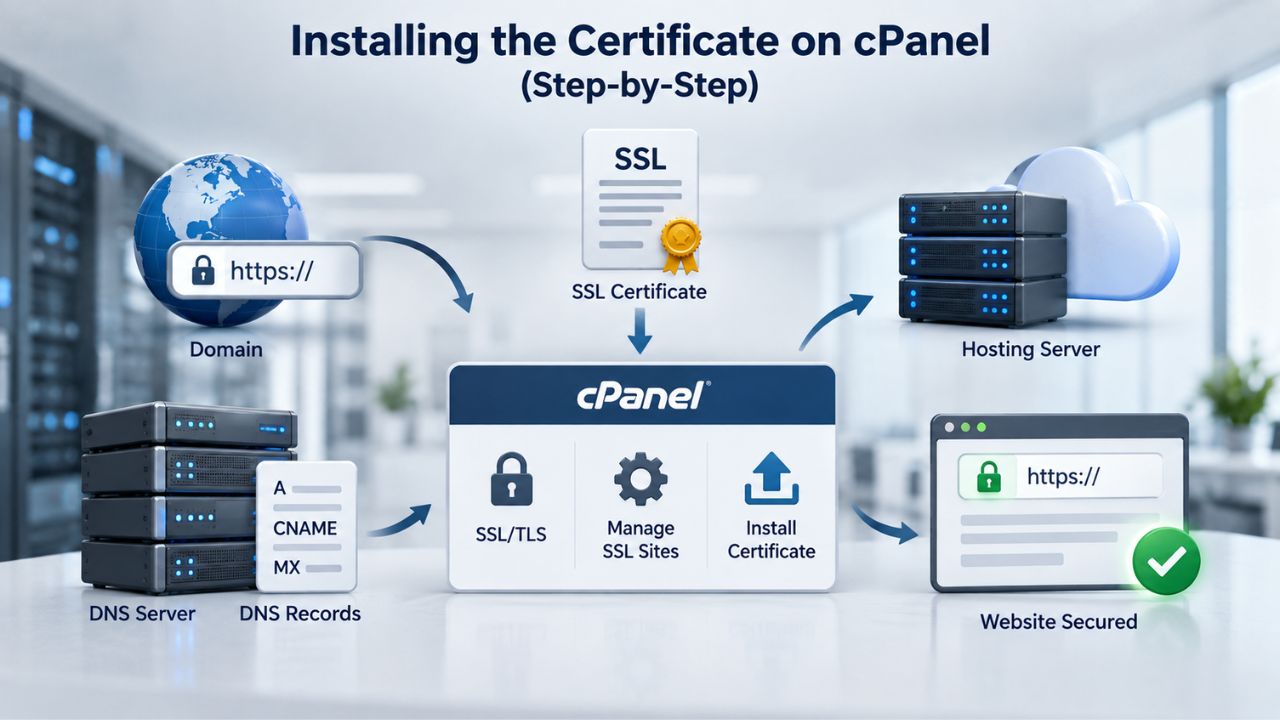
Accessing cPanel’s SSL Installation Tool
Log into cPanel and navigate to Home > Security > SSL/TLS > Manage Your SSL Certificates (or “Install an SSL Certificate,” depending on your cPanel version). You’ll see a form with three large text boxes: “Certificate,” “Private Key,” and “Certificate Authority Bundle” (or “Chain”).
Pasting Certificate, Key, and Chain
Certificate field: Paste your issued certificate here. It looks like this:
—–BEGIN CERTIFICATE—–
MIIDXTCCAkWgAwIBAgIJAJC1…
[base64 content]
…
—–END CERTIFICATE—–
Get this from your certificate email or Niya Digital’s platform.
Private Key field: Paste the private key generated when you made the CSR. This is the key portion saved in cPanel’s Private Keys section. It looks like:
—–BEGIN RSA PRIVATE KEY—–
MIIEpAIBAAKCAQEA…
[base64 content]
…
—–END RSA PRIVATE KEY—–
This key never leaves your server. Do not share it.
Certificate Authority Bundle / Chain field: Paste GoDaddy/Starfield’s certificate chain. This is a series of intermediate and root certificates that link your domain certificate to the trusted root in browsers’ certificate stores. GoDaddy/Starfield provides the chain in your certificate email or on their documentation page. If you skip this field, browsers will report the certificate as incomplete, and the connection will fail.
After pasting all three components, cPanel asks which domain to bind the certificate to. Select your primary domain (example.com). If you have a wildcard or multi-domain certificate, select the primary domain listed on the certificate; the certificate automatically covers all listed subdomains or alternative domains.
Click Install Certificate. cPanel validates the certificate, private key, and chain for consistency and then rebuilds your Apache or Nginx configuration to use this certificate for incoming HTTPS connections. The process takes 1–2 minutes. Once complete, cPanel displays a confirmation message, and your certificate is active. Reload your site in a browser and confirm the lock icon appears in the address bar. If you see any errors, refer to the Troubleshooting section below.
Get Expert Help Installing Your Certificate
Installation is straightforward once you know each step: generate a CSR, purchase and validate, paste the components, and bind the domain. But if you’re unsure about any step or run into errors, Niya Digital’s SSL installation support is available. Whether managing your first certificate or multiple sites, the right guidance prevents delays and installation mistakes.
Troubleshooting Common cPanel SSL Installation Mistakes
Installation is straightforward, but small errors derail the process. Niya Digital’s team has found that users most often encounter recurring mistakes: mixing up which text goes where, forgetting the chain, binding the certificate to the wrong domain, and confusing browser cache with actual installation failure.
Certificate Component and Chain Errors
The most common mistake is pasting the wrong block into the wrong field. Do not paste the certificate into the Key field or vice versa. Use this checklist: the Certificate field receives the block labeled —–BEGIN CERTIFICATE—–…—–END CERTIFICATE—–. The Private Key field receives the block labeled —–BEGIN RSA PRIVATE KEY—–…—–END RSA PRIVATE KEY—– or —–BEGIN PRIVATE KEY—–…—–END PRIVATE KEY—–. The Chain field receives a series of certificates (one or more blocks starting with —–BEGIN CERTIFICATE—–), not a key.
Omitting the certificate chain is the second-most-common issue. Browsers trust certificates via a chain of trust linking your domain cert to GoDaddy/Starfield’s intermediate to a trusted root. If the intermediate is missing, the browser cannot verify the certificate even though it’s valid, and you’ll see “Certificate chain incomplete” or “SEC_ERROR_UNKNOWN_ISSUER” errors. Always paste the complete chain into the Chain field, including all —–BEGIN CERTIFICATE—– and —–END CERTIFICATE—– markers.
Domain Binding and Post-Installation Verification
cPanel asks you to select a domain during installation. Selecting the wrong domain causes HTTPS to fail for your intended site and may activate the certificate for an unintended domain. Double-check the domain name in the dropdown against the domain listed on your certificate (usually the Common Name in the certificate details).
After installation completes, load your site via HTTPS (https://yourdomain.com). If you previously accessed the site over HTTP and saw a “Not Secure” warning, the old warning may persist in your browser’s cache. Clear your browser cache (Ctrl+Shift+Delete in most browsers) and reload. If the lock icon appears after clearing the cache, installation succeeded. If the warning persists, refer to the Verifying Your Installation section below for deeper troubleshooting.
Verifying Your Installation and Testing HTTPS
After installation, verify the certificate is live and working correctly. A successful installation shows a lock icon in the browser address bar and passes HTTPS security checks.
Quick Browser Verification
Visit your site via HTTPS (https://yourdomain.com). A lock icon should appear in the address bar. For OV and EV certificates, your organization name may also appear. Click the lock to view certificate details; confirm the domain name and expiration date match your expectations.
Advanced Verification and Troubleshooting
For a deeper check, use SSL Labs (ssllabs.com) to scan your site. Enter your domain, run the test, and review the results. A successful installation yields an “A” or “A+” grade. The test checks certificate validity, chain completeness, encryption strength, and support for modern protocols.
If warnings appear, check your Developer Tools (F12) Console tab for mixed-content errors or warnings if your HTTPS page loads resources (images, scripts, stylesheets) over HTTP. Fixing requires updating page resources to HTTPS URLs, a website configuration task, not a certificate issue. Warnings or failures in SSL Labs indicate problems worth investigating, but most stem from configuration outside the certificate itself.
Managing Certificate Renewal and Expiration
SSL certificates expire every 1 year under current CA/Browser Forum Baseline Requirements. Setting reminders and planning renewal well in advance prevents outages.
Understanding Expiration and Renewal Windows
Your certificate displays an expiration date in cPanel’s SSL/TLS section and in browser certificate details. Sixty to 90 days before expiration is the ideal renewal window. If a certificate expires without renewal, visitors encounter a browser warning (“Certificate Expired”), traffic may drop, and search engines may temporarily deprioritize the site. Set a calendar reminder for 90 days before expiration to avoid missing the renewal window.
Renewal Options: AutoSSL, Manual Renewal, and Managed SSL
cPanel’s AutoSSL (free, built into most hosting plans) uses Let’s Encrypt to automatically generate and renew DV certificates every 60 days at no cost. AutoSSL is ideal for simple sites where a DV certificate meets your needs. Manual renewal requires you to purchase a new certificate through Niya Digital’s platform, receive it, and reinstall it on cPanel before the old one expires.
Managed SSL (available through Niya Digital’s Managed SSL Service) automates renewal entirely: the certificate renews automatically, is revalidated by GoDaddy/Starfield, and is reinstalled on cPanel without manual intervention. Managed SSL removes the risk of forgetting renewal and simplifies long-term certificate lifecycle management, especially for businesses running multiple sites or high-traffic e-commerce properties.
Wildcard and Multi-Domain (SAN) Certificates on cPanel
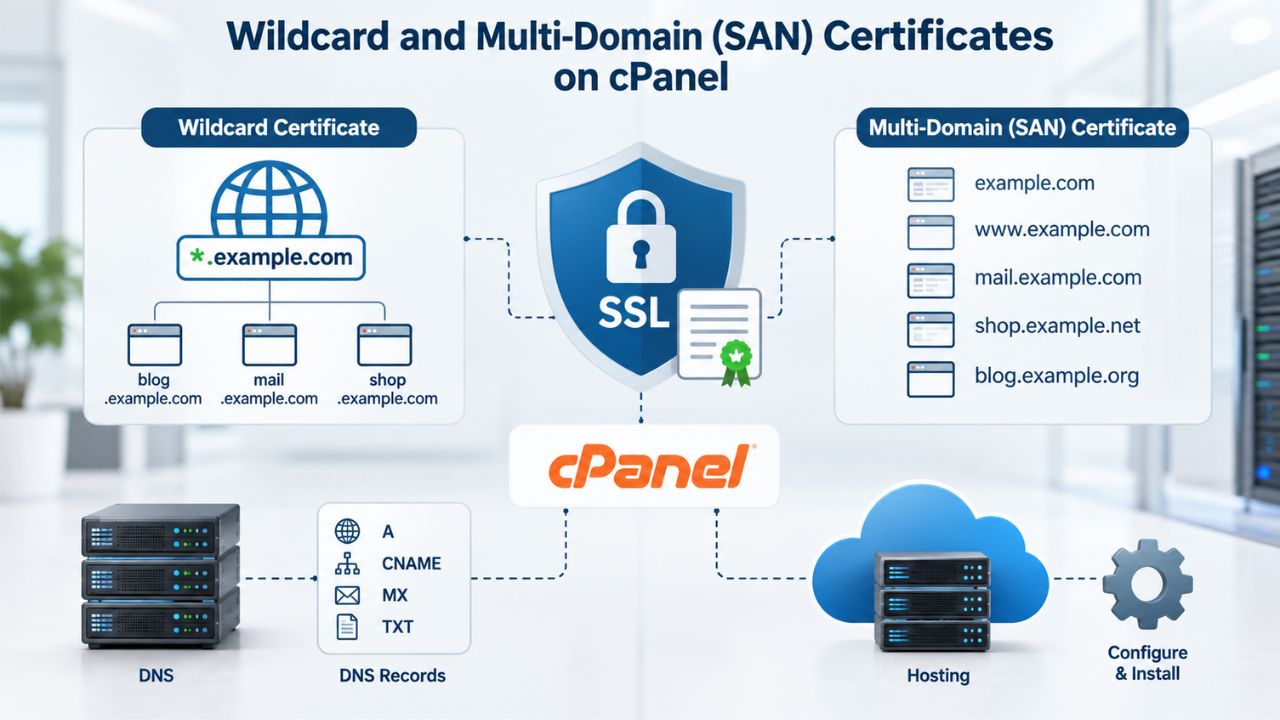
For sites with multiple subdomains or multiple domain names, wildcard and multi-domain certificates offer efficiency and simplified management. Installation on cPanel is the same as for single-domain certificates: paste the certificate, key, and chain, then select the primary domain to bind. cPanel automatically applies the certificate to all subdomains (wildcard) or listed domains (multi-domain) in that binding.
Wildcard Certificates for Multi-Subdomain Protection
A wildcard certificate (*.example.com) automatically covers example.com and every subdomain without needing to list them individually. If you run mail.example.com, api.example.com, shop.example.com, and future.example.com, one wildcard certificate protects them all. On cPanel, install the wildcard certificate once, binding it to example.com, and all subdomains are immediately protected. No per-subdomain installation steps needed.
Wildcard certificates are ideal for companies managing many subdomains for different services or departments. The drawback: a wildcard covers only one level of subdomains (*.example.com covers mail.example.com but not a.b.example.com). For that level of nesting, a multi-domain certificate is better suited.
Multi-Domain (SAN) Certificates for Multiple Distinct Domains
Multi-domain certificates list multiple distinct domains in a single certificate without relying on wildcards. For example, one certificate can protect example.com, shop.example.com, support.example.com, and anotherdomain.com. On cPanel, install the certificate once, binding it to the primary domain, and all listed domains are protected.
Multi-domain certificates are ideal if you operate multiple brand or customer domains and want a single, unified certificate to cover them. Unlike wildcards, multi-domain certificates require you to list each domain explicitly during issuance, and adding a new domain means reissuing the certificate and reinstalling it on cPanel. Wildcards are simpler if you only need subdomains of one primary domain.
Automated SSL Management and Managed SSL Service
For high-volume or high-risk environments, automating certificate renewal and management eliminates manual renewal overhead and the risk of expiration-driven downtime.
AutoSSL Limitations and Managed SSL Advantages
cPanel’s AutoSSL renews certificates automatically but is limited to free Let’s Encrypt DV certificates. If you need OV or EV certificates, or if you want professional management of renewal timelines and validation processes, AutoSSL is not sufficient. Managed SSL services handle renewal, revalidation, and reinstallation automatically for purchased certificates.
Niya Digital’s Managed SSL Service automates the entire certificate lifecycle: when renewal is needed, it reorders, validates, issues, and reinstalls the certificate on cPanel without your involvement. For businesses running e-commerce sites, SaaS platforms, or multiple properties, Managed SSL removes the operational burden of manual renewal tracking and installation.
Setting Up Managed SSL on cPanel
Managed SSL integrates with cPanel’s certificate system. Once enabled for a domain, Niya Digital manages the renewal schedule, communicates with GoDaddy/Starfield’s validation process, and automatically updates the certificate on your cPanel hosting. You receive renewal reminders and completion notifications, but no manual steps are required.
Simplify Certificate Renewal with Managed SSL
Forgetting to renew an SSL certificate is a common source of website downtime and lost visitor trust. Manual renewal requires tracking expiration dates, purchasing certificates, waiting for validation, and reinstalling on cPanel- several opportunities for error. Niya Digital’s Managed SSL Service automates the entire lifecycle: it manages renewal schedules, handles validation automatically, and reinstalls the certificate without your involvement.
Frequently Asked Questions
What’s the difference between DV, OV, and EV SSL certificates on cPanel?
Domain Validation (DV), Organization Validation (OV), and Extended Validation (EV) certificates all encrypt traffic equally. DV verifies only domain ownership (fastest, 1–2 hours); OV verifies your organization’s legal identity (2–3 days); EV performs the deepest vetting and displays your organization name in the address bar (3–5 days).
Installation on cPanel is identical for all three. Choose based on the trust signals your audience expects: DV for blogs and test sites, OV for small businesses, EV for e-commerce and high-profile brands.
How long does it take to get an SSL certificate and install it on cPanel?
Issuance depends on the validation level. DV certificates typically validate within 1–2 hours; OV takes 2–3 business days; EV takes 3–5 business days. Once issued, installation on cPanel takes 15 minutes. Many users overlook the validation period when planning timelines; budget for the full validation window, not just the 15-minute installation step.
What’s a CSR, and why do I need to generate one on cPanel before buying an SSL certificate?
A Certificate Signing Request (CSR) is a file containing your domain name, organization info, and a public key. The Certificate Authority uses the CSR to create your unique certificate tied to your domain and server.
You generate the CSR on cPanel first, submit it during certificate purchase, and after validation, GoDaddy/Starfield issues the certificate. Never regenerate the CSR after submitting it; doing so invalidates the original and requires restarting the purchase.
Can I use the same SSL certificate on two different cPanel hosting accounts or servers?
No. Each certificate is cryptographically tied to the private key generated in the CSR on a specific server. If you move to a different hosting account or server, you need to reissue the certificate (by generating a new CSR on the new server) or purchase a new certificate. Pasting the certificate on a different server where the original CSR wasn’t generated will fail because the private keys won’t match.
What’s the certificate chain, and why do I have to paste it into cPanel during installation?
The certificate chain (also called the intermediate certificate or bundle) links your domain certificate to the root certificate browsers trust. Without it, browsers cannot verify your certificate even though it’s valid, resulting in “Certificate chain incomplete” or “SEC_ERROR_UNKNOWN_ISSUER” errors. GoDaddy/Starfield provides the chain in your certificate email. Always paste the complete chain into cPanel’s “Certificate Authority Bundle” field.
What are mixed-content errors, and do they mean my SSL certificate isn’t working?
Mixed-content errors occur when an HTTPS page loads resources (images, scripts, stylesheets) over HTTP. Browsers block insecure resources to protect visitors. The certificate is fine; the issue is that your website loads content from insecure URLs. Fix by updating all page resources to use HTTPS URLs. This is a website configuration task, not a certificate installation failure.
How do I renew my SSL certificate on cPanel before it expires?
Renewal depends on your certificate type. If using cPanel’s AutoSSL (free Let’s Encrypt), renewal is automatic. For purchased certificates from Niya Digital, buy a new certificate 60–90 days before expiration, wait for validation, and reinstall it in cPanel. Alternatively, Niya Digital’s Managed SSL Service automates renewal entirely; the certificate renews, revalidates, and reinstalls without manual steps.
Can I use a free Let’s Encrypt certificate on cPanel instead of a purchased SSL certificate?
Yes. cPanel’s AutoSSL provides free DV certificates via Let’s Encrypt and renews them automatically every 60 days at no cost. Free certificates are ideal for simple sites, test environments, and internal services.
However, free certificates are limited to DV validation and don’t display your organization name. If you need OV or EV trust signals for e-commerce, professional branding, or regulatory compliance, you’ll need a purchased certificate from Niya Digital.
What happens if my SSL certificate expires?
Browsers display an “SSL Certificate Expired” warning, visitors may abandon your site, and search engines may deprioritize it. To prevent expiration, set calendar reminders for 90 days before the expiration date shown on your certificate. If your certificate expires, purchase and install a new one immediately. To avoid this entirely, use Niya Digital’s Managed SSL Service, which automates renewal before expiration.
Can I install a wildcard certificate on cPanel, and does it cover all subdomains automatically?
Yes. A wildcard certificate (e.g., *.example.com) covers example.com and all subdomains, mail.example.com, api.example.com, shop.example.com, etc. On cPanel, install the wildcard certificate once, binding it to the primary domain (example.com), and all subdomains are automatically protected. No per-subdomain installation steps are needed.
What’s a multi-domain (SAN) certificate, and when would I use one instead of a wildcard?
A multi-domain or SAN certificate protects multiple distinct domains in one certificate (e.g., example.com, shop.example.com, anotherdomain.com). Use a multi-domain certificate if you operate multiple brand domains or customer domains and want unified coverage. Unlike wildcards, multi-domain certificates require listing each domain explicitly, and adding a new domain requires reissuing and reinstalling. Wildcards are simpler if you only need subdomains of one primary domain.
How do I verify that my SSL certificate is installed correctly on cPanel?
Visit your site via HTTPS (https://yourdomain.com) and confirm the lock icon appears in the browser address bar. For a detailed check, use SSL Labs (ssllabs.com) to scan your site; a successful installation yields an “A” or “A+” grade. Check your browser’s Developer Tools (F12) for mixed-content warnings. If none appear and the lock is present, installation is successful.
What’s the difference between Niya Digital and the Certificate Authority (GoDaddy/Starfield)?
GoDaddy/Starfield is the Certificate Authority, the organization that validates domain ownership and organization identity, issues the certificate, and manages the root trust. Niya Digital is an authorized reseller; we provide the storefront, guide your certificate selection, handle installation support, and manage renewals on your behalf. You never contact the Certificate Authority directly; Niya Digital handles that relationship for you.
Does installing an SSL certificate guarantee my site is completely secure or unhackable?
No. An SSL certificate encrypts data in transit between your visitor’s browser and server, protecting credentials and payment info from interception during transmission. However, complete security depends on many factors outside the certificate: secure coding practices, server configuration, password security, regular updates, and visitor behavior. An SSL certificate is a foundational part of website security, not a complete security solution on its own.
What should I do if cPanel SSL installation fails or the certificate won’t install?
First, verify that all three components (certificate, key, chain) are pasted into the correct fields: certificate in Certificate, private key in Private Key, and chain in Certificate Authority Bundle. Common failures stem from mixing these up. Second, confirm the private key matches the CSR that was used during certificate purchase.
Third, make sure the certificate hasn’t expired, and the domain name in cPanel matches the certificate’s domain. If errors persist, clear your browser cache and restart the cPanel session, or contact Niya Digital support for guidance through the installation.
Glossary
- SSL/TLS: Secure Sockets Layer and Transport Layer Security; the encryption protocols that secure communication between browsers and web servers. Modern HTTPS uses TLS; SSL is an older predecessor. People often use the terms interchangeably, but TLS is the current standard.
- DV, OV, EV: Domain Validation (DV), Organization Validation (OV), and Extended Validation (EV); three levels of SSL certificates that differ in validation depth and trust signals. DV verifies domain ownership only; OV verifies organization identity; EV performs the deepest vetting and displays the organization name in the browser address bar.
- CSR (Certificate Signing Request): A data file containing your domain name, organization info (for OV/EV), and a public key. Generated on your server, submitted to the Certificate Authority during certificate purchase, and used to create your unique SSL certificate.
- Certificate Chain (or Intermediate Certificate): A series of intermediate and root certificates linking your domain certificate to a trusted root in the browser’s certificate store. Required during installation on cPanel to complete the chain of trust.
- Wildcard Certificate: An SSL certificate covering a primary domain and all subdomains (e.g., *.example.com covers example.com, mail.example.com, api.example.com, etc.) in one certificate.
- SAN / Multi-Domain Certificate: Subject Alternative Name certificate; covers multiple distinct domains in one certificate (e.g., example.com, shop.example.com, anotherdomain.com) without using wildcards.